Mencoba mencari tahu cara merekam layar di Dell Merekam tutorial, permainan, atau rapat bisa terasa membingungkan tanpa alat yang tepat. Baik Anda membutuhkan sesuatu yang cepat atau lebih canggih, panduan ini akan memandu Anda melalui metode sederhana dan efektif untuk merekam layar Anda dengan lancar.
Bagian 1. Cara Termudah: Menggunakan Xbox Game Bar
Xbox Game Bar dirancang terutama untuk merekam permainan, tetapi juga dapat digunakan untuk merekam layar sehari-hari. Anda dapat merekam layar dan audio, serta menyimpan klip secara instan. Namun demikian, perangkat ini tidak dapat merekam desktop atau File Explorer; hanya dapat merekam jendela aplikasi yang sedang aktif.
Langkah 1Untuk membuka overlay Xbox Game Bar, tekan tombol Windows + G tombol pada keyboard Anda. Jika pertanyaannya tentang apakah itu sebuah permainan, jawablah dengan утвердительно (ya).
Langkah 2NS Menangkap Panel tersebut berada di dalam overlay. Jika Anda tidak dapat melihatnya, menu Widget akan dibuat, dan opsi Tangkap akan dipilih.
Langkah 3Untuk memulai perekaman layar Anda, klik Rekam (●) tombol atau Jendela + Alt + RAlat ini akan secara otomatis mengambil cuplikan layar dari jendela yang aktif.
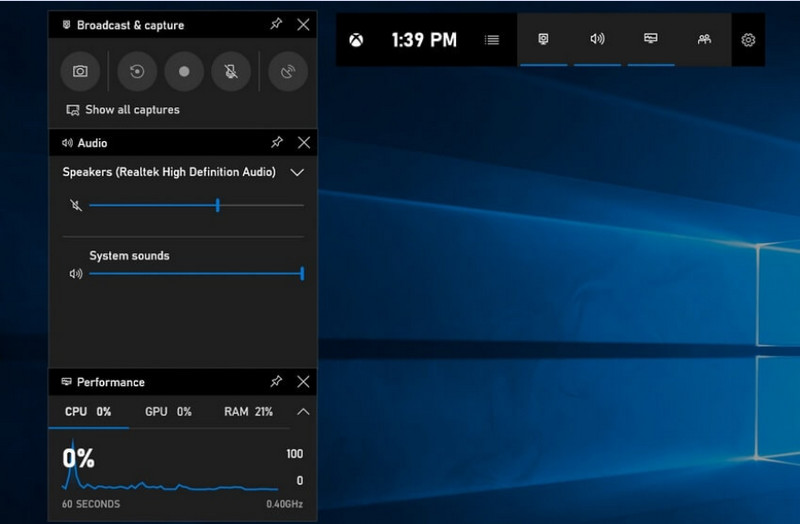
Langkah 4Perekaman mikrofon dapat diaktifkan dengan mengklik mikrofon tombol sebelum atau selama perekaman.
Langkah 5Untuk menghentikan perekaman, tekan Jendela + Alt + R untuk kedua kalinya atau tekan Berhenti (■) tombol pada bilah mengambang.
Langkah 6Video yang Anda rekam akan otomatis tersimpan di Video > Tangkapan folder di komputer Anda.
Bagian 2. Pilihan Profesional
1. Menggunakan Perekam Layar OBS
Perekam Layar OBS adalah perekam layar sumber terbuka gratis yang umum digunakan untuk merekam dan melakukan streaming konten langsung. Aplikasi ini menyediakan pengaturan yang dapat disesuaikan yang memungkinkan Anda merekam seluruh tampilan, jendela tertentu, atau beberapa sumber secara bersamaan. Kontrol video dan audio yang canggih menjadikannya pilihan efektif bagi pengguna yang tidak hanya tertarik pada jenis perekaman layar yang paling sederhana.
Pertunjukan:
OBS Screen Recorder adalah perangkat lunak dengan akselerasi perangkat keras yang memberikan kinerja andal, memungkinkan perekaman 1080p 60fps yang lancar. Setelah diinstal, perangkat lunak ini dapat beroperasi secara efektif, dengan output yang konsisten dan latensi rendah, selama sesi perekaman yang panjang pada sistem yang kompatibel.
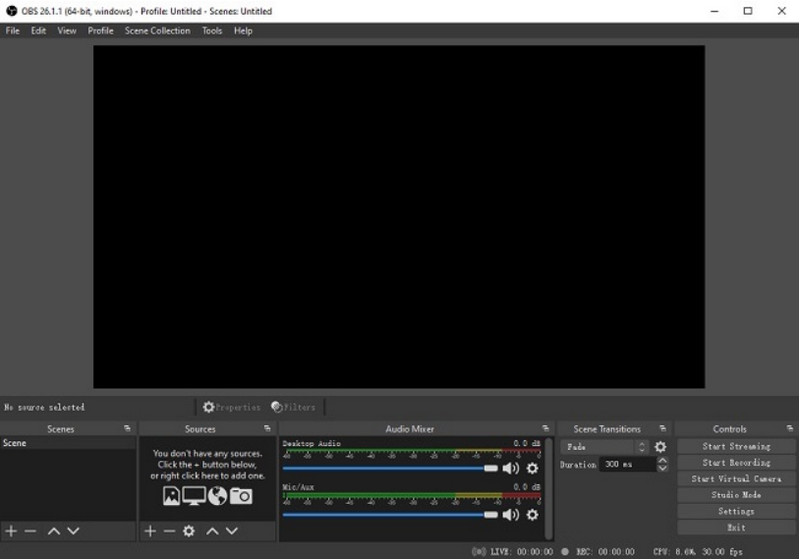
Langkah 1Kunjungi situs resmi OBS Screen Recorder, unduh penginstalnya, dan selesaikan instalasi.
Langkah 2Membuka Perekam Layar OBSAnda akan diperhadapkan dengan antarmuka utama dengan panel-panel seperti... Adegan dan Sumber.
Langkah 3Di panel Adegan, klik + tekan tombol dan beri nama adegan Anda.
Langkah 4Anda dapat menambahkan tangkapan layar atau tangkapan jendela (untuk menangkap aplikasi tertentu) dengan mengklik + dalam Sumber panel dan pemilihan Tampilan Tangkapan atau Tangkapan Jendela.
Langkah 5Uji coba Pencampur Audio dengan mengaktifkan dan menyesuaikan mikrofon dan suara sistem.
Langkah 6tekan Mulai merekam tombol di sisi kanan antarmuka.
Langkah 7Setelah selesai, klik Berhenti MerekamVideo ini akan otomatis ditempatkan di folder default Anda.
2. Menggunakan Perekam Layar AVAide
Perekam Layar AVAide adalah alat sederhana namun efisien untuk merekam aktivitas layar dengan kualitas tinggi. Alat ini ditujukan bagi pengguna yang membutuhkan sistem perekaman yang mudah digunakan dengan audio jernih, sistem perekaman yang fleksibel dengan konfigurasi minimal, dan kontrol yang intuitif.
Pertunjukan:
AVAide Screen Recorder dioptimalkan untuk merekam dengan lancar dan stabil, bahkan selama sesi yang panjang. Perangkat lunak ini dapat mendukung output resolusi tinggi hingga 4K/1080p dengan latensi minimal pada aplikasi umum. Perangkat lunak ini dapat secara efektif mengelola perekaman layar dan audio secara bersamaan untuk memastikan suara sistem dan input mikrofon tetap sinkron.
- Merekam layar dengan kualitas tinggi dan performa yang lancar tanpa jeda.
- Merekam suara sistem dan mikrofon secara bersamaan dengan output audio yang jernih.
- Mendukung perekaman webcam dengan overlay gambar-dalam-gambar yang dapat disesuaikan.
- Memungkinkan perekaman layar penuh, jendela yang dipilih, atau area khusus.
- Termasuk alat pengeditan bawaan untuk memangkas, meningkatkan kualitas, dan mengekspor video.

 Unduh Aman
Langkah 1Unduh dan Instal Alat
Kunjungi situs web resmi AVAide Screen Recorder. Unduh installer untuk sistem Windows Anda dan ikuti proses instalasinya.
Langkah 2Luncurkan Perangkat Lunak
Instalasi dapat dilakukan dengan membuka program. Pada antarmuka utama, Anda dapat memilih Perekam Layar Sebagai permulaan.
Langkah 3Pilih Area Perekaman
Pilih diantara Penuh dan Kebiasaan mode perekaman sesuai kebutuhan Anda.
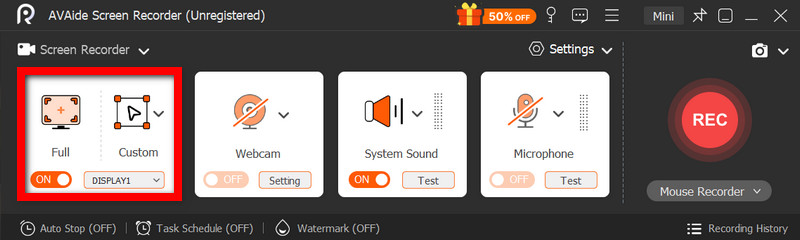
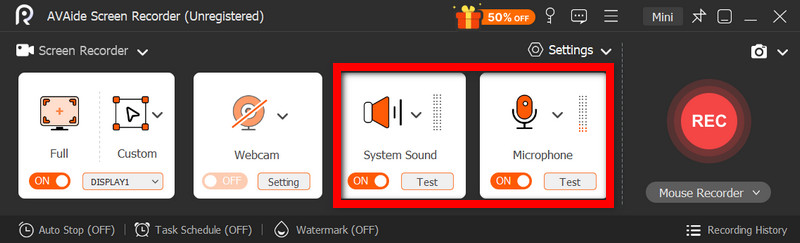
Langkah 4Siapkan Audio dan Webcam
Memungkinkan Sistem Audio dan Mikropon Jika Anda memerlukan audio, webcam juga dapat diaktifkan untuk merekam wajah.
Langkah 5Mulai merekam
Untuk memulai perekaman layar Anda, tekan tombol REKAM tombol. Anotasi dapat ditambahkan selama perekaman jika diperlukan.
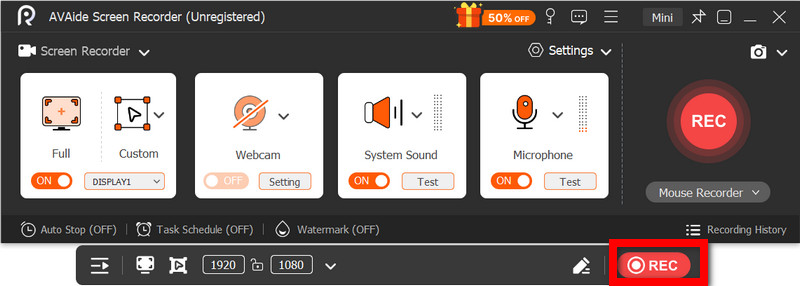
Langkah 6Hentikan dan Simpan Rekaman
Klik Berhenti Tekan tombol setelah selesai. Rekaman akan disimpan secara otomatis, dan Anda dapat melihat pratinjau atau mengeditnya langsung.
Bagian 3. Metode Gratis & Sederhana Lainnya
1. Menggunakan Snipping Tool (Windows 11)
Snipping Tool di Windows 11 menyertakan perekaman layar bawaan, yang menyediakan cara sederhana dan cepat untuk merekam aktivitas layar tanpa perlu menginstal perangkat lunak tambahan. Fitur ini paling efektif untuk klip pendek, tutorial, dan pekerjaan perekaman sederhana.
Pertunjukan:
Snipping Tool cocok untuk rekaman ringan dan menawarkan pengambilan gambar yang lancar untuk bagian-bagian kecil. Namun demikian, alat ini kurang fitur, tidak mendukung pengaturan tingkat lanjut, dan mungkin tidak dapat menangani rekaman panjang atau berkinerja tinggi seefisien alat khusus lainnya.
Langkah 1Buka alat Snipping dengan mengklik Awal Tidak bisa.
Langkah 2Untuk menggunakan toolbar, klik Catatan.
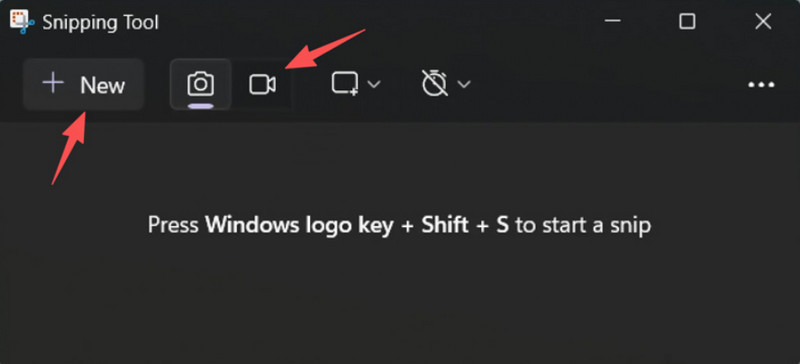
Langkah 3Untuk merekam rekaman baru, pilih Baru.
Langkah 4Pilih area layar yang ingin Anda tangkap.
Langkah 5Klik Awal untuk mulai merekam.
Langkah 6Klik Berhenti Setelah selesai, simpan rekaman Anda.
2. Menggunakan Microsoft PowerPoint (Semua Versi Windows)
Microsoft PowerPoint menyertakan fitur perekaman layar yang memungkinkan Anda mengambil tangkapan layar dan memasukkannya ke dalam presentasi. Ini juga merupakan alternatif mudah untuk mengembangkan tutorial, demonstrasi, atau slide pengajaran tanpa memerlukan perangkat lunak perekaman tambahan.
Pertunjukan:
PowerPoint memberikan hasil yang konsisten dalam perekaman layar sederhana, terutama untuk presentasi dan demonstrasi singkat. Meskipun menawarkan kualitas video yang cukup baik, PowerPoint kurang memiliki kontrol tingkat lanjut dan mungkin tidak cocok untuk kualitas video yang direkam dalam durasi panjang.
Langkah 1Buka Microsoft PowerPoint dan siapkan presentasi baru atau presentasi yang sudah ada.
Langkah 2Klik tab Sisipkan, lalu Perekaman Layar.
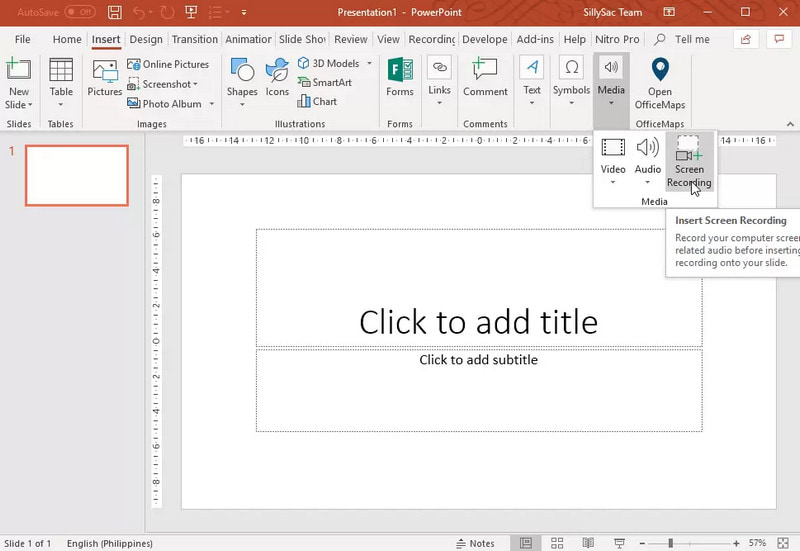
Langkah 3Pilih bagian layar yang ingin Anda tangkap.
Langkah 4Izinkan perekaman audio atau penunjuk jika diperlukan.
Langkah 5Klik Catatan untuk memulai perekaman layar Anda.
Langkah 6Untuk mengakhiri perekaman, tekan Windows + Shift + Q.
Langkah 7Untuk menyimpan rekaman, klik kanan video dan pilih Simpan Media Sebagai.
Bagian 4. Memecahkan Masalah Umum
| Masalah | Larutan |
| Game Bar tidak mau terbuka atau merekam. | Di pengaturan, Anda dapat menonaktifkan Xbox Game Bar. Buka Pengaturan > Permainan > Bilah Permainan dan putar DIMencoba menekan Windows + G sekali lagi, dan memulai ulang PC Anda (jika perlu). |
| Rekaman tersebut tidak memiliki suara. | Pastikan audio sistem dan mikrofon diaktifkan di pengaturan Game Bar. Selain itu, pastikan perangkat suara Anda tidak dibisukan atau salah dipilih di Pengaturan Suara Windows. |
| Laptop Dell saya berjalan lambat saat merekam. | Gunakan Tutup atau Minimalkan untuk mengurangi aplikasi dan tab browser yang tidak perlu. Beralihlah ke mode Kinerja Tinggi di pengaturan daya dan kurangi resolusi perekaman jika perlu untuk meningkatkan kinerja. |
| Kualitas video yang direkam buruk. | Atur kualitas perekaman ke pengaturan terbaik yang tersedia di Game Bar, terutama saat merekam Google Meet sesi. Atur tampilan Anda ke resolusi aslinya dan perbarui driver grafis Anda agar lebih tajam dan stabil. |
Sedang belajar cara merekam layar di laptop Dell Ini akan memberi Anda fleksibilitas untuk tutorial, rapat, atau bahkan bermain game. Baik itu alat bawaan atau perangkat lunak canggih, memilih metode yang tepat akan memastikan perekaman dilakukan dengan mudah dan berkualitas tinggi, serta alur kerja menjadi lebih efisien.
TENTANG PENULIS

Rekam layar, audio, webcam, gameplay, rapat online, serta layar iPhone/Android di komputer Anda.