“Gambarnya tidak seharusnya buram. Powerpoint melakukannya secara otomatis saat Anda memperbesarnya, dan hasilnya terlihat buruk. Apakah ada cara agar tidak terlihat seperti itu?”-Reddit
Nah, jika Anda ingin mengatasi masalah Anda, kami siap membantu Anda. Dalam postingan ini, kami akan memberikan petunjuk terperinci tentang cara menghilangkan blur pada gambar di PowerPoint. Dengan begitu, Anda tetap bisa mendapatkan kualitas gambar terbaik. Selain itu, Anda juga akan mempelajari berbagai alasan mengapa gambar menjadi buram pada perangkat lunak. Kami menganjurkan Anda untuk membaca semua hal dalam postingan ini dan mempelajari lebih lanjut tentang cara paling efektif untuk menghilangkan blur pada gambar di PowerPoint.
Bagian 1. Mengapa Gambar Menjadi Buram di PowerPoint
Sebelum memperbaiki masalah, ada baiknya memahami mengapa PowerPoint menurunkan kualitas visual Anda:
- Kompresi Otomatis: Untuk menjaga agar ukuran file presentasi tetap kecil, PowerPoint secara otomatis mengompres gambar selama proses penyimpanan.
- Resolusi Sumber Rendah: Membentangkan gambar kecil atau beresolusi rendah di sepanjang slide besar akan menyebabkan pikselasi.
- Degradasi Salin-Tempel: Menyeret atau menempelkan gambar langsung dari web ke PowerPoint sering kali menyalin file cache berkualitas rendah alih-alih aset sumber aslinya.
- Format Lossy: Format seperti JPEG mengalami penurunan kualitas setiap kali disimpan. Format lossless (seperti PNG) mempertahankan ketajaman gambar jauh lebih baik.
Bagian 2. Cara Menghilangkan Keburaman Gambar di PowerPoint
Jika Anda ingin menghilangkan keburaman pada gambar di PowerPoint, ada berbagai metode yang dapat Anda gunakan. Jadi, untuk menemukan solusi terbaik guna mencapai tujuan Anda, lihat semua tutorial di bagian ini.
Metode 1: Nonaktifkan opsi Jangan kompres
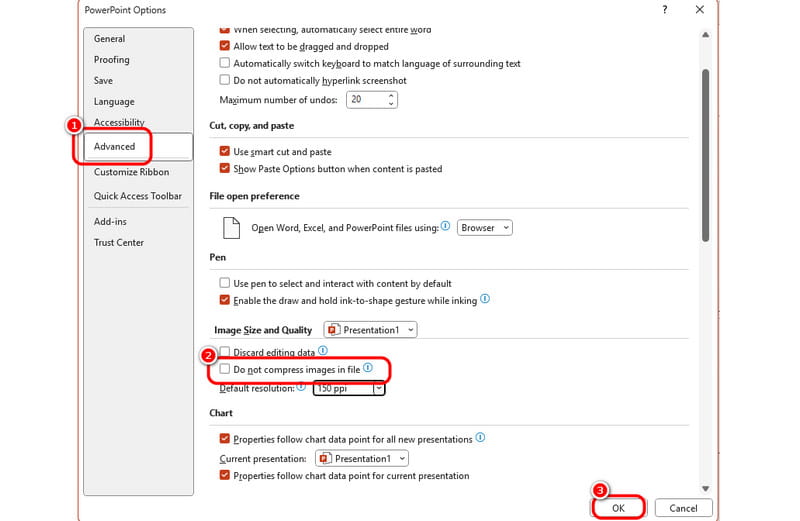
Seperti yang telah kita bahas, program PowerPoint dapat secara otomatis mengompres gambar yang Anda sisipkan. Jadi, jika Anda ingin mencegah tindakan semacam ini, Anda harus mencegahnya mengompres foto. Untuk melakukan itu, Anda dapat mengikuti langkah-langkah sederhana di bawah ini.
Langkah 1Bukalah Power Point perangkat lunak dan lanjutkan ke Mengajukan > Pilihan bagian. Setelah itu, Opsi PowerPoint Jendela akan muncul di layar Anda.
Langkah 2Setelah itu, pergi ke Canggih > Ukuran dan Kualitas Gambar opsi. Kemudian, aktifkan Jangan kompres gambar pilihan.
Langkah 3Centang Oke tombol di bawah untuk menyimpan dan menerapkan perubahan pada proses akhir.
Metode 2: Ubah Resolusi Default
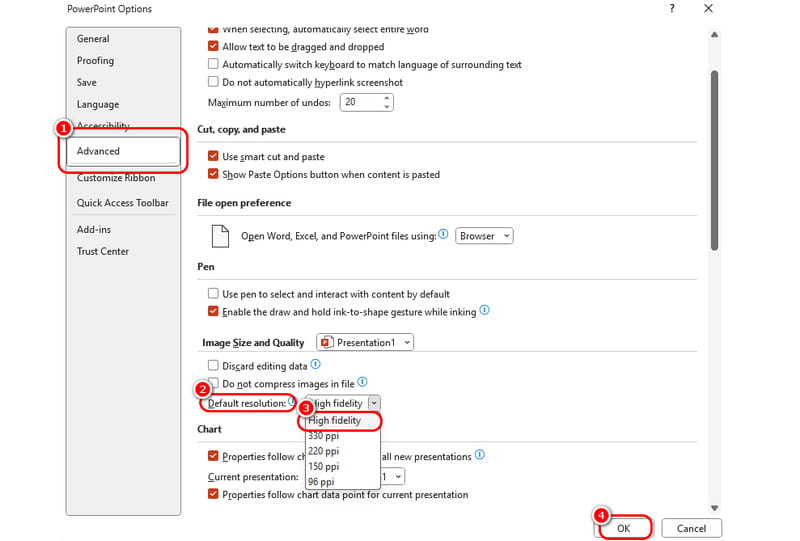
Untuk metode kedua menghilangkan blur pada gambar di PowerPoint, kita akan mengubah resolusi default. Untuk menghilangkan blur pada foto di PowerPoint, cara terbaik adalah mengatur resolusi ke opsi High Fidelity. Jadi, jika Anda ingin melanjutkan prosesnya, lihat metode di bawah ini.
Langkah 1Setelah Anda meluncurkan perangkat lunak PowerPoint, klik Mengajukan tekan tombol di pojok kiri atas dan pilih Pilihan dari antarmuka kiri.
Langkah 2Ketika Opsi PowerPoint Jendela muncul, klik Canggih tombol dan pilih Ukuran dan Kualitas Gambar pilihan.
Langkah 3Klik Resolusi Default tekan tombol dan pilih opsi High-Fidelity. Setelah selesai, klik tombol Oke tombol untuk menerapkan perubahan. Jika Anda ingin meningkatkan resolusi gambar, Anda dapat menggunakan metode ini.
Metode 3: Sesuaikan Ketajaman Gambar
Sebagai metode terakhir, Anda dapat menggunakan fitur ketajaman untuk memperbaiki gambar yang buram. Prosesnya sederhana, sehingga ideal untuk pemula. Ikuti langkah-langkah di bawah ini untuk mulai memperbaiki gambar buram di PowerPoint.
Langkah 1Hal pertama yang perlu dilakukan adalah memasukkan gambar ke PowerPoint. Temukan presentasi Anda, lalu buka bagian... Menyisipkan > Gambar > Alat ini opsi untuk menambahkan gambar.
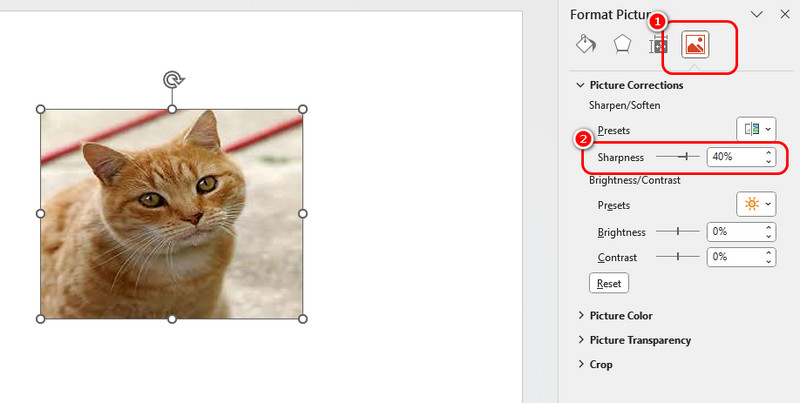
Langkah 2Klik kanan gambar dan tekan Format Gambar pilihan. Dengan itu, berbagai fungsi akan muncul di antarmuka sebelah kanan.
Langkah 3Klik Gambar tekan tombol dan lanjutkan ke Koreksi Gambar bagian. Kemudian, pilih Ketajaman fungsi dan gunakan slider untuk menyesuaikan tingkat ketajaman gambar. Setelah selesai, Anda dapat menyimpan presentasi Anda ke Mengajukan > Simpan sebagai pilihan.
Tips Profesional untuk Mempertahankan Tampilan Presentasi yang Tajam
- Gunakan Format Tanpa Kehilangan Data (Lossless): Selalu condong ke arah PNG atau BERTENGKAR file yang membutuhkan transparansi dan garis tajam.
- Sisipkan, Jangan Tempel: Menggunakan Menyisipkan > Foto-foto > Alat ini alih-alih menggunakan Ctrl+C / Ctrl+V dari browser untuk mempertahankan metadata dan kualitas asli.
- Sesuaikan Rasio Aspek: Hindari meregangkan gambar secara manual melalui pegangan samping. Tahan Shift sambil menyeret sudut untuk mengubah ukurannya secara proporsional.
- Perbaiki Sebelum Menambahkan: Anda dapat menggunakan sebuah Penguat piksel AI Untuk meningkatkan kualitas foto sebelum menambahkannya ke PowerPoint. Ini akan membuat tampilan visual lebih baik.
Bagian 3. Metode Online untuk Menghilangkan Keburaman Gambar Secara Gratis
Bagaimana jika gambar itu sendiri terlalu kecil atau buram? Anda bisa mengubah semua pengaturan yang diinginkan di PowerPoint, tetapi itu tidak akan mengembalikan piksel yang hilang. Terlebih lagi, terlalu rumit untuk menyesuaikan setiap foto satu per satu di PowerPoint.
Di situlah Penambah Gambar AVAide Solusi online hadir. Ini adalah alat berbasis browser gratis yang menggunakan AI untuk memperbaiki foto buram untuk PowerPoint secara instan.
Fitur Utama AVAide Image Upscaler:
- Peningkatan 8x: Fitur ini tidak hanya meregangkan foto Anda; fitur ini menggunakan AI Upscaling untuk memperbesar foto hingga 2×, 4×, 6×, atau 8× ukuran aslinya.
- 100% Gratis & Tanpa Tanda Air: Anda mendapatkan unduhan yang bersih dan beresolusi tinggi tanpa biaya tersembunyi atau logo yang mengganggu.
- Sangat Sederhana: Anda tidak memerlukan keahlian mengedit foto. AI akan menangani pekerjaan berat hanya dengan satu klik.
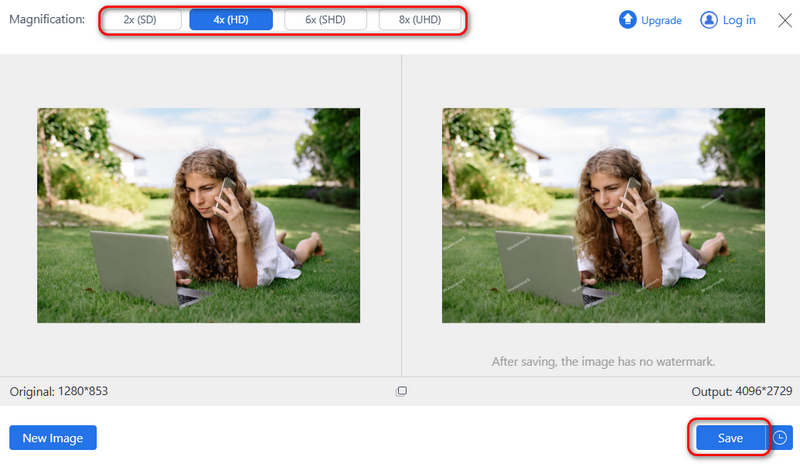
Langkah 1Mengakses Peningkatan Gambar AVAide Online di browser Anda. Klik Unggah Gambar Anda tombol untuk menambahkan foto Anda ke alat online ini. Anda juga dapat mengklik Kelompok tombol untuk menambahkan beberapa foto.

Langkah 2Sekarang, Anda dapat memilih perbesaran yang diinginkan, seperti 2X, 4X, 6X, dan bahkan 8X. Kemudian, klik Menyimpan Tombol untuk memperbaiki foto buram Anda untuk PowerPoint dan menyimpan foto ke penyimpanan lokal Anda.
Bagian 4. Pertanyaan yang Sering Diajukan (FAQ) tentang Menghilangkan Buram pada Gambar di PowerPoint
Bagaimana cara mengekstrak gambar di PowerPoint?
Buka perangkat lunak PowerPoint Anda, lalu klik Mengajukan > Pilihan > Canggih > Ukuran dan Kualitas GambarKemudian, aktifkan Jangan kompres gambar dalam file..
Bisakah foto yang buram diperbaiki?
Jika sebuah foto diburamkan secara manual, sangat sulit untuk mengembalikannya ke bentuk semula. Meningkatkan resolusi atau ketajaman saja mungkin tidak membantu, dan Anda mungkin perlu menggunakan alat AI untuk "membuat" piksel baru untuk foto tersebut.
Bagaimana cara melembutkan gambar di PowerPoint?
Klik pada gambar untuk memilihnya. Lanjutkan ke Format Gambar Buka tab di bagian atas layar Anda. Klik Efek Gambar (di grup Gaya Gambar), arahkan kursor ke Tepi Halus, dan pilih persentase preset (misalnya, 5 Poin, 10 Poin, dll.) untuk melihat perpaduannya secara instan.
Postingan ini menunjukkan kepada Anda tiga cara resmi untuk memperbaiki gambar buram di PowerPointAnda juga dapat mempelajari beberapa kiat untuk menjaga kualitas foto tetap tinggi. Namun, jika foto Anda terlalu kecil, fitur-fitur di PowerPoint tidak dapat membantu Anda, jadi Anda dapat menggunakan Penambah Gambar AVAide untuk langsung meningkatkan resolusi foto sebelum Anda menambahkannya ke presentasi Anda.
TENTANG PENULIS


Teknologi AI kami akan secara otomatis meningkatkan kualitas gambar Anda, menghilangkan noise, dan memperbaiki gambar buram secara online.
PROSES SEKARANG