Bagaimana caranya mengedit rekaman suaraMengedit rekaman suara Anda adalah cara efektif untuk meningkatkan berbagai aspek file audio. Anda dapat meningkatkan kejernihan, memangkas bagian-bagian tertentu, menambah dan mengurangi volume, menambahkan efek, dan banyak lagi, sehingga menghasilkan pemutaran audio yang lebih baik. Baik untuk wawancara, catatan pribadi, atau podcast, mempelajari praktik pengeditan terbaik sangat penting untuk mencapai hasil yang Anda inginkan. Dalam panduan ini, kami akan mengajari Anda cara mengedit rekaman suara Anda menggunakan alat pengeditan audio terbaik. Mari pelajari lebih lanjut tentang prosesnya di sini.
Bagian 1. Mengedit Rekaman Suara di iPhone
Ingin mempelajari cara mengedit rekaman suara di iPhone? iPhone menawarkan aplikasi yang dapat Anda andalkan untuk mengedit rekaman suara Anda, terutama untuk memangkas, menggabungkan, dan menghapus bagian tertentu. Untuk memulai prosesnya, Anda dapat memeriksa semua langkah yang disediakan di bagian ini.
Memangkas Rekaman pada Memo Suara
Memo Suara bukan hanya salah satu dari aplikasi perekam suara terbaikAplikasi ini juga menawarkan alat pengeditan yang dapat Anda andalkan untuk mengedit audio Anda. Dengan aplikasi perekaman/pengeditan ini, Anda dapat memangkas audio untuk menghilangkan bagian yang tidak perlu. Selain itu, aplikasi ini memiliki tata letak yang sederhana, sehingga lebih ideal dan mudah diakses, terutama bagi pengguna non-profesional.
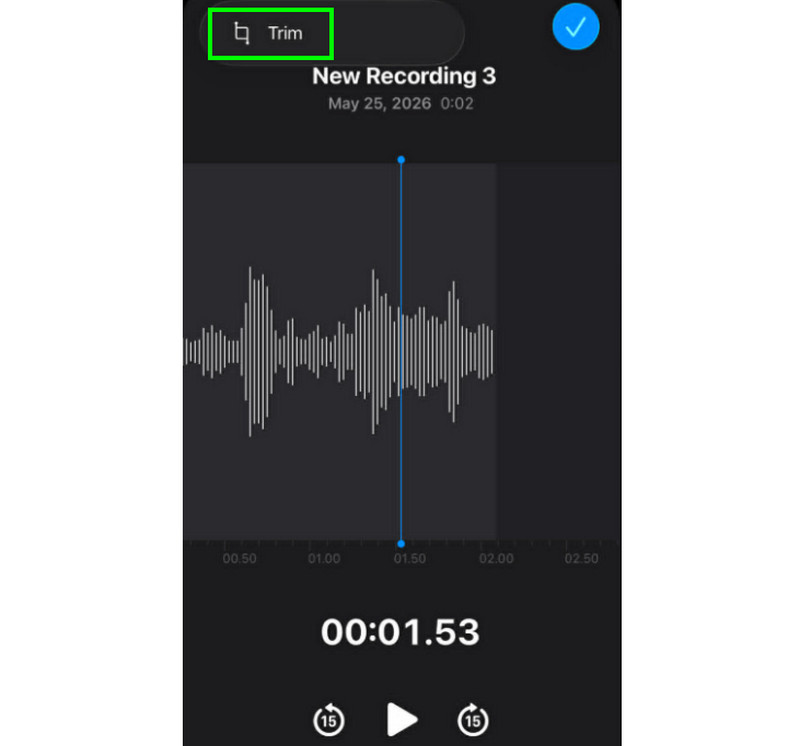
Langkah 1Luncurkan Memo Suara Buka aplikasi dan cari rekaman suara yang ingin Anda edit. Kemudian, klik Memangkas fungsi.
Langkah 2Setelah itu, Anda bisa mulai memangkas audio. Kemudian, tekan tombol Memangkas Klik tombol di bawah untuk mulai menghapus bagian yang tidak diinginkan dari audio.
Langkah 3Setelah dipangkas, Anda bisa menekannya. Berlaku Klik tombol di atas untuk menyimpan perubahan.
Cara Menghapus Bagian di Tengah
Selama proses pemangkasan, mungkin Anda berpikir bahwa Anda hanya dapat memangkas bagian pertama atau terakhir dari trek. Keunggulan aplikasi Voice Memos adalah Anda juga dapat menghapus bagian di tengah. Dengan kemampuan ini, Anda dapat memastikan bahwa menghapus bagian yang tidak perlu dari trek audio menjadi tugas yang mudah.
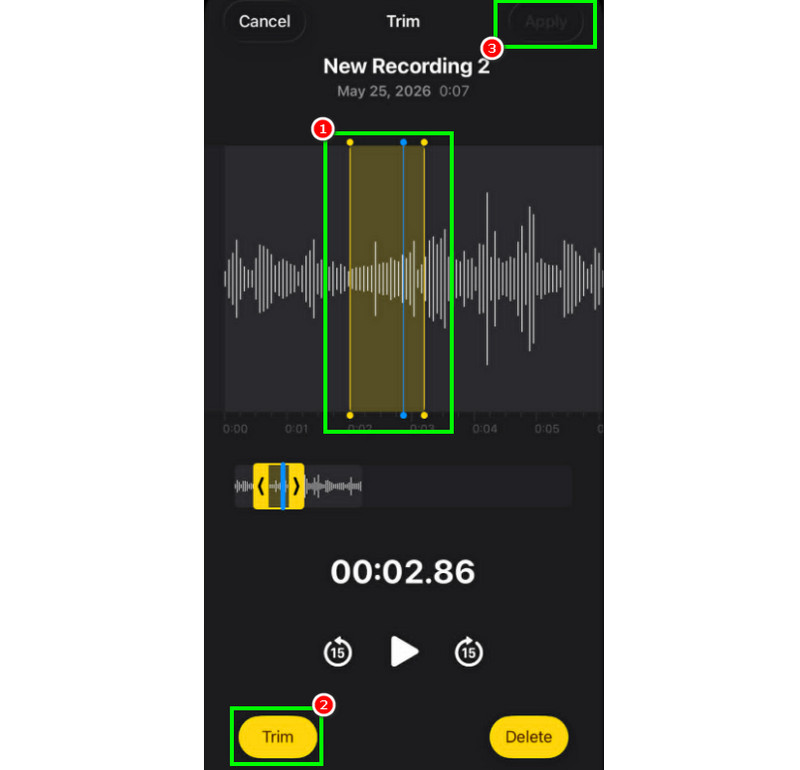
Langkah 1Setelah memilih Memangkas fitur ini memungkinkan Anda untuk menyentuh dan mengontrol garis yang dapat disesuaikan dari trek.
Langkah 2Sisipkan atau sesuaikan garis ke bagian tengah tempat Anda ingin menghapus trek. Setelah itu, tekan tombol Memangkas tombol dibawah.
Langkah 3Mengetuk Berlaku untuk menyimpan rekaman suara yang telah diedit.
Cara Menggabungkan Trek dalam Memo Suara
Voice Memos adalah alat yang ideal untuk merekam suara dan konten audio apa pun. Bahkan dapat mengedit rekaman, seperti memangkas atau menghapus bagian tertentu. Namun, jika Anda ingin menggabungkan trek, sayangnya alat ini tidak mampu melakukannya. Untuk penggabungan trek yang lebih baik, akan lebih baik menggunakan aplikasi pengeditan audio yang lebih canggih, seperti GarageBand. Aplikasi ini memastikan Anda dapat menggabungkan trek dan membuat satu file tunggal.
Cara Berbagi dan Mengekspor Memo Suara yang Telah Diedit
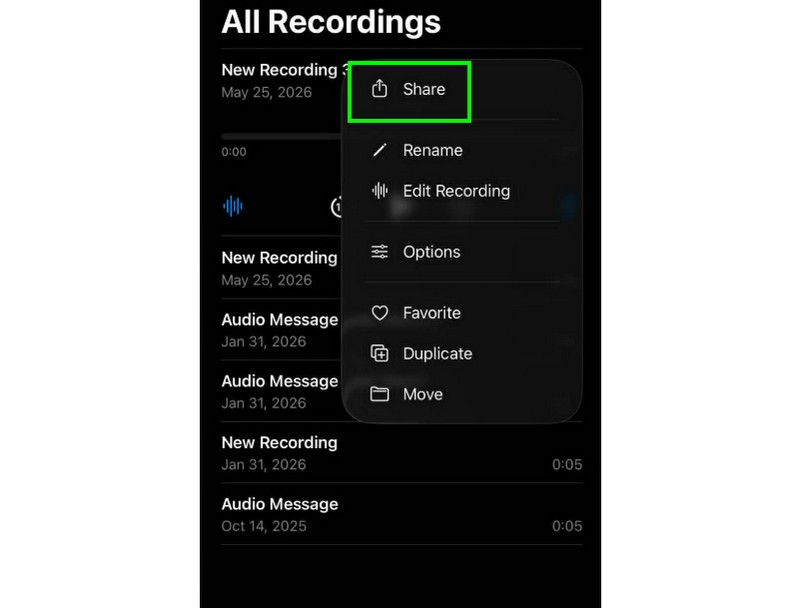
Berbagi dan mengekspor rekaman suara yang telah diedit sangat mudah. Yang perlu Anda lakukan hanyalah menemukan rekaman di aplikasi Voice Memos dan menekan tombol tiga titik. Setelah itu, tekan fungsi Bagikan. Dengan begitu, Anda dapat mulai membagikan rekaman di berbagai platform. Anda bahkan dapat menyimpannya ke folder yang Anda inginkan.
Aplikasi Pengeditan iPhone yang Direkomendasikan
Apakah Anda menginginkan perangkat lunak perekaman dan pengeditan suara lainnya? Karena aplikasi Voice Memos memiliki keterbatasan dalam hal mengedit rekaman suara Anda, terkadang Anda perlu menggunakan alat pengeditan lain. Dalam hal ini, untuk pengeditan yang lebih baik, Anda dapat mencoba menggunakan GarageBand, Ferrite Recording Studio, dan Hokusai Audio Editor.
Bagian 2. Mengedit Rekaman Suara di Android
Apakah Anda pengguna Android dan ingin mengedit rekaman suara Anda? Jika ya, Anda dapat menggunakan aplikasi ini. Perekam Suara SamsungIni adalah aplikasi gratis yang dapat Anda gunakan untuk mengedit rekaman suara Anda. Aplikasi ini dapat membantu Anda memangkas rekaman sesuai preferensi Anda. Aplikasi ini menawarkan antarmuka pengguna yang sederhana, sehingga mudah dinavigasi.
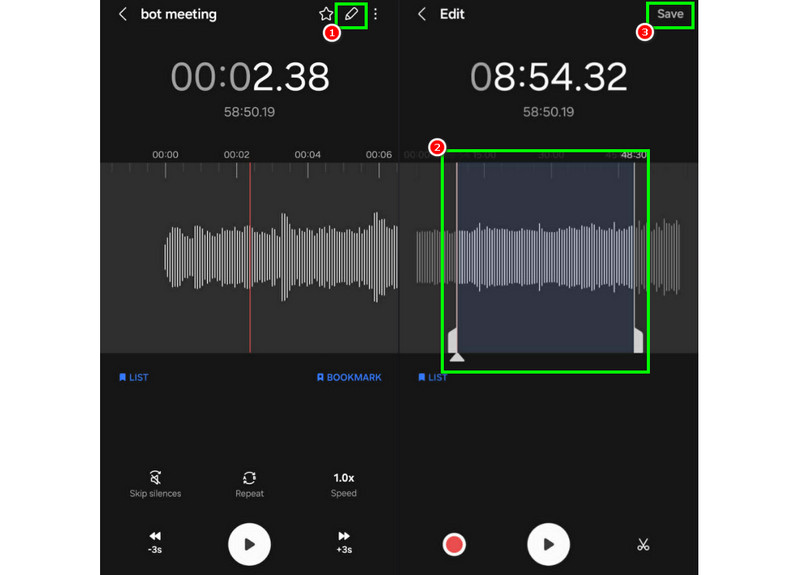
Langkah 1Luncurkan Perekam Suara SamsungSetelah itu, lanjutkan ke rekaman yang ingin Anda edit.
Langkah 2Kemudian, buka rekaman dan tekan tombol Sunting fungsi di atas.
Langkah 3Anda dapat memulai proses pemangkasan dengan menyesuaikan garis dari trek. Setelah selesai, Anda dapat mencentang Menyimpan tombol di atas.
Bagian 3. Cara Mengedit Rekaman Suara di Komputer Desktop
Ingin mengedit rekaman suara Anda di komputer desktop? Kalau begitu, bacalah di sini karena kami menawarkan metode terbaik yang dapat Anda gunakan untuk proses pengeditan rekaman suara yang efektif.
Metode 1. Mengedit Rekaman Suara Menggunakan Audacity
Kenekatan adalah salah satu editor berbasis desktop gratis yang dapat Anda andalkan untuk mengedit rekaman Anda. Anda dapat memangkas audio, menambahkan efek, dan melampirkan trek lain. Anda bahkan dapat merekam audio komputer di Audacity dan editlah sesuai preferensi Anda. Satu-satunya masalah di sini adalah tata letaknya kurang menarik.
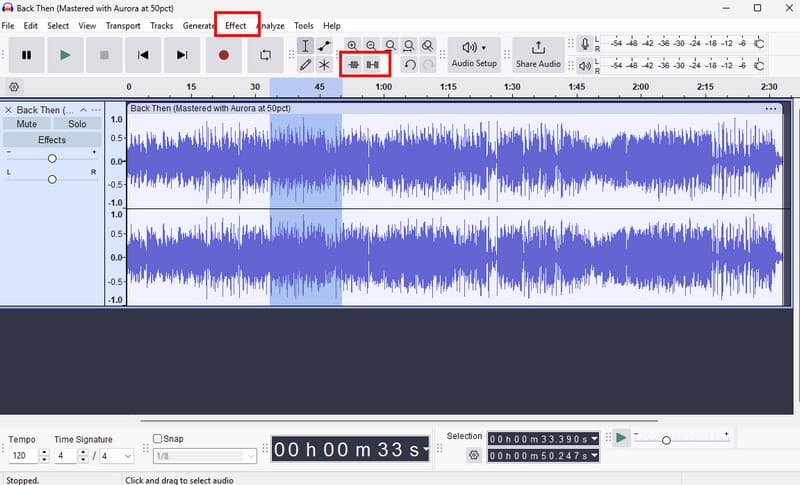
Langkah 1Unduh Kenekatan di komputer Anda. Kemudian, lanjutkan ke Mengajukan > Membuka Opsi untuk menambahkan rekaman Anda.
Langkah 2Anda dapat mulai mengedit file Anda. Anda dapat memangkas trek, menambahkan efek, menyesuaikan tempo, dan banyak lagi.
Langkah 3Setelah selesai, ketuk Mengajukan > Simpan Proyek untuk menyimpannya di perangkat Anda.
Metode 2. Mengedit Rekaman Suara Menggunakan AVAide Video Converter
Jika Anda menginginkan editor kelas profesional, cobalah mengakses Pengonversi Video AVAideProgram ini memungkinkan Anda mengedit audio dengan berbagai cara. Anda dapat memotong atau memangkas trek tertentu dari rekaman, memisahkannya, dan menggabungkannya. Keunggulannya adalah Anda bahkan dapat menyisipkan efek fade-in dan fade-out pada audio Anda. Selain itu, Anda dapat mengonversi rekaman Anda ke format audio apa pun, seperti MP3, AAC, ALAC, M4A, WAV, dan banyak lagi. Ini memastikan Anda tidak akan mengalami masalah kompatibilitas selama pemutaran. Anda bahkan dapat menyimpan rekaman dengan kualitas terbaik hingga 320 kbps, menjadikan program ini ideal untuk semua penggemar audio.
Langkah 1Unduh Pengonversi Video AVAide Di Mac atau Windows Anda. Kemudian, instal dan jalankan untuk memulai proses pengeditan.

UNDUH GRATIS Untuk Windows 7 atau lebih baru
 Unduh Aman
UNDUH GRATIS Untuk Mac OS X 10.13 atau lebih baru
Unduh AmanLangkah 2Dari Konverter fitur ini memungkinkan Anda menambahkan rekaman suara dengan menekan tombol. Tambahkan File opsi. Anda bahkan dapat menambahkan beberapa file jika Anda mau.
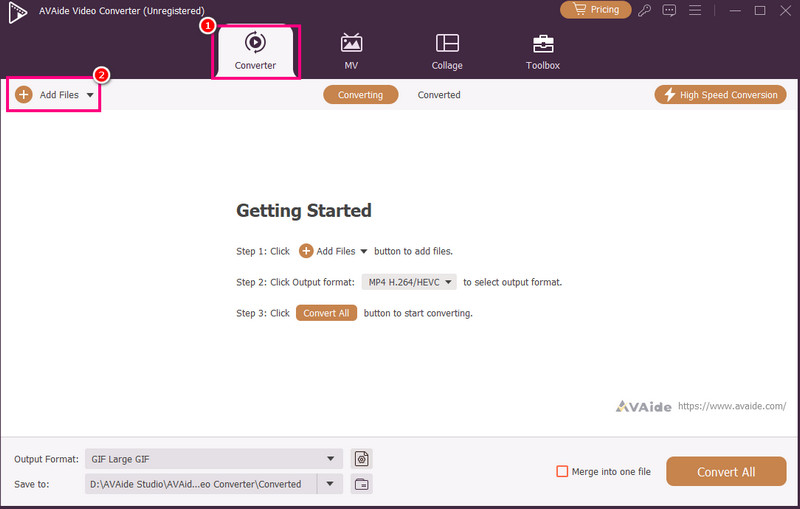
Langkah 3Kemudian, klik Memotong Opsi untuk memulai proses pengeditan. Anda dapat memotong dan menghapus bagian tertentu dari trek. Anda juga dapat menggunakan Membelah fungsi untuk memisahkan trek.
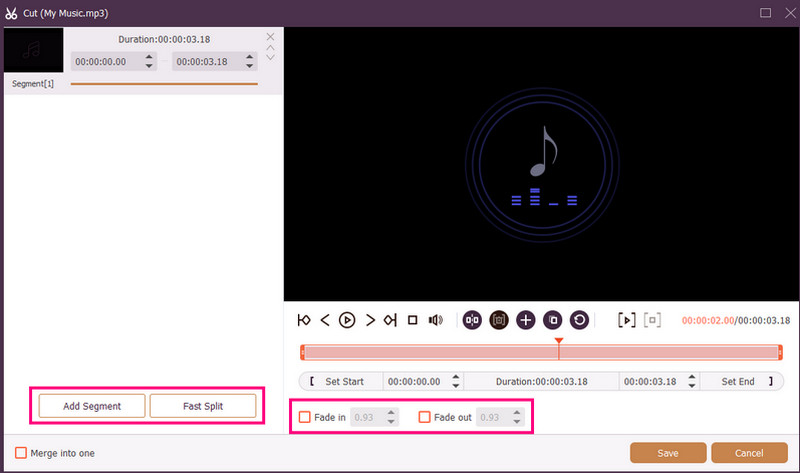
Anda juga dapat melampirkan Memudar Masuk dan Memudar tambahkan efek ke rekaman Anda. Setelah selesai, tekan Menyimpan.
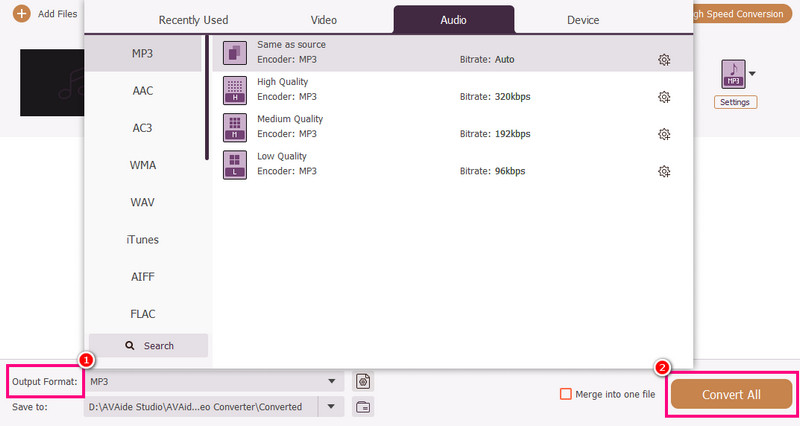
Langkah 4Anda juga bisa pergi ke Format output Di bagian ini, pilih format audio yang Anda inginkan. Terakhir, centang Konversi Semua untuk memulai proses penyimpanan.
Metode 3. Mengedit Rekaman Suara Menggunakan Adobe Audition
Audisi Adobe adalah alat andal yang dapat Anda gunakan untuk mengedit rekaman suara Anda. Alat ini bahkan menawarkan alat pengeditan dasar dan lanjutan, sehingga ideal untuk semua pengguna, terutama para profesional. Anda dapat memangkas rekaman, menerapkan efek, melapisi trek, dan banyak lagi. Namun, Anda harus cukup terampil untuk menggunakan alat ini karena antarmuka penggunanya memiliki kurva pembelajaran yang curam.
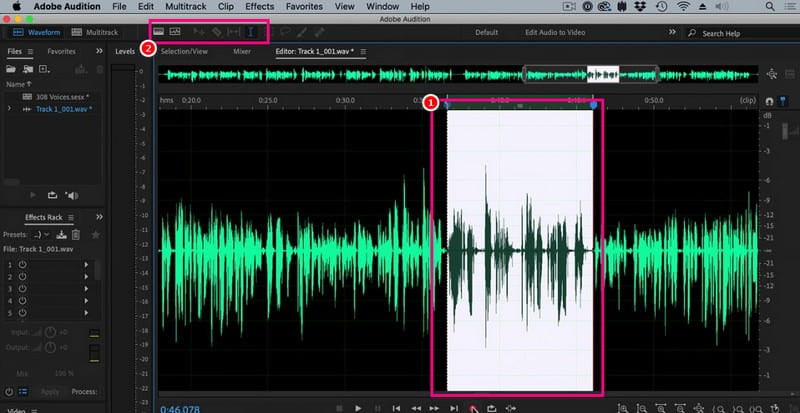
Langkah 1Unduh Audisi Adobe di komputer Anda. Setelah itu, mulailah menambahkan rekaman suara yang ingin Anda edit.
Langkah 2Anda dapat menggunakan mouse/kursor untuk menyorot bagian tertentu dari trek dan mengeditnya. Anda dapat memangkas, menambahkan efek, dan memisahkan audio dengan menggunakan semua alat pengeditan dari antarmuka atas.
Langkah 3Setelah mengedit audio, Anda dapat melanjutkan ke Mengajukan > Menyimpan Pilih opsi di atas untuk memulai proses penyimpanan.
Bagian 4. Mengedit Rekaman Suara Secara Online
Mengedit rekaman suara Anda secara online juga merupakan pilihan. Baca detailnya di bawah ini dan pelajari cara mengedit file audio Anda di browser.
Metode 1. Mengedit Rekaman Suara Menggunakan 123APPS
Alat ini sangat cocok jika Anda ingin mengedit audio Anda secara gratis. Anda dapat memangkas audio, menghilangkan kebisingan latar belakang, menambahkan efek fade, dan banyak lagi. Selain itu, penggunaannya pun sederhana, sehingga ideal untuk pemula.
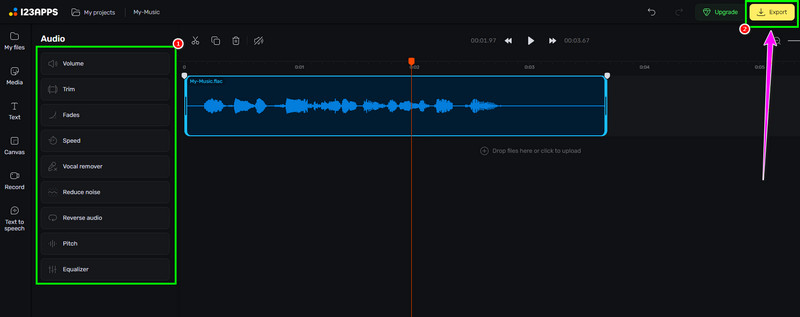
Langkah 1Kunjungi situs web 123APLIKASI dan lanjutkan ke Editor Audio fitur. Setelah itu, tekan Pilih File untuk mengunggah rekaman Anda.
Langkah 2Kemudian, mulailah mengedit audio Anda. Anda dapat memangkas rekaman, menambahkan efek, menghilangkan noise, dan banyak lagi.
Langkah 3Setelah proses pengeditan, klik Ekspor Klik di atas untuk menyimpannya di perangkat Anda.
Metode 2. Mengedit Rekaman Suara Menggunakan Editor Audio Online
Jika Anda menginginkan editor audio berbasis online yang sangat baik yang dapat mengedit rekaman suara Anda, Anda dapat mencoba menggunakan Editor Audio OnlineAlat ini menawarkan berbagai fitur yang dapat Anda gunakan. Beberapa di antaranya adalah pemangkas, pemotong, penghilang kebisingan, pengisi daya cepat, dan banyak lagi. Periksa langkah-langkah di bawah ini dan pelajari cara mengedit rekaman suara.
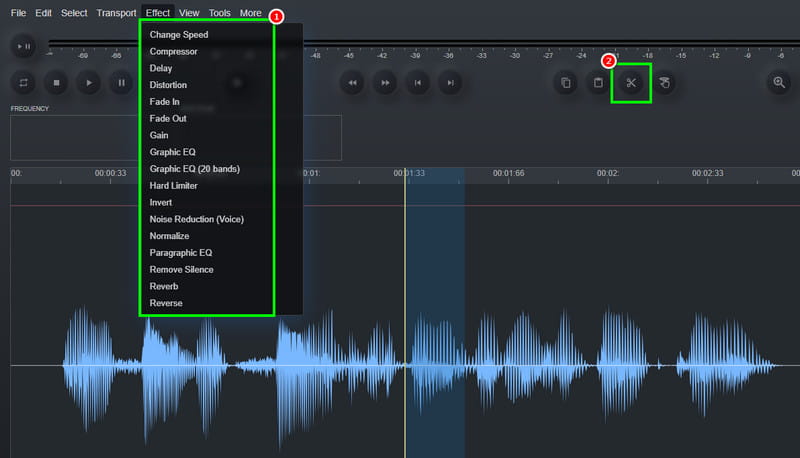
Langkah 1Setelah mengakses Editor Audio Online alat, klik Mengajukan > Membuka Opsi untuk mengunggah rekaman suara.
Langkah 2Anda dapat memulai proses pengeditan. Buka Memengaruhi Bagian ini memungkinkan Anda mengubah kecepatan audio, menambahkan efek, menyesuaikan penundaan, dan banyak lagi. Anda juga dapat menggunakan Memotong alat untuk menghilangkan bagian yang tidak perlu dari rel.
Langkah 3Untuk proses terakhir, tekan tombol Mengajukan > Menyimpan tombol untuk menyimpan rekaman yang telah diedit di komputer Anda.
Bagian 5. Metode Mana yang Harus Anda Pilih?
Apakah Anda bingung memilih metode mana yang tepat? Jika demikian, kami sangat menyarankan untuk menggunakan Pengonversi Video AVAideDalam hal pengeditan, Anda dapat memastikan mendapatkan hasil yang Anda butuhkan. Anda dapat memangkas audio, memisahkan, dan menambahkan beberapa segmen untuk membuat satu file. Anda bahkan dapat mengakses fitur Kompresor Audio program untuk menyeimbangkan ukuran file dan kualitas rekaman Anda. Program ini bahkan memungkinkan Anda untuk mengkonversi audio Anda ke format lain, mencegah Anda mengalami masalah kompatibilitas. Jadi, andalkan program ini dan raih output audio yang Anda inginkan.
Berkat tutorial ini, Anda telah mempelajari cara mengedit rekaman audioJadi, periksa metode yang kami tawarkan dan olah rekaman suara Anda berdasarkan preferensi Anda. Selain itu, jika Anda menginginkan proses pengeditan audio yang lancar, kami sarankan untuk menggunakan Pengonversi Video AVAidePerangkat lunak ini memastikan Anda dapat mengedit dan menyimpan video dengan kualitas terbaik, menjadikannya editor unggulan bagi para pengguna.
TENTANG PENULIS

Kotak peralatan video lengkap Anda yang mendukung 350+ format untuk konversi dalam kualitas lossless.