Kako snimiti glasovnu poruku na iPhoneuPa, snimanje glasovne poruke brz je način dijeljenja misli ili slanja personaliziranog zvuka bez tipkanja. Pomoću ugrađene funkcije glasovnih poruka iPhonea možete trenutačno snimati, spremati i dijeliti svoje audio isječke u samo nekoliko dodira. Dakle, ako tražite sveobuhvatan način snimanja i slanja glasovne poruke na svom mobitelu, pogledajte ovaj vodič kako biste postigli željeni rezultat.
Dio 1. Kako snimiti i poslati glasovnu poruku u iMessageu
iMessage nije samo jednostavan alat za komunikaciju. Također može ponuditi svoju funkciju glasovnih poruka. Pomoću ove značajke možete slati ili dijeliti svoje poruke i misli putem glasa. Ovo je idealna funkcija ako želite slati poruke bez tipkanja teksta s tipkovnice. Najbolji dio je što je slanje glasovne poruke jednostavno, što ga čini savršenim za sve korisnike. Dakle, ako želite započeti snimanje i slanje poruka, možete koristiti upute u nastavku.
Kako snimiti glasovnu poruku na iPhoneu
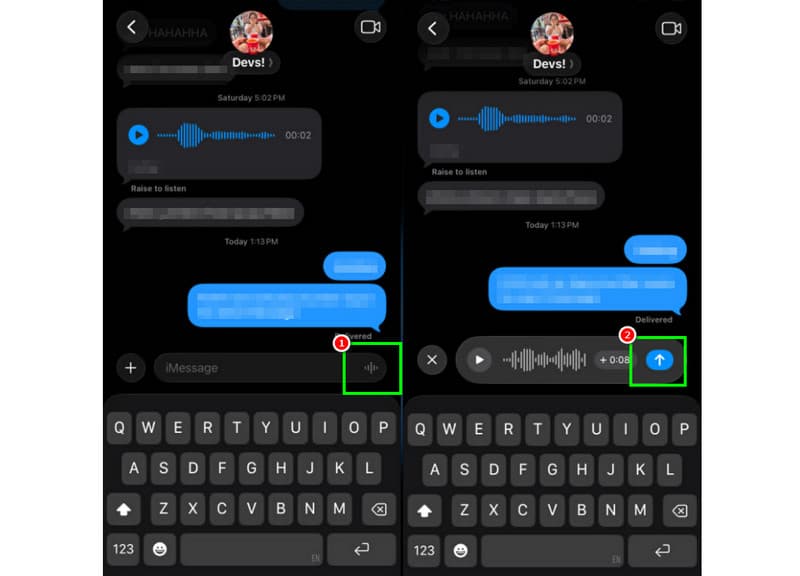
Korak 1Na svom iPhoneu pokrenite iMessage aplikacija. Zatim prijeđite na osobu s kojom želite komunicirati.
Korak 2Na zaslonu pritisnite i držite Mikrofon opcija. Dok držite, možete započeti snimanje i izgovaranje poruke.
Korak 3Za zaustavljanje snimanja otpustite prst s gumba. Zatim dodirnite Pošalji strelicu gumb za slanje poruke.
Slušanje dolaznih glasovnih poruka
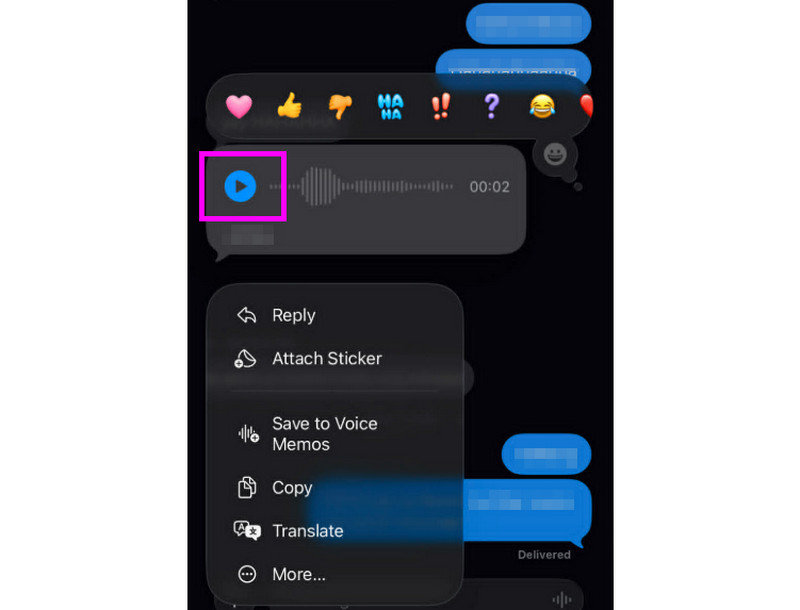
Korak 1Nakon što primite glasovnu poruku, možete dodirnuti igra dugme.
Korak 2Glasnoću možete podesiti i pomoću bočne tipke na iPhoneu kako biste ispravno čuli poruku.
Korak 3Nakon dvije minute, glasovna poruka će isteći. Da biste sačuvali poruku, samo pritisnite Zadržati opcija u nastavku.
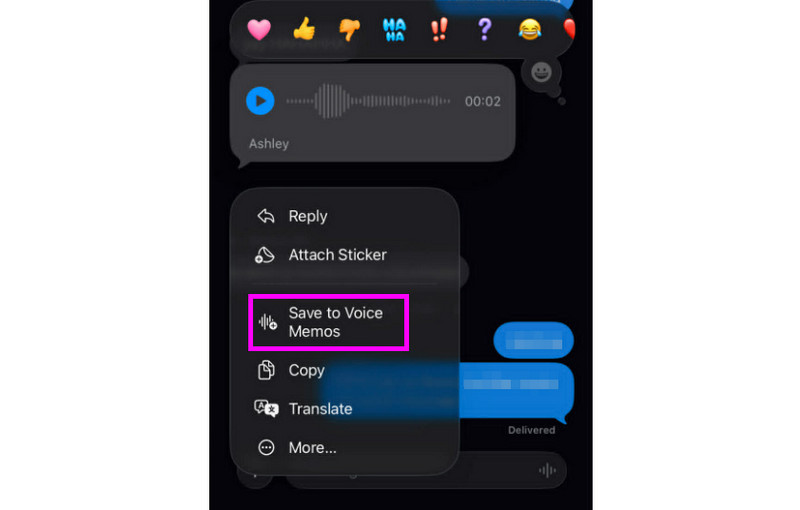
4. korakAko želite spremiti glasovnu poruku, samo je dugo pritisnite i dodirnite Spremi u glasovne bilješke aplikacija. S ovim aplikacija za snimanje glasa, poruku možete ponovno preslušati bilo kada i bilo gdje.
Prilagodite postavke glasovnih poruka
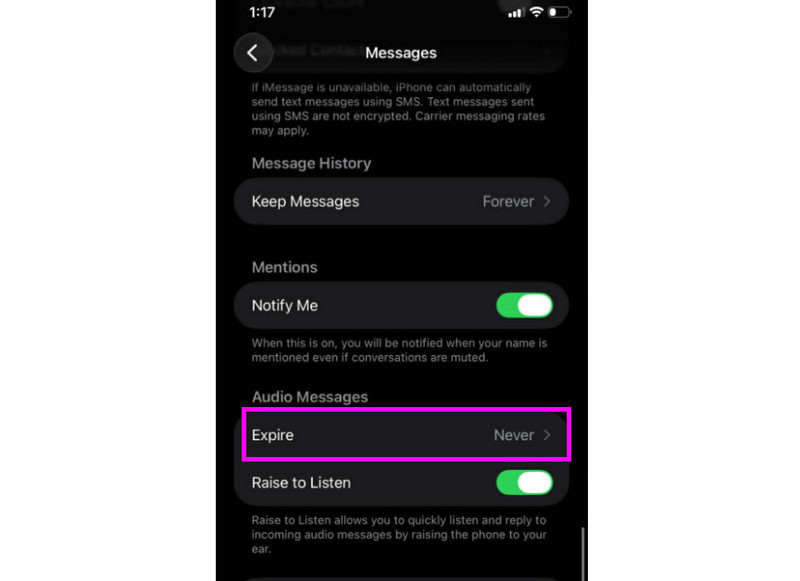
Korak 1Idi na svoju Postavke aplikacija. Zatim prijeđite na Poruke aplikacija
Korak 2Idite na Zvučne poruke > Isteći odjeljak i dodirnite Nikada opcija. Na taj način, glasovne poruke s vašeg iMessagea neće isteći.
Dio 2. Metoda snimanja pozdravne poruke govorne pošte na iPhoneu
Kada niste dostupni, pozivatelji će primiti prilagođenu poruku ako snimite pozdravnu poruku govorne pošte na svom iPhoneu. Jednostavno je stvoriti novu pozdravnu poruku, izmijeniti ili ukloniti staru, pa čak i koristiti privremenu pozdravnu poruku za posebne događaje. Možete potpuno izmijeniti način na koji vaša govorna pošta zvuči drugim ljudima samo s nekoliko dodira u aplikaciji Telefon. Pogledajte upute za korištenje i naučite kako snimiti poruku govorne pošte na iPhoneu.
Postavljanje pozdravne poruke govorne pošte
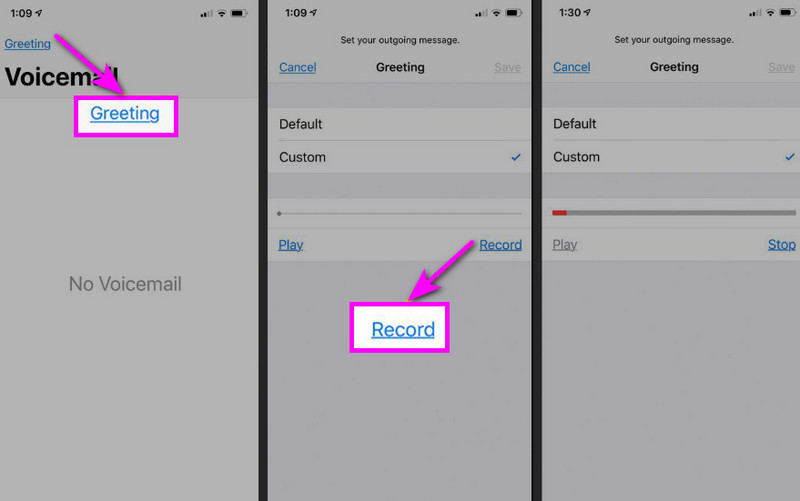
Korak 1Nastavite do Telefon aplikaciju i dodirnite Glasovna pošta opcija.
Korak 2Nakon toga, pritisnite tipku Pozdrav funkciju iz gornjeg lijevog kuta zaslona. Pritisnite Prilagođen > Snimiti početi snimanje zvuka na vašem iPhoneu kao tvoj pozdrav.
Korak 3Dodirnite Stop za završetak i reprodukciju za pregled. Nakon što završite, pritisnite Uštedjeti da biste ga postavili kao aktivni pozdrav.
Promjena ili brisanje pozdrava
Korak 1Možete se vratiti na Glasovna pošta > Pozdrav odjeljak.
Korak 2Pogoditi Prilagođen i snimite novi pozdrav koji će zamijeniti stari.
Korak 3Zatim, za povratak na zadane postavke, možete odabrati Zadano umjesto Prilagođenog.
Profesionalni savjet: Privremeni pozdrav
Ako ste kratko vrijeme nedostupni, snimite privremeni pozdrav slijedeći iste korake pod Prilagođeno. Nakon što se vratite, možete se jednostavno vratiti na svoj uobičajeni pozdrav ili zadanu opciju.
Dio 3. Rješavanje problema - Ne mogu snimiti glasovnu poruku
Posjetite ovaj odjeljak i pogledajte vodič za rješavanje problema koji pokriva neke od problema prilikom snimanja ili slanja govorne poruke na iPhoneu.
Gumb mikrofona je siv u Porukama
Otopina: Provjerite je li omogućen pristup mikrofonu. Da biste to učinili, idite na Postavke > Privatnost i sigurnost > Mikrofon i omogućite pristup za Poruke.
Glas se ne šalje
Otopina: Uvijek provjerite internetsku vezu. Osim toga, provjerite je li iMessage aktiviran u Postavke > Poruke > iMessage.
Ne mogu snimiti pozdravnu poruku govorne pošte
Otopina: Opcija Pozdrav prikazat će se samo ako operater podržava vizualnu govornu poštu. Ako je nema, možete pritisnuti i držati 1 u aplikaciji telefona da biste izravno birali govornu poštu. Zatim možete početi slijediti upute operatera za snimanje pozdrava.
Primatelji kažu da vas ne čuju
Otopina: Mikrofon možete testirati pomoću aplikacije Voice Memos. Također možete ukloniti bilo koju futrolu ili pribor koji bi mogao blokirati mikrofon. Druga metoda koju možete koristiti je čišćenje otvora mikrofona krpom ili mini četkom.
Kratki pregled: Glasovna poruka u odnosu na govornu poštu
Želite li saznati više o glasovnim porukama i govornoj pošti? Možete provjeriti jednostavnu tablicu u nastavku.
| Značajka | Glasovna poruka (iMessage) | Govorna pošta (operater) |
| Kako se šalje | • Snimljeno u aplikaciji Poruke • Poslano putem iMessagea | • Snimljeni pozdrav • Audio pohranjen od strane operatera |
| Potreban je internet | Da (Wi-Fi ili mobilni podaci) | Ne, radi preko mobilne mreže |
| Skladištenje | Spremljeno u iMessage niti | Pohranjeno u sustavu govorne pošte operatera |
| Kontrolirati | Korisnik može ponovno poslati, izbrisati ili spremiti | Operater kontrolira pristup i pohranu |
Bonus: Najbolji alat za uređivanje glasovnih snimaka
Nakon spremanja glasovne snimke ili glasovne poruke, ponekad je želite urediti kako biste dobili bolji audio izlaz. Stoga je, kada je u pitanju uređivanje zvuka, bolje koristiti izvrstan alat za uređivanje, poput AVAide Video ConverterOvaj program nudi značajku uređivanja zvuka, omogućujući vam uređivanje audio datoteke. Možete izrezati audio zapis, podijeliti ga i spojiti. Možete čak i podesiti glasnoću i odgodu prema svojim željama. Najbolji dio je što zvuk možete spremiti u bilo koji format pomoću značajke pretvarača programa. Svoju snimku glasa možete spremiti kao MP3, WAV, M4A, FLAC i više, s najboljom kvalitetom do 320 kbps. S tim u vezi, ako tražite idealan softver koji vam može pomoći u uređivanju glasovnih snimaka, ne tražite dalje od AVAide Video Convertera.

BESPLATNO PREUZIMANJE Za Windows 7 ili noviji
 Sigurno preuzimanje
BESPLATNO PREUZIMANJE Za Mac OS X 10.13 ili noviji
Sigurno preuzimanjeViše značajki:
- Može ponuditi glatki postupak uređivanja zvuka.
- Program može spojiti više audio datoteka u jednu datoteku.
- Može pretvoriti audio i video formate brzinom pretvorbe od 120×.
- Program također može ponuditi ugrađene video editore, kao što su spajanje, razdjeljivanje, trimer, izrezivanje itd.
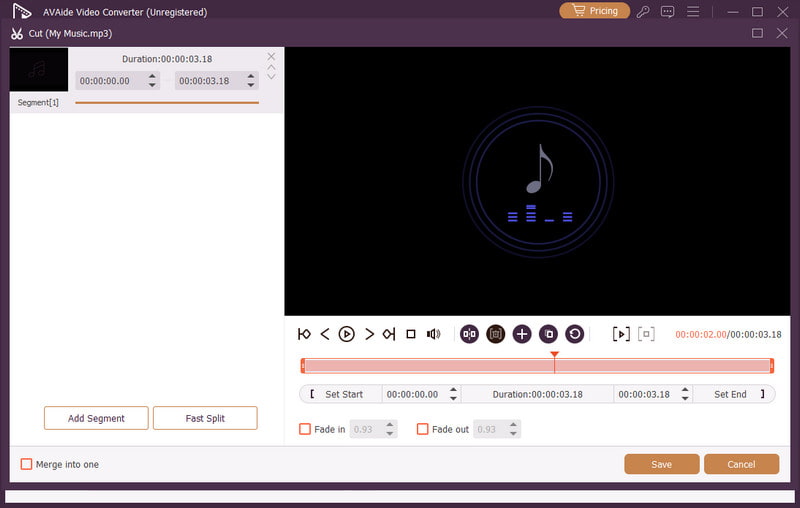
Slanje glasovne poruke na iPhoneu je idealan način ako želite brže poslati poruku. Zahvaljujući ovom vodiču, naučili ste kako učinkovito snimiti i poslati glasovnu poruku. Čak ćete dobiti dovoljno uvida o tome kako spremiti glasovnu poruku da biste je mogli reproducirati bez ikakvih ograničenja. Osim toga, ako želite urediti svoje glasovne snimke, bilo bi bolje pristupiti AVAide Video ConverterPomoću značajke uređivanja zvuka ovog programa možete poboljšati svoj zvuk, što rezultira boljom i zadovoljavajućom reprodukcijom zvuka.
O AUTORU

Snimite aktivnosti na ekranu uz zvuk, sastanke na mreži, videozapise igranja, glazbu, web kameru itd.