Lorsque vous participez à une réunion ou à un cours en ligne avec Zoom, vous souhaitez probablement prendre des captures d'écran sur Zoom Pour une utilisation ultérieure. Ce guide complet vous explique comment effectuer des captures d'écran sur Zoom, que ce soit avec les fonctionnalités par défaut de Windows, Mac et appareils mobiles, ou avec les fonctionnalités intégrées à Zoom. Nous aborderons également une question fréquente : Zoom peut-il détecter une capture d'écran ? Vous trouverez la réponse dans cet article.
- Partie 1. Comment faire une capture d'écran sur Zoom sur un PC (Windows)
- Partie 2. Comment faire une capture d'écran sur Zoom avec un Mac
- Partie 3. Comment faire une capture d'écran sur Zoom sur mobile (iPhone et Android)
- Partie 4. Utilisation des fonctionnalités intégrées de Zoom
- Partie 5. Zoom envoie-t-il des notifications pour les captures d'écran ?
Partie 1. Comment faire une capture d'écran sur Zoom sur un PC (Windows)
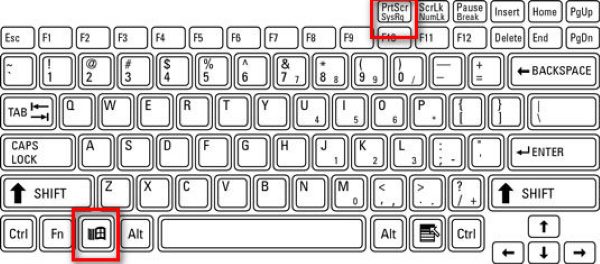
1. Utilisation de la touche Impr écran (Plein écran)
Utilisez le raccourci clavier de capture d'écran sous Windows pour l'écran entier. Pendant la réunion Zoom, appuyez sur les fenêtres ainsi que PrtScn touche (qui se trouve généralement à côté des touches de fonction).
Une copie de tout ce qui est visible sur votre écran sera immédiatement prise et enregistrée dans C:\Users\VOTRE_NOM_D'UTILISATEUR\Pictures\Screenshots (sous Windows 10 et 11).
2. Utilisation de l'outil Capture d'écran / Capture et croquis (Idéal pour le zoom)
Presse Gagner + Changement + S Pour griser le bureau et afficher une barre d'outils de capture en haut, vous pouvez ensuite dessiner un rectangle ou choisir des captures à main levée, de fenêtre ou plein écran.
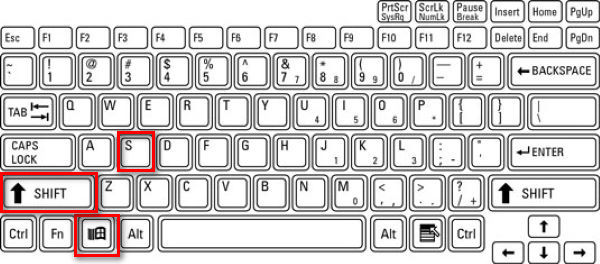
C'est idéal pour Zoom, car vous pouvez capturer uniquement la fenêtre Zoom ou une partie de celle-ci. Après la capture, l'image est copiée dans le presse-papiers et une notification apparaît. Cliquez sur la notification pour modifier la capture d'écran.
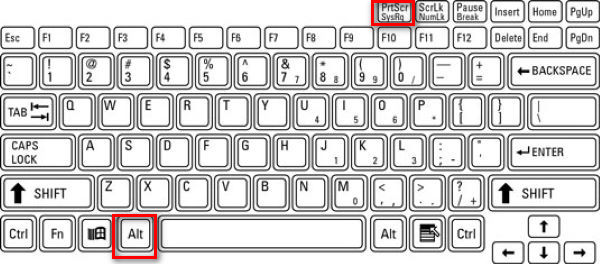
3. Utilisation de Alt + Impr écran (fenêtre active uniquement)
Étape 1Cliquez sur la fenêtre Zoom pour vérifier qu'elle est active.
Étape 2Presse Alt + PrtScn.
Cette fonction capture uniquement la fenêtre active, c'est-à-dire la réunion Zoom, et la place dans le presse-papiers.
4. Utilisation d'un outil tiers
Je préfère utiliser un outil tiers pour faire des captures d'écran sur Zoom, car les images sont ainsi enregistrées à un emplacement spécifique que j'ai défini, séparées des autres captures d'écran effectuées par Windows, ce qui facilite la recherche de certaines images.
Il existe divers outils de capture d'écran pour réaliser des captures d'écran lors d'appels Zoom, tels que ShareX, Icecream Screen Recorder, Snagit, et AVAide Enregistreur d'écranComme avec AVAide Screen Recorder, vous pouvez placer les images dans le même dossier, ce qui vous permet de les organiser facilement. Je vais vous montrer comment faire, étape par étape.
Étape 1Téléchargez et installez l'enregistreur

TÉLÉCHARGEMENT GRATUIT Pour Windows 7 ou version ultérieure
 Téléchargement sécurisé
TÉLÉCHARGEMENT GRATUIT Pour Mac OS X 10.13 ou version ultérieure
Téléchargement sécuriséÉtape 2Lancer l'enregistreur
Étape 3Participez à une réunion Zoom
Étape 4Clique le caméra bouton en haut à droite de la fenêtre AVAide Screen Recorder.
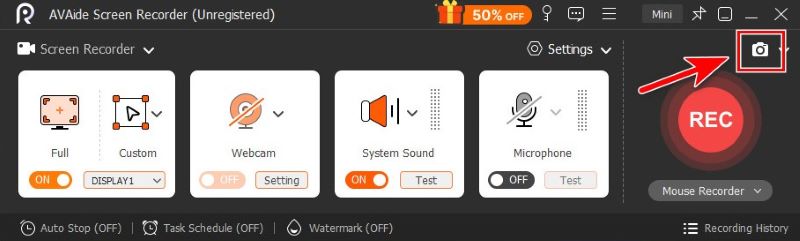
Étape 5Capturez des images à main levée en faisant glisser votre souris, ou survolez l'icône Zoom pour capturer sa fenêtre.
Étape 6Lorsque vous êtes satisfait de la coupe, cliquez Sauvegarder, et choisissez le dossier dans lequel vous souhaitez l'enregistrer.
Partie 2. Comment faire une capture d'écran sur Zoom avec un Mac
Les fonctionnalités intégrées du système nous suffisent pour effectuer des captures d'écran sur Mac.
1. Capture d'écran complète
Pour capturer l'écran entier sur un Mac, appuyez sur Commander + Changement + 3.

2. Capture sélective (idéale pour le zoom)
Si vous devez capturer une zone rectangulaire spécifique sur l'écran de la réunion, appuyez sur Commander + Changement + 4.

3. Capturer une fenêtre spécifique
Étape 1presse Commander + Changement + 4
Étape 2Frappez l'espace.

Le curseur se transforme alors en icône d'appareil photo. Cliquez sur la fenêtre Zoom pour capturer uniquement cette fenêtre.
4. Utilisation de l'application Capture d'écran
Étape 1 Presse Commander + Changement + 5 pour ouvrir la barre d'outils Capture d'écran d'Apple.

Étape 2Sélectionnez l'outil que vous préférez.

Je recommanderais Capturer une fenêtre et Capturez une portion, idéal pour ne capturer que la fenêtre Zoom sans distractions.

- Vous pouvez également utiliser les fonctionnalités par défaut de Mac ou un outil tiers pour modifier votre capture d'écran sur Mac comme vous le préférez.
Partie 3. Comment faire une capture d'écran sur Zoom sur mobile (iPhone et Android)
1. Sur iPhone / iPad
La méthode dépend du modèle de votre appareil.
Étape 1Démarrez votre réunion Zoom.
Étape 2Prenez une capture d'écran.
- Pour les iPhones avec Face ID et pas de domicile bouton (iPhone X et modèles ultérieurs, à l'exception de l'iPhone SE) et iPads avec pas de maison bouton:
appuie sur le Bouton latéral + Augmenter le volume. - Pour les iPhones ou iPads avec un Accueil bouton (iPhone SE, 8 et versions antérieures, anciens iPad) :
appuie sur le Bouton latéral/supérieur + Accueil.
Relâchez rapidement les deux. L'écran clignotera, capturant l'intégralité de votre écran, et une vignette apparaîtra pour vous permettre de modifier ou d'enregistrer.
2. Sur Android
Raccourci: La plupart des téléphones Android utilisent le classique Pouvoir + Baisser le volume Il existe un raccourci, mais il varie selon la marque de votre appareil. Si ce raccourci ne fonctionne pas (ce qui est normal), je vous suggère de vérifier le modèle de votre téléphone et de faire une recherche.
Pendant votre réunion Zoom, maintenez les boutons enfoncés pendant 1 à 2 secondes jusqu'à ce que l'écran clignote. La capture d'écran sera enregistrée dans votre galerie ou votre application Photos.
Barre d'outils : Déployez le menu en faisant glisser votre doigt vers le bas sur l'écran. Trouvez le Capture d'écran Appuyez sur le bouton du menu pour choisir entre les captures d'écran plein écran, en format libre et défilantes.
Partie 4. Utilisation des fonctionnalités intégrées de Zoom
La fonction « Prendre une capture d’écran » de Zoom (pour le partage d’écran uniquement)
La fonction de capture d'écran intégrée à Zoom est facile à utiliser et ne nécessite que quelques clics.
Étape 1Cliquez sur Chat en bas de la fenêtre Zoom
Étape 2Clique le Capture d'écran icône sous la fenêtre de discussion.
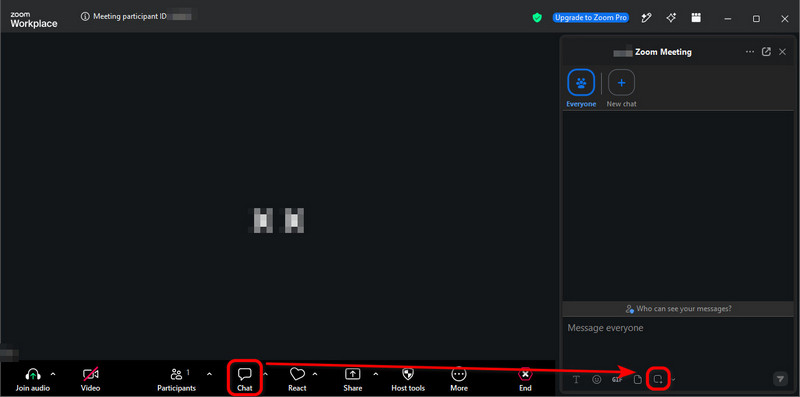
Étape 3Faites glisser votre souris sur la partie de votre écran que vous souhaitez sélectionner, puis cliquez. Capture.
La capture d'écran se trouve maintenant dans le boîte de dialogueVous pouvez l'envoyer aux autres participants de la réunion en un seul clic sur le avion en papier icône en bas à droite.
- La capture d'écran dans la fenêtre de discussion n'est PAS enregistrée automatiquement sur votre ordinateur. Si vous souhaitez l'enregistrer, cliquez avec le bouton droit sur l'image et sélectionnez Enregistrer sous….
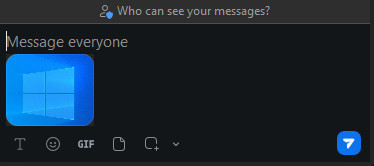
- Bien que cette méthode soit très simple et rapide, elle peut parfois échouer car l'organisateur peut désactiver le chat de réunion ou l'enregistrement des conversations. Dans ce cas, vous savez quoi faire : utiliser les fonctionnalités du système d'exploitation ou un outil tiers comme AVAide Screen Recorder.
Qu'est-ce qu'un « générateur de captures d'écran de réunions Zoom » ?
On dirait un outil de capture d'écran, non ? Je me suis fait avoir au début, mais en fait, c'est un outil tiers qui crée de fausses images d'appel Zoom.
Ils proposent des simulations d'appels Zoom, où vous téléchargez des photos et saisissez des noms pour générer une capture d'écran réaliste d'une réunion avec des participants fictifs.
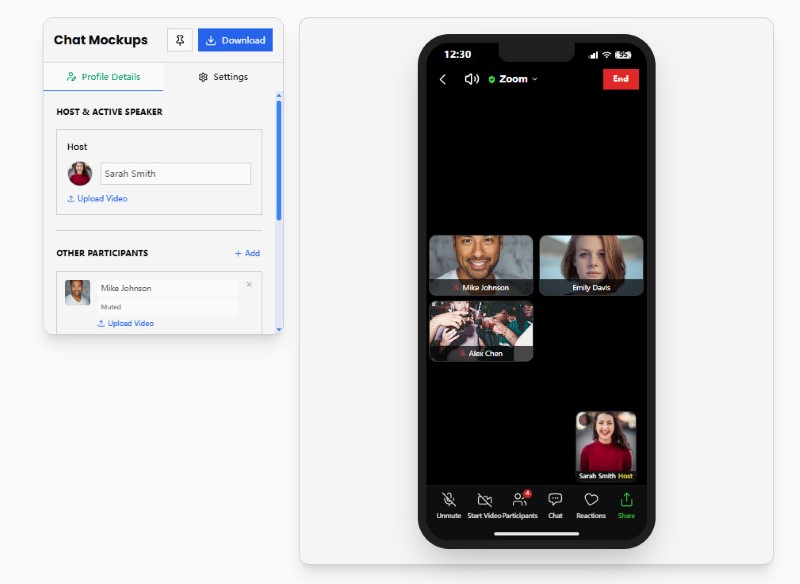
Les générateurs de captures d'écran de réunions Zoom ne sont pas ce que nous recherchons dans cet article. Mais si vous souhaitez créer de faux mèmes Zoom, essayez des sites comme Pradoy ou Kapwing. C'est très amusant !
Partie 5. Zoom envoie-t-il des notifications pour les captures d'écran ?
En résumé, Zoom ne vous indique PAS lorsqu'un participant prend des captures d'écran, que ce soit via les fonctionnalités du système d'exploitation, un outil tiers ou la fonction de capture d'écran intégrée de Zoom.
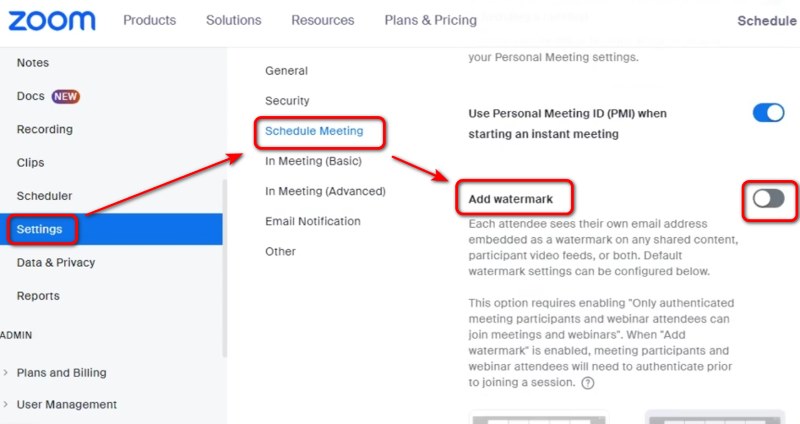
En tant qu'hôte ou participant à une réunion Zoom, vous craignez peut-être que le contenu de votre écran ne soit diffusé à votre insu. Jusqu'à présent, il n'existait aucun moyen de l'empêcher, si ce n'est d'ajouter un filigrane à votre écran : pour ce faire, accédez aux paramètres du portail web Zoom et activez l'option « Ajouter un filigrane ».
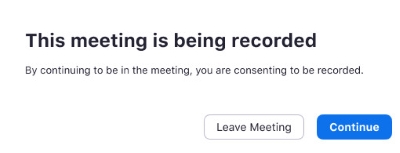
Mais Zoom envoie bien une notification lorsqu'une personne enregistre la réunion ZoomLorsque vous rejoignez une réunion enregistrée, ou lorsque l'organisateur lance l'enregistrement, vous recevrez une notification de consentement. Vous pourrez alors donner votre consentement ou quitter la réunion.
Capture d'écran sur Zoom La capture d'écran est simple sur Windows, Mac, iPhone et Android grâce aux fonctionnalités de l'appareil, aux outils tiers ou aux fonctionnalités intégrées de Zoom. Zoom n'informe ni l'organisateur ni les participants lorsqu'une capture d'écran standard est effectuée. Toutefois, il est important de respecter la confidentialité, les droits d'auteur et les règles de la réunion avant de capturer ou de partager du contenu Zoom. Si la confidentialité vous préoccupe, indiquez clairement aux participants que vous n'appréciez pas les captures d'écran avant de partager votre écran.
À PROPOS DE L'AUTEUR

Capturez le meilleur moment avec AVAide Screen Recorder. Screencastez, personnalisez et partagez en quelques secondes.
Enregistrement d'écran
- Enregistrement d'écran sous Windows
- Enregistrer un live sur Instagram
- Extraire des vidéos de Tubi
- Convertir des vidéos YouTube en MP3
- Téléchargez des vidéos depuis Fansly
- Téléchargement de vidéos JW Player
- Télécharger les vidéos Bilibili
- Télécharger des vidéos Patreon
- Télécharger les vidéos SpankBang
- Télécharger des vidéos Discord
- Télécharger la vidéo DoodSream