Posséder un smartphone Motorola est presque rare, car la marque est surtout populaire aux États-Unis et en Europe. Du coup, si vous arrivez à mettre la main sur un appareil de cette marque, vous pouvez vous sentir un peu à part parmi les marques populaires comme iPhone ou Samsung. Même prendre une capture d'écran peut parfois s'avérer compliqué. Ceci étant dit, vous êtes au bon endroit, comme le montre cet article. Comment faire une capture d'écran sur un Motorola ? avec les trois méthodes officielles. Vous découvrirez ici diverses astuces, comme l'emplacement d'enregistrement des captures d'écran, et une méthode fiable pour effectuer une capture d'écran de votre téléphone depuis un ordinateur. Sans plus attendre, commençons.
Partie 1. Trois principales façons de faire une capture d'écran sur Motorola
De nos jours, chaque appareil est conçu pour permettre la capture d'écran, ce qui s'avère très pratique pour conserver une copie de son écran sous forme d'image. Motorola propose naturellement cette fonctionnalité, et même trois méthodes. Cet article détaille ces trois méthodes pour effectuer une capture d'écran sur un appareil Motorola.
1. Le geste de capture d'écran à trois doigts (la méthode la plus rapide)
Cette fonctionnalité peut vous paraître unique, car elle n'est pas encore largement répandue sur les appareils Android. C'est pourquoi elle semble si rare pour la prise de captures d'écran. Cependant, outre Motorola, le geste de capture d'écran à trois doigts est proposé par de nombreuses marques Android, telles que Xiaomi, OPPO, Tecno, et bien d'autres. Il s'agit donc d'une fonctionnalité avantageuse, car elle vous offre une option supplémentaire pour prendre des captures d'écran, en utilisant seulement trois doigts d'une seule main. Voici comment l'utiliser :
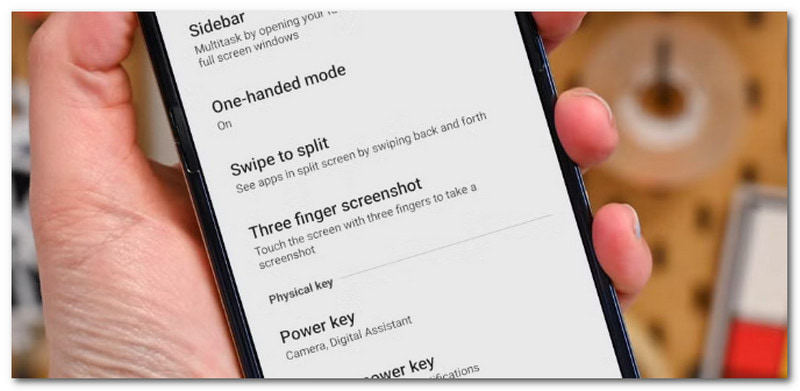
Étape 1Accédez aux paramètres de votre téléphone, puis au menu Gestes. Il vous suffit d'activer le bouton ou la capture d'écran à trois doigts.
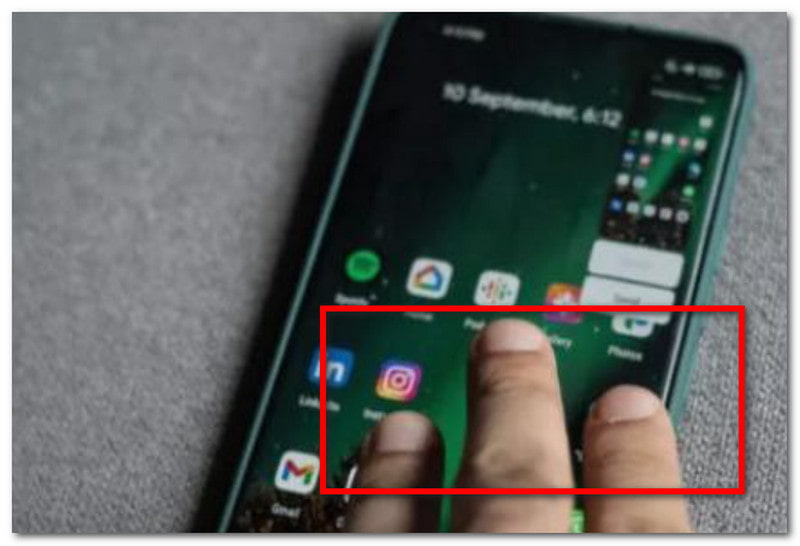
Étape 2Ensuite, il suffit de poser trois doigts sur l'écran et de les maintenir enfoncés quelques instants. Lorsque l'écran clignote, une capture d'écran est effectuée.
2. La pression sur le bouton matériel (méthode universelle)
La plupart des téléphones Motorola étant équipés d'Android, vous pouvez utiliser la méthode universelle pour prendre des captures d'écran. Bien que le geste à trois doigts doive être activé dans les paramètres, il suffit d'appuyer sur les boutons physiques pour capturer l'écran.
Étape 1Placez un doigt sur le bouton Marche/Arrêt et un autre sur le bouton Volume Bas.
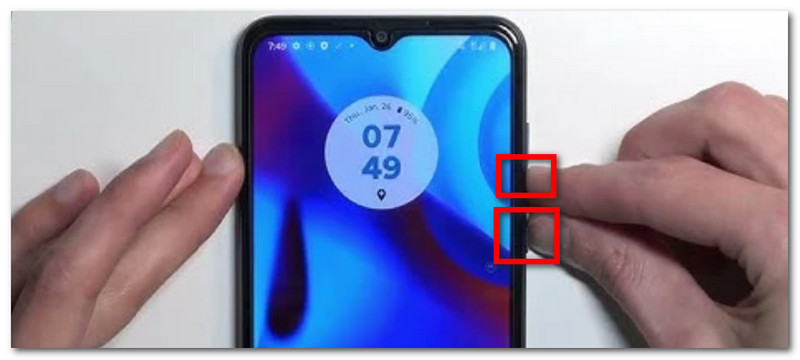
Étape 2Maintenez les boutons enfoncés simultanément jusqu'à ce que l'écran clignote. Une notification s'affichera dans la barre d'état indiquant qu'une capture d'écran a été effectuée.
3. À partir du menu Alimentation (Méthode « à une main »)
Voici une autre méthode pour prendre des captures d'écran sur un téléphone Moto, combinant un bouton physique et un bouton virtuel. Le menu d'alimentation contient un raccourci vers les fonctionnalités intégrées, qui, dans ce cas précis, permet d'accéder facilement à l'option de capture. Cependant, cela dépend du modèle de téléphone ; cette option peut donc ne pas être disponible sur le vôtre. Néanmoins, vous pouvez vérifier si cette méthode à une main est disponible sur votre appareil en suivant ces étapes :
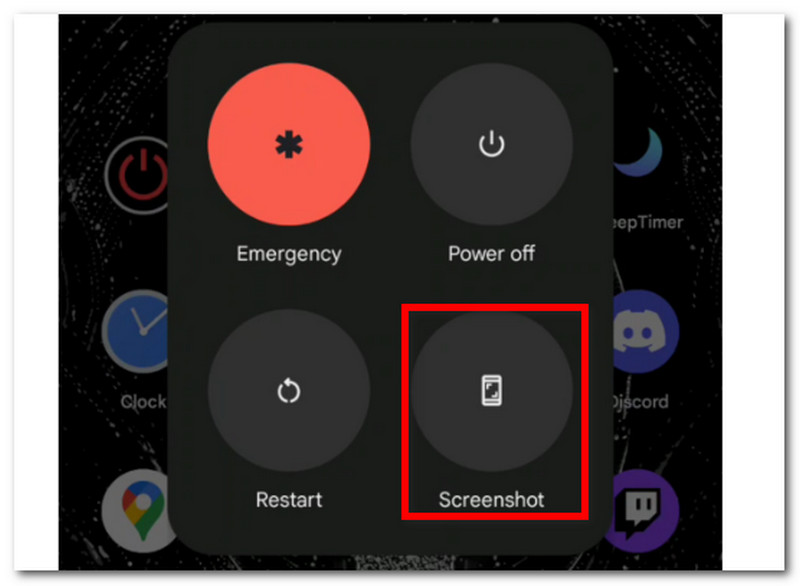
Étape 1Placez votre doigt et appuyez sur Pouvoir Appuyez sur le bouton situé sur le côté de votre appareil. Maintenez-le enfoncé jusqu'à ce qu'un menu apparaisse.
Étape 2Plusieurs options s'afficheront, notamment Éteindre, Redémarrer et Urgence. Assurez-vous d'appuyer sur l'option correspondante. Capture d'écran option. Un bref clignotement sur votre écran indique qu'une capture d'écran a été effectuée.
Partie 2. Comment faire une capture d'écran de Motorola sur votre ordinateur
AVAide Enregistreur d'écran AVAide vous permet de réaliser des captures d'écran de votre Motorola G6 directement depuis votre ordinateur. En quelques clics, partagez l'écran de votre téléphone sur votre bureau et capturez son contenu sans aucune limitation. Le logiciel garantit des images de haute qualité et vous permet de choisir le format d'image de sortie : PNG, BMP, JPG, GIF, etc. Simple d'utilisation, la capture d'écran est également personnalisable : vous pouvez même définir des raccourcis clavier pour y accéder d'une simple pression. De plus, ce logiciel offre un enregistrement d'écran de qualité professionnelle, quel que soit son contenu, et permet même de prendre des captures d'écran simultanément. AVAide est une solution multifonctionnelle dont vous ignoriez l'existence. Téléchargez-la gratuitement pour Windows ou Mac en cliquant sur le bouton Télécharger.
Étape 1Téléchargez et installez AVAide Screen Recorder. Ouvrez le logiciel sur votre ordinateur pour commencer.

TÉLÉCHARGEMENT GRATUIT Pour Windows 7 ou version ultérieure
 Téléchargement sécurisé
TÉLÉCHARGEMENT GRATUIT Pour Mac OS X 10.13 ou version ultérieure
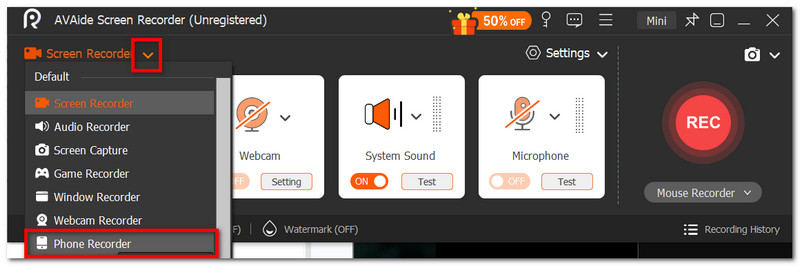
Téléchargement sécuriséÉtape 2Choisir la Enregistreur téléphonique Sélectionnez cette option dans le menu déroulant. Lisez attentivement les instructions pour connecter l'écran de votre téléphone à votre ordinateur.
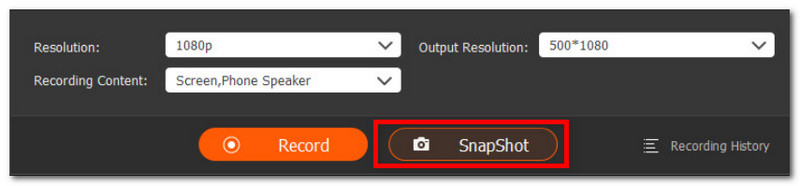
Étape 3Une fois terminé, cliquez sur le Instantané bouton pour prendre une capture d'écran. Vous pouvez également cliquer sur le Disque bouton permettant d'enregistrer une vidéo de l'écran du téléphone via votre ordinateur.
Partie 3. Où sont enregistrées mes captures d'écran ?
Une fois la capture d'écran effectuée sur votre téléphone Motorola, un aperçu miniature apparaît dans le panneau de notifications. Appuyez dessus pour l'afficher. Cependant, il arrive parfois que l'aperçu n'apparaisse pas, et vous risquez alors de ne pas retrouver votre capture d'écran. Comment faire pour la retrouver sur votre téléphone Motorola ? Pour afficher la capture d'écran, il vous suffit de suivre les étapes suivantes :
Comment trouver des captures d'écran
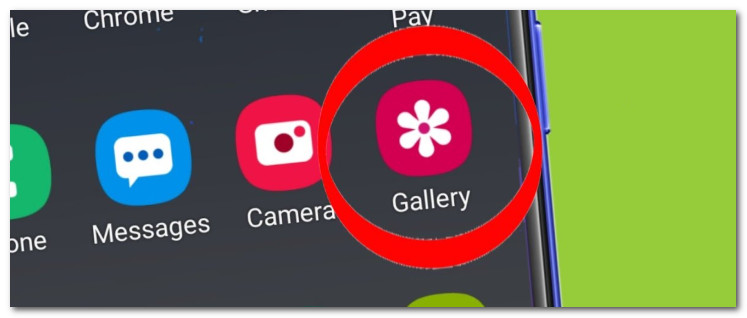
Étape 1Ouvrez l'application Galerie et repérez le menu Capture d'écran. La photo la plus récente apparaîtra en haut de la liste.
Étape 2Vous pouvez également accéder au dossier Fichiers de votre téléphone où sont enregistrés tous les fichiers téléchargés. Dans le dossier Images, vous trouverez les captures d'écran.
Est-il possible de modifier l'emplacement d'enregistrement des captures d'écran sur un appareil Motorola ?
Malheureusement, il n'existe pas de méthode par défaut pour modifier l'emplacement d'enregistrement des captures d'écran sur les appareils Android de Motorola. Les images sont enregistrées officiellement dans le dossier Fichiers ou l'application Galerie. Une solution consiste à utiliser une application tierce permettant d'organiser et de déplacer les images à votre guise, mais cela ne modifie en rien leur emplacement d'origine ; vous pouvez toujours accéder aux images depuis leurs emplacements par défaut.
Partie 4. Dépannage : Pourquoi la capture d’écran Motorola ne fonctionne-t-elle pas ?
Il peut arriver que la fonction de capture d'écran de votre Motorola ne fonctionne pas correctement. Plusieurs raisons peuvent expliquer ce problème : espace de stockage insuffisant, navigation privée, ou encore appareil géré à distance par un collègue (professionnel ou scolaire) qui désactive la fonction. Dans le pire des cas, les boutons de votre téléphone pourraient être défectueux et nécessiter une réparation. Si ce n'est pas votre cas, vous pouvez essayer les solutions de dépannage suivantes :
- Testez séparément les boutons Marche/Arrêt et Volume bas. C'est un dépannage simple qui vous permettra de vérifier leur bon fonctionnement.
- Maintenez les boutons enfoncés pendant environ deux secondes et attendez que l'écran clignote. Vérifiez également l'aperçu de la capture d'écran, le cas échéant.
- Si la capture d'écran échoue sur une application, essayez avec une autre application ou un autre site web. Certaines applications désactivent cette fonctionnalité par défaut pour des raisons de sécurité et de confidentialité.
- Assurez-vous que votre téléphone dispose de suffisamment d'espace de stockage pour prendre davantage de captures d'écran. Essayez d'effacer le cache des applications et du stockage dans les paramètres de votre téléphone, ou consultez les paramètres de votre téléphone. Stockage de photos iCloud.
- Si les boutons sont endommagés et que vous avez besoin d'une solution temporaire, vous pouvez utiliser l'Assistant Google. Dites « Prendre une capture d'écran » à l'assistant, et il s'en chargera.
En conclusion, vous avez appris Comment faire une capture d'écran d'un téléphone Motorola ? avec les principales méthodes. De plus, vous avez découvert où trouver vos captures d'écran et comment résoudre les problèmes si la fonction de capture d'écran de votre téléphone ne fonctionne pas. Cela dit, nous vous recommandons d'utiliser AVAide Screen Recorder si vous souhaitez capturer l'écran de votre téléphone en haute qualité. C'est également le meilleur enregistreur d'écran pour AndroidiPhone, webcams et PC.
À PROPOS DE L'AUTEUR

Enregistrez l'écran, l'audio, la webcam, le gameplay, les réunions en ligne, ainsi que l'écran iPhone/Android sur votre ordinateur.
Enregistrement d'écran
- Enregistrement d'écran sous Windows
- Enregistrer un live sur Instagram
- Extraire des vidéos de Tubi
- Convertir des vidéos YouTube en MP3
- Téléchargez des vidéos depuis Fansly
- Téléchargement de vidéos JW Player
- Télécharger les vidéos Bilibili
- Télécharger des vidéos Patreon
- Télécharger les vidéos SpankBang
- Télécharger des vidéos Discord
- Télécharger la vidéo DoodSream