Utilisé par de nombreux utilisateurs de Mac à travers le monde, Flux d'écran Ce logiciel permet à des millions d'utilisateurs de gérer facilement leurs besoins d'enregistrement et de montage. Si vous envisagez également de l'utiliser, pourquoi ne pas y regarder de plus près afin de prendre une décision éclairée ?
Dans cet avis sur ScreenFlow, nous aborderons tout ce que vous devez savoir : ses principales fonctionnalités, ses avantages et inconvénients, les avis et évaluations des utilisateurs, ainsi que des alternatives. Si vous êtes prêt, poursuivez votre lecture.
Partie 1. Qu'est-ce que ScreenFlow ?
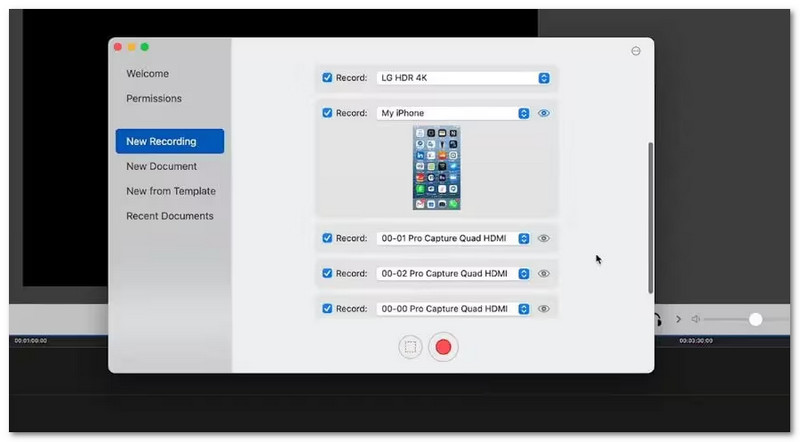
ScreenFlow est une application de capture d'écran et de montage vidéo pour Mac, lancée en 2008. Elle permet d'enregistrer simultanément l'écran, la caméra et le microphone. Vous pouvez ainsi créer des vidéos haute définition pour des cours, des démonstrations ou du contenu en ligne. ScreenFlow capture également des vidéos d'une grande netteté sur les écrans Retina, offrant un rendu clair et précis. De plus, elle propose des outils de montage tels que des effets, des filtres, l'ajout de texte et le zoom.
Partie 2. Principales caractéristiques de ScreenFlow
Avant de décider si le logiciel ScreenFlow répond à vos besoins, il est utile de comprendre ce qu'il peut réellement faire.
1. Enregistrement d'écran
Permet d'enregistrer simultanément l'écran, la caméra, le micro et le son du système. Compatible avec de nombreux écrans, il permet même l'enregistrement depuis un iPhone via un câble. Vous pouvez sélectionner une petite partie de l'écran à enregistrer et effectuer un zoom et une mise en surbrillance à l'aide de la souris pour un meilleur confort visuel.
2. Montage vidéo
Il vous offre une timeline permettant de couper, déplacer et rogner les clips. Vous pouvez ajouter du texte, des formes et des notes pour expliquer vos actions. Il propose des effets tels que des transitions et l'incrustation sur fond vert. Il inclut également une vaste bibliothèque de ressources multimédias.
3. Sortie et partage
Ce logiciel vous permet d'exporter des vidéos aux formats MP4, MOV ou M4V. Il utilise un encodage rapide pour une meilleure fluidité et une qualité d'image optimale. Vous pouvez ensuite les télécharger directement sur des plateformes comme YouTube ou sur des services de stockage cloud. Il vous permet également de créer des images animées et de courts clips pour les réseaux sociaux.
4. Performance
Les versions récentes de ScreenFlow consomment moins de ressources processeur lors de l'enregistrement. L'exportation vidéo est plus rapide sur les Mac équipés d'une puce Apple Silicon. De plus, l'espace de stockage est optimisé grâce à la conservation des seuls fichiers nécessaires dans un projet.
Partie 3. Tarification : ScreenFlow est-il gratuit ?
Malheureusement, ScreenFlow pour Mac n'est pas gratuit. Une licence complète coûte $199. Ce prix vous donne accès aux outils d'enregistrement et de montage. faire des tutorielsElle propose des démonstrations et des présentations. Elle inclut également une assistance gratuite en ligne, sous forme de guides et de tutoriels vidéo. Un essai gratuit est disponible, mais il est limité.
Partie 4. Avantages et inconvénients de ScreenFlow
- Avantages
- Enregistre des vidéos en haute qualité jusqu'à 4K.
- Possède une interface simple et facile à utiliser.
- Offre un essai gratuit avec des fonctionnalités d'enregistrement et de montage.
- Idéal pour les tutoriels, les démonstrations et autres contenus vidéo.
- Permet d'enregistrer simultanément à partir de plusieurs appareils et applications.
- Les inconvénients
- Certaines fonctionnalités nécessitent une mise à niveau payante.
- Ne prend pas en charge les pilotes Web NVIDIA.
- Fonctionne uniquement sur Mac, sans version Windows.
- Ne prend pas en charge les caméras DV ou HDV.
- Nécessite un Mac équipé d'un GPU compatible Apple.
Partie 5. Évaluations et avis des utilisateurs
Le logiciel d'enregistrement et de montage vidéo ScreenFlow est très bien noté sur les sites d'avis de confiance. Sur G2, il obtient environ 4,5 étoiles sur 5, les utilisateurs appréciant sa facilité d'édition et la fluidité de ses enregistrements. Sur Capterra, il obtient également une note d'environ 4,8 sur 5, et de nombreux utilisateurs le décrivent comme simple d'utilisation et extrêmement fiable.
Cependant, certains utilisateurs mentionnent que le prix est élevé et qu'il ne fonctionne que sur Mac, mais la plupart s'accordent à dire qu'il s'agit d'un outil vidéo tout-en-un performant.
Partie 6. Alternatives à ScreenFlow
Vous cherchez d'autres options que ScreenFlow ? Vous n'êtes pas seul. De nombreux utilisateurs souhaitent des outils plus simples, moins chers ou compatibles avec davantage d'appareils. Bonne nouvelle ! Il existe aujourd'hui d'excellentes alternatives à ScreenFlow. Découvrez-les ci-dessous !
1. Enregistreur d'écran AVaide
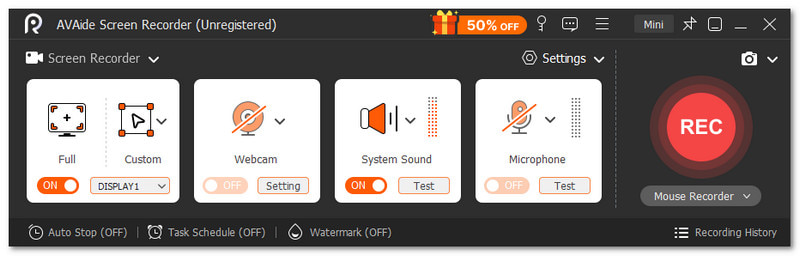
Contrairement à ScreenFlow, qui ne fonctionne que sur Mac, AVAide Enregistreur d'écran Compatible avec Windows et Mac, ce logiciel permet d'enregistrer facilement l'activité de l'écran. Il capture simultanément la vidéo de la webcam, le son du système et le microphone, ce qui le rend idéal pour les tutoriels, les réunions et les sessions de jeu.

TÉLÉCHARGEMENT GRATUIT Pour Windows 7 ou version ultérieure
 Téléchargement sécurisé
TÉLÉCHARGEMENT GRATUIT Pour Mac OS X 10.13 ou version ultérieure
Téléchargement sécuriséElle permet également d'enregistrer l'écran de votre téléphone. Compatible avec les appareils Android et iOS, elle représente un atout majeur pour la création de contenu mobile ou de démonstrations d'applications. De plus, elle offre un enregistrement de haute qualité en résolution 4K ou 1080p.
Après l'enregistrement, vous pouvez immédiatement monter votre clip. Supprimez les parties indésirables, compressez, fusionnez ou ajustez facilement vos clips. Extrayez l'audio ou améliorez la qualité sonore : le montage est ainsi plus rapide et plus complet, le tout au même endroit.
Ce qu'il peut faire :
- Ajoute des annotations telles que du texte, des images, un tableau blanc et des outils de mise en évidence.
- Comprend un enregistrement programmé permettant de définir des heures de début et de fin automatiques.
- Prend en charge de nombreux formats de sortie tels que MP4, AVI, WMV, GIF, MP3, et bien d'autres.
- Permet de prévisualiser les enregistrements immédiatement après la capture, avec la possibilité de réenregistrer si nécessaire.
- Permet un contrôle total de la zone de capture en enregistrant l'écran entier, une fenêtre ou une zone personnalisée.
2. Camtasia
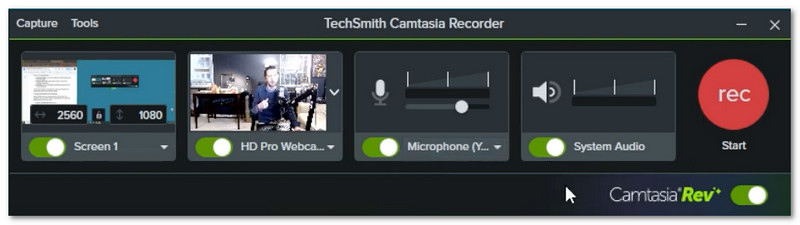
Camtasia transforme vos enregistrements d'écran bruts en contenu clair et professionnel. Créez des tutoriels vidéo, des démos ou des présentations sans avoir besoin de nombreux outils. Tout est regroupé dans un seul espace de travail, ce qui rend le montage fluide et accessible aux débutants. C'est la solution idéale pour les créateurs qui recherchent des résultats professionnels sans configuration complexe.
Ce qu'il peut faire :
- Outils d'édition IA pour la suppression des coupures de texte et des éléments de remplissage.
- Enregistre l'écran, la webcam et l'audio en une seule opération.
- Modèles intégrés, transitions et ressources multimédias libres de droits.
- Utilise une timeline multipiste pour le montage et l'arrangement.
- Effets de curseur tels que le zoom, la mise en surbrillance et le contrôle fluide des mouvements.
3. Studio OBS
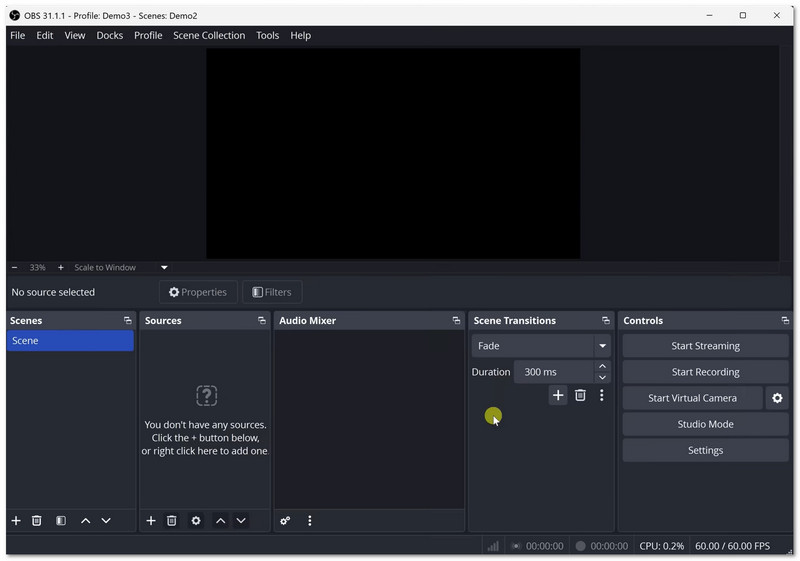
OBS Studio est largement utilisé par les streamers, les joueurs et les utilisateurs avancés, notamment ceux qui recherchent des alternatives à ScreenFlow pour PC. Il privilégie la performance et la flexibilité plutôt que les outils d'édition intégrés. Vous pouvez créer des scènes personnalisées et mixer de nombreuses sources en direct. Étant open source, il est sans limites ni frais cachés.
Ce qu'il peut faire :
- Entièrement gratuit, sans filigrane ni limite de temps.
- Propose des filtres tels que la réduction du bruit et l'incrustation chromatique.
- Fonctionne sur les systèmes Windows, Mac et Linux.
- Permet de configurer des scènes avec des webcams, des fenêtres et des images.
- Capture vidéo et audio en temps réel à partir de nombreuses sources.
Lequel choisir : ScreenFlow, Camtasia, OBS Studio ou AVAide Screen Recorder ?
Chaque logiciel d'enregistrement d'écran a une fonction bien précise. Le choix le plus adapté dépend de vos besoins. Voici un guide simple pour vous aider :
- Flux d'écran Ce logiciel est recommandé aux utilisateurs Mac souhaitant enregistrer et monter leurs vidéos dans une seule application. Il offre une excellente qualité d'image, mais fonctionne uniquement sur Mac et est payant.
- Camtasie Il est recommandé si vous souhaitez un montage avancé pour vos tutoriels et vidéos de formation. Il possède des outils performants, mais il est plus cher et son apprentissage est plus long.
- Studio OBS À utiliser si vous souhaitez un enregistrement ou une diffusion en direct gratuits et performants. Il offre un contrôle total mais ne possède aucune fonctionnalité intégrée pour montage vidéo OBS.
- AVAide Enregistreur d'écran Ce logiciel est idéal si vous recherchez un programme simple d'enregistrement et de montage. Il prend en charge l'enregistrement d'écran, de webcam, audio et téléphonique. Il propose également des fonctions de montage simples après l'enregistrement, comme le découpage, la fusion et la compression.
En effet, ScreenFlow pour Mac Ce logiciel permet de capturer des vidéos d'écran de haute qualité avec audio, webcam et outils de montage intégrés. Cependant, comme indiqué, il est uniquement compatible avec Mac.
C'est pourquoi de nombreux utilisateurs recherchent des alternatives, comme AVAide Enregistreur d'écranVous pouvez également l'utiliser pour enregistrer l'activité de votre écran et monter les vidéos après l'enregistrement. L'avantage, c'est qu'il fonctionne aussi bien sur Mac que sur Windows.
À PROPOS DE L'AUTEUR

Enregistrez l'écran, l'audio, la webcam, le gameplay, les réunions en ligne, ainsi que l'écran iPhone/Android sur votre ordinateur.
Enregistrement d'écran
- Enregistrement d'écran sous Windows
- Enregistrer un live sur Instagram
- Extraire des vidéos de Tubi
- Convertir des vidéos YouTube en MP3
- Téléchargez des vidéos depuis Fansly
- Téléchargement de vidéos JW Player
- Télécharger les vidéos Bilibili
- Télécharger des vidéos Patreon
- Télécharger les vidéos SpankBang
- Télécharger des vidéos Discord
- Télécharger la vidéo DoodSream