Si vous êtes utilisateur Mac et que vous souhaitez enregistrer votre écran et votre audio, inutile de chercher ailleurs. QuickTime Player vous offre tout ce dont vous avez besoin.
Dans ce Enregistrement d'écran QuickTime Ce guide vous montrera comment l'utiliser de A à Z : de l'ouverture de l'outil à l'arrêt et à l'enregistrement de votre session. C'est parti !
Partie 1. Introduction rapide à l'enregistrement d'écran QuickTime
QuickTime Player est un logiciel gratuit pour macOS. Il est préinstallé et prêt à l'emploi. Bien qu'il soit principalement connu comme lecteur multimédia, il fonctionne également comme… enregistreur d'écran pour MacGrâce à cela, vous pouvez capturer votre écran sans application tierce. De plus, l'interface est simple et intuitive.
1. Capacités fondamentales
- Peut enregistrer
Pour une utilisation quotidienne, il offre les fonctionnalités essentielles. Vous pouvez enregistrer l'écran entier ou sélectionner une zone. Il est également possible d'enregistrer la vidéo de la webcam grâce à la fonction « Nouvel enregistrement vidéo ». L'application permet aussi de capturer le son d'un microphone et d'afficher les clics de souris à l'écran. - Impossible d'enregistrer (nativement)
Malheureusement, il est impossible d'enregistrer le son du système, en raison des mesures de sécurité de macOS. De même, l'enregistrement simultané de l'écran et de la webcam est impossible. - Limites
Parce que c'est un basique lecteur vidéo 4K L'enregistreur vidéo présente certaines lacunes. Par exemple, il n'enregistre les vidéos qu'au format .mov, ce qui peut engendrer des fichiers volumineux. De plus, il ne propose aucune fonction de montage avancée : pas de montage sur la timeline, ni d'ajout d'annotations ou d'effets.
Partie 2. Comment démarrer un enregistrement d'écran avec QuickTime
Si vous souhaitez savoir comment utiliser QuickTime Player pour enregistrer l'écran avec le son, une simple configuration préalable suffit.
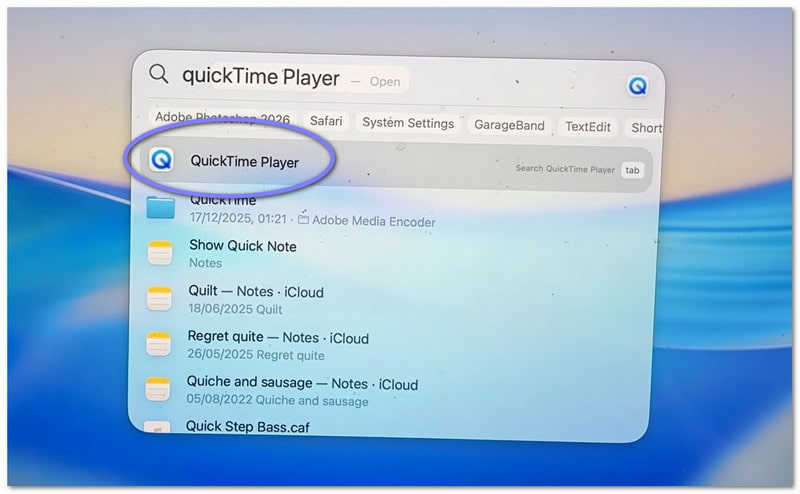
Étape 1Tout d'abord, allez sur votre Applications Ouvrez le dossier et le programme. Pour une méthode plus rapide, utilisez la recherche Spotlight. Appuyez sur Commander + Espace, puis tapez Lecteur Quick Time. Presse Entrer pour l'ouvrir.
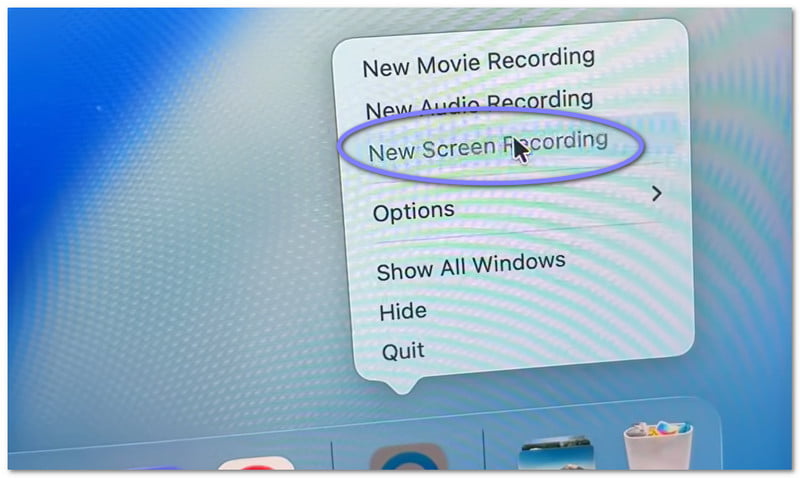
Étape 2Une fois le programme ouvert, accédez à la barre de menu supérieure. Cliquez Déposer, Alors choisi Nouvel enregistrement d'écranVous verrez apparaître un petit écran d'enregistrement. Si vous souhaitez un raccourci, appuyez sur Commander + Contrôler + NIl ouvre immédiatement le programme d'enregistrement d'écran.
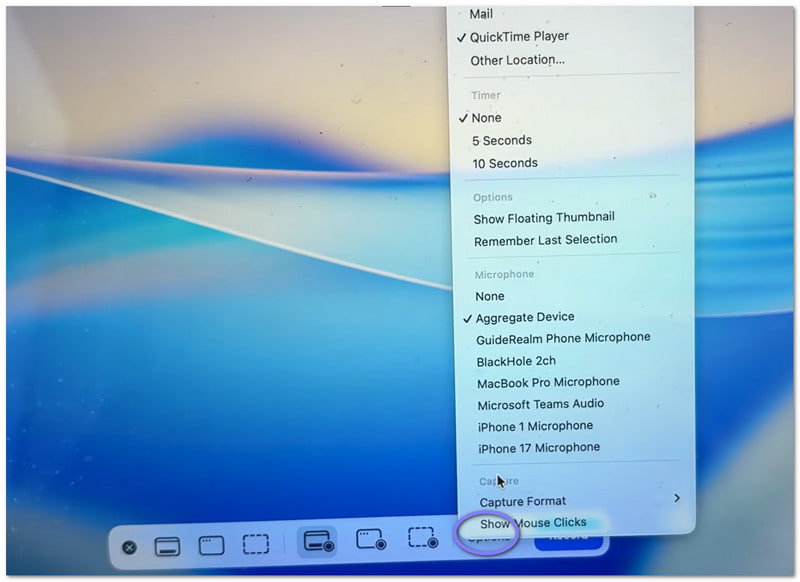
Étape 3Avant de commencer, prenez un moment pour vérifier les paramètres. Cliquez sur Options Cliquez sur le bouton d'enregistrement. Vous pouvez alors sélectionner votre microphone si vous souhaitez enregistrer votre voix. Vous pouvez également programmer un court délai si vous avez besoin de temps pour vous préparer. Enfin, choisissez l'emplacement où enregistrer le fichier.
Étape 4Choisissez maintenant la zone à capturer. Pour enregistrer l'intégralité de l'écran, cliquez n'importe où. Pour n'enregistrer qu'une partie, sélectionnez-la et faites glisser la souris.
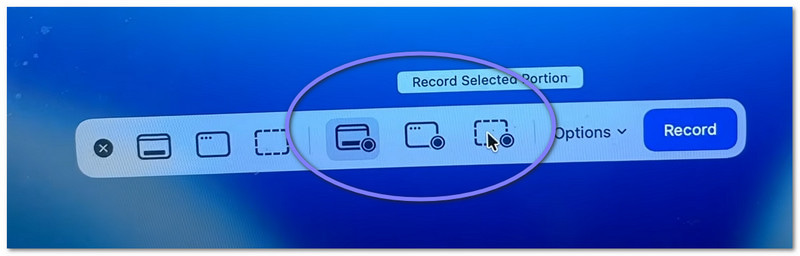
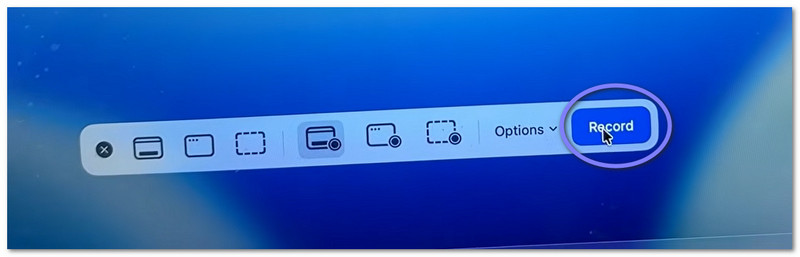
Étape 5Enfin, cliquez sur le Disque Appuyez sur le bouton pour démarrer. L'enregistrement commencera après un court délai. Pendant l'enregistrement, effectuez votre tâche comme prévu.
Partie 3. Comment arrêter et enregistrer un enregistrement QuickTime
Nous allons vous montrer ci-dessous comment arrêter l'enregistrement d'écran avec QuickTime et comment enregistrer correctement votre fichier :
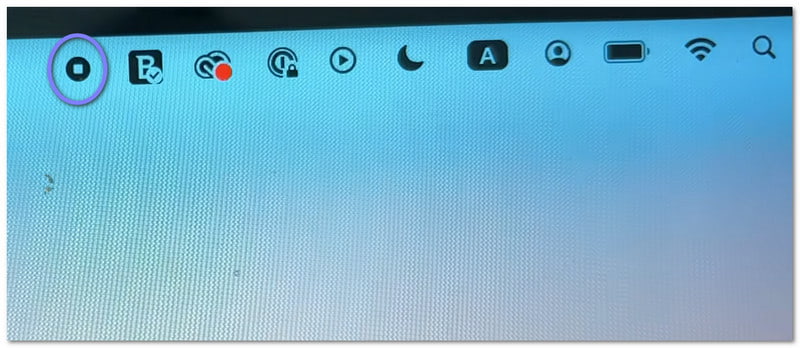
Étape 1Tout d'abord, déplacez votre curseur en haut à droite de votre écran. Cherchez le Arrêter bouton. Il ressemble à un cercle avec un petit carré à l'intérieur. Cliquez dessus pour arrêter l'enregistrement. Autre option : appuyez sur Commander + Contrôler + Esc sur votre clavier.
Étape 2Une fois l'enregistrement terminé, un petit aperçu peut apparaître dans un coin de votre écran. Il s'agit de votre enregistrement. Vous pouvez cliquer dessus immédiatement si vous souhaitez ouvrir et visionner la vidéo. Si vous l'ignorez, le fichier sera tout de même enregistré automatiquement.
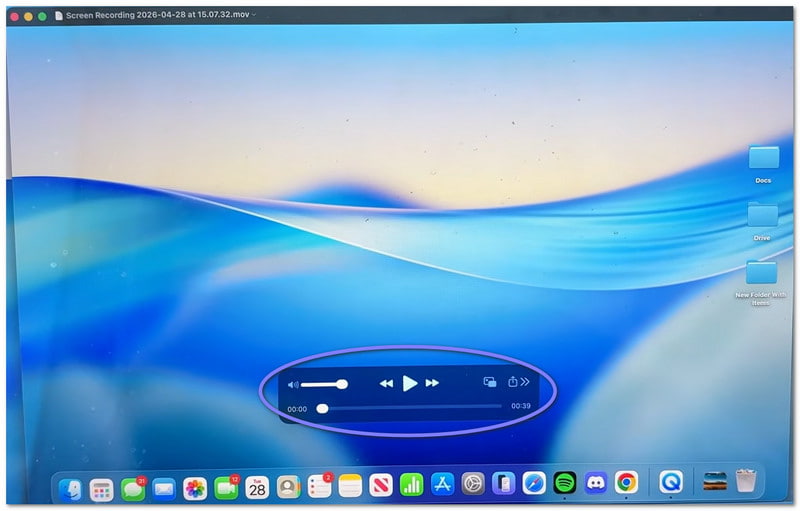
Étape 3Par défaut, la vidéo est enregistrée sur votre Bureau ou à l'emplacement de votre choix. Si vous souhaitez l'enregistrer vous-même, ouvrez d'abord la vidéo. Ensuite, accédez à la barre de menu et cliquez sur Déposer, ensuite SauvegarderEnsuite, saisissez un nom pour votre fichier. Choisissez l'emplacement où vous souhaitez l'enregistrer, puis cliquez sur Sauvegarder.
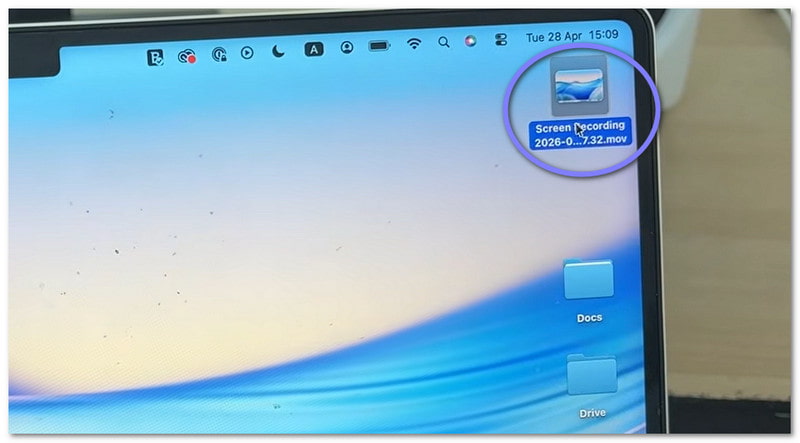
Étape 4Une fois la vidéo ouverte, vous pouvez effectuer des modifications simples. Par exemple, vous pouvez raccourcir le début ou la fin. Vous pouvez également faire pivoter la vidéo si nécessaire. De plus, vous pouvez la partager directement depuis l'application.
Partie 4. Dépannage
Il arrive que l'enregistrement d'écran ne se déroule pas comme prévu. De petits problèmes peuvent survenir. Heureusement, la plupart sont faciles à résoudre avec QuickTime Player.
1. « QuickTime Player a rencontré une erreur lors de l'enregistrement de votre écran. »
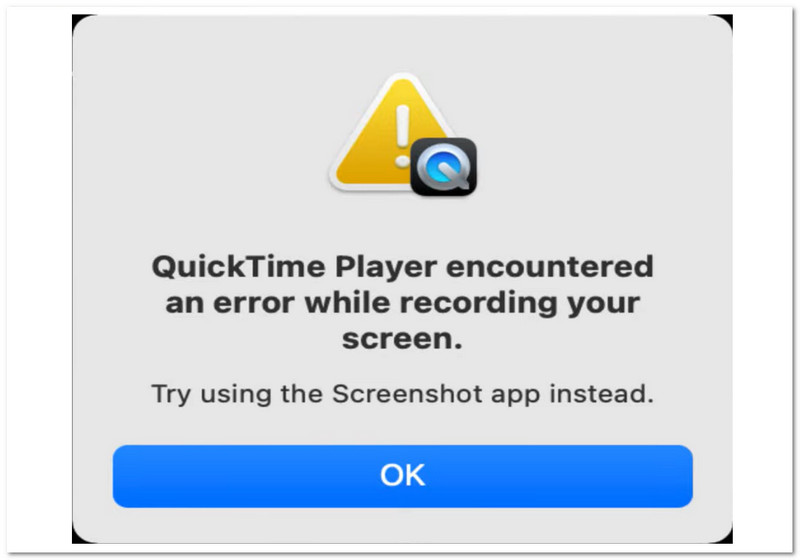
Il existe plusieurs raisons principales pour lesquelles l'erreur « QuickTime Player a rencontré une erreur lors de l'enregistrement de votre écran » peut apparaître.
Vérifiez d'abord l'emplacement d'enregistrement. Si vous enregistrez sur un disque externe, essayez de choisir votre Bureau. Cela résout souvent le problème. Ensuite, vérifiez votre espace de stockage. Si votre disque est plein, l'enregistrement risque d'échouer.
Assurez-vous également que les autorisations sont activées. Allez à Les paramètres du système > Confidentialité et sécurité > Enregistrement d'écranEnsuite, vérifiez si QuickTime Player est autorisé.
2. Mon enregistrement QuickTime n'a pas de son !
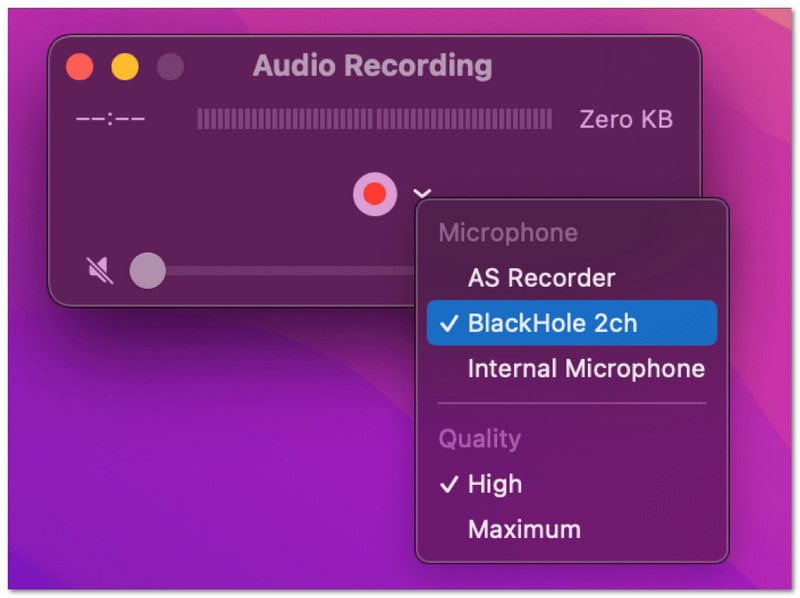
Si votre vidéo n'a pas de son, vérifiez les paramètres avant l'enregistrement. Ouvrez le Options Dans le menu, sélectionnez un microphone, par exemple « Microphone intégré ». Si aucun microphone n'est sélectionné, aucun son ne sera enregistré. Testez également votre microphone au préalable pour vérifier son bon fonctionnement.
3. QuickTime n'enregistre pas l'audio système.
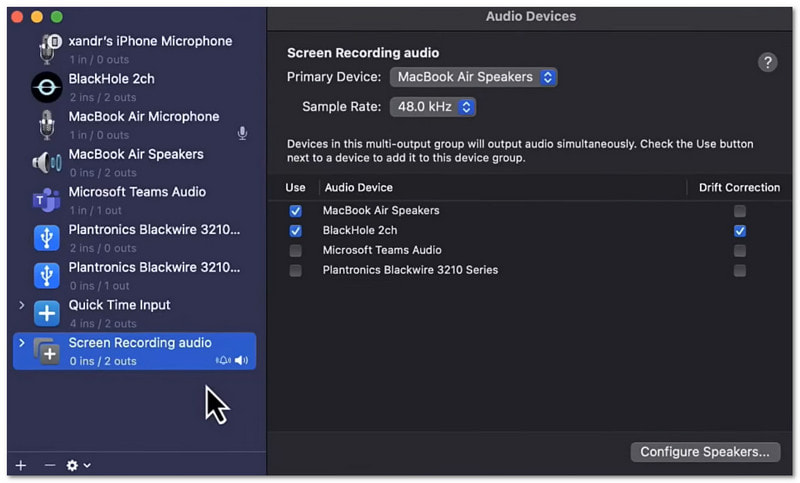
C'est normal. QuickTime Player ne peut pas enregistrer les sons système par défaut. Cela est dû aux règles du système d'exploitation macOS. Pour enregistrer les sons système, vous avez besoin d'outils supplémentaires, comme Background Music ou Loopback.
Partie 5. Existe-t-il une alternative à QuickTime pour Windows ?
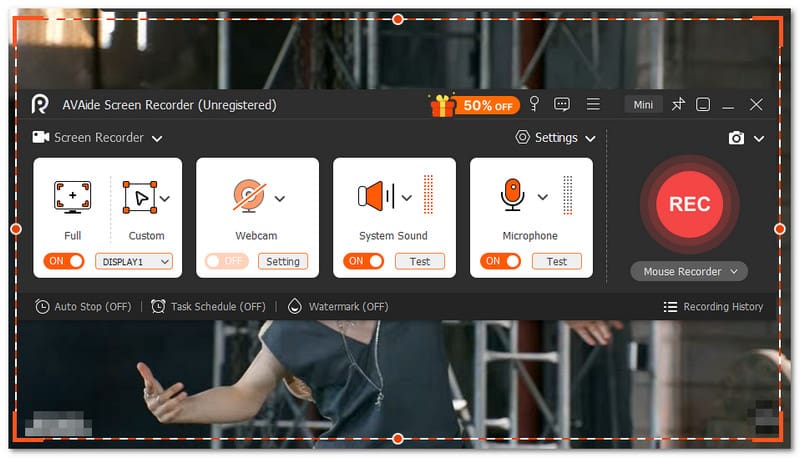
Oui, il existe une alternative à QuickTime pour enregistrer l'écran sous Windows. Et il s'agit de… AVAide Enregistreur d'écran.

TÉLÉCHARGEMENT GRATUIT Pour Windows 7 ou version ultérieure
 Téléchargement sécurisé
TÉLÉCHARGEMENT GRATUIT Pour Mac OS X 10.13 ou version ultérieure
Téléchargement sécuriséCet outil vous permet de choisir facilement l'enregistrement plein écran ou personnalisé. Vous pouvez également activer la webcam, le son système et le microphone. Aucune configuration complexe n'est requise : un simple clic suffit pour activer les options souhaitées. Mieux encore, il vous permet d'enregistrer des vidéos d'écran en haute qualité et sans latence. Il prend en charge la résolution jusqu'à 4K, pour une image nette et fluide.
Ainsi, quel que soit votre enregistrement (tutoriels, séquences de jeu, réunions ou vidéos en ligne), il peut les capturer avec une bonne netteté et des performances stables.
Principales caractéristiques:
- Vous pouvez paramétrer une heure de démarrage et d'arrêt automatique de l'enregistrement.
- Vous pouvez enregistrer pendant de longues heures sans problème de latence ni de performance.
- Vous pouvez visionner votre enregistrement juste après et le réenregistrer si vous n'êtes pas satisfait.
- Vous pouvez ajouter du texte, des images, un tableau blanc et des marques de mise au point pendant l'enregistrement pour souligner les points clés.
- Vous pouvez rogner, couper, compresser, fusionner, convertir des vidéos et ajuster ou amplifier l'audio après l'enregistrement.
Comment s'est déroulé l'apprentissage ? Comment utiliser QuickTime Player pour enregistrer l'écranC'est facile, non ? On peut démarrer rapidement et terminer sans problème.
Le seul problème, c'est que ses fonctionnalités sont limitées. Il n'a pas la puissance d'un enregistreur complet comme AVAide Enregistreur d'écran.
Que vous soyez utilisateur Windows ou Mac, vous pouvez également faire confiance à AVAide Screen Recorder. Téléchargez-le dès maintenant et profitez de ses fonctionnalités et d'une expérience d'enregistrement fluide !
À PROPOS DE L'AUTEUR

Capturez le meilleur moment avec AVAide Screen Recorder. Screencastez, personnalisez et partagez en quelques secondes.
Enregistrement d'écran
- Enregistrement d'écran sous Windows
- Enregistrer un live sur Instagram
- Extraire des vidéos de Tubi
- Convertir des vidéos YouTube en MP3
- Téléchargez des vidéos depuis Fansly
- Téléchargement de vidéos JW Player
- Télécharger les vidéos Bilibili
- Télécharger des vidéos Patreon
- Télécharger les vidéos SpankBang
- Télécharger des vidéos Discord
- Télécharger la vidéo DoodSream