Spotted a hilarious moment or a stunning scene in an MP4 video? You'll likely want to snip that perfect part and turn it into a meme to share with friends. Since most internet memes and emojis rely on the GIF format for its featherlight file size and universal compatibility, converting MP4 into animated GIFs is the best way to spice up your chats and social media feeds. Fortunately, creating high-quality GIFs from MP4 videos is incredibly simple. In this guide, we’ll walk you through 4 efficient ways to convert MP4 to GIF quickly, covering desktop, online tools, and mobile solutions for both Android and iOS.
- Partie 1 : Le moyen le plus simple de convertir MP4 en GIF sous Windows/Mac
- Part 2: How to Convert MP4 to an Animated GIF with Photoshop
- Partie 3 : Comment convertir gratuitement des vidéos MP4 en GIF en ligne
- Partie 4 : La meilleure solution pour convertir MP4 en GIF sur Android/iOS
- Part 5: FAQs of Converting MP4 Files to Animated GIFs
Partie 1 : Le moyen le plus simple de convertir MP4 en GIF sous Windows/Mac
AVAide Convertisseur MP4 is a powerful software that can convert from MP4 videos to animated GIFs with excellent image quality and smooth playback. You just need to click the mouse several times to convert MP4 to GIF files with customized settings, like frame rate and resolution. This MP4 to GIF converter is very easy to use, and you can also create a GIF from images.
- Convertissez une vidéo MP4 en GIF animé de haute qualité et fréquence.
- Prend en charge de nombreux autres formats vidéo populaires et rares pour l'importation et la sortie.
- Personnalisez la résolution GIF et la fréquence d'images selon vos besoins.
- Offrez des fonctionnalités d'édition pratiques pour couper, faire pivoter, ajouter des sous-titres, ajouter des effets, etc.

 Téléchargement sécurisé
How to Convert MP4 to GIF with AVAide MP4 Converter:
Étape 1Load Your MP4 Video
Téléchargement Gratuit AVAide Convertisseur MP4 sur votre Windows/Mac et lancez-le. Clique le Ajouter des fichiers pour sélectionner les vidéos MP4 à ajouter. Inutile de découper les parties de la vidéo à l'avance ; vous pouvez directement ajouter les vidéos MP4 complètes pour les convertir en GIF.

Étape 2Select a GIF Output Preset
Clique le Format de sortie bouton déroulant dans le coin inférieur gauche et choisissez le Vidéo liste. Ensuite, faites défiler vers le bas pour trouver le GIF onglet. Vous pouvez choisir un format GIF souhaité avec la taille et la qualité préférées en fonction de vos besoins.

Étape 3Cut the MP4 Video
Sur la page principale, vous pouvez cliquer sur le Couper et le Éditer pour découper, faire pivoter et ajouter des filtres. Après avoir cliqué sur le bouton Couper bouton, vous pouvez facilement ajuster la chronologie pour choisir les parties souhaitées, et vous pouvez cliquer sur le Ajouter un segment bouton pour créer plusieurs GIF.

Ensuite, vous pouvez cliquer sur le Éditer bouton pour recadrer et faire pivoter les vidéos. Vous pouvez également choisir les filtres prédéfinis et ajouter des filigranes ou des textes pour rendre les GIF animés plus intéressants.

Étape 4Start MP4 to GIF Conversion
Enfin, vous pouvez revenir à l'interface principale et choisir le chemin de stockage souhaité en cliquant sur le Enregistrer dans en bas à gauche. Cliquez ensuite sur le bouton Tout convertir bouton pour lancer la conversion d'un lot de vidéos MP4 en GIF.

Part 2: How to Convert MP4 to an Animated GIF with Photoshop
Adobe Photoshop is a powerhouse in professional image editing, and it remains a highly capable tool for turning MP4 videos into high-quality GIFs. The biggest advantage of using Photoshop is the absolute control it gives you: you can edit individual frames, add text animations, and fine-tune color palettes before exporting MP4 as GIF. However, it isn't without its downsides. For beginners, the steep learning curve can be intimidating, and the software lacks a batch-processing feature, meaning you can only create one GIF from MP4 at a time. If you already have it installed and want pixel-perfect results, follow these detailed steps to get started:
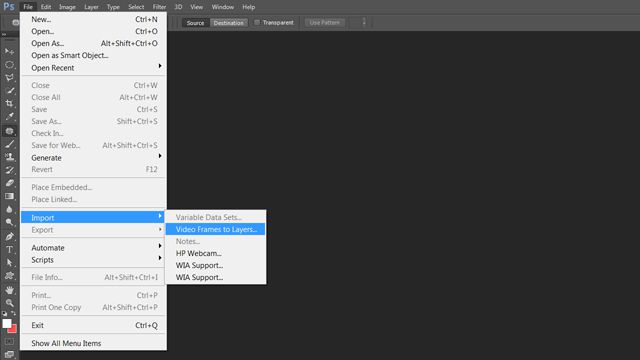
Étape 1Après avoir ouvert Photoshop sur votre ordinateur, cliquez sur le Déposer bouton pour choisir le Importer option. Cliquez ensuite sur le Images vidéo aux calques option pour choisir les vidéos MP4 souhaitées.
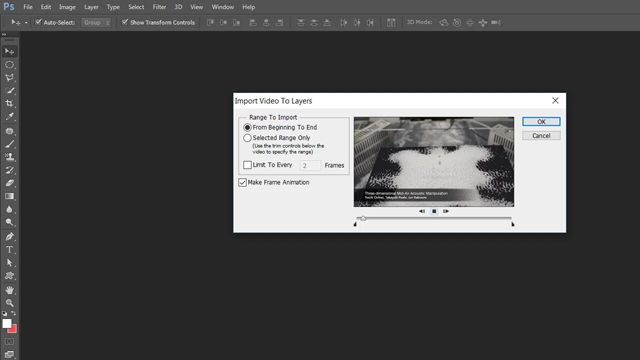
Étape 2Le créateur de GIF s'ouvre dans la fenêtre contextuelle. Ensuite, vous pouvez tirer la chronologie pour choisir les clips vidéo souhaités. Et vous devez entrer la fréquence d'images dans la case vide. Plus le nombre est élevé, plus la fréquence d'images est faible. Enfin, cochez la Faire une animation de cadre option et cliquez sur le d'accord bouton pour continuer.
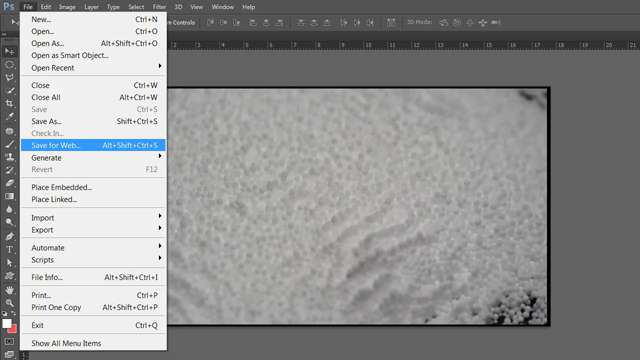
Étape 3Cliquez ensuite sur le Déposer menu pour choisir le Enregistrer pour le Web option. Vous devez choisir le format GIF dans la fenêtre contextuelle et cliquer sur le Sauvegarder bouton pour commencer à convertir des vidéos MP4 en GIF animés.
Partie 3 : Comment convertir gratuitement des vidéos MP4 en GIF en ligne
If you prefer not to install any software, using an online MP4 to GIF converter is your quickest bet. Convertio stands out as a highly popular tool to convert MP4 to GIF online free without any hassle. It is an ideal choice for users chasing a fast MP4 to GIF conversion directly from their web browser. However, keep in mind that this free cloud-based tool has its limitations: it lacks advanced customization options, meaning you cannot adjust the video duration, frame rate, or resolution before exporting. If you just need a straightforward, no-frills MP4 to GIF video converter, follow these simple steps below:
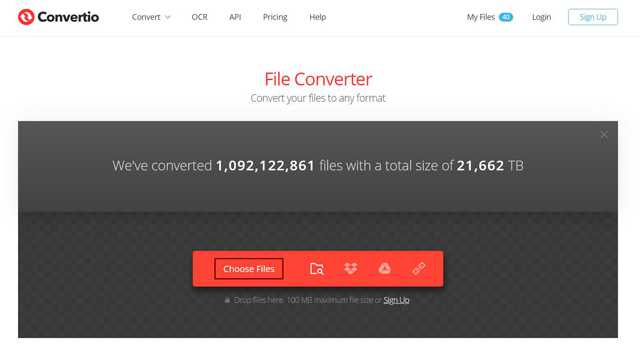
Étape 1Accédez au site officiel de Convertio sur n'importe quel navigateur. Clique le Choisir les fichiers pour sélectionner les vidéos MP4 souhaitées.
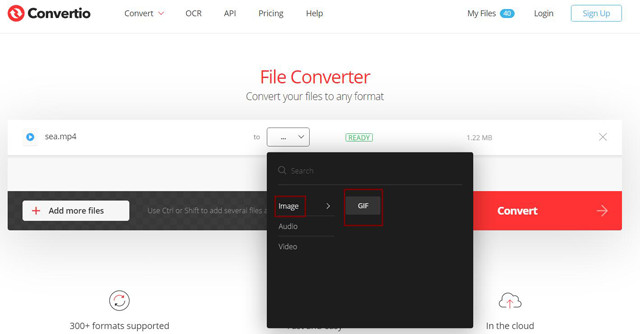
Étape 2Clique le Trois points icône pour choisir le GIF formater dans le Image liste. Cliquez ensuite sur le Convertir bouton pour continuer le processus. Après avoir converti les fichiers MP4 en GIF, vous pouvez directement cliquer sur le Télécharger bouton pour enregistrer les GIF.
Partie 4 : La meilleure solution pour convertir MP4 en GIF sur Android/iOS
For a mobile-first solution, ImgPlay is a highly versatile mobile MP4 to GIF converter available for both Android and iOS devices. This intuitive app allows you to seamlessly convert MP4 to animated GIF right from your camera roll. Before exporting, you can easily personalize your memes by cutting sections, rotating frames, and overlaying filters, text, emojis, or stickers. While the 256-color limit of the GIF format can sometimes lower visual quality, ImgPlay combats this by offering adjustable resolution and high-quality export settings. Once finished, you can instantly save the file or share your custom creations directly to social media networks like X (Twitter), WhatsApp, and Instagram.
How to Create GIF from MP4 in ImgPlay:
Étape 1Launch ImgPlay on your iPhone or Android. Choose an MP4 video to start the process.
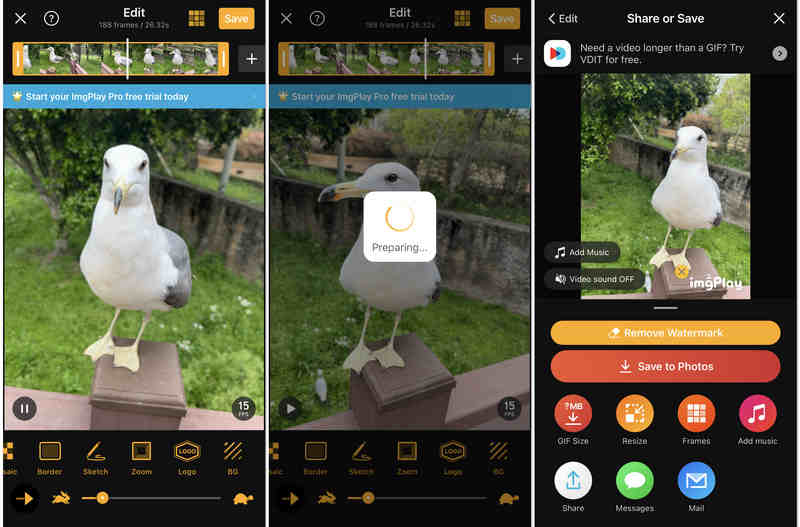
Étape 2There are many editing features and enhancement tools. What you probably need to use is the Trim feature at the top (drag both ends of the timeline) and the Speed Controller at the bottom. Drag the slider to adjust the GIF playback speed.
Étape 3Finally, just tap the Sauvegarder button at the top right to easily change the MP4 clip to an animated GIF image.
Étape 4Then, you can save it in the Photos app on your phone or share it directly.
Part 5: FAQs of Converting MP4 Files to Animated GIFs
Can I keep the original quality after converting MP4 to GIFs?
No, the image quality will be affected. Resolution, frame rate, and bitrate will all be reduced. However, those reliable MP4 to GIF converters, like AVAide Convertisseur MP4, can still help you keep high image quality, which will make your GIF look crisp and seamless.
How to play the animated GIFs on Windows?
Most video players on Windows support playing animated GIFs. Even the built-in photo viewer can directly open GIFs.
Can I use After Effects to export GIF videos?
After Effects itself cannot help you directly export GIFs. It will collaborate with Media Encoder or Photoshop to do the conversion. Therefore, you can directly switch to another faster and easier way.
Animated GIFs have completely taken over the internet as the ultimate way to share humor and reactions. If you have funny moments tucked away in your MP4 videos, converting them into custom memes is the perfect way to spice up your social feeds. In this article, we’ve covered the most efficient ways to convert MP4 en GIF on Windows, Mac, and mobile devices. For the absolute best results, using AVAide Convertisseur MP4 is highly recommended. It stands out as the easiest MP4 to GIF video converter, giving you full control over customized parameters like frame rate and resolution. Download it today and start turning your favorite video clips into hilarious viral loops!
À PROPOS DE L'AUTEUR

Un convertisseur MP4 multifonctionnel pour convertir n'importe quel format vidéo en MP4 avec une qualité de sortie élevée.