Les appareils photo Canon enregistrent les images au format CR2, un format d'image brut conçu pour capturer un maximum de détails. Bien que pratique pour la retouche, ce format ne convient pas aux applications quotidiennes en raison de la taille importante des fichiers et de sa compatibilité limitée. Conversion d'un fichier CR2 en JPGLe partage est facilité, le chargement plus rapide et la compatibilité avec un plus grand nombre d'appareils est assurée. Ce processus minimise également les besoins de stockage sans nécessiter de compétences techniques pointues. Ce guide, structuré en trois sections (raisons, méthodes et outils) et basé sur les pratiques courantes de gestion d'images, vous aidera à gérer vos fichiers de manière claire et maîtrisée.
Partie 1. Canon CR2 : Pourquoi vous devez le convertir
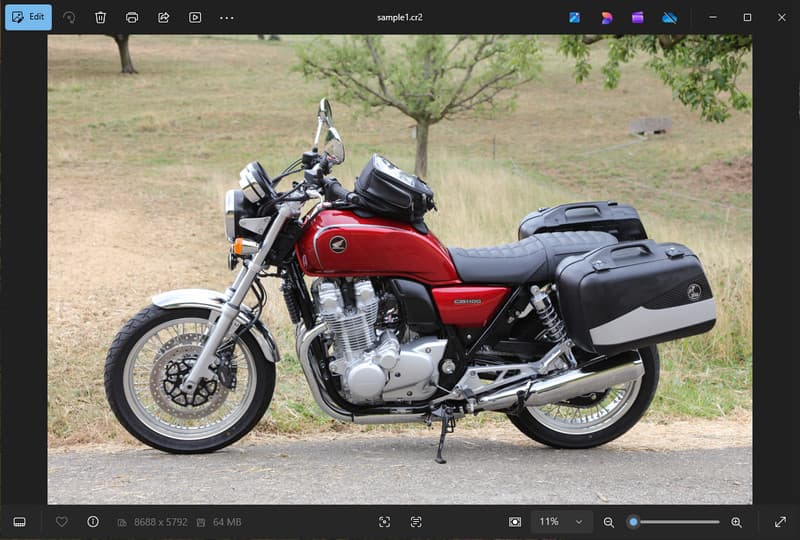
Le format CR2 de Canon est un format de fichier RAW qui enregistre les données brutes du capteur de l'appareil photo. Bien qu'il soit extrêmement détaillé, il peut être nécessaire de convertir les fichiers CR2 au format JPG, car de nombreux appareils et applications ne prennent pas en charge les fichiers RAW.
1. Compatibilité limitée
De nombreux logiciels standards ne prennent pas en charge les fichiers CR2, ce qui complique l'affichage des images. Convertir un fichier CR2 au format JPG garantit un affichage fluide de vos photos sur tous les appareils, navigateurs et visionneuses d'images courantes.
2. Taille du fichier importante
Les fichiers RAW sont très volumineux car ils contiennent davantage de données d'image. Cela a un impact sur le stockage et les performances. Convertir les images CR2 au format JPG réduit leur taille, facilitant ainsi leur stockage et leur transfert.
3. Partage et téléchargement simplifiés
De nombreuses plateformes n'acceptent pas les formats RAW ou sont lentes à traiter. Convertir vos photos du format CR2 au format JPG est une solution simple et rapide pour les télécharger et garantir leur affichage au bon format sur les réseaux sociaux, par e-mail et sur d'autres sites web.
4. Aucun logiciel spécialisé n'est nécessaire.
Les fichiers CR2 nécessitent un logiciel de retouche capable de traiter le format RAW. En convertissant un fichier CR2 en JPG, vous vous affranchissez de l'utilisation de logiciels complexes et obtenez facilement des images pour un usage quotidien.
5. Flux de travail plus rapide
Travailler avec des fichiers RAW peut ralentir votre processus, surtout en grande quantité. L'utilisation d'un convertisseur CR2 vers JPG fiable permet d'accélérer le traitement des images et d'améliorer la productivité globale.
6. Un processus simplifié pour les débutants
Les formats RAW peuvent paraître complexes pour les nouveaux utilisateurs. Apprendre à convertir un fichier CR2 en JPG simplifie votre flux de travail et facilite la gestion des images, sans barrières techniques.
La compréhension de ces points explique pourquoi la conversion est souvent le choix le plus pratique. Dans la section suivante, vous découvrirez les meilleures méthodes pour convertir efficacement les fichiers CR2 en JPG.
Partie 2. 5 façons optimales de convertir un fichier CR2 en JPG
1. Convertisseur d'images AVAide (Meilleure option gratuite en ligne)
Convertisseur d'images AVaide est une solution rapide, accessible via navigateur, conçue pour les utilisateurs qui ont besoin de résultats rapides sans installer de logiciel. Elle est particulièrement utile pour convertir en masse des fichiers CR2 en JPG tout en préservant la qualité d'image.
Principales caractéristiques:
- Convertit les fichiers CR2 par lots dans les deux sens.
- Maintient une haute qualité d'image et des couleurs naturelles.
- Entièrement en ligne, sans installation requise
- Accepte les formats JPG, PNG et autres.
- Interface conviviale pour un traitement accéléré.
Plateformes :
- Application web, compatible avec Windows, Mac, Linux et les navigateurs mobiles.
Étape 1Visitez le site officiel
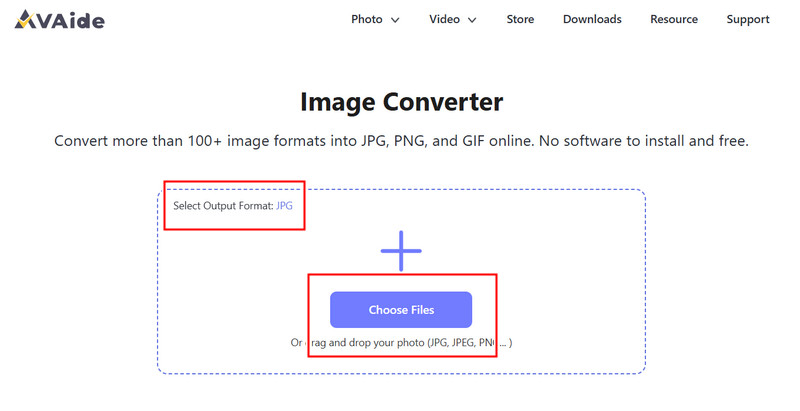
Ouvrez votre navigateur et accédez à la page officielle d'AVAide Image Converter. Une fois la page chargée, vous pouvez commencer la conversion immédiatement, sans inscription ni installation.
Étape 2Configurer la sortie et le chargement
Sélectionnez JPG comme format de sortie souhaité. Cliquez ensuite sur le bouton + ou glissez-déposez vos fichiers CR2 dans la zone de téléchargement pour commencer.
Étape 3Commencez la conversion CR2
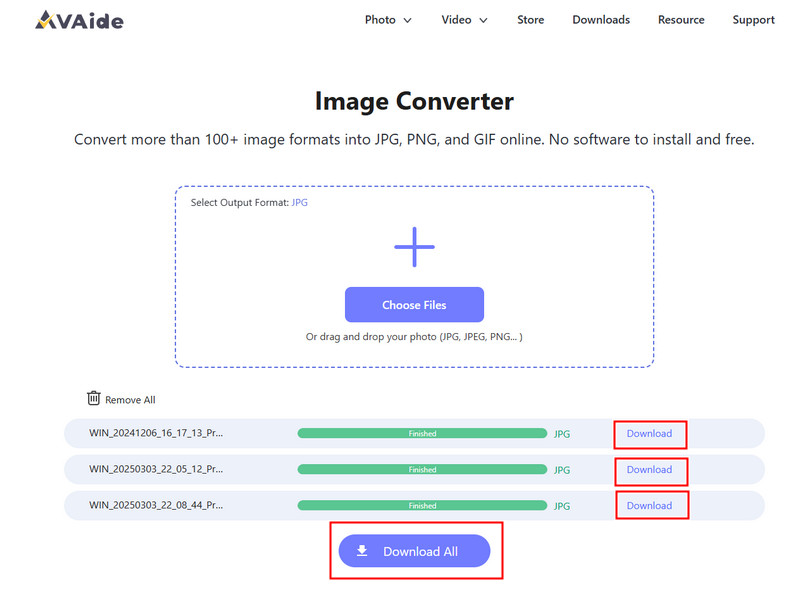
Attendez que l'outil ait fini de traiter vos fichiers. Une fois terminé, cliquez sur Télécharger pour un seul fichier ou Tout télécharger si vous avez converti plusieurs images.
- Avantages
- Facile et rapide à utiliser
- Aucune configuration ni installation nécessaire
- Support efficace du traitement par lots
- Maintient une qualité de production constante
- Les inconvénients
- Nécessite une connexion internet
- Outils d'édition avancés limités
2. Adobe Photoshop
Adobe Photoshop Cette application performante permet de modifier les fichiers bruts avant leur exportation. Elle est généralement utilisée pour convertir des fichiers CR2 en JPG et offre un contrôle total sur les modifications d'image.
Principales caractéristiques:
- Édition avancée des fichiers CR2 via Camera Raw
- Options d'exportation de haute qualité
- Outils de montage de qualité professionnelle
Plateformes :
- Windows et Mac
Étape 1Lancez Photoshop et ouvrez votre fichier CR2, qui se chargera automatiquement dans Camera Raw.
Étape 2Ajustez l'exposition, la balance des blancs ou la couleur selon vos besoins, puis cliquez Ouvert continuer.
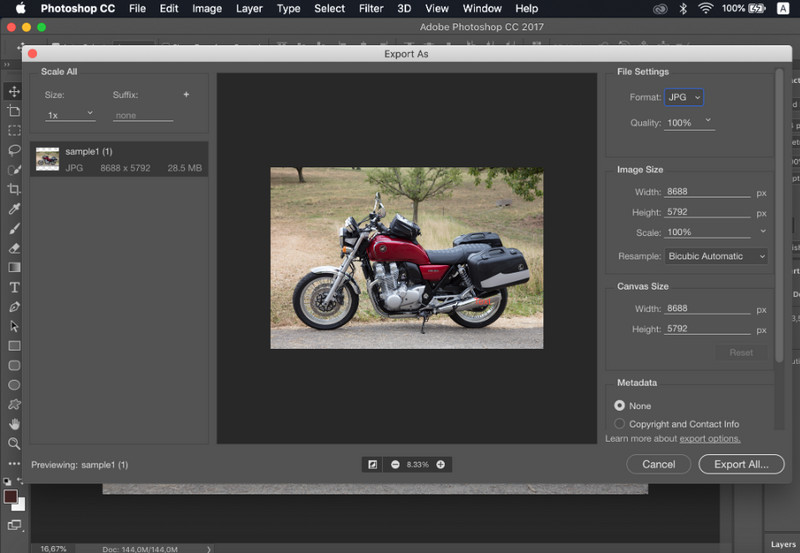
Étape 3Aller à Déposer, sélectionner Enregistrer sous, choisir JPG Formatez, définissez la qualité et enregistrez l'image.
- Avantages
- Excellente maîtrise et précision de l'image
- Logiciel conforme aux normes de l'industrie
- Les inconvénients
- Nécessite un abonnement
- Courbe d'apprentissage abrupte
3. Lightroom
Lightroom est idéal pour les photographes gérant de grandes bibliothèques d'images, et même si vous souhaitez supprimer l'arrière-plan dans LightroomIl simplifie l'édition et l'exportation par lots, facilitant ainsi l'utilisation d'un flux de travail de conversion CR2 vers JPG pour plusieurs images à la fois.
Principales caractéristiques:
- Édition par lots et exportation
- Système d'édition non destructive
- Gestion organisée des photos
Plateformes :
- Windows, Mac et appareils mobiles
Étape 1Ouvrez Lightroom et ajoutez vos fichiers CR2 à la bibliothèque.
Étape 2Sélectionnez les photos et effectuez les modifications nécessaires.
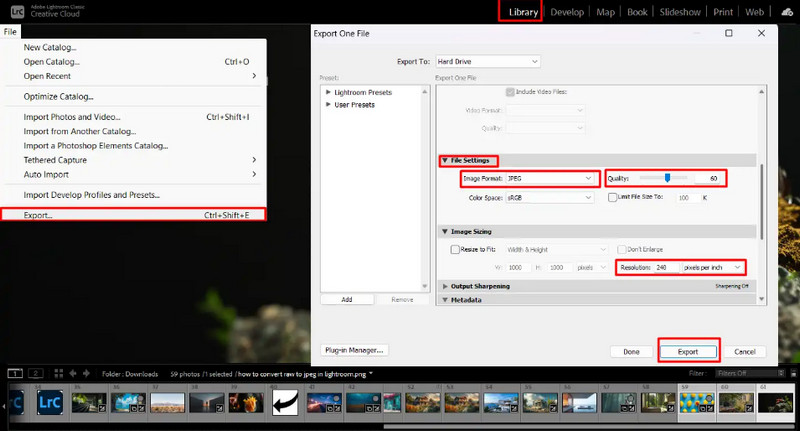
Étape 3Cliquez sur Exportation, sélectionner JPG Formatez, définissez les paramètres et sélectionnez l'emplacement d'enregistrement.
- Avantages
- Efficace pour le traitement d'images en masse
- Qualité de production constante
- Les inconvénients
- Abonnement requis
- Nécessite un apprentissage pour les débutants
4. GIMP
Éditeur de photos GIMP est un éditeur gratuit et open source capable de gérer les images RAW grâce à des plugins. C'est une solution efficace pour apprendre à convertir des fichiers CR2 en JPG sans investir dans un logiciel payant.
Principales caractéristiques:
- Logiciels libres et open source
- Prend en charge plusieurs formats d'image
- Fonctionnalités de base d'édition et de conversion
Plateformes :
- Windows, Mac, Linux
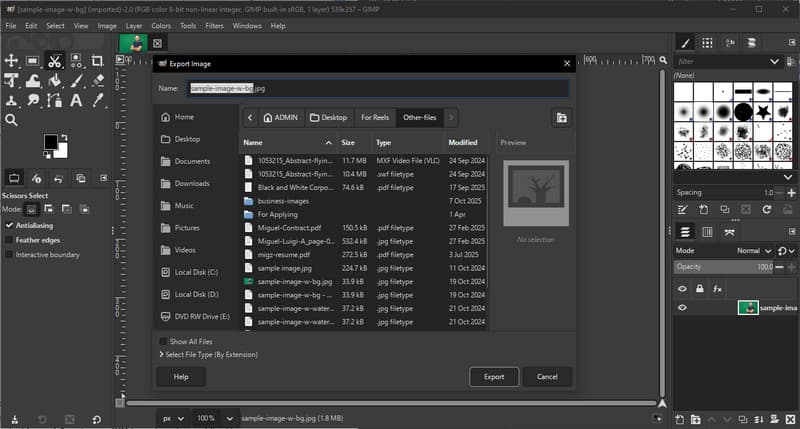
Étape 1Ouvrez GIMP et chargez votre fichier CR2 à l'aide d'un plugin RAW.
Étape 2Ajustez les paramètres d'image dans la fenêtre d'importation et confirmez.
Étape 3Aller à Déposer, sélectionner Exporter sous, choisir JPG formater et exporter le fichier.
- Avantages
- Utilisation entièrement gratuite
- Flexible avec les plugins et les extensions
- Les inconvénients
- La configuration peut être technique
- Interface moins soignée
5. Conversion
Convertio est un outil web bien connu qui permet aux utilisateurs de convertir rapidement des fichiers sans installation. C'est une solution pratique pour ceux qui cherchent à convertir des fichiers CR2 en JPG via une plateforme en ligne simple d'utilisation.
Principales caractéristiques:
- Prend en charge plusieurs formats de fichiers, notamment CR2 et JPG.
- Fonctionne directement dans le navigateur
- Permet le téléchargement de fichiers depuis un appareil, le cloud ou une URL
- Processus de conversion simple et rapide
Plateformes :
- Basé sur le Web
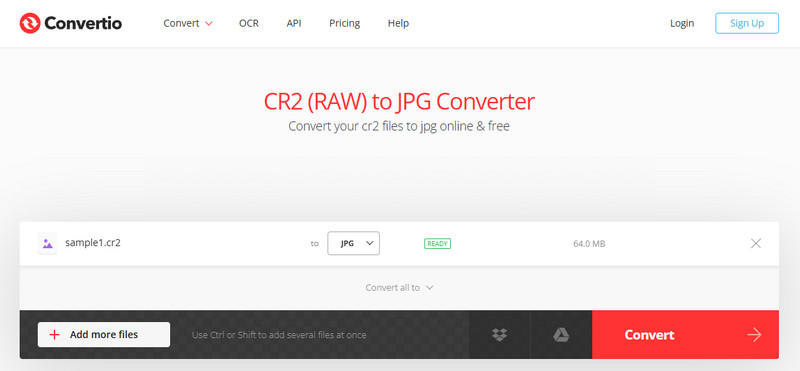
Étape 1Ouvrez Convertio dans votre navigateur et téléchargez votre fichier CR2.
Étape 2Sélectionner JPG comme format de sortie.
Étape 3Lancez la conversion et téléchargez le fichier une fois terminée.
- Avantages
- Facile d'accès et d'utilisation
- Aucune installation requise
- Prend en charge diverses sources de fichiers
- Les inconvénients
- Limites de taille de fichier dans la version gratuite
- Nécessite une connexion internet
Partie 3. Comparaison des 5 convertisseurs CR2 vers JPG
| Caractéristiques | Convertisseur d'images AVaide | Adobe Photoshop | Lightroom | GIMP | Convertio |
| Facile à utiliser | Très facile | Modéré | Modéré | Modéré | Facile |
| Conversion par lots | Oui | Limité | Limité | Limité | Limité à 5 |
| Qualité d'image | Le plus élevé | Haut | Haut | Haut | Haut |
| Vitesse | Rapide | Modéré | Rapide | Modéré | Rapide |
| Limitation de la taille des fichiers | Non | Non | Non | Non | Oui |
Partie 4. FAQ sur la conversion de CR2 en JPG
Que faire des fichiers CR2 ?
Les fichiers CR2 sont des images brutes contenant les données non traitées d'un appareil photo Canon. Ils sont utiles si vous souhaitez un contrôle total sur le traitement des images, notamment le réglage de la luminosité, des couleurs et de la netteté. Cependant, ils ne sont pas pratiques pour les tâches quotidiennes telles que le partage ou le téléchargement.
Quelles applications permettent d'ouvrir les fichiers CR2 ?
Les fichiers CR2 peuvent être ouverts avec plusieurs logiciels de retouche photo. Adobe Photoshop et Lightroom sont les plus courants car ils prennent entièrement en charge les formats RAW et offrent des outils de retouche avancés. GIMP peut également ouvrir les fichiers CR2 grâce à un plugin.
Comment convertir des fichiers RAW en JPG en une seule opération ?
Pour convertir plusieurs fichiers RAW simultanément, vous avez besoin d'un outil prenant en charge la conversion par lots. Des logiciels comme Lightroom ou des outils en ligne tels qu'AVAide Image Converter vous permettent d'importer ou de télécharger plusieurs fichiers CR2 à la fois. Il vous suffit ensuite de sélectionner JPG comme format de sortie et de lancer la conversion.
Convertir les fichiers CR2 en JPG facilite le partage, la visualisation et le stockage des images. Si le format CR2 est idéal pour la retouche, le format JPG est plus pratique au quotidien. Si vous vous posez la question… Comment changer le type de fichier de CR2 à JPG ?, vous pouvez utiliser des outils comme Photoshop, Lightroom ou des convertisseurs en ligne tels que Convertisseur d'images AVaideL’objectif est simple : transformer des fichiers RAW volumineux en images JPG plus petites et utilisables sans perte de qualité significative.
À PROPOS DE L'AUTEUR


Vous pouvez facilement convertir votre photo de n'importe quel format d'image en JPG, PNG ou GIF populaire sans perte de qualité.
TRAITEZ MAINTENANT