Haluatko tallentaa näyttösi ja äänesi Windows-tietokoneellasi? On monia syitä, miksi sinun on tarpeen tallentaa tietokoneen näyttö ja ääni. Voit tallentaa pelejäsi, tehdä opetusohjelmia, arvostella sisältöä tai tuotteita, luoda sisältöä ja paljon muuta. Selkeät ja saumattomat kuvat ja ääni voivat tehdä tallenteistasi erinomaisia. Voit seurata tässä viestissä olevia viittä menetelmää tehokkaasti... tallentaa näyttöä ja ääntä Windowsissa.
Osa 1. Voiko Windows tallentaa näytön äänen kanssa
Kyllä, Windows antaa sinun tallentaa työpöydän näytön järjestelmän äänellä ja mikrofonilla. Oikean näytön ja äänitallentimen käyttö on avain saumattomaan näytön ja äänen tallentamiseen. Tarvitsetpa sitten tehokasta tallenninta pelaamiseen tai terävää ratkaisua opetusohjelmiin, täydellinen työkalu varmistaa, että kuvasi ja äänesi synkronoidaan täydellisesti. Me olemme tehneet raskaan työn puolestasi! Sukella seuraavaan osioon tutustuaksesi parhaisiin menetelmiin ja vaiheittaisiin vinkkeihin Windows-näytön tallentamiseen äänen kanssa kuin ammattilainen.
Osa 2. 3 tapaa näytön tallentamiseen Windowsissa äänen avulla
1. Tallenna näyttö äänellä Windowsissa AVAide Screen Recorderilla
Yksi tehokkaimmista näytön tallentimista, joissa on mikrofoni ja järjestelmäääni, joita voit käyttää näytön tallentamiseen äänellä Windowsissa, on AVAide Screen RecorderTämä näytön ja äänen tallennin voi auttaa sinua saavuttamaan tavoitteesi helpommin. Lisäksi tämä Windowsin näytön ja äänen tallennin mahdollistaa tietokoneesi näytön tallentamisen kahdella tavalla. Voit tallentaa välittömästi koko tietokoneen näytön tai tietyn osan näytöstä. Voit jopa tallentaa erilaista sisältöä, kuten videopuheluita, videoita, Zoom-kokouksia, pelin kulkua, opetusvideoita ja paljon muuta. Lisäksi se voi tarjota ongelmattoman tallennusprosessin. Voit käyttää tätä tallenninta helposti ja sujuvasti, vaikka et olisi ammattimainen tai taitava käyttäjä.
Lisäksi voit parantaa tiedostoasi näytön ja äänen tallennusprosessin jälkeen. Voit pakata, rajata, leikata ja muuttaa videomuotoa. Sen avulla voit saada haluamasi lopputuloksen ennen videon tallentamista tietokoneellesi. Joten jos haluat oppia näytön tallentamisesta äänen kanssa Windowsissa, tarkista alla olevat vaiheet.
Vaihe 1Pääsy AVAide Screen Recorder Windows-tietokoneellasi. Lataa ja asenna ohjelmisto tietokoneellesi välittömästi napsauttamalla alla olevia painikkeita.

ILMAINEN LATAAUS Windows 7 tai uudempi
 Suojattu lataus
ILMAINEN LATAAUS Mac OS X 10.13 tai uudempi
Suojattu latausVaihe 2Valitse sen jälkeen tapa, jolla haluat tallentaa näytön. Voit valita Koko tai Mukautettu. Kytke sitten päälle Äänijärjestelmä tallentaaksesi näytön äänellä.

Vaihe 3Aloita näytön äänitys äänen kanssa napsauttamalla REC -painiketta. Kolmen sekunnin kuluttua ohjelma aloittaa tallennusprosessin. Napsauta sitten Lopettaa lopettaa näytön tallennus.

Vaihe 4Klikkaa Tuonti -painiketta alhaalta käyttöliittymästä tallentaaksesi tallennetun näytön.

2. Käytä OBS:ää tallentaaksesi näytön äänellä Windowsissa
OBS kuuluu joukkoon parhaat avoimen lähdekoodin näytön tallentimet näytön tallentamiseen äänellä. Se on yksi suosituimmista ohjelmista, joihin voit luottaa haluamasi tuloksen saavuttamiseksi. Lisäksi se pystyy tallentamaan erilaisia mediatiedostoja näytöllesi. Voit jopa tallentaa erilaisia välilehtiä, ikkunoita, pelejä ja paljon muuta. Jos haluat tallentaa tietokoneesi näytön täydellisesti äänellä ja erinomaisella laadulla, käytä OBS:ää heti. Ainoa haittapuoli tässä on, että käyttöliittymä voisi olla selkeämpi. Jos olet aloittelija, sinun kannattaa käyttää aikaa tämän äänellä varustetun näytön tallenntimen käytön oppimiseen. Jos haluat oppia tallentamaan näytön Windows 10:ssä äänellä, noudata alla olevia ohjeita.
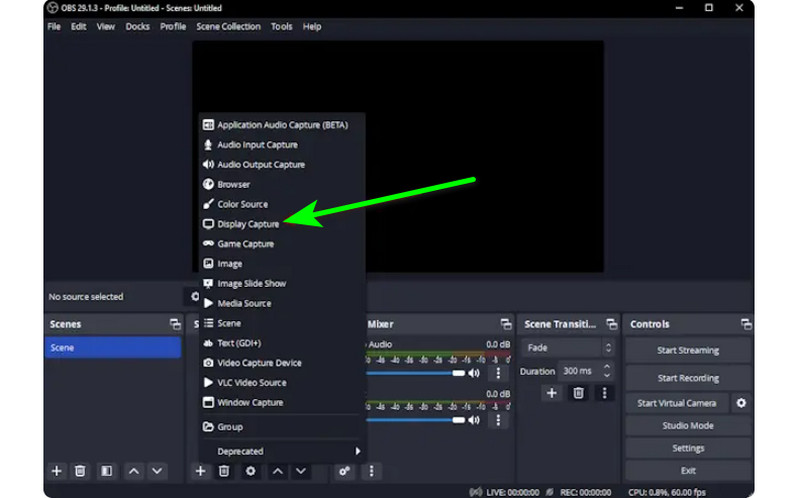
Vaihe 1Käynnistä OBS ohjelma asennuksen jälkeen. Siirry sen jälkeen osoitteeseen Plus symboli alla ja valitse Display Capture vaihtoehto. Voit valita, mitä sisältöä haluat tallentaa näytölle.
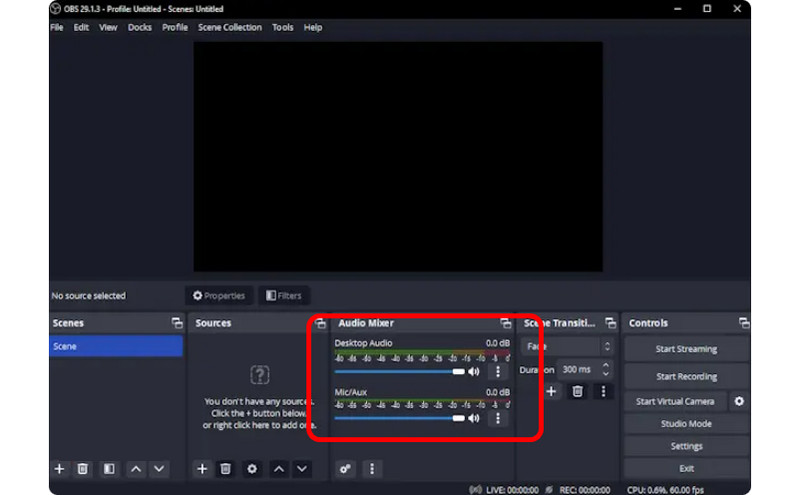
Vaihe 2Siirry sitten kohtaan Audio mikseri ja kytke Ääni päälle, jotta voit tallentaa näytön äänen kanssa.
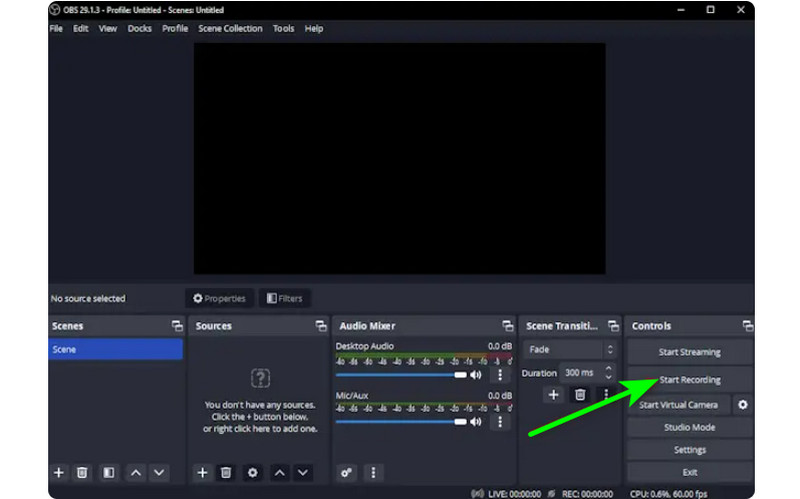
Vaihe 3Klikkaa Aloita nauhottaminen -vaihtoehto oikeassa käyttöliittymässä aloittaaksesi näytön tallentamisen. Jos haluat lopettaa tallennusprosessin, napsauta Lopeta tallennus -painiketta.
3. Käytä Clipchampia näytön tallentamiseen äänellä Windowsissa
Haluatko oppia nauhoittamaan näyttöjä Windows 11:ssä äänen kanssa? Käytä sitten Clipchamp erinomaisena näytön tallentimena. Tämän hyödyllisen ohjelmiston avulla voit tallentaa näytön äänen sujuvasti, koska siinä on yksinkertainen prosessi, josta saatat nauttia. Voit jopa kytkeä verkkokamerasi päälle, jos haluat. Se sopii erinomaisesti tietyn sisällön kommentoimiseen tai opetusvideoiden luomiseen. Joten aloittaaksesi näytön tallennuksen oppimisen Windowsissa, katso alla olevat menetelmät.
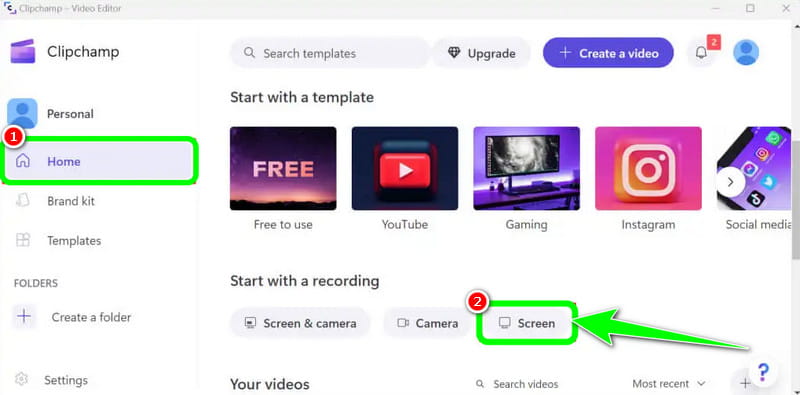
Vaihe 1Pääliittymästä Clipchamp, siirry kohtaan Koti -osio ja napsauta Näyttö vaihtoehto. Sitten näytölle tulee toinen verkkosivu.
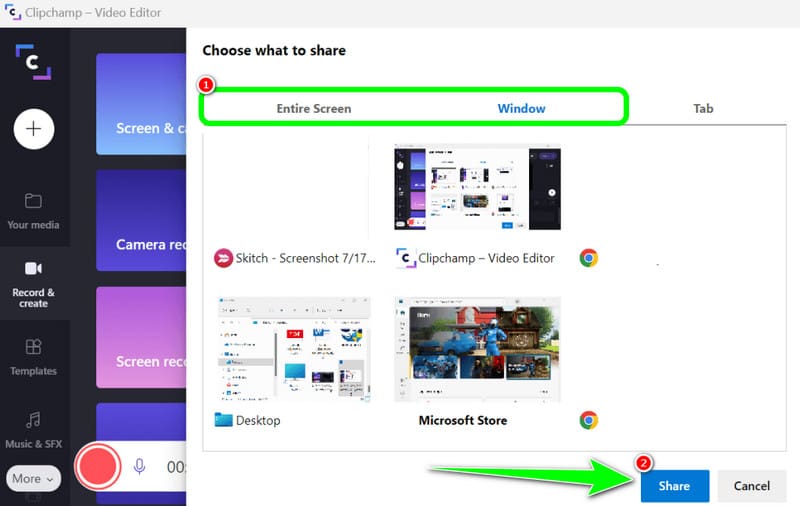
Vaihe 2Napsauta sen jälkeen Punainen -painiketta vasemmasta käyttöliittymästä. Sitten näet näytölläsi kaiken sisältösi, kuten välilehdet, ikkunat ja paljon muuta.
Vaihe 3Napsauta näyttöä, jonka haluat tallentaa, kuten Koko näyttö, Ikkuna ja Välilehti. Aloita tallennus napsauttamalla Jaa -painiketta. Napsauta sitten prosessin jälkeen Lopeta tallennus tallentaaksesi tallennetun näytön tietokoneellesi.
Osa 3. 2 tapaa tallentaa ääntä Windows 10:ssä ja 11:ssä
1. Äänitä ääntä Windowsissa Audacityn avulla
Haluatko oppia tallentamaan ääntä Windows 10:ssä? Jos näin on, käytä Audacityä. Tämän offline-ohjelmiston avulla voit tallentaa minkä tahansa äänen tietokoneeltasi. Lisäksi et koe sitä haastavana, koska ohjelmisto voi tarjota helpon prosessin, mikä tekee siitä ihanteellisen äänitallentimen kaikille käyttäjille. Aloita äänen tallentaminen noudattamalla alla olevia ohjeita.
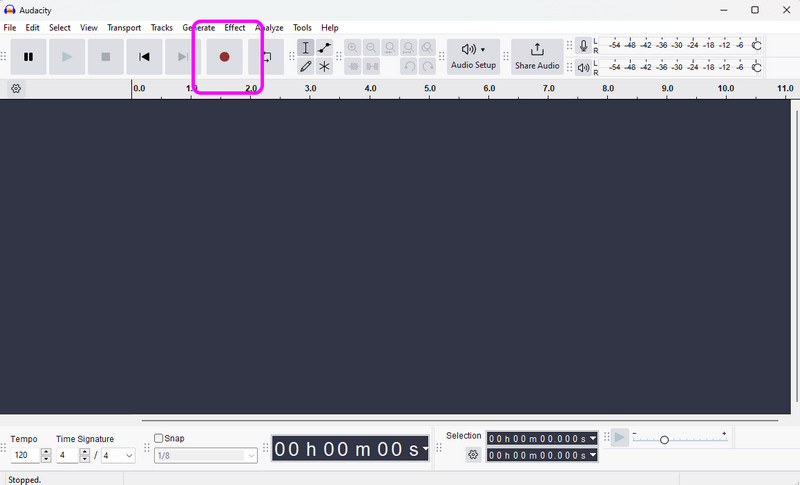
Vaihe 1Asenna ja suorita Audacity Windowsissasi. Napsauta sitten pääliittymästä Ennätys -painiketta ylärajapinnasta. Tämän jälkeen äänen tallennusprosessi alkaa.
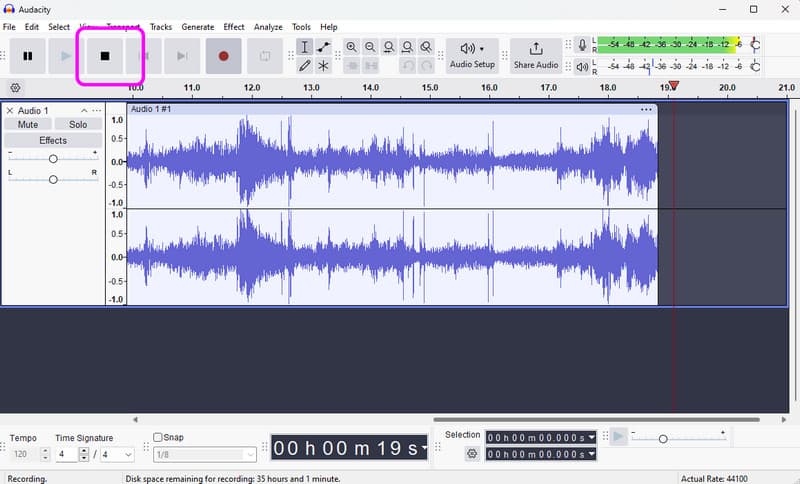
Vaihe 2Tämän jälkeen, jos olet lopettanut tallennuksen, napsauta Lopettaa -painiketta. Tämän jälkeen voit jatkaa tallennusprosessia.
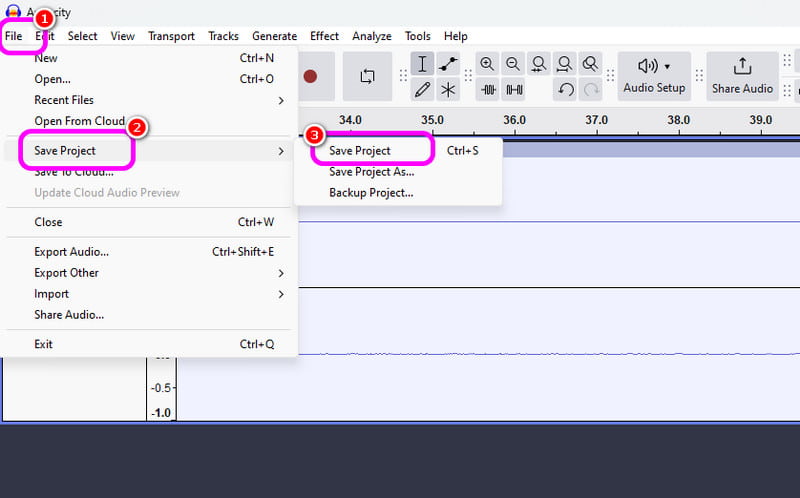
Vaihe 3Tallenna äänitetty ääni siirtymällä kohtaan Tiedosto > Tallenna projekti -osio tallentaaksesi lopullisen äänitiedoston laitteellesi.
2. Äänitä Windowsissa Windows Voice Recorderilla
Toinen ohjelmisto, joka voi tarjota sinulle sujuvan Windowsin äänentallennusprosessin, on Windowsin äänitallennin. Kun käytät tätä äänitallenninta, voit aloittaa minkä tahansa äänisisällön tallentamisen laitteestasi. Pidämme siitä, että käyttöliittymä on yksinkertainen, joten voit tallentaa ääntä helposti ja nopeasti. Ainoa haittapuoli on, että se ei tarjoa muokkaustyökaluja tallennetun äänen parantamiseksi.
Vaihe 1Lataa Windowsin äänitallennin laitteellasi. Tämän jälkeen käynnistä se aloittaaksesi prosessin.
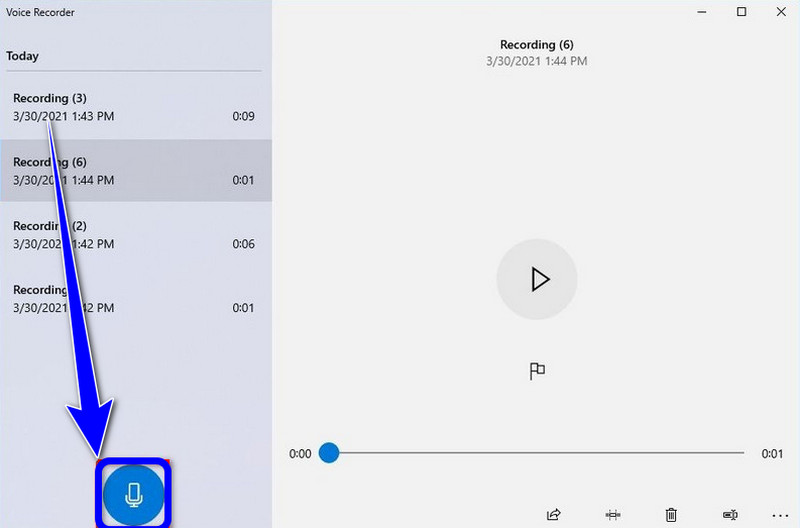
Vaihe 2Napsauta pääliittymästä Mikrofoni symboli aloittaaksesi tallennusprosessin.
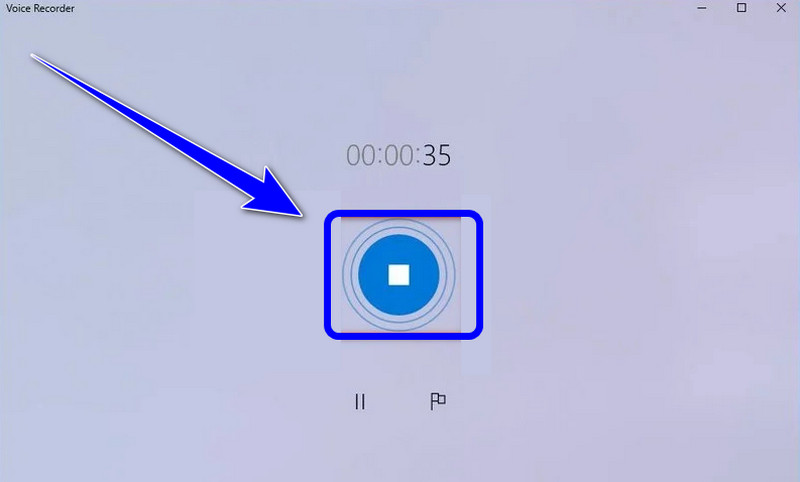
Vaihe 3Voit lopettaa äänen tallennusprosessin napsauttamalla Lopettaa -painiketta. Sitten voit jo kuunnella nauhoittamaasi ääntä.
Osa 4. Viiden näyttö- ja ääninauhurin vertailu
| Ominaisuus | AVAide Screen Recorder | OBS Studio | Clipchamp | Audacity | Windowsin äänitallennin |
| Ensisijainen kategoria | All-in-One-tallennuspaketti | Ammattimainen lähetys | Perusselaimen editori | Ammattimainen äänieditori | Perusäänimuistio |
| Videotallennus | Tuettu (jopa 4K/60fps) | Tuettu (edistynyt) | Tuettu (perus) | Ei tueta | Ei tueta |
| Äänitys | Järjestelmä ja mikrofoni samanaikaisesti | Moniraitatuki | Vain perussyöttö | Edistynyt äänen tallennus | Vain mikrofoni |
| Käyttöliittymä | Intuitiivinen ja käyttäjäystävällinen | Jyrkkä oppimiskäyrä | Yksinkertainen selainpohjainen | Tekninen/perinteinen | Äärimmäisen minimalistinen |
| Sisäänrakennettu muokkaus | Reaaliaikainen merkintöjen/leikkausten lisääminen | Ei mitään (ulkoinen vaaditaan) | Koko aikajanan editori | Edistynyt äänenmuokkaus | Vain perusleikkaus |
| Ainutlaatuinen myyntivaltti | Omistetut peli- ja puhelintilat | Rajattomat kohtauskerrokset | Osakemedian integrointi | Melunvaimennus/Miksaus | Natiivijärjestelmäapuohjelma |
| Kokonaisarvo | Paras tehokkuuden ja laadun kannalta | Paras edistyneille teknikkoille | Paras lyhyille sosiaalisen median klipeille | Paras puhtaaseen äänityöhön | Paras yksinkertaisille muistiinpanoille |
Osa 5: Usein kysytyt kysymykset näytön ja äänen tallentamisesta Windowsissa
Miksi Windowsin Alt+R-näppäinyhdistelmä ei toimi?
Jos Alt + R -pikanäppäinyhdistelmä (Windows Xbox Game Barin vakionäppäinyhdistelmä) ei toimi, se johtuu yleensä ohjelmistoristiriidasta, käytöstä poistetusta asetuksesta tai laitteistorajoituksista. Sinun tulisi sulkea muut ohjelmat, joissa on näytön tallennusominaisuuksia.
Miksi ääntä ei kuulu, kun tallennan näytön Windowsissa?
Yleisin syy äänettömiin äänityksiin on virheelliset äänituloasetukset. Voit korjata tämän varmistamalla, että sekä järjestelmän ääni (sisäinen ääni) että mikrofoni ovat käytössä äänitysohjelmistossasi. Windows 11:ssä tarkista Tietosuoja- ja suojausasetuksistasi, että sovelluksella on lupa käyttää mikrofonia. Varmista myös, että toistolaite on asetettu oletuslaitteeksi Windowsin ääniohjauspaneelissa, koska monet tallentimet eivät voi tallentaa ääntä virtuaali- tai Bluetooth-lähdöistä, ellei sitä ole erikseen määritetty.
Miten voin tallentaa sisäistä ääntä Windowsissa ilman mikrofonia?
Jos haluat tallentaa järjestelmän sisäistä ääntä ilman mikrofonin taustamelua, sinun on poistettava käytöstä "Järjestelmän äänet" tai "Sisäinen ääni" -asetus näytöltäsi ja äänentallennusohjelmastasi.
Jos haluat oppia kuinka näytön tallennus Windowsissa äänen kanssa, saat kaikki tiedot tästä viestistä. Joten katso kaikki tiedot ja kokeile prosessia saadaksesi tehokkaan näytön ja äänen tallennusprosessin. Lisäksi, jos haluat luotettavimman ohjelmiston auttamaan sinua nauhoittamaan näytön ääntä täydellisesti, ei ole epäilystäkään siitä, että AVAide Screen Recorder on paras ohjelma, jota voit käyttää. Suorita siis ohjelmisto Windowsissasi ja nauti sen yleisistä ominaisuuksista.
TIETOA KIRJOITTAJASTA

Tallenna näyttö, ääni, web-kamera, pelattavuus, online-kokoukset sekä iPhone/Android-näyttö tietokoneellesi.
Näytön tallennus