Oletko koskaan joutunut tallentamaan näyttösi nopeasti, mutta joutunut myöhemmin korjaamaan äänen tai kuvan laatua? Tämä johtuu usein puuttuvista tai riittämättömistä asetuksista. Screencastify antaa Chrome-käyttäjille mahdollisuuden tallentaa välilehtiä, työpöytiä ja web-kameramateriaalia ilman sovellusten asentamista. Asennus on ensimmäinen askel kohti selkeämpiä oppitunteja, demoja ja tiimikokouksia. Tässä artikkelissa kerrotaan, kuinka välttää virheitä kutakin sovellusta käytettäessä.
- Osa 1. Mikä on Screencastify?
- Osa 2. Tärkeimmät ominaisuudet ja uudet ominaisuudet
- Osa 3. Screencastify-turvallisuus ja yksityisyys
- Osa 4. Screencastifyn käyttö
- Osa 5. Screencastify-hinnoittelu ja ilmainen versio
- Osa 6. Paras Screencastify-vaihtoehto
- Osa 7. Screencastify-esimerkkejä ja käyttötapauksia
Osa 1. Mikä on Screencastify?
Screencastify on videoiden luonti- ja kuvakaappausalusta, joka on suunniteltu helpottamaan tutoriaalien, oppituntien, koulutusvideoiden ja lyhyiden esitysten tuottamista. Screencastify, joka tunnetaan joidenkin keskuudessa nimellä Google Chrome -selaimen Screencastify-laajennus, tekee muutakin kuin vain tallentaa työpöydän näytön: se tarjoaa videoiden muokkausta, tallennusta, jakamista ja luokkahuoneominaisuuksia.
Opettajat, etätyötiimit ja videoiden tekijät, jotka etsivät tehokasta tapaa tehdä videoita nopeasti, voivat käyttää sitä helposti. Jotta voit päättää, onko se oikea ratkaisu, kannattaa tarkastella sen ominaisuuksia, hinnoittelua, rajoituksia ja käyttötapoja seuraavissa osioissa.
Osa 2. Tärkeimmät ominaisuudet ja uudet ominaisuudet
Ymmärtääkseen, mitä Screencastify on, on hyödyllistä tarkastella, miten alusta on kasvanut yksinkertaisesta selaintallennustilasta. Se yhdistää nyt videon tallennuksen, muokkaamisen, jakamisen ja yhteistyön yhteen järjestelmään. Tämä tekee siitä hyödyllisen opettajille, etätiimeille, kouluttajille ja sisällöntuottajille, jotka tarvitsevat nopeita tuloksia ilman edistynyttä ohjelmistoa. Alla on lueteltu tärkeimmät ominaisuudet ja uudemmat päivitykset, jotka parantavat käyttökokemusta.
1. Nopea selainpohjainen tallennus
Screencastify Chrome -laajennus antaa käyttäjien aloittaa tallennuksen suoraan selaimesta. Se voi tallentaa välilehden, koko näytön tai web-kameran ilman suurten työpöytäohjelmien asentamista. Tämä pitää asennuksen yksinkertaisena ja tehokkaana.
2. Suojattu tilin käyttöoikeus
Screencastify-kirjautumisprosessi yhdistää käyttäjät tallennettuihin videoihinsa, asetuksiinsa ja pilvityökaluihinsa. Tämä auttaa käyttäjiä siirtymään laitteiden välillä ja pitämään projektit järjestyksessä.
3. Sisäänrakennetut muokkaustyökalut
Screencastifyn käyttöä opetteleville käyttäjille muokkaustyökalut ovat helpoimpia aloituskohtia. Videoita voi trimmata, leikata ja yhdistää ilman erillistä ohjelmistoa.
4. Helppo vienti ja tiedostojen tallennus
Monet käyttäjät kysyvät, miten video tallennetaan Screencastifysta tallennuksen jälkeen. Alusta tarjoaa vienti- ja jakamisvaihtoehtoja, jotka helpottavat paikallisten kopioiden säilyttämistä tai linkkien lähettämistä.
5. Transkriptipohjainen editointi
Viimeaikaiset päivitykset mahdollistavat videoiden muokkaamisen tekstitranskriptien avulla. Tämä säästää aikaa, koska puhutut virheet tai tauot voidaan poistaa nopeammin kuin manuaalisesti aikajanalla muokattuna.
6. Latausvaihtoehdot offline-käyttöön
Käyttäjät, jotka tarvitsevat Screencastify-latauksen, voivat tallentaa tallenteita esityksiä, arkistoja tai jakamista varten, jos internet-yhteys on rajoitettu.
7. Luotettava tallennusteho
Screencastify-tallennin on edelleen alustan ydinvahvuus. Se on suunniteltu nopeisiin opetusohjelmiin, tiimipäivityksiin, demoihin ja oppitunteihin minimaalisella asennuksella.
8. Koko näytön kaappausominaisuudet
Screencastify-näytöntallennin tukee työpöydän kaappausta, selainvälilehtiä ja web-kameran peittokuvia. Tämä tekee siitä hyödyllisen ohjelmistojen esittelyvideoissa ja koulutusvideoissa.
9. Tallennettujen videoiden käyttö
Monet käyttäjät etsivät tietoa siitä, miten Screencastify-videoita voi ladata varmuuskopioita tai offline-kopioita varten. Alusta tarjoaa vaihtoehtoja tallenteiden viemiseen yleisiin formaatteihin.
Osa 3. Screencastify-turvallisuus ja yksityisyys
Screencastify-sovellus käyttää selainpohjaisia käyttöoikeuksia näyttöösi, mikrofoniisi ja kameraasi vasta, kun olet hyväksynyt ne. Tämä antaa käyttäjille hallinnan tallennetusta sisällöstä, mutta se tarkoittaa myös sitä, että käyttöoikeuksien huolellinen hallinta on tärkeää, erityisesti jaetuilla laitteilla. Tallenteet tallennetaan pilveen helpon käytön ja jakamisen takaamiseksi, joten käyttäjien on myös hallittava yksityisyysasetuksiaan arkaluonteisen sisällön paljastumisen välttämiseksi. Koska kaikki on linkitetty Screencastify-kirjautumistunnukseen, tilisi suojaaminen vahvalla salasanalla ja kaksivaiheisella todennuksella auttaa suojaamaan tallennettuja videoita ja henkilötietoja.
Useimmat yksityisyysriskit johtuvat jakamisesta tallentamisen sijaan paras näytön tallennin ChromessaVideoita jaetaan linkkien kautta, jotka voivat olla yksityisiä tai julkisia, joten virheelliset asetukset voivat tahattomasti paljastaa sisältöä. Tämä on erityisen tärkeää koulutusalan käyttäjille, jotka ovat riippuvaisia Screencastifysta tehtävien lähettämisessä ja palautteen saamisessa. Kaiken kaikkiaan Screencastifyä pidetään turvallisena, kun käyttöoikeuksia, tilin suojausta ja jakamisasetuksia hallitaan oikein, koska käyttäjien hallinnalla on suurempi rooli yksityisyyden ylläpitämisessä kuin itse työkalulla.
Osa 4. Screencastifyn käyttö
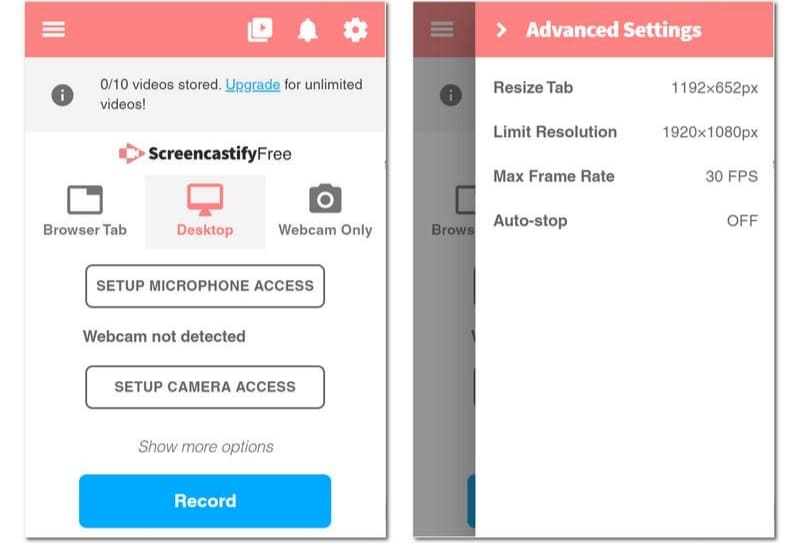
Kuinka käyttää Screencastify-työkalua? Aloita yksinkertaisella asennusprosessilla, jonka avulla voit asentaa työkalun, luoda tilin ja aloittaa tallennuksen vain muutamassa minuutissa. Kun asetukset on määritetty oikein, siitä tulee nopea tapa tallentaa näyttö-, web-kamera- tai välilehtipohjaisia tallenteita suoraan selaimestasi.
Vaihe 1Asenna Screencastify
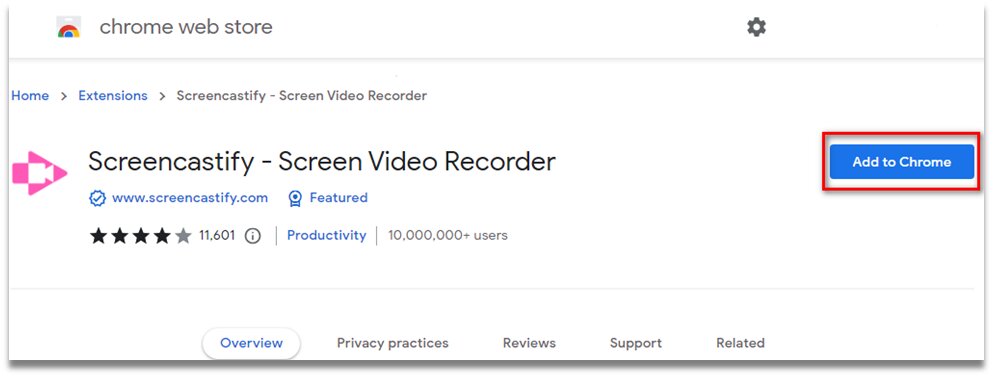
Etsi Screencastify-laajennus Chrome Web Storesta ja napsauta sitten Lisää ChromeenAsennuksen jälkeen kiinnitä se selaimesi työkalupalkkiin, jotta voit käyttää sitä nopeasti tarvittaessa.
Vaihe 2Luo tilisi
Avaa laajennus ja kirjaudu sisään tai luo uusi tili. Noudata asennusohjeita, mukaan lukien näytön, mikrofonin ja kameran käyttöoikeuspyyntöjä, varmistaaksesi, että työkalu toimii oikein.
Vaihe 3Aloita nauhottaminen
Aloita tallennus napsauttamalla laajennuspainiketta uudelleen. Valitse tila, kuten Tämä välilehti, Koko näyttö tai Vain verkkokamera, säädä ääniasetuksiasi ja aloita sitten näytön sisällön tallentaminen napsauttamalla Ennätys.
Vaihe 4Tallenna tallenne ja jaa
Jos olet valmis, napsauta lopettaa -painiketta, niin uusi välilehti avautuu. Muokkaa tallennettua videota sen ominaisuuksien avulla ja napsauta sitten Jaa tallentaaksesi sen Driveesi.
Osa 5. Screencastify-hinnoittelu ja ilmainen versio
| ominaisuudet | Vapaa | Käynnistin | Pro |
| Hinnoittelu | $0 | $19 | $25 |
| Laskutus | Ikuisesti | Kuukausittain | Kuukausittain |
| Videorajoitus | Jopa 10 videota | Rajoittamaton | Rajoittamaton |
| Tallennuksen enimmäispituus | 30 minuuttia | 60 minuuttia | 180 minuuttia |
| Videonmuokkaustyökalut | Ei tuettu | Perusmuokkaus | Perusmuokkaus edistyneellä tekoälyllä |
| Yhteistyötyökalut | Ei tuettu | Edistynyt yhteistyö | Edistynyt tekoälytyönkulku |
| Tekstitykset ja transkriptio | Ei tuettu | Ei tuettu | Tuettu |
Osa 6. Paras Screencastify-vaihtoehto
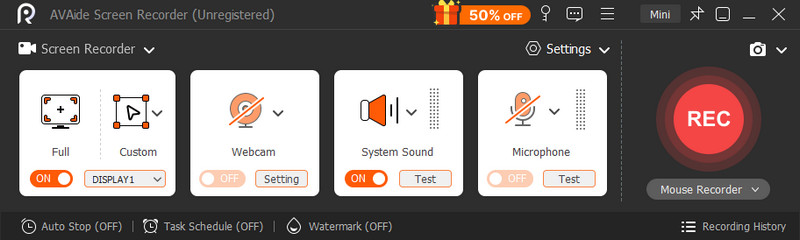
Jos Screencastify tuntuu hieman rajoittavalta, AVAide Screen Recorder tulee mukaan joustavampana ja vaivattomampana päivityksenä. Sen avulla voit tallentaa koko näytön, yhden ikkunan tai vain valitun alueen ja samalla tallentaa sujuvasti järjestelmän ääntä, mikrofonin ja web-kameran ääniä; käytännössä kaikki mitä tarvitset opetusohjelmiin, demoihin tai online-esityksiin.

ILMAINEN LATAAUS Windows 7 tai uudempi
 Suojattu lataus
ILMAINEN LATAAUS Mac OS X 10.13 tai uudempi
Suojattu latausSe erottuu Screencastify-vaihtoehdoksi yksinkertaisuutensa ansiosta, mutta ei kuitenkaan vaikuta liian yksinkertaiselta: se toimii työpöytäsovelluksena, joten se on vakaampi kuin tyypilliset selainlaajennukset, eikä se pidättele sinua satunnaisilla rajoituksilla. Saat myös käteviä ominaisuuksia, kuten reaaliaikaiset merkinnät ja helppokäyttöiset tulostusasetukset, joiden avulla voit hioa tallenteitasi nopeasti ilman ylimääräisiä työkaluja. Se on sellainen tallennin, joka tekee työnsä hiljaa ja välttää ylimääräisiä työkaluja.
Osa 7. Screencastify-esimerkkejä ja käyttötapauksia
Screencastify-työkalua käytetään laajalti, koska se sopii luonnollisesti jokapäiväisiin tallennustarpeisiin eri aloilla. Jos haluat käyttää sitä, tässä on esimerkkejä ja käyttötapauksia, jotka sinun on tiedettävä siitä. videonauhuri:
- Koulutus: Opettajat tallentavat oppituntien läpikäymiset, selittävät käsitteet visuaalisesti ja antavat oppilaille nopeaa videopalautetta.
- Opiskelijat: Käytetään videotehtäviin, projektien selityksiin ja tallennettuihin esityksiin.
- Liiketoiminta ja koulutus: Auttaa luomaan perehdytysmateriaaleja, sisäisiä koulutusvideoita ja tuotedemoja ilman monimutkaista ohjelmistoa.
- Sisällön luonti: Ihanteellinen nopeisiin opetusohjelmiin, selainpohjaisiin läpipeluuvideoihin ja yksinkertaisiin ohjevideoihin.
- Viestintä: Mahdollistaa nopeat näytön tallennukset ideoiden tai ohjeiden selkeää ja tehokasta jakamista varten.
Yhteenvetona voidaan todeta, että Screencastify on yksinkertainen mutta tehokas työkalu, joka toimii hyvin koulutuksessa, liiketoiminnassa ja sisällöntuotannossa. Screencastify-esimerkkejä Oppituntien tallenteista, opiskelijoiden tuotoksista, koulutusvideoista ja nopeista opetusohjelmista korostuvat sen vahvuus näytön tallentamisen nopeudessa, selkeydessä ja jakamisen helppoudessa.
TIETOA KIRJOITTAJASTA

Tallenna näytön toimintoja äänellä, online-kokouksilla, pelivideoilla, musiikilla, verkkokameralla jne.
Näytön tallennus