Yritän selvittää miten näytön tallennus tehdään Dellillä Vaikka tutoriaalin, pelin tai kokouksen tallentaminen voi tuntua hämmentävältä ilman oikeaa työkalua. Tarvitsetpa sitten jotain nopeaa tai edistyneempää, tämä opas opastaa sinut yksinkertaisten ja tehokkaiden menetelmien läpi näytön sujuvaan tallentamiseen.
Osa 1. Helpoin tapa: Xbox Game Barin käyttö
Xbox Game Bar on ensisijaisesti suunniteltu pelaamisen tallentamiseen, mutta sitä voidaan käyttää myös päivittäiseen näytön tallentamiseen. Sen avulla voit tallentaa näytön ja äänen sekä tallentaa leikkeet välittömästi. Se ei kuitenkaan voi tallentaa työpöytääsi tai tiedostonhallintaa; se voi tallentaa vain aktiivisia sovellusikkunoita.
Vaihe 1Avaa Xbox Game Bar -päänäkymä painamalla Windows + G näppäimistön näppäimiä. Jos kysymys koskee sitä, onko kyseessä peli, vastaa myöntävästi.
Vaihe 2The Kaapata paneeli on päällekkäin. Jos et näe sitä, Widgetit-valikko luodaan ja Kuvaa-vaihtoehto valitaan.
Vaihe 3Aloita näytön tallennus napsauttamalla Ennätys (●) painiketta tai Windows + Alt + RTyökalu ottaa automaattisesti tilannekuvan aktiivisesta ikkunasta.
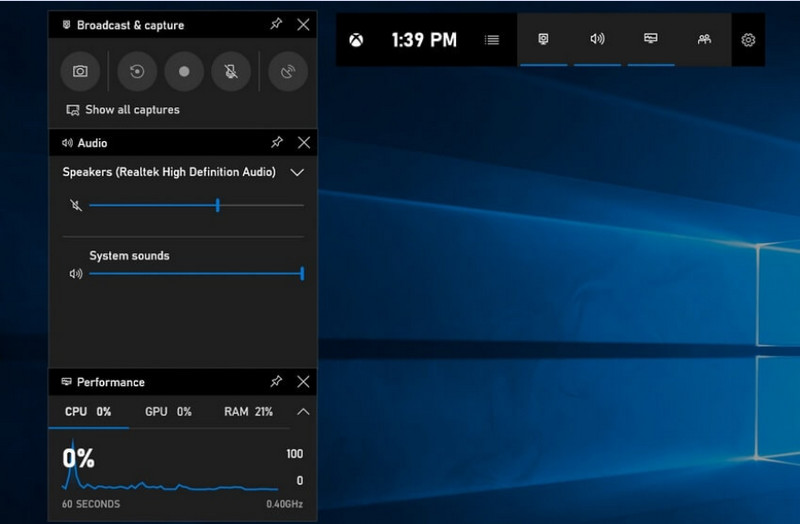
Vaihe 4Mikrofonitallennus voidaan ottaa käyttöön napsauttamalla Mikrofoni -painiketta ennen tallennusta tai sen aikana.
Vaihe 5Lopeta tallennus painamalla Windows + Alt + R toisen kerran tai paina Pysähdy (■) -painiketta kelluvassa palkissa.
Vaihe 6Tallentamasi videot tallennetaan automaattisesti Videot > Kaappaa tietokoneesi kansio.
Osa 2. Ammatilliset valinnat
1. OBS-näytön tallentimen käyttö
OBS Screen Recorder on ilmainen, avoimen lähdekoodin näytöntallennin, jota käytetään yleisesti sekä live-sisällön tallentamiseen että suoratoistoon. Se tarjoaa mukautettavan järjestelyn, jonka avulla voit tallentaa koko näytön, erillisen ikkunan tai useita lähteitä samanaikaisesti. Sen tehokkaat video- ja äänisäätimet tekevät siitä tehokkaan vaihtoehdon käyttäjille, jotka eivät ole kiinnostuneita vain yksinkertaisimmasta näytöntallennuksesta.
Esitys:
OBS Screen Recorder on laitteistokiihdytyksellä varustettu ohjelmisto, joka tarjoaa luotettavan suorituskyvyn ja mahdollistaa sujuvan 1080p 60fps -tallennuksen. Asennuksen jälkeen se toimii tehokkaasti, tasaisella kuvalla ja pienellä viiveellä pitkien tallennussessioiden aikana yhteensopivissa järjestelmissä.
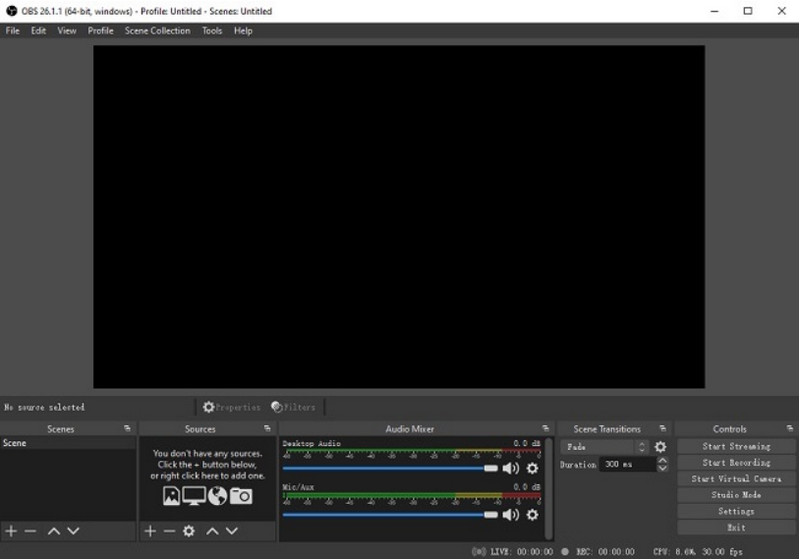
Vaihe 1Siirry OBS Screen Recorderin viralliselle sivustolle, lataa asennusohjelma ja suorita asennus loppuun.
Vaihe 2Avata OBS Screen RecorderNäet pääkäyttöliittymän, jossa on paneeleja, kuten Kohtauksia ja Lähteet.
Vaihe 3Napsauta Kohtaukset-paneelissa + -painiketta ja anna kohtaukselle nimi.
Vaihe 4Voit lisätä näyttökuvan tai ikkunakuvan (tietyn sovelluksen kuvaamiseksi) napsauttamalla + in Lähteet paneeli ja valitseminen Display Capture tai Ikkunan kaappaus.
Vaihe 5Testaa Audio mikseri ottamalla käyttöön ja säätämällä mikrofonin ja järjestelmän ääntä.
Vaihe 6paina Aloita nauhottaminen -painiketta käyttöliittymän oikealla puolella.
Vaihe 7Kun olet valmis, napsauta Lopeta tallennusTämä video sijoitetaan automaattisesti oletuskansioosi.
2. AVAide-näytön tallentimen käyttö
AVAide Screen Recorder on yksinkertainen mutta tehokas työkalu näytön toiminnan tallentamiseen korkealaatuisesti. Se on suunnattu käyttäjille, jotka tarvitsevat helppokäyttöisen tallennusjärjestelmän, jossa on selkeä ääni, joustava tallennusjärjestelmä minimaalisella kokoonpanolla ja intuitiiviset säätimet.
Esitys:
AVAide Screen Recorder on optimoitu tallentamaan sujuvasti ja vakaasti jopa pitkien sessioiden aikana. Se tukee korkearesoluutioista 4K/1080p-kuvaa minimaalisella viiveellä yleisissä sovelluksissa. Ohjelmisto hallitsee tehokkaasti samanaikaista näytön ja äänen tallennusta varmistaakseen, että järjestelmän ääni ja mikrofonitulo pysyvät synkronoituina.
- Tallentaa näytön korkealaatuisena ja sujuvasti ilman viivettä.
- Tallentaa järjestelmän äänen ja mikrofonin äänen samanaikaisesti selkeällä äänentoistolla.
- Tukee web-kameratallennusta säädettävällä kuva kuvassa -peittokuvalla.
- Mahdollistaa koko näytön, valitun ikkunan tai mukautetun alueen tallentamisen.
- Sisältää sisäänrakennetut muokkaustyökalut videoiden leikkaamiseen, parantamiseen ja vientiin.

 Suojattu lataus
Vaihe 1Lataa ja asenna työkalu
Siirry AVAide Screen Recorderin viralliselle verkkosivustolle. Hanki Windows-järjestelmäsi asennusohjelma ja seuraa asennusprosessia.
Vaihe 2Käynnistä ohjelmisto
Asennuksen jälkeen voit avata ohjelman. Pääkäyttöliittymässä voit valita Näytön tallennin aloittaa.
Vaihe 3Valitse tallennusalue
Valitse väliltä Koko ja Mukautettu tallennustiloja tarpeidesi mukaan.
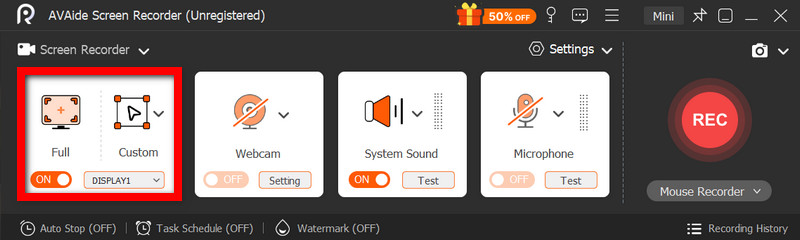
Vaihe 4Äänen ja web-kameran asentaminen
Ota käyttöön Järjestelmän ääni ja Mikrofoni jos tarvitset ääntä. Verkkokameran voi myös kytkeä päälle kasvojen tallentamista varten.
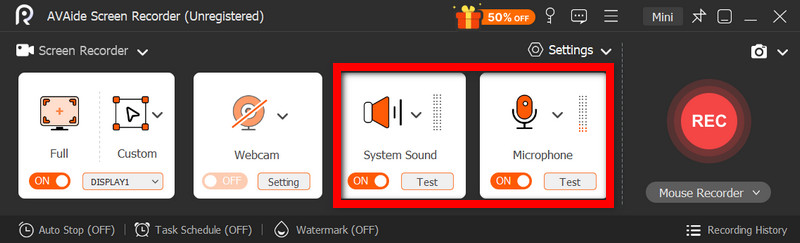
Vaihe 5Aloita nauhottaminen
Aloita näytön tallennus painamalla REC -painike. Merkintöjä voidaan lisätä tallennuksen aikana tarvittaessa.
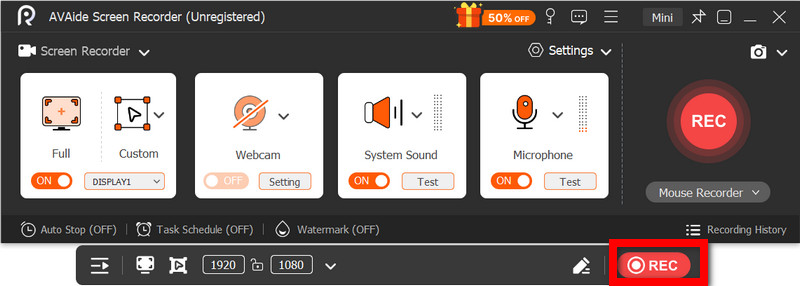
Vaihe 6Pysäytä ja tallenna tallennus
Klikkaa Lopettaa -painiketta, kun olet valmis. Tallenne tallennetaan automaattisesti, ja voit esikatsella tai muokata sitä heti.
Osa 3. Muita ilmaisia ja yksinkertaisia menetelmiä
1. Kuvankaappaustyökalun käyttö (Windows 11)
Windows 11:n Snipping Tool sisältää sisäänrakennetun näytön tallennuksen, joka tarjoaa yksinkertaisen ja nopean tavan tallentaa näytön toimintaa ilman lisäohjelmistojen asentamista. Se on tehokkain lyhyiden klippien, opetusohjelmien ja yksinkertaisen tallennustyön kanssa.
Esitys:
Snipping Tool sopii kevyisiin tallenteisiin ja tarjoaa pienten kuvakaappausten sujuvan tallentamisen. Siitä huolimatta siitä puuttuu ominaisuuksia, se ei tue edistyneitä asetuksia, eikä se välttämättä käsittele pitkiä tai tehokkaita tallenteita yhtä tehokkaasti kuin tietyt työkalut.
Vaihe 1Avaa kuvakaappaustyökalu napsauttamalla alkaa valikosta.
Vaihe 2Voit käyttää työkalupalkkia napsauttamalla Ennätys.
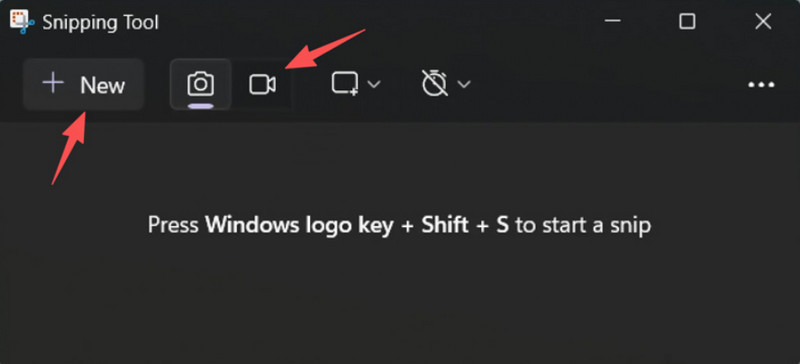
Vaihe 3Jos haluat tallentaa uuden äänitteen, valitse Uusi.
Vaihe 4Valitse näytön alue, jonka haluat tallentaa.
Vaihe 5Klikkaus alkaa aloittaaksesi tallennuksen.
Vaihe 6Klikkaus Lopettaa kun olet valmis, ja tallenna tallente.
2. Microsoft PowerPointin käyttö (kaikki Windows-versiot)
Microsoft PowerPointissa on näytön tallennustoiminto, jonka avulla voit ottaa kuvakaappauksen ja sisällyttää sen esitykseen. Se on myös helppo vaihtoehto tutoriaalien, demonstraatioiden tai opetusdiojen kehittämiselle ilman erillistä tallennusohjelmistoa.
Esitys:
PowerPoint tarjoaa yhdenmukaisia tuloksia yksinkertaisessa näytön tallennuksessa, erityisesti esityksissä ja lyhyissä demonstraatioissa. Vaikka sen videonlaatu on kohtuullinen, siitä puuttuu edistyneitä säätöjä, eikä se välttämättä sovellu pitkien tallenteiden aikana tallennettujen videoiden laatuun.
Vaihe 1Käynnistä Microsoft PowerPoint ja valmistele uusi tai olemassa oleva esitys.
Vaihe 2Napsauta Lisää-välilehteä ja sitten Näytön tallennus.
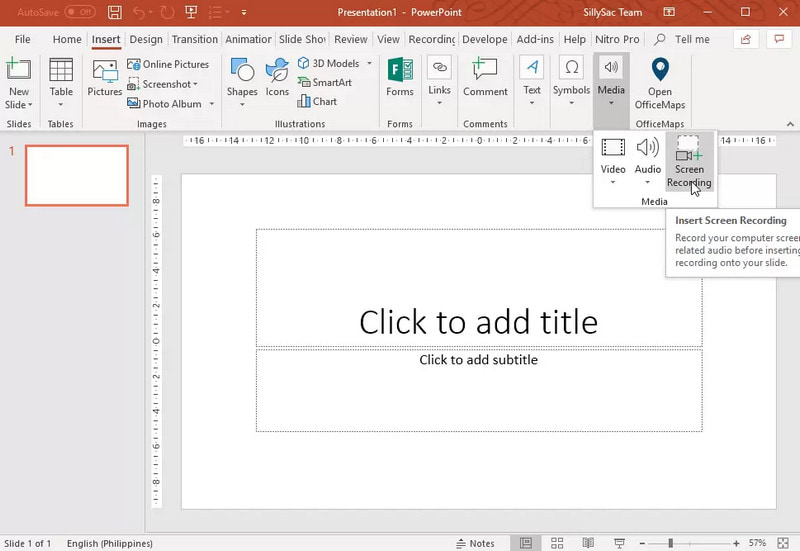
Vaihe 3Valitse näytön osa, jonka haluat tallentaa.
Vaihe 4Salli äänen tai osoittimen tallennus tarvittaessa.
Vaihe 5Klikkaus Ennätys aloittaaksesi näytön tallennuksen.
Vaihe 6Lopeta tallennus painamalla Windows + Vaihto + Q.
Vaihe 7Tallenna tallenne napsauttamalla videota hiiren kakkospainikkeella ja valitsemalla Tallenna media nimellä.
Osa 4. Yleisten ongelmien vianmääritys
| Ongelma | Ratkaisu |
| Pelipalkki ei avaudu eikä tallenna. | Asetuksissa voit poistaa Xbox Game Barin käytöstä. Siirry osoitteeseen asetukset > Pelaaminen > Pelibaari ja käännä se PÄÄLLÄYritetään painaa Windows + G uudelleen ja käynnistä tietokone uudelleen (tarvittaessa). |
| Tallenteessa ei ole ääntä. | Varmista, että järjestelmän äänet ja mikrofoni ovat käytössä Game Barin asetuksissa. Varmista myös, että äänilaitettasi ei ole mykistetty tai valittu väärin Windowsin ääniasetuksissa. |
| Dell-kannettavani toimii hitaasti tallennuksen aikana. | Käytä Sulje- tai Minimoi-toimintoa vähentääksesi tarpeettomia sovelluksia ja selainvälilehtiä. Vaihda virranhallinta-asetuksissa Tehokas tila -tilaan ja pienennä tallennustarkkuutta tarvittaessa parantaaksesi suorituskykyä. |
| Tallennetun videon laatu on huono. | Aseta tallennuslaatu parhaaseen mahdolliseen asetukseen pelipalkissa, erityisesti silloin, kun Google Meetin tallennus istuntoja. Aseta näyttösi natiivitarkkuuteen ja päivitä näytönohjaimen ajurit, jotta kuva olisi terävämpi ja vakaampi. |
Oppiminen Kuinka tallentaa näyttöä Dell-kannettavalla tietokoneella antaa sinulle joustavuutta opetusohjelmiin, kokouksiin tai jopa pelien pelaamiseen. Olipa kyseessä sitten sisäänrakennettu työkalu tai kehittynyt ohjelmisto, oikean menetelmän valinta varmistaa, että tallennus tehdään helposti ja laadukkaasti ja että työnkulku virtaviivaistuu.
TIETOA KIRJOITTAJASTA

Tallenna näyttö, ääni, web-kamera, pelattavuus, online-kokoukset sekä iPhone/Android-näyttö tietokoneellesi.
Näytön tallennus