Discord on tunnettu viestintäalusta niche-yhteisöille. Yksi sen eduista on videoiden tai elokuvien suoratoiston mahdollistaminen ystävien kanssa katsottavaksi. Monissa tapauksissa käyttäjät kohtaavat kuitenkin mustan ruudun ilman selkeää syytä, mikä pilaa tunnelman ahmimiskatseluun ystävien kanssa. Joten miten... Korjaa musta ruutu Discord-striimissäSinua opastetaan tässä muiden mahdollisten syiden ja oikeiden ratkaisujen kanssa mustiin näyttöihin.
Osa 1. Mahdollisia syitä mustalle ruudulle Discord Streamissa
"Kuinka korjata musta ruutu Discordissa suoratoistettaessa" ei tarkoita vain suoria ratkaisuja, vaan pikemminkin ongelman mahdollisten syiden oppiminen on mullistavaa. Tämän avulla voit tarkistaa seuraavan luettelon kaikista mahdollisista syistä ja saatat nähdä ongelman Discordissa ja korjata sen nopeasti omalla puolellasi:
Discord ja selaimen laitteistokiihdytys
Jos otat käyttöön Discordin laitteistokiihdytyksen, tämä ominaisuus voi olla ristiriidassa laitteesi näytönohjaimen ajureiden kanssa. Toisaalta videoiden suoratoisto selaimesta, kuten Chromesta tai Edgestä, voi estää Discordia suoratoistamasta tai tallentamasta videota.
Ongelmia näytönohjaimen ja näytönohjainten kanssa
Vanhentuneet tai vioittuneet ajurit voivat aiheuttaa Discord-yhteensopimattomuutta. Sama useiden näytönohjainten kanssa: Discord voi sekoittaa, minkä näytönohjaimen tuloste tallennetaan.
Suojattu sisältö
Tiedät kuinka korjata mustan ruudun Discord-striimeissä, jos suoratoistoalustaa ei ole suojattu. Suosituimmat videoiden suoratoistopalvelut kuten Disney+, Netflix ja Hulu, eivät tue suoratoistoa Discordissa.
Osa 2. Kuinka korjata musta ruutu Discord Streamissa
Mustan ruudun ongelman voi korjata Discordissa useilla tavoilla, ja useimmat ratkaisut löytyvät natiiviasetuksista. Sukelletaanpa asiaan ilman sen suurempia puheita.
1. Lopeta Discord-käynnissä olevat tehtävät
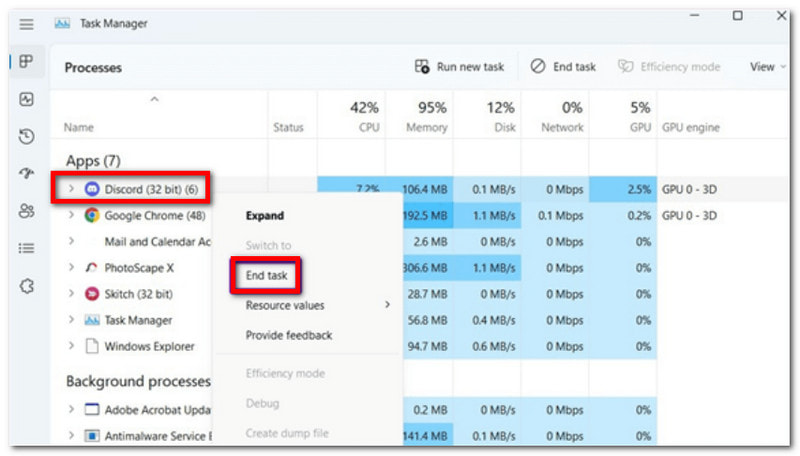
Kuinka korjata musta ruutu nopeasti Discord-suoratoiston aikana? Paras tapa ratkaista tämä on lopettaa useita käynnissä olevia Discord-tehtäviä ja käynnistää sovellus uudelleen, koska ne saattavat olla toimintahäiriön syy. Tässä ovat seuraavat vaiheet:
Vaihe 1Napsauta tehtäväpalkissa hiiren kakkospainikkeella ja valitse Tehtävienhallinta.
Vaihe 2Kun ikkuna tulee näkyviin, napsauta Discordin vieressä olevaa nuolta, napsauta hiiren kakkospainikkeella kutakin tehtävää ja valitse Lopeta tehtävä. Käynnistä sen jälkeen sovellus uudelleen.
2. Järjestelmänvalvojan tila
Discord-sovellus vaatii tiettyjä käyttöoikeuksia ja ominaisuuksia toimiakseen sujuvasti. Tämä tarkoittaa, että jos sitä ei käytetä laitteellasi järjestelmänvalvojana, se aiheuttaa toimintahäiriön, kuten mustan näytön. Katso ohjeet mustan näytön korjaamiseen, kun suoratoistat Netflixiä Discordissa järjestelmänvalvojan tilassa:
Vaihe 1Sulje ensin Discord-sovellus laitteellasi. Sinun on ehkä suljettava myös suoratoistosovellukset, kuten Netflix tai Hulu.
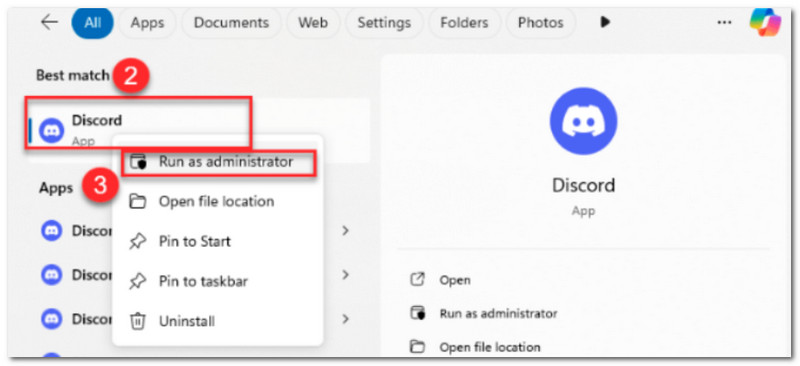
Vaihe 2Etsi Discord-sovellus Käynnistä-valikosta ja napsauta sitä hiiren kakkospainikkeella. Valitse ja napsauta Suorita järjestelmänvalvojanaja vahvista sitten muutokset. Tee sama suoratoistoalustalle, avaa sitten sovellukset ja yritä suoratoistaa.
3. Sammuta laitteistokiihdytys
Et ehkä ole huomannut, mutta tietokoneesi laitteistokiihdytys on käytössä, mikä auttaa sovelluksia, kuten Discordia, toimimaan sujuvasti. Laitteistokiihdytys saa kuitenkin Discordin käyttämään tietokoneen näytönohjainta, mikä johtaa toimintahäiriöihin suoratoiston aikana. Voit poistaa tämän ominaisuuden käytöstä lukemalla alta, miten voit korjata mustan näytön Discordissa Netflixin suoratoistoa varten:
Vaihe 1Avaa Discord laitteellasi ja napsauta asetukset vasemmassa alakulmassa.
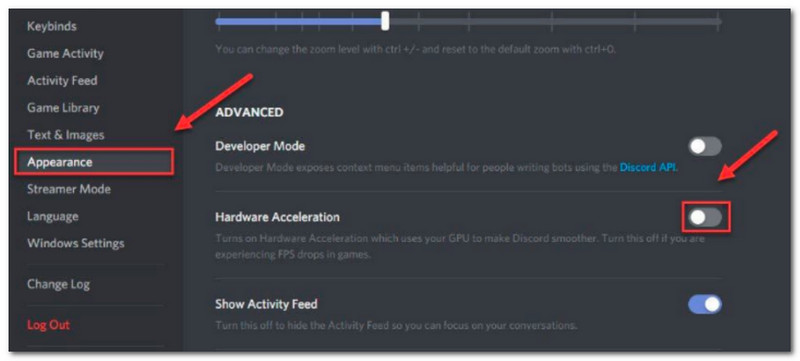
Vaihe 2Siirry kohtaan Ulkonäkö ruokalista, ja sieltä löydät Laitteistokiihdytys alla Pitkälle kehittynyt. Sammuta se ja vahvista napsauttamalla Okei.
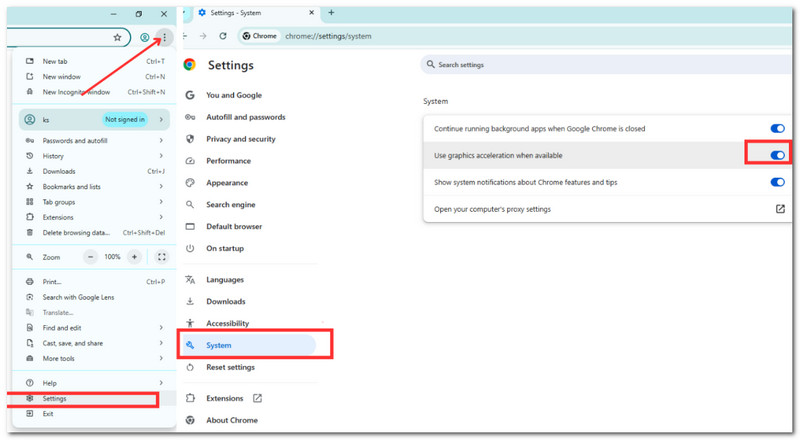
Vaihe 3Jos käytät Discordia selaimessa, voit poistaa sen käytöstä kohdassa asetukset. Siirry sitten kohtaan Järjestelmä valikko ja kytke päälle Käytä grafiikan kiihdytystä, kun se on mahdollista vaihtoehto.
4. Päivitä näytönohjaimen ohjaimet
Vanhentuneet näytönohjaimet voivat aiheuttaa toimintahäiriöitä Discord-suoratoistossa. Voit välttää tämän tai korjata sen omalla puolellasi päivittämällä järjestelmän näytönohjaimet ja korjaamalla mustan näytön Discord-suoratoistossa:
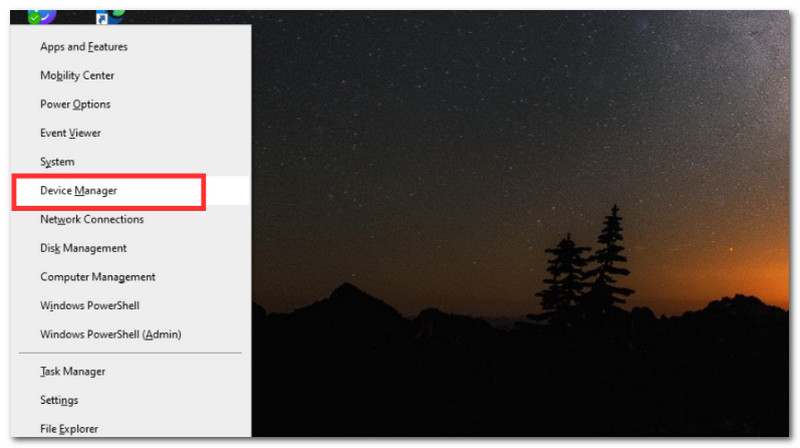
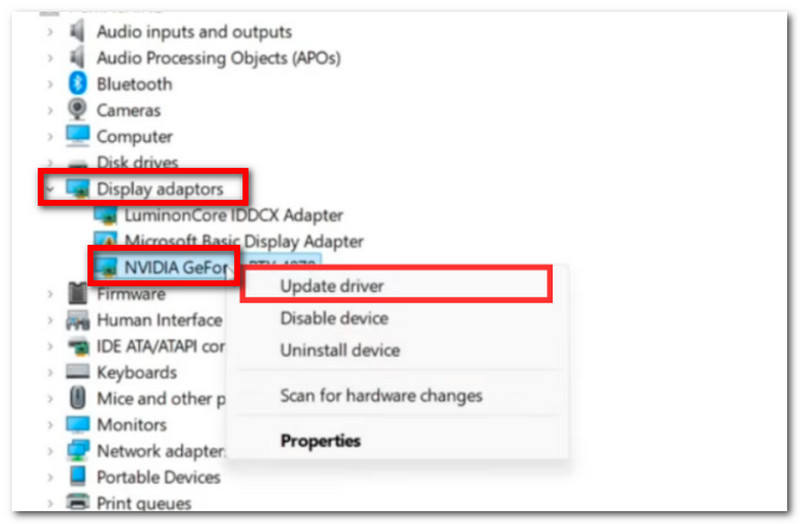
Vaihe 1Varmista, että internetyhteys on vakaa ja vahva. Paina sitten samanaikaisesti Windows ja X näppäimistöllä käynnistääksesi järjestelmäasetukset. Valitse Laitehallinta.
Vaihe 2Kun ikkuna avautuu, etsi Näyttöadapterit ja laajenna sen valikko napsauttamalla sen vieressä olevaa nuolta. Valitse näytönohjain napsauttamalla sitä hiiren kakkospainikkeella ja napsauta sitten Päivitä ohjain -painiketta.
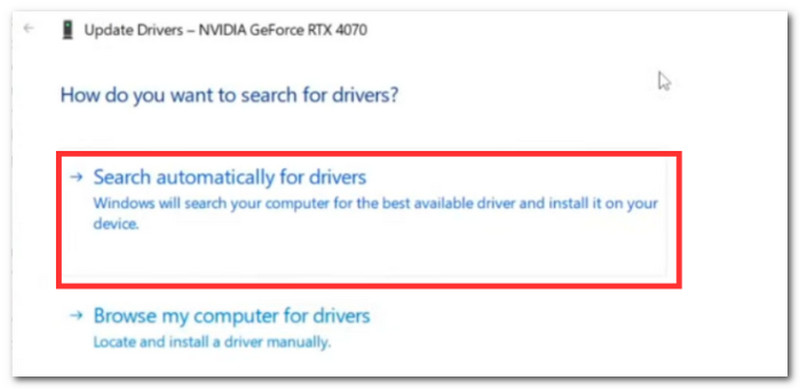
Vaihe 3Kun kehote tulee näkyviin, valitse Hae automaattisesti ajureille -vaihtoehto. Tietokoneesi aloittaa näytönohjainten päivittämisen, mutta sinun on käynnistettävä tietokoneesi uudelleen ja sitten Discord-sovellus uudelleen.
5. Pelin sisäisen peittokuvan käyttöönotto
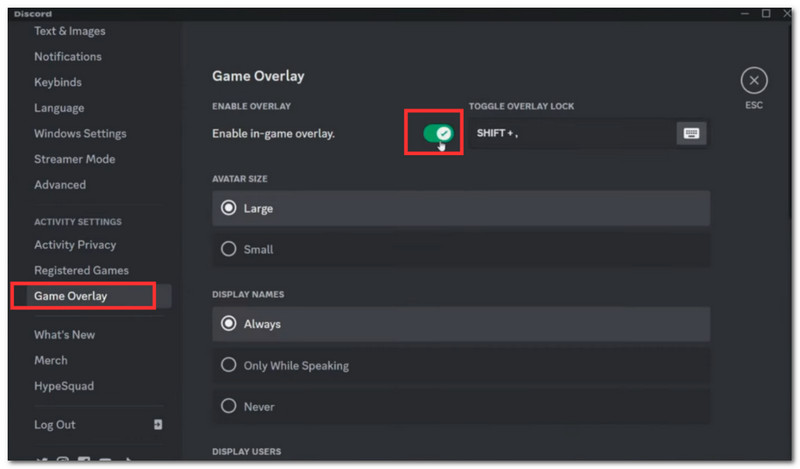
Kuinka korjata musta ruutu Discordissa Disney+:n suoratoistoa varten? Toinen tapa, jota kannattaa kokeilla, on ottaa käyttöön pelin sisäinen päällekkäisominaisuus Discord-sovelluksessa. Jos tämä ei ole käytössä, se voi olla mustan näytön syy suoratoiston aikana. Katso alta täydelliset ohjeet:
Vaihe 1Käynnistä Discord-sovellus tietokoneellasi ja siirry käyttäjäasetuksiin vasemmassa alakulmassa.
Vaihe 2Selaa vasemmassa yläkulmassa olevia vaihtoehtoja ja valitse Pelin peittokuva. Ota käyttöön pelin sisäinen päällekkäisnäkymä -vaihtoehto ja yritä suoratoistaa uudelleen.
Osa 3. Paras työkalu yhteensopimattoman videon muuntamiseen ennen suoratoistoa
Kuinka korjata musta ruutu Discord-suoratoistossa, jos suoratoistettava video ei ole yhteensopiva? No, sinulla on AVAide Video Converter nopeaan ja korkealaatuiseen videoiden muuntamiseen! Se on tyylikäs työkalu, joka on suunniteltu muuntamaan yli 300 videomuotoa ja tukee Discord-yhteensopivia formaatteja, kuten MP4, MOV, WebM ja paljon muuta. Vaikka se tukee korkean resoluution videoiden muuntamista, sen avulla voit myös skaalata 4K- ja 8K-videoita alaspäin, mikä vähentää näytönohjaimen kuormitusta ja estää tilapäisen mustan näytön laitteellasi. Samaan aikaan AVAide takaa nopean muunnosnopeuden ja säilyttää alkuperäisen videolaadun, kaikki tämä yksinkertaisessa, aloittelijaystävällisessä käyttöliittymässä.
Vaihe 1Aloita lataamalla AVAide Video Converter tietokoneellesi (tukee Windowsia ja Macia). Asenna ohjelmisto kokonaan noudattamalla ohjeita.

ILMAINEN LATAAUS Windows 7 tai uudempi
 Suojattu lataus
ILMAINEN LATAAUS Mac OS X 10.13 tai uudempi
Suojattu latausVaihe 2Klikkaa Lisätä -painiketta avataksesi paikallisen kansion. Lataa video, jonka haluat muuntaa. Voit halutessasi ladata useita videotiedostoja joukkomuunnosta varten.
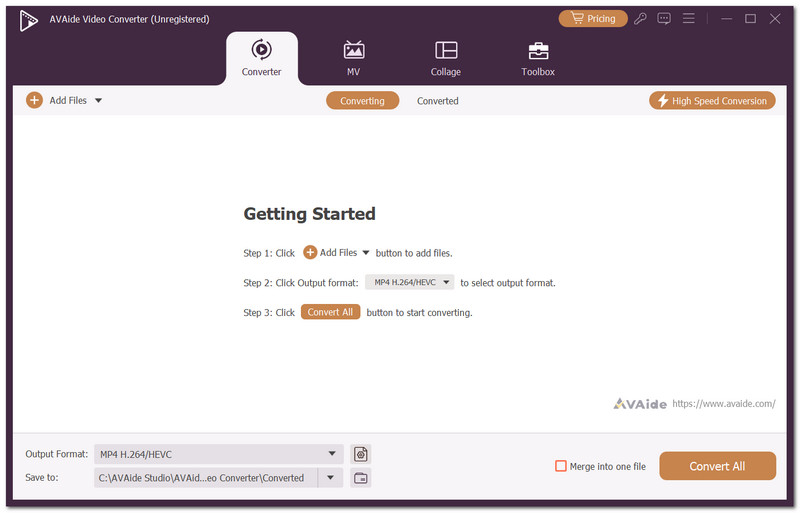
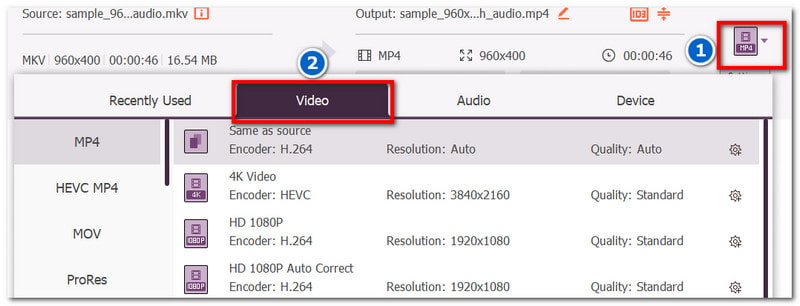
Vaihe 3Siirry kohtaan Muoto ladatun videon vieressä olevasta valikosta. Video -välilehdellä valitse haluamasi lähtövideomuoto, kuten MP4, MOV tai mikä tahansa muu Discordin tukema muoto.
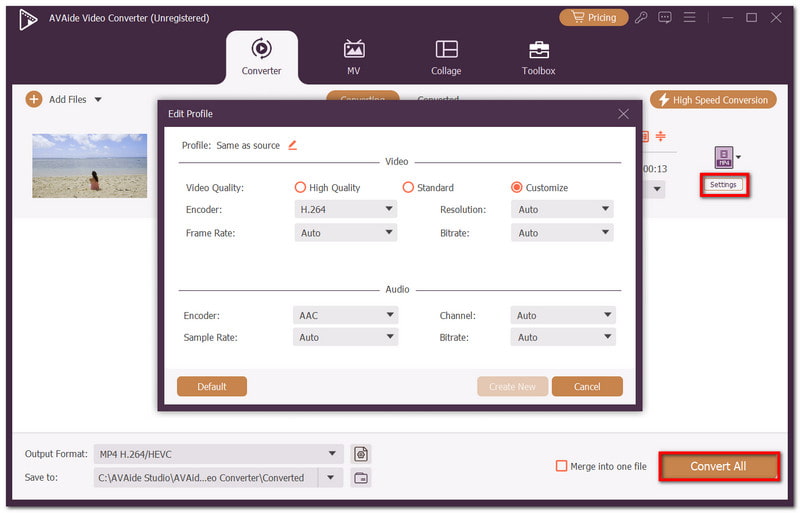
Vaihe 4Voit halutessasi säätää videon lähtöasetuksia Asetukset-valikossa. Voit säätää kooderia, videon laatua, resoluutiota ja muita asetuksia. Kun olet valmis, napsauta Muunna kaikki -painiketta tallentaaksesi videon uudessa lähtömuodossa.
Tämä artikkeli opetti sinulle Kuinka korjata musta ruutu Discord-suoratoiston aikana, tarjoten tapoja tunnistaa ongelmat sekä mahdolliset ratkaisut. Tästä huolimatta Discord-palveluun ladattuja videoita ei välttämättä tueta. Siksi AVAide Video Converter on suositeltu ratkaisu nopeisiin ja ammattimaisiin muunnoksiin ja jopa Discord-videokompressori. Sen lisäksi se tarjoaa tarvittavat työkalut korkearesoluutioisten tiedostojen pienentämiseen vääristämättä videonlaatua. Lataa ilmaiseksi kokeiltavaksi Windowsilla ja Macilla.
TIETOA KIRJOITTAJASTA

Täydellinen videotyökalupakkisi, joka tukee yli 350 formaattia muuntamiseen häviöttömään laatuun.
Editoi videota