Kuvittele, että siirrät valtavan määrän valokuvia tai asiakirjoja tietokoneellesi ja huomaat, että niiden "Luontipäivämäärä"- tai "Muokkauspäivämäärä"-kentät ovat täysin sekaisin. Olipa kyseessä sitten varmuuskopioinnin häiriö tai aikavyöhykevirhe, virheelliset tiedostojen aikaleimat voivat pilata digitaalisen arkistointisi ja ajaa työnkulkusi kaaokseen.
Onneksi sinun ei tarvitse elää sotkun kanssa. Omistautunut tiedoston päivämäärän vaihtaja antaa sinulle täydellisen hallinnan metatiedoistasi ja mahdollistaa tiedostojen aikaleimojen erämuokkaamisen vain muutamalla napsautuksella. Tässä oppaassa olemme koonneet viisi parasta tiedostopäivämäärän muuttajaa Windowsille ja Macille, jotka auttavat sinua saamaan digitaalisen organisaatiosi takaisin hallintaasi. Sukelletaanpa asiaan!
Osa 1. Viiden parhaan tiedostopäivämäärän vaihtajan pääarvostelu
Tässä osiossa esitellään paras tiedostojen päivämäärän vaihtaja, johon voit luottaa. Jatka lukemista ja ota selvää, miten nämä työkalut voivat auttaa sinua saavuttamaan tavoitteesi!
1. AVAide Video Converter
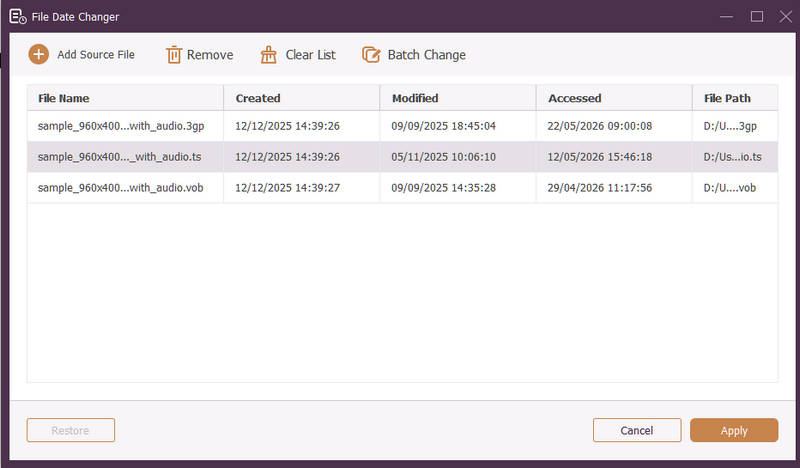
Saatavilla sekä Windowsille että Macille, AVAide Video Converter on monipuolinen alusta, jossa on tehokas, sisäänrakennettu tiedoston päivämäärän vaihtaja. Tämän intuitiivisen ominaisuuden avulla voit vaivattomasti muokata kattavia aikaleiman tietoja, mukaan lukien luonti-, muokkaus- ja viimeisimmän käytön päivämäärät.
- Käsittele saumattomasti useita mediaformaatteja, kuten videota, ääntä ja kuvia.
- Tuo ja päivitä useita tiedostoja samanaikaisesti säästääksesi aikaa ja tehostaaksesi työnkulkuasi.
- Siinä on puhdas ja käyttäjäystävällinen käyttöliittymä, jonka avulla voit muuttaa tiedoston päivämäärää nopeasti.
- Säilytä tiedostosi saumattomana päivämäärämuutosten jälkeen.
2. Tiedoston päivämäärän vaihtaja
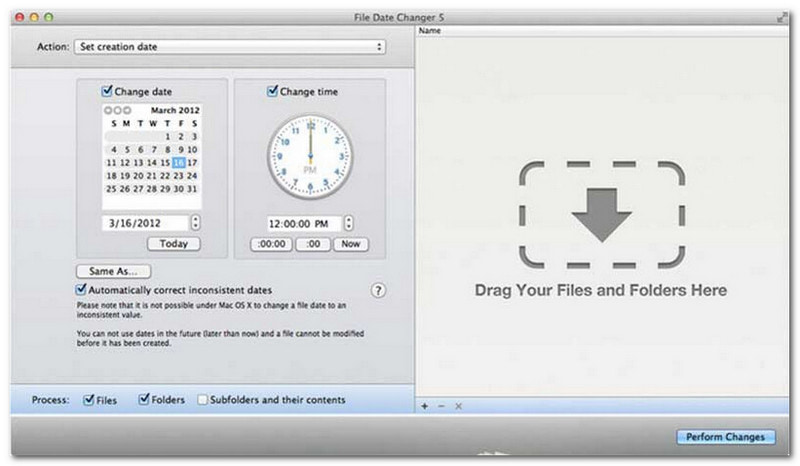
File Date Changer tekee nimensä mukaisesti oikeutta tiedostojen luontipäivämäärien muuttamiseen. Se on yksinkertaisen rakenteensa ansiosta helppokäyttöinen kaiken tasoisille käyttäjille. Se tukee sekä luonti- että muokkauspäivämäärien muokkaamista. Tarvitsetpa sitten yksittäisten tiedostojen tai kokonaisten kansioiden päivämääriä, tämä Macilla toimiva tiedostopäivämäärien muuttaja yksinkertaistaa prosessia tehokkaalla toiminnallisuudellaan.
Vaikka File Date Changer on maksullinen työkalu, sen arvo riippuu tarpeistasi kustannusten ja toiminnallisuuden suhteen. Jotkut käyttäjät saattavat pitää sen ominaisuuksia hieman vaatimattomina hintatasoonsa nähden. Tehokkuutta ja saumatonta työnkulkua priorisoiville se on kuitenkin edelleen erittäin luotettava ja kannattava sijoitus tiedostojen päivämäärän vaihtajaksi.
Tiedoston päivämäärän vaihtajan tärkeimmät ominaisuudet:
- Muokkaa useiden tiedostojen luonti-, muokkaus- ja viimeisimmän käyttöajan päivämääriä ja kellonaikoja.
- Tukee tiettyjen päivien, tuntien, minuuttien tai sekuntien lisäämistä tai vähentämistä.
- Muuta tiedoston ominaisuuksia, kuten Vain luku - tai Piilotettu, ja päivitä EXIF-metatiedot.
- Tiedostopäivämäärän vaihtaja toimii välittömästi ja tarjoaa selkeän käyttöliittymän.
3. ExifTool
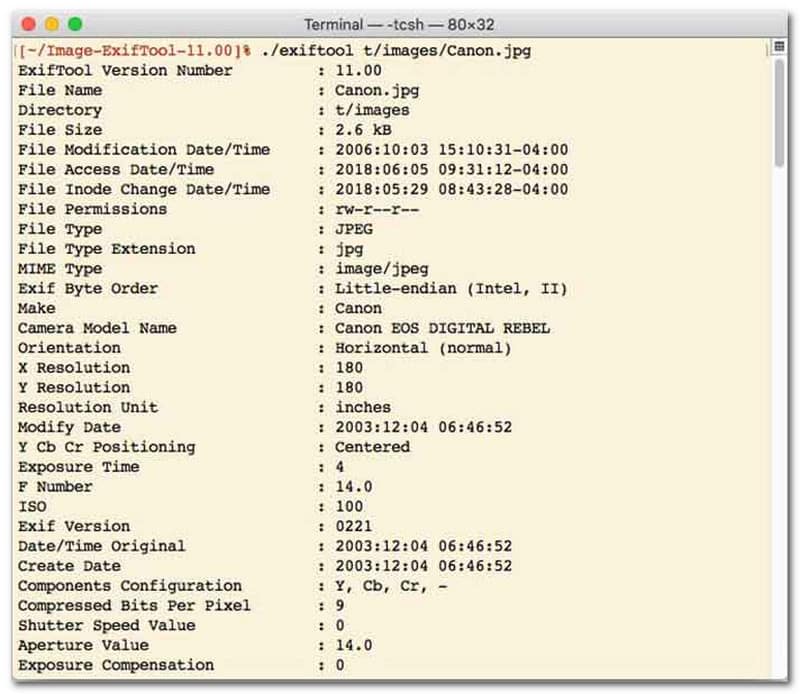
Käyttäjille, jotka suosivat tiedostojen päivämäärän vaihtajaa komentorivikäyttöliittymällä (CLI), ExifTool on erittäin tarkan tiedostonhallinnan kultastandardi. Tämä poikkeuksellisen monipuolinen tiedostojen päivämäärän vaihtajatyökalu tukee laajaa valikoimaa tiedostotyyppejä, kuten valokuvia, videoita, dokumentteja ja äänitiedostoja. Pelkkien luonti- ja muokkauspäivämäärien muokkaamisen lisäksi ExifTool mahdollistaa aikaleiman metatietojen saumattoman kopioinnin tiedostosta toiseen varmistaen, että koko mediakirjastosi pysyy täydellisesti synkronoituna ilman vaivaa.
ExifToolin tärkeimmät ominaisuudet:
- Lue ja muokkaa tiedostojärjestelmän aikaleimoja saumattomasti.
- Kopioi päivämääriä täysin eri metatietotasojen välillä.
- Tukee edistynyttä päivämäärä- ja aikalaskentaa, jotta voit muuttaa tiedostojen päivämääriä erissä.
- Poimi päivämäärä- ja mediatiedot kaikentyyppisistä tiedostoista.
4. BulkFileChanger
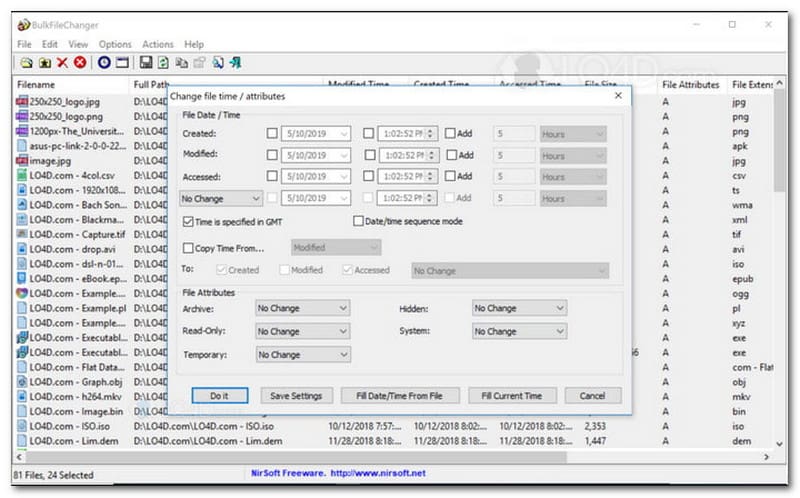
BulkFileChanger on kevyt ja tehokas tiedostojen päivämäärän muuttaja -apuohjelma, joka on suunniteltu vaivattomaan tiedostojen aikaleimojen hallintaan Windowsissa. Sen avulla käyttäjät voivat nopeasti muokata erilaisia päivämäärä- ja aika-attribuutteja, kuten luonti-, muokkaus- ja viimeisimmän käytön aikoja, käytännössä kaikissa tiedostotyypeissä, dokumenteista ja kuvista videoihin. Vaikka sen monipuolisuus ja nopeus eri formaattien välillä tekevät siitä erinomaisen tiedostojen päivämäärän muuttajan digitaalisten arkistojen järjestämiseen, sen saatavuus on tiukasti rajoitettu Windows-käyttöjärjestelmään, joten macOS- ja Linux-käyttäjien on etsittävä vaihtoehtoa muualta.
BulkFileChangerin tärkeimmät ominaisuudet:
- Muokkaa tiedoston luonti-, muokkaus- ja viimeisimmän käyttöajan päivämääriä.
- Käsittelee saumattomasti lähes kaikkia tiedostotyyppejä, mukaan lukien dokumentit, kuvat ja videot.
- Kevyt muotoilu mahdollistaa metatietojen erittäin nopean joukkopäivityksen.
- Lisää tai poimi tiettyjä päiviä, tunteja, minuutteja ja sekunteja.
5. AttributeMagic
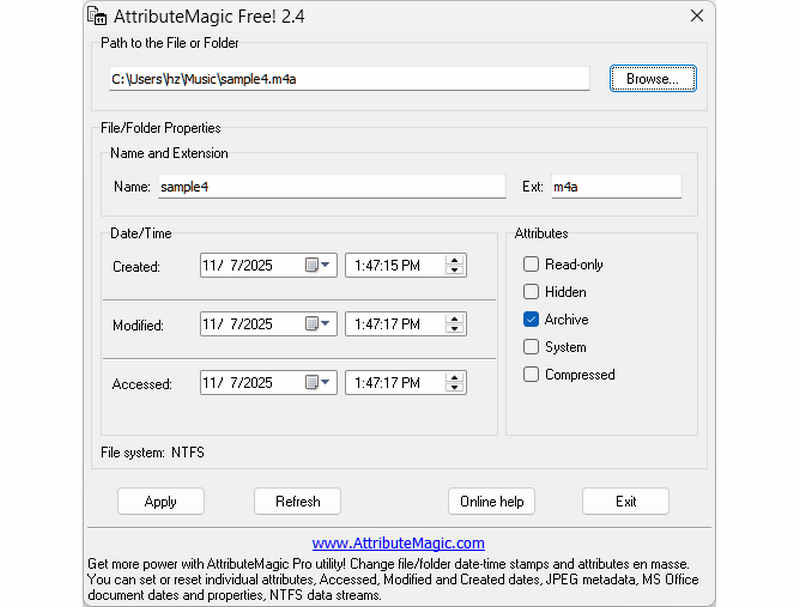
AttributeMagic on paljon muutakin kuin pelkkä tiedostojen päivämäärän muuttaja, sillä se tarjoaa edistyneen ratkaisun sekä kansioiden että tiedostojen ominaisuuksien hallintaan. Tämä kattava apuohjelma mahdollistaa aikaleimojen tarkan muokkaamisen, jolloin käyttäjät voivat vaivattomasti kirjoittaa uudelleen luonti-, muokkaus- ja viimeisimmän käytön päivämääriä. AttributeMagic toimii erillisenä tiedostojen päivämäärän muuttajana, ja se tarjoaa syvällisiä mukautusmahdollisuuksia tiedostojärjestelmän ominaisuuksiin, jotka sopivat juuri sinun arkistointitarpeisiisi. Vaikka ilmaisversio tarjoaa olennaiset aikaleimojen muokkaustoiminnot, premium-versioon päivittäminen avaa edistyneen metadatan hallinnan ja tehokkaat automaatio-ominaisuudet.
AttributeMagicin tärkeimmät ominaisuudet:
- Muokkaa tai peitä luonti-, muokkaus- ja viimeksi käytettyjen aikaleimojen tiedot.
- Muuta tiedoston päivämäärää sekä yksittäiselle tiedostolle että koko tiedostokansiolle.
- Voit helposti suurentaa, vähentää tai siirtää tiedostojen aikaleimoja eteen- tai taaksepäin.
- asettaa, nollata tai kääntää tiedostojärjestelmän ydinattribuutteja, kuten Vain luku, Piilotettu ja Järjestelmä.
Osa 2. Viiden tiedostopäivämäärän vaihtajan vertailu
| Tuote | Tuetut alustat | Käyttöliittymä | Erämuokkaus | Lisäominaisuudet |
| AVAide Video Converter | Windows ja macOS | Moderni, puhdas ja sujuva | Kyllä (erittäin nopea) | Täysi paketti: 8K-videon muuntaminen, DVD-rippaus, metatietojen muokkaus, video-/diaesitysten luonti |
| Tiedoston päivämäärän vaihtaja (NirSoft) | Vain Mac | Vanhentunut (vanha verkko/käyttöliittymä) | Rajoitettu | Ei mitään (yksikäyttöinen) |
| Exif-työkalu | Windows, macOS, Linux | Vain komentoriviltä (ei graafista käyttöliittymää) | Kyllä (vaatii monimutkaisia komentosarjoja) | Metatietojen luku/kirjoitus |
| BulkFileChanger | Vain Windows | Klassinen Windows-apuohjelma | Joo | Windowsin tiedostoattribuuttien perusmuokkaus |
| AttribuuttiMagia | Vain Windows | Jäykkä / Monimutkainen | Joo | Vain tiedostojärjestelmän lippujen hallinta |
Osa 3. Tiedostotietojen muuttaminen AVAide Video Converterissa
Oletko koskaan tarvinnut muuttaa tiedoston luontipäivää järjestääksesi digitaaliset tiedostosi paremmin? Voit tehdä sen käyttämällä AVAide Video Converter! Jatka lukemista saadaksesi lisätietoja tiedoston luontipäivämäärän muuttamisesta tiedoston hallinnan helpottamiseksi.
Vaihe 1Lataa ja asenna AVAide Video Converter viralliselta verkkosivustolta saadaksesi täydellisen käytön.

ILMAINEN LATAAUS Windows 7 tai uudempi
 Suojattu lataus
ILMAINEN LATAAUS Mac OS X 10.13 tai uudempi
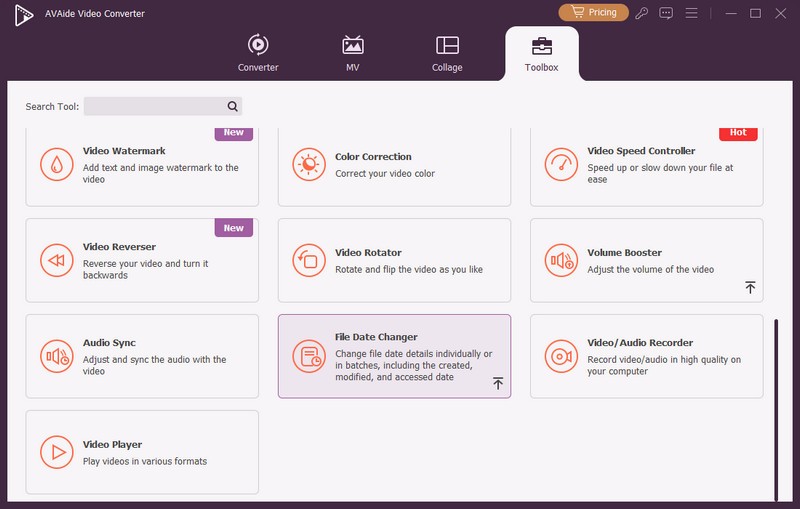
Suojattu latausVaihe 1Aloita avaamalla ohjelma tietokoneellasi. Suuntaa kohteeseen Työkalulaatikko -välilehteä käyttääksesi useita ominaisuuksia. Vieritä hiirtä alas ja etsi Tiedoston päivämäärän vaihtaja vaihtoehtojen joukosta ja napsauta sitä. Sitä käytetään tiedoston päivämäärän tietojen muuttamiseen.
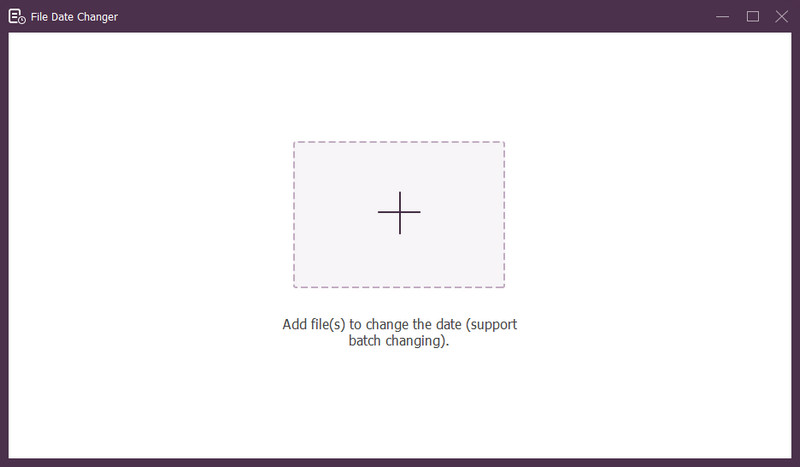
Vaihe 3Paina (+) -painiketta tiedostojen tuomiseksi. Tämä voi olla ääni-, kuva- ja äänitiedostoja. Voit tuoda useamman kuin yhden tiedoston muuttaaksesi tiedoston tietoja.
Vaihe 4Voit alkaa muuttaa niiden päivämääriä, kun kaikki tiedostot on tuotu. Voit muuttaa luonti-, muokkaus- ja käyttöpäiviä vastaavasti. Voit tehdä tämän napsauttamalla kohdetta, kunnes Nuoli tulee näkyviin, mikä tarkoittaa muokkausta.
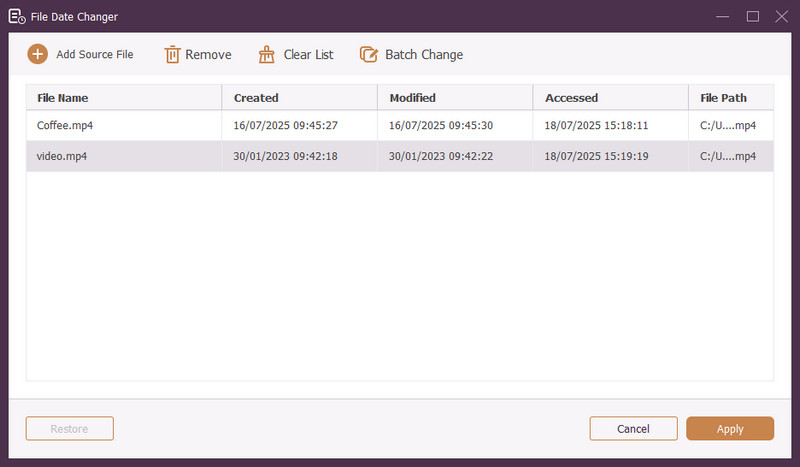
Vaihe 5Kun olet muokannut kaikki tiedostopäivämäärät, napsauta Käytä -painiketta vahvistaaksesi muutokset. Kun muutokset on otettu käyttöön, tarkista päivitetyt tiedoston tiedot tarkkuuden varmistamiseksi.
Osa 4. Usein kysyttyjä kysymyksiä parhaasta tiedostopäivämäärän vaihtajasta
Kuinka voin tarkastella tiedoston päivämäärätietoja?
Jos haluat tarkistaa, milloin tiedosto on luotu tai viimeksi muokattu, voit tehdä sen suoraan tietokoneellasi. Etsi tiedosto, napsauta sitä hiiren kakkospainikkeella ja valitse Ominaisuudet. Sitten näet kaikki tiedoston tiedot. Näitä ovat luonti- ja muokkauspäivämäärät.
Tietääkö kukaan milloin vaihdan tiedoston päivämäärää?
Ei! Tiedoston päivämäärän muuttaminen ei jättäisi jälkeäkään. Joten kukaan ei tiedä, milloin teit muutoksen.
Mikä on syy siihen, miksi päivämäärät ja kellonajat katoavat tiedostosta?
On muutamia syitä, miksi päivämäärät ja kellonajat saattavat kadota tiedostoista. Se voi tapahtua, kun lataat tiedoston ja menetät joitakin tietoja huonon Internet-yhteyden vuoksi. Joskus se johtuu verkkosivustosta, jolta latasit tiedoston.
Voinko noutaa tiedoston muokatun luomispäivämäärän?
Joo! Voit palauttaa alkuperäisen päivämäärän asettamalla sen manuaalisesti takaisin alkuperäiseen arvoonsa. Se on ainoa tapa hakea tiedoston luontipäivämäärä.
Vaikuttaako tiedoston päivämäärän ja kellonajan muuttaminen tiedoston eheyteen tai sisältöön?
Ei! Tiedoston päivämäärän ja kellonajan muuttaminen ei vaikuta sisältöön tai eheyteen. Se muuttaa vain metatietoja, kuten luonti- ja muokkauspäivämääriä. Se jättää varsinaisen tiedoston ennalleen.
Siinä se on! Olet oppinut kuinka muuttaa tiedostoon luotua päivämäärää, josta voi olla apua useista syistä. Jos haluat virtaviivaisemman ja aloittelijaystävällisemmän kokemuksen, harkitse AVAide Video Converterin käyttöä tiedostojen päivämäärän vaihtajana. Se on paras valinta digitaalisten tiedostojesi hallintaan. Kokeile sitä ja jaa ajatuksesi alla!
TIETOA KIRJOITTAJASTA

Kattavin mediamuunnin videon ja äänen muuntamiseen ilman laadun heikkenemistä.
Editoi videota