Canon-kamerat tallentavat kuvat CR2-muodossa, joka on raakakuvamuoto, joka on suunniteltu tallentamaan mahdollisimman paljon kuvan yksityiskohtia. Vaikka se on kätevä muokkausta varten, sitä ei voida käyttää päivittäisissä sovelluksissa suuren tiedostokokonsa ja rajoitetun yhteensopivuutensa vuoksi. Kun CR2:n muuntaminen JPG:ksi, sitä voidaan jakaa helpommin, ladata nopeammin ja sitä tuetaan useammilla laitteilla. Se on myös prosessi, joka minimoi tallennusvaatimukset ilman korkeatasoista teknistä asiantuntemusta. Tämä opas on jaettu syihin, menetelmiin ja työkaluihin yleisten kuvien käsittelykäytäntöjen perusteella, jotta voit hallita tiedostojasi selkeästi ja hallitusti.
Osa 1. Canon CR2: Miksi sinun täytyy muuntaa se
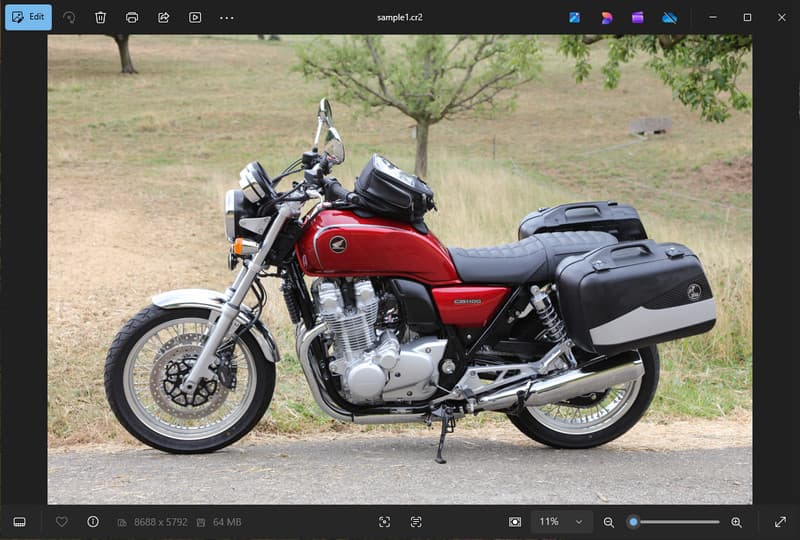
Canon CR2 on raakatiedostomuoto, joka tallentaa kameran kennosta saatua raakadataa. Vaikka se on erittäin yksityiskohtainen, CR2-tiedostomuoto on ehkä muunnettava JPG-muotoon, koska monet laitteet ja sovellukset eivät tue raakatiedostoja.
1. Rajoitettu yhteensopivuus
Monet vakiotyökalut eivät tue CR2-tiedostoja, mikä vaikeuttaa kuvien katselua. CR2-tiedoston muuntaminen JPG-muotoon varmistaa, että kuvasi avautuvat sujuvasti eri laitteissa, selaimissa ja peruskuvien katseluohjelmissa.
2. Suuri tiedostokoko
Raw-tiedostot ovat erittäin suuria, koska ne säilyttävät enemmän kuvadataa. Tämä vaikuttaa tallennukseen ja suorituskykyyn. CR2-kuvien muuttaminen JPG-muotoon pienentää tiedostokokoa, mikä helpottaa kuvien tallentamista ja tehokasta siirtämistä.
3. Helpompi jakaminen ja lataaminen
Monet alustat eivät hyväksy raakakuvia tai niiden käsittely on hidasta. Vaihtaminen CR2:sta JPG:hen on nopea ja helppo tapa ladata kuvia ja varmistaa, että ne näkyvät oikeassa muodossa sosiaalisessa mediassa, sähköpostissa ja muilla verkkosivustoilla.
4. Ei tarvetta erikoisohjelmistolle
CR2-tiedostojen muokkaamiseen tarvitaan RAW-tiedostoja käsittelevä ohjelmisto. Kun muunnat CR2-tiedostot JPG-muotoon, monimutkaisten ohjelmien käyttö on helpompaa ja saat helposti kuvia jokapäiväiseen käyttöön.
5. Nopeampi työnkulku
Raakatiedostojen käsittely voi hidastaa prosessia, etenkin irtokuvien käsittelyssä. Luotettavan CR2-JPG-muuntimen käyttö auttaa nopeuttamaan kuvankäsittelyä ja parantamaan kokonaistuottavuutta.
6. Yksinkertaisempi prosessi aloittelijoille
Raakamuodot voivat tuntua monimutkaisilta uusille käyttäjille. CR2:n muuntaminen JPG:ksi yksinkertaistaa työnkulkua ja helpottaa kuvien hallintaa ilman teknisiä esteitä.
Näiden seikkojen ymmärtäminen selittää, miksi muuntaminen on usein käytännöllinen valinta. Seuraavassa osiossa tutustut parhaisiin menetelmiin CR2:n muuntamiseksi JPG:ksi tehokkaasti.
Osa 2. 5 parasta tapaa muuntaa CR2 JPG:ksi
1. AVAide Image Converter (paras ilmainen online-vaihtoehto)
AVAide Image Converter on nopea, selainpohjainen ratkaisu, joka on suunniteltu käyttäjille, jotka tarvitsevat nopeita tuloksia ilman ohjelmistojen asentamista. Se on erityisen hyödyllinen, kun sinun on muunnettava CR2 JPG-muotoon irtotavarana säilyttäen samalla kuvanlaatu.
Avainominaisuudet:
- Muuntaa CR2-erätiedostoiksi ja -tiedostoista.
- Säilyttää korkean kuvanlaadun ja luonnolliset värit.
- Täysin verkossa ilman asennusta
- Hyväksyy JPG-, PNG- ja muut tiedostomuodot.
- Helppokäyttöinen käyttöliittymä nopeutettuun käsittelyyn.
Alustat:
- Verkkopohjainen, joka toimii Windows-, Mac-, Linux- ja mobiiliselaimissa
Vaihe 1Vieraile virallisella verkkosivustolla
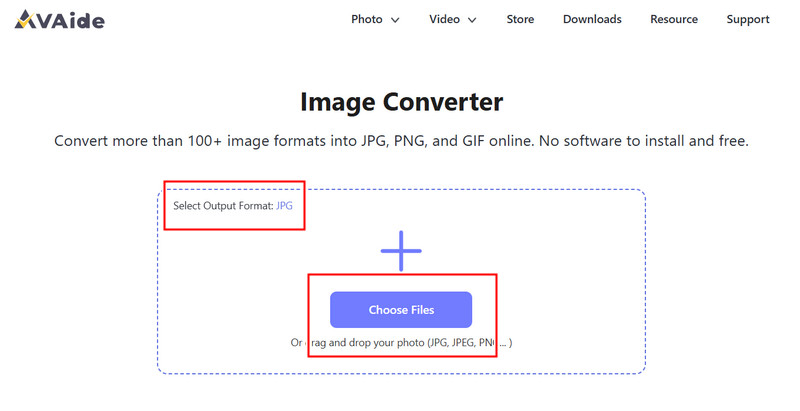
Siirry selaimeesi ja avaa virallinen AVAide Image Converter -sivu. Kun se on ladattu, voit aloittaa muuntamisen välittömästi ilman rekisteröitymistä tai asentamista.
Vaihe 2Aseta tuloste ja lataa
Valitse JPG halutuksi tulostusmuodoksi. Aloita sitten napsauttamalla +-painiketta tai raahaamalla ja pudottamalla CR2-tiedostosi latausalueelle.
Vaihe 3Aloita CR2:n muuntaminen
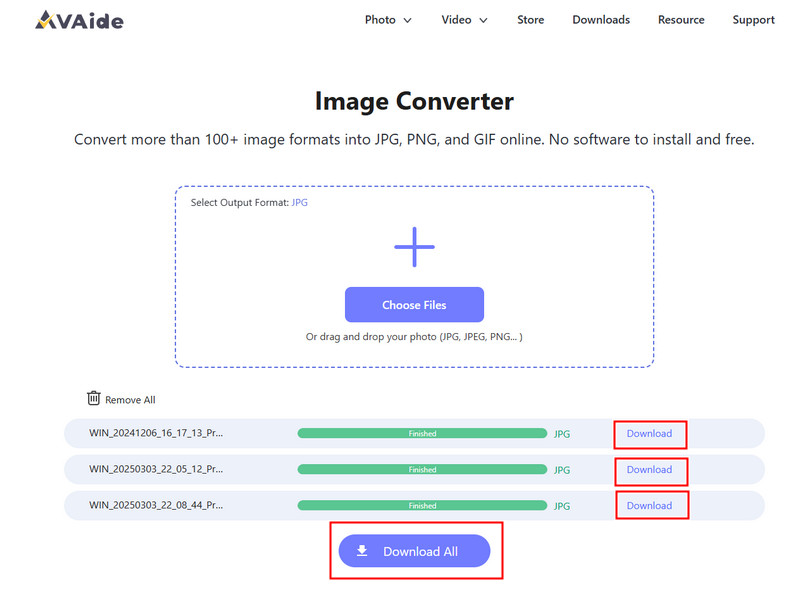
Odota, että työkalu on käsitellyt tiedostosi. Kun olet valmis, napsauta ladata yhdelle tiedostolle tai Lataa kaikki jos olet muuntanut useita kuvia.
- Plussat
- Helppo ja nopea käyttää
- Ei asennusta tai käyttöönottoa tarvita
- Tehokas eräkäsittelyn tuki
- Säilyttää tasaisen tulostuslaadun
- Haittoja
- Vaatii internetyhteyden
- Rajoitetut edistyneet muokkaustyökalut
2. Adobe Photoshop
Adobe Photoshop on tehokas sovellus, jonka avulla raakatiedostoja voidaan muokata ennen vientiä. Sitä käytetään tyypillisesti silloin, kun CR2-tiedostot on muunnettava JPG-muotoon ja kuvanmuokkauksiin on saatava täysi hallinta.
Avainominaisuudet:
- Edistynyt CR2-muokkaus Camera Raw'n avulla
- Korkealaatuiset vientivaihtoehdot
- Ammattitason muokkaustyökalut
Alustat:
- Windows ja Mac
Vaihe 1Käynnistä Photoshop ja avaa CR2-tiedostosi, joka latautuu Camera Raw'hun automaattisesti.
Vaihe 2Säädä valotusta, valkotasapainoa tai väriä tarpeen mukaan ja napsauta sitten Avata jatkaa.
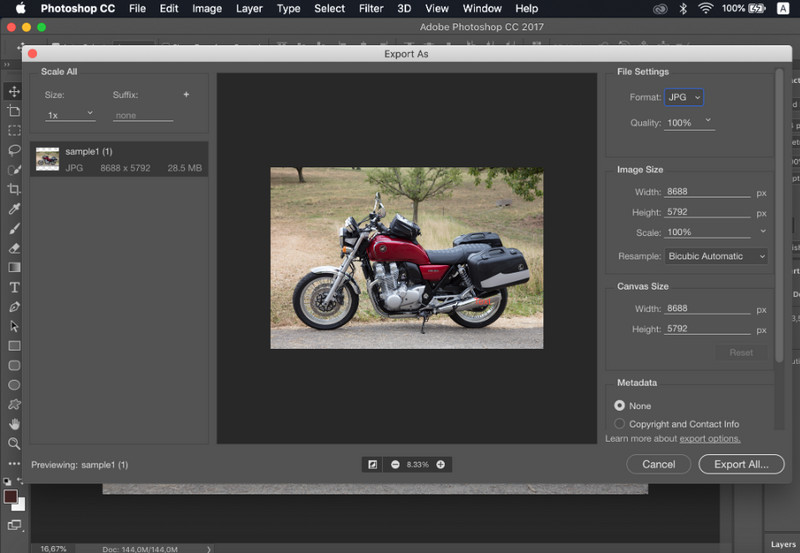
Vaihe 3Mene Tiedosto, valitse Tallenna nimellä, valitse JPG muoto, aseta laatu ja tallenna kuva.
- Plussat
- Erinomainen kuvan hallinta ja tarkkuus
- Alan standardien mukainen ohjelmisto
- Haittoja
- Edellyttää tilauksen
- Jyrkkä oppimiskäyrä
3. Lightroom
Lightroom on ihanteellinen valokuvaajille, jotka hallinnoivat suuria kuvapankkeja, ja vaikka haluaisitkin poista tausta LightroomissaSe yksinkertaistaa erämuokkausta ja -vientiä, mikä helpottaa CR2-JPG-muuntimen työnkulkua useille kuville samanaikaisesti.
Avainominaisuudet:
- Erämuokkaus ja vienti
- Tuhoamaton muokkausjärjestelmä
- Järjestelmällinen valokuvien hallinta
Alustat:
- Windows, Mac ja mobiili
Vaihe 1Avaa Lightroom ja lisää CR2-tiedostosi kirjastoon.
Vaihe 2Valitse kuvat ja tee tarvittaessa muokkauksia.
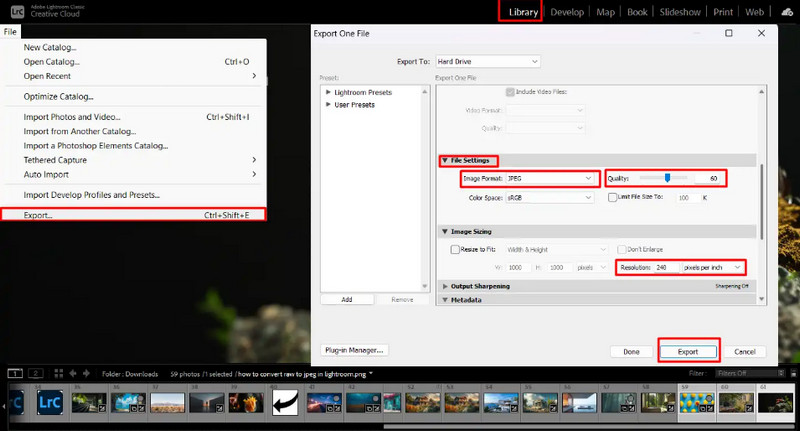
Vaihe 3Klikkaus Viedä, valitse JPG muotoile, määritä asetukset ja valitse tallennuspaikka.
- Plussat
- Tehokas massakuvien käsittelyyn
- Tasainen tulostuslaatu
- Haittoja
- Tilaus vaaditaan
- Vaatii aloittelijoilta opettelua
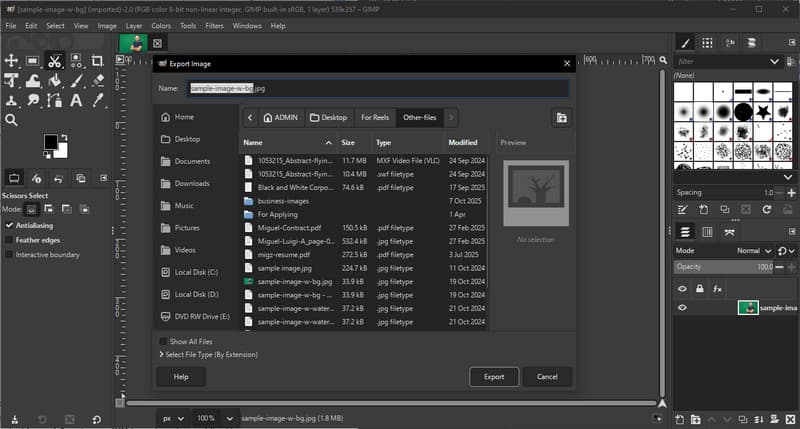
4. GIMP
GIMP valokuvaeditori on ilmainen, avoimen lähdekoodin editori, joka pystyy käsittelemään raakakuvia laajennusten avulla. Se on tehokas vaihtoehto, jos opit muuntamaan CR2:n JPG-muotoon ilman, että sinun tarvitsee ostaa maksullisia ohjelmistoja.
Avainominaisuudet:
- Ilmainen ja avoimen lähdekoodin ohjelmisto
- Tukee useita kuvamuotoja
- Perusmuokkaus- ja muunnosominaisuudet
Alustat:
- Windows, Mac, Linux
Vaihe 1Avaa GIMP ja lataa CR2-tiedostosi RAW-laajennuksen avulla.
Vaihe 2Säädä kuvan asetuksia tuonti-ikkunassa ja vahvista.
Vaihe 3Mene Tiedosto, valitse Vie nimellä, valitse JPG muotoile ja vie tiedosto.
- Plussat
- Täysin ilmainen käyttää
- Joustava lisäosien ja laajennusten avulla
- Haittoja
- Asennus voi olla teknistä
- Vähemmän viimeistelty käyttöliittymä
5. Convertio
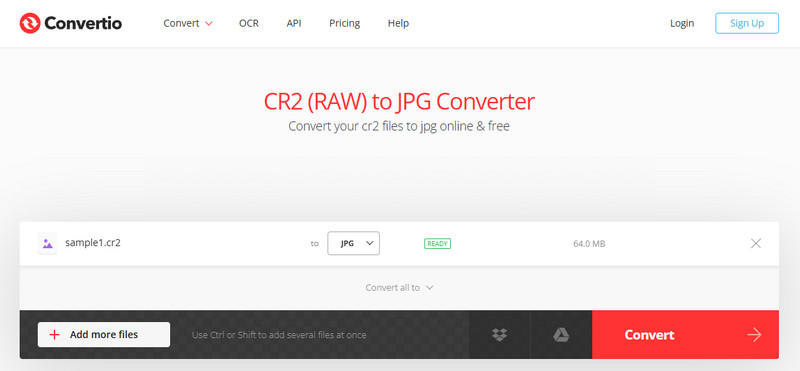
Convertio on tunnettu verkkopohjainen työkalu, jonka avulla käyttäjät voivat muuntaa tiedostoja nopeasti ilman asennusta. Se on käytännöllinen valinta, kun käyttäjät kysyvät, miten CR2 muunnetaan JPG-muotoon yksinkertaisen verkkoalustan avulla.
Avainominaisuudet:
- Tukee useita tiedostomuotoja, mukaan lukien CR2 ja JPG
- Toimii suoraan selaimessa
- Sallii tiedostojen lataamisen laitteelta, pilvestä tai URL-osoitteesta
- Yksinkertainen ja nopea muuntamisprosessi
Alustat:
- Web-pohjainen
Vaihe 1Avaa Convertio selaimessasi ja lataa CR2-tiedostosi.
Vaihe 2Valitse JPG tulostusmuotona.
Vaihe 3Aloita muuntaminen ja lataa tiedosto, kun se on valmis
- Plussat
- Helppokäyttöinen
- Asennusta ei tarvita
- Tukee useita tiedostolähteitä
- Haittoja
- Tiedostokokorajoitukset ilmaisversiossa
- Vaatii internetyhteyden
Osa 3. Viiden CR2-JPG-muuntimen vertailu
| ominaisuudet | AVAide Image Converter | Adobe Photoshop | Lightroom | LINKUTTAA | Convertio |
| Helppokäyttöinen | Erittäin helppo | Kohtalainen | Kohtalainen | Kohtalainen | Helppo |
| Erämuunnos | Joo | Rajoitettu | Rajoitettu | Rajoitettu | Rajoitettu viiteen |
| Kuvanlaatu | Korkein | Korkea | Korkea | Korkea | Korkea |
| Nopeus | Nopeasti | Kohtalainen | Nopeasti | Kohtalainen | Nopeasti |
| Tiedostokoon rajoitus | Ei | Ei | Ei | Ei | Joo |
Osa 4. Usein kysytyt kysymykset CR2:n muuntamisesta JPG:ksi
Mitä tehdä CR2-tiedostoille?
CR2-tiedostot ovat raakakuvia, jotka sisältävät käsittelemätöntä dataa Canon-kamerasta. Ne ovat hyödyllisiä, jos haluat täyden hallinnan muokkausta, kuten kirkkauden, värin ja terävyyden säätämistä. Niitä ei kuitenkaan ole helppo käyttää jokapäiväisiin tehtäviin, kuten jakamiseen tai lataamiseen.
Mitkä sovellukset avaavat CR2-tiedostoja?
CR2-tiedostoja voi avata useilla kuvankäsittelyohjelmilla. Adobe Photoshop ja Lightroom ovat yleisimmät vaihtoehdot, koska ne tukevat täysin raakakuvia ja tarjoavat edistyneitä muokkaustyökaluja. GIMP voi myös avata CR2-tiedostoja laajennuksella.
Miten muuntaa raw-tiedostot JPG-muotoon kerralla?
Useiden raakatiedostojen samanaikaiseen muuntamiseen tarvitset työkalun, joka tukee erämuunnosta. Ohjelmat, kuten Lightroom, tai verkkotyökalut, kuten AVAide Image Converter, mahdollistavat useiden CR2-tiedostojen tuonnin tai lataamisen kerralla. Valitset vain JPG:n tulostusmuodoksi ja aloitat prosessin.
CR2-tiedostojen muuntaminen JPG-muotoon helpottaa kuvien jakamista, katselua ja tallentamista. Vaikka CR2 sopii erinomaisesti muokkaukseen, JPG on käytännöllisempi jokapäiväiseen käyttöön. Jos mietit Kuinka vaihtaa tiedostotyyppi CR2:sta JPG:ksi, voit käyttää työkaluja, kuten Photoshop, Lightroom tai online-muuntimia, kuten AVAide Image ConverterTavoite on yksinkertainen: muuntaa suuret raakatiedostot pienemmiksi, käyttökelpoisemmiksi JPG-kuviksi menettämättä tärkeää laatua.
TIETOA KIRJOITTAJASTA


Voit helposti muuntaa valokuvasi mistä tahansa kuvamuodosta suosittuun JPG-, PNG- tai GIF-muotoon ilman laadun heikkenemistä.
KÄSITTELE NYT