Para cualquier persona que sea jugadora, un tutorial de visualización o una demostración de cualquier actividad que desee realizar Graba la pantalla de tu iPhone con sonido. Será pan comido. Esta guía electrónica explica cómo configurar la grabación de audio y cómo solucionar problemas comunes, además de ofrecer consejos útiles.
Parte 1. Cómo habilitar la grabación de pantalla con sonido.
La grabación de pantalla del iPhone y el iPad es una función integrada que permite grabar tanto la imagen como el sonido. No es necesario preocuparse por activar la función o el micrófono para añadir sonido a tu proyecto.
Paso 1Acceder al Ajustes y luego el Centro de control. Hacer clic Grabación de pantalla de la lista del lado izquierdo y luego haga clic en el Agregar (+) botón para agregar la función al centro de control.
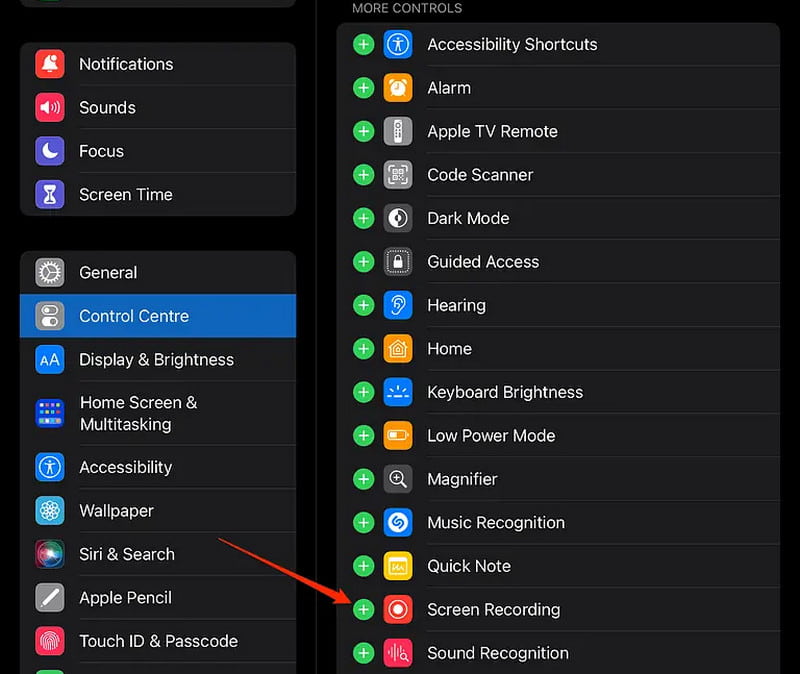
Paso 2En los dispositivos más recientes, presione la esquina superior derecha de la pantalla para abrir el Centro de controly en los más antiguos, desliza hacia arriba para abrirlo. Verás el botón para Grabación de pantalla.
Paso 3Mantenga presionado el Grabación de pantalla y haga clic en el Menú que aparece. Haga clic en el Micrófono Botón para activar el micrófono. Si se ilumina en rojo, significa que la auditoría está activada.
Etapa 4Prensa Empezar a grabar y mantén pulsado hasta que termine la cuenta atrás. ¡La grabación de pantalla comenzará lo antes posible!
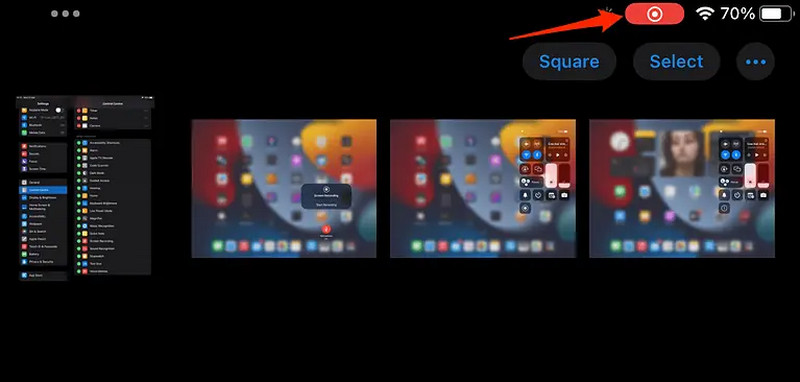
Paso 5Para detener la grabación, toque el barra de estado roja o indicador de grabación, luego confirme que desea detener la grabación. El video se colocará automáticamente dentro del Fotos aplicación.
Parte 2. Comprensión de los dos tipos de grabación de audio
Si el audio está activado para grabar la pantalla en un iPhone o iPad, el audio se reproducirá con normalidad. Si el micrófono está apagado, no se grabará ningún audio.
Micrófono apagado
Si el micrófono no funciona, la grabación solo incluirá los sonidos del dispositivo. Esto significa que se grabarán los sonidos de la aplicación, los videos y cualquier sonido relacionado con el juego (según la función de sonido de la aplicación). No se grabará tu voz ni los ruidos de fondo.
Ideal para videojuegos, demostraciones de aplicaciones y grabación de vídeo con sonido interno únicamente.
Micrófono encendido
Esta función se activa si tu dispositivo la admite. Cuando el micrófono está encendido, graba el audio y las voces junto con el ruido de fondo mientras hablas.
Esta función es la mejor para grabar tutoriales, guías paso a paso y clases en línea, ya que describe lo que sucede en la pantalla de tu dispositivo.
Parte 3. Solución de problemas de grabación de pantalla sin sonido
Existen muchas razones por las que las grabaciones de pantalla del iPhone y el iPad que deberían capturar audio no lo hacen. Es común que las grabaciones parezcan normales y luego no tengan audio. Estos problemas generalmente se pueden solucionar revisando la configuración básica del micrófono y el sonido, ya que suelen deberse a ajustes sencillos, enrutamiento de audio o restricciones de la aplicación.
1. El interruptor silencioso está encendido.
Cuando el dispositivo está en modo silencioso, la actividad puede influir en la grabación de sonido al capturar la pantalla, lo que podría provocar que se pierda o se amortigüe el audio de la grabación.
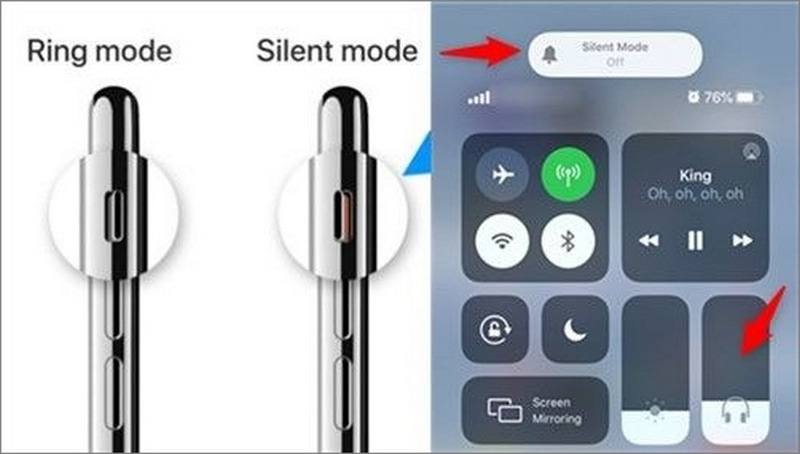
Arreglar:
Asegúrese de que el interruptor físico situado en el lateral derecho del iPhone esté apagado cuando el teléfono esté en modo silencio (se enciende cuando el timbre está activado). Vuelva a la grabadora y, al finalizar el proceso, grabe otra sesión para comprobar si el problema se ha solucionado.
2. El micrófono no estaba activado.
Si el micrófono está apagado, el vídeo que aparece en el escritorio no incluirá tu voz ni otros sonidos, sino solo lo que ves en la pantalla.
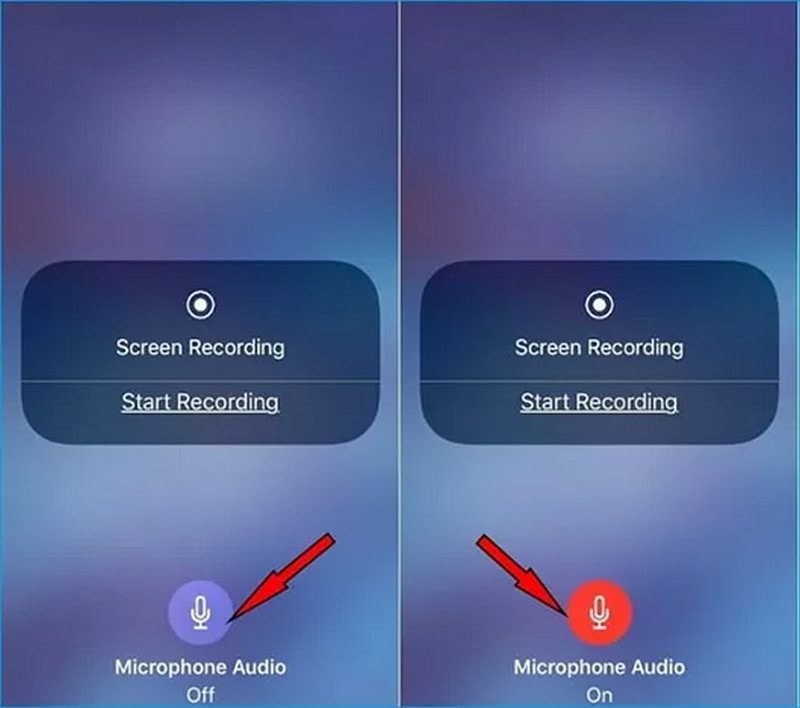
Arreglar:
Abre el Centro de control, mantén pulsado el Grabación de pantalla Presione el botón y asegúrese de que la opción Micrófono esté habilitada (debería iluminarse en rojo). Indique que inicie una nueva grabación y agregue audio.
3. Tu iPhone/iPad está en modo No molestar o Modo de concentración.
Determinados modos de enfoque, como el modo No molestar, podrían afectar al funcionamiento del dispositivo para controlar la actividad en segundo plano y podrían afectar al audio al grabar la pantalla.
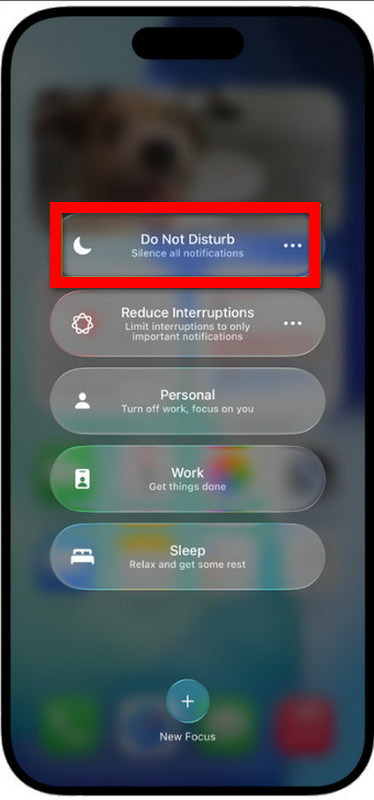
Arreglar:
Doblar Enfoque/No molestar DESACTIVADO en el Centro de controlRepita el segundo paso y vuelva a iniciar la grabación de pantalla para asegurarse de que podrá grabar el audio con normalidad.
4. Interferencias de dispositivos de audio Bluetooth
Para evitar que el audio se escape del teléfono, si tu iPhone está conectado a auriculares, altavoces, etc., Bluetooth, es recomendable desconectarlos.
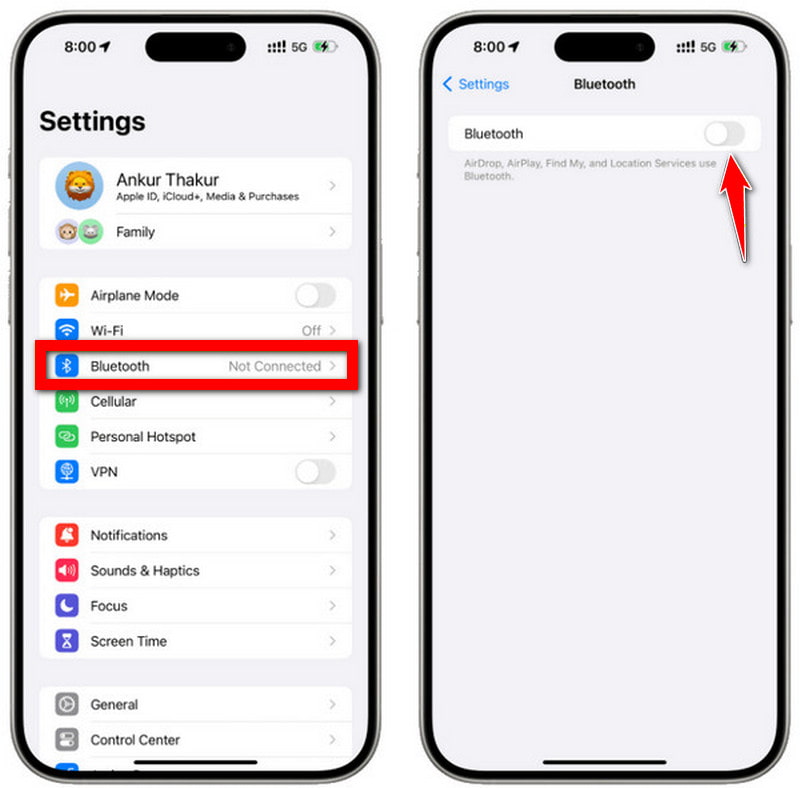
Arreglar:
Sobre el Ajustes > Bluetooth Desactive la pantalla y cualquier dispositivo conectado. Además, puede desactivar la conectividad inalámbrica y, por lo tanto, grabar sin sonido a través de Bluetooth.
5. La aplicación no permite la grabación de audio.
Dependiendo de las leyes de protección de la privacidad y los derechos de autor, algunas aplicaciones solo permiten la grabación de vídeo sin sonido. En tales casos, una grabadora de MP3 puede ayudar a capturar el audio por separado.
Arreglar:
Ahora intenta grabar otra aplicación, por ejemplo, Safari y Fotos. Si el sonido funciona, entonces se trata de un problema de la aplicación original y no se solucionará con las restricciones.
6. Fallos de software
En ocasiones, la interrupción de la grabación de audio de la pantalla se debe a errores del sistema o a un software obsoleto.
Arreglar:
Vuelva a encender el dispositivo para eliminar fallos temporales. Si el problema persiste, puede actualizar a la última versión de iOS o iPadOS accediendo a Ajustes > General > Actualización de software.
Parte 4. Consejos y trucos avanzados
1. Cómo grabar solo el audio interno (sin micrófono)
Puede resultar muy útil cuando simplemente quieres escuchar aplicaciones, juegos y vídeos, eliminando el ruido de fondo y las voces.
Paso 1En el iPhone o iPad, toque el Centro de control abierto botón.
Paso 2Mantenga presionado el Grabación de pantalla botón.
Paso 3Asegúrese de que el micrófono esté APAGADO (no debe estar en rojo).
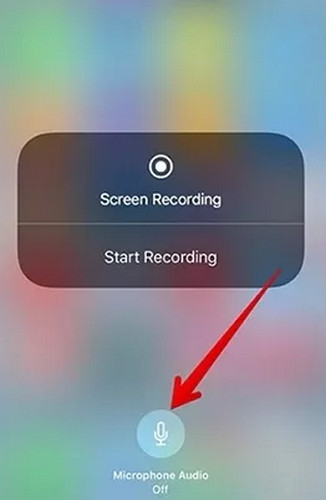
Etapa 4Para grabar, pulse el botón de inicio.
2. Cómo grabar solo tu voz (sin audio interno)
Cómo distinguir las diferentes partes de tu voz de las de otras personas al hablar con ellas. Útil cuando necesitas comunicar algo con claridad sin usar aplicaciones ni efectos de sonido.
Paso 1Abierto Centro de control.
Paso 2Mantén pulsado Grabación de pantalla.
Paso 3Para obtener el Micrófono encendido (El indicador rojo está encendido), presione el botón del micrófono.
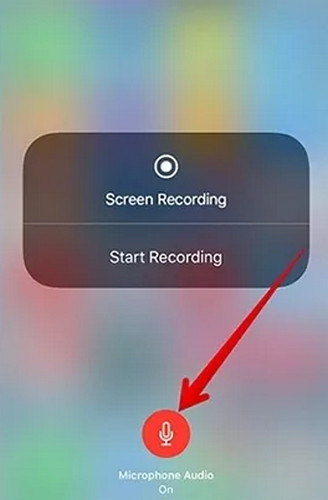
Etapa 4Reduce o ajusta el volumen del dispositivo para obtener un sonido con vocoder o un volumen más bajo.
3. Dónde encontrar tus grabaciones de pantalla
Encuentra tus grabaciones de pantalla con un solo clic. Solución de un solo clic para localizar tus grabaciones de pantalla. Todas las grabaciones se guardan automáticamente después de que detienes la grabación, de forma similar a Grabación de pantalla y audio de Windows Herramientas. No es necesario guardar manualmente.
Paso 1Toque en el Fotos aplicación.
Paso 2Ir Álbumes.
Paso 3Haz clic para Ver en recientes o Desplácese hacia abajo para ver las grabaciones de pantalla..
Etapa 4Para ver, compartir o editar el vídeo, tócalo.
4. Cómo editar o recortar una grabación de pantalla
Los elementos no deseados, como retrasos o errores, se pueden eliminar fácilmente, al igual que el metraje sobrante.
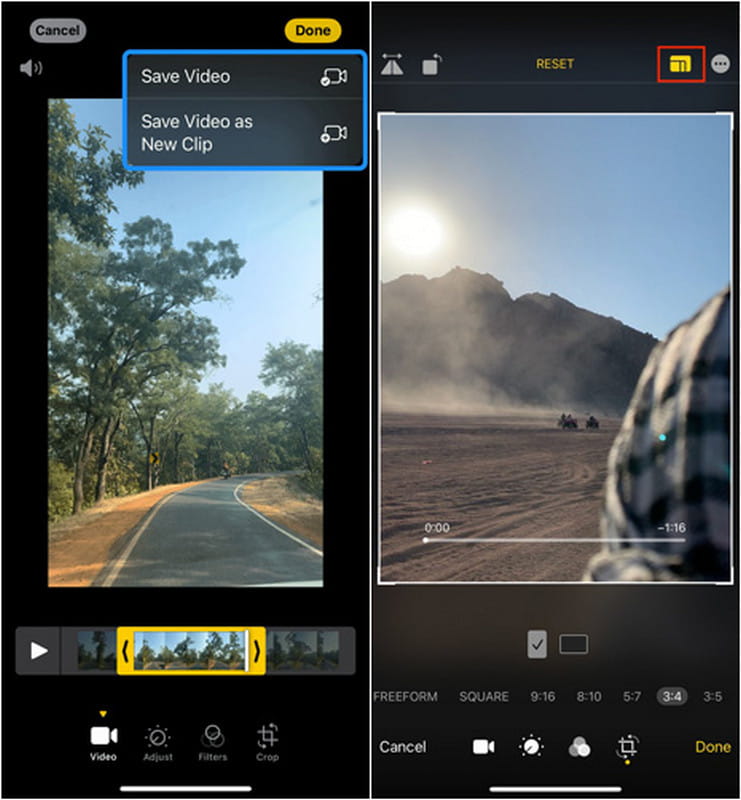
Paso 1Haga clic en reproducción en el Fotos aplicación para abrirlo.
Paso 2Haga clic en Editar en la esquina superior derecha.
Paso 3Para recortar el principio y/o el final, arrastre los tiradores de recorte.
Etapa 4Hacer clic Hechoy luego seleccione Guardar video o Guardar como nuevo clip.
Grabador de pantalla AVAide (Herramienta avanzada de grabación y edición)
Si se requieren grabaciones de pantalla de mayor calidad y un mayor control sobre la edición, las herramientas de grabación de pantalla para iPhone y iPad presentan inconvenientes: Grabador de pantalla AVAide Es una alternativa más robusta y profesional. Ofrece potentes funciones de captura de pantalla y grabación de audio, todo integrado en una herramienta sencilla, lo que la convierte en la opción perfecta para tutoriales, juegos y, quizás, reuniones y creación de contenido.
- Graba en HD y 4K/1080p sin retardo, sin comprometer la calidad de la captura.
- Graba tanto el sonido del sistema como el del micrófono.
- Graba el sonido del sistema y el micrófono al mismo tiempo.
- Puede gestionar la superposición de la cámara web y la grabación a través de FaceCam.
- Admite grabación completa, por ventana o por área con dimensiones personalizadas.

 Descarga segura
Paso 1Descarga e instalación de la herramienta
Visite la página web oficial de AVAide y descargue AVAide Screen Recorder para Windows o Mac. Instale el programa según las instrucciones y elija grabadora de telefono.
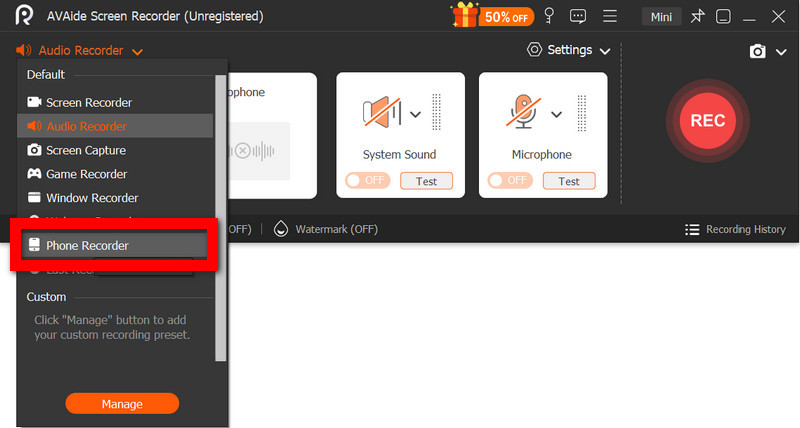
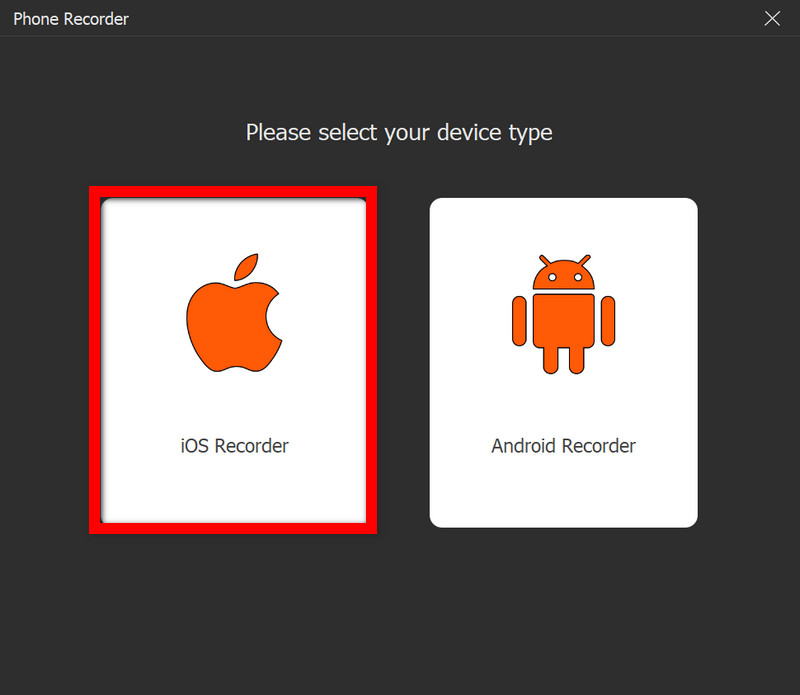
Paso 2Seleccionar modo
Ejecute el software y elija el modo de trabajo, Grabadora iOS.
Paso 3Empezar a grabar
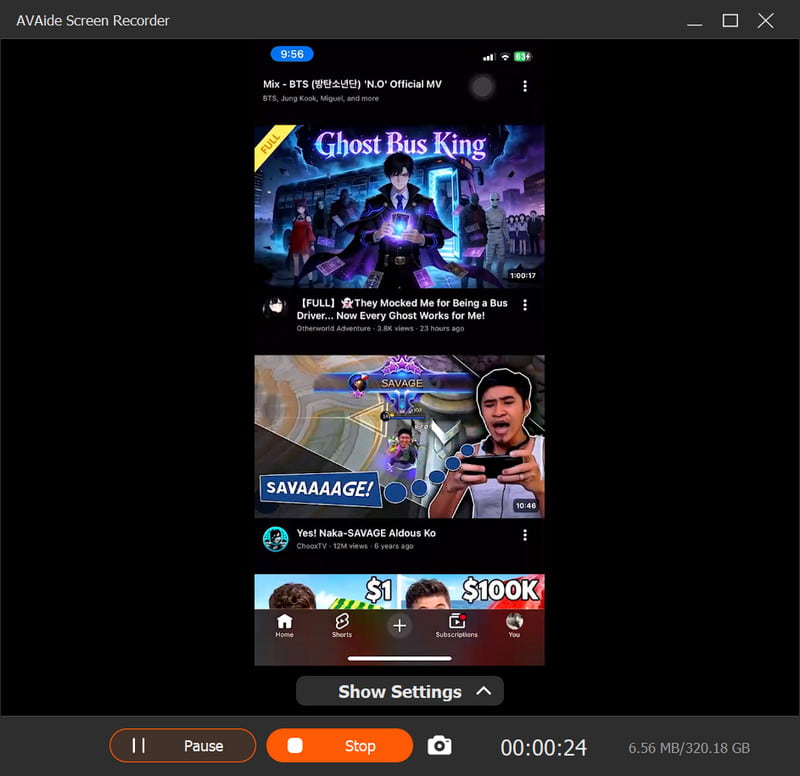
presione el REC Presione el botón para comenzar a grabar. Durante la grabación, puede pausarla o continuarla.
Etapa 4Editar archivo grabado
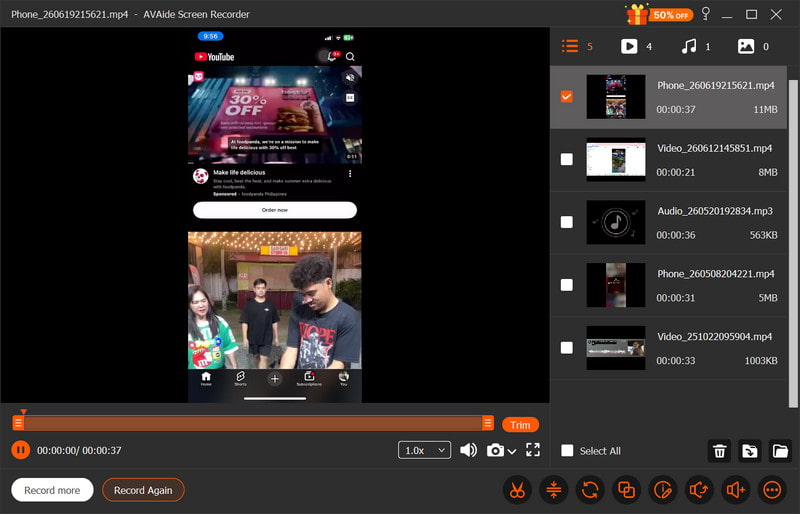
Para editar y guardar tu discurso. Graba y visualiza tu vídeo inmediatamente después de grabar. Edita, mejora y convierte archivos de audio con la ayuda de herramientas de edición antes de guardar el archivo de salida.
Una vez que lo sepas ¿Qué causa que la grabación de pantalla del iPhone no tenga sonido? Si solucionas el problema, será más fácil corregir el audio que falta y mejorar la calidad de las grabaciones de pantalla. Si dedicas tiempo a configurar correctamente el audio, sigues algunos consejos útiles para grabar y solucionas problemas comunes, lograrás grabaciones de pantalla claras y completas en todo momento.
SOBRE EL AUTOR

Grabe la pantalla, el audio, la cámara web, el juego, las reuniones en línea, así como la pantalla de iPhone/Android en su computadora.
Grabar pantalla y video
- Registro de pantalla en Mac
- Registro de pantalla en Windows
- Registro de pantalla en iPhone
- Grabar audio en iPhone
- Grabar programas de televisión sin DVR
- Grabar pantalla de Snapchat en iPhone y Android
- Grabar una llamada de FaceTime
- Cómo usar el VLC para grabar la pantalla
- Arreglar el código de error de Amazon 1060
- Arreglar OBS Window Capture Black
- Cómo convertir un PowerPoint en un video [Tutorial completo]
- Cómo hacer videos tutoriales: preparaciones y pautas
- Cómo grabar la pantalla con sonido en iOS 15 y versiones posteriores
- Cómo grabar en pantalla en TikTok: soluciones de escritorio y móviles
- Cómo grabar la pantalla en Samsung en 2 formas comprobadas [resuelto]
- Cómo grabar juegos en PS4 sin una tarjeta de captura
- Cómo grabar juegos en Xbox One [Tutorial completo]