Cómo grabar un mensaje de voz en un iPhoneGrabar un mensaje de voz es una forma rápida de compartir tus ideas o enviar audio personalizado sin necesidad de escribir. Con la función de mensajería de voz integrada del iPhone, puedes grabar, guardar y compartir tus audios al instante con solo unos toques. Si buscas una manera sencilla de grabar y enviar un mensaje de voz en tu móvil, consulta este tutorial para lograr el resultado deseado.
Parte 1. Cómo grabar y enviar un mensaje de voz en iMessage
iMessage no es solo una herramienta de comunicación. También ofrece la función de mensajes de voz. Con esta función, puedes enviar y compartir tus mensajes y pensamientos mediante tu voz. Es ideal si quieres enviar mensajes sin escribir nada en el teclado. Lo mejor de todo es que enviar un mensaje de voz es muy sencillo, lo que lo hace perfecto para todos los usuarios. Así que, si quieres empezar a grabar y enviar mensajes, puedes seguir las instrucciones a continuación.
Cómo grabar un mensaje de voz en un iPhone
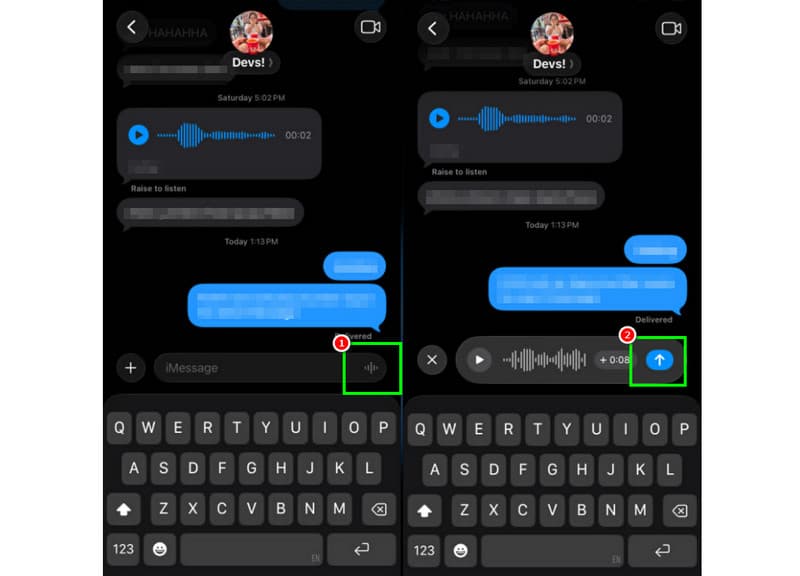
Paso 1En tu iPhone, inicia el iMessage Luego, diríjase a la persona con la que desea comunicarse.
Paso 2Desde tu pantalla, mantén pulsado el Micrófono Opción. Mientras lo mantienes pulsado, puedes empezar a grabar y a decir tu mensaje.
Paso 3Para detener la grabación, suelte el dedo del botón. Luego, toque el Enviar flecha botón para enviar el mensaje.
Escuchar mensajes de voz entrantes
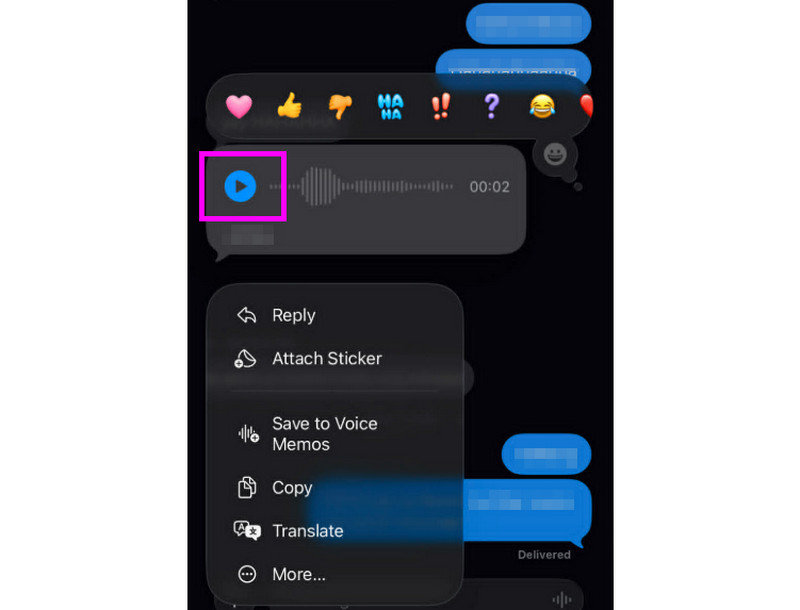
Paso 1Después de recibir el mensaje de voz, puede tocar Tocar botón.
Paso 2También puedes ajustar el volumen desde el botón lateral de tu iPhone para escuchar el mensaje correctamente.
Paso 3Después de dos minutos, el mensaje de voz caducará. Para conservar el mensaje, simplemente pulse el botón. Mantenerse Opción a continuación.
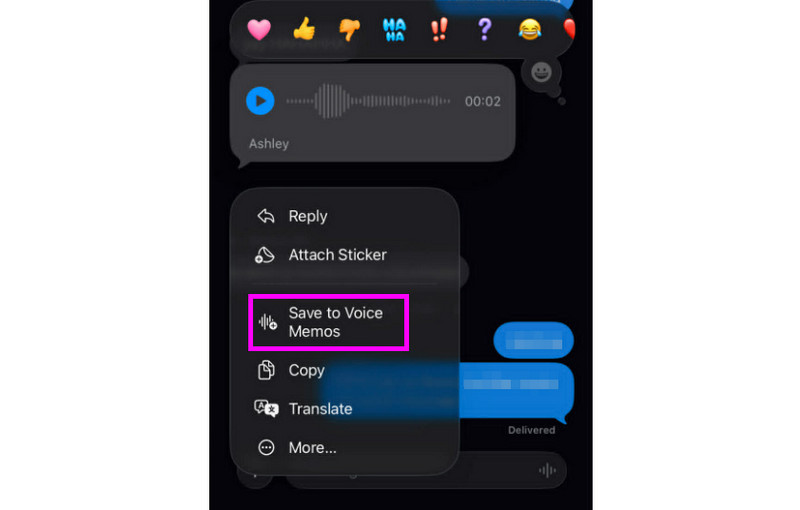
Etapa 4Si quieres guardar el mensaje de voz, solo manténlo presionado y toca el Guardar en Notas de Voz aplicación. Con esto aplicación de grabación de vozPuedes reproducir el mensaje en cualquier momento y lugar.
Ajustar la configuración de mensajes de voz
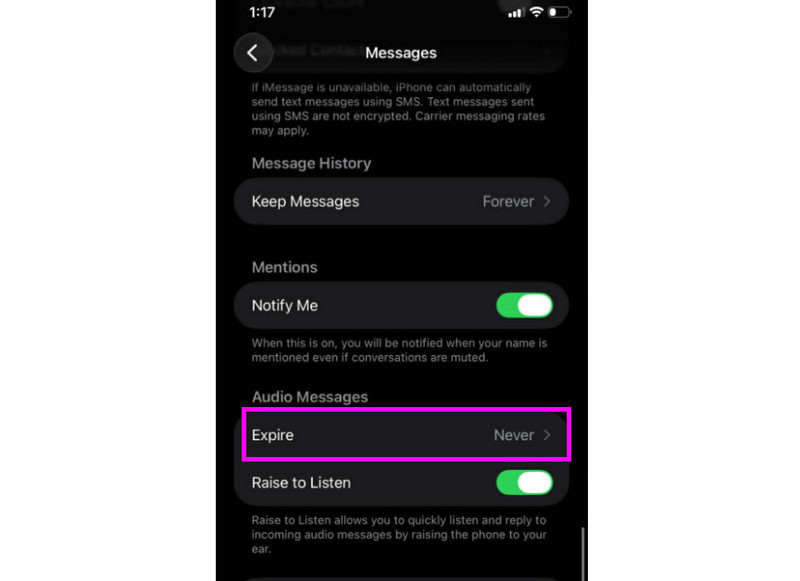
Paso 1Ir a tu Ajustes aplicación. Luego, proceda a la Mensajes aplicación.
Paso 2Navegar a la Mensajes de audio > Expirar sección y toque el Nunca Opción. De esta forma, los mensajes de voz de tu iMessage no caducarán.
Parte 2. Método para grabar un saludo de correo de voz en iPhone
Cuando no estés disponible, quienes te llamen recibirán un mensaje personalizado si grabas un saludo de buzón de voz en tu iPhone. Es muy sencillo crear un nuevo saludo, modificar o eliminar uno antiguo, e incluso usar un saludo temporal para ocasiones especiales. Puedes personalizar completamente cómo suena tu mensaje de voz con solo unos toques en la app Teléfono. Consulta los pasos a continuación y aprende cómo grabar un mensaje de buzón de voz en un iPhone.
Configuración del saludo de tu buzón de voz
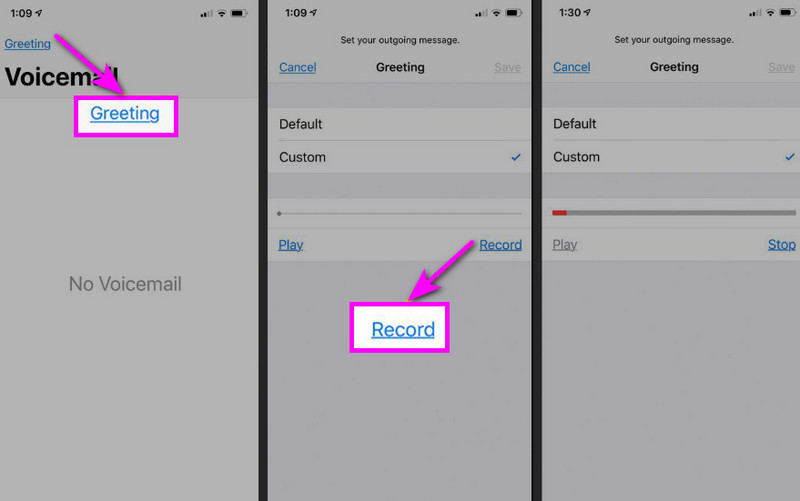
Paso 1Proceda al Teléfono la aplicación y toque el Buzón de voz opción.
Paso 2Después de eso, presione el Saludo función desde la esquina superior izquierda de la pantalla. Presione Personalizado > Registro para comenzar Grabar audio en tu iPhone como saludo.
Paso 3Grifo Detener para terminar y reproducirlo para revisarlo. Una vez hecho, pulsa Ahorrar para configurarlo como tu saludo activo.
Cambiar o eliminar tu saludo
Paso 1Puedes volver al Buzón de voz > Saludo sección.
Paso 2Golpear Personalizado y graba un nuevo saludo para reemplazar el anterior.
Paso 3Luego, para volver a la configuración predeterminada, puede seleccionar Por defecto en lugar de Personalizado.
Consejo profesional: Saludo temporal
Si no estás disponible por un breve periodo, graba un saludo temporal siguiendo los mismos pasos que en la sección Personalizado. Cuando regreses, simplemente vuelve a tu saludo habitual o a la opción predeterminada.
Parte 3. Solución de problemas: No se puede grabar un mensaje de voz.
Dirígete a esta sección y consulta la guía de solución de problemas que aborda algunos de los inconvenientes que pueden surgir al grabar o enviar un mensaje de voz en un iPhone.
El botón del micrófono aparece atenuado en Mensajes.
Solución: Asegúrate de que el acceso al micrófono esté habilitado. Para ello, ve a Configuración > Privacidad y seguridad > Micrófono y permite el acceso a Mensajes.
No se envía la voz
Solución: Comprueba siempre tu conexión a internet. Además, asegúrate de que iMessage esté activado en Ajustes > Mensajes > iMessage.
No se puede grabar el saludo del buzón de voz
Solución: La opción de saludo solo aparecerá si el operador admite el buzón de voz visual. Si no aparece, puede mantener pulsado el número 1 en la aplicación del teléfono para llamar directamente al buzón de voz. A continuación, siga las instrucciones del operador para grabar un saludo.
Los destinatarios dicen que no pueden oírte.
Solución: Puedes probar el micrófono con la aplicación Notas de Voz. También puedes quitar cualquier funda o accesorio que pueda obstruirlo. Otra opción es limpiar la abertura del micrófono con un paño o un cepillo pequeño.
Guía rápida: Mensaje de voz vs. Buzón de voz
¿Quieres saber más sobre Mensajes de Voz y Buzón de Voz? Entonces, puedes consultar la sencilla tabla a continuación.
| Rasgo | Mensaje de voz (iMessage) | Buzón de voz (Operador) |
| Cómo se envía | • Registrado en la aplicación Mensajes • Enviado vía iMessage | • Saludo grabado • Audio almacenado por el operador |
| Se necesita conexión a Internet | Sí (Wi-Fi o datos móviles) | No, funciona a través de una red celular. |
| Almacenamiento | Guardado en el hilo de iMessage | Almacenado en el sistema de correo de voz del operador. |
| Control | El usuario puede reenviar, eliminar o guardar. | El operador controla el acceso y el almacenamiento. |
Extra: La mejor herramienta para editar grabaciones de voz
Después de guardar la grabación de voz o el mensaje de voz, a veces querrás editarlo para obtener una mejor calidad de audio. Por eso, cuando se trata de editar tu audio, sería mejor acceder a una excelente herramienta de edición, como Convertidor de video AVAideEste programa ofrece una función de edición de audio que te permite editar tus archivos de audio. Puedes recortar, dividir y fusionar pistas de audio. Incluso puedes ajustar el volumen y el retardo según tus preferencias. Lo mejor de todo es que puedes guardar el audio en cualquier formato usando la función de conversión del programa. Puedes guardar tu grabación de voz como MP3, WAV, M4A, FLAC y más, con la mejor calidad de hasta 320 kbps. Por lo tanto, si buscas un software ideal para editar tus grabaciones de voz, no busques más: AVAide Video Converter es la solución.

DESCARGA GRATUITA Para Windows 7 o posterior
 Descarga segura
DESCARGA GRATUITA Para Mac OS X 10.13 o posterior
Descarga seguraMás funciones:
- Puede ofrecer un proceso de edición de audio fluido.
- El programa puede combinar varios archivos de audio para crear un único archivo.
- Puede convertir formatos de audio y vídeo a una velocidad 120 veces superior.
- El programa también puede ofrecer editores de vídeo integrados, como fusionador, divisor, recortador, etc.
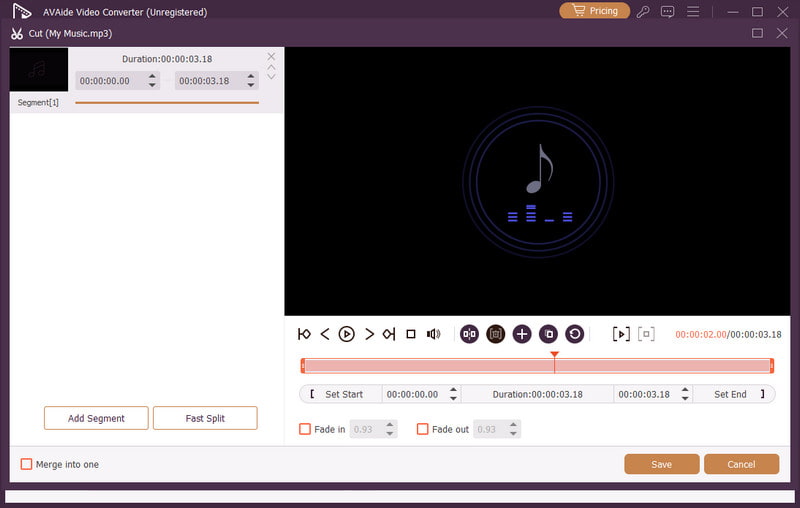
Enviar un mensaje de voz en un iPhone es una forma ideal si quieres enviar tu mensaje más rápido. Gracias a este tutorial, has aprendido a grabar y enviar un mensaje de voz de forma eficaz. Incluso obtienes suficiente información sobre cómo guardar el mensaje de voz para reproducirlo sin limitaciones. Además, si quieres editar tus grabaciones de voz, sería mejor acceder a Convertidor de video AVAideCon la función de edición de audio de este programa, puedes mejorar tu audio, lo que dará como resultado una reproducción de audio mejor y más satisfactoria.
SOBRE EL AUTOR

Capture actividades de pantalla con audio, reuniones en línea, videos de juegos, música, cámara web, etc.
Grabación de audio