Όταν παρακολουθείτε μια συνάντηση ή ένα μάθημα online μέσω Zoom, πιθανότατα θέλετε να λήψη στιγμιότυπων οθόνης στο Zoom για μελλοντική χρήση. Εδώ προσφέρουμε έναν πλήρη οδηγό για τη λήψη στιγμιότυπων οθόνης στο Zoom με τις προεπιλεγμένες λειτουργίες των Windows, Mac και κινητών συσκευών ή με τις ενσωματωμένες λειτουργίες του ίδιου του Zoom. Επίσης, θα αναφερθούμε σε μια εύλογη ανησυχία πολλών: Μπορεί το Zoom να καταλάβει αν τραβάτε στιγμιότυπο οθόνης; Θα βρείτε την απάντηση στο άρθρο.
- Μέρος 1. Πώς να κάνετε λήψη στιγμιότυπου οθόνης στο Zoom σε υπολογιστή (Windows)
- Μέρος 2. Πώς να κάνετε λήψη στιγμιότυπου οθόνης στο Zoom σε Mac
- Μέρος 3. Πώς να κάνετε λήψη στιγμιότυπου οθόνης στο Zoom σε κινητό (iPhone & Android)
- Μέρος 4. Χρήση των ενσωματωμένων λειτουργιών του Zoom
- Μέρος 5. Ειδοποιεί το Zoom τα στιγμιότυπα οθόνης;
Μέρος 1. Πώς να κάνετε λήψη στιγμιότυπου οθόνης στο Zoom σε υπολογιστή (Windows)
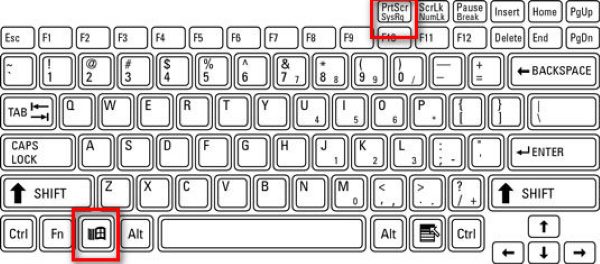
1. Χρήση του πλήκτρου εκτύπωσης οθόνης (Πλήρης οθόνη)
Χρησιμοποιήστε το πλήκτρο πρόσβασης για στιγμιότυπο οθόνης στα Windows για ολόκληρη την οθόνη. Ενώ η σύσκεψη Zoom είναι σε εξέλιξη, πατήστε Windows μαζί με το PrtScn πλήκτρο (το οποίο συνήθως βρίσκεται δίπλα στα πλήκτρα λειτουργιών).
Ένα αντίγραφο όλων όσων είναι ορατά στην οθόνη σας θα ληφθεί αμέσως και θα αποθηκευτεί στη διεύθυνση C:\Users\YOUR_USERNAME\Pictures\Screenshots (στα Windows 10 και 11).
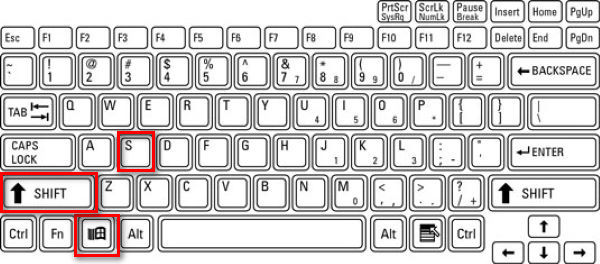
2. Χρήση του Εργαλείου Αποκοπής / Αποκοπή & Σχεδίαση (Ιδανικό για Ζουμ)
Τύπος Νίκη + Βάρδια + μικρό για να κάνετε την επιφάνεια εργασίας γκριζαρισμένη και να εμφανίσετε μια γραμμή εργαλείων καταγραφής στο επάνω μέρος. Στη συνέχεια, μπορείτε να σχεδιάσετε ένα ορθογώνιο ή να επιλέξετε αποκόμματα ελεύθερης μορφής, παραθύρου ή πλήρους οθόνης.
Αυτό είναι ιδανικό για το Zoom, επειδή μπορείτε να καταγράψετε μόνο το παράθυρο Zoom ή ένα μέρος του. Μετά την αποκοπή, η εικόνα αντιγράφεται στο πρόχειρο και εμφανίζεται μια ειδοποίηση. Κάντε κλικ στην ειδοποίηση για να επεξεργαστείτε το στιγμιότυπο οθόνης.
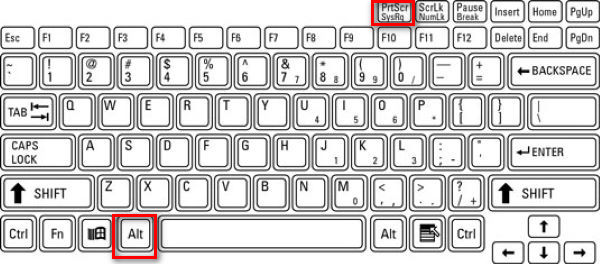
3. Χρήση Alt + PrtScn (Μόνο ενεργό παράθυρο)
Βήμα 1Κάντε κλικ στο παράθυρο Ζουμ για να βεβαιωθείτε ότι είναι ενεργό.
Βήμα 2Τύπος Alt + PrtScn.
Αυτό καταγράφει μόνο το ενεργό παράθυρο, το οποίο είναι η σύσκεψη Zoom, και το τοποθετεί στο πρόχειρο.
4. Χρήση εργαλείου τρίτου μέρους
Προτιμώ να χρησιμοποιώ ένα εργαλείο τρίτου κατασκευαστή για να τραβήξω στιγμιότυπα οθόνης στο Zoom, επειδή οι εικόνες αποθηκεύονται σε μια συγκεκριμένη τοποθεσία που έχω ορίσει, ξεχωριστά από άλλα στιγμιότυπα οθόνης που έχουν ληφθεί από τα Windows, διευκολύνοντας την αναζήτηση συγκεκριμένων εικόνων.
Υπάρχουν διάφορα εργαλεία στιγμιότυπων οθόνης για τη λήψη στιγμιότυπων οθόνης κλήσεων Zoom, όπως το ShareX, το Icecream Screen Recorder, το Snagit και Εγγραφή οθόνης AVAideΌπως και με το AVAide Screen Recorder, μπορείτε να τοποθετήσετε τις εικόνες στον ίδιο φάκελο, διευκολύνοντάς σας να διατηρείτε όλα τα στιγμιότυπα οθόνης σε τάξη. Θα σας δείξω πώς να το κάνετε βήμα προς βήμα.
Βήμα 1Λήψη και εγκατάσταση του καταγραφέα

ΔΩΡΕΑΝ ΛΗΨΗ Για Windows 7 ή νεότερη έκδοση
 Ασφαλής λήψη
ΔΩΡΕΑΝ ΛΗΨΗ Για Mac OS X 10.13 ή νεότερη έκδοση
Ασφαλής λήψηΒήμα 2Εκκινήστε τη συσκευή εγγραφής
Βήμα 3Μπείτε σε μια σύσκεψη Zoom
Βήμα 4Κάντε κλικ στο κάμερα κουμπί επάνω δεξιά στο παράθυρο της Εγγραφής Οθόνης AVAide.
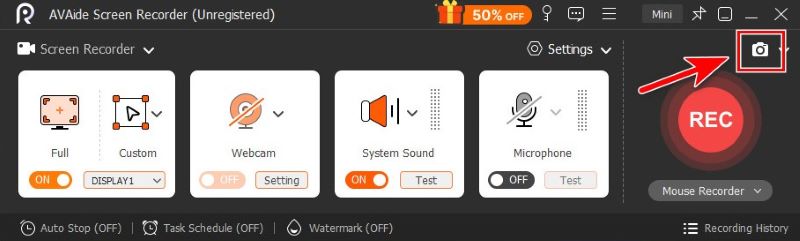
Βήμα 5Αποκόψτε ελεύθερα σύροντας το ποντίκι σας ή τοποθετήστε τον δείκτη του ποντικιού στο Zoom για να καταγράψετε το παράθυρό του.
Βήμα 6Όταν είστε ικανοποιημένοι με το απόκομμα, κάντε κλικ στο Σώσεικαι επιλέξτε τον φάκελο στον οποίο θέλετε να αποθηκευτεί.
Μέρος 2. Πώς να κάνετε λήψη στιγμιότυπου οθόνης στο Zoom σε Mac
Οι ενσωματωμένες λειτουργίες του συστήματος είναι αρκετές για να κάνουμε λήψη στιγμιότυπων οθόνης σε Mac.
1. Λήψη πλήρους οθόνης
Για να καταγράψετε ολόκληρη την οθόνη σε Mac, πατήστε Εντολή + Βάρδια + 3.

2. Επιλεκτική λήψη (Ιδανική για ζουμ)
Εάν χρειάζεται να καταγράψετε μια συγκεκριμένη ορθογώνια περιοχή στην οθόνη της σύσκεψης, πατήστε Εντολή + Βάρδια + 4.

3. Καταγράψτε ένα συγκεκριμένο παράθυρο
Βήμα 1τύπος Εντολή + Βάρδια + 4
Βήμα 2Χτυπήστε το Διάστημα.

Στη συνέχεια, ο κέρσορας μετατρέπεται σε εικονίδιο κάμερας. Κάντε κλικ στο παράθυρο Ζουμ για να καταγράψετε μόνο αυτό το παράθυρο.
4. Χρήση της εφαρμογής στιγμιότυπων οθόνης
Βήμα 1 Τύπος Εντολή + Βάρδια + 5 για να ανοίξετε τη γραμμή εργαλείων στιγμιότυπων οθόνης της Apple.

Βήμα 2Επιλέξτε το εργαλείο που προτιμάτε.

Θα συνιστούσα Καταγραφή παραθύρου και Καταγράψτε ένα τμήμα, κατάλληλο για λήψη μόνο του παραθύρου Zoom χωρίς περισπασμούς.

- Μπορείτε επίσης να χρησιμοποιήσετε τις προεπιλεγμένες λειτουργίες του Mac ή ένα εργαλείο τρίτου κατασκευαστή για να επεξεργασία του στιγμιότυπου οθόνης σας σε Mac όπως προτιμάτε.
Μέρος 3. Πώς να κάνετε λήψη στιγμιότυπου οθόνης στο Zoom σε κινητό (iPhone & Android)
1. Σε iPhone / iPad
Η μέθοδος εξαρτάται από το μοντέλο της συσκευής σας.
Βήμα 1Ξεκινήστε τη σύσκεψή σας στο Zoom.
Βήμα 2Τραβήξτε ένα στιγμιότυπο οθόνης.
- Για iPhone με Αναγνώριση προσώπου και όχι Αρχική σελίδα κουμπί (iPhone X και νεότερα μοντέλα, εκτός από το iPhone SE) και iPad με χωρίς σπίτι κουμπί:
Πάτα το Πλαϊνό κουμπί + Αύξηση έντασης ήχου. - Για iPhone ή iPad με Σπίτι κουμπί (iPhone SE, 8 και παλαιότερα μοντέλα, παλαιότερα iPad):
Πάτα το Πλαϊνό / Πάνω κουμπί + Σπίτι.
Αφήστε γρήγορα και τα δύο. Θα δείτε την οθόνη να αναβοσβήνει, καταγράφοντας ολόκληρη την οθόνη σας, και θα εμφανιστεί μια μικρογραφία για επεξεργασία ή αποθήκευση.
2. Σε Android
Συντομότερος τρόπος: Τα περισσότερα τηλέφωνα Android χρησιμοποιούν το κλασικό Εξουσία + Μείωση έντασης ήχου συντόμευση. Ωστόσο, ποικίλλει ανάλογα με τη συγκεκριμένη μάρκα της συσκευής σας. Επομένως, εάν αυτή η συντόμευση δεν λειτουργεί, κάτι που είναι φυσιολογικό, σας προτείνω να ελέγξετε το μοντέλο του τηλεφώνου σας και να το αναζητήσετε.
Ενώ η σύσκεψη Zoom είναι ενεργοποιημένη, πατήστε παρατεταμένα τα κουμπιά ταυτόχρονα για περίπου 1-2 δευτερόλεπτα μέχρι να αναβοσβήσει η οθόνη. Το στιγμιότυπο οθόνης αποθηκεύεται στην εφαρμογή Συλλογή ή Φωτογραφίες.
Γραμμή εργαλείων: Σύρετε το μενού προς τα έξω σύροντας προς τα κάτω στην οθόνη σας. Βρείτε το Στιγμιότυπο οθόνης στο μενού και πατήστε το για να επιλέξετε από στιγμιότυπα οθόνης πλήρους οθόνης, ελεύθερης μορφής και κύλισης.
Μέρος 4. Χρήση των ενσωματωμένων λειτουργιών του Zoom
Λειτουργία "Λήψη στιγμιότυπου" του Zoom (Μόνο για κοινή χρήση οθόνης)
Η ενσωματωμένη λειτουργία λήψης στιγμιότυπων οθόνης του Zoom είναι εύχρηστη με λίγα μόνο κλικ.
Βήμα 1Κάντε κλικ Κουβέντα στο κάτω μέρος του παραθύρου Zoom
Βήμα 2Κάντε κλικ στο Στιγμιότυπο οθόνης εικονίδιο κάτω από το πλαίσιο συνομιλίας.
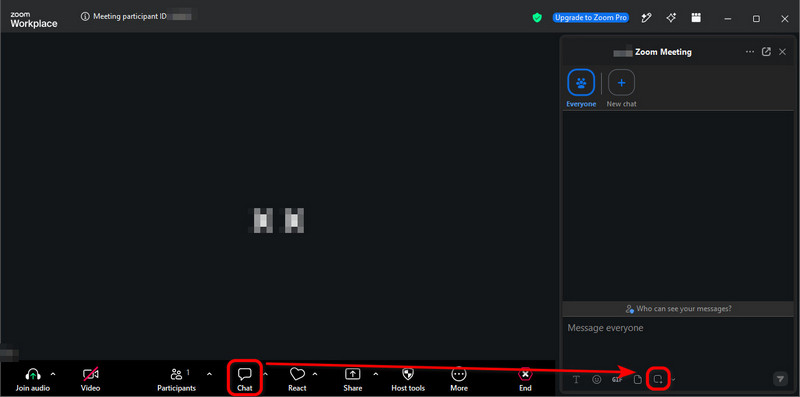
Βήμα 3Σύρετε το ποντίκι σας πάνω από το τμήμα της οθόνης που θέλετε και, στη συνέχεια, κάντε κλικ Πιάνω.
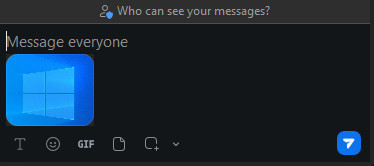
Το στιγμιότυπο οθόνης βρίσκεται τώρα στο κουτί συνομιλίαςΜπορείτε να το στείλετε σε άλλους συμμετέχοντες στη συνάντηση με ένα μόνο κλικ στο χάρτινο αεροπλάνο εικονίδιο κάτω δεξιά.
- Το στιγμιότυπο οθόνης στο πλαίσιο συνομιλίας ΔΕΝ αποθηκεύεται αυτόματα στον υπολογιστή σας. Αν θέλετε να το αποθηκεύσετε, κάντε δεξί κλικ στην εικόνα και επιλέξτε Αποθήκευση ως….
- Παρόλο που αυτή η μέθοδος είναι πολύ απλή και γρήγορη, μερικές φορές αποτυγχάνει επειδή ο οικοδεσπότης μπορεί να απενεργοποιήσει τη Συνομιλία σύσκεψης ή την Αποθήκευση συνομιλίας. Όταν συμβεί αυτό, ξέρετε τι να κάνετε: χρησιμοποιήστε τις δυνατότητες του λειτουργικού συστήματος ή ένα εργαλείο τρίτου κατασκευαστή, όπως το AVAide Screen Recorder.
Τι είναι μια "Γεννήτρια Στιγμιοτύπων Οθόνης Συνάντησης Zoom";
Ακούγεται σαν εργαλείο λήψης στιγμιότυπων οθόνης, σωστά; Με ξεγέλασε στην αρχή, αλλά στην πραγματικότητα, είναι ένα εργαλείο τρίτου κατασκευαστή που δημιουργεί ψεύτικες εικόνες κλήσεων Zoom.
Προσφέρουν μακέτες κλήσεων Zoom, όπου ανεβάζετε φωτογραφίες και εισάγετε ονόματα για να δημιουργήσετε ένα ρεαλιστικό στιγμιότυπο οθόνης σύσκεψης με εικονικούς συμμετέχοντες.
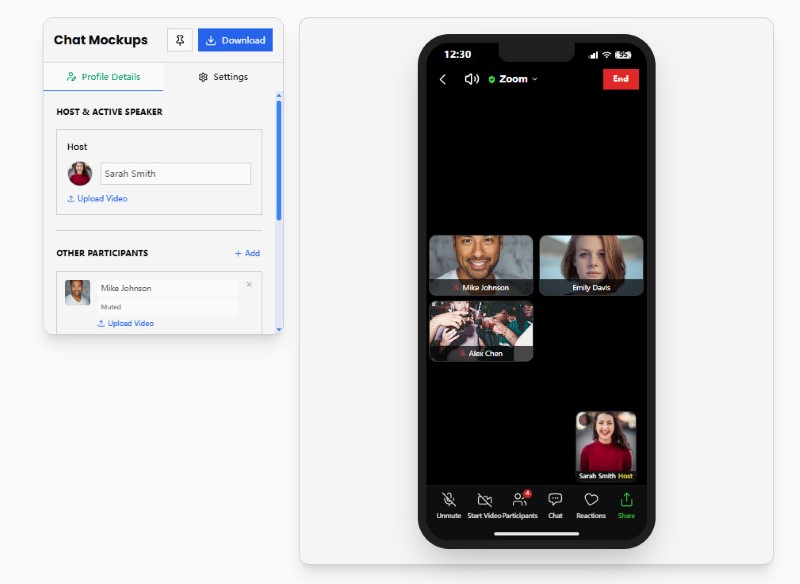
Οι γεννήτριες στιγμιότυπων οθόνης συσκέψεων Zoom δεν είναι αυτό που ψάχνουμε σε αυτό το άρθρο. Αλλά αν ενδιαφέρεστε να δημιουργήσετε ψεύτικα memes Zoom, δοκιμάστε ιστότοπους όπως το Pradoy ή το Kapwing. Είναι πολύ διασκεδαστικοί.
Μέρος 5. Ειδοποιεί το Zoom τα στιγμιότυπα οθόνης;
Με λίγα λόγια, το Zoom ΔΕΝ σας ενημερώνει πότε ένας συμμετέχων τραβάει στιγμιότυπα οθόνης, εάν χρησιμοποιεί τις λειτουργίες του λειτουργικού συστήματος, ένα εργαλείο τρίτου μέρους ή το ενσωματωμένο στιγμιότυπο οθόνης του Zoom.
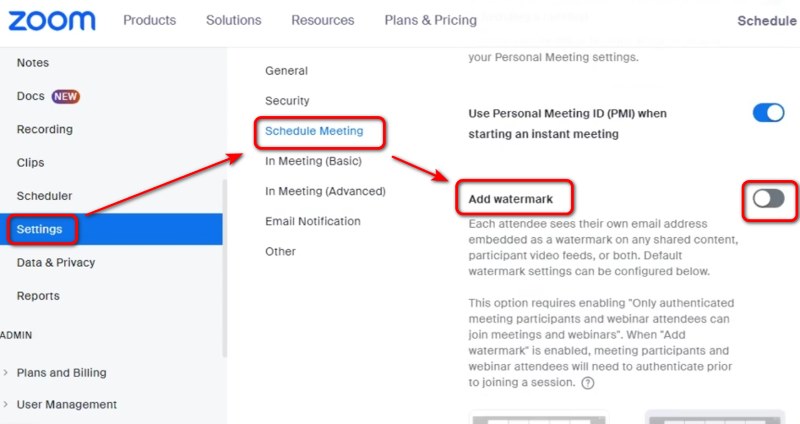
Ως οικοδεσπότης ή χρήστης που κάνει κοινή χρήση οθόνης, μπορεί να ανησυχείτε ότι ό,τι υπάρχει στην οθόνη σας θα χαθεί χωρίς να το γνωρίζετε. Μέχρι στιγμής, δεν υπάρχει κάποιος συγκεκριμένος τρόπος για να το αποτρέψετε αυτό, εκτός από την προσθήκη ενός υδατογραφήματος στην οθόνη σας - μεταβείτε στις Ρυθμίσεις της διαδικτυακής πύλης Zoom και ενεργοποιήστε την επιλογή Προσθήκη υδατογραφήματος για να το κάνετε αυτό.
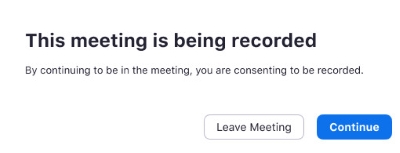
Αλλά το Zoom ειδοποιεί όταν κάποιος... καταγράφει τη συνάντηση ZoomΌταν συμμετέχετε σε μια σύσκεψη που καταγράφεται ή όταν ο οικοδεσπότης ξεκινήσει την εγγραφή, θα λάβετε μια ειδοποίηση συγκατάθεσης. Μπορείτε είτε να προσφέρετε τη συγκατάθεσή σας είτε να αποχωρήσετε από τη σύσκεψη.
Λήψη στιγμιότυπων οθόνης στο Zoom Είναι εύκολο σε Windows, Mac, iPhone και Android χρησιμοποιώντας λειτουργίες συσκευών, εργαλεία τρίτων ή λειτουργίες του Zoom. Το Zoom δεν ειδοποιεί τους οικοδεσπότες ή τους συμμετέχοντες όταν τραβάτε ένα τυπικό στιγμιότυπο οθόνης. Ωστόσο, εξακολουθεί να είναι σημαντικό να σέβεστε το απόρρητο, τα πνευματικά δικαιώματα και τυχόν κανόνες σύσκεψης πριν από τη λήψη ή την κοινοποίηση περιεχομένου Zoom. Εάν ανησυχείτε για το απόρρητο, ξεκαθαρίστε στους συμμετέχοντες ότι δεν εκτιμάτε τα στιγμιότυπα οθόνης πριν κοινοποιήσετε την οθόνη σας.
ΣΧΕΤΙΚΑ ΜΕ ΤΟΝ ΣΥΓΓΡΑΦΕΑ

Αποτυπώστε την καλύτερη στιγμή με το AVAide Screen Recorder. Προβολή οθόνης, προσαρμογή και κοινή χρήση σε δευτερόλεπτα.