


The built-in Android screen recorder may not have enough features. However, there are some practical tips you can learn to make easier and more versatile recordings on your phone screen. This post will show you comprehensive Android screen recording tutorial.
If you prefer advanced screen recording for gaming, tutorials, or professional demos, we can also help you bypass the clutter to bring you the best Android screen recording methods and apps available today, complete with step-by-step tutorials to help you achieve crisp, high-definition results.
Part 1: How to Use the Built-in Android Screen Recorder
Most devices running Android 11 or higher come with a native screen recording app located in the Quick Settings panel. You can just use it to record your phone's screen.
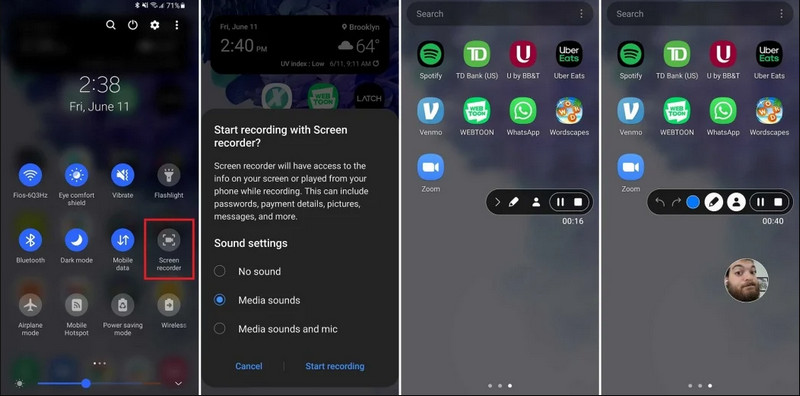
Βήμα 1Access Quick Settings
Swipe down twice from the top of your screen to expand the full Quick Settings menu.
Βήμα 2Select Screen Recorder
Αναζητώ Εγγραφή οθόνης. If you don't see it, tap the Επεξεργασία button (with a Pencil icon) and drag the Screen Record tile into your active grid.
Βήμα 3Διαμόρφωση ρυθμίσεων εγγραφής
When you find the Android Εγγραφή οθόνης tool, you have multiple recording options. Choosing a proper one can make your Android screen recording effective.
- No sound: Record only the phone screen without system audio or external sound.
- Media sounds: Record the screen with all system sounds, including sound from all apps within your phone.
- Media sounds and mic: Record both system sounds and external sounds (phone's built-in mic or the mic from your earphones).
Βήμα 4Start and Stop Screen Recording
Make your choice and tap the Start Recoding button. A countdown will appear in the status bar. To stop Android screen recording, tap the Να σταματήσει button (if there's a recording status bar) or swipe down the notification shade and tap the red Να σταματήσει κουμπί.
Part 2: Some Brand-Specific Android Recorder Tools
Many Android phone manufacturers provide proprietary screen recorders with advanced features like Selfie Camera overlays. Check some popular Android brands' special recording features:
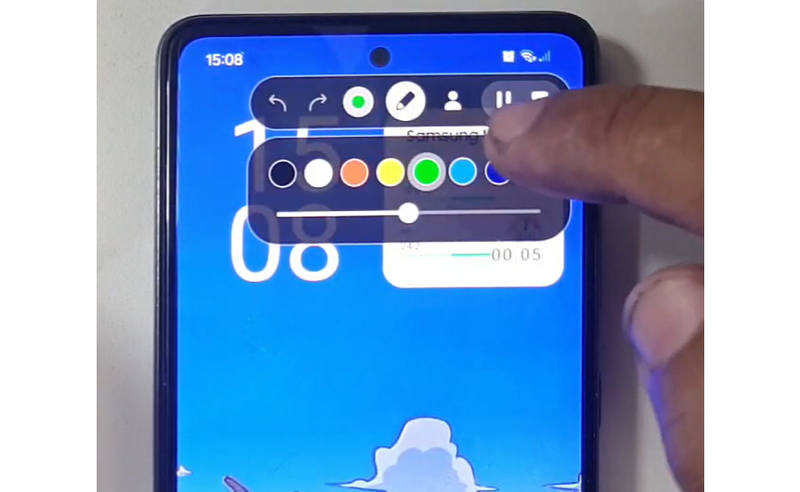
Samsung (One UI): Includes a Screen Recorder with a toolbar that allows you to draw on the screen in real-time.
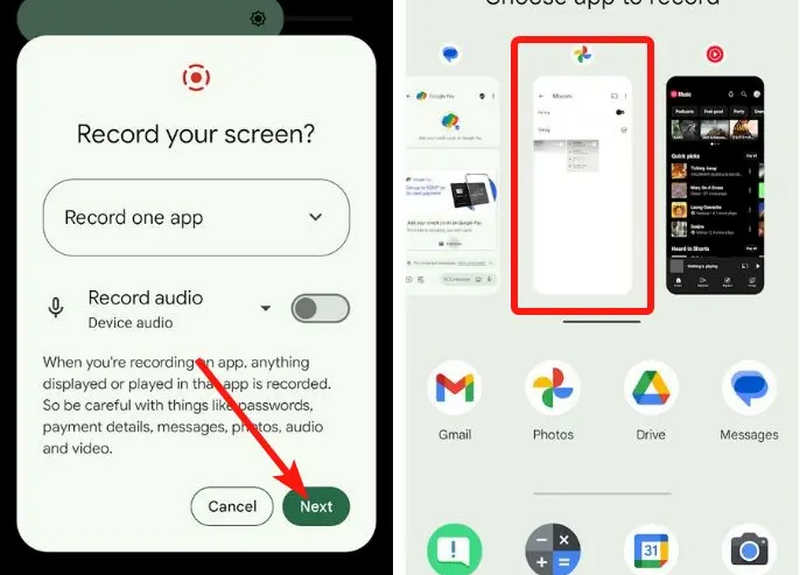
Google Pixel: You can select a specific app (e.g., a Banking app or WhatsApp) to record. If you exit the app or pull down your notification shade during the session, those actions will not appear in the final video.
Xiaomi (MIUI/HyperOS): Features a dedicated "Screen Recorder" app with deep customization for frame rates (FPS) and bitrates.
Huawei & Honor (HarmonyOS / MagicOS): A unique hardware-software integration where you can start or stop a recording simply by double-knocking the screen with two knuckles.
OPPO, vivo, & realme (ColorOS / OriginOS): When a game is launched, the screen recorder automatically optimizes CPU/GPU resources to ensure that recording a 4K/60FPS clip doesn't cause in-game lag or frame drops.
Part 3: 4 More Versatile Ways to Screen Record on Android
If your Android phone doesn't have satisfied screen recording features, you can check the four Android screen recorder apps. They can provide some convenient and practical features.
1. AZ Screen Recorder
Εγγραφή οθόνης AZ is a very popular Android screen recorder app in the Play Store. It can record high-res video on your Android phone screen. The application also allows you to adjust the resolution, frame rate, and bit rate depending on different recording purposes.
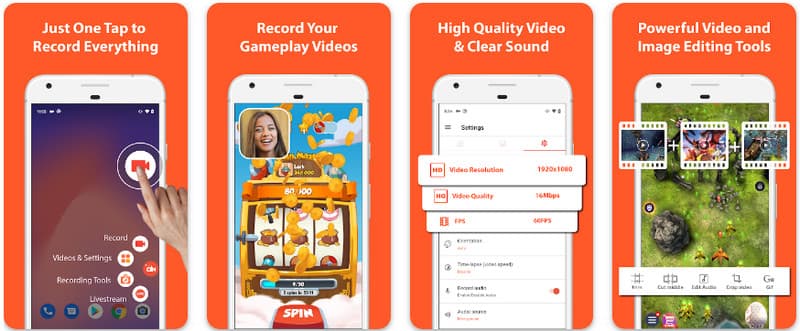
Επιπλέον, το AZ Screen Recorder επιτρέπει στους χρήστες να καταγράφουν τον ήχο που παίζεται στη συσκευή χρησιμοποιώντας ένα μικρόφωνο. Αυτό καθιστά δυνατή την εγγραφή ακόμη και των πιο περίπλοκων και υψηλών προδιαγραφών εγγραφών. Η απλή διάταξη των κουμπιών και η σταθερή απόδοση κάνουν την εφαρμογή αγαπημένη για πολλούς. Μάθετε πώς να εγγράφετε μια οθόνη Android με αυτό χρησιμοποιώντας τον παρακάτω οδηγό.
Βήμα 1Αφού κατεβάσετε την εφαρμογή στο Android σας, ξεκινήστε την. Στη συνέχεια, κάντε κλικ στο κάμερα κουμπί για πρόσβαση στη δυνατότητα εγγραφής οθόνης του.
Βήμα 2Παρακέντηση Ξεκίνα τώρα to begin the screen recording on your Android, and a countdown will appear on your screen.
Βήμα 3To stop the screen recording on your Android phone, tap the Ρεκόρ button again. With this app, you can also εγγραφή οθόνης στο iPhone σας με ήχους ενεργοποιήθηκε.
2. Mobizen Screen Recorder
Mobizen Screen Recorder is another app to screen record on Android that is freely available on the Play Store and promises easy and high-quality recording. It provides options for high-definition recording with adjustable parameters and clean recording to remove watermarks. Further, Mobizen also has internal sound recording, which can be used for the recording, as well as face cam and GIF, which can add more to the recording. It also makes use of straightforward arising of the different features and controls that help the user to start Android screen recording or edit the content without much fumbling about the app. Find out how to screen record with Android using this app.
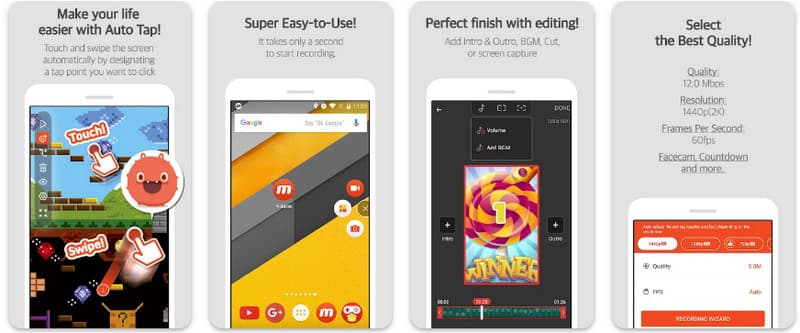
Βήμα 1Κατεβάστε το τώρα στο Android σας και ανοίξτε την εφαρμογή.
Βήμα 2Do the setup that it requires you to do before you can use the screen recorder. A floating recorder bar will appear on your screen. Tap the κάμερα κουμπί, λοιπόν Ξεκίνα τώρα to initiate the screen recording.
Βήμα 3Όταν τελειώσετε, πατήστε το Μ και το να σταματήσει button to stop the screen recording on your Android phone.
3. Screen Recorder - XRecorder της Inshot
Screen Recorder - XRecorder is a powerful, all-in-one Android utility that simplifies screen capturing by offering high-definition recording, up to 1080p at 60FPS, without requiring root access or imposing watermarks. As a premier method for screen recording on Android 17/16, it provides a seamless user experience through a floating control window that allows you to start, pause, and draw on your screen in real-time using a built-in brush tool. Beyond simple video capture, it supports internal audio recording, facecam overlays for streamers, and integrated video editing, making it an ideal choice for anyone needing to create professional tutorials, gameplay clips, or clear demonstrations directly from their mobile device.
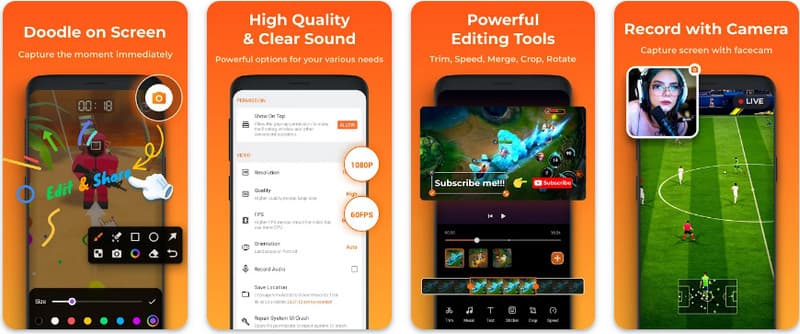
Βήμα 1Όταν ολοκληρωθεί η λήψη του XRecorder, ανοίξτε το και πατήστε το Ενεργοποίηση αιωρούμενου εικονιδίου.
Βήμα 2Μετά από αυτό, πατήστε το Ρεκόρ κουμπί για να ξεκινήσει η εγγραφή και Ξεκίνα τώρα για να επιβεβαιώσετε.
Βήμα 3Όπως μπορείτε να δείτε, το μήκος της εγγραφής εμφανίζεται ως αιωρούμενο εικονίδιο. αγγίξτε το να σταματήσει κουμπί για αποθήκευση της εγγραφής.
4. Super Screen Recorder
Super Screen Recorder is a top-tier solution for anyone looking for a professional way to screen record on Android with maximum flexibility. This powerful app delivers high-definition capture and stands out by offering a watermark-free experience even in its free version, ensuring your content remains clean and professional. It features an integrated facecam for capturing real-time reactions and a versatile brush tool that allows you to draw on the screen during recording, an essential function for creating engaging tutorials or walkthroughs. Whether you are a beginner or an advanced user, Super Screen Recorder provides the robust customization needed to master Android screen recording with ease.
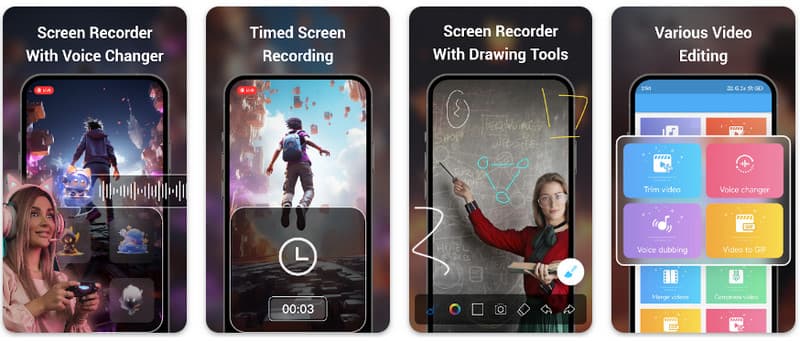
Βήμα 1Ανοίξτε το Super Screen Recorder στο Android σας και, στη συνέχεια, ενεργοποιήστε την αιωρούμενη λειτουργία της εφαρμογής για να τη χρησιμοποιήσετε.
Βήμα 2Στην οθόνη σας, πατήστε το κάμερα κουμπί, επιβεβαιώστε τις ρυθμίσεις και πατήστε Ξεκίνα τώρα. Στη συνέχεια, θα εμφανιστεί μια αντίστροφη μέτρηση τριών δευτερολέπτων πριν ξεκινήσει η εγγραφή.
Βήμα 3Πατήστε το πλατεία κουμπί για να τερματίσετε την εγγραφή και να την αποθηκεύσετε στη συσκευή σας Android.
Bonus: Record Screen on Desktop and Mobile Phone with the Best Quality
Do you believe that you can record your Android phone's screen on a computer? Εγγραφή οθόνης AVAide is primarily designed for screen recording on Windows and Mac. But it can also record your Android phone's full screen. This is especially helpful when you need to create a tutorial of certain operations on Android and then directly edit the video on your Mac or Windows.
For screen recording on Windows and Mac, AVAide Screen Recorder supports AV1 and HEVC codecs, which can highly compress the recording result while keeping the best video quality. The full hardware acceleration can let you record long videos with very low CPU usage. Even more interesting is that it has an improved microphone that enhances clarity by canceling background and echo sounds. The software makes excellent recordings With simple navigation and editing features, like trimming and annotations. While it is costly software, it is highly recommended because it can be used for personal and business purposes.
- Record your Android or iOS device with the best video quality.
- Easily make tutorial recordings with drawing and annotation features.
- Support AV1 and HEVC output codecs to highly compress the output video.
- Offer easy-to-use video editing features to edit your recordings on Android.
Βήμα 1Τώρα μπορείτε να κατεβάσετε τη συσκευή εγγραφής οθόνης στον υπολογιστή σας κάνοντας κλικ στο κουμπί λήψης εδώ. Στη συνέχεια, εγκαταστήστε την εφαρμογή ακολουθώντας την προτροπή στην οθόνη σας και ξεκινήστε την για να προχωρήσετε στο επόμενο βήμα.

ΔΩΡΕΑΝ ΛΗΨΗ Για Windows 7 ή νεότερη έκδοση
 Ασφαλής λήψη
ΔΩΡΕΑΝ ΛΗΨΗ Για Mac OS X 10.13 ή νεότερη έκδοση
Ασφαλής λήψηΒήμα 2Τώρα που εκτελείται ήδη στο σύστημά σας, τοποθετήστε το πλαίσιο εγγραφής στην περιοχή όπου θέλετε να ξεκινήσετε την εγγραφή. Εδώ, μπορείτε να εγγράψετε ολόκληρη την οθόνη σας επιλέγοντας την επιλογή Πλήρης οθόνη αντί για την επιλογή Περιοχή.

Βήμα 3Στη συνέχεια, το σύστημα και η εγγραφή μικροφώνου μπορούν να ρυθμιστούν εάν χρειάζεται. Εάν θέλετε να προσθέσετε το πρόσωπό σας στην εγγραφή, ενεργοποιήστε την επιλογή Webcam εδώ. Στη συνέχεια, κάντε κλικ REC για να ξεκινήσει η αντίστροφη μέτρηση και να ξεκινήσει η εγγραφή.

Βήμα 4Όταν ολοκληρώσετε την εγγραφή, κάντε κλικ στο να σταματήσει κουμπί, το οποίο είναι ένα κόκκινο τετράγωνο. Στο επόμενο παράθυρο που εμφανίζεται, μπορείτε να επεξεργαστείτε την εγγραφή που τραβήξατε νωρίτερα με τις διαθέσιμες επιλογές εδώ, στη συνέχεια να τοποθετήσετε τον κέρσορα στην εγγραφή και να πατήσετε το Κατεβάστε κουμπί για να το αποθηκεύσετε. Αυτή η εφαρμογή αποδεικνύει την αξία της ως καλύτερη συσκευή εγγραφής ανοιχτού κώδικα διαθέσιμος.

Part 4: FAQs of How to Screen Record on Android
Where can I find the screen record on my settings?
To access the built-in feature to εγγραφή οθόνης σε Android without third-party apps, swipe down twice from the top of your screen to open the Γρήγορες ρυθμίσεις πάνελ και αναζητήστε το Εγγραφή οθόνης (or "Screen Recording") icon. If it isn't visible, tap the Επεξεργασία (pencil) button to drag the screen record toggle into your active tiles. Once added, you can simply tap the icon, choose your audio preferences, such as recording internal system sounds or your microphone, and hit start to begin capturing your screen directly from your system settings.
Why can't I find screen recording on my Android?
The absence of a native option to screen record on Android is usually due to your device running an older operating system, as the built-in feature was only standardized with Android 11. If your software is up to date, the toggle might simply be hidden from your Γρήγορες ρυθμίσεις menu; you can typically reveal it by tapping the Επεξεργασία button in the notification shade and dragging the "Screen Record" tile into your active view. Additionally, some entry-level "Go Edition" devices or specific manufacturer skins may disable this feature to save system resources, in which case using a third-party app like XRecorder or Super Screen Recorder is the most effective workaround.
Why did the screen record button disappear?
The screen record button usually disappears because it was accidentally moved out of the Quick Settings active area; you can often restore it by tapping the Edit (pencil icon) in your notification shade and dragging the tile back. It may also be hidden due to Power Saving Mode, restricted by a Work Profile, or simply requires a system restart to refresh the UI after a software update.
Χρησιμοποιώντας το σεμινάριο που παρατίθεται εδώ, έχετε μάθει πώς να εγγράψετε οθόνη στο Android Samsung. Αυτό το σεμινάριο θα σας ωφελήσει πολύ όσον αφορά την εργασία εγγραφής οθόνης, ειδικά αν είστε χρήστης Android. Μοιραστείτε αυτές τις πληροφορίες με τον φίλο σας χρήστη Android για να του δώσετε μια ιδέα για το πώς να το κάνει.
ΣΧΕΤΙΚΑ ΜΕ ΤΟΝ ΣΥΓΓΡΑΦΕΑ

Καταγράψτε οθόνη, ήχο, κάμερα web, παιχνίδι, διαδικτυακές συσκέψεις, καθώς και οθόνη iPhone/Android στον υπολογιστή σας.


