Die Bedeutung von Bildschirmaufnahmen erkennt man oft erst, wenn die Gelegenheit verstreicht. Videokonferenzen, verschwindende Beiträge und plötzlich auftretende Fehler können dazu führen, dass man ohne Beweise oder Kontext dasteht. Deshalb verlassen sich viele Nutzer heutzutage auf eine Bildschirmaufnahme. Bildschirmrekorder für das iPhone Tutorials, Gameplay, Meetings und alltägliche Aufgaben in Echtzeit aufzunehmen, ist eine gute Idee. Allerdings ist eine Aufnahme nicht so einfach wie ein Knopfdruck. Die Qualität von Audio, Video und Speicherplatz kann das Endergebnis beeinflussen. In diesem Leitfaden lernen Sie, wie Sie ohne häufige Fehler klar und flüssig aufnehmen.
- Teil 1. Der integrierte iPhone-Bildschirmrekorder (Die Ausgangslage)
- Teil 2. Die besten Drittanbieter-Apps zur Bildschirmaufnahme für iPhone & iPad
- Teil 3. Vergleichstabelle. Welchen Bildschirmrekorder sollten Sie wählen?
- Teil 4. So bearbeiten Sie Ihre Bildschirmaufnahmen auf dem iPhone
- Teil 5. Behebung häufiger Probleme bei der Bildschirmaufnahme
Teil 1. Der integrierte iPhone-Bildschirmrekorder (Die Ausgangslage)
Bei jeder iPhone-Bildschirmaufnahme-App, die Sie herunterladen, sollten Sie die Funktionen des integrierten Aufnahmemodus kennen. Apple hat eine native Bildschirmaufnahme-App in iOS integriert, um Ihnen beim Erstellen von Tutorials, Gameplay-Videos, App-Anleitungen, Videoanrufen oder bei der Behebung technischer Probleme zu helfen. Sie ist einfach über das Kontrollzentrum zugänglich, und Aufnahmen werden automatisch in der Fotos-App gespeichert, sodass Sie sie schnell bearbeiten und teilen können.
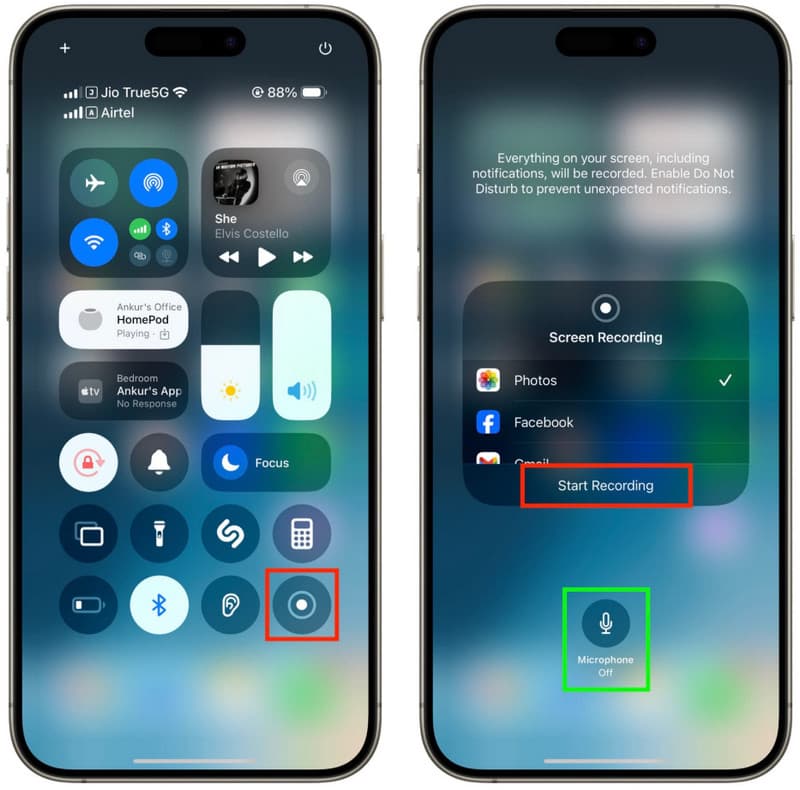
Der integrierte Recorder ist für den täglichen Gebrauch ausreichend, hat aber einige Einschränkungen. Gelegentlich treten Probleme mit dem eingebauten Mikrofon bei Audioaufnahmen, großen Dateigrößen oder Benachrichtigungen, die die Aufnahme unterbrechen, auf. Im Vergleich zu spezialisierten Aufnahmeprogrammen bietet er zudem nur eingeschränkte Bearbeitungsmöglichkeiten. Kennt man diese Stärken und Schwächen, kann der Nutzer besser einschätzen, was der Standard-Recorder bietet und ob er für seine Aufnahmebedürfnisse ein leistungsfähigeres Produkt benötigt.
Teil 2. Die besten Drittanbieter-Apps zur Bildschirmaufnahme für iPhone & iPad
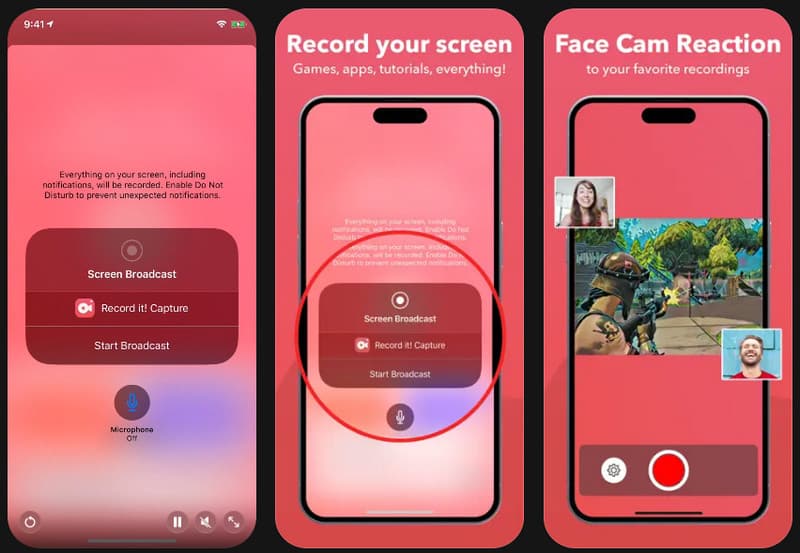
1. Aufzeichnen!: Bildschirmaufnahmeprogramm
Nimm es auf! ist ein einfacher, benutzerfreundlicher Bildschirmrekorder für iPhone und iPad, ideal für Einsteiger. Die App ermöglicht Facecam-Aufnahmen, Sprachkommentare und das direkte Teilen auf Plattformen wie YouTube und TikTok. Die übersichtliche und intuitive Benutzeroberfläche eignet sich perfekt für Gameplay-Videos, App-Vorstellungen, Tutorials und Reaktionsvideos. Diese App ist ideal für alle, die einen zuverlässigen iPhone-Bildschirmrekorder für den täglichen Gebrauch suchen, da die Einrichtung nur wenige Klicks erfordert.
- Vorteile
- Einfache und anfängerfreundliche Benutzeroberfläche
- Unterstützt FaceCam und Audiokommentar
- Eingebaute Bearbeitungswerkzeuge
- Schnelles Teilen in sozialen Medien
- Nachteile
- Wasserzeichen in der kostenlosen Version
- Für einige Funktionen ist ein Abonnement erforderlich.
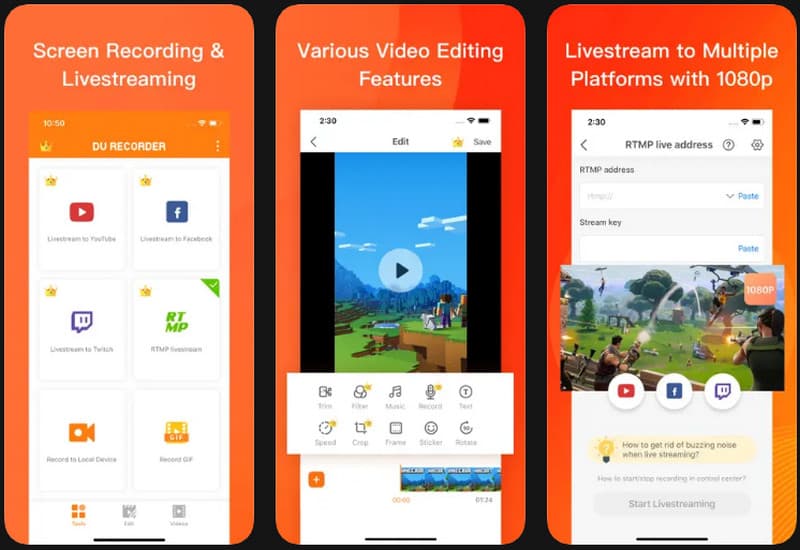
2. DU-Recorder
DU-Recorder DU Recorder ist eine Aufnahme-App mit erweiterten Funktionen für alle, die mehr Aufnahmemöglichkeiten benötigen, als das Standard-iPhone bietet. Sie vereint Livestreaming, HD-Aufnahme, Aufnahme mit dem integrierten Mikrofon und Videobearbeitung in einer einzigen App. Besonders gut eignet sie sich für die Videoaufnahme von Gaming-Matches, Online-Unterricht, Präsentationen und längeren Tutorials. DU Recorder bietet exzellente Audio- und Videoaufnahmefunktionen für das iPhone und verfügt über eine sehr benutzerfreundliche Oberfläche für alle, die lediglich den gesamten Bildschirm und den Ton des iPhones aufnehmen möchten.
- Vorteile
- Unterstützt Livestreaming
- Hochwertige Audioaufnahme
- Erweiterte Bearbeitungswerkzeuge
- Mehrere Exporteinstellungen
- Nachteile
- Da es sich um die kostenlose Version handelt, werden Anzeigen eingeblendet.
- Es müssen bestimmte hochwertige Geräte angeschafft werden.
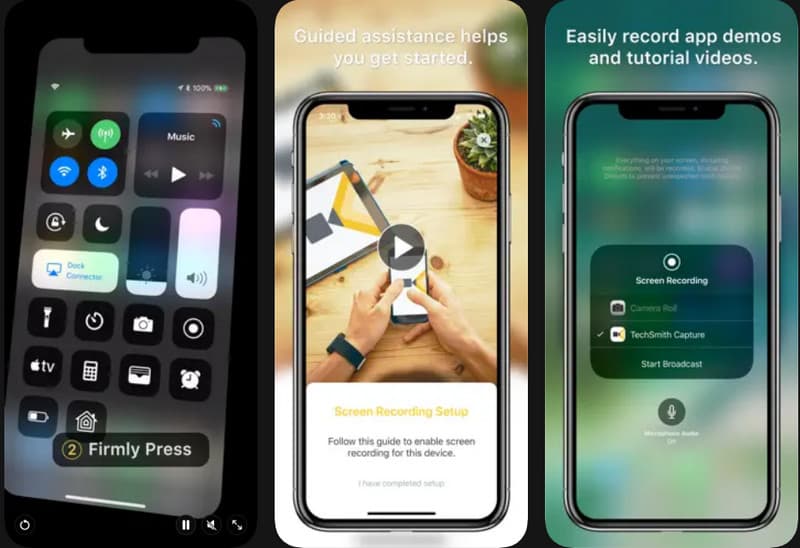
3. TechSmith Capture
TechSmith-Aufnahme Diese App eignet sich ideal für Business-Tutorials, Schulungsvideos und technische Präsentationen. Sie zeichnet Bildschirmaktivitäten zuverlässig auf und lässt sich problemlos mit anderen Tools zur Videobearbeitung wie Camtasia und Snagit integrieren. Dank ihrer einfachen und dennoch hochwertigen Videoaufzeichnung wird sie von vielen Dozenten, Trainern und Support-Teams eingesetzt. Wer eine Bildschirmaufzeichnungs-App für sein iPhone sucht, greift am besten zu TechSmith Capture – eine unkomplizierte und intuitive Lösung.
- Vorteile
- Aufnahmen in professioneller Qualität
- Einfacher Dateitransfer zu Camtasia
- Einfache und benutzerfreundliche Oberfläche
- Konzipiert für Tutorials und Demos
- Nachteile
- Innerhalb der Anwendung gibt es nur einige Bearbeitungsmöglichkeiten.
- Weniger Anpassungsmöglichkeiten
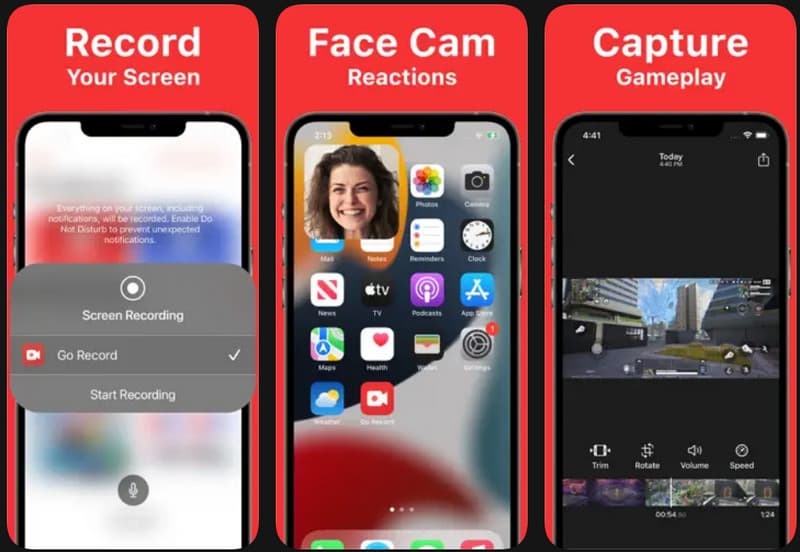
4. Aufnahme starten
Aufnahme starten ist ein benutzerfreundliches Aufnahmeprogramm für Gameplay-Videos, Tutorials und Reaktionsvideos. Wer während der Aufnahme Anweisungen geben möchte, kann die Mikrofon-Sprachausgabe oder die Kamera-Überlagerung der App nutzen. Die Navigation ist intuitiv und ermöglicht eine problemlose Ersteinrichtung. Auch auf größeren Bildschirmen läuft das Programm flüssig und eignet sich daher ideal als zuverlässiger Bildschirmrekorder für iPad-Schulungen, Präsentationen oder App-Demonstrationen.
- Vorteile
- Benutzerfreundliche Bedienelemente
- Unterstützt Facecam-Aufnahme
- Ideal für Gaming-Videos
- Reibungslose Leistung auf dem iPad
- Nachteile
- Eingeschränkte Bearbeitungsfunktionen
- Diese kostenlose Version wird durch Werbung finanziert.
5. Bildschirmrekorder, Videorekorder
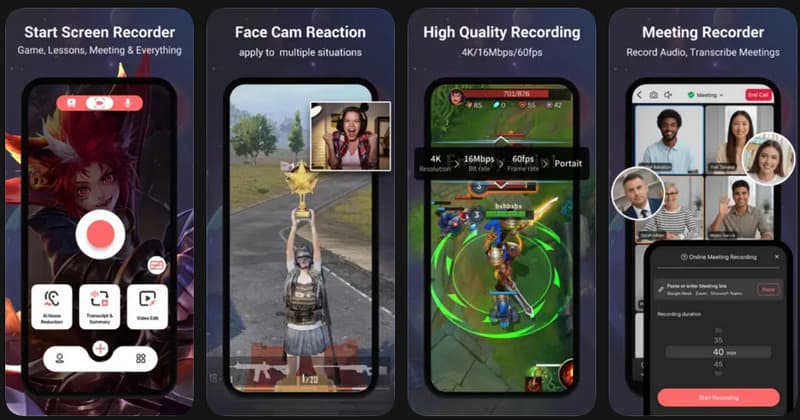
Bildschirmrekorder, Videorekorder Diese App wurde für alle entwickelt, die viel Content erstellen, unterrichten oder soziale Medien auf ihrem Smartphone nutzen. Sie unterstützt hochauflösende Aufnahmen, Audiokommentare und Reaktionskamera-Overlays und bietet eine sehr intuitive Benutzeroberfläche, die keine technischen Vorkenntnisse erfordert. Auch längere Aufnahmen bleiben in guter Qualität, Ruckler und Bildaussetzer werden minimiert. Nutzer, die einen iPhone-Bildschirmrekorder mit flüssiger Bedienung und vielfältigen Bearbeitungsfunktionen suchen, sollten sich für diese App entscheiden.
- Vorteile
- HD-Aufnahmeunterstützung
- Reibungslose Langzeitaufnahme
- Sprachausgabeunterstützung
- Anfängerfreundliches Layout
- Nachteile
- Premium-Funktionen sind im Abonnement erhältlich.
- Der Export größerer Dateien kann länger dauern.
6. Webstuhl
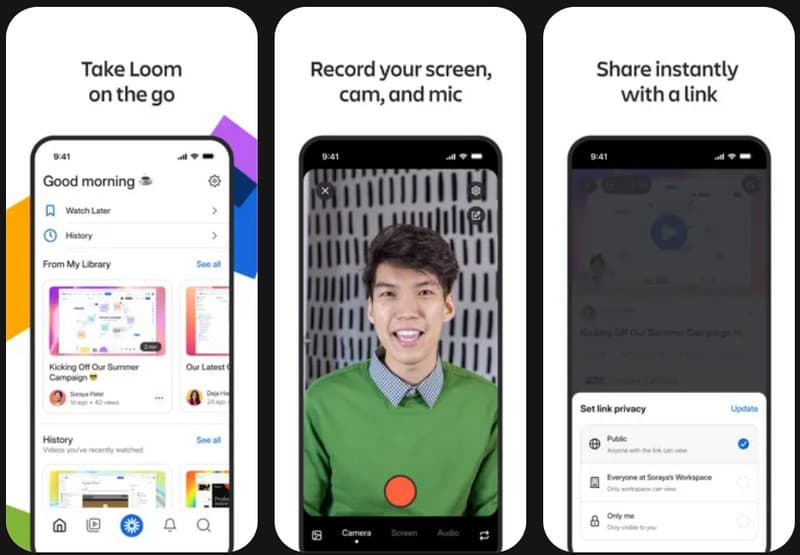
Webstuhl Loom wird häufig genutzt, um während der Projektarbeit mit anderen zu kommunizieren, online zusammenzuarbeiten und Videos blitzschnell zu teilen. Im Gegensatz zu anderen Apps ermöglicht Loom nicht nur die Aufnahme, sondern auch das sofortige Teilen von Videos über Cloud-Links. Nutzer können Bildschirm, Frontkamera und Mikrofon gleichzeitig erfassen – ideal für Präsentationen, Team-Feedback oder Online-Schulungen. Viele Profis halten Loom für eine der besten Bildschirmaufzeichnungs-Apps für iPhone-Nutzer, die schnell kommunizieren und Inhalte unkompliziert und ohne aufwendige Bearbeitung teilen möchten. Darüber hinaus bietet Loom noch weitere Funktionen. Kostenlose Bildschirmaufzeichnungssoftware für Windows und Mac.
- Vorteile
- Sofortige Cloud-Freigabe
- Ideal für die Arbeit im Homeoffice
- Unterstützt Webcam- und Sprachaufzeichnung
- Einfach übersichtliche und organisierte Benutzeroberfläche
- Nachteile
- Um alle Funktionen nutzen zu können, benötigen Sie ein Konto.
- Einige Offline-Bearbeitungsoptionen
7. AZ-Recorder
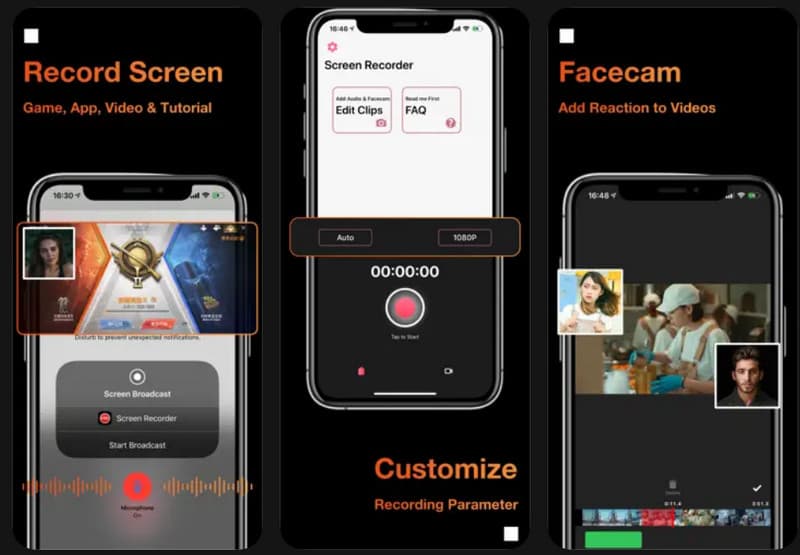
AZ Recorder AZ Recorder ist eine stabile und benutzerfreundliche Aufnahme-App, die HD-Bildschirmaufnahmen, Mikrofon-Audio und Spielaufnahmen unterstützt. Die App bietet Funktionen zum Erstellen von Screenshots und einfache Bearbeitungsoptionen, mit denen Videos ohne zusätzliche Software bearbeitet oder geschnitten werden können. Sie ist auch bei längeren Aufnahmen weniger ruckelfrei und bietet eine intuitive Bedienung, die auch für Einsteiger geeignet ist. Nutzer, die einen kostenlosen iPhone-Bildschirmrekorder suchen, werden AZ Recorder bevorzugen, da er alle notwendigen Aufnahmefunktionen ohne sofortige Zahlung bietet.
- Vorteile
- Kostenlose Kernaufzeichnungsfunktionen
- Stabile HD-Leistung
- Einfacher Einrichtungsprozess
- Enthält einfache Bearbeitungsfunktionen
- Nachteile
- Werbung in der kostenlosen Version
- Einige der fortgeschrittenen Werkzeuge müssen aktualisiert werden.
Teil 3. Vergleichstabelle. Welchen Bildschirmrekorder sollten Sie wählen?
| Anwendungen | Am besten geeignet für | FaceCam-Aufnahme wird unterstützt | Bearbeitungswerkzeuge | Beste Eigenschaften |
| Nimm es auf! | Anleitungen und Social-Media-Clips | Ja | Basic | Bildschirmaufnahme, Sprachkommentar und schnelles Teilen |
| DU-Recorder | Gaming und Livestreaming | Ja | Fortschrittlich | HD-Aufnahme, Livestreaming und internes Audio |
| TechSmith-Aufnahme | Professionelles Tutorial | Nein | Begrenzt | Hochwertige Videoaufnahme und Camtasia-Integration |
| Aufnahme starten | Social-Media-Inhalte | Ja | Basic | Facecam-Overlay und Mikrofonaufnahme |
| Bildschirmrekorder, Videorekorder | Arbeitspräsentation und Zusammenarbeit | Ja | Mäßig | HD-Aufnahme, Sprachaufzeichnung und einfache Bearbeitung |
| Webstuhl | Arbeitspräsentation und Zusammenarbeit | Ja | Minimal | Cloud-Sharing, Webkonferenzaufzeichnung und Team-Links |
| AZ Recorder | Tägliche Bildschirmaufnahme | Ja | Basic | HD-Aufnahme, Screenshots und grundlegende Bearbeitung |
Teil 4. So bearbeiten Sie Ihre Bildschirmaufnahmen auf dem iPhone
Sie können Bildschirmaufnahmen auf Ihrem iPhone kostenlos mit der vorinstallierten Fotos-App bearbeiten. Es werden keine zusätzlichen Apps benötigt, und der Vorgang ist auch für Anfänger einfach genug. Befolgen Sie die folgenden Schritte, um Ihre Aufnahmen zu optimieren.
Schritt 1Öffne das Fotos Öffnen Sie die App auf Ihrem iPhone und suchen Sie dann in der App nach Ihrer Bildschirmaufnahme. Aktuelles oder Videos Album.
Schritt 2 Tippen Sie auf die Bildschirmaufnahme, dann auf Bearbeiten in der oberen rechten Ecke. Dadurch werden die integrierten Bearbeitungswerkzeuge geöffnet.
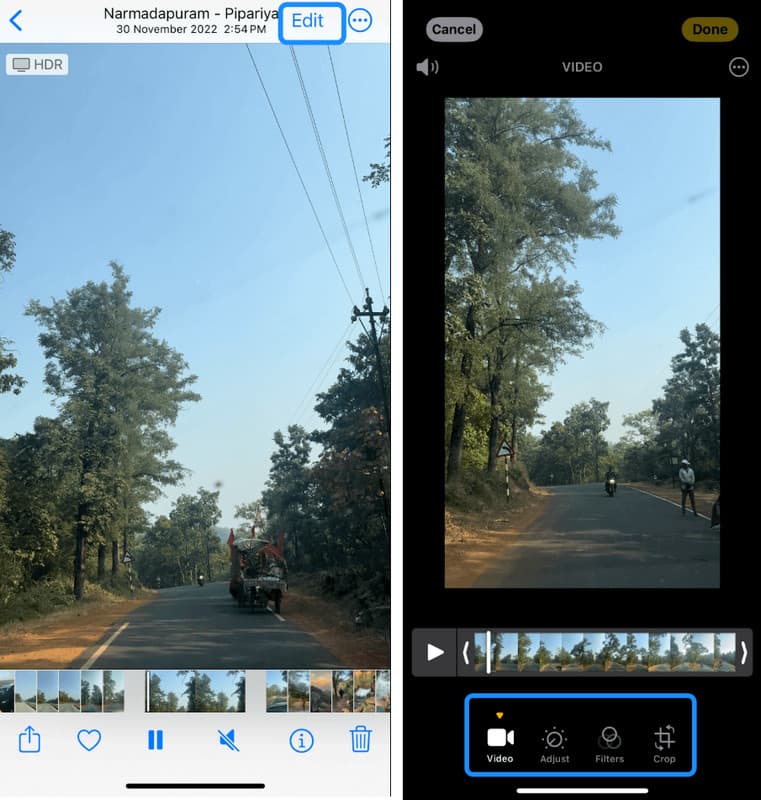
Schritt 3Verwenden Sie die gelben Schieberegler am Anfang oder Ende der Zeitleiste, um unerwünschte Teile wie Verzögerungen, Fehler oder unnötige Abschnitte zu entfernen.
Schritt 4Tippen Sie auf „Fertig“ und wählen Sie dann aus Video speichern um das Original zu ersetzen oder Als neuen Clip speichern um beide Versionen zu behalten.
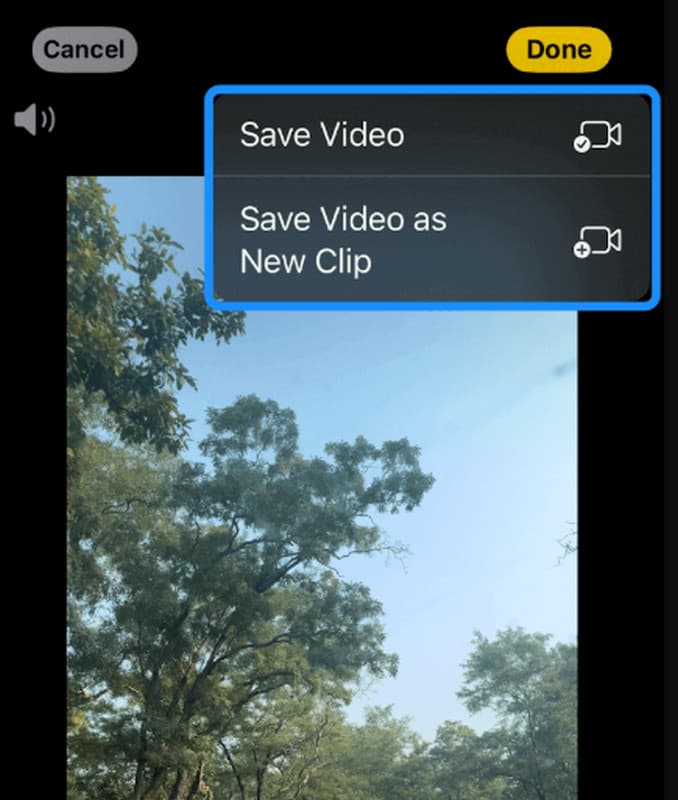
Mit dieser einfachen Methode können Sie Aufnahmen, die mit einem beliebigen iPhone-Bildschirmrekorder erstellt wurden, schnell verbessern, ohne dass Software von Drittanbietern erforderlich ist.
Teil 5. Behebung häufiger Probleme bei der Bildschirmaufnahme
Trotz der Verwendung eines hochwertigen iPhone-Bildschirmrekorders können weiterhin Probleme auftreten, beispielsweise mit der Audio- und Videoqualität oder dem Zugriff auf die Bildschirmaufnahme. Diese Probleme sind auf Einstellungen, Speichermedien oder die Geräteleistung zurückzuführen und nicht auf die Aufnahmefunktion selbst. Die häufigsten Probleme und ihre Ursachen sind unten aufgeführt.
Die Aufnahme enthält keinen Ton.
Dieses Problem tritt typischerweise auf, wenn das Mikrofon vor der Aufnahme nicht stummgeschaltet wurde. Es kann auch auftreten, wenn der Stummmodus oder der Fokusmodus die Audioaufnahme verhindert. Manchmal lässt sich das Problem beheben, indem man im Kontrollzentrum den Mikrofonzugriff überprüft.
Die Aufnahme wird unerwartet gestoppt.
Dies liegt häufig an unzureichendem Speicherplatz oder einer zu hohen Anzahl gleichzeitig laufender Hintergrundanwendungen. Um die Systemleistung zu erhalten, können iPhones Aufnahmen automatisch beenden, wenn die Ressourcen knapp werden.
Die Bildschirmaufnahmeoption fehlt.
Dies geschieht, wenn die Bildschirmaufnahme nicht zum Kontrollzentrum hinzugefügt wurde. Sie kann in den Einstellungen manuell aktiviert werden, um die Funktion wieder sichtbar zu machen.
Schlechte Videoqualität oder Verzögerung
Dieses Problem hängt oft mit intensiver Gerätenutzung, veralteten iOS-Versionen oder zu vielen im Hintergrund laufenden Apps zusammen. Das Schließen nicht benötigter Apps und ein Systemupdate können die Leistung verbessern.
Bonus-Tipp: Welches ist der beste Bildschirmrekorder für Mac/Windows?
Wenn Sie auf Ihrem Computer aufnehmen müssen, kann Ihnen ein hochwertiger Bildschirmrekorder für Mac oder Windows zu besseren Ergebnissen verhelfen. Die beste Option ist AVAide Screen RecorderEinfach zu bedienen und ideal für Tutorials, Meetings, Gaming und Präsentationen. Sie können gleichzeitig Ihren Bildschirm, den Systemton und Ihr Mikrofon aufnehmen, HD-Videos erstellen und diese anschließend bearbeiten. Sowohl für Anfänger als auch für Profis geeignet – einfache Einrichtung für klare, flüssige Aufnahmen.

KOSTENLOSER DOWNLOAD Für Windows 7 oder höher
 Sicherer Download
KOSTENLOSER DOWNLOAD Für Mac OS X 10.13 oder höher
Sicherer Download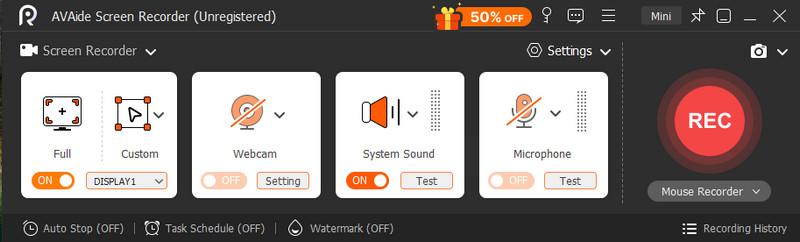
Mit einem guten Bildschirmrekorder kannst du Tutorials, Gameplay und wichtige Momente ganz einfach auf deinem Smartphone speichern. Das integrierte Tool auf dem iPhone ist zwar hilfreich, aber viele Nutzer bevorzugen andere Tools mit mehr Funktionen und Kontrolle. Die richtige Wahl ist entscheidend. Bildschirmaufnahme für iPhone Die Wahl des richtigen Geräts ist entscheidend und hängt vom jeweiligen Kontext ab – ob für Schule, Beruf oder private Zwecke. Die richtige Auswahl und die unkomplizierte Installation ermöglichen jederzeit eine einfache und produktive Erfassung klarer und nützlicher Informationen.
ÜBER DEN AUTOR

Erfassen Sie Bildschirmaktivitäten mit Audio, Online-Meetings, Gameplay-Videos, Musik, Webcam usw.
Bildschirmaufnahme
- Bildschirmaufnahme unter Windows
- Instagram Live aufnehmen
- Rippen Sie Videos von Tubi
- Konvertieren Sie YouTube-Videos in MP3
- Laden Sie Videos von Fansly herunter
- Herunterladen von JW Player-Videos
- Laden Sie Bilibili-Videos herunter
- Patreon-Videos herunterladen
- SpankBang-Videos herunterladen
- Discord-Videos herunterladen
- DoodSream-Video herunterladen