Minecraft ist mit über 151 Millionen täglich aktiven Nutzern eines der bekanntesten Spiele unserer Zeit. Da es auf verschiedenen Plattformen wie PlayStation, PC, Xbox und Smartphones verfügbar ist, könnte man meinen, es sei aufgrund der vielfältigen Möglichkeiten in der Spielwelt etwas Besonderes. Hier kann man Landwirtschaft betreiben, mit Freunden spielen, nach wertvollen Schätzen suchen und sogar seine eigene Welt erschaffen – und diese Highlights möchte man natürlich festhalten. Je nach Plattform kann das Aufnehmen von Bildern und Videos jedoch unterschiedlich lange dauern. Minecraft-Screenshots Es ist so einfach, wie dieser Artikel anhand verschiedener Methoden erklärt. Also, legen wir los!
Teil 1. Wie man in Minecraft einen Screenshot macht.
Minecraft gibt es in zwei PC-Versionen mit unterschiedlichen Methoden zum Erstellen von Screenshots im Spiel. Informieren Sie sich über die Java- und Bedrock-Edition und erfahren Sie, wie Sie in Minecraft auf dem PC Screenshots erstellen.
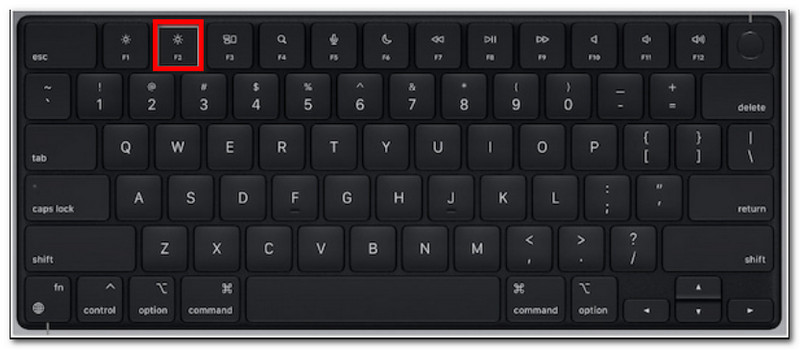
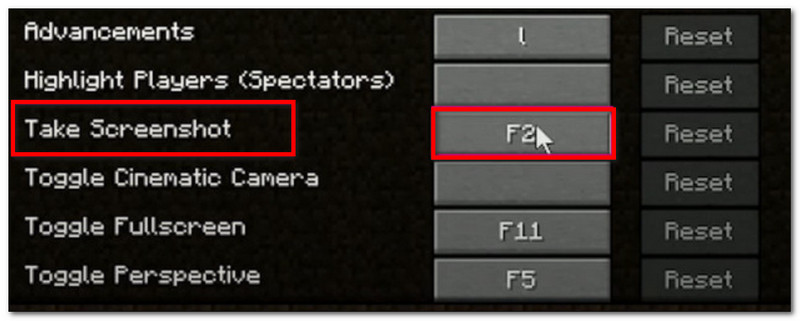
1. Java Edition – Die klassische F2-Methode
Diese Edition von Minecraft ist die ursprüngliche Computerversion des Spiels und verfügt über eine integrierte Screenshot-Funktion. So erstellen Sie Screenshots in Minecraft Java:
Schritt 1Bereiten Sie den Spielabschnitt vor, den Sie aufnehmen möchten, und drücken Sie dann F2 auf deiner Tastatur.
Schritt 2Wenn eine Meldung mit einem Dateinamen erscheint, klicken Sie darauf, um eine Vorschau des Screenshots anzuzeigen.
2. Bedrock Edition – Zwei verschiedene Methoden
Die Bedrock Edition legt den Fokus auf plattformübergreifendes Spielen. Das bedeutet, dass du auch auf einem PC mit Freunden spielen kannst, die andere Geräte verwenden. In dieser Edition gibt es zwei beliebte Methoden, um Screenshots zu erstellen.
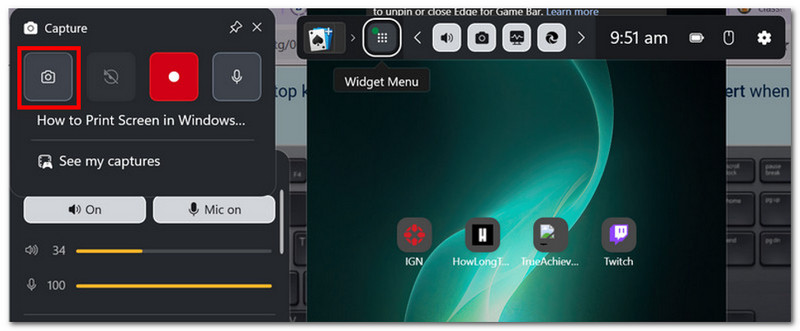
Methode A (Xbox Game Bar)
Schritt 1Drücken Sie Windows + G Drücken Sie gleichzeitig die Tasten auf Ihrer Tastatur. Ihr Bildschirm wird abgedunkelt, klicken Sie dann auf die Schaltfläche. Kamera Symbol zum Erstellen eines Screenshots.
Schritt 2Sie können auf den Minecraft-Screenshot-Ordner zugreifen von Videos > ErfasstDort befinden sich die von Game Bar aufgenommenen Fotos.
Methode B (In-Game-Kamera)
Schritt 1Öffne Minecraft und betritt eine Welt. Klicke auf Minecraft-Screenshot Drücken Sie die Taste oder F2 auf dem Bildschirm, um ein Bild aufzunehmen.
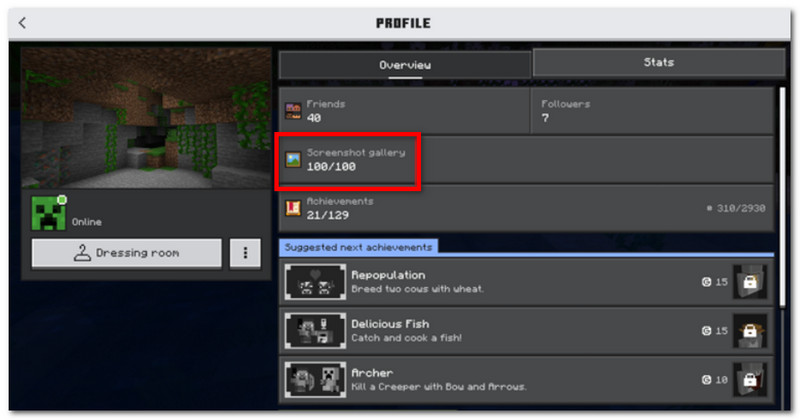
Schritt 2Um den Speicherort des Minecraft-Screenshots zu finden, gehen Sie einfach zu Profil und öffnen Screenshot-Galerie.
3. AVAide Bildschirmrekorder
AVAide Screen Recorder AVAide ist ein alternatives Tool für Minecraft Java und Bedrock Edition. Es bietet eine Komplettlösung für Screenshots sowie Video- und Audioaufnahmen. Die intuitive Bildschirmaufnahmefunktion ermöglicht Screenshots in verschiedenen Modi: Vollbild, Aktives Fenster und Freiform – mit anpassbaren Tastenkombinationen. Screenshots lassen sich in gängigen Bildformaten wie JPEG, PNG und GIF exportieren. AVAide ist die beste Alternative dank der integrierten Bearbeitungsoptionen, mit denen Screenshots mit Zeichen-, Anmerkungs- und anderen Elementen bearbeitet werden können. Die Software bietet zudem hochwertige Bildschirmaufnahmen, ideal zum Aufzeichnen Ihres Gameplays auf PCs und Smartphones.
Schritt 1Laden Sie den Bildschirmrekorder herunter und installieren Sie ihn. Öffnen Sie ihn und wählen Sie die Option „Bildschirmrekorder“. Bildschirmaufnahme Über das Menü oben links. Stellen Sie sicher, dass Minecraft auf Ihrem Computer installiert und vorbereitet ist.

KOSTENLOSER DOWNLOAD Für Windows 7 oder höher
 Sicherer Download
KOSTENLOSER DOWNLOAD Für Mac OS X 10.13 oder höher
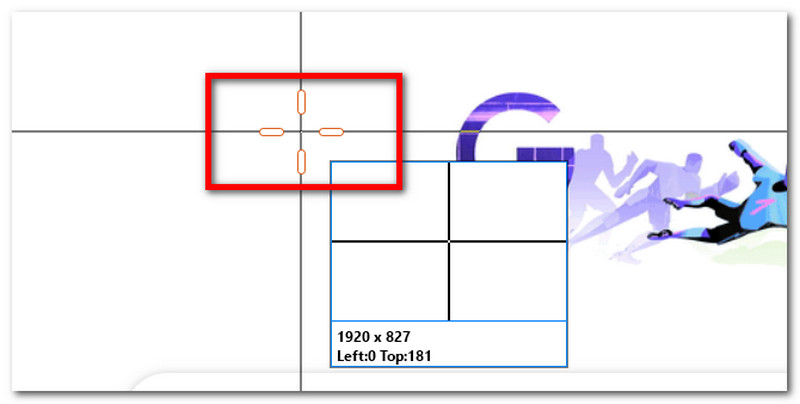
Sicherer DownloadSchritt 2Wenn sich Ihr Mauszeiger in ein Fadenkreuz verwandelt, wählen Sie den Bereich aus, den Sie aufnehmen möchten. Drücken Sie Esc Wenn Sie die Bildschirmaufnahme beenden möchten.
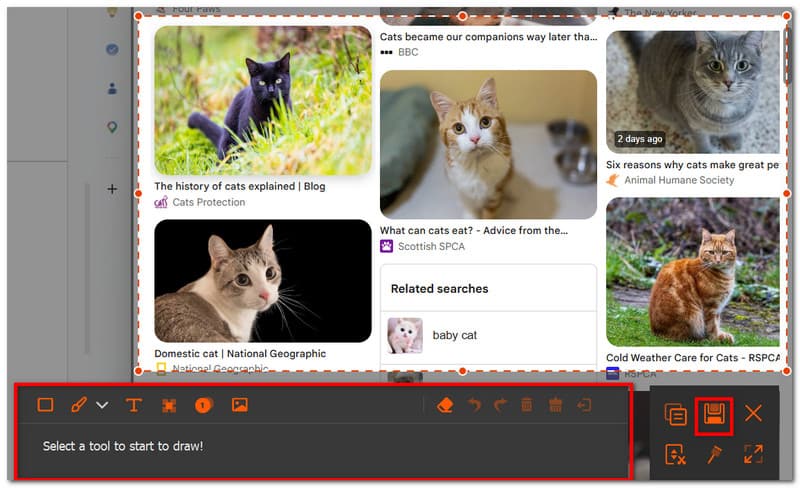
Schritt 3Verwenden Sie die Bearbeitungsoptionen, um das Bild zu bearbeiten. Klicken Sie anschließend. Speichern Um den Screenshot auf deinem Gerät zu speichern, gehe wie folgt vor: Das Minecraft-Screenshot-Verzeichnis wäre: AVAide Studio > AVAide Bildschirmrekorder.
Teil 2. Wo finde ich Screenshots?
Da Minecraft auf nahezu jeder Plattform verfügbar ist, fragt man sich vielleicht: „Wo werden Minecraft-Screenshots gespeichert?“ Dieser Abschnitt zeigt den genauen Speicherort des Ordners mit den Screenshots auf dem jeweiligen Betriebssystem.
Windows 10/11 (Java Edition)
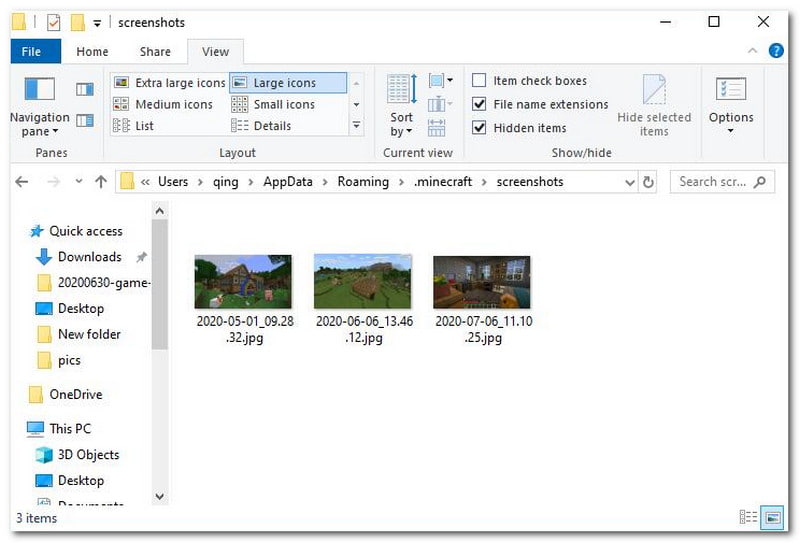
Nachdem Sie den Screenshot erstellt haben, können Sie ihn im Chat aufrufen. Falls Sie ihn verpasst haben, gehen Sie zur Suchleiste und geben Sie Folgendes ein: %appdata%, dann geh zu .minecraft-Ordner > Screenshots.
Windows 10/11 (Bedrock Edition)
Die Minecraft-Screenshot-Galerie für die Bedrock Edition unter Windows befindet sich im Spiel selbst unter folgender Adresse: Profil > Screenshot-Galerie.
Mac
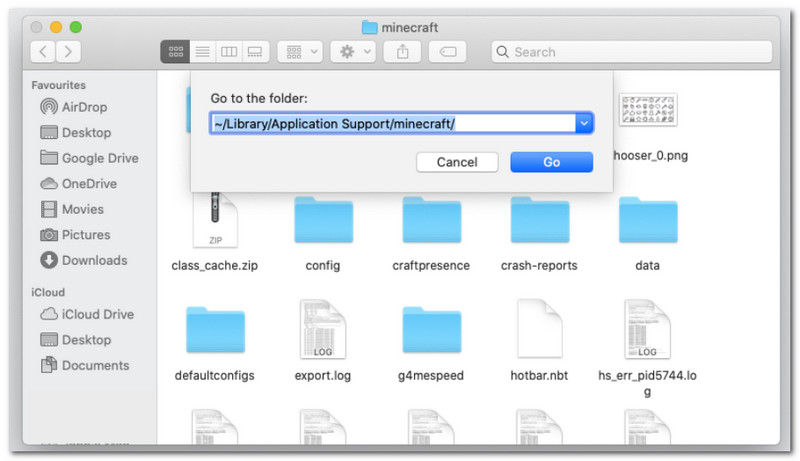
Wenn du Minecraft spielst und lernst Wie man auf dem Mac einen Screenshot erstelltEs ist zu finden in ~/Library/ApplicationSupport/minecraft/screenshots.
Linux
Die Screenshots des Spiels können Sie im Minecraft-Hauptverzeichnis aufrufen. ~/.minecraft/screenshots.
Chromebook
Der Minecraft-Screenshot-Ordner auf Chromebook ist derselbe wie auf anderen Betriebssystemen, wenn man die F2-Taste zum Erstellen von Screenshots verwendet. Die Fotos finden Sie dort: Screenshot-Galerie im Spiel.
Teil 3. Screenshots für Konsole und Mobilgeräte
Nachdem du gelernt hast, wie man Minecraft-Screenshots unter Windows 11 und anderen Betriebssystemen findet, kannst du auch auf kleineren Geräten und Konsolen Screenshots erstellen. Folge dazu den Schritten für die Plattform, auf der du das Spiel spielst.
Nintendo Switch
Schritt 1Benutze den linken Joy-Con und drücke die Taste Kamera Taste zum Aufnehmen eines Screenshots vom Spiel.
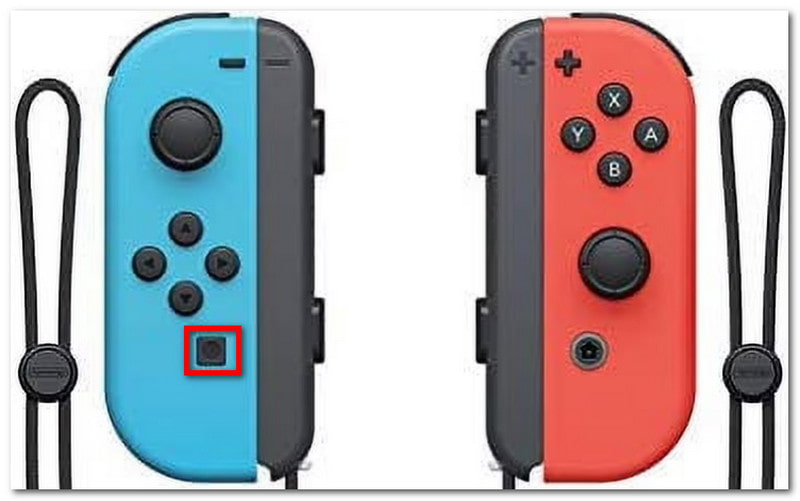
Schritt 2Um den Screenshot anzusehen, beenden Sie das Spiel und gehen Sie zu Album Hier werden Minecraft-Screenshots gespeichert.
PlayStation
Schritt 1Wie macht man einen Minecraft-Screenshot mit dem PS4 DualShock 4? Die Taste gedrückt halten Teilen Drücken Sie die Taste etwa eine Sekunde lang. Wenn Sie über einen PS5 DualSend verfügen, drücken Sie die Taste. Schaffen Taste.
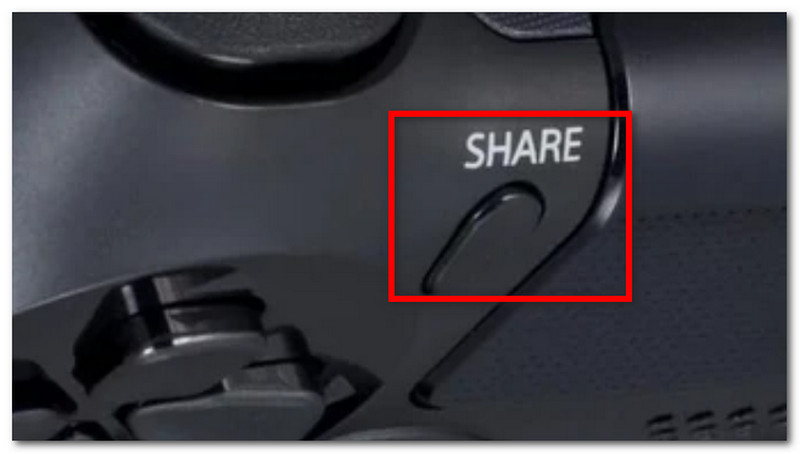
Schritt 2Sie können den Screenshot ansehen, indem Sie zu folgender Adresse navigieren: Galerie erfassen App oder die Verwendung der PlayStation App zur Ansicht auf Ihrem Smartphone.
Xbox
Schritt 1Bei einem Standard-Xbox-Controller genügt ein Doppeltippen auf die Xbox Knopf in der Mitte drücken Y Zum Aufnehmen drücken. Bei der Xbox Series drücken Sie die Taste Teilen Einmal drücken, um einen Screenshot zu erstellen.
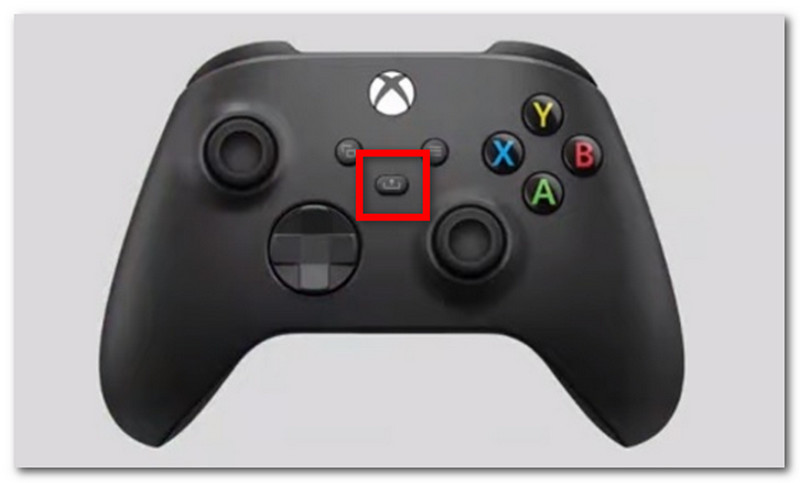
Schritt 2Falls Sie nicht wissen, wie Sie auf Minecraft-Screenshots zugreifen, drücken Sie einfach die entsprechende Taste. Xbox und gehen Sie zu Aufnehmen und teilen Tab.
iOS
Schritt 1Drücken Sie die Leistung und Lautstärke erhöhen Tasten auf Ihrem iPhone, um einen Screenshot zu erstellen.
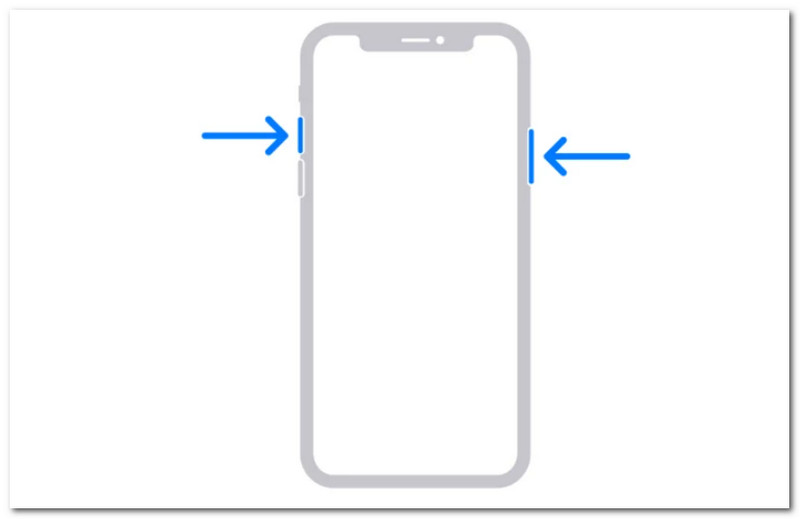
Schritt 2Wie findet man Minecraft-Screenshots auf dem iPhone? Man findet die Screenshots in der Fotos-App.
Android
Schritt 1Bereite das Spiel und den Bereich vor, den du erobern möchtest. Halte die Taste gedrückt. Leistung und Lautstärke verringern Tasten auf Ihrem Telefon.
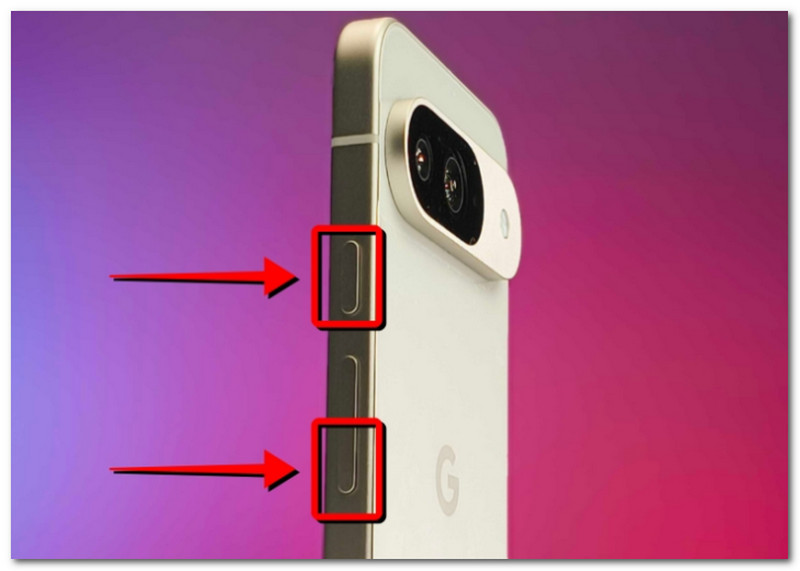
Schritt 2Wenn der Bildschirm kurz aufleuchtet, ist der Screenshot fertig und kann in der Galerie-App gefunden werden.
Teil 4. Ihre Screenshot-Sammlung verwalten
Neben dem Teilen von Screenshots mit Freunden kannst du diese Funktion auch nutzen, um deinen Spielfortschritt in Minecraft festzuhalten. Willkürliche Screenshots führen jedoch nur zu einer unübersichtlichen und verwirrenden Sammlung. Falls du nicht weißt, wo du anfangen sollst, helfen dir diese Grundregeln, deine Screenshot-Sammlung zu organisieren.
1. Dateinamen verstehen
Bei der Verwendung der F2-Methode in Minecraft ist es wichtig, den Dateinamen zu kennen, da er Ihnen hilft, das Datum des Screenshots zu bestimmen. Der Standarddateiname lautet: YYYY-MM-DD_HH.MM.SS.png, was übersetzt Jahr, Monat, Tag, Stunde, Minute und Sekunde des Aufnahmezeitpunkts des Screenshots angibt.
2. Unterordner erstellen
Speichern Sie Ihre Screenshots nicht in einem einzigen Ordner, da dies die Suche nach bestimmten Screenshots erschwert. Erstellen Sie stattdessen Unterordner mit Kategorien wie Weltgestaltung, Projekt und Funktion.
3. Dateien umbenennen
Du kannst die Namen deiner Minecraft-Screenshots ändern, um sie nicht nur anhand des Datums, sondern auch anhand deines Spielfortschritts zu identifizieren. Wähle immer einen Dateinamen, der deine Entwicklung in Minecraft widerspiegelt.
4. Sichern Sie Ihre Aufnahmen
Um zu vermeiden, dass die Screenshots bei einem Geräteabsturz verloren gehen, sollten Sie diese unbedingt mit einem Cloud-Dienst wie OneDrive oder einer externen Festplatte sichern.
5. Screenshots teilen
Nachdem du deine Screenshots organisiert hast, kannst du deinen Minecraft-Spielfortschritt auf verschiedenen Plattformen präsentieren. Deine Zuschauer werden die übersichtlichen Screenshots, die deine Fortschritte im Spiel dokumentieren, zu schätzen wissen.
Minecraft ist ein beliebtes Spiel für jedermann, und wer lernt, wie man Screenshots macht, kann die Highlights seines Spielverlaufs festhalten. Dieser Artikel zeigt nicht nur die verschiedenen Methoden, um die wunderschöne Spielwelt einzufangen, sondern auch … Wie man Minecraft-Screenshots ansieht auf verschiedenen Plattformen. Alternativ empfiehlt dieser Artikel die Verwendung von AVAide Screen Recorder, da es flexibel für Screenshots auf Computern, Smartphones und Spielekonsolen geeignet ist. Holen Sie sich eines der beste Spielrekorder Kostenlos für Windows und Mac herunterladen und unbegrenzt Spielaufnahmen starten.
ÜBER DEN AUTOR

Nehmen Sie Bildschirm, Audio, Webcam, Gameplay, Online-Meetings sowie den iPhone-/Android-Bildschirm auf Ihrem Computer auf.
Bildschirmaufnahme
- Bildschirmaufnahme unter Windows
- Instagram Live aufnehmen
- Rippen Sie Videos von Tubi
- Konvertieren Sie YouTube-Videos in MP3
- Laden Sie Videos von Fansly herunter
- Herunterladen von JW Player-Videos
- Laden Sie Bilibili-Videos herunter
- Patreon-Videos herunterladen
- SpankBang-Videos herunterladen
- Discord-Videos herunterladen
- DoodSream-Video herunterladen