So nehmen Sie eine Sprachnachricht auf einem iPhone aufEine Sprachnachricht aufzunehmen ist eine schnelle Möglichkeit, Ihre Gedanken mitzuteilen oder personalisierte Audiodateien zu versenden, ohne tippen zu müssen. Mit der integrierten Sprachnachrichtenfunktion des iPhones können Sie Ihre Audioclips mit wenigen Klicks aufnehmen, speichern und teilen. Wenn Sie also nach einer umfassenden Möglichkeit suchen, Sprachnachrichten auf Ihrem Handy aufzunehmen und zu versenden, finden Sie in diesem Tutorial die passende Anleitung.
Teil 1. So nehmen Sie eine Sprachnachricht in iMessage auf und senden sie.
iMessage ist mehr als nur ein einfaches Kommunikationsmittel. Es bietet auch eine Sprachnachrichtenfunktion. Damit können Sie Ihre Nachrichten und Gedanken per Spracheingabe senden und teilen. Diese Funktion ist ideal, wenn Sie Nachrichten verschicken möchten, ohne Text über die Tastatur einzugeben. Das Beste daran: Das Versenden von Sprachnachrichten ist kinderleicht und somit perfekt für alle Nutzer. Wenn Sie also gleich loslegen und Nachrichten aufnehmen und versenden möchten, folgen Sie einfach den unten stehenden Anweisungen.
So nehmen Sie eine iPhone-Sprachnachricht auf
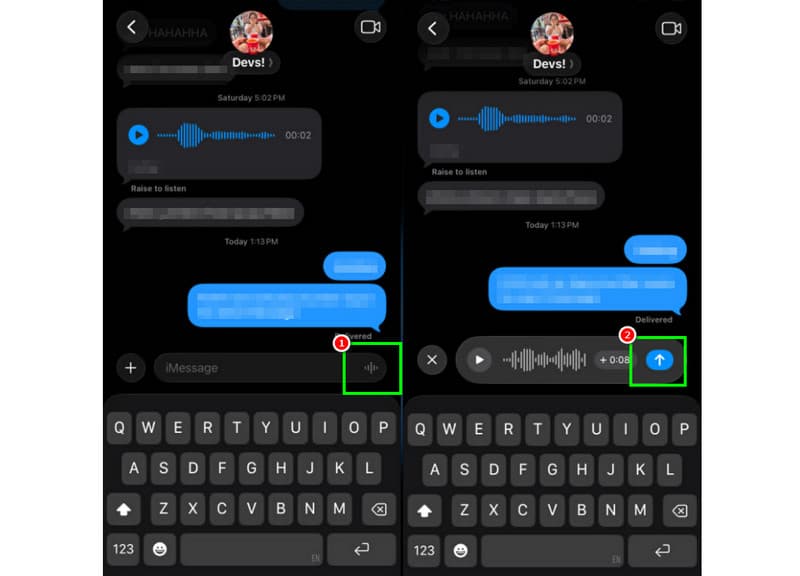
Schritt 1Starten Sie auf Ihrem iPhone die App. iMessage App. Gehen Sie dann zu der Person, mit der Sie kommunizieren möchten.
Schritt 2Drücken und halten Sie auf Ihrem Bildschirm die Mikrofon Option. Während Sie die Taste gedrückt halten, können Sie Ihre Nachricht aufnehmen und sprechen.
Schritt 3Um die Aufnahme zu beenden, lassen Sie den Finger vom Knopf los. Tippen Sie anschließend auf die Pfeil senden Schaltfläche zum Senden der Nachricht.
Eingehende Sprachnachrichten anhören
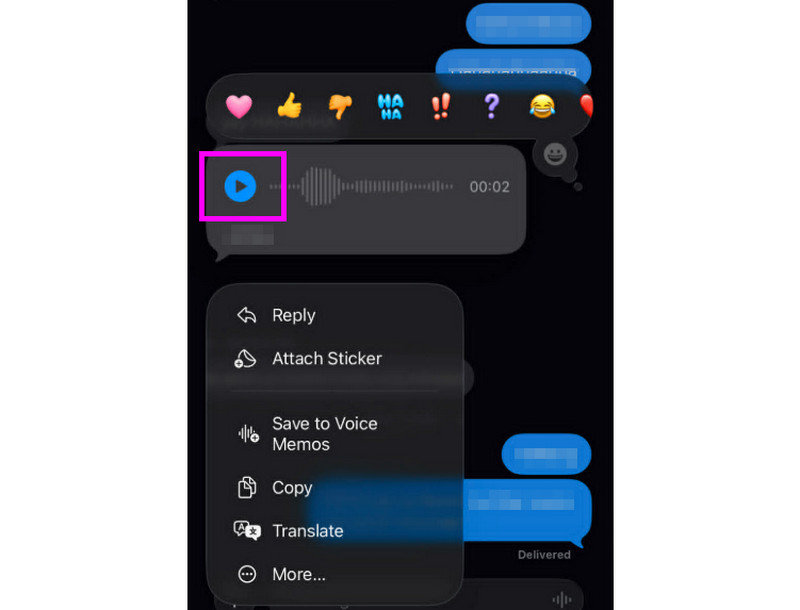
Schritt 1Nachdem Sie die Sprachnachricht erhalten haben, können Sie tippen Spiel Taste.
Schritt 2Sie können die Lautstärke auch über die Seitentaste Ihres iPhones anpassen, um die Nachricht richtig zu hören.
Schritt 3Die Sprachnachricht läuft nach zwei Minuten ab. Um die Nachricht zu behalten, drücken Sie einfach die entsprechende Taste. Behalten Option unten.
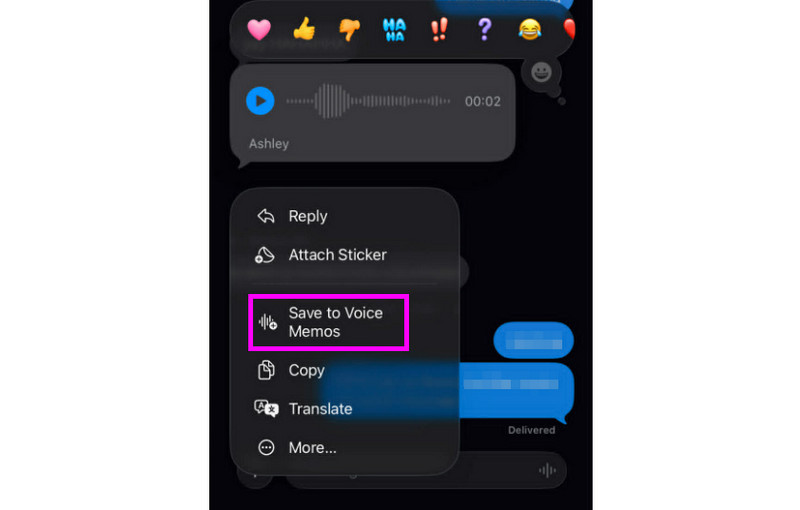
Schritt 4Wenn Sie die Sprachnachricht speichern möchten, halten Sie sie einfach gedrückt und tippen Sie auf die entsprechende Schaltfläche. In Sprachmemos speichern App. Mit dieser App. Sprachaufzeichnungs-AppSie können die Nachricht jederzeit und überall erneut abspielen.
Sprachnachrichteneinstellungen anpassen
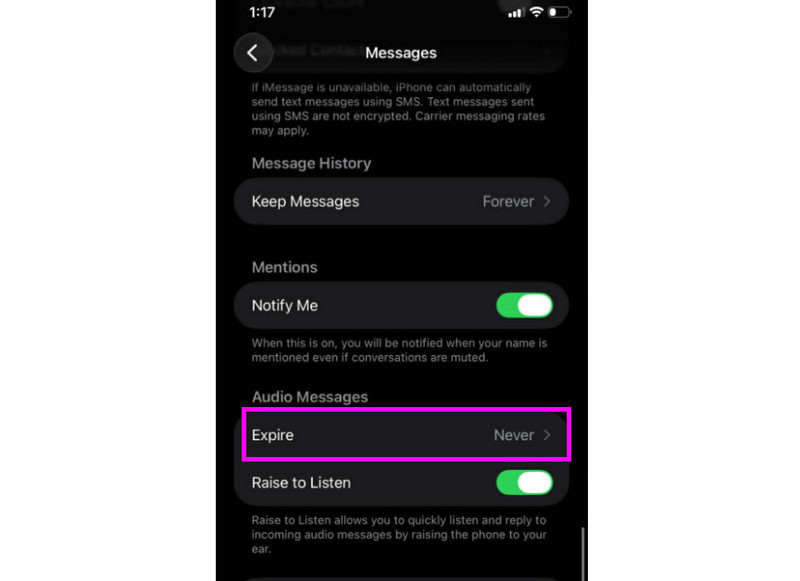
Schritt 1Gehen Sie zu Ihrem Einstellungen App. Fahren Sie dann mit der App fort. Nachrichten App.
Schritt 2Navigieren Sie zu Audiobotschaften > Erlöschen und tippen Sie auf das Niemals Option. Dadurch verfallen keine Sprachnachrichten aus Ihrem iMessage-Konto.
Teil 2. Methode zum Aufnehmen einer Voicemail-Begrüßung auf dem iPhone
Wenn Sie nicht erreichbar sind, erhalten Anrufer eine personalisierte Voicemail-Ansage, sofern Sie diese auf Ihrem iPhone aufgenommen haben. Es ist ganz einfach, eine neue Ansage zu erstellen, eine bestehende zu ändern oder zu löschen und sogar eine temporäre Ansage für besondere Anlässe zu verwenden. Mit wenigen Klicks in der Telefon-App können Sie den Klang Ihrer Voicemail für andere komplett anpassen. Sehen Sie sich die Anleitung an und erfahren Sie, wie Sie eine Voicemail-Nachricht auf einem iPhone aufnehmen.
Einrichten Ihrer Voicemail-Begrüßung
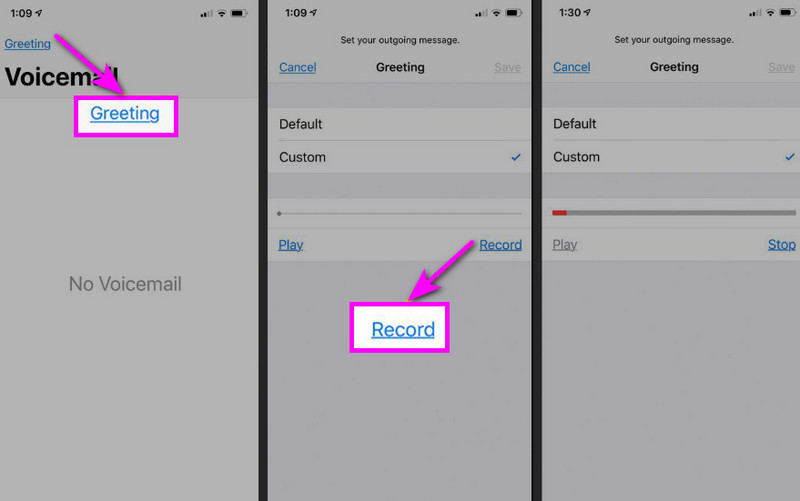
Schritt 1Fahren Sie mit dem fort Telefon App und tippen Sie auf Voicemail Möglichkeit.
Schritt 2Drücken Sie anschließend die Gruß Drücken Sie die entsprechende Taste in der oberen linken Ecke Ihres Bildschirms. Brauch > Schallplatte anfangen Audioaufnahmen mit dem iPhone als Ihre Begrüßung.
Schritt 3Zapfhahn Stoppen Um es fertigzustellen und zur Überprüfung abzuspielen. Sobald Sie fertig sind, drücken Sie Speichern um es als Ihre aktive Begrüßung festzulegen.
Ändern oder Löschen Ihrer Begrüßung
Schritt 1Sie können zurückgehen zu Voicemail > Gruß Sektion.
Schritt 2Getroffen haben Brauch und eine neue Begrüßung aufnehmen, um die alte zu ersetzen.
Schritt 3Um dann zur Standardeinstellung zurückzukehren, können Sie Folgendes auswählen: Standard statt Benutzerdefiniert.
Profi-Tipp: Vorübergehende Begrüßung
Wenn Sie kurzzeitig nicht erreichbar sind, können Sie eine temporäre Begrüßung aufnehmen, indem Sie die gleichen Schritte wie unter „Benutzerdefiniert“ befolgen. Sobald Sie zurück sind, können Sie einfach wieder zu Ihrer regulären Begrüßung oder der Standardoption wechseln.
Teil 3. Fehlerbehebung – Sprachnachricht kann nicht aufgezeichnet werden
In diesem Abschnitt finden Sie eine Anleitung zur Fehlerbehebung, die einige Probleme beim Aufnehmen oder Versenden von Voicemail-Nachrichten auf einem iPhone behandelt.
Die Mikrofontaste ist in Nachrichten ausgegraut.
Lösung: Stellen Sie sicher, dass der Mikrofonzugriff aktiviert ist. Gehen Sie dazu zu Einstellungen > Datenschutz & Sicherheit > Mikrofon und erlauben Sie den Zugriff für Nachrichten.
Sprachnachricht kann nicht gesendet werden
Lösung: Überprüfen Sie stets Ihre Internetverbindung. Stellen Sie außerdem sicher, dass iMessage unter Einstellungen > Nachrichten > iMessage aktiviert ist.
Voicemail-Begrüßung kann nicht aufgenommen werden
Lösung: Die Begrüßungsoption wird nur angezeigt, wenn Ihr Mobilfunkanbieter die visuelle Voicemail unterstützt. Falls sie fehlt, können Sie in der Telefon-App die Taste 1 gedrückt halten, um die Voicemail direkt anzurufen. Anschließend können Sie den Anweisungen Ihres Anbieters folgen, um eine Begrüßung aufzunehmen.
Die Empfänger sagen, sie können Sie nicht hören
Lösung: Sie können Ihr Mikrofon mit der Sprachmemos-App testen. Entfernen Sie außerdem Hüllen oder Zubehör, die das Mikrofon verdecken könnten. Alternativ können Sie die Mikrofonöffnung mit einem Tuch oder einer kleinen Bürste reinigen.
Kurzübersicht: Sprachnachricht vs. Voicemail
Möchten Sie mehr über Sprachnachrichten und Voicemail erfahren? Dann werfen Sie einen Blick auf die einfache Tabelle unten.
| Feature | Sprachnachricht (iMessage) | Voicemail (Anbieter) |
| Wie es versendet wird | • In der Nachrichten-App aufgezeichnet • Gesendet via iMessage | • Aufgezeichnete Begrüßung • Vom Sender gespeicherte Audiodaten |
| Internet erforderlich | Ja (WLAN oder mobile Daten) | Nein, es funktioniert über ein Mobilfunknetz. |
| Lagerung | Im iMessage-Thread gespeichert | Im Voicemail-System des Anbieters gespeichert |
| Kontrolle | Der Benutzer kann die Nachricht erneut senden, löschen oder speichern. | Der Netzbetreiber kontrolliert Zugriff und Speicherung |
Bonus: Das beste Tool zum Bearbeiten von Sprachaufnahmen
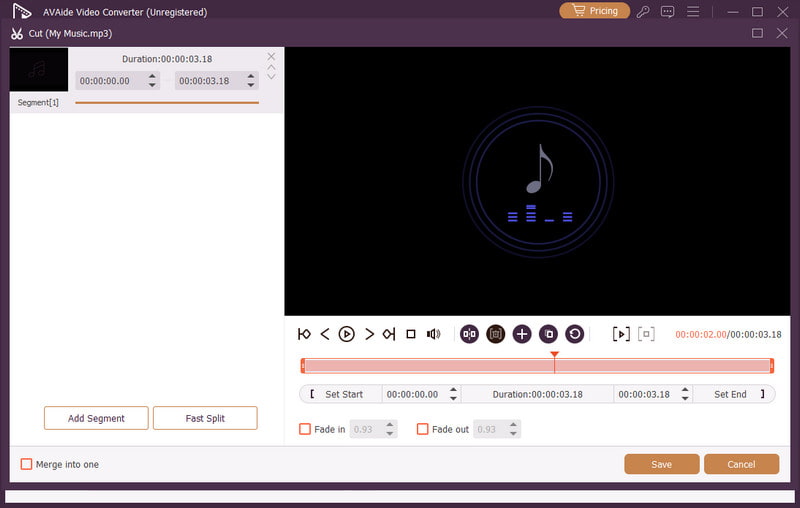
Nach dem Speichern einer Sprachaufnahme oder Sprachnachricht möchte man diese manchmal bearbeiten, um eine bessere Audioqualität zu erzielen. Für die Audiobearbeitung empfiehlt sich daher ein leistungsstarkes Bearbeitungsprogramm wie beispielsweise [Name des Programms einfügen]. AVAide Video ConverterDieses Programm bietet eine Audiobearbeitungsfunktion, mit der Sie Ihre Audiodateien bearbeiten können. Sie können die Audiospur kürzen, teilen und zusammenfügen. Auch Lautstärke und Verzögerung lassen sich nach Ihren Wünschen anpassen. Besonders praktisch: Dank der Konverterfunktion des Programms können Sie die Audiodatei in jedem beliebigen Format speichern. Ihre Sprachaufnahme lässt sich in MP3, WAV, M4A, FLAC und weiteren Formaten mit bester Qualität bis zu 320 kbps speichern. Wenn Sie also nach einer idealen Software zur Bearbeitung Ihrer Sprachaufnahmen suchen, ist AVAide Video Converter die perfekte Wahl.

KOSTENLOSER DOWNLOAD Für Windows 7 oder höher
 Sicherer Download
KOSTENLOSER DOWNLOAD Für Mac OS X 10.13 oder höher
Sicherer DownloadWeitere Funktionen:
- Es ermöglicht einen reibungslosen Ablauf der Audiobearbeitung.
- Das Programm kann mehrere Audiodateien zu einer einzigen Datei zusammenfügen.
- Es kann Audio- und Videoformate mit 120-fach höherer Konvertierungsgeschwindigkeit konvertieren.
- Das Programm bietet außerdem integrierte Videobearbeitungsfunktionen wie Zusammenführen, Aufteilen, Trimmen, Zuschneiden usw.
Senden einer Sprachnachricht auf einem iPhone Dies ist die ideale Methode, wenn Sie Ihre Nachricht schneller versenden möchten. Dank dieses Tutorials haben Sie gelernt, wie Sie effektiv eine Sprachnachricht aufnehmen und versenden. Sie erhalten außerdem hilfreiche Informationen zum Speichern der Sprachnachricht, um sie ohne Einschränkungen abspielen zu können. Wenn Sie Ihre Sprachaufnahmen bearbeiten möchten, empfiehlt sich der Zugriff auf [hier fehlende Information einfügen]. AVAide Video ConverterMit der Audiobearbeitungsfunktion dieses Programms können Sie Ihre Audioaufnahmen verbessern, was zu einer besseren und zufriedenstellenderen Audiowiedergabe führt.
ÜBER DEN AUTOR

Erfassen Sie Bildschirmaktivitäten mit Audio, Online-Meetings, Gameplay-Videos, Musik, Webcam usw.
Audio Aufnahme