Pokud jste uživatel Macu a potřebujete nahrávat obrazovku a zvuk, nemusíte hledat nikde jinde. QuickTime Player má vše, co potřebujete, již k dispozici.
V tomhle Nahrávání obrazovky v QuickTime Průvodce, naučíme vás, jak jej používat od začátku do konce. Od otevření nástroje až po zastavení a uložení nahrávky. Začněme hned teď!
Část 1. Stručný úvod do nahrávání obrazovky v QuickTime
QuickTime Player je bezplatný program pro operační systém Mac. Je předinstalován, takže ho můžete ihned používat. I když je známý jako přehrávač médií, funguje také jako Screen Recorder pro MacDíky tomu můžete zachytit obrazovku bez aplikací třetích stran. Rozhraní je navíc jednoduché, takže se v něm snadno orientuje.
1. Základní schopnosti
- Může nahrávat
Pro každodenní použití pokrývá základy. Můžete nahrávat celou obrazovku. Můžete také vybrat vybranou oblast. Zároveň můžete nahrávat video z webové kamery pomocí funkce „Nahrávání nového filmu“. Umožňuje také zachytit zvuk z mikrofonu. Navíc dokáže na obrazovce zobrazit kliknutí myší. - Nelze nahrávat (nativní)
Bohužel nemůže nahrávat systémový zvuk. Je to kvůli zabezpečení operačního systému Mac. Také nemůže nahrávat obrazovku a webkameru současně. - Omezení
Protože se jedná o základní Přehrávač videa v rozlišení 4K a rekordéru chybí některé funkce. Zaprvé, ukládá videa pouze ve formátu .mov. V důsledku toho mohou být soubory velké. Navíc nemá žádné pokročilé funkce pro úpravy. Neexistuje tedy žádná úprava časové osy. Nelze také přidávat anotace ani efekty.
Část 2. Jak spustit nahrávání obrazovky pomocí QuickTime
Pokud chcete vědět, jak používat QuickTime Player k nahrávání obrazovky se zvukem, stačí před zahájením provést jednoduché nastavení.
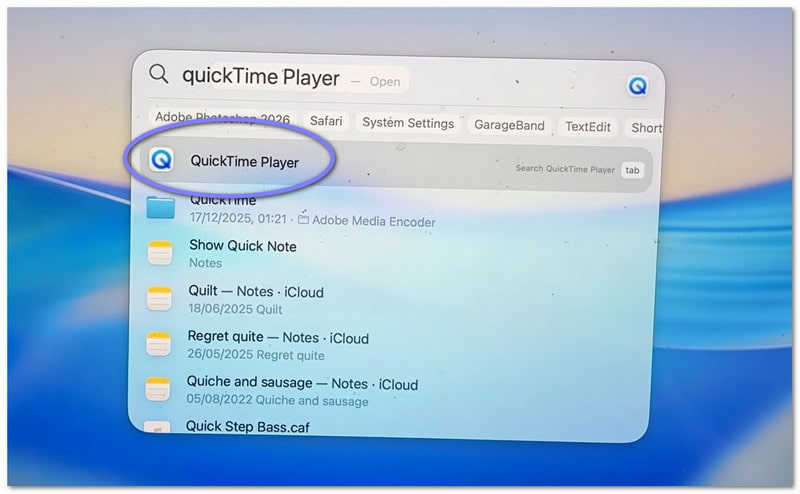
Krok 1Nejprve jděte ke svému Aplikace složku a otevřete program. Chcete-li rychlejší způsob, použijte vyhledávání Spotlight. Stiskněte Příkaz + Plochaa poté zadejte Přehrávač QuickTime. lis Vstupte otevřít.
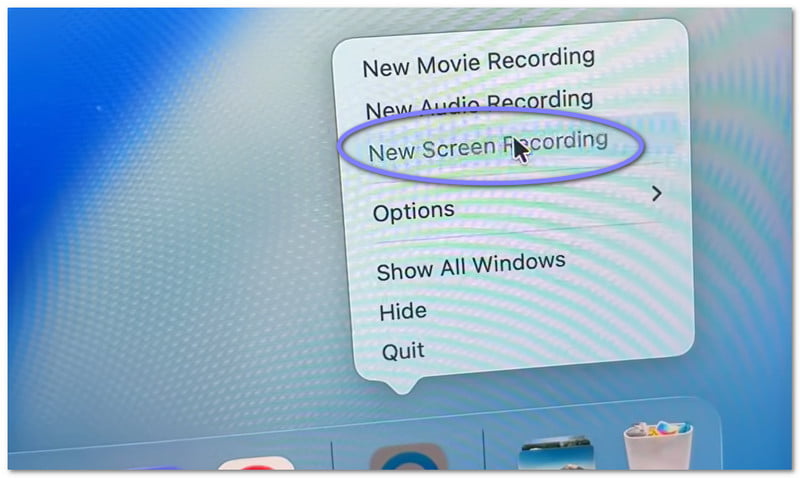
Krok 2Jakmile je program otevřený, přejděte do horního panelu nabídek. Klikněte na Soubor, pak vyberte Nový záznam obrazovkyZobrazí se malá obrazovka nahrávání. Chcete-li zkratku, stiskněte Příkaz + Řízení + NOkamžitě se otevře program pro nahrávání obrazovky.
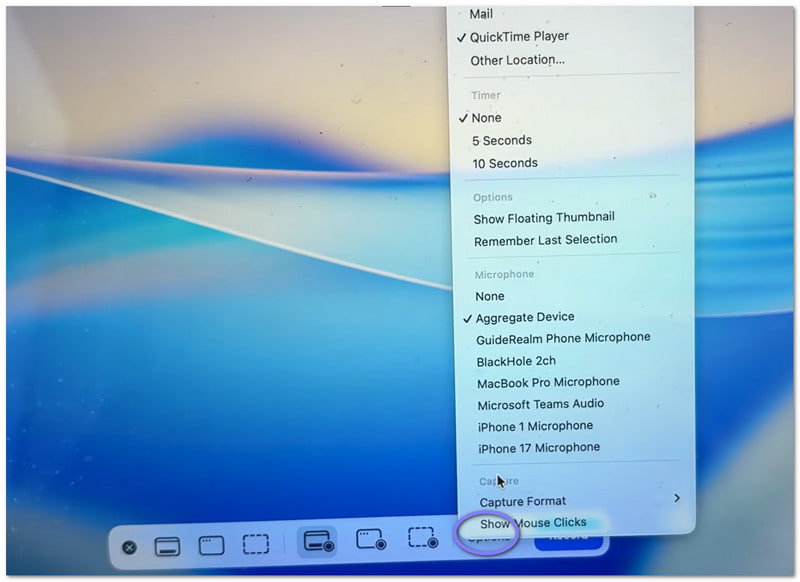
Krok 3Než začnete, věnujte chvíli kontrole nastavení. Klikněte na Možnosti tlačítko na panelu nahrávání. Zde si můžete vybrat mikrofon, pokud chcete nahrávat svůj hlas. Můžete si také nastavit krátký časovač, pokud potřebujete čas na přípravu. Dále si můžete vybrat, kam chcete soubor po nahrávání uložit.
Krok 4Nyní se rozhodněte, co chcete zachytit. Pokud chcete zachytit vše, stačí kliknout kamkoli na obrazovku. Zaznamená se celá obrazovka. Pokud potřebujete pouze část, vyberte ji a tažením myši vyberte oblast.
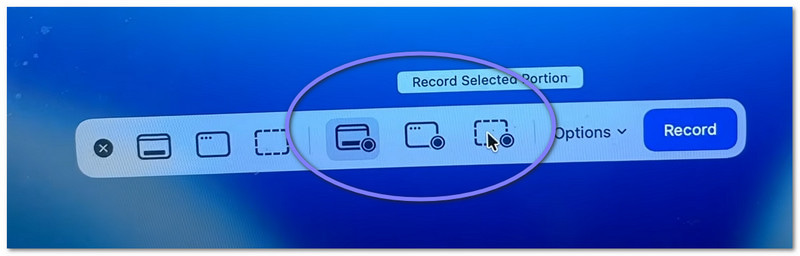
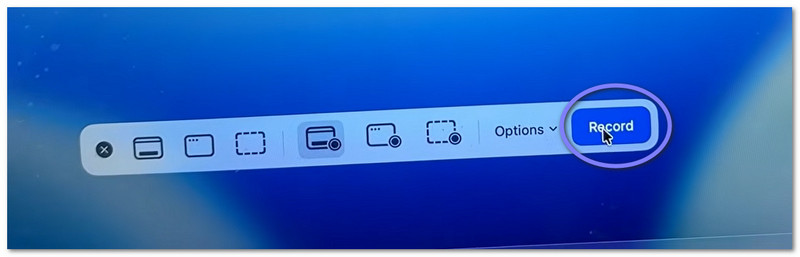
Krok 5Nakonec klikněte na Záznam tlačítko pro spuštění. Po krátké prodlevě se spustí nahrávání. Během nahrávání provádějte úkoly dle potřeby.
Část 3. Jak zastavit a uložit nahrávku QuickTime
Níže vás naučíme, jak zastavit nahrávání obrazovky pomocí QuickTime a také správně uložit soubor:
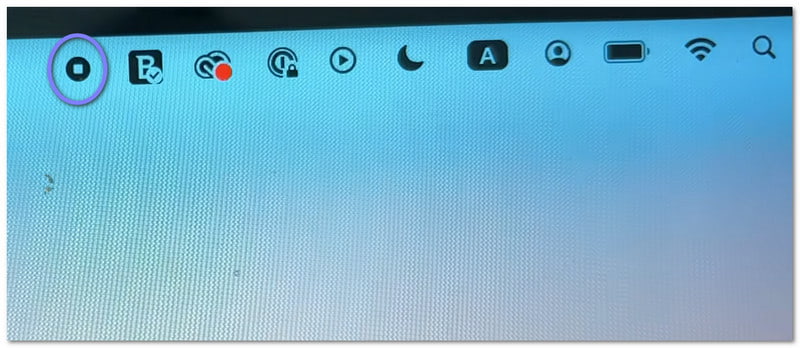
Krok 1Nejprve přesuňte kurzor do pravého horního rohu obrazovky. Hledejte Stop tlačítko. Vypadá jako kruh s malým čtvercem uvnitř. Kliknutím na něj ukončíte nahrávání. Další možností je stisknout Příkaz + Řízení + Esc na vaší klávesnici.
Krok 2Po zastavení se v rohu obrazovky může zobrazit malý náhled. Je to vaše nahrávka. Můžete na něj ihned kliknout, pokud chcete video otevřít a prohlédnout si ho. Pokud jej ignorujete, soubor se i tak automaticky uloží.
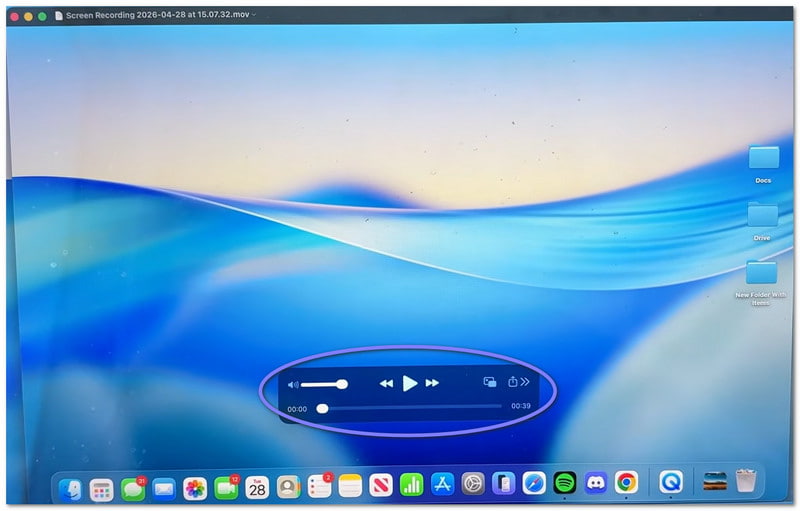
Krok 3Ve výchozím nastavení se video ukládá na plochu nebo do vámi zvoleného umístění. Pokud si ho chcete uložit sami, nejprve video otevřete. Poté přejděte do panelu nabídek a klikněte na Soubor, pak UložitPoté zadejte název souboru. Vyberte, kam jej chcete uložit, a klikněte na Uložit.
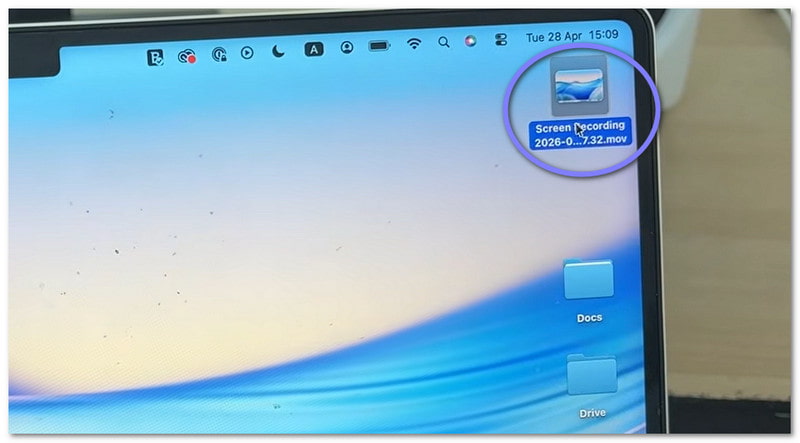
Krok 4Jakmile se video otevře, můžete provádět jednoduché úpravy. Můžete například oříznout začátek nebo konec. V případě potřeby můžete video také otočit. Kromě toho jej můžete sdílet přímo z aplikace.
Část 4. Řešení problémů
Někdy nahrávání obrazovky neprobíhá podle plánu. Mohou se vyskytnout drobné problémy. Dobré na tom je, že většinu z nich lze v QuickTime Playeru snadno opravit.
1. „Při nahrávání obrazovky došlo k chybě v přehrávači QuickTime Player.“
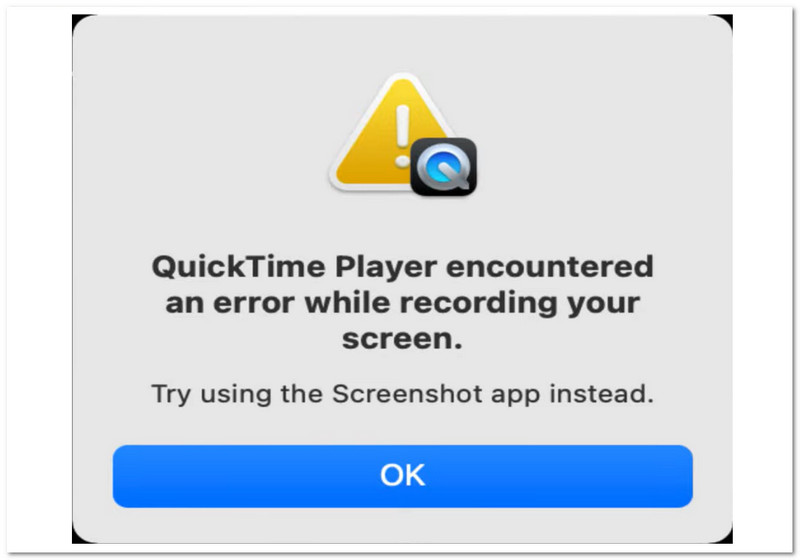
Existuje několik základních důvodů, proč se může zobrazit chyba „Při nahrávání obrazovky došlo v přehrávači QuickTime Player k chybě“.
Nejprve zkontrolujte umístění pro ukládání. Pokud ukládáte na externí disk, zkuste přepnout na plochu. Často to problém vyřeší. Dále zkontrolujte úložiště. Pokud je disk plný, nahrávání se může nezdařit.
Také se ujistěte, že máte povolení. Přejděte na Nastavení systému > Soukromí a zabezpečení > Nahrávání obrazovkyPoté zkontrolujte, zda je povolen QuickTime Player.
2. Moje nahrávka QuickTime nemá žádný zvuk!
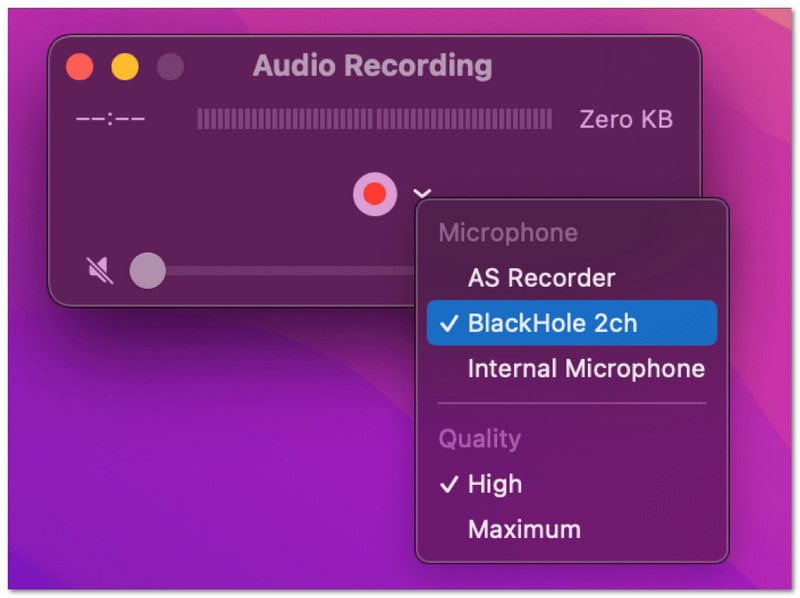
Pokud vaše video nemá zvuk, zkontrolujte před nahráváním nastavení. Otevřete Možnosti nabídku. Poté vyberte mikrofon, například „Vestavěný mikrofon“. Pokud není vybrán žádný mikrofon, nebude se nahrávat žádný zvuk. Také nejprve otestujte mikrofon, abyste se ujistili, že funguje.
3. QuickTime nenahrává systémový zvuk
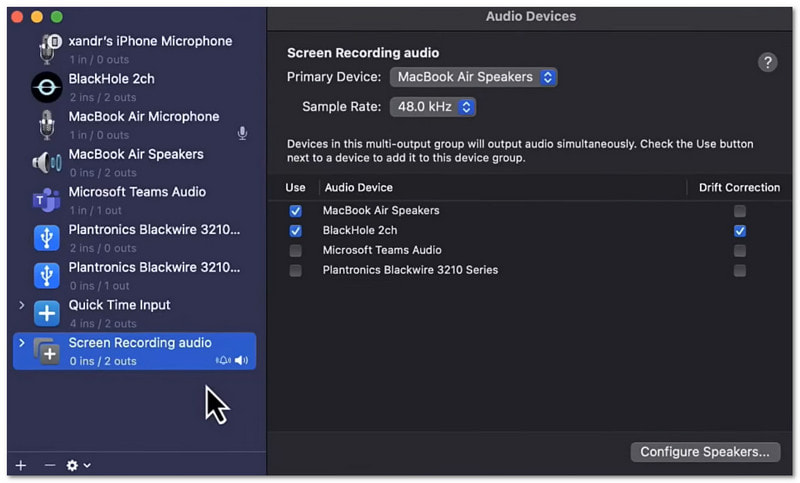
To je normální. QuickTime Player ve výchozím nastavení nedokáže nahrávat systémový zvuk. Je to kvůli pravidlům operačního systému Mac. K nahrávání systémového zvuku potřebujete další nástroje. Můžete například použít Hudbu na pozadí nebo Loopback.
Část 5. Existuje alternativa QuickTime pro Windows?
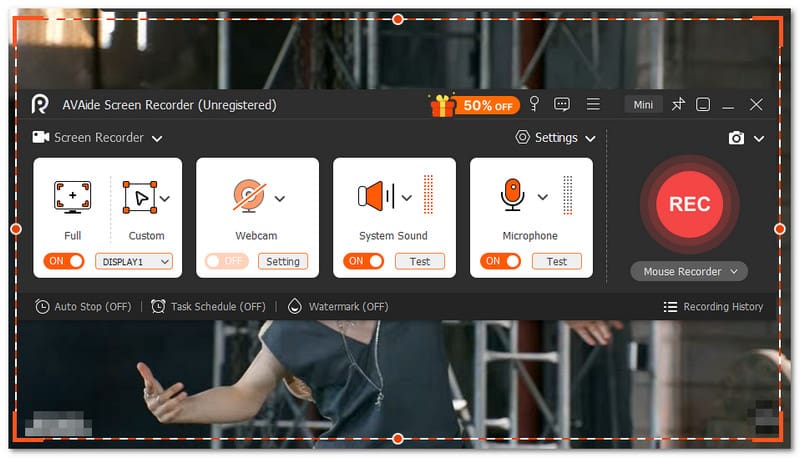
Ano, existuje alternativa QuickTime pro nahrávání obrazovky pro Windows. A to není nikdo jiný než AVAide záznamník obrazovky.

STAŽENÍ ZDARMA Pro Windows 7 nebo novější
 Bezpečné stahování
STAŽENÍ ZDARMA Pro Mac OS X 10.13 nebo novější
Bezpečné stahováníS tímto nástrojem si můžete snadno vybrat nahrávání na celou obrazovku nebo vlastní nahrávání obrazovky. Můžete také zapnout webkameru, systémový zvuk a mikrofon. Nepotřebujete žádné složité nastavení. Stačí jedním kliknutím povolit, co potřebujete. A co je ještě lepší, umožňuje vám nahrávat video z obrazovky ve vysoké kvalitě bez zpoždění. Podporuje rozlišení až 4K. Vše tedy vypadá jasně a plynule.
Takže ať už nahráváte cokoli, například tutoriály, hraní her, schůzky nebo online videa, dokáže to zachytit s dobrou ostrostí a stabilním výkonem.
Klíčové vlastnosti:
- Můžete nastavit čas, kdy má nástroj automaticky spustit a zastavit nahrávání.
- Můžete plynule nahrávat dlouhé hodiny bez zpoždění nebo problémů s výkonem.
- Nahrávku si můžete ihned poslechnout a pokud s ní nebudete spokojeni, nahrát ji znovu.
- Během nahrávání můžete přidat text, obrázky, tabuli a značky zaostření pro zvýraznění klíčových bodů.
- Videa můžete po nahrávání ořezávat, stříhat, komprimovat, slučovat, převádět a upravovat nebo zesilovat zvuk.
Jak se učilo jak použít QuickTime Player k nahrávání obrazovkyJe to prostě jednoduché, že? Můžete začít rychle a dokončit bez problémů.
Jediný problém je, že má omezené funkce. Nemá takový výkon plnohodnotného rekordéru jako... AVAide záznamník obrazovky.
Takže, pokud jste uživatelem Windows nebo dokonce Macu, můžete se spolehnout i na AVAide Screen Recorder. Stáhněte si ho hned teď a užijte si jeho funkce a plynulý zážitek z nahrávání!
O AUTOROVI

Zachyťte nejlepší okamžik s AVAide Screen Recorder. Screencast, přizpůsobení a sdílení během několika sekund.
Nahrávání obrazovky
- Záznam obrazovky ve Windows
- Nahrávání živého přenosu z Instagramu
- Ripněte videa z Tubi
- Převod videí z YouTube do MP3
- Stahujte videa z Fansly
- Stahování videí z JW Playeru
- Stáhněte si videa Bilibili
- Stáhněte si videa z Patreonu
- Stáhněte si videa SpankBang
- Stáhněte si videa z Discordu
- Stáhnout video DoodSream