


Vestavěný záznamník obrazovky v systému Android nemusí mít dostatek funkcí. Existuje však několik praktických tipů, které vám pomohou s vytvářením snadnějších a všestrannějších nahrávek na obrazovce telefonu. Tento příspěvek vám ukáže komplexní informace. Nahrávání obrazovky Androidu konzultace.
Pokud dáváte přednost pokročilému nahrávání obrazovky pro hraní her, tutoriály nebo profesionální ukázky, můžeme vám také pomoci obejít zbytečné funkce a přinést vám nejlepší metody a aplikace pro nahrávání obrazovky Androidu, které jsou dnes k dispozici, a to včetně podrobných tutoriálů, které vám pomohou dosáhnout ostrých výsledků ve vysokém rozlišení.
- Část 1: Jak používat vestavěný záznamník obrazovky systému Android
- Část 2: Některé nástroje pro nahrávání Androidu specifické pro danou značku
- Část 3: 4 všestrannější způsoby nahrávání obrazovky v systému Android
- Bonus: Nahrávání obrazovky na počítači a mobilním telefonu v nejlepší kvalitě
- Část 4: Nejčastější dotazy k nahrávání obrazovky v systému Android
Část 1: Jak používat vestavěný záznamník obrazovky systému Android
Většina zařízení s Androidem 11 nebo novějším je vybavena nativní aplikací pro nahrávání obrazovky, která se nachází v panelu Rychlé nastavení. Můžete ji jednoduše použít k nahrávání obrazovky telefonu.
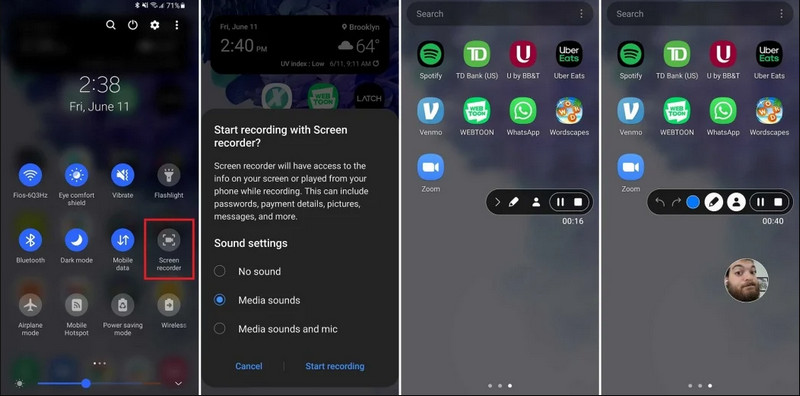
Krok 1Přístup k rychlému nastavení
Dvojitým přejetím prstem dolů od horního okraje obrazovky rozbalíte celou nabídku Rychlé nastavení.
Krok 2Vyberte Záznamník obrazovky
Hledat Záznam obrazovkyPokud to nevidíte, klepněte na Upravit tlačítko (s ikonou tužky) a přetáhněte dlaždici Záznam obrazovky do aktivní mřížky.
Krok 3Konfigurace nastavení nahrávání
Když najdete Androida Screen Recorder Nástroj nabízí několik možností nahrávání. Výběr správné možnosti může zefektivnit nahrávání obrazovky vašeho Androidu.
- Žádný zvuk: Nahrávejte pouze obrazovku telefonu bez systémového zvuku nebo externího zvuku.
- Zvuky médií: Nahrajte obrazovku se všemi systémovými zvuky, včetně zvuků ze všech aplikací v telefonu.
- Zvuky médií a mikrofon: Nahrávejte systémové zvuky i externí zvuky (vestavěný mikrofon telefonu nebo mikrofon ze sluchátek).
Krok 4Spuštění a zastavení nahrávání obrazovky
Vyberte si a klepněte na Začít s překódováním tlačítko. Ve stavovém řádku se zobrazí odpočet. Chcete-li zastavit nahrávání obrazovky systému Android, klepněte na Stop tlačítko (pokud je zobrazen stavový řádek nahrávání) nebo přejetím prstem dolů po panelu oznámení a klepnutím na červené tlačítko Stop knoflík.
Část 2: Některé nástroje pro nahrávání Androidu specifické pro danou značku
Mnoho výrobců telefonů s Androidem nabízí proprietární nahrávače obrazovky s pokročilými funkcemi, jako jsou překryvy selfie kamery. Podívejte se na speciální funkce nahrávání některých populárních značek Androidu:
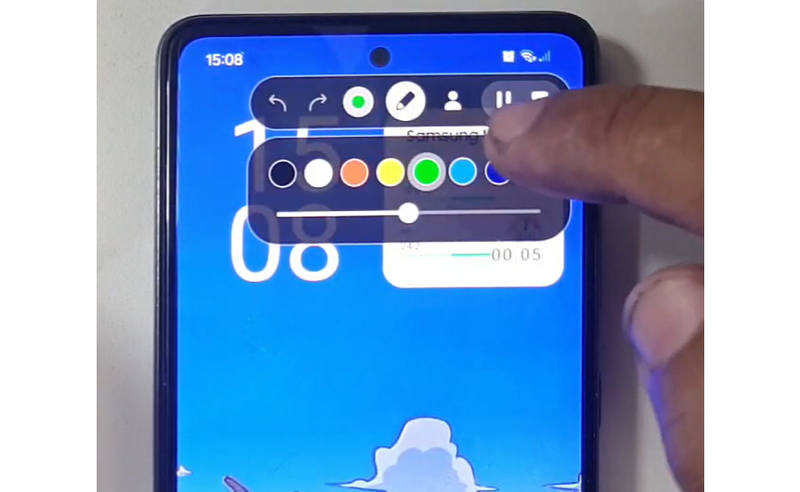
Samsung (jedno uživatelské rozhraní): Zahrnuje nahrávání obrazovky s panelem nástrojů, který umožňuje kreslit na obrazovku v reálném čase.
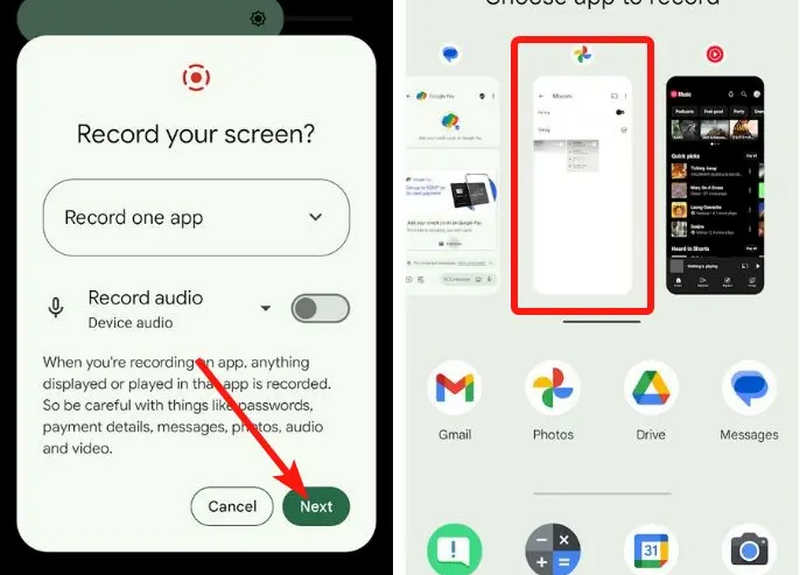
Google Pixel: Můžete si vybrat konkrétní aplikaci (např. bankovní aplikaci nebo WhatsApp), kterou chcete nahrávat. Pokud během nahrávání aplikaci ukončíte nebo stáhnete panel oznámení, tyto akce se ve finálním videu neobjeví.
Xiaomi (MIUI/HyperOS): Obsahuje specializovanou aplikaci „Záznam obrazovky“ s rozsáhlým přizpůsobením snímkové frekvence (FPS) a datového toku.
Huawei & Honor (HarmonyOS / MagicOS): Unikátní integrace hardwaru a softwaru, kde můžete spustit nebo zastavit nahrávání pouhým dvojitým klepnutím na obrazovku dvěma klouby prstů.
OPPO, vivo a realme (ColorOS / OriginOS): Po spuštění hry nahrávání obrazovky automaticky optimalizuje zdroje CPU/GPU, aby se zajistilo, že nahrávání klipu v rozlišení 4K/60 FPS nezpůsobí herní zpoždění ani poklesy snímků.
Část 3: 4 všestrannější způsoby nahrávání obrazovky v systému Android
Pokud váš telefon s Androidem nemá uspokojivé funkce pro nahrávání obrazovky, můžete se podívat na čtyři aplikace pro nahrávání obrazovky pro Android. Ty mohou poskytnout některé pohodlné a praktické funkce.
1. AZ Screen Recorder
AZ Screen Recorder je velmi populární aplikace pro nahrávání obrazovky pro Android v Obchodě Play. Dokáže nahrávat video ve vysokém rozlišení na obrazovku vašeho telefonu s Androidem. Aplikace také umožňuje upravit rozlišení, snímkovou frekvenci a bitovou rychlost v závislosti na různých účelech nahrávání.
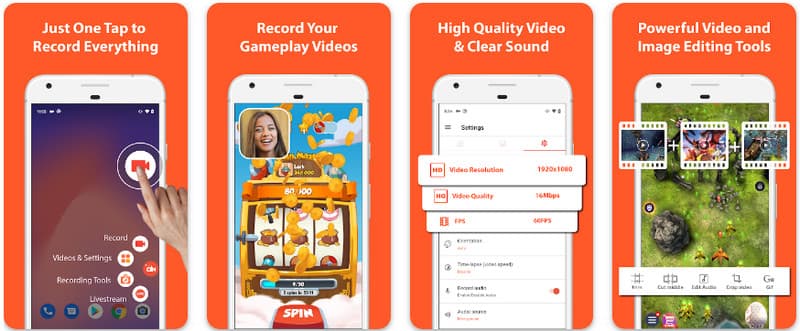
Navíc AZ Screen Recorder umožňuje uživatelům nahrávat zvuk přehrávaný na zařízení pomocí mikrofonu. Díky tomu lze nahrávat i ty nejsložitější a nejkvalitnější nahrávky. Díky jednoduchému uspořádání tlačítek a konzistentnímu výkonu je aplikace oblíbená pro mnohé. Naučte se, jak zaznamenat obrazovku Android pomocí tohoto návodu níže.
Krok 1Po stažení aplikace do vašeho Androidu ji spusťte. Poté klikněte na fotoaparát tlačítko pro přístup k funkci nahrávání obrazovky.
Krok 2Klepněte Začněte hned pro spuštění nahrávání obrazovky na vašem Androidu a na obrazovce se zobrazí odpočet.
Krok 3Chcete-li zastavit nahrávání obrazovky na telefonu Android, klepněte na Záznam znovu tlačítko. S touto aplikací můžete také záznam obrazovky na vašem iPhone se zvuky aktivováno.
2. Mobizen Screen Recorder
Mobizen Screen Recorder je další aplikace pro nahrávání obrazovky v systému Android, která je volně dostupná v Obchodě Play a slibuje snadné a vysoce kvalitní nahrávání. Nabízí možnosti nahrávání ve vysokém rozlišení s nastavitelnými parametry a čisté nahrávání pro odstranění vodoznaků. Mobizen má také interní nahrávání zvuku, které lze pro nahrávání použít, a také funkci FaceCam a GIF, které mohou nahrávku ještě více vylepšit. Využívá také jednoduchý přístup k různým funkcím a ovládacím prvkům, které uživateli pomáhají spustit nahrávání obrazovky v systému Android nebo upravit obsah, aniž by se musel v aplikaci příliš trápit. Zjistěte, jak nahrávat obrazovku v systému Android pomocí této aplikace.
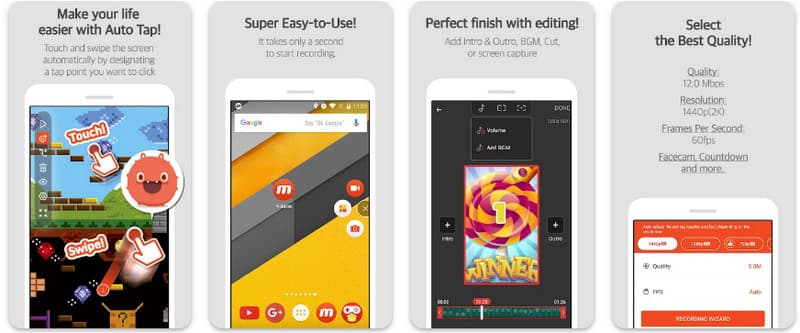
Krok 1Stáhněte si ji nyní na svůj Android a otevřete aplikaci.
Krok 2Před použitím nahrávání obrazovky proveďte požadované nastavení. Na obrazovce se zobrazí plovoucí panel nahrávání. Klepněte na fotoaparát pak tlačítko Začněte hned pro spuštění nahrávání obrazovky.
Krok 3Až budete hotovi, klepněte na M a stop tlačítko pro zastavení nahrávání obrazovky na telefonu Android.
3. Screen Recorder - XRecorder od Inshot
Záznamník obrazovky - XRecorder je výkonný all-in-one nástroj pro Android, který zjednodušuje snímání obrazovky tím, že nabízí nahrávání ve vysokém rozlišení až do 1080p při 60 FPS, bez nutnosti root přístupu nebo vkládání vodoznaků. Jakožto špičková metoda pro nahrávání obrazovky v systému Android 17/16 poskytuje bezproblémový uživatelský zážitek prostřednictvím plovoucího ovládacího okna, které umožňuje spouštět, pozastavovat a kreslit na obrazovku v reálném čase pomocí vestavěného nástroje štětec. Kromě jednoduchého nahrávání videa podporuje interní nahrávání zvuku, překrytí obličejové kamery pro streamery a integrovanou editaci videa, což z něj činí ideální volbu pro každého, kdo potřebuje vytvářet profesionální tutoriály, herní klipy nebo přehledné demonstrace přímo ze svého mobilního zařízení.
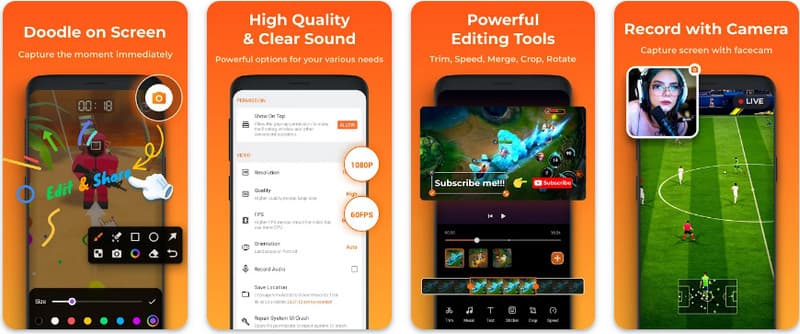
Krok 1Po stažení XRecorderu jej otevřete a klepněte na Povolit plovoucí ikonu.
Krok 2Poté klepněte na Záznam tlačítko pro zahájení nahrávání a Začněte hned potvrdit.
Krok 3Jak vidíte, délka záznamu se zobrazuje jako plovoucí ikona; klepněte na stop tlačítko pro uložení záznamu.
4. Super Screen Recorder
Super Screen Recorder je špičkové řešení pro každého, kdo hledá profesionální způsob nahrávání obrazovky v systému Android s maximální flexibilitou. Tato výkonná aplikace nabízí nahrávání ve vysokém rozlišení a vyniká tím, že nabízí zážitek bez vodoznaků i ve své bezplatné verzi, což zajišťuje, že váš obsah zůstane čistý a profesionální. Obsahuje integrovanou kameru pro zachycení reakcí v reálném čase a všestranný nástroj štětec, který umožňuje kreslit na obrazovku během nahrávání, což je nezbytná funkce pro vytváření poutavých tutoriálů nebo návodů. Ať už jste začátečník nebo pokročilý uživatel, Super Screen Recorder poskytuje robustní možnosti přizpůsobení potřebné k snadnému zvládnutí nahrávání obrazovky v systému Android.
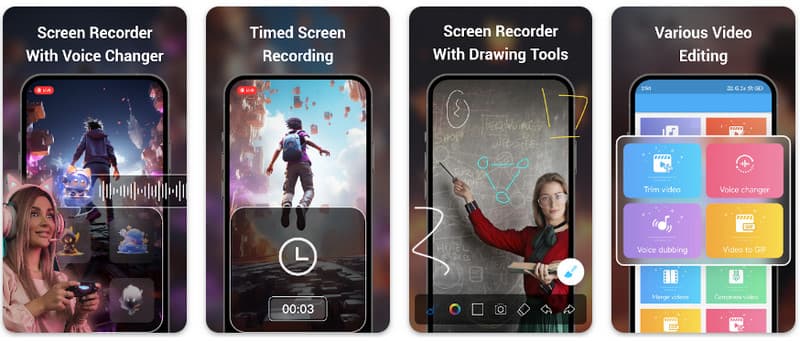
Krok 1Otevřete Super Screen Recorder na svém Androidu a poté aktivujte plovoucí funkci aplikace, abyste ji mohli používat.
Krok 2Na obrazovce klepněte na fotoaparát potvrďte nastavení a klepněte na Začněte hned. Poté se před začátkem nahrávání zobrazí odpočítávání tří sekund.
Krok 3Klepněte na náměstí ukončete nahrávání a uložte jej do zařízení Android.
Bonus: Nahrávání obrazovky na počítači a mobilním telefonu v nejlepší kvalitě
Věříte, že můžete nahrát obrazovku svého telefonu s Androidem na počítači? AVAide záznamník obrazovky je primárně určen pro nahrávání obrazovky na Windows a Mac. Může však také nahrávat celou obrazovku vašeho telefonu s Androidem. To je obzvláště užitečné, když potřebujete vytvořit tutoriál k určitým operacím na Androidu a poté video přímo upravit na Macu nebo Windows.
Pro nahrávání obrazovky ve Windows a Macu podporuje AVAide Screen Recorder kodeky AV1 a HEVC, které dokáží výrazně komprimovat výsledný záznam a zároveň zachovat nejlepší kvalitu videa. Plná hardwarová akcelerace vám umožní nahrávat dlouhá videa s velmi nízkým využitím CPU. Ještě zajímavější je, že má vylepšený mikrofon, který zvyšuje čistotu obrazu potlačením zvuků na pozadí a ozvěny. Software vytváří vynikající nahrávky s jednoduchou navigací a funkcemi úprav, jako je ořezávání a anotace. I když se jedná o drahý software, je velmi doporučován, protože jej lze použít pro osobní i firemní účely.
- Nahrávejte video ze svého zařízení Android nebo iOS v nejlepší kvalitě.
- Snadno vytvářejte výukové nahrávky s funkcemi kreslení a anotací.
- Podpora výstupních kodeků AV1 a HEVC pro vysokou kompresi výstupního videa.
- Nabízí snadno použitelné funkce pro úpravu videa pro úpravu vašich nahrávek v systému Android.
Krok 1Nyní si můžete stáhnout záznamník obrazovky do vašeho PC zaškrtnutím tlačítka stahování zde. Poté nainstalujte aplikaci podle pokynů na obrazovce a spusťte ji, abyste mohli přejít k dalšímu kroku.

STAŽENÍ ZDARMA Pro Windows 7 nebo novější
 Bezpečné stahování
STAŽENÍ ZDARMA Pro Mac OS X 10.13 nebo novější
Bezpečné stahováníKrok 2Nyní, když již běží do vašeho systému, umístěte nahrávací rámeček do oblasti, kde chcete začít nahrávat. Zde můžete zaznamenat celou obrazovku výběrem možnosti Celá obrazovka namísto možnosti Region.

Krok 3Dále lze v případě potřeby nastavit nahrávání systému a mikrofonu. Pokud chcete do záznamu přidat svou tvář, aktivujte zde možnost Webcam. Poté klikněte REC pro spuštění odpočítávání a zahájení nahrávání.

Krok 4Po dokončení nahrávání klikněte na stop tlačítko, což je červený čtverec. V dalším okně, které se objeví, můžete upravit nahrávku, kterou jste pořídili dříve, pomocí zde dostupných možností, poté umístěte kurzor na nahrávku a stiskněte stažení tlačítko pro uložení. Tato aplikace dokazuje svou hodnotu nejlepší open-source rekordér k dispozici.

Část 4: Nejčastější dotazy k nahrávání obrazovky v systému Android
Kde v nastavení najdu záznam obrazovky?
Pro přístup k vestavěné funkci nahrávání obrazovky v systému Android Bez aplikací třetích stran otevřete dvakrát přejetím prstem dolů od horní části obrazovky Rychlé nastavení panelu a hledejte Záznam obrazovky (nebo ikonu „Nahrávání obrazovky“). Pokud není viditelná, klepněte na Upravit (tužka) a přetáhněte přepínač nahrávání obrazovky do aktivních dlaždic. Po přidání stačí klepnout na ikonu, vybrat zvukové předvolby, například nahrávání interních systémových zvuků nebo mikrofonu, a stisknutím tlačítka Start spustit nahrávání obrazovky přímo z nastavení systému.
Proč nemohu najít nahrávání obrazovky na svém Androidu?
Absence nativní možnosti nahrávání obrazovky v systému Android je obvykle způsobena tím, že vaše zařízení používá starší operační systém, protože tato vestavěná funkce byla standardizována pouze s... Android 11Pokud máte aktuální software, přepínač může být jednoduše skrytý. Rychlé nastavení nabídku; obvykle ji zobrazíte klepnutím na Upravit tlačítko na panelu oznámení a přetažením dlaždice „Záznam obrazovky“ do aktivního zobrazení. Některá základní zařízení „Go Edition“ nebo skiny od konkrétních výrobců mohou tuto funkci deaktivovat, aby se šetřily systémové prostředky. V takovém případě je nejúčinnějším řešením použití aplikace třetí strany, jako je XRecorder nebo Super Screen Recorder.
Proč zmizelo tlačítko pro nahrávání obrazovky?
Tlačítko pro nahrávání obrazovky obvykle zmizí, protože bylo omylem přesunuto mimo aktivní oblast Rychlého nastavení; často ho můžete obnovit klepnutím na Upravit (ikona tužky) na panelu oznámení a přetažením dlaždice zpět. Může být také skrytá kvůli režimu úspory energie, omezena pracovním profilem nebo jednoduše vyžaduje restart systému k obnovení uživatelského rozhraní po aktualizaci softwaru.
Pomocí zde uvedeného výukového programu jste se to naučili jak nahrávat obrazovku na Android Samsung. Tento tutoriál vám bude velmi prospěšný, pokud jde o úkol nahrávání obrazovky, zejména pokud jste uživatelem systému Android. Sdílejte tyto informace se svým přítelem uživatele systému Android, aby si mohl udělat představu, jak to udělat.
O AUTOROVI

Zaznamenávejte obrazovku, zvuk, webovou kameru, hraní her, online schůzky a také obrazovku iPhone/Android na vašem počítači.
Nahrávání obrazovky
- Záznam obrazovky ve Windows
- Nahrávání živého přenosu z Instagramu
- Ripněte videa z Tubi
- Převod videí z YouTube do MP3
- Stahujte videa z Fansly
- Stahování videí z JW Playeru
- Stáhněte si videa Bilibili
- Stáhněte si videa z Patreonu
- Stáhněte si videa SpankBang
- Stáhněte si videa z Discordu
- Stáhnout video DoodSream


