Být daleko od svých blízkých znamená, že je telefonický rozhovor s nimi důležitý. Považujete to za smysluplné spojení i přes vzdálenost a někdy si chcete uchovat nějaké fotky v telefonu nebo je sdílet na sociálních sítích během videohovoru. Problém ale spočívá v tom, že FaceTime může upozornit druhou stranu hovoru, a vy to nechcete pokaždé. Dobré je, že si můžete vzít Instagram, WhatsApp nebo… Snímky obrazovky FaceTime ze Snapchatu mnoha způsoby a tento článek pojednává o metodách, které můžete použít na různých zařízeních. Pojďme se na to podívat tím, že začneme s několika fakty o pořizování snímků obrazovky na FaceTime.
Část 1. Upozorňuje FaceTime na snímky obrazovky?
Upozorňuje FaceTime na snímky obrazovky? Odpověď zní ne. Snímek obrazovky můžete pořídit pomocí vestavěné funkce ve vašem zařízení a druhá osoba ve videohovoru o něm neobdrží žádné oznámení. Použití možnosti Live Photos však vše změní. Při jejím použití budou upozorněni všichni účastníci FaceTime. Důvodem je, že Apple poskytuje oficiální přístup, aby si uživatelé byli vědomi toho, že někdo z účastníků hovoru poruší soukromí konverzace. Takže s odpovědí na otázku „Pokud pořídíte snímek obrazovky ve FaceTime, bude o tom druhá osoba vědět?“ se pojďme podívat na metody, které lze použít pro pořízení snímku obrazovky ve FaceTime.
Část 2. Jak pořídit snímek obrazovky FaceTime na iPhone/iPad
Většinou používáme mobilní telefony pro videohovory a je to nejjednodušší způsob, jak pořizovat snímky obrazovky a nosit je s sebou všude, kam jdeme. Proto je správné vědět, jak povolit snímky obrazovky ve FaceTime na iPhonu a iPadu, zejména pokud chcete pořídit běžný snímek obrazovky nebo Live Photos. Zde můžete postupovat podle následujících kroků pro pořízení snímků obrazovky:
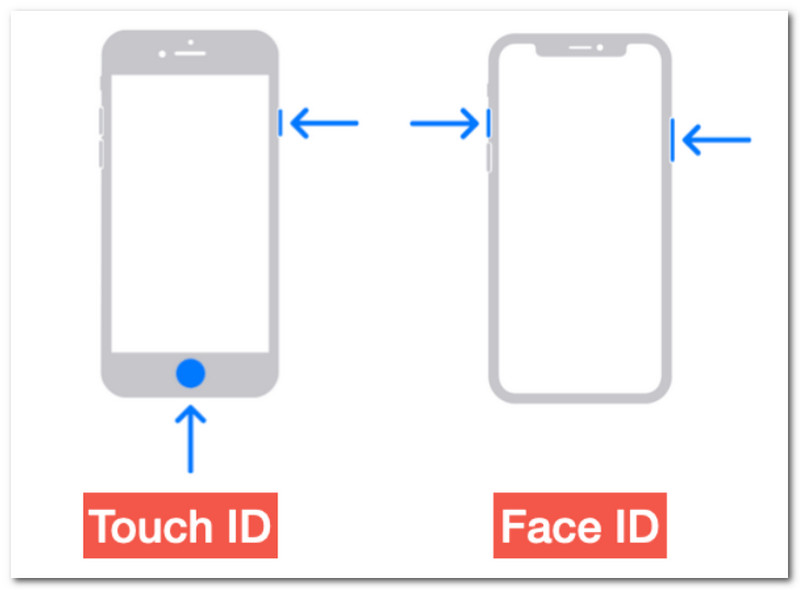
Krok 1Otevřete hovor FaceTime. Pokud má váš telefon nebo tablet Dotykové ID, stiskněte jej současně s Napájení tlačítko pro pořízení snímku obrazovky z FaceTime na iPhonu. Pokud má zařízení Face ID, stiskněte Napájení a Zvýšení hlasitosti tlačítka.
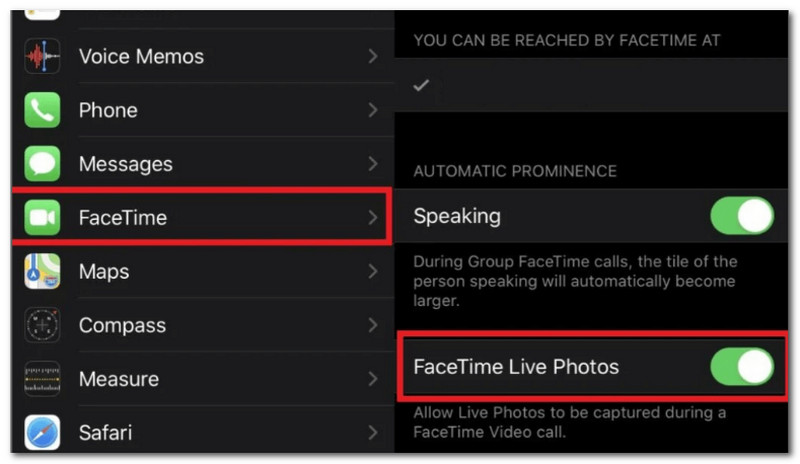
Krok 2Pro živé fotografie přejděte do nastavení iPhonu nebo iPadu a přejděte na AplikaceJděte na FaceTime nabídku a přepněte na Živé fotky FaceTime.
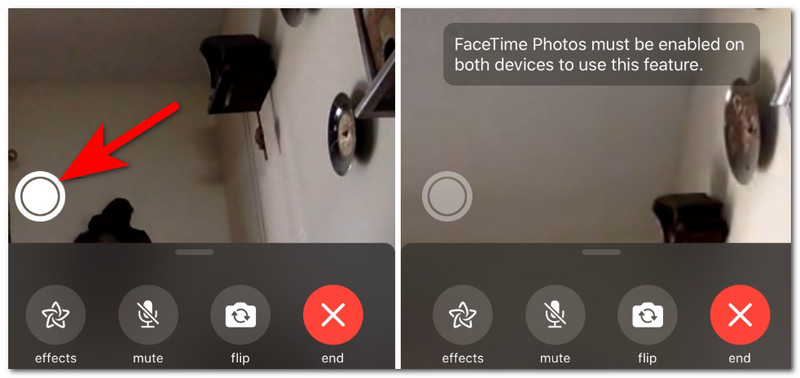
Krok 3Během hovoru FaceTime klepněte na Bílý kruh ikonu v rohu obrazovky a pořiďte snímek obrazovky FaceTime pro iPhone nebo iPad.
Krok 4Kam se ukládají snímky obrazovky z FaceTime? Najdete je v aplikaci Fotky a také v pořízených Live Photos.
Část 3. Jak pořídit snímek obrazovky FaceTime na Macu
Možná vás zajímá, jak pořídit snímek obrazovky FaceTime na počítači Mac. V tomto případě tato část ukazuje vestavěný způsob a alternativní řešení pro pořizování snímků obrazovky během videohovoru.
1. Shift + Command + 5/4/3
Výchozí metoda snímání obrazovky na Macu je jednou z nejjednodušších a nejpraktičtějších funkcí vašeho zařízení. Může to znít jednoduše, ale je užitečná i pro pořizování snímků obrazovky z aplikace WhatsApp FaceTime. Je to také dobrá příležitost zjistit, jaké klávesové zkratky používat v závislosti na tom, zda chcete pořídit snímek celé obrazovky, její části nebo vybraných oblastí.
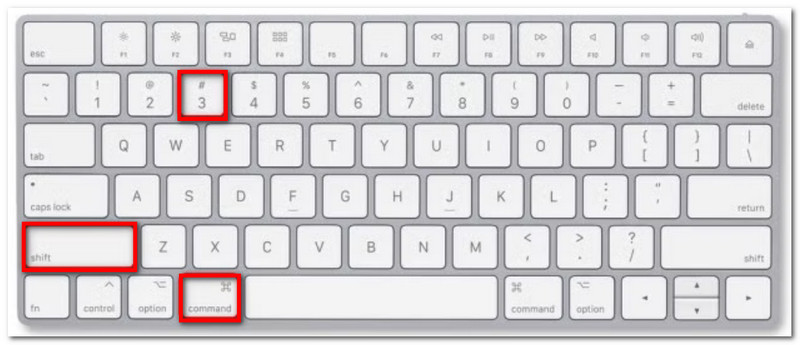
Krok 1Chcete-li pořídit snímek obrazovky se zvukem FaceTime v režimu celé obrazovky, současně stiskněte Shift + Command + 3V rohu se zobrazí náhledová miniatura, na kterou můžete kliknout, pokud chcete obrázek upravit.
Krok 2Pokud chcete pro snímek obrazovky pozastavit FaceTime zachytit pouze okno, stiskněte Shift + Command + 4 + mezerníkKurzor se zobrazí jako ikona fotoaparátu, na kterou můžete kliknout v aktivním okně nebo nabídce.
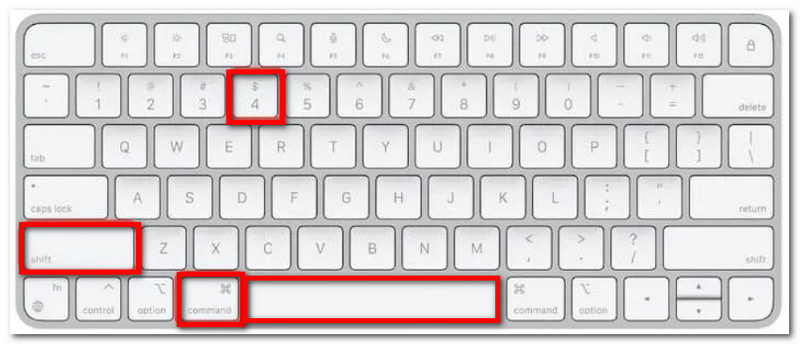
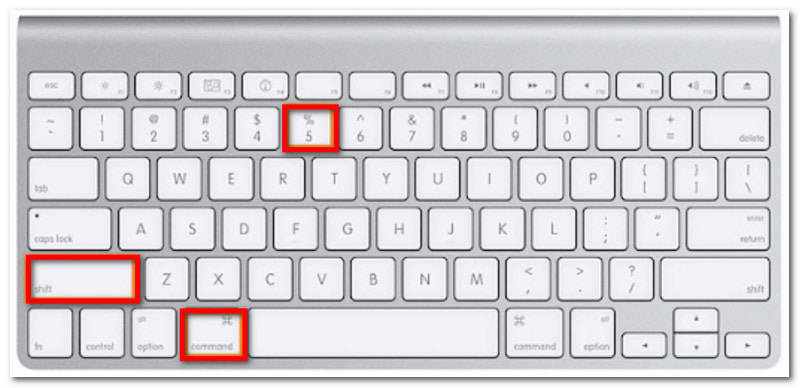
Krok 3Nakonec, pokud si nemůžete vybrat, kterou možnost použít, stiskněte Shift + Command + 5 zobrazte tlačítko snímku obrazovky FaceTime na Macu. Můžete použít možnost výběru části obrazovky nebo použít vestavěný záznamník obrazovky.
2. Nahrávač obrazovky AVAide
Ať už chcete normální snímky obrazovky nebo falešné screenshoty hovorů FaceTime, je to snadno dosažitelné s AVAide záznamník obrazovkyJe navržen jako multifunkční řešení pro počítačové aktivity, které vám umožňuje pořizovat snímky obrazovky a nahrávat video nebo zvuk. AVAide se zaměřuje na schopnost pořizovat snímky obrazovky a umožňuje zachytit obraz v různých velikostech, ať už se jedná o celou obrazovku, její část nebo volný formát. I když vypadá jako jednoduchý nástroj, překonává očekávání tím, že poskytuje různé výstupní obrazové formáty, jako jsou BMP, JPEG a PNG, s bezztrátovou kvalitou obrazu. Navíc nejenže podporuje nahrávání na vašem Macu, ale má také funkci Záznamník telefonu, která bez námahy nahrává z iPhonu a iPadu. AVAide Záznamník obrazovky překonává nativní funkci snímků obrazovky zařízení a poskytuje nejlepší zážitek a výsledky během několika kliknutí.
Krok 1Chcete-li pořídit požadovaný snímek obrazovky z Instagramu FaceTime, stáhněte si do Macu aplikaci AVAide Screen Recorder. Dokončete její nastavení a poté software spusťte.

STAŽENÍ ZDARMA Pro Windows 7 nebo novější
 Bezpečné stahování
STAŽENÍ ZDARMA Pro Mac OS X 10.13 nebo novější
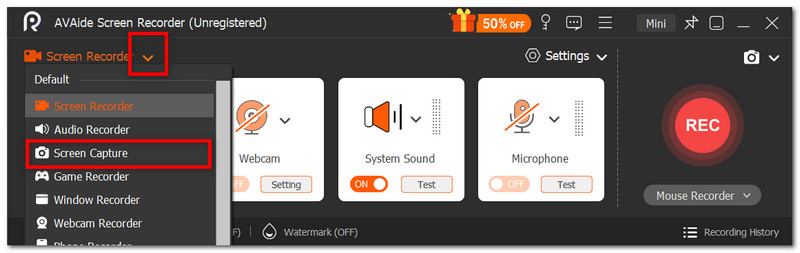
Bezpečné stahováníKrok 2Z rozbalovací nabídky v levém horním rohu vyberte Snímání obrazovky možnost. Kurzor se změní, abyste mohli vybrat oblast, kterou chcete zachytit.
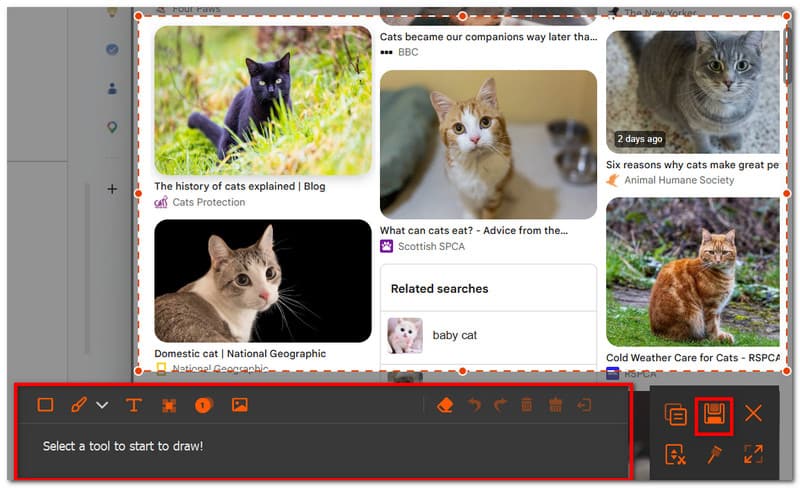
Krok 3Volitelně můžete k kreslení, anotaci a úpravě fotografie použít vestavěné funkce pro úpravu. Klikněte na Uložit tlačítko pro export nebo sdílení s přáteli.
Část 4. Snímky obrazovky FaceTime se neukládají do knihovny fotografií
Pokud se snímky obrazovky z FaceTime neukládají do knihovny fotografií, obvyklý problém spočívá v vypnutém nastavení FaceTime pro Live Photos. U normálních snímků obrazovky pořízených výchozím způsobem se však může jednat o dočasnou softwarovou chybu. Pokud stále nemůžete najít dlouhé snímky obrazovky z hovorů FaceTime, možná budete muset provést nějaké kroky k řešení problémů, například:
- Restartujte zařízení a zkontrolujte, zda tlačítka fungují
- Zkontrolujte úložný prostor v cloudu
- Zkontrolujte snímek obrazovky v aplikaci Fotky, protože by se mohlo jednat o chybu náhledu.
- Zkuste zavěsit FaceTime a zavolat znovu
Část 5. Jak vytvořit falešné snímky obrazovky z hovoru FaceTime
Věděli jste, že si můžete vytvořit falešné screenshoty z hovorů FaceTime? Nepotřebujete k tomu videohovor, ale budete potřebovat nástroj třetí strany. Pokud máte chuť na hloupý žert, pak existuje několik tipů, které byste mohli potřebovat.
Online generátory Internet je plný nástrojů pro tvorbu maket, které obsahují šablony pro FaceTime. Jeden z těchto nástrojů můžete použít zdarma a jednoduše vložit požadované fotografie.
Fotoeditoři Předpokládejme, že chcete s neškodným žertem zajít ještě dál a vytvořit falešný snímek obrazovky skupiny FaceTime, který by vypadal jako pravda; je lepší použít nejlepší editory fotografií, jako je Photoshop. Můžete však najít alternativní možnosti s jednoduchými, ale důvěryhodnými šablonami, například na Canvě.
Videoeditoři Nejenže můžete použít snímky obrazovky pro hloupé žertíky, ale video editory jako CapCut připravily šablonu videa pro falešné hovory FaceTime. Samozřejmě budete muset zahrát, abyste to uvěřili!
Naučili jste se nejlepší metody, jak je využít snímky obrazovky na FaceTime, Ať už používáte telefon, tablet nebo počítač. I když některé aplikace upozorňují druhou osobu na videohovoru, je to možné a můžete pořídit snímek obrazovky pomocí nativní funkce vašeho zařízení. Pokud se ale stále obáváte, že druhá osoba dostane oznámení, můžete si pro zabezpečení vtipných fotografií z FaceTime zvolit aplikaci AVAide Screen Recorder. Zjistěte také jak nahrávat přes FaceTime s nahráváním obrazovky a telefonu! Stáhněte si ji zdarma na Windows nebo Mac a zažijte její úžasnost.
O AUTOROVI

Zaznamenávejte obrazovku, zvuk, webovou kameru, hraní her, online schůzky a také obrazovku iPhone/Android na vašem počítači.
Nahrávání obrazovky
- Záznam obrazovky ve Windows
- Nahrávání živého přenosu z Instagramu
- Ripněte videa z Tubi
- Převod videí z YouTube do MP3
- Stahujte videa z Fansly
- Stahování videí z JW Playeru
- Stáhněte si videa Bilibili
- Stáhněte si videa z Patreonu
- Stáhněte si videa SpankBang
- Stáhněte si videa z Discordu
- Stáhnout video DoodSream