Fotoaparáty Canon zaznamenávají snímky ve formátu CR2, což je formát RAW určený pro zachycení maximálních detailů obrazu. Přestože je vhodný pro úpravy, nelze jej použít v každodenních aplikacích kvůli velké velikosti souboru a omezené kompatibilitě. převod CR2 do JPG, lze jej snadněji sdílet, rychleji nahrávat a je podporován na širší škále zařízení. Je to také proces, který minimalizuje požadavky na úložiště, aniž by vyžadoval vysokou technickou úroveň znalostí. Tato příručka je rozdělena do důvodů, metod a nástrojů založených na běžných postupech manipulace s obrázky, které vám pomohou spravovat vaše soubory přehledným a kontrolovaným způsobem.
Část 1. Canon CR2: Proč je potřeba jej převést
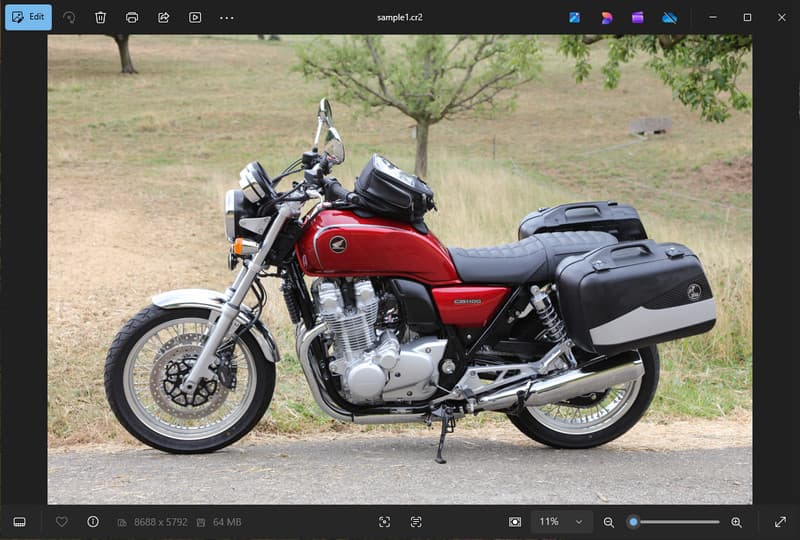
Canon CR2 je formát souboru RAW, který zaznamenává nezpracované informace ze snímače fotoaparátu. Přestože je extrémně detailní, může být nutné převést formát souboru CR2 do formátu JPG, protože mnoho zařízení a aplikací soubory RAW nepodporuje.
1. Omezená kompatibilita
Mnoho standardních nástrojů nepodporuje soubory CR2, což ztěžuje prohlížení obrázků. Převod souboru CR2 do formátu JPG zajistí, že se vaše fotografie budou bezproblémově otevírat na různých zařízeních, v prohlížečích a základních prohlížečích obrázků.
2. Velká velikost souboru
Soubory RAW jsou velmi velké, protože uchovávají více obrazových dat. To ovlivňuje úložiště a výkon. Změna obrázků CR2 na JPG zmenšuje velikost souboru, což usnadňuje efektivní ukládání a přenos obrázků.
3. Snadnější sdílení a nahrávání
Mnoho platforem neakceptuje formáty RAW nebo je jejich zpracování pomalé. Přechod z formátu CR2 na JPG je rychlý a snadný způsob, jak nahrávat obrázky a zajistit, aby se vaše fotografie zobrazovaly ve správném formátu na sociálních sítích, v e-mailu a na dalších webových stránkách.
4. Není potřeba specializovaný software
Soubory CR2 potřebují editační software schopný zpracovat RAW. Při převodu CR2 do JPG eliminujete použití sofistikovaných programů a snadno získáte obrázky pro každodenní použití.
5. Rychlejší pracovní postup
Práce se soubory RAW může zpomalit proces, zejména hromadně. Použití spolehlivého převodníku CR2 do JPG pomáhá urychlit zpracování obrázků a zvýšit celkovou produktivitu.
6. Jednodušší postup pro začátečníky
Formáty RAW se mohou novým uživatelům zdát složité. Naučit se převádět CR2 do JPG zjednodušuje váš pracovní postup a usnadňuje správu obrázků bez technických překážek.
Pochopení těchto bodů vysvětluje, proč je konverze často praktickou volbou. V další části prozkoumáme nejlepší metody pro efektivní převod CR2 do JPG.
Část 2. 5 nejlepších způsobů, jak převést CR2 do JPG
1. Převodník obrázků AVAide (nejlepší bezplatná online možnost)
AVAide Image Converter je rychlé řešení založené na prohlížeči určené pro uživatele, kteří potřebují rychlé výsledky bez instalace softwaru. Je obzvláště užitečné, když potřebujete hromadně převést CR2 do JPG a zároveň zachovat kvalitu obrazu.
Klíčové vlastnosti:
- Převádí do a ze souborů dávkového formátu CR2.
- Zachovává vysokou kvalitu obrazu a přirozené barvy.
- Plně online bez nutnosti instalace
- Přijímá JPG, PNG a další.
- Snadno použitelné rozhraní pro zrychlené zpracování.
Platformy:
- Webový, který funguje na systémech Windows, Mac, Linux a mobilních prohlížečích
Krok 1Navštivte oficiální stránky
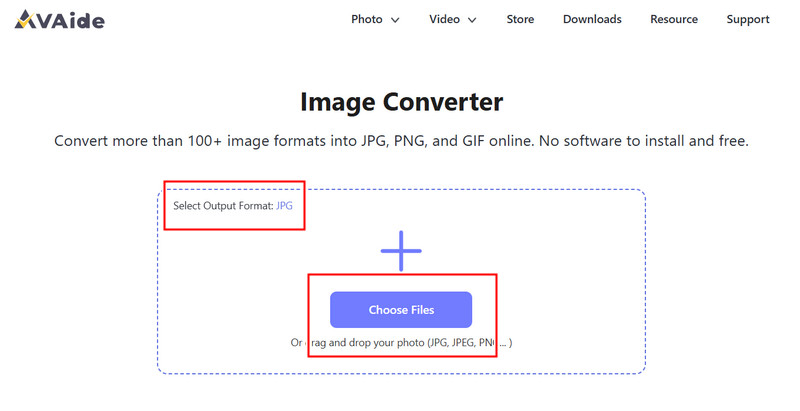
Přejděte do prohlížeče na oficiální stránku AVAide Image Converter. Po načtení můžete okamžitě začít s převodem bez nutnosti registrace nebo instalace čehokoli.
Krok 2Nastavení výstupu a nahrání
Vyberte JPG jako požadovaný výstupní formát. Poté klikněte na tlačítko + nebo přetáhněte soubory CR2 do oblasti pro nahrávání.
Krok 3Začněte s konverzí CR2
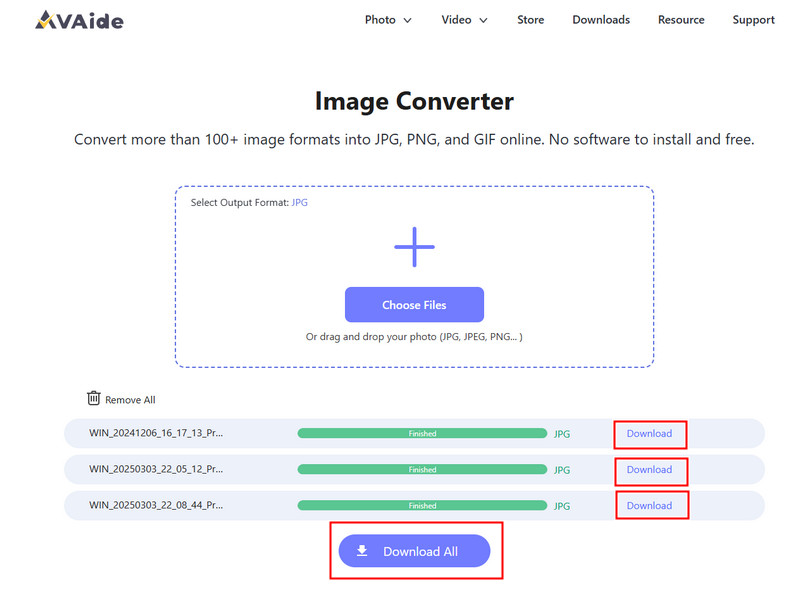
Počkejte, až nástroj dokončí zpracování souborů. Po dokončení klikněte na Stažení pro jeden soubor nebo Stáhnout vše pokud jste převedli více obrázků.
- Klady
- Snadné a rychlé použití
- Není potřeba žádná instalace ani nastavení
- Efektivní podpora dávkového zpracování
- Udržuje konzistentní kvalitu výstupu
- Nevýhody
- Vyžaduje připojení k internetu
- Omezené pokročilé nástroje pro úpravy
2. Adobe Photoshop
Adobe Photoshop je efektivní aplikace, která umožňuje provádět úpravy RAW souborů před exportem. Obvykle se používá, když potřebujete převést CR2 do JPG a mít plnou kontrolu nad úpravami obrázků.
Klíčové vlastnosti:
- Pokročilá editace CR2 v aplikaci Camera Raw
- Vysoce kvalitní možnosti exportu
- Profesionální editační nástroje
Platformy:
- Windows a Mac
Krok 1Spusťte Photoshop a otevřete soubor CR2, který se automaticky načte do Camera Raw.
Krok 2Podle potřeby upravte expozici, vyvážení bílé nebo barvu a poté klikněte na Otevřeno pokračovat.
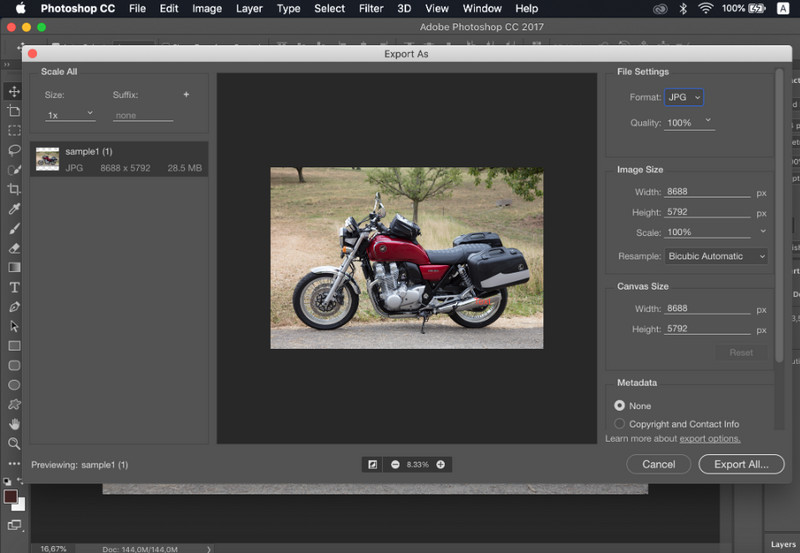
Krok 3Jít do Soubor, vyberte Uložit jako, Vybrat JPG formát, nastavte kvalitu a uložte obrázek.
- Klady
- Vynikající ovládání obrazu a přesnost
- Standardní software pro průmysl
- Nevýhody
- Vyžaduje předplatné
- Strmá křivka učení
3. Lightroom
Lightroom je ideální pro fotografy spravující velké knihovny obrázků, a to i v případě, že chcete odstranění pozadí v LightroomuZjednodušuje dávkové úpravy a export, takže je snadné používat pracovní postup převodu CR2 do JPG pro více obrázků najednou.
Klíčové vlastnosti:
- Dávková úprava a export
- Nedestruktivní editační systém
- Organizovaná správa fotografií
Platformy:
- Windows, Mac a mobilní zařízení
Krok 1Otevřete Lightroom a přidejte soubory CR2 do knihovny.
Krok 2Vyberte obrázky a v případě potřeby je upravte.
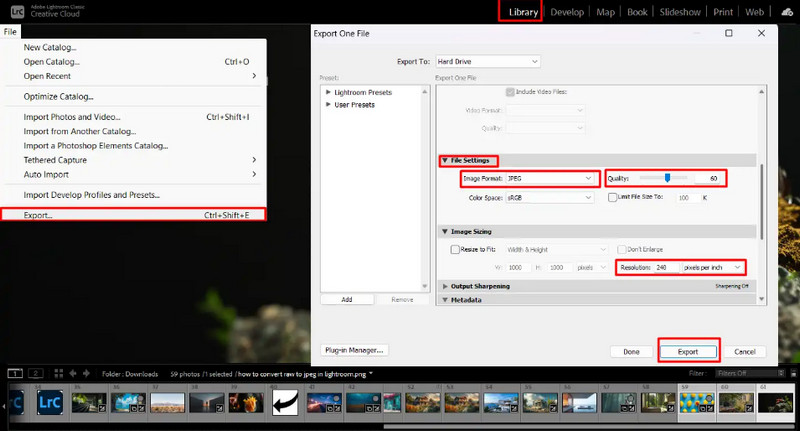
Krok 3Klikněte Vývozní, vyberte JPG formát, nastavit nastavení a vybrat místo pro uložení.
- Klady
- Efektivní pro hromadné zpracování obrazu
- Konzistentní kvalita výstupu
- Nevýhody
- Vyžadováno předplatné
- Vyžaduje učení pro začátečníky
4. GIMP
GIMP editor fotografií je bezplatný editor s otevřeným zdrojovým kódem, který dokáže pomocí pluginů pracovat s RAW obrázky. Je to efektivní volba, pokud se učíte, jak převést CR2 do JPG, aniž byste museli platit za placený software.
Klíčové vlastnosti:
- Bezplatný a open-source software
- Podporuje více obrazových formátů
- Základní funkce pro úpravy a konverze
Platformy:
- Windows, Mac, Linux
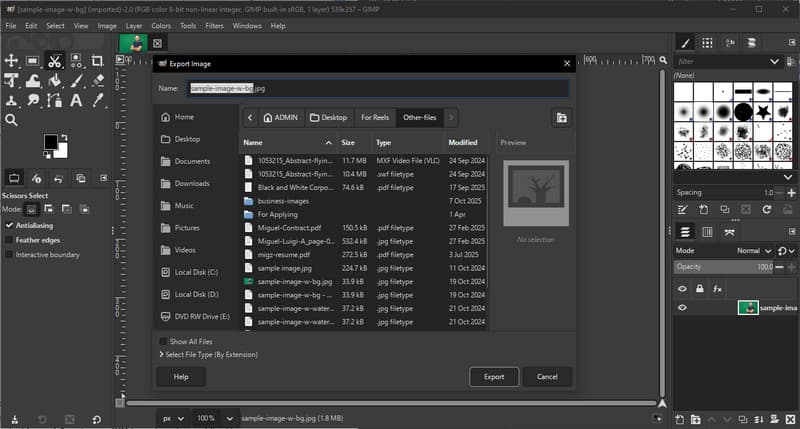
Krok 1Otevřete GIMP a nahrajte soubor CR2 pomocí pluginu RAW.
Krok 2Upravte nastavení obrázku v okně importu a potvrďte.
Krok 3Jít do Soubor, vyberte Exportovat jako, Vybrat JPG formátovat a exportovat soubor.
- Klady
- Zcela zdarma k použití
- Flexibilní s pluginy a rozšířeními
- Nevýhody
- Nastavení může být technické
- Méně propracované rozhraní
5. Převod
Převod je známý webový nástroj, který uživatelům umožňuje rychle převádět soubory bez instalace. Je to praktická volba, když se uživatelé ptají, jak převést CR2 do JPG pomocí jednoduché online platformy.
Klíčové vlastnosti:
- Podporuje více formátů souborů, včetně CR2 a JPG
- Funguje přímo v prohlížeči
- Umožňuje nahrávání souborů ze zařízení, cloudu nebo URL adresy
- Jednoduchý a rychlý proces konverze
Platformy:
- Webové
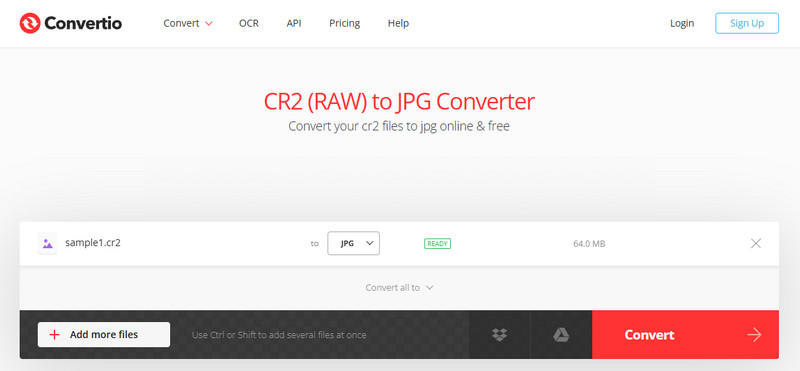
Krok 1Otevřete Convertio ve svém prohlížeči a nahrajte soubor CR2.
Krok 2Vybrat JPG jako výstupní formát.
Krok 3Spusťte konverzi a po dokončení si soubor stáhněte
- Klady
- Snadný přístup a použití
- Není nutná žádná instalace
- Podporuje různé zdroje souborů
- Nevýhody
- Omezení velikosti souborů v bezplatné verzi
- Vyžaduje připojení k internetu
Část 3. Porovnání 5 převodníků CR2 na JPG
| Funkce | AVAide Image Converter | Adobe Photoshop | Lightroom | GIMP | Převod |
| Snadné použití | Velmi snadné | Mírný | Mírný | Mírný | Snadný |
| Dávková konverze | Ano | Omezený | Omezený | Omezený | Omezeno na 5 |
| Kvalita obrazu | Nejvyšší | Vysoký | Vysoký | Vysoký | Vysoký |
| Rychlost | Rychle | Mírný | Rychle | Mírný | Rychle |
| Omezení velikosti souboru | Ne | Ne | Ne | Ne | Ano |
Část 4. Nejčastější dotazy k převodu CR2 do JPG
Co dělat se soubory CR2?
Soubory CR2 jsou nezpracované obrázky, které obsahují nezpracovaná data z fotoaparátu Canon. Jsou užitečné, pokud chcete mít plnou kontrolu nad úpravami, jako je nastavení jasu, barev a ostrosti. Nejsou však snadno použitelné pro každodenní úkoly, jako je sdílení nebo nahrávání.
Jaké aplikace otevírají soubory CR2?
Soubory CR2 lze otevřít pomocí několika aplikací pro úpravu fotografií. Adobe Photoshop a Lightroom jsou nejběžnější volbou, protože plně podporují formáty RAW a poskytují pokročilé nástroje pro úpravy. GIMP dokáže také otevřít soubory CR2 pomocí pluginu.
Jak převést RAW do JPG najednou?
Pro současnou konverzi více souborů RAW potřebujete nástroj, který podporuje dávkovou konverzi. Programy jako Lightroom nebo online nástroje jako AVAide Image Converter umožňují importovat nebo nahrát několik souborů CR2 najednou. Jednoduše vyberete JPG jako výstupní formát a spusťte proces.
Převod souborů CR2 do formátu JPG usnadňuje sdílení, prohlížení a ukládání obrázků. Zatímco CR2 je skvělý pro úpravy, JPG je praktičtější pro každodenní použití. Pokud vás zajímá... Jak změnit typ souboru z CR2 na JPG, můžete použít nástroje jako Photoshop, Lightroom nebo online převodníky, jako například AVAide Image ConverterCíl je jednoduchý: převést velké soubory RAW na menší, použitelné obrázky JPG bez ztráty důležité kvality.
O AUTOROVI


Svou fotografii můžete snadno převést z libovolného obrazového formátu do oblíbeného JPG, PNG nebo GIF bez ztráty kvality.
ZPRACOVAT NYNÍ