Jak nahrát hlasovou zprávu na iPhoneNahrávání hlasové zprávy je rychlý způsob, jak sdílet své myšlenky nebo odeslat personalizovaný zvuk bez psaní. Díky vestavěné funkci hlasových zpráv v iPhonu můžete okamžitě nahrávat, ukládat a sdílet své zvukové klipy jen několika klepnutími. Pokud tedy hledáte komplexní způsob, jak nahrávat a odesílat hlasové zprávy na svém mobilním telefonu, podívejte se na tento tutoriál, který vám pomůže dosáhnout požadovaného výsledku.
Část 1. Jak nahrát a odeslat hlasovou zprávu v iMessage
iMessage není jen jednoduchý komunikační nástroj. Nabízí také funkci hlasových zpráv. Díky této funkci můžete odesílat nebo sdílet své zprávy a myšlenky hlasem. To je ideální funkce, pokud chcete posílat zprávy bez nutnosti psaní textu z klávesnice. Nejlepší na tom je, že odesílání hlasových zpráv je jednoduché, takže je ideální pro všechny uživatele. Pokud tedy chcete začít nahrávat a odesílat zprávy, můžete použít níže uvedené pokyny.
Jak nahrát hlasovou zprávu na iPhone
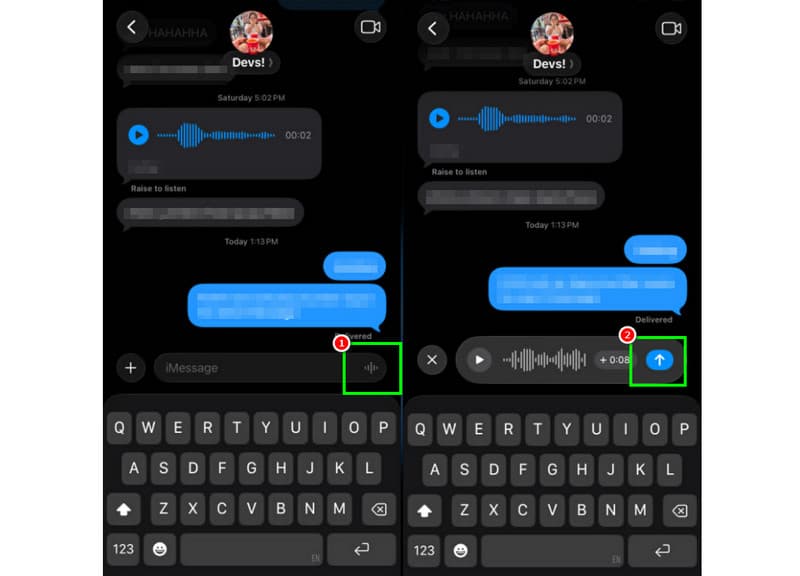
Krok 1Na iPhonu spusťte iMessage aplikace. Poté přejděte k osobě, se kterou chcete komunikovat.
Krok 2Na obrazovce stiskněte a podržte tlačítko Mikrofon možnost. Během podržení můžete začít nahrávat a číst svou zprávu.
Krok 3Chcete-li nahrávání zastavit, uvolněte prst z tlačítka. Poté klepněte na Odeslat šipku tlačítko pro odeslání zprávy.
Poslech příchozích hlasových zpráv
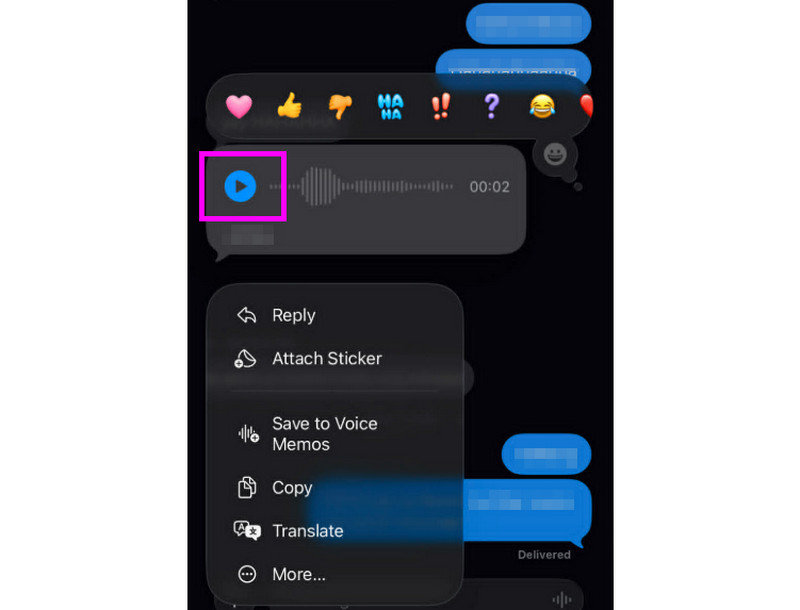
Krok 1Po přijetí hlasové zprávy můžete klepnout na Hrát si knoflík.
Krok 2Hlasitost můžete také upravit bočním tlačítkem na iPhonu, abyste zprávu správně slyšeli.
Krok 3Po dvou minutách hlasová zpráva vyprší. Chcete-li zprávu uchovat, stačí stisknout Držet možnost níže.
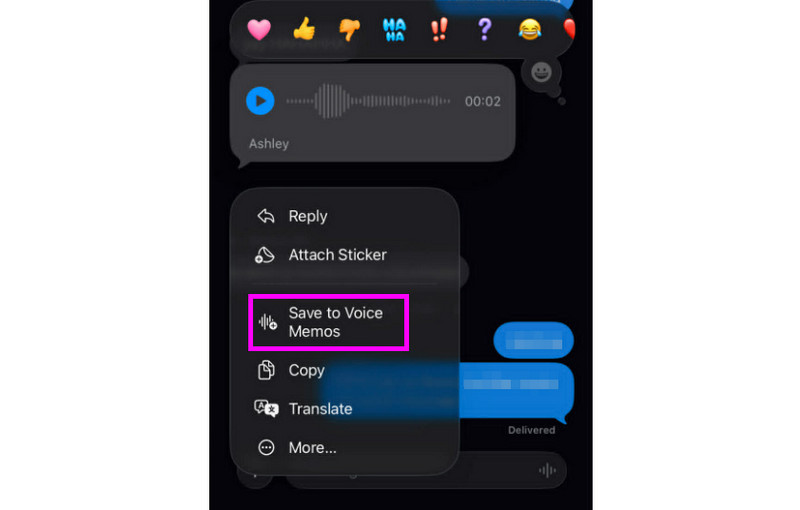
Krok 4Pokud chcete hlasovou zprávu uložit, stačí ji dlouze stisknout a klepnout na Uložit do hlasových poznámek aplikace. S tímto aplikace pro nahrávání hlasu, můžete si zprávu přehrát kdykoli a kdekoli.
Úprava nastavení hlasových zpráv
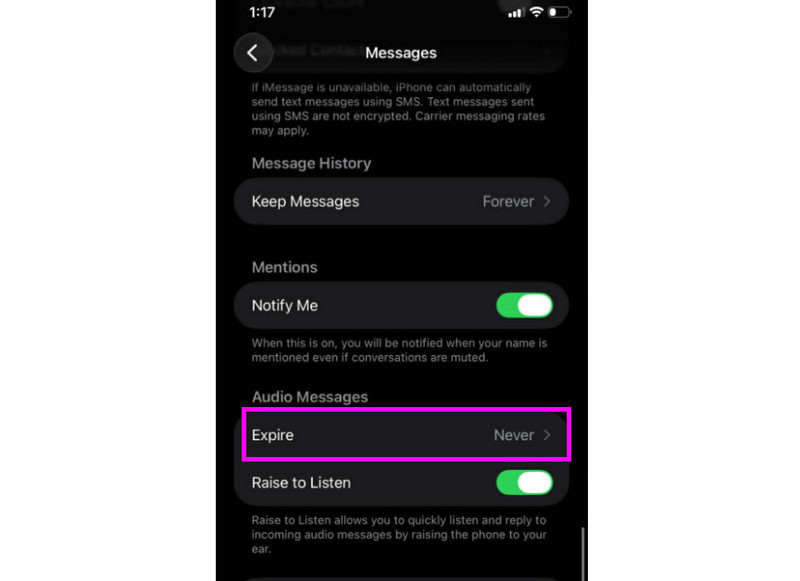
Krok 1Jděte do svého Nastavení aplikace. Poté pokračujte k Zprávy aplikace
Krok 2Přejděte na Zvukové zprávy > Platnost vyprší a klepněte na Nikdy možnost. Tímto způsobem nevyprší platnost hlasových zpráv z vaší iMessage.
Část 2. Metoda pro nahrávání hlasového pozdravu na iPhone
Pokud nejste k dispozici a nahrajete si na iPhone hlasovou zprávu, volající obdrží upravenou zprávu. Vytvoření nové zprávy, úprava nebo odstranění staré zprávy a dokonce i použití dočasné zprávy pro zvláštní události je snadné. Znění hlasové zprávy ostatním lidem můžete v aplikaci Telefon zcela upravit několika dotyky. Podívejte se na metody a naučte se, jak nahrát hlasovou zprávu na iPhone.
Nastavení pozdravu hlasové schránky
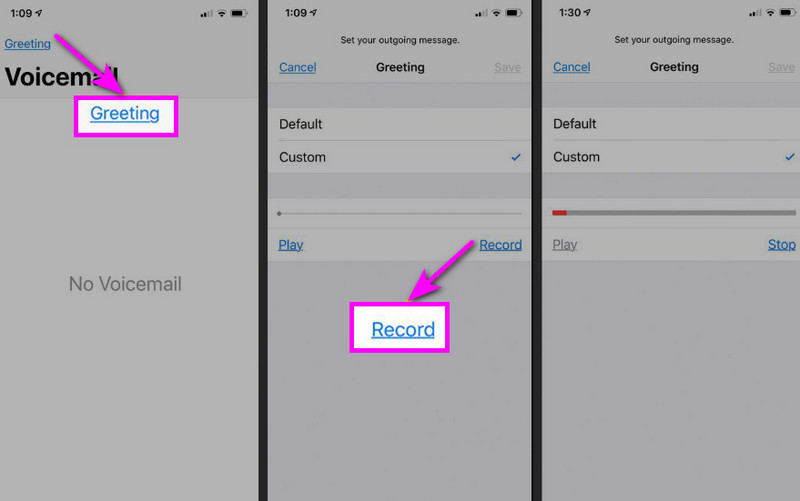
Krok 1Pokračujte k Telefon aplikaci a klepněte na Hlasová schránka volba.
Krok 2Poté stiskněte tlačítko Pozdrav funkce v levém horním rohu obrazovky. Stiskněte Zvyk > Záznam začít nahrávání zvuku na vašem iPhonu jako tvůj pozdrav.
Krok 3Klepněte Stop dokončete a přehrajte si to pro zopakování. Jakmile to uděláte, stiskněte Uložit abyste jej nastavili jako aktivní pozdrav.
Změna nebo smazání pozdravu
Krok 1Můžete se vrátit k Hlasová schránka > Pozdrav sekce.
Krok 2Udeřil Zvyk a nahrajte nový pozdrav, který nahradí ten starý.
Krok 3Pak se můžete vrátit k výchozímu nastavení výběrem Výchozí místo Vlastní.
Tip pro profesionály: Dočasný pozdrav
Pokud nejste k dispozici po krátkou dobu, nahrajte dočasný pozdrav pomocí stejných kroků v části Vlastní. Po návratu se můžete jednoduše vrátit k běžnému pozdravu nebo výchozí možnosti.
Část 3. Řešení problémů – Nelze nahrát hlasovou zprávu
V této sekci naleznete průvodce řešením problémů, který se zabývá některými problémy při nahrávání nebo odesílání hlasové zprávy na iPhonu.
Tlačítko mikrofonu je ve Zprávách šedé
Řešení: Ujistěte se, že je povolen přístup k mikrofonu. Chcete-li to provést, přejděte do Nastavení > Soukromí a zabezpečení > Mikrofon a povolte přístup pro Zprávy.
Hlas se neodesílá
Řešení: Vždy zkontrolujte připojení k internetu. Také se ujistěte, že máte aktivovanou aplikaci iMessage v Nastavení > Zprávy > iMessage.
Nelze nahrát pozdrav hlasové schránky
Řešení: Možnost Pozdrav se zobrazí pouze v případě, že operátor vizuální hlasovou schránku nepodporuje. Pokud ji nepodporujete, můžete stisknutím a podržením tlačítka 1 v aplikaci telefonu přímo vytočit číslo hlasové schránky. Poté můžete začít podle pokynů operátora nahrávat pozdrav.
Příjemci říkají, že vás neslyší
Řešení: Mikrofon můžete otestovat pomocí aplikace Hlasové poznámky. Můžete také sundat jakékoli pouzdro nebo příslušenství, které by mohlo mikrofon blokovat. Další metodou je vyčištění otvoru mikrofonu hadříkem nebo mini kartáčkem.
Stručný přehled: Hlasová zpráva vs. hlasová schránka
Chcete se dozvědět více o hlasových zprávách a hlasové schránce? Pak se můžete podívat na jednoduchou tabulku níže.
| Vlastnosti | Hlasová zpráva (iMessage) | Hlasová schránka (operátor) |
| Jak se to odesílá | • Nahráno v aplikaci Zprávy • Odesláno přes iMessage | • Nahraný pozdrav • Zvuk uložený operátorem |
| Potřebný internet | Ano (Wi-Fi nebo mobilní data) | Ne, funguje přes mobilní síť |
| Úložný prostor | Uloženo ve vlákně iMessage | Uloženo v systému hlasové schránky operátora |
| Řízení | Uživatel může znovu odeslat, smazat nebo uložit | Operátor řídí přístup a úložiště |
Bonus: Nejlepší nástroj pro úpravu hlasových nahrávek
Po uložení hlasové nahrávky nebo hlasové zprávy se někdy objeví situace, kdy ji chcete upravit, abyste dosáhli lepšího zvukového výstupu. Proto je pro úpravu zvuku lepší použít vynikající editační nástroj, jako je AVAide Video konvertorTento program nabízí funkci úpravy zvuku, která vám umožňuje upravovat zvukové soubory. Zvukovou stopu můžete oříznout, rozdělit a sloučit. Dokonce si můžete upravit hlasitost a zpoždění podle svých preferencí. Nejlepší na tom je, že můžete zvuk uložit do libovolného formátu pomocí funkce převodu programu. Hlasové nahrávky můžete uložit ve formátu MP3, WAV, M4A, FLAC a dalších, v nejlepší kvalitě až do 320 kb/s. Pokud tedy hledáte ideální software, který vám pomůže s úpravou hlasových nahrávek, AVAide Video Converter je to pravé.

STAŽENÍ ZDARMA Pro Windows 7 nebo novější
 Bezpečné stahování
STAŽENÍ ZDARMA Pro Mac OS X 10.13 nebo novější
Bezpečné stahováníDalší funkce:
- Může nabídnout plynulý proces úpravy zvuku.
- Program dokáže sloučit více zvukových souborů do jednoho souboru.
- Dokáže převádět audio a video formáty až 120× rychlejší rychlostí.
- Program může také nabídnout vestavěné editory videa, jako je slučování, rozdělování, ořezávání, ořezávání atd.
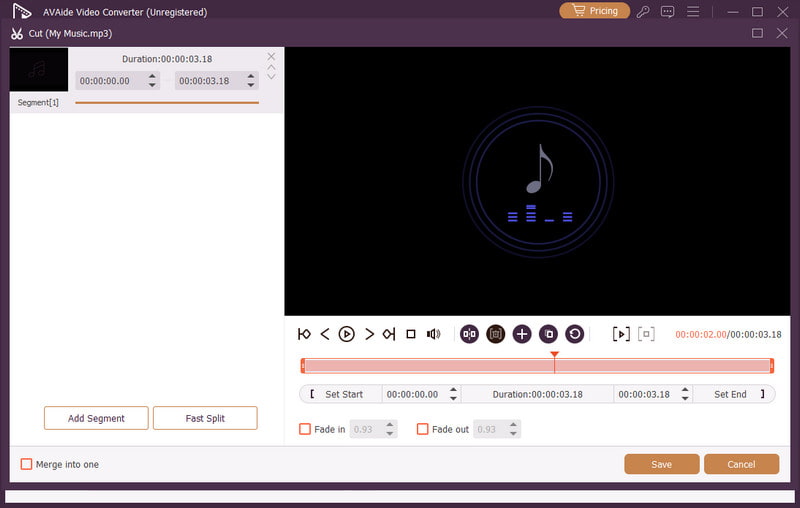
Odeslání hlasové zprávy na iPhonu je ideální způsob, pokud chcete odeslat zprávu rychleji. Díky tomuto tutoriálu jste se naučili, jak efektivně nahrávat a odesílat hlasové zprávy. Dokonce získáte dostatek informací o tom, jak hlasové zprávy uložit, abyste si je mohli bez omezení přehrát. Navíc, pokud chcete své hlasové nahrávky upravovat, bylo by lepší mít přístup k AVAide Video konvertorDíky funkci úpravy zvuku v tomto programu můžete vylepšit svůj zvuk, což vede k lepšímu a uspokojivějšímu přehrávání zvuku.
O AUTOROVI

Zachyťte aktivity na obrazovce pomocí zvuku, online schůzek, herních videí, hudby, webové kamery atd.