يُوفر لك جهاز الكمبيوتر الخاص بك جميع الأساسيات اللازمة للأنشطة عبر الإنترنت، سواءً كان ذلك للتحرير أو المشاهدة أو ممارسة الألعاب. ومن الميزات التي يحتاجها أي شخص هي خاصية التقاط الشاشة التي تُساعد في التقاط صورة للشاشة بأكملها أو لمنطقة مُحددة منها. ونظرًا لتنوع أجهزة الكمبيوتر من مختلف العلامات التجارية، فإن هذه المقالة مُخصصة لإرشادك في كيفية التقاط لقطة شاشة على جهاز Acer يعمل بنظام Windowsللبدء، ستتعرف على الطرق المختلفة للوصول إلى ميزات التقاط الشاشة المدمجة في أجهزة الكمبيوتر المحمولة والمكتبية، وأجهزة Chromebook، والأجهزة اللوحية. بالإضافة إلى ذلك، اطلع على الحلول في حال واجهت مشكلةً وكان جهاز Acer الخاص بك لا يحتوي على زر PrintScreen لالتقاط الشاشة.
الجزء الأول: كيفية التقاط لقطة شاشة على جهاز كمبيوتر محمول أو مكتبي يعمل بنظام ويندوز من شركة أيسر
فيما يلي كيفية التقاط لقطة شاشة على جهاز كمبيوتر محمول من نوع Acer باستخدام اختصارات لوحة المفاتيح والتطبيقات القياسية. ستجد خطوات واضحة لتجربتها بنفسك. هيا بنا نبدأ.
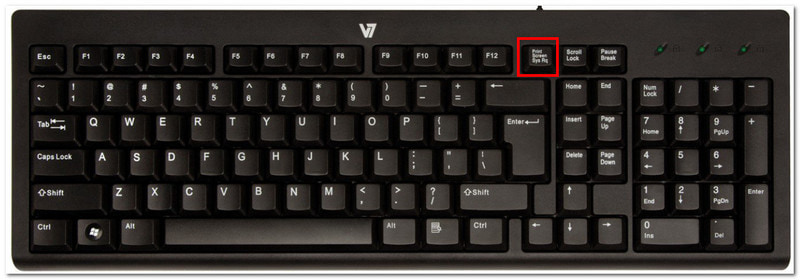
1. زر PrintScreen الكلاسيكي (PrtSc)
الخطوة 1حدد موقع واضغط على PrtSc اضغط على الزر الموجود في الجزء العلوي الأيمن من لوحة المفاتيح. ستخفت شاشة جهازك، وستظهر قائمة صغيرة في أعلى المنتصف.
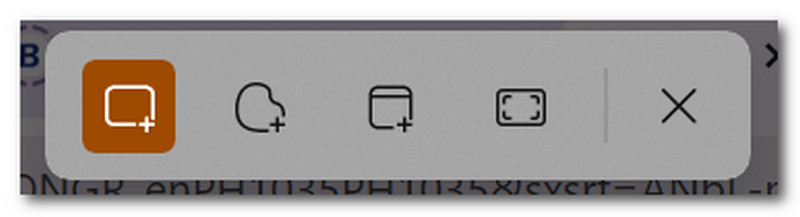
الخطوة 2اختر بين الأوضاع: مستطيل, حر الشكل, نافذة او شباك، و ملء الشاشةبمجرد الانتهاء، يتم نسخ لقطة الشاشة إلى الحافظة تلقائيًا، والتي يمكن لصقها في مستند فارغ، أو دردشة الرسائل، وغيرها.
2. أداة القص والقص والرسم (الأفضل للمناطق المخصصة)
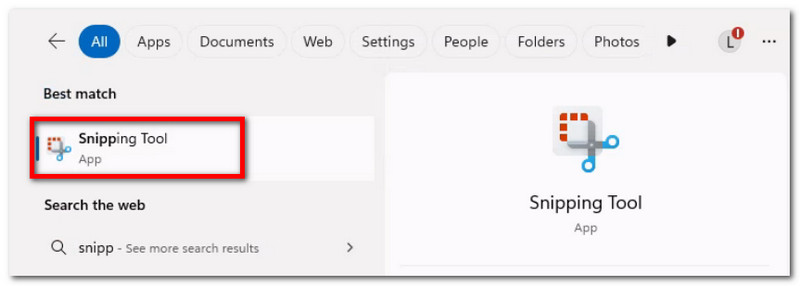
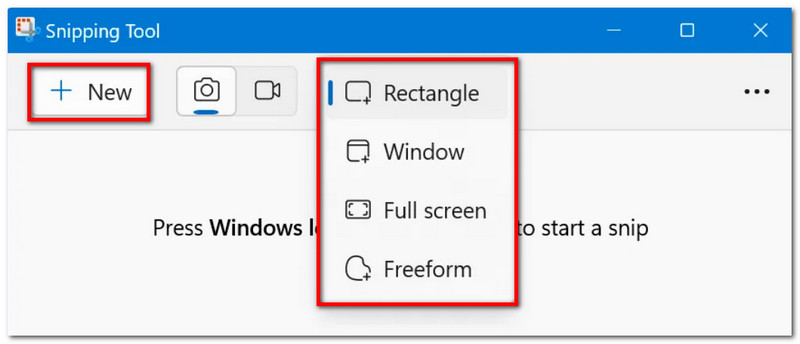
الخطوة 1ابحث عن التطبيق في شريط البحث. لاحظ أنه يمكن تسميته باسم أداة القص أو قص ورسم، وذلك بحسب إصدار نظام التشغيل ويندوز الخاص بجهازك.
الخطوة 2اختر الوضع من القائمة المنسدلة، ثم انقر فوق جديد انقر على الزر لالتقاط لقطة شاشة. استخدم أدوات الرسم للتعديل، ثم انقر. يحفظ لحفظ لقطة الشاشة.
3. شريط الألعاب
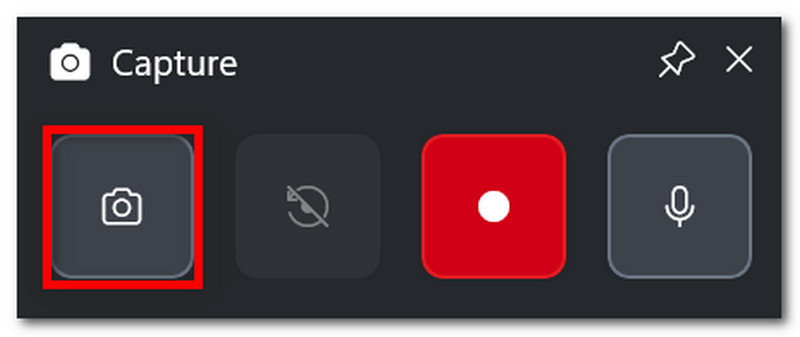
الخطوة 1يضعط ويندوز + جي على لوحة المفاتيح. عندما تخفت الشاشة، ستظهر بعض أشرطة المهام.
الخطوة 2انقر على آلة تصوير يمكنك أيضًا الضغط على أيقونة التقاط لقطات الشاشة. ويندوز + Alt + PrtSc للوصول إلى هذه الميزة أثناء اللعب.
4. مسجل الشاشة AVAide
قد تعتقد أن جهازك لا يستطيع فعل الكثير باستخدام الطرق الافتراضية لالتقاط لقطات الشاشة. لكن هل تعلم أن AVAide مسجل الشاشة هل يوجد ما هو أفضل من برنامج AVAide لالتقاط لقطات الشاشة؟ بفضل تصميمه الأنيق وميزاته المتعددة، أصبح التقاط الشاشة سهلاً وعالي الجودة. يمكنك من خلاله التقاط لقطة شاشة للشاشة كاملةً، أو لنافذة مفتوحة، أو حتى لمنطقة محددة، وحفظها بصيغ شائعة مثل BMP وJPEG وPNG وGIF وTIFF. كما أن خيارات التحرير المدمجة مفيدة للغاية، حيث يمكنك الرسم بحرية، وإضافة أرقام أو نصوص، وإخفاء التفاصيل المهمة في الصورة قبل حفظها. وأخيرًا، لا يقتصر استخدام AVAide على التقاط الشاشة كأداة فردية، بل يمكنك استخدامه حتى عند التسجيل على جهاز الكمبيوتر، أو باستخدام كاميرا الويب، أو على أي شبكة إنترنت. ارتقِ بتجربة التقاط الشاشة لديك مع هذا البديل الرائع على نظامي التشغيل Windows أو Mac.
الخطوة 1انقر على تحميل اضغط على الزر وقم بتثبيت برنامج AVAide Screen Recorder على جهاز Acer الخاص بك. بمجرد اكتمال التثبيت، افتح البرنامج.

تنزيل مجاني لنظام التشغيل Windows 7 أو أحدث
 تحميل آمن
تنزيل مجاني لنظام التشغيل Mac OS X 10.13 أو الإصدارات الأحدث
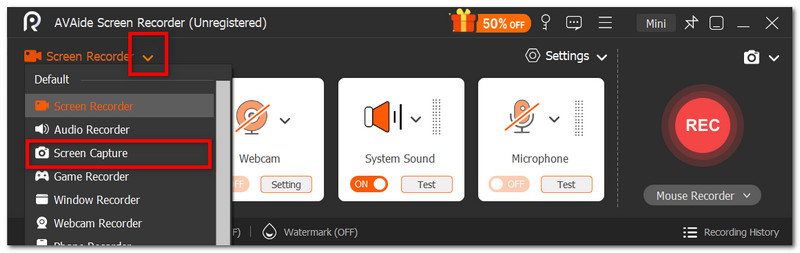
تحميل آمنالخطوة 2انتقل إلى القائمة المنسدلة في الزاوية اليسرى من واجهة المستخدم، ومن القائمة، اختر تصوير الشاشة خيار. سيتغير مؤشر الماوس الخاص بك على الفور، والذي يمكنك استخدامه لتحديد منطقة الشاشة التي تريد التقاطها.
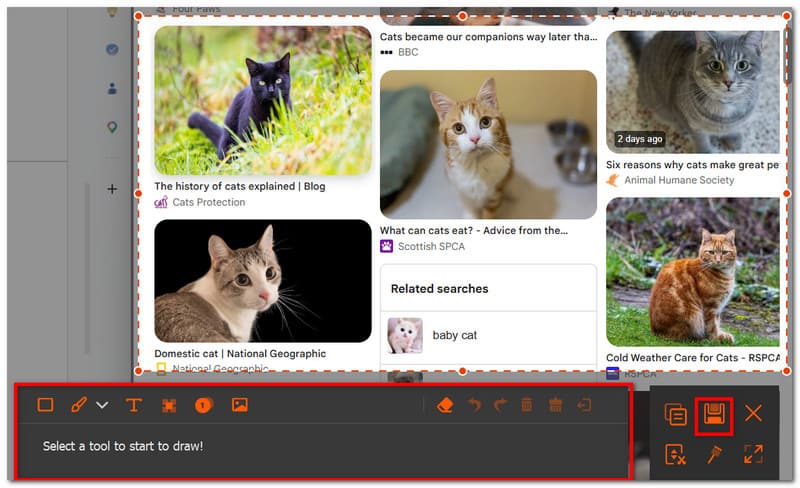
الخطوه 3بمجرد التقاط الصورة، يمكنك تعديلها باستخدام خيارات التحرير. بعد ذلك، قم بتصدير الصورة بالنقر على زر التصدير. يحفظ اضغط على الزر. كرر العملية حسب الحاجة.
الجزء الثاني: كيفية التقاط لقطة شاشة على أجهزة آيسر بدون زر PrintScreen
قد تجد نفسك في موقف صعب حيث لا يحتوي جهاز الكمبيوتر الخاص بك على زر PrtSc، مما قد يؤخر عملك بشكل كبير. إذن، كيف يمكنك التقاط لقطة شاشة على جهاز كمبيوتر Acer بدون زر PrtSc؟ سيوضح لك هذا الجزء أفضل الطرق لالتقاط لقطة شاشة بدون استخدام زر PrtSc، وهي طرق أصلية لأجهزة الكمبيوتر المحمولة من Acer.
الحل الأول: اضغط على Fn + مفتاح Windows + مفتاح المسافة (اختصار شائع في أجهزة Acer) أو Fn + PrtSc
الخطوة 1على لوحة مفاتيح Acer الخاصة بك، اضغط Fn + Windows + مفتاح المسافة الأزرار. عندما تومض شاشتك، فهذا يعني أنها التقطت لقطة شاشة كاملة.
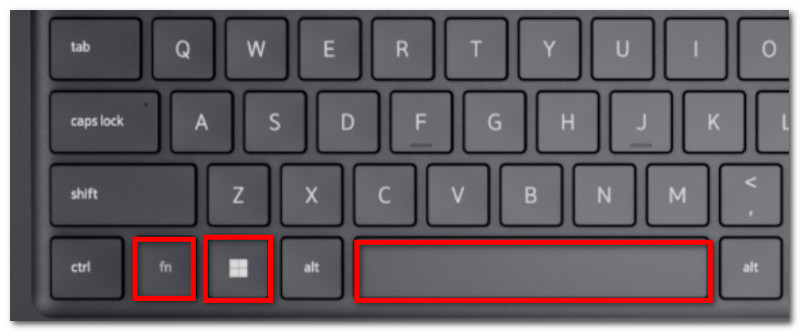
الخطوة 2انتقل إلى مستند Word فارغ واضغط السيطرة + الخامس للصق الصورة. ثم يمكنك حفظ المستند في مجلد.
الحل الثاني: استخدم مفتاحي Windows + Shift + S (يفتح شريط التقاط أداة القص)
الخطوة 1اضغط في نفس الوقت ويندوز + Shift + S على لوحة المفاتيح، وسيفتح أداة القص.
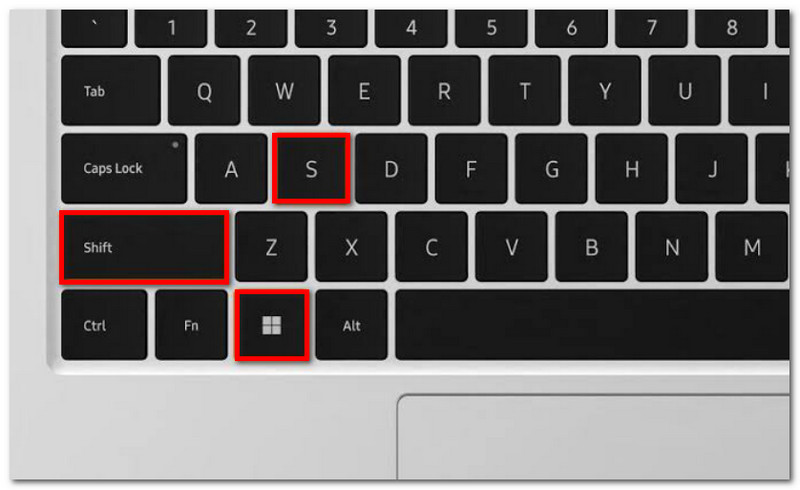
الخطوة 2اختر وضع التقاط الشاشة واسحب المؤشر لتحديد المنطقة المطلوبة لالتقاطها. استخدم السيطرة + الخامس للصق الصورة.
الحل الثالث: إعادة تعيين مفتاح مختلف
الخطوة 1احصل على PowerToys من متجر Microsoft. من الجزء الأيسر من الواجهة، حدد مدير لوحة المفاتيح.
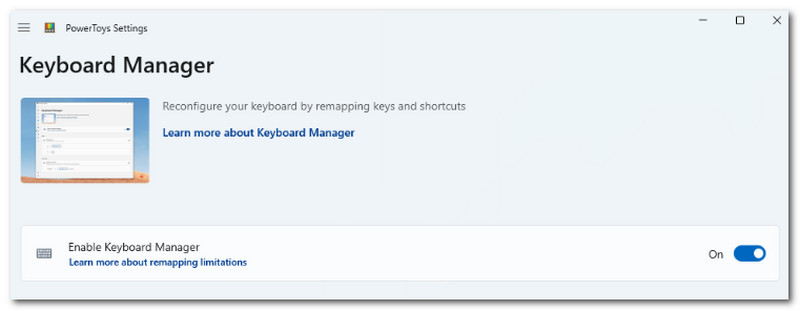
الخطوة 2اختر أي حرف على لوحة المفاتيح للوصول إلى أداة القص عند الحاجة. انقر موافق لحفظ التغييرات.
الجزء الثالث: كيفية التقاط لقطة شاشة على جهاز Acer Chromebook
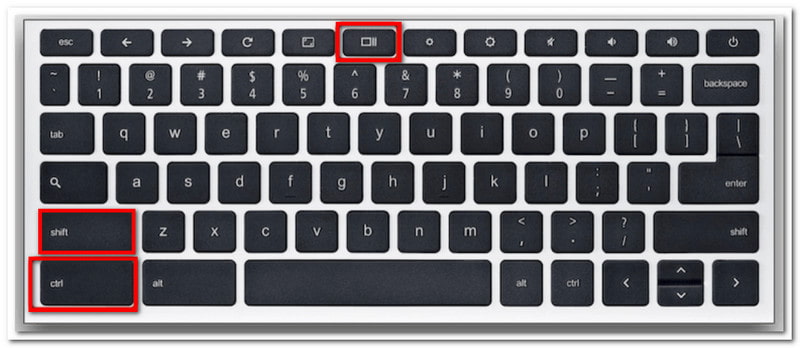
تختلف طريقة التقاط لقطات الشاشة على أجهزة Chromebook من Acer. فبينما تحتوي معظم لوحات مفاتيح الكمبيوتر على زر PrtSc، لا يتوفر هذا الزر في أجهزة Chromebook. فكيف يمكن التقاط لقطات شاشة على جهاز Acer Chromebook بشكل رسمي؟ اتبع الخطوات التالية لالتقاط لقطات شاشة بسهولة في وضع ملء الشاشة أو جزء منها:
الخطوة 1لعرض الشاشة الكاملة، اضغط Ctrl + إظهار الأزرار. عادةً ما يكون زر "إظهار" في الجزء العلوي الأوسط من لوحة المفاتيح، ويظهر على شكل أيقونة مستطيل بها خطان عموديان.
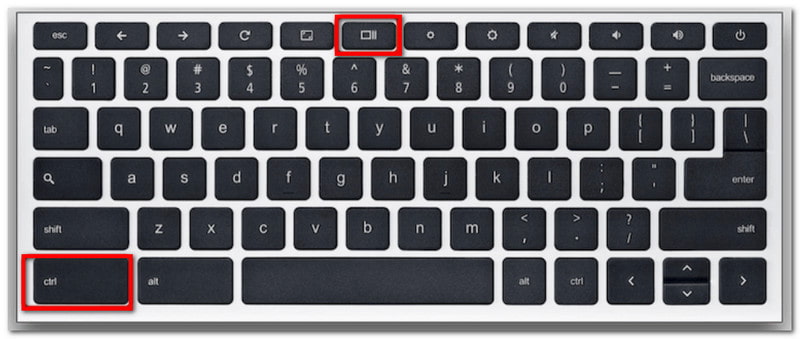
الخطوة 2سيتم نسخ لقطة الشاشة إلى الحافظة، والتي تحتاج إلى لصقها في مستند Word فارغ لتتمكن من حفظها.
الخطوه 3للوضع الجزئي، اضغط Ctrl + Shift + إظهاراستخدم الماوس لتحديد المنطقة التي تريد التقاط لقطة شاشة لها.
الجزء الرابع: كيفية التقاط لقطة شاشة على جهاز لوحي من نوع Acer
تختلف أجهزة آيسر اللوحية عن أجهزة الكمبيوتر المحمولة. مع ذلك، يُعدّ التقاط لقطات الشاشة على الجهاز اللوحي سهلاً وبسيطاً، ولا يتطلب سوى بضعة أزرار. على عكس التقاط لقطات الشاشة على الكمبيوتر المحمول، حيث يتم حفظ الصور وفقاً للطريقة المستخدمة، تُخزّن لقطات الشاشة على جهازك اللوحي في تطبيق الصور. اتبع الخطوات التالية:
الخطوة 1قم بإعداد المحتوى الذي تريد التقاطه على جهاز Acer اللوحي. اضغط مع الاستمرار على خفض الصوت و قوة أزرار.
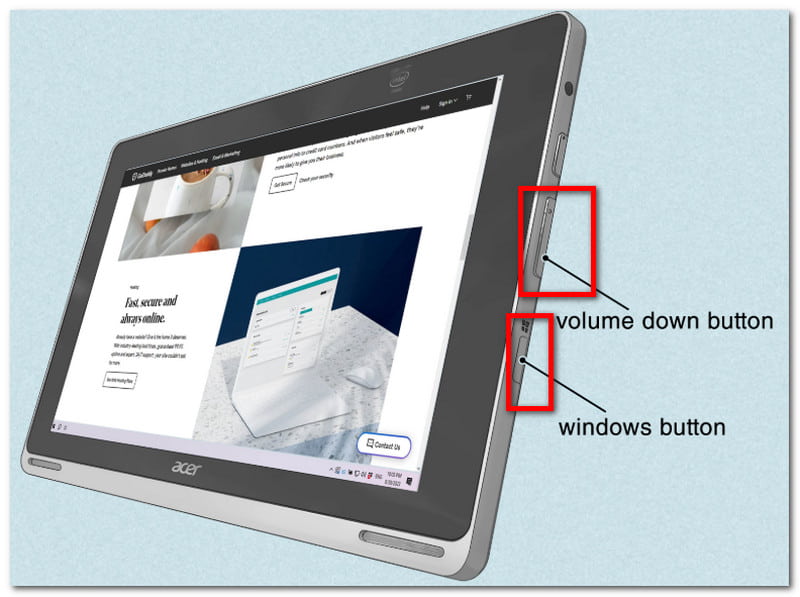
الخطوة 2بمجرد أن تومض الشاشة، فهذا يشير إلى أنه تم التقاط لقطة شاشة. انتقل إلى تطبيق الصور لعرض الصورة أو استخدم حجم الصورة لقص لقطة الشاشة.
مع هذه المقالة، التقاط لقطات شاشة على جهاز Acer لم يكن الأمر أسهل من أي وقت مضى، حيث يرشدك البرنامج إلى استخدام الطرق الرسمية لالتقاط لقطات الشاشة على جهازك. ليس هذا فحسب، بل ستتعرف أيضًا على أفضل طريقة في حال عدم وجود زر PrintScreen على سطح المكتب. تذكر أن برنامج AVAide Screen Recorder سيظل دائمًا خيارًا ممتازًا لتسجيل الشاشة، سواء كنت ترغب في التقاط لقطة شاشة أو تسجيل فيديو أو صوت. ننصحك بتجربة أفضل حل لتسجيل الشاشة على نظامي التشغيل ويندوز وماك.
نبذة عن المؤلف

سجل الشاشة والصوت وكاميرا الويب واللعب والاجتماعات عبر الإنترنت بالإضافة إلى شاشة iPhone / Android على جهاز الكمبيوتر الخاص بك.
تسجيل الشاشة