تُعدّ ماينكرافت واحدة من أشهر الألعاب اليوم، حيث تضم أكثر من 151 مليون مستخدم نشط يوميًا. وبفضل توفرها على منصات مختلفة مثل بلاي ستيشن، والكمبيوتر الشخصي، وإكس بوكس، والهواتف، قد تعتقد أنها مميزة لما توفره من أنشطة متنوعة في عالمها. يمكنك هنا الزراعة، واللعب مع الأصدقاء، والبحث عن الكنوز، وحتى إنشاء عالمك الخاص، وستحرص بالتأكيد على توثيق هذه اللحظات المميزة. يختلف وقت اللعب حسب المنصة التي تستخدمها. لقطات شاشة من لعبة ماينكرافت الأمر سهلٌ كما جمعنا في هذه المقالة طرقًا يمكنك استخدامها. هيا بنا نبدأ.
الجزء الأول: كيفية التقاط لقطة شاشة في ماينكرافت
تتوفر لعبة ماينكرافت بنسختين للحاسوب الشخصي، ولكل منهما طريقة مختلفة لالتقاط الصور داخل اللعبة. اطلع على نسختي جافا وبيدروك وتعلّم كيفية التقاط لقطات الشاشة في ماينكرافت على الحاسوب.
1. إصدار جافا - طريقة F2 الكلاسيكية
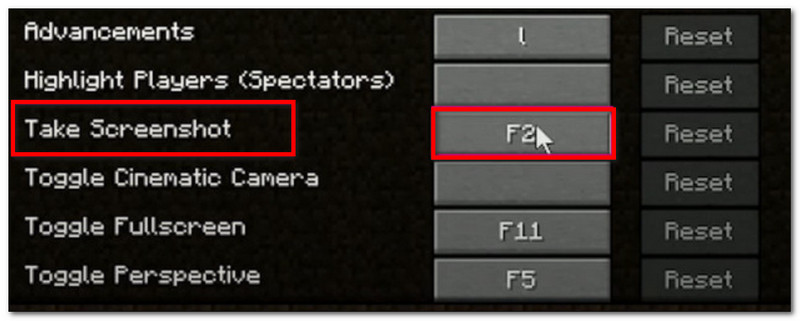
هذه النسخة من ماينكرافت هي النسخة الأصلية المخصصة لأجهزة الكمبيوتر، وتتضمن ميزة التقاط لقطات الشاشة. إليك كيفية التقاط لقطات شاشة لماينكرافت جافا:
الخطوة 1جهّز الجزء من اللعبة الذي تريد تصويره، ثم اضغط F2 على لوحة المفاتيح الخاصة بك.
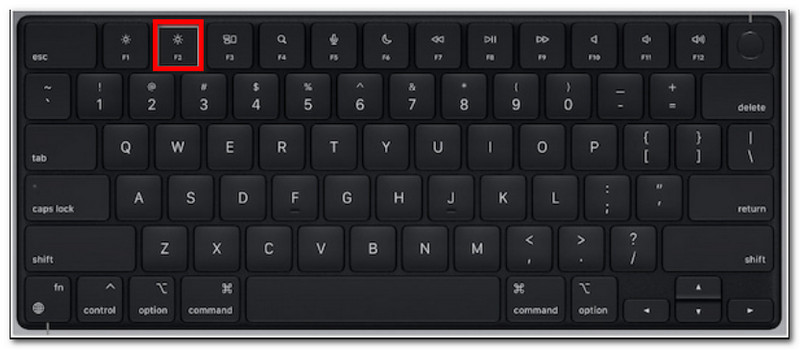
الخطوة 2عند ظهور رسالة تحتوي على اسم ملف، انقر عليها لمعاينة لقطة الشاشة.
2. إصدار Bedrock - طريقتان مختلفتان
تُبرز نسخة Bedrock ميزة اللعب عبر الأجهزة المختلفة على منصات متعددة. هذا يعني أنه حتى لو كنت تستخدم جهاز كمبيوتر، يمكنك اللعب مع أصدقائك الذين يستخدمون أجهزة مختلفة. كما تتضمن هذه النسخة طريقتين شائعتين لالتقاط لقطات الشاشة.
الطريقة أ (شريط ألعاب إكس بوكس)
الخطوة 1يضعط ويندوز + جي في نفس الوقت على لوحة المفاتيح. ستخفت شاشتك، ثم انقر فوق آلة تصوير أيقونة لالتقاط لقطة شاشة.
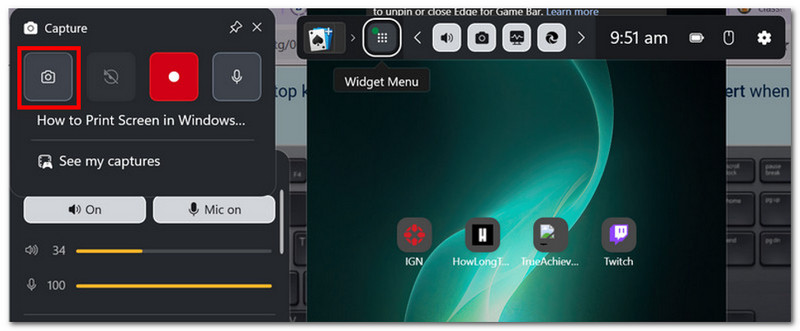
الخطوة 2يمكنك الوصول إلى مجلد لقطات شاشة ماينكرافت من أشرطة فيديو > يلتقط، حيث توجد الصور التي التقطها جيم بار.
الطريقة ب (كاميرا داخل اللعبة)
الخطوة 1افتح لعبة ماينكرافت وادخل إلى عالم. انقر على لقطة شاشة من ماينكرافت اضغط على الزر أو اضغط F2 على الشاشة لالتقاط الصورة.
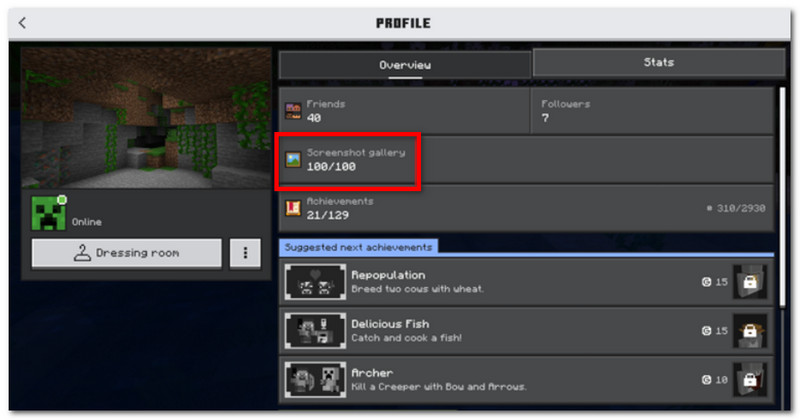
الخطوة 2للعثور على موقع لقطة شاشة ماينكرافت، ما عليك سوى الذهاب إلى الملف الشخصي و مفتوح معرض لقطات الشاشة.
3. مسجل الشاشة AVAide
AVAide مسجل الشاشة يُعدّ AVAide أداة بديلة مثالية لإصداري Minecraft Java و Bedrock. فهو حلّ شامل يُمكّنك من التقاط صور للشاشة وتسجيل الفيديو والصوت. تتميز خاصية التقاط الشاشة بسهولة الاستخدام، حيث تتيح لك التقاط الصور في أوضاع مختلفة: ملء الشاشة، والنافذة النشطة، والوضع الحر، وذلك باستخدام اختصارات قابلة للتخصيص. كما يُتيح لك تصدير لقطات الشاشة بصيغ صور شائعة، مثل JPEG و PNG و GIF. ما يجعل AVAide الخيار الأمثل هو خيار التحرير المُدمج الذي يُتيح لك تعديل لقطات الشاشة باستخدام أدوات مثل الرسم والتعليق وغيرها. بالإضافة إلى ذلك، يُوفر البرنامج تسجيلًا عالي الجودة للشاشة، مما يجعله مثاليًا لتسجيل تجربة اللعب على أجهزة الكمبيوتر والهواتف المحمولة.
الخطوة 1قم بتنزيل وتثبيت برنامج تسجيل الشاشة. افتحه واختر تصوير الشاشة من القائمة العلوية اليسرى. تأكد من تثبيت لعبة ماينكرافت على جهاز الكمبيوتر الخاص بك.

تنزيل مجاني لنظام التشغيل Windows 7 أو أحدث
 تحميل آمن
تنزيل مجاني لنظام التشغيل Mac OS X 10.13 أو الإصدارات الأحدث
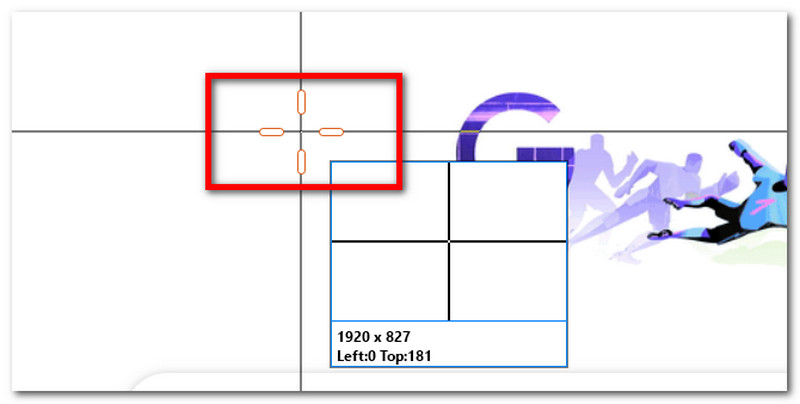
تحميل آمنالخطوة 2عندما يتحول مؤشر الماوس إلى علامة زائد، حدد المنطقة التي تريد التقاطها. اضغط خروج إذا كنت ترغب في الخروج من وضع التقاط الشاشة.
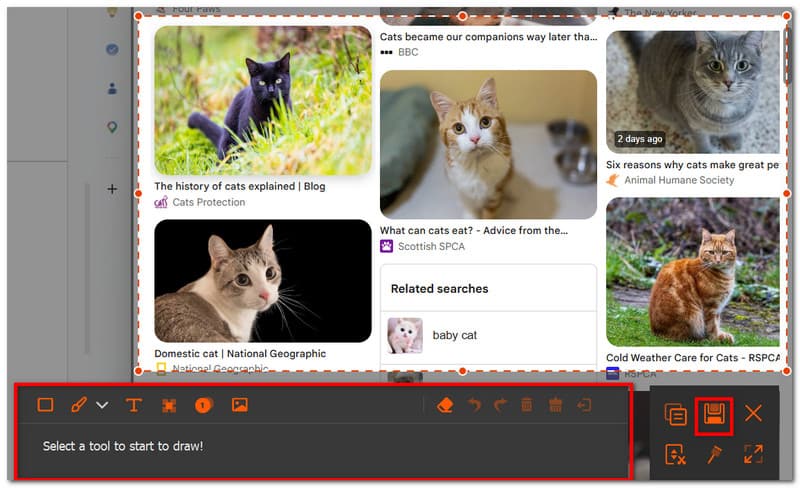
الخطوه 3استخدم خيارات التحرير لتعديل الصورة. ثم انقر يحفظ لحفظ لقطة الشاشة على جهازك. سيكون مجلد لقطات شاشة ماينكرافت هو استوديو AVAide > مسجل الشاشة AVAide.
الجزء الثاني: أين تجد لقطات الشاشة
بما أن لعبة ماينكرافت متوفرة على جميع المنصات تقريبًا، فقد تتساءل: "أين يتم حفظ لقطات شاشة ماينكرافت؟" سيوضح هذا الجزء الموقع الدقيق لمجلد لقطات الشاشة بمجرد التقاطها على نظام التشغيل المحدد.
ويندوز 10/11 (إصدار جافا)
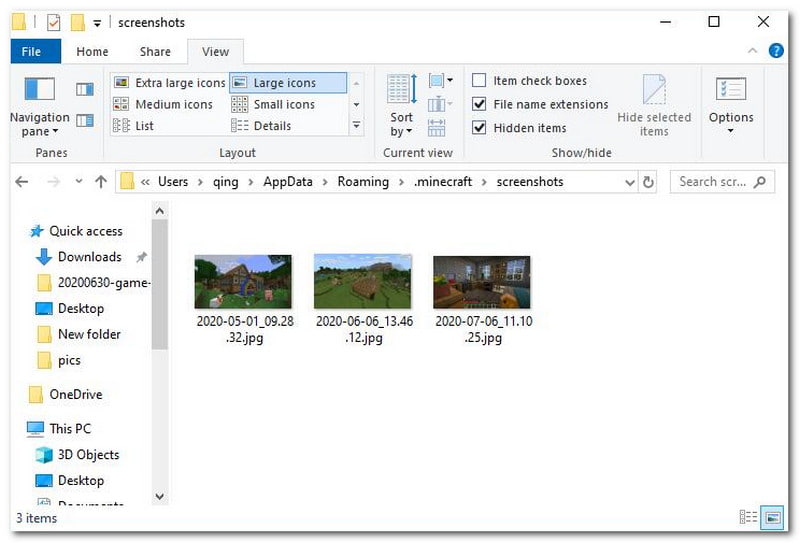
بعد التقاط لقطة الشاشة، يمكنك الوصول إليها من المحادثة. ولكن إذا فاتتك، فانتقل إلى شريط البحث واكتب %تطبيق البيانات%، ثم اذهب الى مجلد .minecraft > لقطات الشاشة.
ويندوز 10/11 (إصدار بيدروك)
يمكنك العثور على معرض لقطات شاشة لعبة ماينكرافت لإصدار Bedrock على نظام ويندوز داخل اللعبة، الموجود في الملف الشخصي > معرض لقطات الشاشة.
ماك
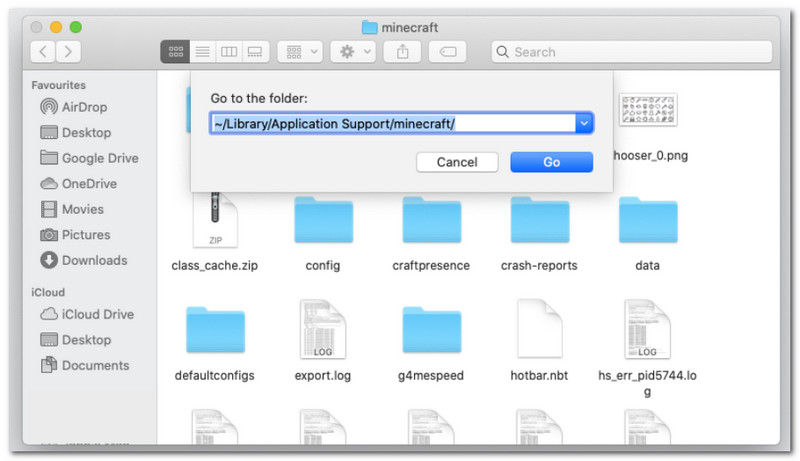
إذا كنت تلعب ماينكرافت وتتعلم كيفية التقاط لقطة شاشة على نظام ماك، ويمكن العثور عليه في ~/Library/ApplicationSupport/minecraft/screenshots.
لينكس
يمكنك الوصول إلى لقطات شاشة اللعبة من مجلد Minecraft الرئيسي ~/.minecraft/screenshots.
جهاز Chromebook
مجلد لقطات الشاشة في ماينكرافت على جهاز كروم بوك هو نفسه الموجود في أنظمة التشغيل الأخرى عند استخدام طريقة F2 لالتقاط لقطات الشاشة. يمكنك العثور على الصور من معرض لقطات الشاشة في اللعبة.
الجزء 3. لقطات شاشة من أجهزة الألعاب والهواتف المحمولة
بعد تعلم كيفية التقاط لقطات شاشة لماينكرافت على نظام ويندوز 11 وأنظمة التشغيل الأخرى، يمكنك أيضًا التقاط لقطات شاشة على الأجهزة الأصغر حجمًا وأجهزة الألعاب. اتبع الخطوات الخاصة بالمنصة التي تلعب عليها اللعبة.
نينتندو سويتش
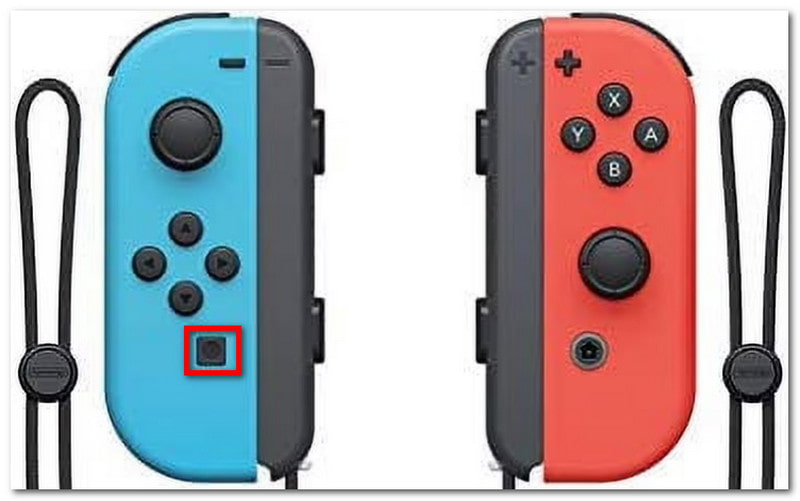
الخطوة 1استخدم وحدة التحكم Joy-Con اليسرى واضغط على آلة تصوير زر لالتقاط لقطة شاشة للعبة.
الخطوة 2لعرض لقطة الشاشة، اخرج من اللعبة وانتقل إلى الألبوم مكان حفظ لقطات شاشة ماينكرافت.
بلاي ستيشن
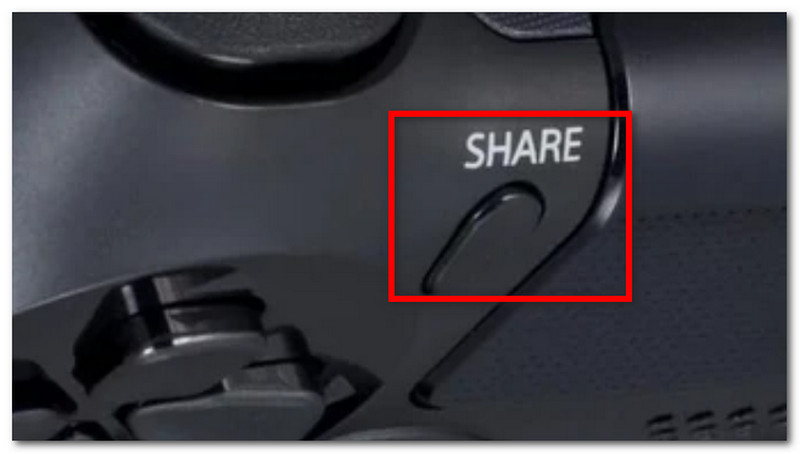
الخطوة 1كيفية التقاط لقطة شاشة في ماينكرافت باستخدام وحدة التحكم DualShock 4 لجهاز PS4؟ اضغط مع الاستمرار على شارك اضغط على الزر لمدة ثانية واحدة تقريبًا. إذا كان لديك جهاز PS5 DualSend، فاضغط على الزر التالي: خلق زر.
الخطوة 2يمكنك عرض لقطة الشاشة بالانتقال إلى معرض الالتقاط أو باستخدام التطبيق بلاي ستيشن تطبيق لعرضه على هاتفك.
اكس بوكس
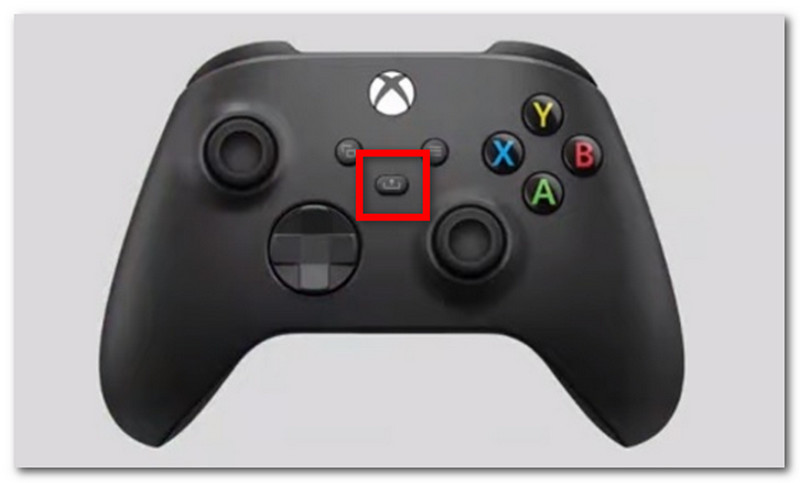
الخطوة 1بالنسبة لوحدة تحكم Xbox القياسية، ما عليك سوى النقر المزدوج على اكس بوكس الزر في الجزء الأوسط واضغط ص لالتقاط الصورة. بالنسبة لجهاز Xbox Series، اضغط على زر شارك اضغط على الزر مرة واحدة لالتقاط لقطة شاشة.
الخطوة 2إذا كنت لا تعرف كيفية الوصول إلى لقطات شاشة ماينكرافت، فما عليك سوى الضغط على اكس بوكس اضغط على الزر وانتقل إلى التقط وشارك التبويب.
iOS
الخطوة 1اضغط على قوة و رفع الصوت أزرار على جهاز iPhone الخاص بك لالتقاط لقطة شاشة.
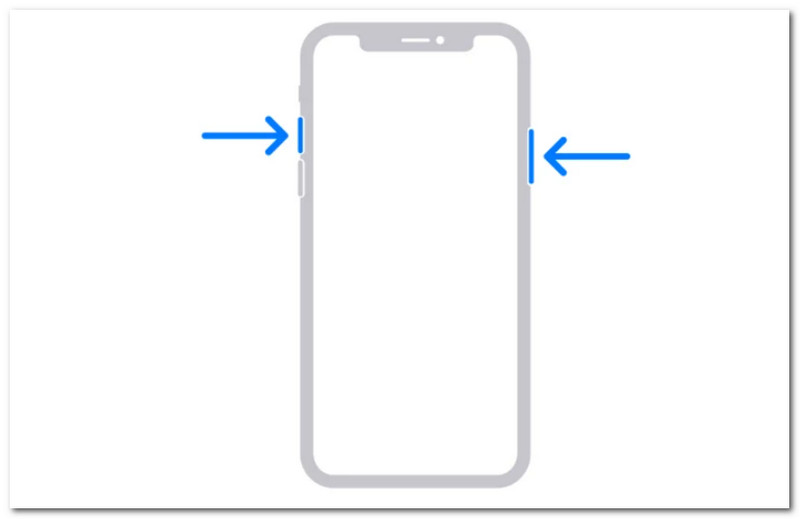
الخطوة 2كيف تجد لقطات شاشة ماينكرافت على الآيفون؟ يمكنك العثور على لقطات الشاشة من تطبيق الصور.
ذكري المظهر
الخطوة 1جهّز اللعبة والمنطقة التي تريد الاستيلاء عليها. اضغط باستمرار على قوة و خفض الصوت أزرار هاتفك.
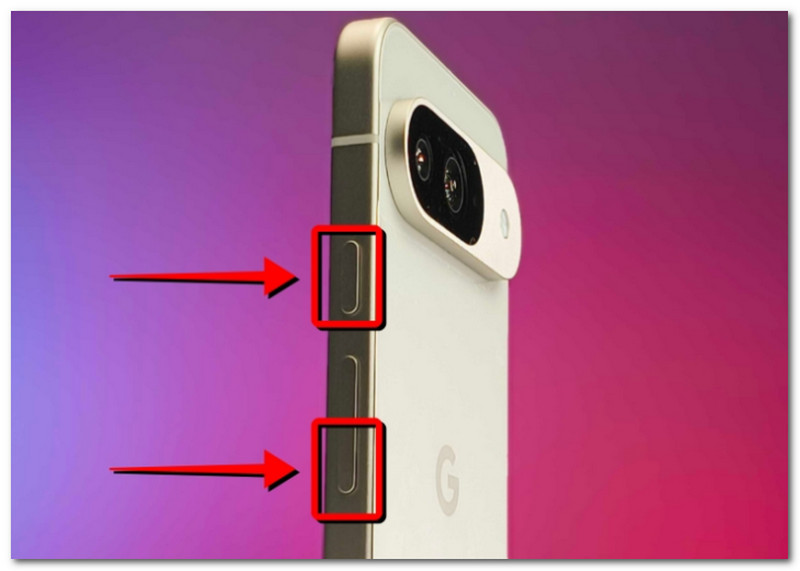
الخطوة 2عندما تومض الشاشة، تكون لقطة الشاشة جاهزة، ويمكنك تحديد موقعها في تطبيق المعرض.
الجزء الرابع: إدارة مجموعة لقطات الشاشة
إلى جانب مشاركة لقطات الشاشة مع أصدقائك، يمكنك أيضًا استغلال هذه الفرصة لتتبع تقدمك في عالم ماينكرافت. لكن التقاط لقطات الشاشة عشوائيًا سيؤدي فقط إلى حفظها بشكل فوضوي ومربك. إذا كنت لا تعرف من أين تبدأ، يمكنك اتباع هذه القواعد الأساسية لإدارة مجموعة لقطات الشاشة الخاصة بك.
1. فهم أسماء الملفات
عند استخدام طريقة F2 في ماينكرافت، من المهم فهم اسم الملف، لأنه يساعدك في تحديد تاريخ التقاط لقطة الشاشة. سيكون اسم الملف الافتراضي هو YYYY-MM-DD_HH.MM.SS.png، وهو ما يترجم إلى السنة والشهر واليوم والساعة والدقيقة والثانية التي تم فيها التقاط لقطة الشاشة.
2. إنشاء مجلدات فرعية
لا تترك لقطات الشاشة في مجلد واحد، فهذا سيُبطئ عملية البحث عن لقطات شاشة مُحددة. احرص على إنشاء مجلدات فرعية بتصنيفات مثل "بناء العالم" و"المشروع" و"الوظيفة".
3. إعادة تسمية الملفات
يمكنك تغيير اسم لقطات شاشة ماينكرافت لتمييزها ليس فقط من خلال تاريخها، بل أيضاً من خلال تقدمك الفعلي في اللعبة. اختر دائماً اسم ملف يُبرز تطورك في ماينكرافت.
4. احتفظ بنسخة احتياطية من لقطاتك
لتجنب فقدان لقطات الشاشة عند تعطل جهازك، تأكد من نسخها احتياطيًا باستخدام خدمة سحابية مثل OneDrive أو قرص صلب خارجي.
5. مشاركة لقطات الشاشة
بعد تنظيم لقطات الشاشة، اعرض تقدمك في لعبة ماينكرافت على مختلف المنصات. سيُقدّر متابعوك لقطات الشاشة المنظمة التي تُظهر تطورك في اللعبة.
ماينكرافت لعبة محبوبة يستمتع بها الجميع، وتعلم كيفية التقاط لقطات الشاشة سيُمكّنك من حفظ أبرز لحظات اللعب. لا تُظهر هذه المقالة فقط الطرق المختلفة لالتقاط صور لعالم اللعبة الجميل، بل تُظهر أيضًا كيفية عرض لقطات شاشة ماينكرافت على منصات مختلفة. كبديل، توصي هذه المقالة باستخدام برنامج AVAide Screen Recorder لأنه مرن لالتقاط لقطات الشاشة على الكمبيوتر والهاتف وأجهزة الألعاب. احصل على أحدها أفضل مسجلات اللعبة قم بتنزيله مجاناً على نظامي التشغيل ويندوز وماك وابدأ بتسجيل الألعاب بلا حدود.
نبذة عن المؤلف

سجل الشاشة والصوت وكاميرا الويب واللعب والاجتماعات عبر الإنترنت بالإضافة إلى شاشة iPhone / Android على جهاز الكمبيوتر الخاص بك.
تسجيل الشاشة