


It is very smart to convert DVD to MKV, for MKV can cover all the original audio and subtitle tracks while having wide compatibility. You can play the MKV videos on almost all devices and select your desired audio tracks. However, you should choose a reliable DVD to MKV ripper that offers you subtitle and audio management options. Also, you should choose a ripper that can output high video quality with 1080p resolution or higher. This post will provide 5 reliable ways to rip DVDs to MKV.
- Part 1. Why Convert DVD to MKV
- Part 2. Convert DVD to MKV with Best Video Quality
- Part 3. Convert DVD to MKV with MakeMKV
- Part 4. Rip DVD to MKV with HandBrake
- Part 5. Convert DVD to MKV with Freemake Video Converter
- Part 6. Rip DVD to MKV with DVDFab DVD Ripper
- Part 7. FAQs of Converting DVD to MKV
Part 1. Why Convert DVD to MKV
Converting DVD to MKV has more benefits than you can expected:
Wider Compatibility: Compared with the legacy VOB video format in DVD, MKV is definitely much more popular and recognized for playback, video editing, and file uploading. However, VOB is less supported now, let alone the fact that DVD is physical media.
Multi-Track Observation: A DVD contains multiple audio tracks and subtitle tracks. They usually offer content for different languages. MKV is a modern format (container) that can keep all of those tracks in just one MKV video.
Higher Video Quality: When you watch a DVD on a DVD player, you can get seamless and clear playback. However, when you convert DVD to MKV, you can enjoy 4K 10-bit HDR, 30 Mbps, and even 60 FPS visual content, which is much more entertaining.
Part 2. Convert DVD to MKV with Best Video Quality
When you need to rip a DVD to MKV while extracting all audio and subtitle tracks, AVAide DVD Ripper is your best choice. It can quickly scan your DVD and let you select your desired audio and subtitle tracks. Moreover, it lets you select HEVC MKV, AV1 MKV, and 4K MKV to highly compress the large and legacy DVD files to modern MKV profiles, while getting even higher video quality.
- Rip DVD to HEVC MKV, AV1 MKV, 4K MKV, and many other modern presets.
- Let you choose your desired audio and subtitle tracks, and video streams.
- Provide many video editing features, such as trim, rotate, flip, filters, and watermarking.
- Support batch conversion to convert multiple DVD discs, ISO images, and VIDEO_TS folders.

 Secure Download
Steps to Rip DVD to MKV with AVAide DVD Ripper:
Step 1Load Your DVD
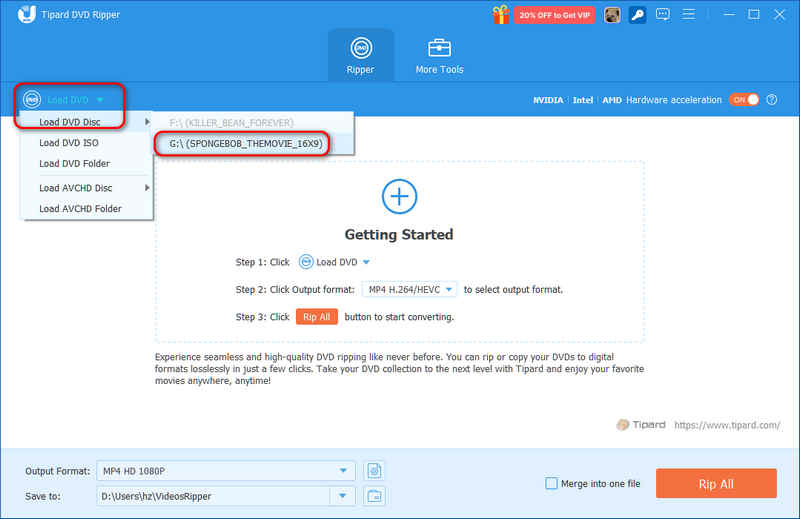
Insert your DVD into your DVD drive, open AVAide DVD Ripper, click Load DVD, and select the disc, folder, or ISO file you want to import.
Step 2Select Your Desired Audio and Subtitle Tracks
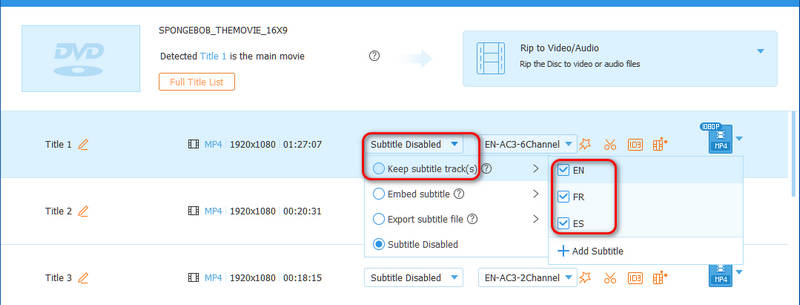
By default, the subtitle selection is set Disabled in this program. You can click the dropdown list, and then select Keep subtitle track(s). Then, you can select your desired ones. To choose your desired audio tracks, just click the dropdown list next to it. We highly recommend you to choose an audio track with multiple channels, like 6Channel.
Step 3Select an MKV Output Preset
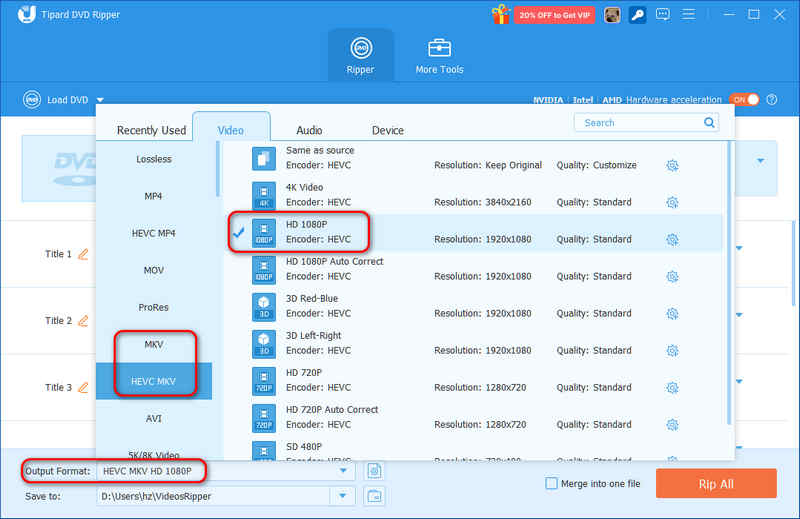
Click the Output Format dropdown button on the bottom left side. Then, select the Video tab. Here, you can select MKV or HEVC MKV. We recommend you choose an HD 1080P preset, for it is the most compatible resolution on all modern devices.
Step 4Convert DVD to MKV Easily
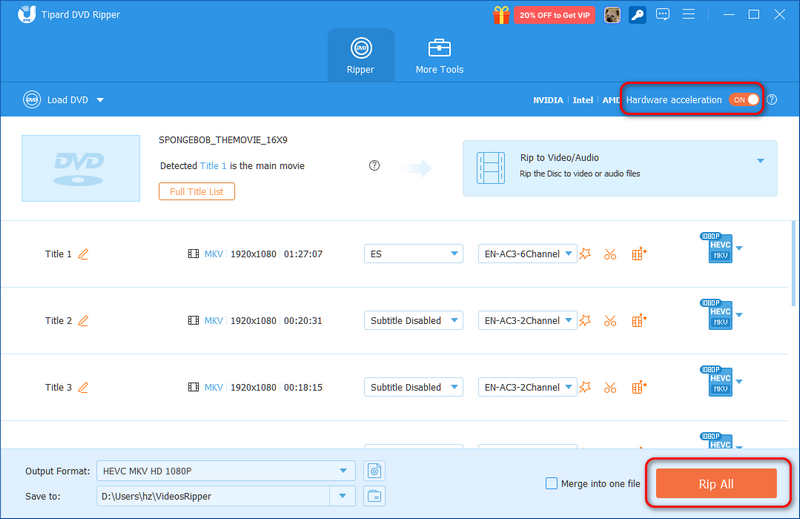
Don't forget to turn on Hardware acceleration on the top right side. Then, click the Rip All button to rip your DVD to MKV video quickly.
Part 3. Convert DVD to MKV with MakeMKV
MakeMKV is one of the simplest and most effective programs for ripping DVDs to MKV format discs. It offers good support as it converts any DVD to MKV without losing quality. This program is best for users who need good, easy-to-use solutions for quick ripping. Moreover, it can bypass common DVD encryptions like CSS and APS. However, MakeMKV can only remux DVD to MKV. If you want to get the output MKV video with modern 720p, 1080p, and even 4K resolution, consider exploring MakeMKV alternatives for more output options and transcoding features.
Step 1Go to the website for MakeMKV, download the software to your computer, and proceed with the installation.
Step 2Place the DVD that you want to convert to MKV format into your disc drive and click Make MKV. Select Open DVD disc to convert the DVD to MKV format.
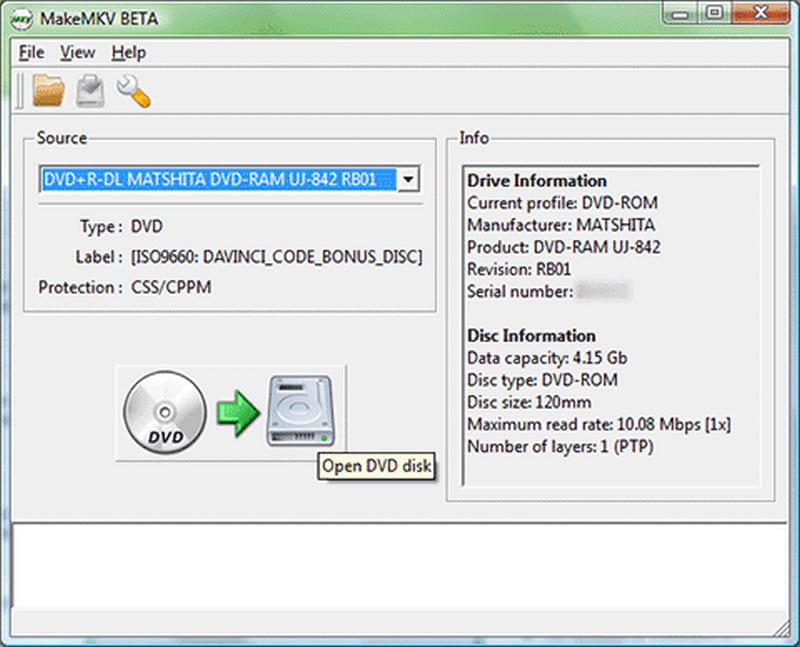
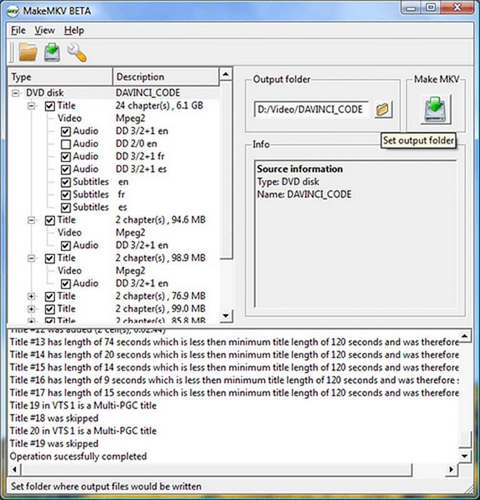
Step 3Make sure to get a list of content titles after conversion. Pick any content that you would like after the conversion.
Step 4Specify the location where the output MKV file would be saved and converted.
Step 5Click the Make MKV button to remux your DVD to MKV format. The remuxing process will be very fast.
Part 4. Rip DVD to MKV with HandBrake
HandBrake is a sophisticated, homemade, and expandable video transcriber program that can transcode Blu-rays and DVDs to MKV video. It offers many modern output presets, like 1080P, 4K, 720P, and other presets optimized for TVs and phones. However, HandBrake itself cannot deal with DVD copy protections, like DVD region codes, CSS, APS, and more. It can only work as a dedicated DVD to MKV converter for homemade DVDs. Although its interface is kind of complex, you can still follow the guide below to easily rip DVD to MKV with HandBrake.
Step 1Launch HandBrake. Click on your DVD to load it.
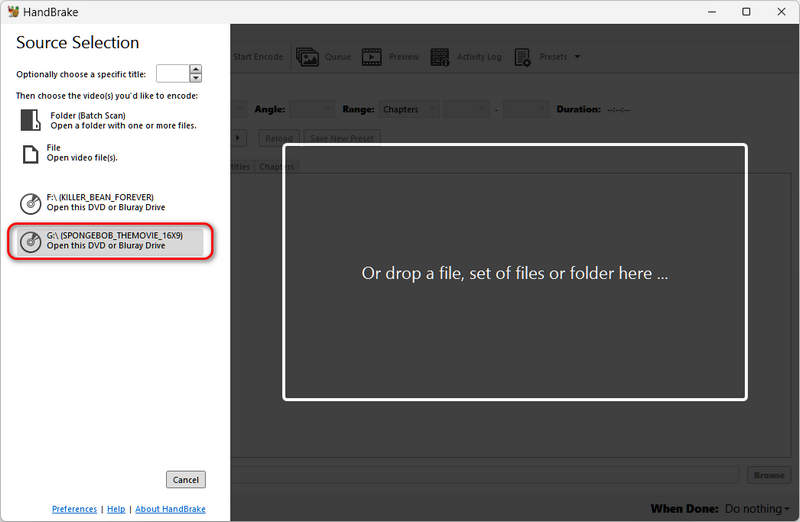
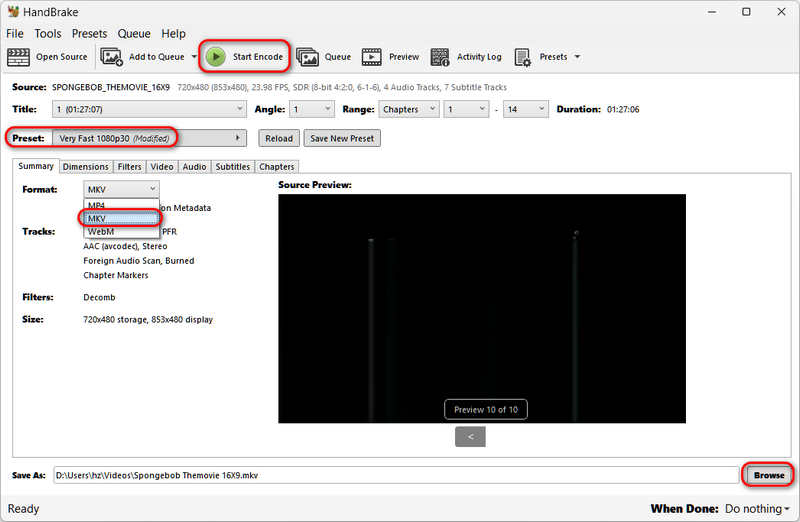
Step 2HandBrake will automatically show the main movie (with the longest duration) on your DVD. You can also see that the default output preset is Fast 1080p30. You can just use this one. Then, click the Output Format dropdown list to select MKV.
Step 3Click the Browse button on the bottom right side to select an output folder for the upcoming MKV file. Finally, click the Start Encode button to transcode your DVD to an MKV video.
Part 5. Convert DVD to MKV with Freemake Video Converter
Freemake Video Converter is an effective software that allows users to convert different types of DVDs to an MKV format. It includes a basic feature set of video customizations suitable for untrained users. However, Freemake doesn't provide HEVC and AV1 video codecs; it only provides H.264/AVC. Therefore, the output MKV file will be larger compared with HEVC and AV1. But the clear interface and easy workflow make it a simple but powerful way to convert DVD to MKV.
Step 1Head over to the official Freemake website and begin downloading the Freemake Video Converter.
Step 2Insert your DVD into an optical drive and connect it to your computer. Run Freemake Video Converter, and click the +DVD button, which will load your DVD.
Step 3On the lower interface, there will be a section called List of Output Formats; from there, choose the to MKV option.
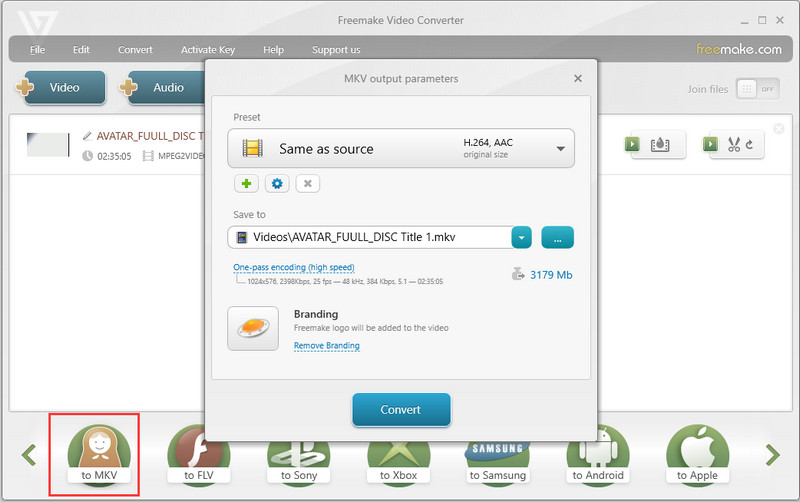
Step 4Then, you can select the default option Same as Source in Preset. You can also click the dropdown list to select HD 1080P. You can also click the Edit preset button (with a gear icon) to adjust the video parameters, like resolution, bitrate, fps, etc.
Step 5Finally, click the Convert button to convert DVD to MKV. The MKV video will be saved in the default output folder.
Part 6. Rip DVD to MKV with DVDFab DVD Ripper
DVDFab DVD Ripper is exceptional software with professional functionalities that enable the trimming, cropping, and cutting of MKV out of DVDs. During its operation, it also offers GPU acceleration, getting jobs done in the minimum time possible. In addition to ripping DVD to MKV, it can also rip BDMV to MKV.
What makes DVDFab impressive is that it lets you directly choose to transcode or remux your DVD to MKV. But as we mentioned above, we recommend you convert DVD to MKV with modern video specs, like 1080p resolution, 60 FPS, and higher color depth. Let's check how to convert DVD to MKV with high quality.
Step 1Head over to the official DVDFab website, download and install the DVD Ripper module.
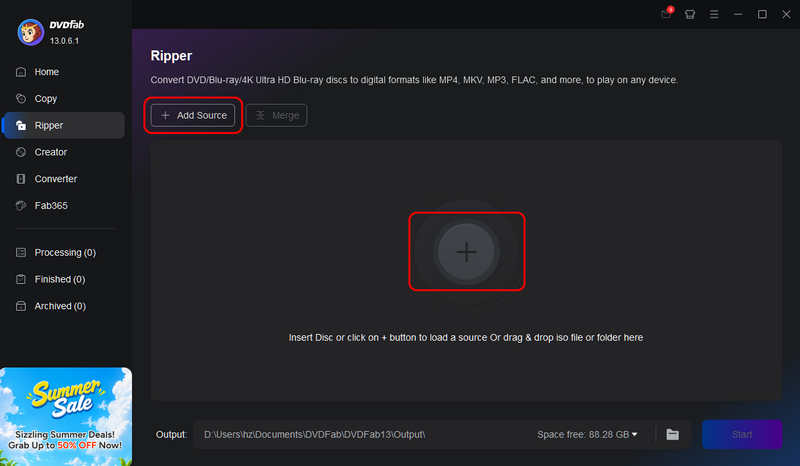
Step 2Once the installation has been completed, launch DVDFab and switch to ripper mode by clicking it on the home menu. Then, click the Add button or Add Source button to load your DVD.
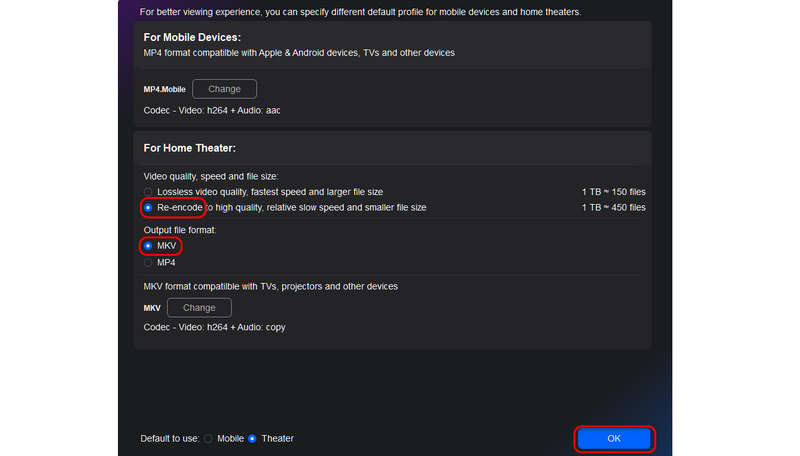
Step 3Then, we recommend you choose Re-encode because it can convert your DVD to a higher video quality that suits modern displays. Then, select MKV and click the OK button to continue.
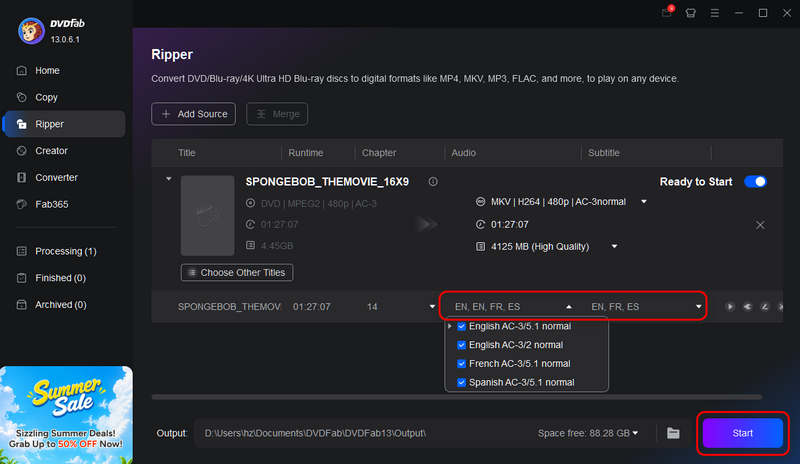
Step 4Click the Audio and Subtitle dropdown list to select your desired tracks. You can select them all. Finally, click the Start button to convert the DVD to an MKV file with multiple subtitles and audio files.
Part 7. FAQs of Converting DVD to MKV
Can WinX DVD Ripper convert DVD to MKV?
No, WinX DVD Ripper (Platinum) doesn't have any MKV output profile. You cannot find any MKV option in its output list.
Will converting a DVD to MKV result in any loss of audio or video quality?
It depends on the conversion mode you choose. Remuxing will keep the original video and audio streams without any quality loss. Re-encoding will cause quality loss if the output MKV profile has lower parameters. You can use a 1080p output option to increase the video quality.
Why should I convert DVD to MKV instead of MP4?
While MP4 offers better compatibility across mobile devices, MKV is the superior choice for lossless DVD archiving and preserving complete media contents.
Converting DVD to MKV is a good choice to keep both the high video quality and multiple audio and subtitle tracks. However, not all media converters have a good track selection feature. AVAide DVD Ripper and DVDFab can help you easily select desired audio and subtitle files while letting you remux or re-encode your DVDs to MKV easily.
ABOUT THE AUTHOR

Best tool for ripping and converting DVD Disc/Folder/ISO image file into over various formats.
Related Articles


Copyright © 2026 AVAide. All rights reserved.