如何 edit a voice recording? Editing your voice records is an effective way to enhance various aspects of the audio file. You can improve the clarity, trim sections, increase and decrease volume level, add effects, and more, resulting in better audio playback. Whether for interviews, personal notes, or podcasts, learning the best editing practices is necessary to achieve your preferred output. In this guide, we will teach you how to edit your voice recording using the best audio editing tools. Come here and learn more about the process.
Part 1. Edit Voice Recording on iPhone
Want to learn how to edit a voice recording on an iPhone? Well, the iPhone can offer an app you can rely on to edit your voice recording, especially for trimming, layering, and removing a section. To start the process, you can check all the steps provided in this section.
Trim Recording on Voice Memos
語音備忘錄 is not just one of the best voice recorder apps. It can also offer its editing tools that you can rely on to edit your audio. With this recording/editing app, you can trim your audio to remove unnecessary parts. Plus, the app has a simple layout, making it more ideal and simple to access, especially for non-professional users.
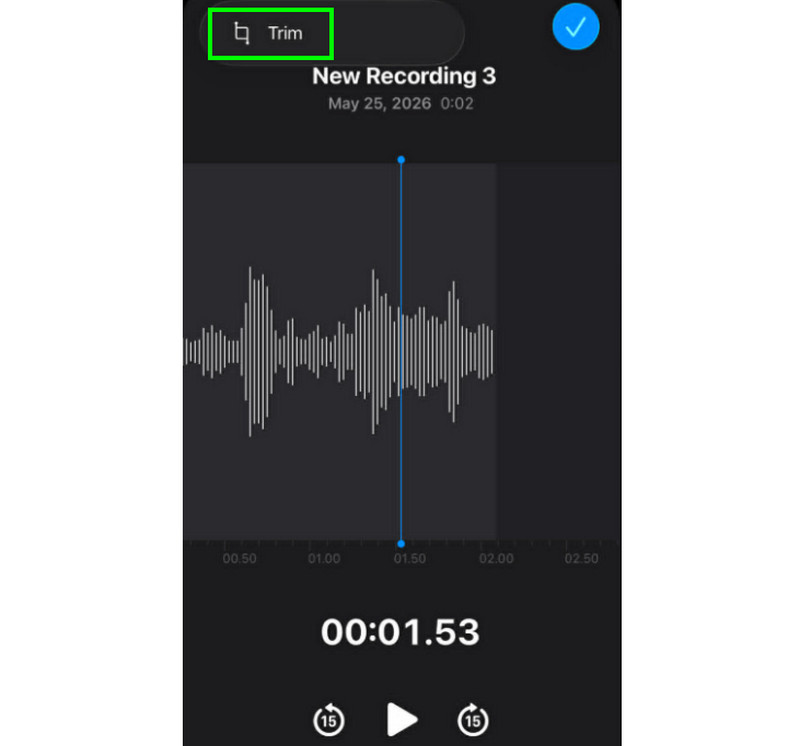
步驟1啟動 語音備忘錄 app and look for the voice recording you want to edit. Then, click the 修剪 功能。
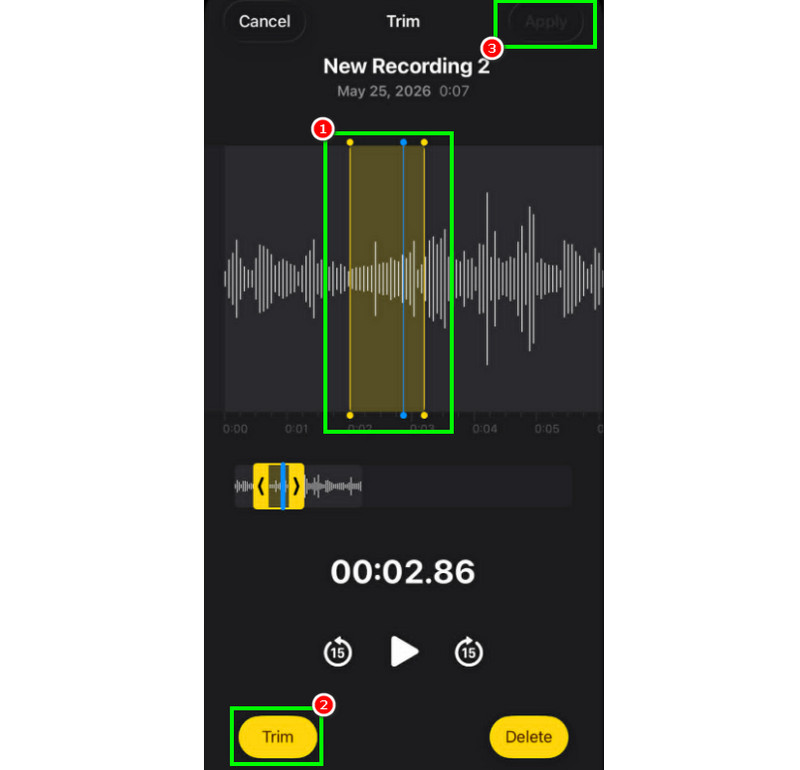
第2步After that, you can start trimming the audio. Then, hit the 修剪 button below to start removing the unwanted parts from the audio.
第 3 步After trimming, you can press the 申請 button above to save the changes.
How to Remove a Section in the Middle
During the trimming process, maybe you are thinking that you can just trim the first or last part of the track. The good thing about the Voice Memos app is that you can also remove a section in the middle. With this capability, you can ensure that removing unnecessary parts from the audio track is an easy task.
步驟1選擇後 修剪 feature, you can touch and control the adjustable line from the track.
第2步Insert or adjust the line into the middle part where you want to remove the track. After that, hit the 修剪 下面的按鈕。
第 3 步輕敲 申請 to save the edited voice recording.
How to Layer Tracks in Voice Memos
Voice Memos is an ideal tool for recording voice and any audio content. It can even edit a recording, like trimming or removing a certain section. However, if you want to layer tracks, it is sad to say that the tool is incapable of doing so. For better layering, it would be better to use a more advanced audio editing app, like GarageBand. This app ensures that you can layer your tracks and create a single file.
How to Share and Export Edited Voice Memos
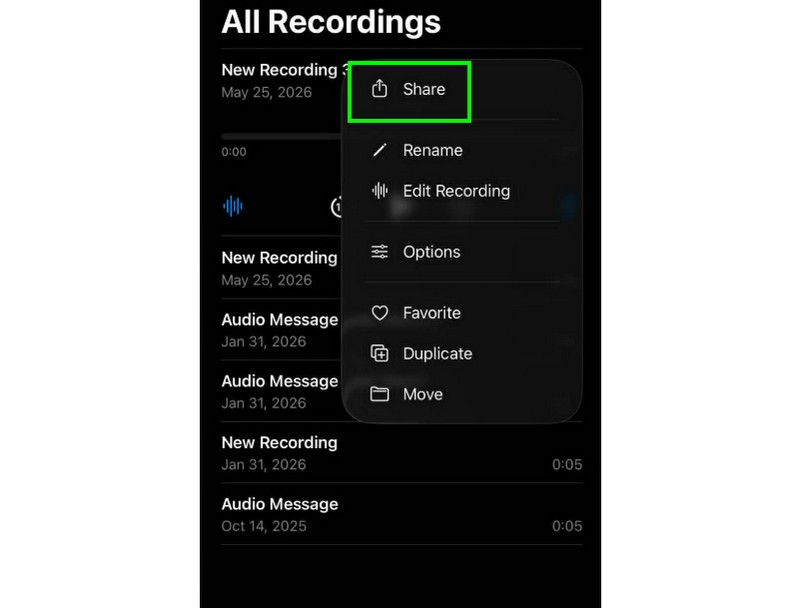
Sharing and exporting an edited voice recording is simple. All you need to do is locate the recordings in the Voice Memos app and press the three-dot button. After that, hit the Share function. With that, you can start sharing the recordings on various platforms. You can even save it to your desired folder.
Recommended iPhone Editing Apps
Do you want another voice recording and editing software? Since the Voice Memos app has limitations when it comes to editing your voice recordings, there are times when you need to use another editing tool. In that case, for better editing, you can try using GarageBand, Ferrite Recording Studio, and Hokusai Audio Editor.
Part 2. Edit Voice Recording on Android
Are you an Android user and want to edit your voice recordings? Then, you can use the Samsung Voice Recorder. It is a free-to-access app you can use to edit your voice recordings. It can help you trim your recordings based on your preferences. The app can offer a simple UI, making it simple to navigate.
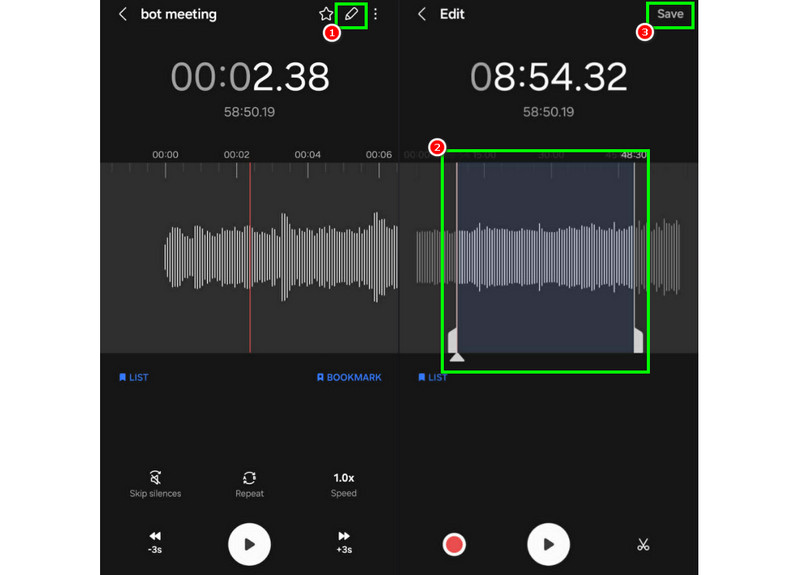
步驟1啟動 Samsung Voice Recorder. After that, proceed to the recordings you want to edit.
第2步Then, open the recordings and press the 編輯 function above.
第 3 步You can start with the trimming process by adjusting the lines from the tracks. Once done, you can tick the 保存 上面的按鈕。
Part 3. How to Edit Voice Recording on Desktop
Wanna deal with your editable voice recorder on a desktop? Then, read here as we offer the best methods you can use for an effective voice recording editing process.
Method 1. Edit Voice Recordings Using Audacity
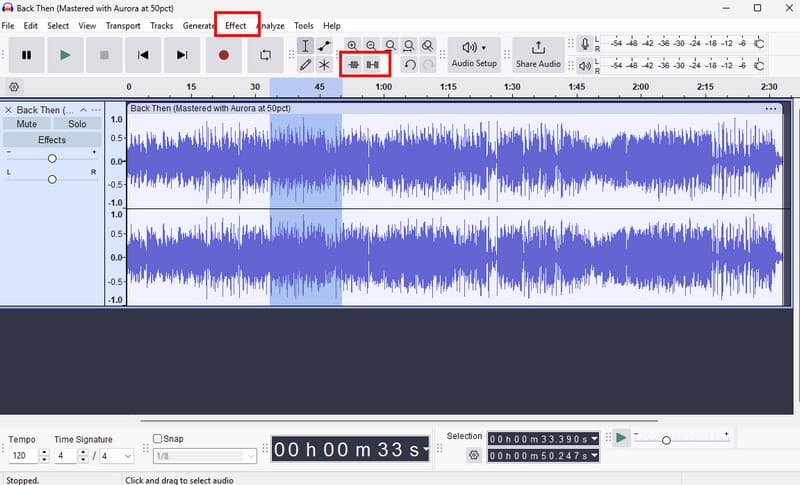
大膽 is among the free desktop-based editors you can rely on to edit your recordings. You can trim the audio, add effects, and attach other tracks. You can even record computer audio in Audacity and edit it based on your preferences. The only problem here is that the layout is not appealing enough.
步驟1下載 大膽 在您的電腦上。然後繼續。 文件 > 打開 options to add your recordings.
第2步You can start editing your file. You can trim the track, add effects, adjust tempo, and more.
第 3 步Once done, tap 文件 > 保存項目 to keep it on your device.
Method 2. Edit Voice Recordings Using AVAide Video Converter
If you want a professional-grade editor, try accessing AVAide 視頻轉換. This program allows you to edit your audio in many ways. You can cut or trim a certain track from the recordings, split them, and merge. The good part here is that you can even insert a fade-in and out effect on your audio. Plus, you can convert your recordings to any audio format, such as MP3, AAC, ALAC, M4A, WAV, and more. It ensures that you won't experience any compatibility issues during the playback. You can even save the recordings with the best quality for up to 320 kbps, making the program ideal for all audio enthusiasts.
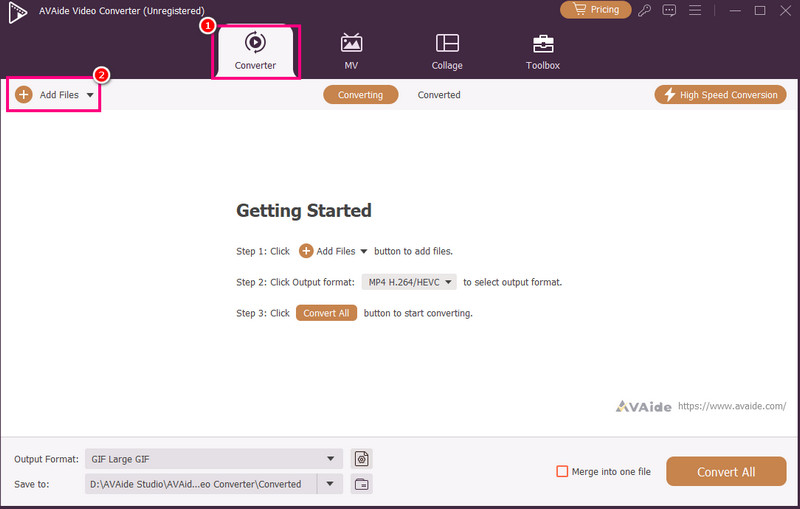
步驟1下載 AVAide 視頻轉換 on your Mac or Windows. Then, install and launch it to start the editing process.
第2步來自 轉換器 feature, add the voice recordings by hitting the 添加文件 option. You can even add multiple files if you want to.
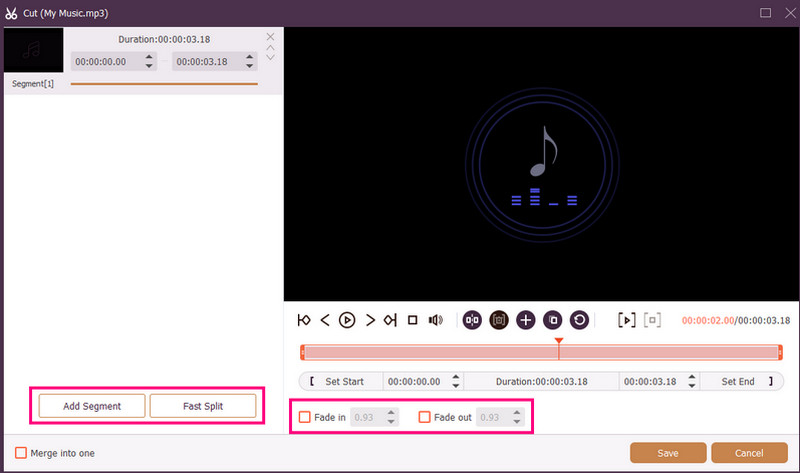
第 3 步然後,單擊 切 option to start the editing process. You can cut and remove a certain part from the track. You can also use the 分裂 function to separate the tracks.
You can also attach Fade In 和 Fade Out effects to your recordings. Once done, hit 保存.
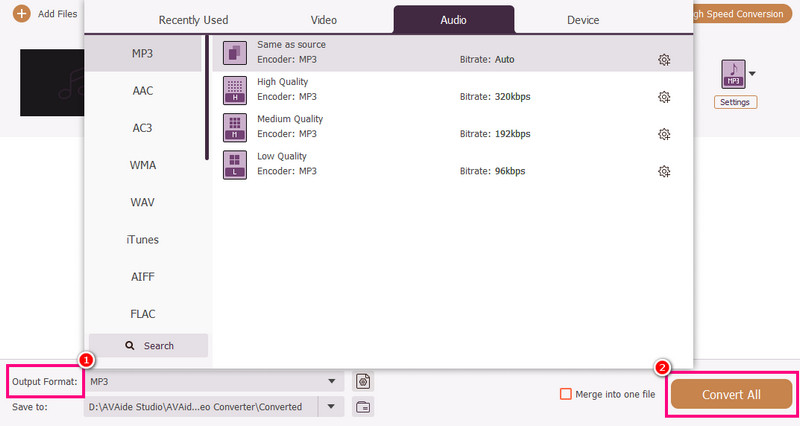
步驟4您還可以訪問 輸出格式 section to choose your desired audio format. Lastly, tick 全部轉換 開始保存過程。
Method 3. Edit Voice Recordings Using Adobe Audition
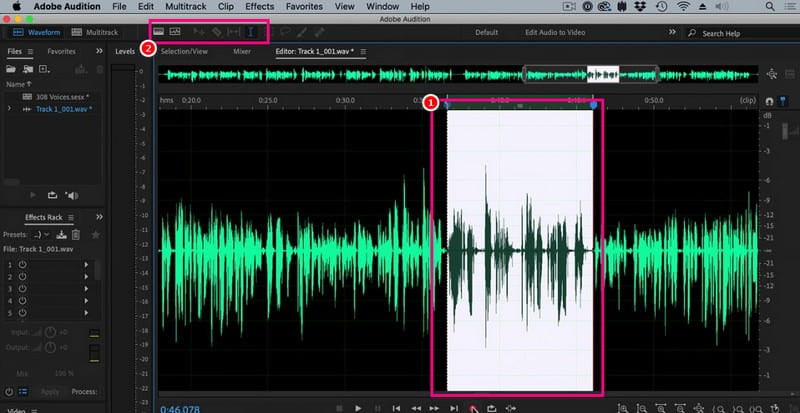
Adobe 試鏡 is a reliable tool you can use for editing your voice recordings. It can even offer both basic and advanced editing tools, making it ideal for all users, especially professionals. You can trim the recordings, apply effects, layer tracks, and more. However, you must be skilled enough to use this tool since its user interface has a steep learning curve.
步驟1下載 Adobe 試鏡 on your computer. After that, start adding the voice recording you want to edit.
第2步You can utilize your mouse/cursor to highlight a certain part of the track and edit it. You can trim, add effects, and split the audio by using all the editing tools from the top interface.
第 3 步After editing the audio, you can go to the 文件 > 保存 options above to start the saving process.
Part 4. Edit Voice Recording Online
Editing your voice recordings online is also an option. Read the details below and learn how to edit your audio file on your browser.
Method 1. Edit Voice Recordings Using 123APPS
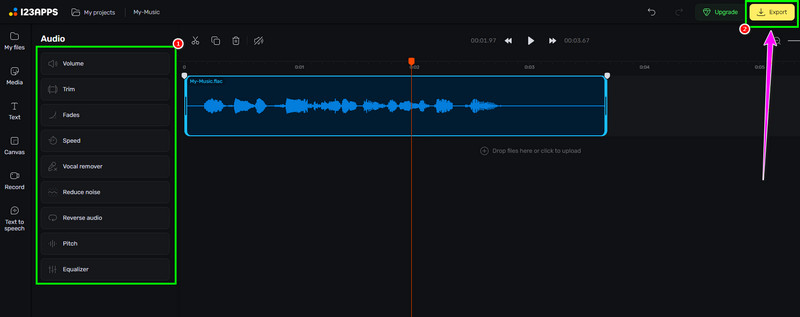
This tool is perfect if you want to edit your audio for free. It can let you trim your audio, remove the background noise, add a fade effect, and more. It is also simple to use, making it ideal for beginners.
步驟1造訪網站 123個應用 並繼續其 音頻編輯器 feature. After that, hit the 選擇文件 to upload your recording.
第2步Then, begin editing your audio. You can trim the recording, add effects, remove the noise, and more.
第 3 步After the editing process, click 出口 above to save it on your device.
Method 2. Edit Voice Recordings Using Audio Editor Online
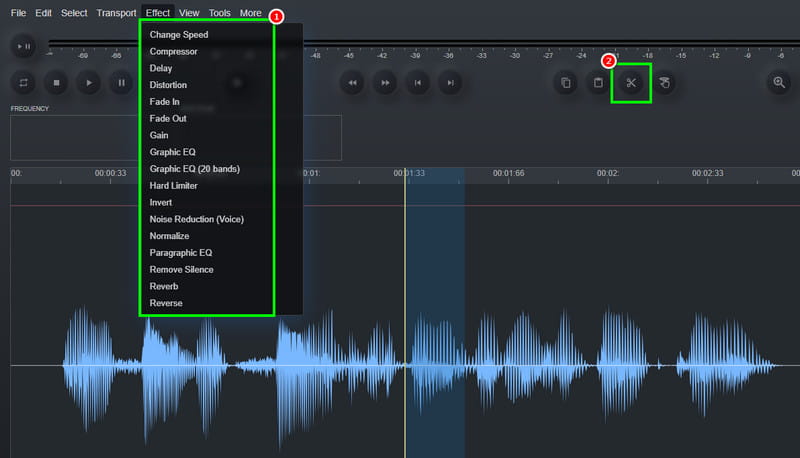
If you want an excellent online-based audio editor that can edit your voice recordings, you can try using Audio Editor Online. This tool can offer various tools you can use. Some of them are trimmer, cutter, noise remover, speed charger, and more. Check the steps below and learn how to edit a voice recording.
步驟1訪問 Audio Editor Online 工具,點擊 文件 > 打開 option to upload the voice recording.
第2步You can start with the editing process. Go to the 影響 section to change the speed of the audio, add an effect, adjust the delay, and more. You can also use the 切 tool to remove the unnecessary part from the track.
第 3 步對於最後一個過程,點擊 文件 > 保存 button to save the edited recording on your computer.
Part 5. Which Method Should You Choose
Are you wondering which method to choose? If that is the case, we highly recommend using AVAide 視頻轉換. When it comes to editing, you can ensure that you get the result you need. You can trim the audio, split, and add multiple segments to create a single file. You can even access the program's Audio Compressor feature to balance the file size and quality of your recording. It can even let you convert your audio to other formats, preventing you from encountering any compatibility issues. Thus, rely on this program and achieve your preferred audio output.
透過本教程,您已經學到了 how to edit audio recordings. So, check the methods we offered and deal with your voice recordings based on your preferences. Plus, if you want a smooth audio editing process, we suggest using AVAide 視頻轉換. This software ensures that you can edit and save the video with the best quality, making it a top-notch editor for users.
您完整的視頻工具箱,支持 350 多種格式的無損轉換。