Working with long videos often presents a frustrating dilemma: how do you maintain pristine video quality without eating up all your storage space? This is where video compression standards come in. If you want to balance video size, quality, and device compatibility, you’ll inevitably face the choice between H.264 (AVC) and H.265 (HEVC).
In this comprehensive guide, we’ll break down the core differences between H.264 and HEVC, help you decide which one fits your workflow, and show you how to convert between them seamlessly without losing quality.
Part 1. HEVC vs H264: What Are They?
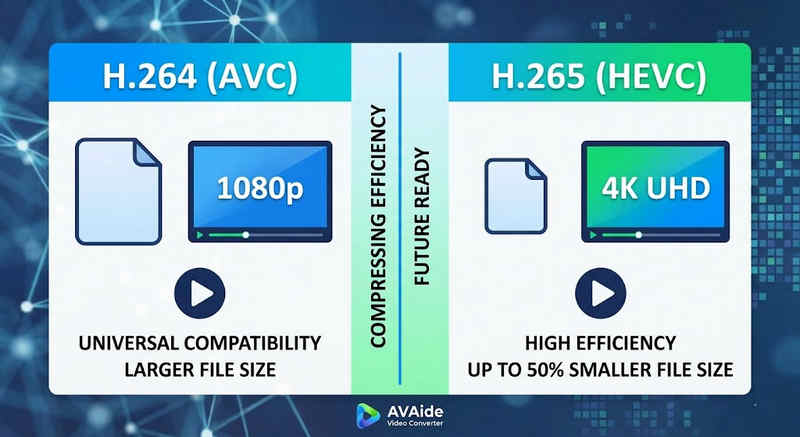
The Short Answer: H.264 (AVC) offers universal compatibility and works on almost any device, but creates larger files. H.265 (HEVC) provides superior compression, cutting file sizes by up to 50% with identical visual quality, but requires higher processing power and has limited support on older hardware.
1. What is the H.264 Codec (AVC)?
Introduced as Advanced Video Coding (AVC), H.264 is the reigning king of video compatibility. It is the industry standard for online streaming, mobile recording, and daily video playback. Because it requires very little processing power to decode, H.264 videos play smoothly on almost any digital device imaginable, from old smartphones to modern smart TVs.
2. What is the H.265 Codec (HEVC)?
High Efficiency Video Coding (HEVC), or H.265, is the direct successor to H.264. It was specifically engineered to handle the massive data demands of 4K, 8K, and VR content. HEVC uses more advanced algorithms to compress video data far more efficiently than its predecessor, delivering crisp, high-resolution visuals at up to 50% smaller file sizes. However, this efficiency comes at a cost: it requires modern hardware to process without lagging.
H.265 vs. H.264: Quick Comparison Table
| 特徵 | H.264 (AVC) | H.265 (HEVC) |
| 支持的格式 | m2ts, evo, 3gp, f4v, mkv, mp4, qtff, asf, avi, mxf, ps, ts | mxf, ps, ts, 3gp, mkv, mp4, qtff, asf, avi |
| 壓縮效率 | Moderate (Larger file sizes) | Superior (25-50% smaller files) |
| 視頻質量 | Excellent for 1080p | Optimized for 4K, 8K, and HDR |
| 設備相容性 | Universal (99% of devices) | Limited (Legacy PCs may not support) |
| 處理能力 | Low (Fast rendering/playback) | High (Requires newer CPUs/GPUs) |
| 理想的用例 | Web streaming, social media, legacy devices | 4K drone footage, iPhone cinematic video, space-saving archiving |
Part 2. When to Choose HEVC vs. H.264
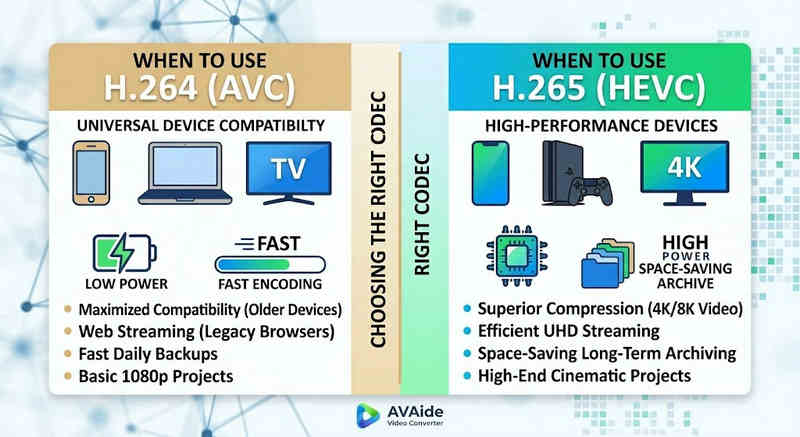
Choosing the right codec depends entirely on your specific goals. Here is why you might need one over the other:
Why You Need HEVC (H.265):
- Maximized Storage Savings: If you back up long-form videos or massive 4K libraries, HEVC acts as a natural video size reducer, freeing up half your hard drive space.
- Bandwidth Optimization: HEVC requires much less bandwidth to stream, making it ideal for smooth 4K playback even on slower internet connections without buffering.
- Future-Proofing: As the industry transitions toward ultra-high-definition (UHD) and VR content, HEVC ensures your videos remain high-quality and compatible with next-generation platforms.
Why You Need H.264 (AVC):
- Flawless Playback & Editing: If your video editing software lags or your media player throws a Codec Not Supported
- Compatibility and Worry-Free Sharing: H.264 is the most widely compatible video codec. Whether you want to share your videos to your friends, NAS, media servers like Plex or Kodi, H.264 can ensure seamless sharing and playback.
Part 3. How to Convert Easily Between HEVC and H.264
在與 HEVC(H.265) 和 H.264 格式之間傳輸視訊時, AVAide 視頻轉換 它比其他的做得更好。它提供了一個高效且易於使用的介面,不會影響轉換品質並支援各種格式。無論出於何種原因,可能是為了提高 HEVC 的效率,也可能是為了更廣泛地採用 H264,AVAide 都可以讓您輕鬆地在兩者之間來回切換。
詳細流程:
步驟1取得 AVAide 視訊轉換器
下載、安裝並啟動 AVAide 視頻轉換 on your windows or Mac computer.
第2步Add Your Videos to AVAide Video Converter
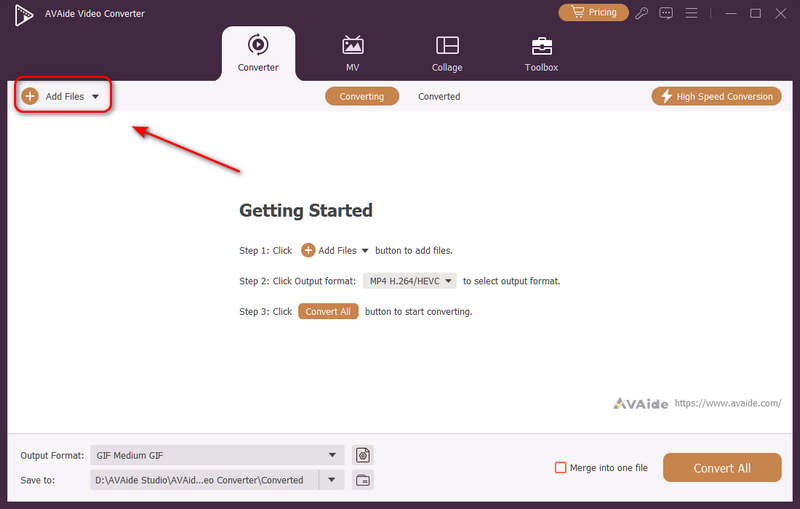
You can add multiple video files and do a batch conversion. Click the 添加文件 button on the top left to import your video files.
第 3 步Choose H.264 or H.265 Codec
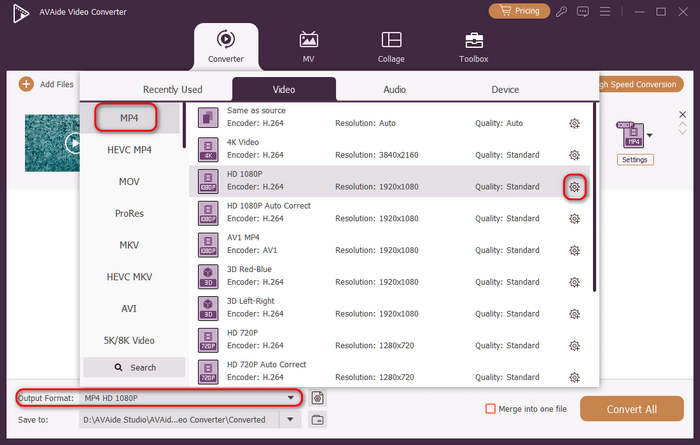
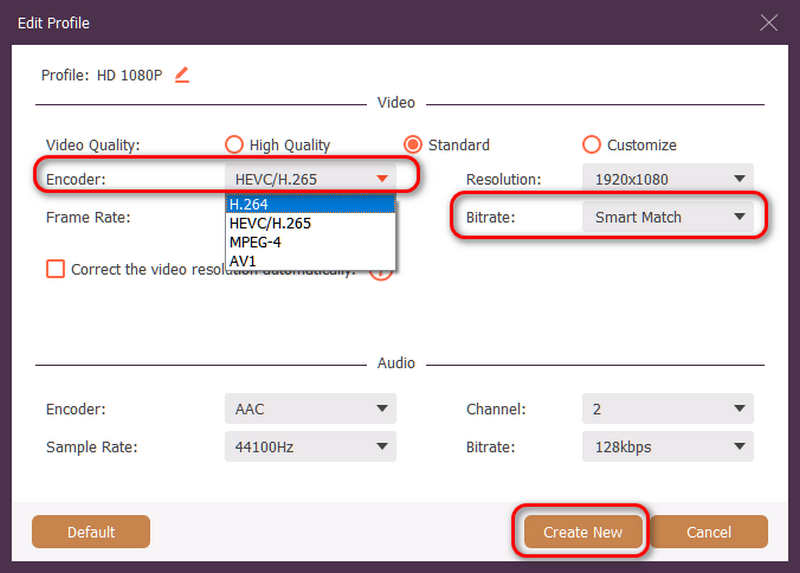
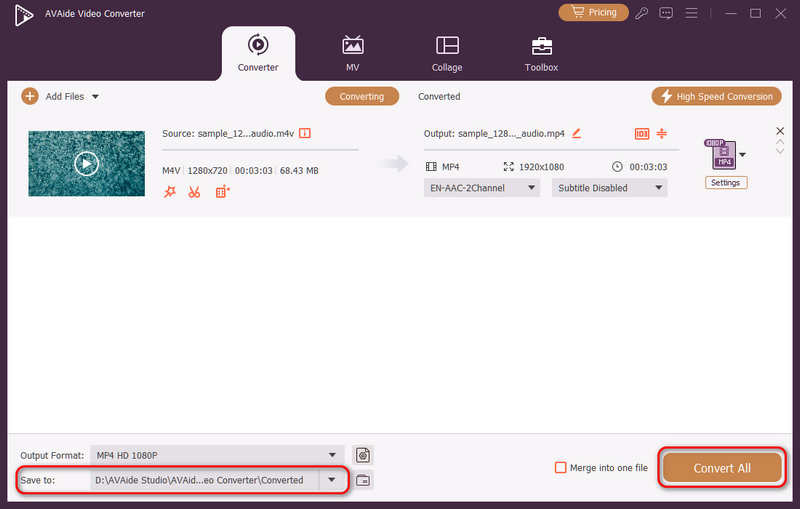
點擊 輸出格式 dropdown menu button on the bottom left side. Then, you can select a desired video format first. Then, click the 自定義配置文件 button (with a Gear icon) in the video preset bar.
Then, in this panel, you can click the 編碼器 dropdown button to select H.264 或者 HEVC/H.265 codec. If you want to change the video quality, you can adjust the 位元率. But we recommend Smart Match to ensure compatibility. Click the 創建新的 button to save your configuration.
步驟4Start Video Re-encoding
最後,您可以點擊 存到 dropdown button to select a desired output folder and click the 全部轉換 button to change your video codec to H.264 or H.265.
Part 4. FAQs of H.265 and H.264
What is the main difference between NVENC H.264 and NVENC HEVC?
The primary difference lies in compression efficiency and hardware generation optimization. NVENC HEVC (H.265) delivers up to 50% better compression than NVENC H.264 (AVC). This means it can produce the exact same visual quality at half the bitrate (and half the file size), making it the superior choice for archiving 4K videos or streaming over limited bandwidth.
What is a modular multi-channel HEVC/H.264 encoder?
A modular multi-channel HEVC/H.264 encoder is an enterprise-grade hardware device designed to compress and stream multiple video feeds simultaneously. Unlike consumer software encoders, it features a modular (blade-style) design, allowing users to hot-swap or upgrade hardware encoding cards based on their project scales. It supports both H.264 and HEVC/H.265.
What is H.265+?
H.265+ (also known as Smart H.265+) is an advanced, proprietary video compression technology developed by Hikvision, specifically optimized for security and surveillance monitoring.
現在可以使用這項綜合分析 HEVC 和 H.264 確定哪種編解碼器最適合您的影片要求。無論您想要 H.264 並專注於相容性,還是想要 HEVC 並以更好的壓縮為目標,這兩種編解碼器都有優勢。 AVAide Video Converter 為處理該問題提供了優雅而高效的解決方案,在快速的同時提供卓越的品質輸出。 AVAide 以其簡單的介面和先進的功能使視訊壓縮及其轉換任務變得容易。
您完整的視頻工具箱,支持 350 多種格式的無損轉換。