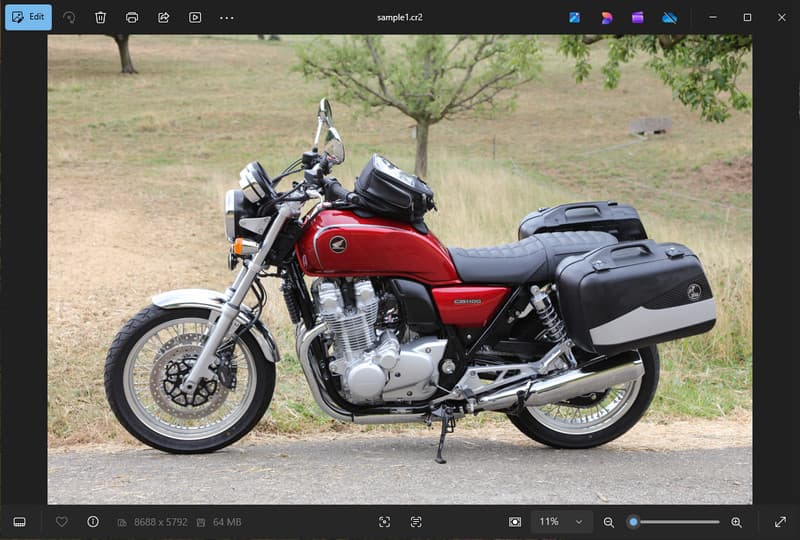
Canon cameras record images in CR2, a raw image format designed to capture maximum image detail. Although handy for editing, it cannot be used in day-to-day applications due to its large file size and limited compatibility. When converting CR2 to JPG, it can be shared more easily, uploaded faster, and supported on a wider range of devices. It is also a process that minimizes storage requirements without requiring high-level technical expertise. This guide is divided into reasons, methods, and tools based on common image-handling practices to help you manage your files in a clear, controlled manner.
Part 1. Canon CR2: Why You Need to Convert It
Canon CR2 is a raw file format that records raw information from the camera sensor. Although it is extremely detailed, it may be necessary to convert the CR2 file format to JPG, as many devices and applications do not support raw files.
1. Limited Compatibility
Many standard tools do not support CR2 files, making it difficult to view images. Converting a CR2 file to JPG ensures your photos open smoothly across devices, browsers, and basic image viewers.
2. Large File Size
Raw files are very large since they preserve more image data. This affects storage and performance. Changing CR2 pictures to JPG reduces file size, making it easier to store and transfer images efficiently.
3. 更便捷的分享和上传
Many platforms do not accept raw formats or are slow to process. Switching from CR2 to JPG is a quick and easy way to upload your pictures and ensure your photos show up in the right format on social media, email, and other websites.
4. No Need for Specialized Software
CR2 files need editing software capable of processing the raw. When you convert CR2 to JPG, you eliminate the usage of sophisticated programs and easily obtain images to use in everyday life.
5. Faster Workflow
Working with raw files can slow down your process, especially in bulk. Using a reliable CR2-to-JPG converter helps speed up image processing and improve overall productivity.
6. Simpler Process for Beginners
Raw formats can feel complex for new users. Learning how to convert CR2 to JPG simplifies your workflow and makes image management easier without technical barriers.
Understanding these points explains why conversion is often the practical choice. In the next section, you will explore the best methods to convert CR2 to JPG efficiently.
Part 2. 5 Best Ways to Convert CR2 to JPG
1. AVAide Image Converter (Best Free Online Option)
AVAide 图像转换器 is a fast, browser-based solution designed for users who need quick results without installing software. It is especially useful when you need to convert CR2 to JPG in bulk while maintaining image quality.
主要特点:
- Converts to and from batch CR2 files.
- Maintains a high image quality and natural color.
- Fully online with no installation required
- Accepts JPG, PNG, and others.
- Easy-to-use interface to accelerated processing.
平台:
- Web-based, which works on Windows, Mac, Linux, and mobile browsers
第1步访问官方网站
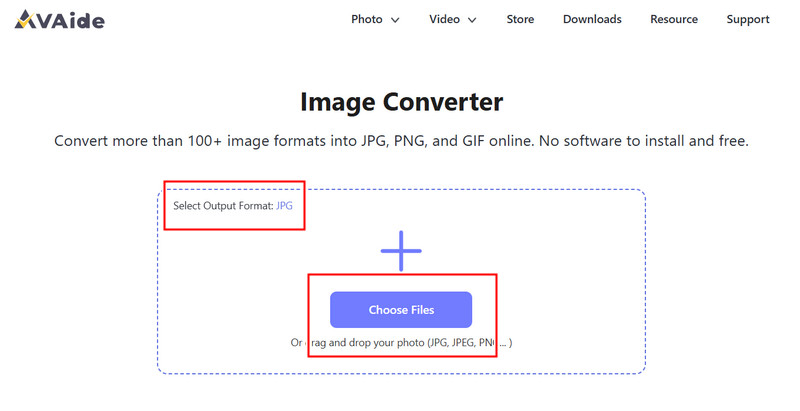
Go to your browser and access the official AVAide Image Converter page. Once loaded, you can start converting immediately without signing up or installing anything.
第2步Set Output and Upload
Select JPG as your desired output format. Then, click the + button or drag and drop your CR2 files into the upload area to begin.
第 3 步Start Converting CR2
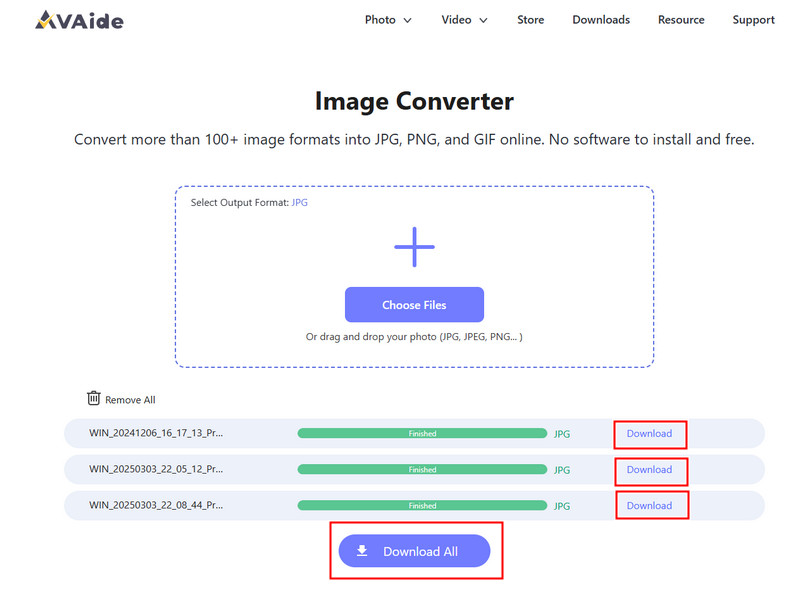
Wait for the tool to finish processing your files. Once done, click 下载 for a single file or 全部下载 if you converted multiple images.
- 优点
- Easy and fast to use
- No setup or installation needed
- Efficient batch processing support
- Maintains consistent output quality
- 缺点
- Requires an internet connection
- 高级编辑工具有限
2. Adobe Photoshop
Adobe Photoshop is an effective application that allows one to make edits on raw files prior to exporting. It is typically used when you need to convert CR2 to JPG and have complete control over image modifications.
主要特点:
- Advanced CR2 editing via Camera Raw
- High-quality export options
- Professional-grade editing tools
平台:
- Windows 和 Mac
第1步Launch Photoshop and open your CR2 file, which will load in Camera Raw automatically.
第2步Adjust exposure, white balance, or color as needed, then click 打开 接着说。
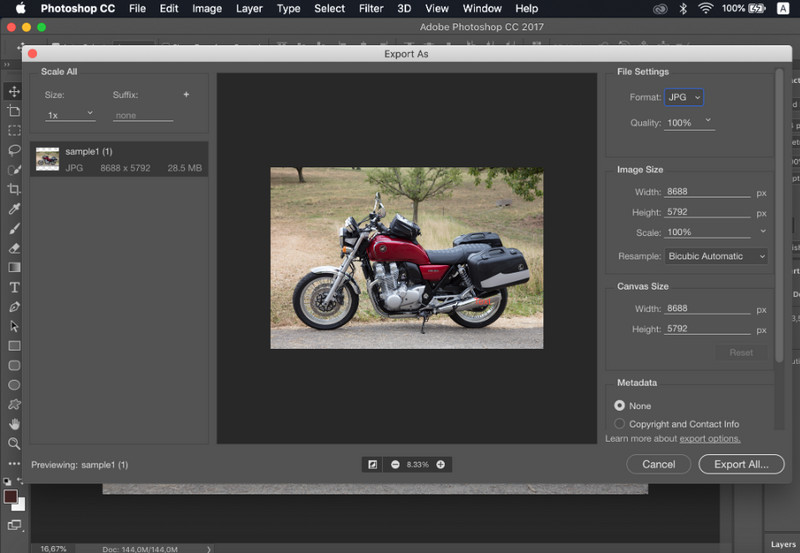
第 3 步去 文件, 选择 另存为, 选择 JPG format, set the quality, and save the image.
- 优点
- Excellent image control and precision
- Industry-standard software
- 缺点
- 需要订阅
- 学习曲线陡峭
3. Lightroom
灯室 is ideal for photographers managing large image libraries, and even if you want to remove the background in Lightroom. It simplifies batch editing and exporting, making it easy to use a CR2-to-JPG converter workflow for multiple images at once.
主要特点:
- Batch editing and export
- Non-destructive editing system
- Organized photo management
平台:
- Windows、Mac 和移动设备
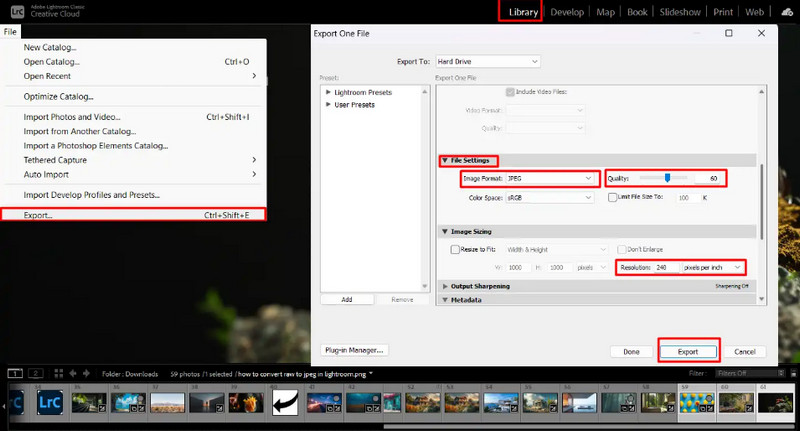
第1步Open Lightroom and add your CR2 files to the library.
第2步Choose the pictures and make edits, if necessary.
第 3 步点击 出口, 选择 JPG format, set settings, and select where to save.
- 优点
- Efficient for bulk image processing
- Consistent output quality
- 缺点
- Subscription required
- Requires learning for beginners
4. GIMP
GIMP 照片编辑器 is a free, open-source editor that can handle raw images using plugins. It is an effective option if you are learning how to convert CR2 to JPG without spending on paid software.
主要特点:
- 自由开源软件
- Supports multiple image formats
- Basic editing and conversion features
平台:
- 视窗、Mac、Linux
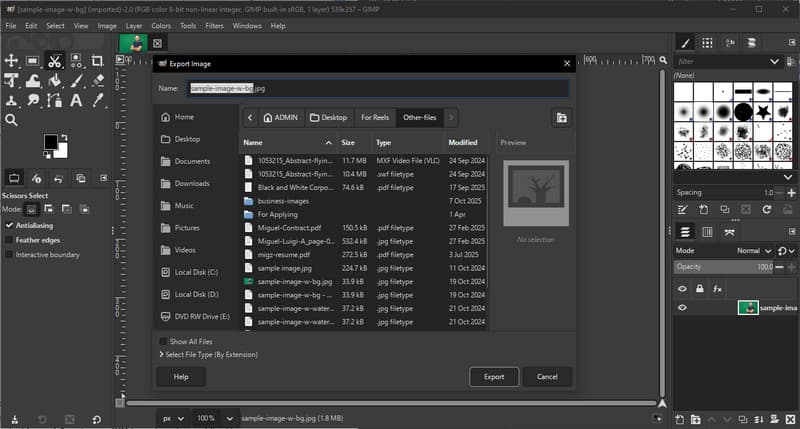
第1步Open GIMP and load your CR2 file using a RAW plugin.
第2步Adjust the image settings in the import window and confirm.
第 3 步去 文件, 选择 导出为, 选择 JPG format, and export the file.
- 优点
- Completely free to use
- Flexible with plugins and extensions
- 缺点
- Setup can be technical
- Less polished interface
5. 转换
转换 is a well-known web-based tool that allows users to convert files quickly without installation. It is a practical choice when users ask how to convert CR2 to JPG using a simple online platform.
主要特点:
- Supports multiple file formats, including CR2 and JPG
- Works directly in the browser
- Allows file upload from device, cloud, or URL
- Simple and fast conversion process
平台:
- 基于网络
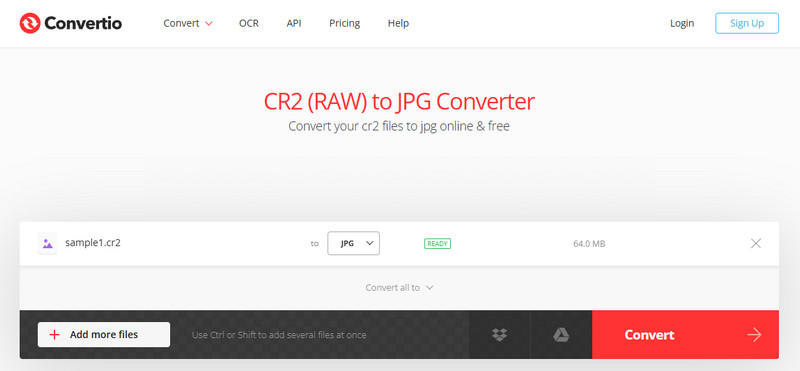
第1步Open Convertio in your browser and upload your CR2 file.
第2步选择 JPG 作为输出格式。
第 3 步Start the conversion and download the file once finished
- 优点
- Easy to access and use
- 无需安装
- Supports various file sources
- 缺点
- File size limits on the free version
- Requires an internet connection
Part 3. Comparison of the 5 CR2 to JPG Converters
| 特征 | AVAide 图像转换器 | Adobe Photoshop | 灯室 | GIMP | 转换 |
| 便于使用 | Very-easy | 缓和 | 缓和 | 缓和 | 简单 |
| 批量转换 | 是的 | 有限的 | 有限的 | 有限的 | 限5个 |
| 画面质量 | 最高 | 高的 | 高的 | 高的 | 高的 |
| 速度 | 快速地 | 缓和 | 快速地 | 缓和 | 快速地 |
| File Size Limitation | 不 | 不 | 不 | 不 | 是的 |
Part 4. FAQs of Converting CR2 to JPG
What to do with CR2 files?
CR2 files are raw images that contain unprocessed data from a Canon camera. They are useful if you want full control over editing, such as adjusting brightness, color, and sharpness. However, they are not easy to use for everyday tasks like sharing or uploading.
What apps open CR2 files?
CR2 files can be opened using several photo editing applications. Adobe Photoshop and Lightroom are the most common choices because they fully support raw formats and provide advanced editing tools. GIMP can also open CR2 files with a plugin.
How to convert raw to JPG all at once?
To convert multiple raw files simultaneously, you need a tool that supports batch conversion. Programs like Lightroom or online tools such as AVAide Image Converter allow you to import or upload several CR2 files at once. You simply select JPG as the output format and start the process.
Converting CR2 files to JPG makes images easier to share, view, and store. While CR2 is great for editing, JPG is more practical for everyday use. If you are wondering how to change the file type from CR2 to JPG, you can use tools like Photoshop, Lightroom, or online converters such as AVAide 图像转换器. The goal is simple: turn large raw files into smaller, usable JPG images without losing important quality.