Discord jest dobrze znany jako platforma komunikacyjna dla niszowych społeczności. Jedną z jego zalet jest możliwość strumieniowego przesyłania filmów i oglądania ich ze znajomymi. Jednak w wielu przypadkach użytkownicy napotykają czarny ekran bez wyraźnego powodu, co psuje nastrój do oglądania filmów z przyjaciółmi. Jak więc… napraw czarny ekran na strumieniu Discord? Tutaj przedstawimy Ci inne możliwe przyczyny i właściwe rozwiązania problemu czarnych ekranów.
Część 1. Możliwe przyczyny czarnego ekranu podczas transmisji na Discordzie
„Jak naprawić czarny ekran podczas streamowania na Discordzie” to nie tylko bezpośrednie rozwiązania, ale również poznanie możliwych przyczyn tego problemu, co może okazać się przełomowe. Dzięki temu możesz sprawdzić poniższą listę wszystkich możliwości, a być może znajdziesz problem na Discordzie i szybko go rozwiążesz:
Przyspieszenie sprzętowe Discorda i przeglądarki
Jeśli włączysz akcelerację sprzętową Discorda, funkcja ta może kolidować ze sterownikami GPU Twojego urządzenia. Z drugiej strony, strumieniowanie filmów z przeglądarki, takiej jak Chrome lub Edge, może uniemożliwić Discordowi strumieniowanie lub nagrywanie wideo.
Problemy ze sterownikami GPU i grafiki
Nieaktualne lub uszkodzone sterowniki mogą powodować brak kompatybilności Discorda. To samo dotyczy wielu GPU: Discord może mylić dane wyjściowe, które GPU przechwycić.
Chroniona treść
Dowiesz się, jak naprawić czarny ekran na streamach na Discordzie, jeśli platforma streamingowa nie jest zabezpieczona. Najpopularniejsze usługi przesyłania strumieniowego wideo podobnie jak Disney+, Netflix i Hulu nie obsługują przesyłania strumieniowego w Discordzie.
Część 2. Jak naprawić czarny ekran podczas transmisji na Discordzie
Istnieje kilka sposobów na rozwiązanie problemu z czarnym ekranem w Discordzie, a większość rozwiązań znajduje się w ustawieniach natywnych. Bez zbędnych ceregieli, przejdźmy do konkretów.
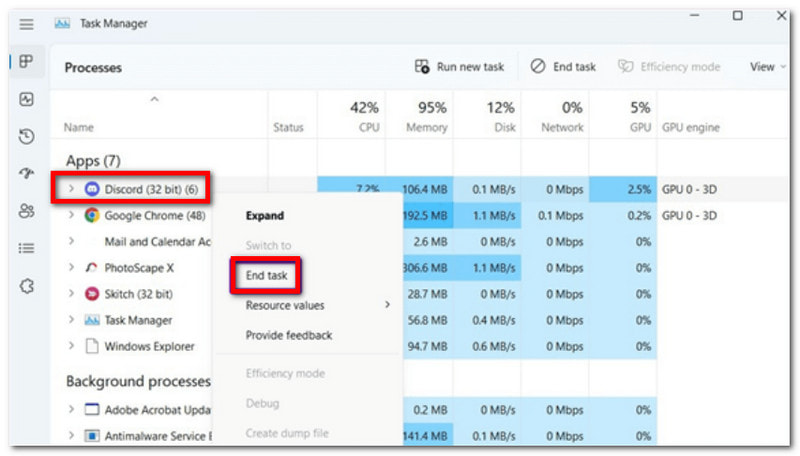
1. Zakończ zadania uruchomione w Discordzie
Jak szybko naprawić czarny ekran podczas streamowania na Discordzie? Najlepszym sposobem na rozwiązanie tego problemu jest zakończenie kilku uruchomionych zadań Discorda i ponowne uruchomienie aplikacji, ponieważ mogą one być przyczyną nieprawidłowego streamowania. Oto kroki, które należy wykonać:
Krok 1Na pasku zadań kliknij prawym przyciskiem myszy i wybierz Menedżer zadań.
Krok 2Po wyświetleniu okna kliknij strzałkę obok Discorda, kliknij prawym przyciskiem myszy każde zadanie i wybierz Zakończ zadanieNastępnie uruchom ponownie aplikację.
2. Tryb administratora
Aplikacja Discord wymaga pewnych uprawnień i funkcji do płynnego działania. Oznacza to, że jeśli nie jest uruchomiona z uprawnieniami administratora na Twoim urządzeniu, powoduje to awarię, na przykład czarny ekran. Sprawdź, jak naprawić czarny ekran podczas streamowania Netflixa na Discordzie w trybie administratora:
Krok 1Najpierw zamknij aplikację Discord na swoim urządzeniu. Może być również konieczne zamknięcie aplikacji do streamingu, takich jak Netflix czy Hulu.
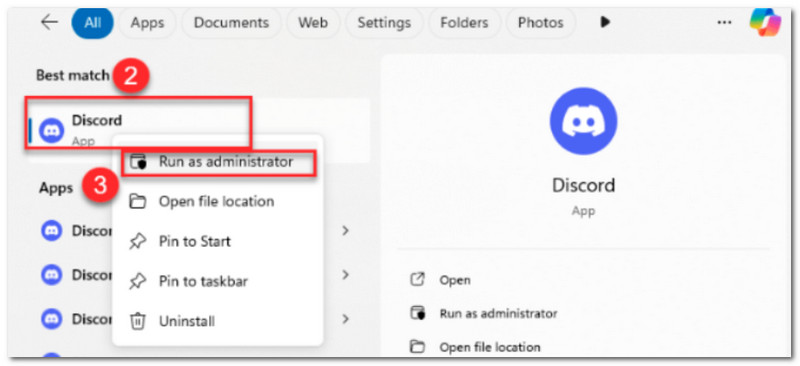
Krok 2Wyszukaj aplikację Discord w menu Start, a następnie kliknij ją prawym przyciskiem myszy. Wybierz i kliknij Uruchom jako administrator, a następnie potwierdź zmiany. Zrób to samo dla platformy streamingowej, a następnie otwórz aplikacje i spróbuj streamować.
3. Wyłącz akcelerację sprzętową
Być może nie zauważyłeś, ale akceleracja sprzętowa na Twoim komputerze jest włączona, co pomaga aplikacjom takim jak Discord działać płynnie. Jednak akceleracja sprzętowa powoduje, że Discord korzysta z procesora graficznego komputera, co prowadzi do awarii podczas strumieniowania na platformie. Aby wyłączyć tę funkcję, dowiedz się poniżej, jak naprawić czarny ekran w Discordzie, aby móc streamować z Netflixa:
Krok 1Otwórz Discord na swoim urządzeniu i kliknij Ustawienia w lewym dolnym rogu.
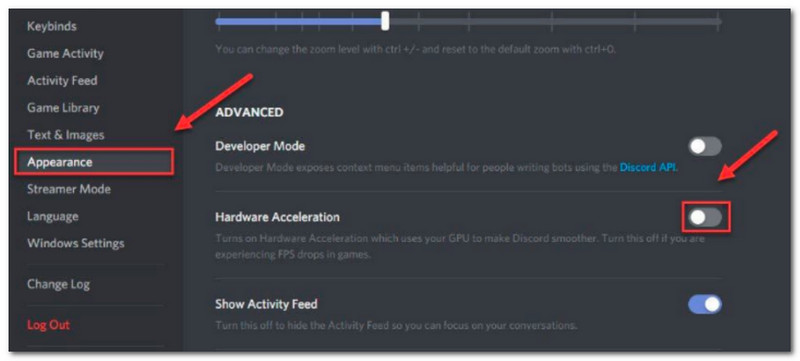
Krok 2Przejdź do Wygląd menu, a tam znajdziesz Przyspieszenie sprzętowe pod Zaawansowany. Wyłącz i potwierdź klikając Dobra.
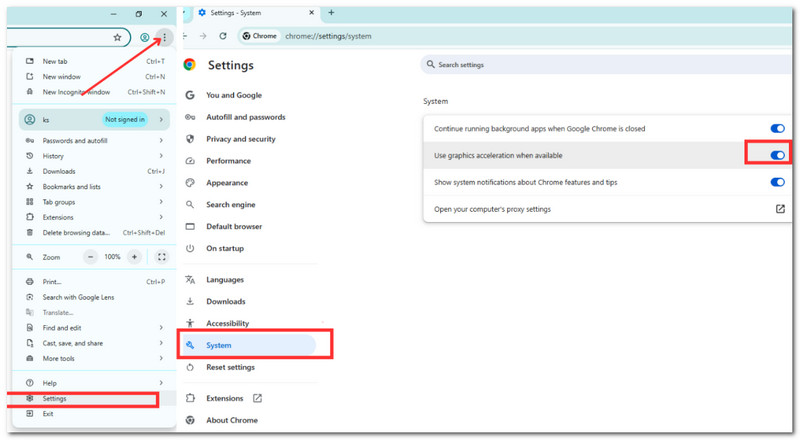
Krok 3Jeśli używasz Discorda w przeglądarce, możesz go wyłączyć w UstawieniaNastępnie przejdź do System menu i włącz Używaj przyspieszenia grafiki, gdy jest dostępne opcja.
4. Zaktualizuj sterowniki graficzne
Nieaktualne sterowniki graficzne mogą powodować awarie podczas strumieniowania w Discordzie. Aby tego uniknąć lub rozwiązać problem, oto jak naprawić czarny ekran podczas strumieniowania Netflixa w Discordzie poprzez aktualizację sterowników graficznych w systemie:
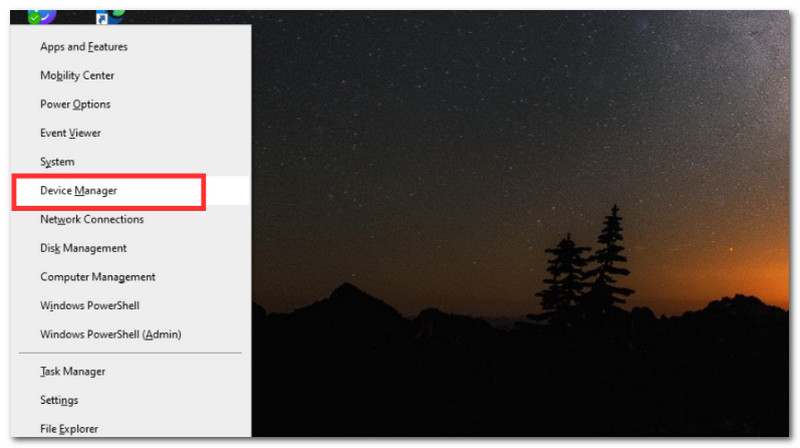
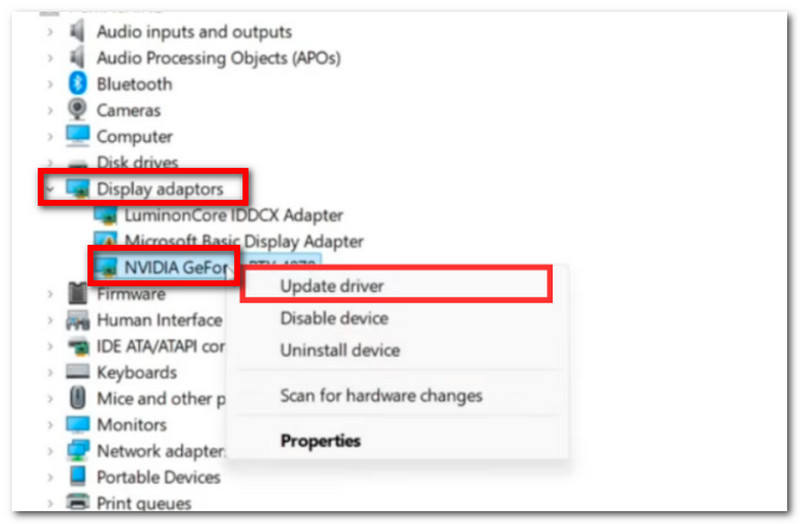
Krok 1Upewnij się, że masz stabilne i silne połączenie internetowe. Następnie naciśnij jednocześnie Okna oraz x na klawiaturze, aby uruchomić zestaw opcji systemowych. Wybierz Menedżer urządzeń.
Krok 2Gdy pojawi się okno, znajdź Adaptery wyświetlacza i rozwiń jego menu, klikając strzałkę obok niego. Wybierz sterownik graficzny, klikając go prawym przyciskiem myszy, a następnie kliknij Aktualizuj sterownik przycisk.
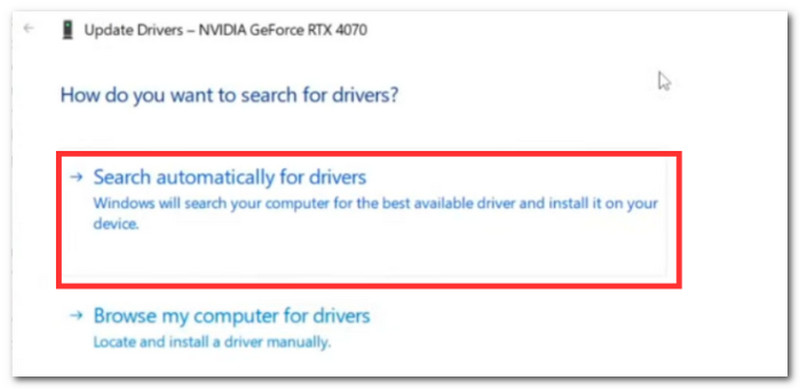
Krok 3Gdy pojawi się monit, wybierz Wyszukaj automatycznie Opcja sterowników. Twój komputer rozpocznie aktualizację sterowników graficznych, ale konieczne będzie ponowne uruchomienie komputera, a następnie ponowne uruchomienie aplikacji Discord.
5. Włączanie nakładki w grze
Jak naprawić czarny ekran na Discordzie, aby streamować Disney+? Inną metodą, którą warto wypróbować, jest włączenie funkcji nakładki w grze w aplikacji Discord. Jeśli nie jest ona włączona, może to być przyczyną czarnych ekranów podczas streamowania. Poniżej znajdziesz szczegółowe instrukcje:
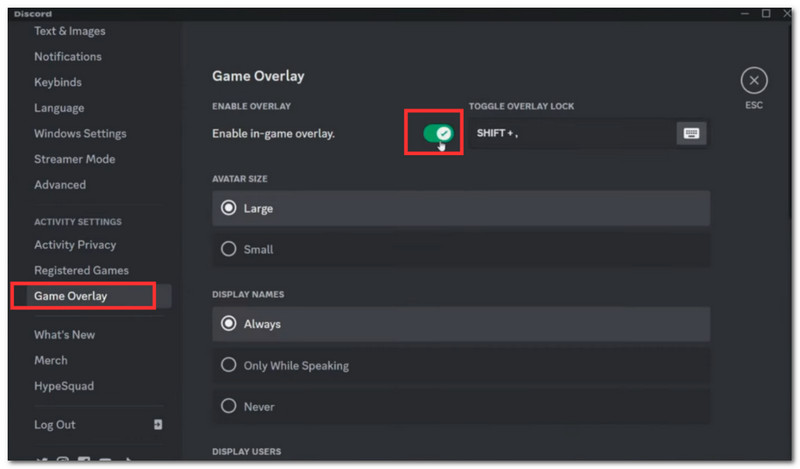
Krok 1Uruchom aplikację Discord na swoim komputerze i przejdź do ustawień użytkownika w lewym dolnym rogu.
Krok 2Przewiń opcje w lewym rogu i wybierz Nakładka na grę. Włącz opcję Włącz nakładkę w grze, a następnie spróbuj ponownie transmitować.
Część 3. Najlepsze narzędzie do konwersji niekompatybilnego wideo przed strumieniowaniem
Jak naprawić czarny ekran na Discordzie, jeśli film, który chcesz streamować, jest niekompatybilny? Cóż, masz… Konwerter wideo AVAide do szybkiej i wysokiej jakości konwersji wideo! To eleganckie narzędzie zaprojektowane do konwersji ponad 300 formatów wideo, obsługujące formaty kompatybilne z Discordem, takie jak MP4, MOV, WebM i inne. Obsługuje konwersję filmów w wysokiej rozdzielczości, a także pozwala na zmniejszenie rozdzielczości filmów 4K i 8K, aby zmniejszyć obciążenie GPU i zapobiec chwilowemu wygaszaniu ekranu na urządzeniu. Jednocześnie AVAide gwarantuje szybką konwersję i zachowuje oryginalną jakość wideo, a wszystko to w prostym, przyjaznym dla początkujących interfejsie.
Krok 1Aby rozpocząć, pobierz AVAide Video Converter na swój komputer (obsługuje systemy Windows i Mac). Postępuj zgodnie z instrukcjami, aby w pełni zainstalować oprogramowanie.

BEZPŁATNE POBIERANIE W systemie Windows 7 lub nowszym
 Bezpieczne pobieranie
BEZPŁATNE POBIERANIE Dla systemu Mac OS X 10.13 i nowszych
Bezpieczne pobieranieKrok 2Kliknij Dodać Kliknij przycisk, aby otworzyć folder lokalny. Prześlij wideo, które chcesz przekonwertować. Opcjonalnie możesz przesłać wiele plików wideo w celu konwersji zbiorczej.
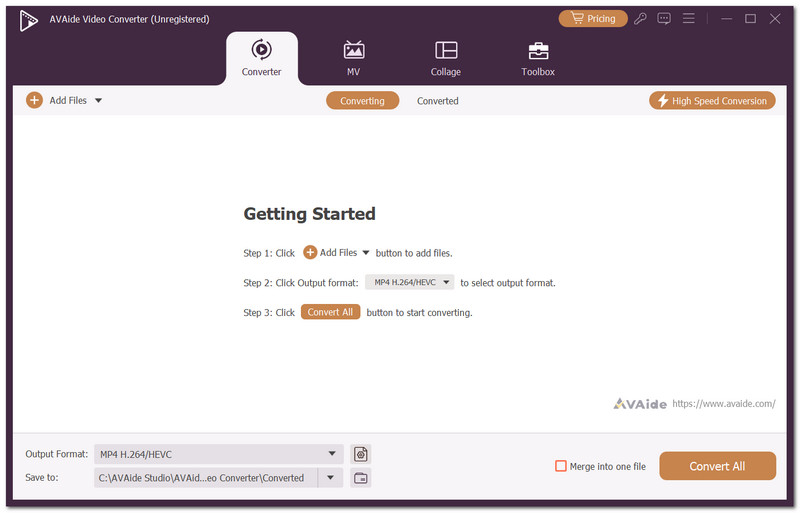
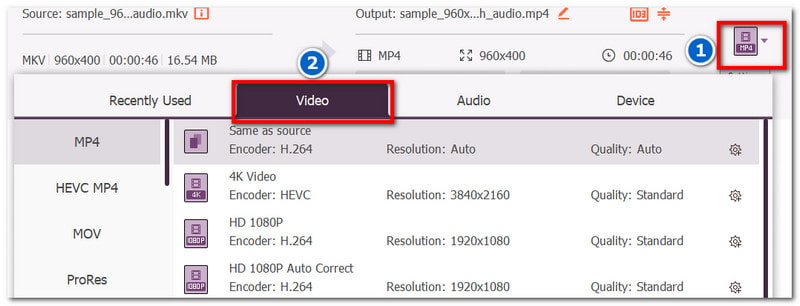
Krok 3Przejdź do Format menu obok przesłanego filmu. Z Wideo wybierz pożądany format wyjściowego wideo, np. MP4, MOV lub dowolny inny format obsługiwany przez Discord.
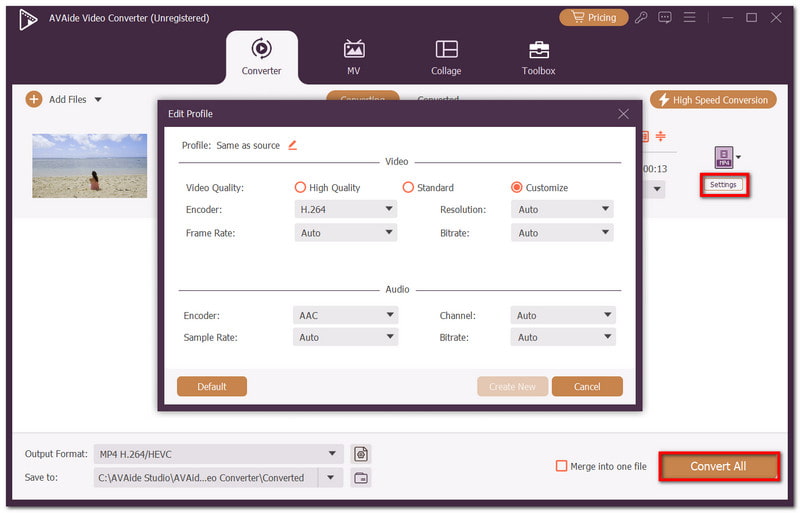
Krok 4Opcjonalnie możesz dostosować ustawienia wyjściowe wideo w menu Ustawienia. Możesz dostosować koder, jakość wideo, rozdzielczość i inne ustawienia. Po zakończeniu kliknij przycisk Konwertuj wszystko, aby zapisać wideo w nowym formacie wyjściowym.
Ten artykuł cię nauczył Jak naprawić czarny ekran podczas streamowania na Discordzie, zapewniając sposoby identyfikacji problemów, a także możliwe rozwiązania. Należy jednak pamiętać, że filmy przesłane na Discord mogą nie być obsługiwane. Dlatego AVAide Video Converter to zalecane rozwiązanie do szybkich, profesjonalnych konwersji, a nawet jako… Kompresor wideo DiscordCo więcej, oferuje niezbędne narzędzia do zmniejszania rozdzielczości plików bez utraty jakości wideo. Pobierz za darmo i wypróbuj na komputerach Windows i Mac.
O AUTORZE

Twój kompletny zestaw narzędzi wideo, który obsługuje ponad 350 formatów do konwersji w bezstratnej jakości.
Edytuj wideo
- Ekskluzywne wideo AI
- Usuń znak wodny z wideo
- Usuń tekst z wideo
- Zmniejszanie rozdzielczości 4K do 1080p/720p
- Usuń szum tła z wideo
- Edytor metadanych MP4
- Wyostrz jakość wideo
- Odwróć wideo
- Napraw wideo o złej jakości
- Usuń metadane z wideo/audio
- Odbicie lustrzane/odbicie lustrzane obrazu z przedniej kamery