Wanneer je een online vergadering of les via Zoom bijwoont, wil je waarschijnlijk het volgende: Screenshots maken in Zoom Voor later gebruik. Hier bieden we een complete handleiding voor het maken van screenshots in Zoom met de standaardfuncties van Windows, Mac en mobiele apparaten, of met de ingebouwde functies van Zoom zelf. We gaan ook in op een veelgestelde vraag: Kan Zoom zien of je een screenshot maakt? Je vindt het antwoord in dit artikel.
- Deel 1. Hoe maak je een screenshot in Zoom op een pc (Windows)?
- Deel 2. Hoe maak je een screenshot in Zoom op een Mac?
- Deel 3. Hoe maak je een screenshot in Zoom op je mobiel (iPhone en Android)?
- Deel 4. De ingebouwde functies van Zoom gebruiken
- Deel 5. Geeft Zoom een melding bij het maken van schermafbeeldingen?
Deel 1. Hoe maak je een screenshot in Zoom op een pc (Windows)?
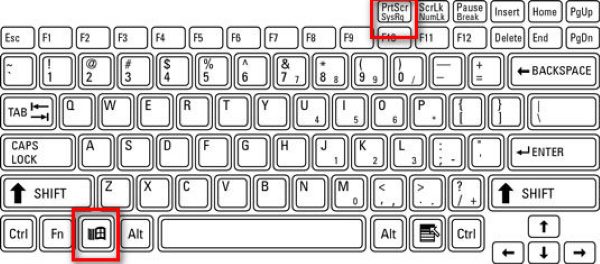
1. De Print Screen-toets gebruiken (volledig scherm)
Gebruik de sneltoets voor schermafbeeldingen in Windows om een screenshot van het hele scherm te maken. Druk tijdens de Zoom-vergadering op de sneltoets. ramen samen met de PrtScn toets (die zich meestal naast de functietoetsen bevindt).
Van alles wat op uw scherm te zien is, wordt direct een kopie gemaakt en opgeslagen in C:\Users\YOUR_USERNAME\Pictures\Screenshots (in Windows 10 en 11).
2. Gebruik het knipgereedschap / Knip & Schets (het beste voor inzoomen)
druk op Winnen + Verschuiving + S Het bureaublad wordt grijs weergegeven en er verschijnt een schermopnamebalk bovenaan. Je kunt vervolgens een rechthoek tekenen of kiezen voor vrije vorm, venster of volledig scherm.
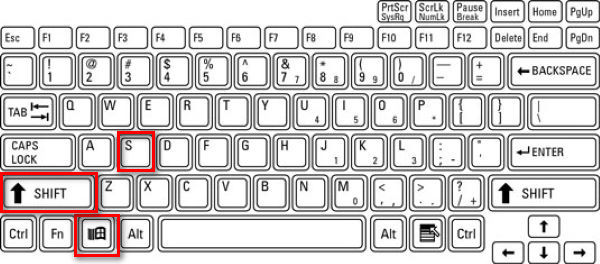
Dit is ideaal voor Zoom, omdat je alleen het Zoom-venster of een deel ervan kunt vastleggen. Na het maken van de schermafbeelding wordt deze naar het klembord gekopieerd en verschijnt er een melding. Klik op de melding om de schermafbeelding te bewerken.
3. Alt + PrtScn gebruiken (alleen actief venster)
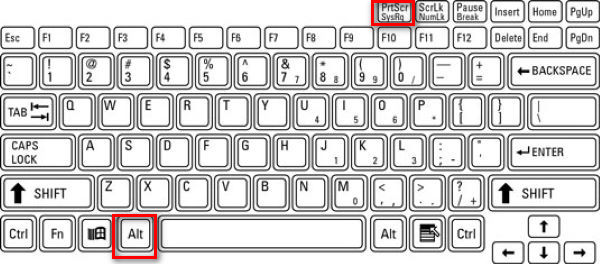
Stap 1Klik op het zoomvenster om te controleren of het actief is.
Stap 2druk op Alt + PrtScn.
Dit legt alleen het actieve venster vast, namelijk de Zoom-vergadering, en kopieert de inhoud naar het klembord.
4. Gebruikmaken van een tool van derden
Ik gebruik liever een tool van een derde partij om screenshots te maken in Zoom, omdat de afbeeldingen dan op een specifieke locatie worden opgeslagen die ik zelf instel, gescheiden van andere screenshots die door Windows zijn gemaakt. Dit maakt het makkelijker om bepaalde afbeeldingen terug te vinden.
Er zijn verschillende tools beschikbaar om screenshots te maken van Zoom-gesprekken, zoals ShareX, Icecream Screen Recorder, Snagit en AVAide-schermrecorderNet als bij AVAide Screen Recorder kun je de afbeeldingen in dezelfde map plaatsen, waardoor je alle schermafbeeldingen gemakkelijk geordend kunt houden. Ik laat je stap voor stap zien hoe je dat doet.
Stap 1Download en installeer de recorder.

GRATIS DOWNLOAD Voor Windows 7 of hoger
 Veilige download
GRATIS DOWNLOAD Voor Mac OS X 10.13 of hoger
Veilige downloadStap 2Start de recorder
Stap 3Deelnemen aan een Zoom-vergadering
Stap 4Klik op de camera knop rechtsboven in het AVAide Screen Recorder-venster.
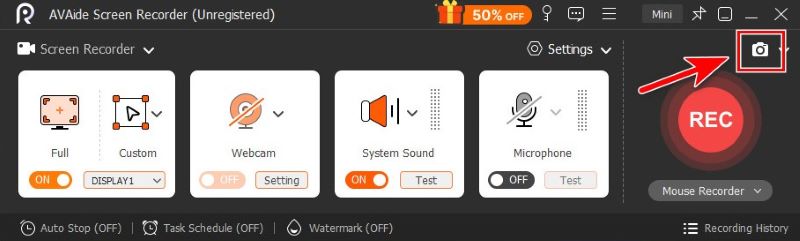
Stap 5Knip een afbeelding vrij uit door met de muis te slepen, of beweeg de muiswijzer over Zoom om het venster vast te leggen.
Stap 6Als je tevreden bent met het knipsel, klik dan Sparenen kies de map waarin u het wilt opslaan.
Deel 2. Hoe maak je een screenshot in Zoom op een Mac?
De ingebouwde functies van het systeem zijn voldoende om screenshots te maken op een Mac.
1. Volledig scherm vastleggen
Om het hele scherm op een Mac vast te leggen, drukt u op Opdracht + Verschuiving + 3.

2. Selectieve opname (het beste voor zoomen)
Als u een bepaald rechthoekig gebied op het vergaderscherm wilt vastleggen, drukt u op Opdracht + Verschuiving + 4.

3. Een specifiek venster vastleggen
Stap 1pers Opdracht + Verschuiving + 4
Stap 2Sla de ruimte in.

De cursor verandert dan in een camera-icoon. Klik op het zoomvenster om alleen dat venster vast te leggen.
4. De screenshot-app gebruiken
Stap 1 druk op Opdracht + Verschuiving + 5 om de schermafbeeldingswerkbalk van Apple te openen.

Stap 2Kies het gereedschap van uw voorkeur.

Ik zou het aanbevelen. Een venster vastleggen en Een gedeelte vastleggen, geschikt om alleen het Zoom-venster zonder afleiding vast te leggen.

- Je kunt ook de standaardfuncties van Mac gebruiken of een tool van een derde partij om Bewerk je screenshot op een Mac. zoals u dat wenst.
Deel 3. Hoe maak je een screenshot in Zoom op je mobiel (iPhone en Android)?
1. Op iPhone/iPad
De methode is afhankelijk van uw apparaatmodel.
Stap 1Start je Zoom-vergadering.
Stap 2Maak een schermafbeelding.
- Voor iPhones met Gezichtsherkenning en geen Home-scherm knop (iPhone X en later, behalve iPhone SE) en iPads met geen Home knop:
druk de Zijknop + Volume omhoog. - Voor iPhones of iPads met een Huis knop (iPhone SE, 8 en ouder, oudere iPads):
druk de Zij-/bovenknop + Huis.
Laat beide knoppen snel los. Je ziet het scherm even flitsen, waardoor je hele scherm wordt vastgelegd, en er verschijnt een miniatuur die je kunt bewerken of opslaan.
2. Op Android
Snelkoppeling: De meeste Android-telefoons gebruiken de klassieke Stroom + Volume omlaag snelkoppeling. Deze verschilt echter per merk van je apparaat. Dus als deze snelkoppeling niet werkt, wat normaal is, raad ik je aan om je telefoonmodel te controleren en de snelkoppeling op te zoeken.
Houd tijdens je Zoom-vergadering de knoppen ongeveer 1-2 seconden tegelijk ingedrukt totdat het scherm even knippert. De schermafbeelding wordt opgeslagen in je Galerij of Foto's-app.
Werkbalk: Trek het menu open door over je scherm naar beneden te vegen. Zoek de Schermafbeelding Tik op de knop in het menu om te kiezen uit schermafbeeldingen op volledig scherm, vrije vorm en scrollende schermafbeeldingen.
Deel 4. De ingebouwde functies van Zoom gebruiken
Zoom's "Maak een momentopname" (alleen voor schermdeling)
De ingebouwde screenshotfunctie van Zoom is eenvoudig te gebruiken met slechts een paar klikken.
Stap 1Klik Praten onderaan het Zoom-venster
Stap 2Klik op de Schermafbeelding pictogram onder het chatvenster.
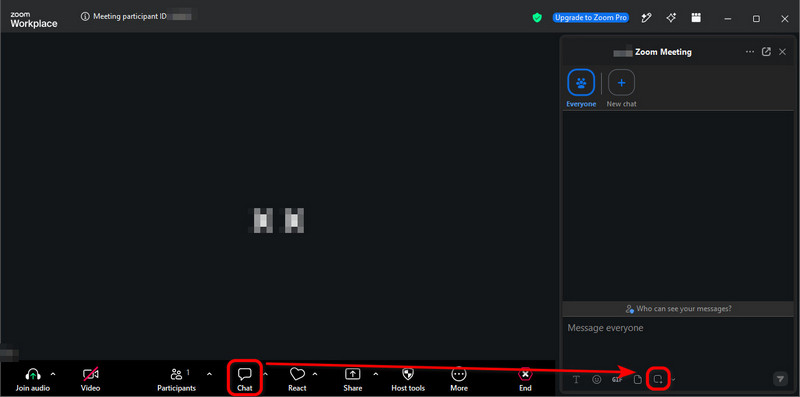
Stap 3Sleep met je muis over het gedeelte van je scherm dat je wilt selecteren en klik vervolgens. Vastleggen.
De schermafbeelding bevindt zich nu in de chatboxJe kunt het met één klik naar andere deelnemers van de vergadering sturen. papieren vliegtuigje pictogram rechtsonder.
- De schermafbeelding in het chatvenster wordt NIET automatisch op uw computer opgeslagen. Als u deze wilt opslaan, klikt u met de rechtermuisknop op de afbeelding en selecteert u Opslaan. Opslaan als….
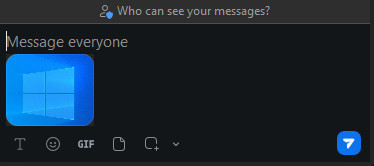
- Hoewel deze methode erg eenvoudig en snel is, kan deze soms mislukken omdat de host de chatfunctie of het opslaan van chats kan uitschakelen. In dat geval weet u wat u moet doen: gebruik de functies van het besturingssysteem of een tool van derden, zoals AVAide Screen Recorder.
Wat is een "Zoom Meeting Screenshot Generator"?
Het klinkt als een screenshot-tool, toch? Dat dacht ik eerst ook, maar het is in feite een tool van een derde partij. maakt nep-Zoom-gespreksafbeeldingen aan.
Ze bieden mock-ups van Zoom-gesprekken aan, waarbij je foto's uploadt en namen invoert om een realistische schermafbeelding van een vergadering met fictieve deelnemers te genereren.
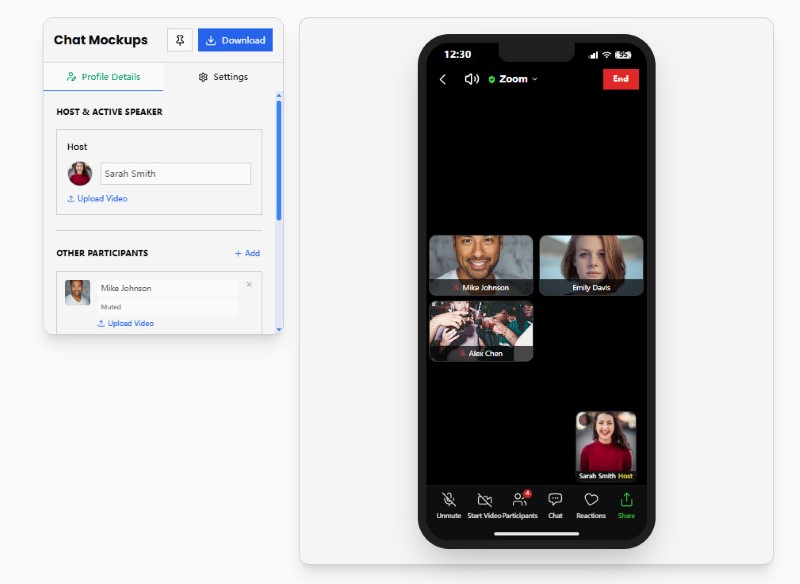
In dit artikel zoeken we niet naar tools om screenshots van Zoom-vergaderingen te maken. Maar als je geïnteresseerd bent in het genereren van nep-Zoom-memes, probeer dan sites zoals Pradoy of Kapwing. Die zijn erg leuk.
Deel 5. Geeft Zoom een melding bij het maken van schermafbeeldingen?
Kort gezegd, Zoom laat je NIET weten wanneer een deelnemer screenshots maakt, of ze nu de functies van het besturingssysteem, een tool van derden of de ingebouwde snapshotfunctie van Zoom gebruiken.
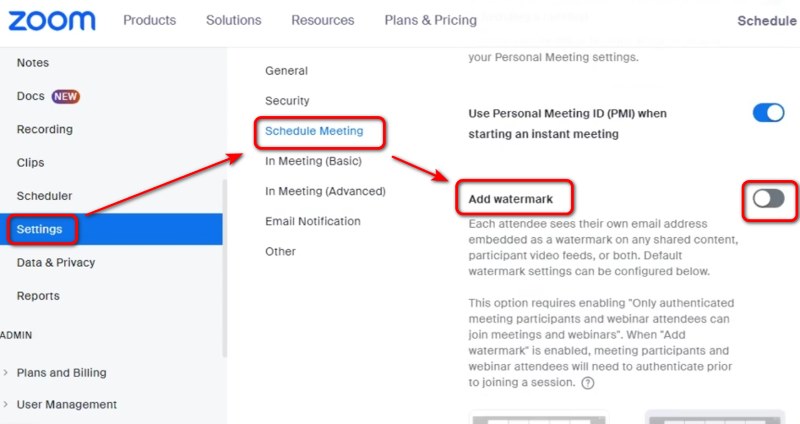
Als host of schermdeler maak je je misschien zorgen dat de inhoud van je scherm ongemerkt openbaar wordt. Tot nu toe was er geen specifieke manier om dit te voorkomen, behalve door een watermerk aan je scherm toe te voegen. Ga hiervoor naar de instellingen van het Zoom-webportaal en schakel 'Watermerk toevoegen' in.
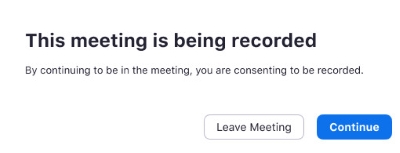
Maar Zoom geeft wel een melding wanneer iemand neemt de Zoom-vergadering opWanneer u deelneemt aan een vergadering die wordt opgenomen, of wanneer de host een opname start, ontvangt u een toestemmingsmelding. U kunt toestemming geven of de vergadering verlaten.
Screenshots maken in Zoom Het maken van een screenshot is eenvoudig op Windows, Mac, iPhone en Android met behulp van apparaatfuncties, tools van derden of de eigen functies van Zoom. Zoom stelt hosts of deelnemers niet op de hoogte wanneer je een standaard screenshot maakt. Het is echter nog steeds belangrijk om de privacy, het auteursrecht en eventuele vergaderingsregels te respecteren voordat je Zoom-content vastlegt of deelt. Als je je zorgen maakt over privacy, maak dan duidelijk aan de deelnemers dat je geen screenshots op prijs stelt voordat je je scherm deelt.
OVER DE AUTEUR

Leg het beste moment vast met AVAide Screen Recorder. Screencast, aanpassen en delen in seconden.
Schermopname