Je computer biedt alle essentiële functies voor online activiteiten, of het nu gaat om bewerken, kijken of gamen. Een functie die iedereen nodig heeft, is de screenshot-optie waarmee je een afbeelding van je hele scherm of een specifiek gedeelte kunt vastleggen. Omdat er computers van verschillende merken bestaan, is dit artikel bedoeld om je te begeleiden bij het maken van screenshots. Hoe maak je een screenshot op een Windows Acer?Om te beginnen ontdek je de verschillende manieren om toegang te krijgen tot de ingebouwde screenshot-functie op een laptop of desktop, een Chromebook en een tablet. Bekijk bovendien de oplossingen voor het geval je in de problemen komt en je Acer geen PrintScreen-knop heeft om een screenshot te maken.
Deel 1. Hoe maak je een screenshot op een Acer Windows-laptop of -desktop?
Hieronder leggen we uit hoe je screenshots maakt op een Acer-laptop met behulp van de standaard sneltoetsen en apps. De stappen zijn duidelijk, zodat je ze zelf kunt uitproberen. Laten we beginnen.
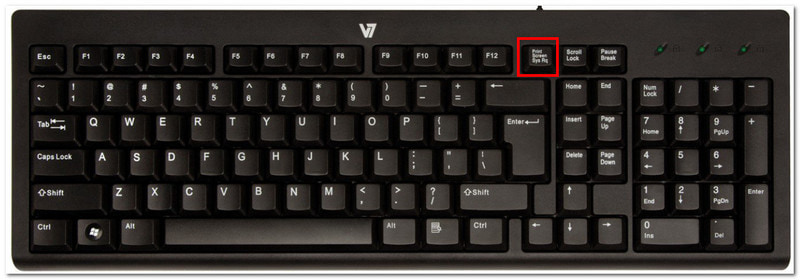
1. De klassieke PrintScreen (PrtSc) knop
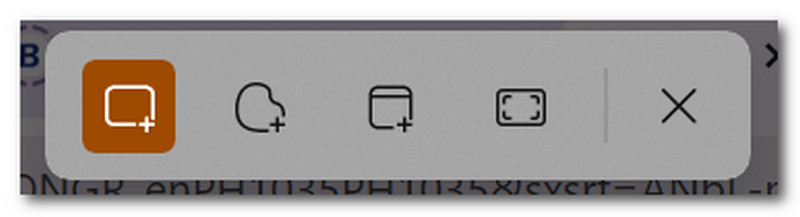
Stap 1Zoek en druk op de PrtSc Druk op de knop rechtsboven op je toetsenbord. Je scherm wordt gedimd en er verschijnt een klein menubalkje in het midden bovenaan.
Stap 2Kies tussen de volgende modi: Rechthoekig, Vrije vorm, Venster, en Volledig schermZodra de schermafbeelding is gemaakt, wordt deze automatisch naar uw klembord gekopieerd. U kunt de afbeelding vervolgens plakken in een leeg document, een chatbericht of elders.
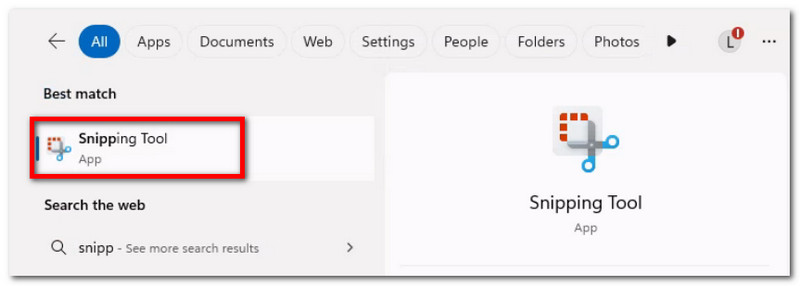
2. Knipprogramma & Knip & Schets (Het meest geschikt voor aangepaste gebieden)
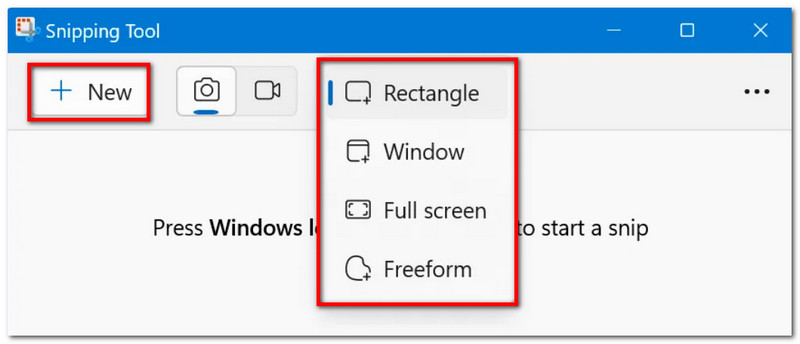
Stap 1Zoek de app in je zoekbalk. Let op: de app kan de volgende naam hebben: Knipprogramma of Knippen en schetsenafhankelijk van de Windows-versie op uw apparaat.
Stap 2Kies een modus uit het keuzemenu en klik vervolgens op de Nieuw knop om een schermafbeelding te maken. Gebruik de tekenhulpmiddelen om te bewerken en klik vervolgens. Sparen om de schermafbeelding op te slaan.
3. De Game Bar
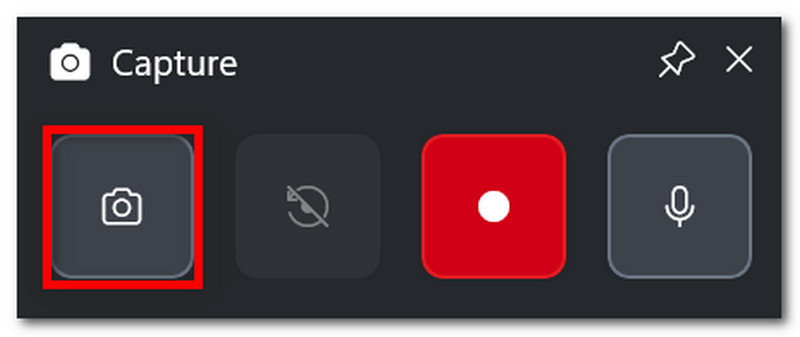
Stap 1druk op Windows + G op je toetsenbord. Wanneer het scherm dimt, verschijnen er een paar taakbalken.
Stap 2Klik op de Camera pictogram, dat is voor het maken van screenshots. Je kunt ook drukken op Windows + Alt + PrtSc Om tijdens het spelen toegang te krijgen tot deze functie.
4. AVAide schermrecorder
Met de standaardmethoden voor het maken van screenshots denk je misschien dat je apparaat niet veel meer kan. Maar wist je dat... AVAide-schermrecorder Kan AVAide je ervaring met het maken van screenshots overtreffen? Dankzij het strakke ontwerp en de vele functies is het maken van screenshots eenvoudig en van hoge kwaliteit geworden. Je kunt een screenshot maken van het hele scherm, een open venster of slechts een klein gedeelte, en deze opslaan in populaire formaten zoals BMP, JPEG, PNG, GIF of TIFF. De ingebouwde bewerkingsopties zijn ook erg handig, want je kunt vrij tekenen, cijfers of tekst toevoegen en belangrijke details in de foto vervagen voordat je deze opslaat. Tot slot is AVAide's schermopnamefunctie niet beperkt tot één tool, maar kan deze ook worden gebruikt wanneer je opneemt op je computer, met een webcam en op elk willekeurig platform via internet. Til je screenshot-ervaring naar een hoger niveau met dit fantastische alternatief voor Windows of Mac.
Stap 1Klik op de Downloaden Klik op de knop en installeer AVAide Screen Recorder op je Acer. Zodra de installatie is voltooid, open je de software.

GRATIS DOWNLOAD Voor Windows 7 of hoger
 Veilige download
GRATIS DOWNLOAD Voor Mac OS X 10.13 of hoger
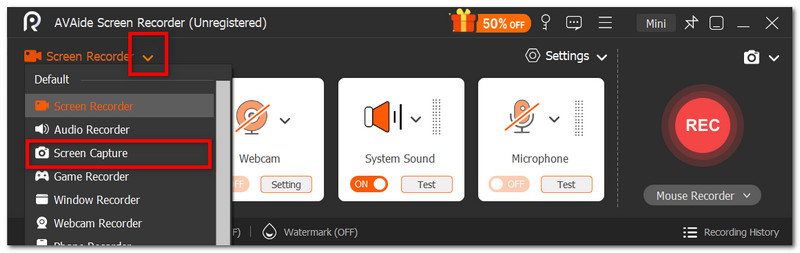
Veilige downloadStap 2Ga naar het keuzemenu in de linkerhoek van de gebruikersinterface en kies uit de lijst de optie. Schermopname optie. Je cursor verandert direct, waarmee je het gedeelte van je scherm kunt selecteren dat je wilt vastleggen.
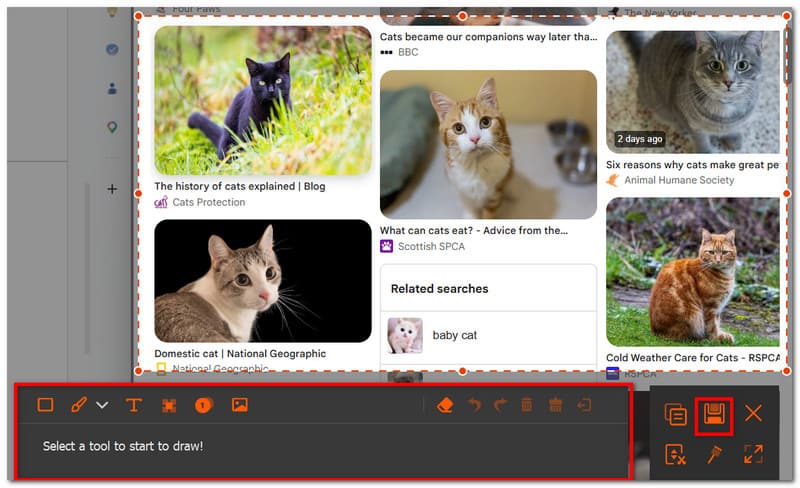
Stap 3Nadat je de foto hebt gemaakt, kun je deze bewerken met behulp van de bewerkingsopties. Exporteer de afbeelding vervolgens door te klikken op de Sparen knop. Herhaal indien nodig.
Deel 2: Hoe maak je een screenshot op een Acer zonder de PrintScreen-knop?
Je kunt in een lastige situatie terechtkomen als je toetsenbord geen PrtSc-toets heeft, wat je werk aanzienlijk kan vertragen. Dus, hoe maak je een screenshot op een Acer-computer zonder PrtSc? In dit gedeelte vind je de beste methoden om een screenshot te maken zonder de PrtSc-toets te gebruiken, methoden die specifiek zijn ontwikkeld voor Acer-laptops.
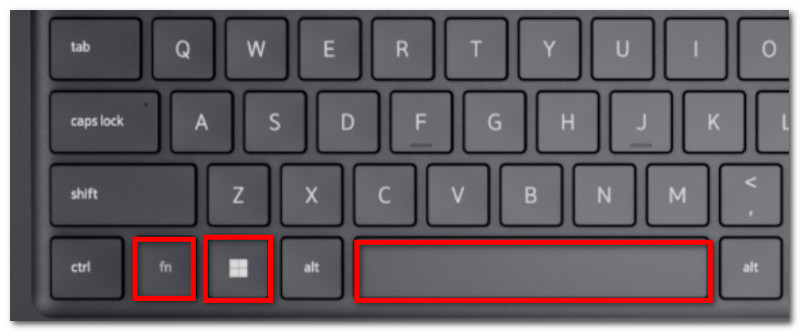
Oplossing 1: Druk op Fn + Windows + Spatiebalk (een veelgebruikte Acer-sneltoets) of Fn + PrtSc
Stap 1Druk op uw Acer-toetsenbord op Fn + Windows + Spatiebalk knoppen. Als je scherm knippert, betekent dit dat er een schermafbeelding van het volledige scherm is gemaakt.
Stap 2Open een leeg Word-document en druk op Ctrl + V Plak de afbeelding. Vervolgens kun je het document in een map opslaan.
Oplossing 2: Gebruik Windows + Shift + S (opent de opnamebalk van Snipping Tool)
Stap 1Druk tegelijkertijd op Windows + Shift + S Druk op de toets op je toetsenbord en je opent het Knipprogramma.
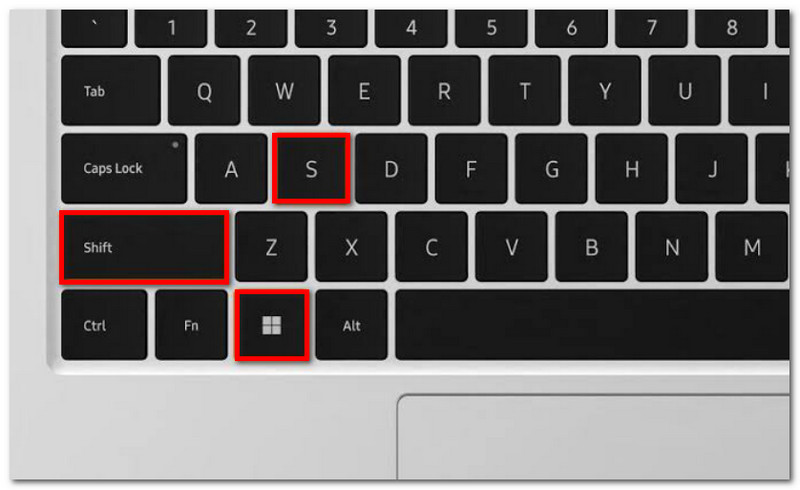
Stap 2Kies de schermafbeeldingmodus en sleep uw cursor om het gewenste gebied te selecteren dat u wilt vastleggen. Gebruik Ctrl + V om de afbeelding te plakken.
Oplossing 3: Een andere toets toewijzen
Stap 1Download PowerToys vanuit de Microsoft Store. Selecteer in het linkerdeel van de interface de optie Toetsenbordbeheerder.
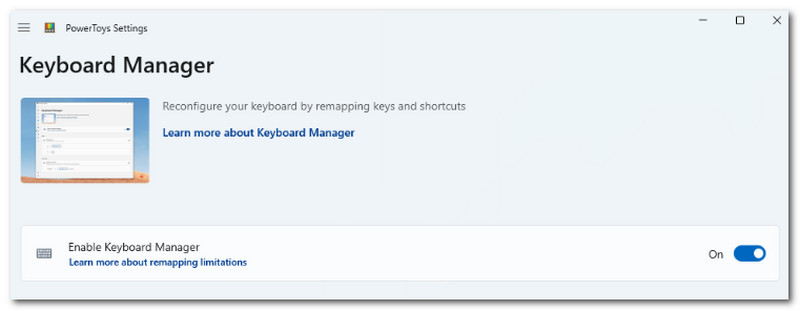
Stap 2Kies een willekeurige letter op je toetsenbord om het Knipprogramma te openen wanneer dat nodig is. Klik oke om de wijzigingen op te slaan.
Deel 3: Hoe maak je een screenshot op een Acer Chromebook?
Op een Acer Chromebook werkt het maken van screenshots anders dan op een gewone Chromebook. Waar de meeste computers een PrtSc-toets hebben, ontbreekt deze op Chromebooks. Hoe maak je dan op de officiële manier een screenshot op een Acer Chromebook? Volg de onderstaande stappen om eenvoudig screenshots te maken in zowel de volledige schermmodus als de gedeeltelijke schermmodus:
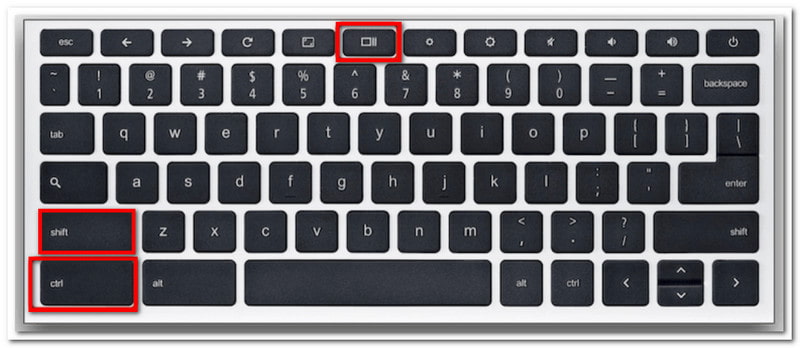
Stap 1Voor volledig scherm, druk op Ctrl + Weergeven knoppen. De 'Tonen'-knop bevindt zich meestal in het midden bovenaan uw toetsenbord en heeft een pictogram van een rechthoek met twee verticale lijnen.
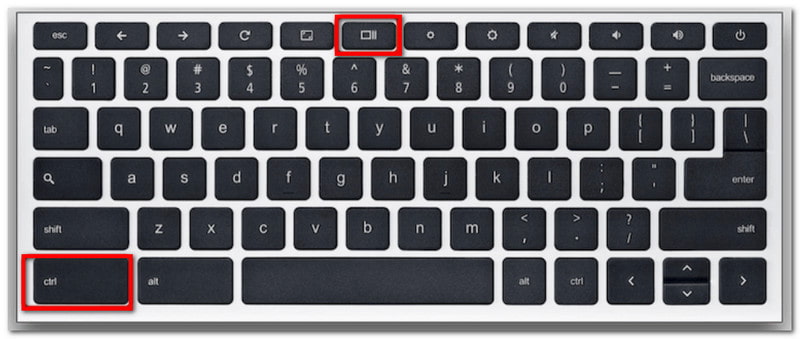
Stap 2De schermafbeelding wordt naar uw klembord gekopieerd. U moet deze vervolgens in een leeg Word-document plakken om het document op te slaan.
Stap 3Voor de gedeeltelijke modus drukt u op Ctrl + Shift + ShowSelecteer met je muis het gebied waarvan je een screenshot wilt maken.
Deel 4: Hoe maak je een screenshot op een Acer-tablet
Acer-tablets werken anders dan laptops. Screenshots maken op een tablet is echter heel eenvoudig en vereist slechts een paar knoppen. In tegenstelling tot screenshots op een laptop, waarbij de afbeeldingen worden opgeslagen afhankelijk van de gebruikte methode, worden screenshots op je tablet opgeslagen in de Foto's-app. Volg de onderstaande stappen:
Stap 1Bereid de inhoud voor die u wilt vastleggen op uw Acer-tablet. Houd de knop ingedrukt. Volume omlaag en Stroom toetsen.
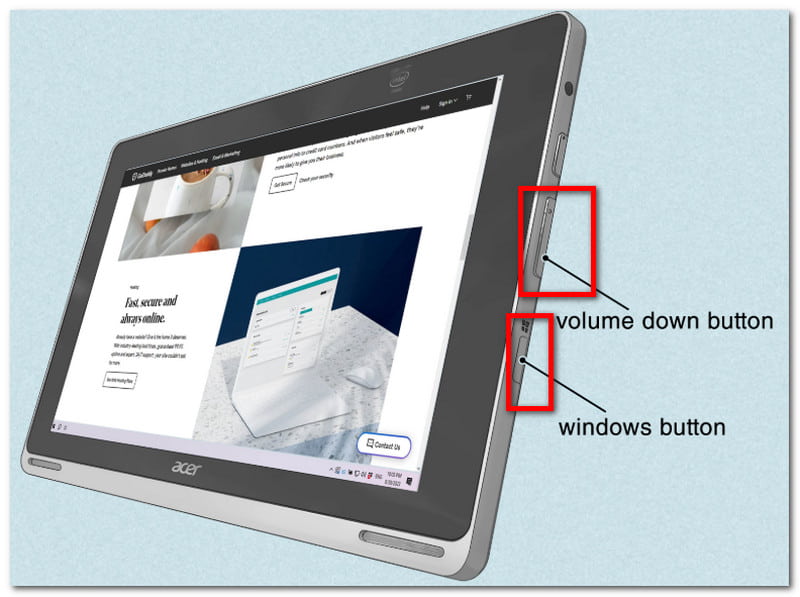
Stap 2Zodra het scherm knippert, betekent dit dat er een screenshot is gemaakt. Open de Foto's-app om de foto te bekijken of gebruik een foto resizer om de schermafbeelding bij te snijden.
Met dit artikel, screenshots maken op een Acer Het maken van screenshots is nog nooit zo eenvoudig geweest, want de app begeleidt je bij het gebruik van de officiële methoden voor het maken van screenshots op je apparaat. Bovendien ontdek je ook de beste methode als je bureaublad geen PrintScreen-knop heeft. Vergeet niet dat AVAide Screen Recorder altijd een geweldig alternatief is voor het maken van schermopnames, of je nu een screenshot wilt maken, video wilt opnemen of audio wilt opnemen. We raden je aan om de beste oplossing voor schermopnames op Windows en Mac te proberen.
OVER DE AUTEUR

Opnamescherm, audio, webcam, gameplay, online vergaderingen, evenals iPhone/Android-scherm op uw computer.
Schermopname