Ben je een Mac-gebruiker en wil je je scherm en audio opnemen? Dan hoef je niet verder te zoeken. QuickTime Player biedt alles wat je nodig hebt.
In dit QuickTime-schermopname In deze handleiding leren we je van begin tot eind hoe je het programma gebruikt. Van het openen van de tool tot het stoppen en opslaan van je opname. Laten we beginnen!
Deel 1. Een korte introductie tot QuickTime-schermopname
QuickTime Player is een gratis programma voor het Mac-besturingssysteem. Het is vooraf geïnstalleerd, zodat je het meteen kunt gebruiken. Hoewel het bekend staat als een mediaspeler, functioneert het ook als een schermrecorder voor MacHierdoor kunt u uw scherm vastleggen zonder apps van derden. Bovendien is de interface eenvoudig, waardoor deze gemakkelijk te gebruiken is.
1. Kerncompetenties
- Kan opnemen
Voor dagelijks gebruik biedt het de basisfunctionaliteit. Je kunt het volledige scherm opnemen. Je kunt ook een specifiek gebied selecteren. Tegelijkertijd kun je webcamvideo opnemen met de functie "Nieuwe filmopname". Je kunt er ook audio van een microfoon mee opnemen. Bovendien kan het muisklikken op het scherm weergeven. - Kan niet opnemen (van nature)
Helaas kan het geen systeemgeluid opnemen. Dit komt door de beveiliging van het Mac-besturingssysteem. Ook is het niet mogelijk om het scherm en de webcam tegelijkertijd op te nemen. - Beperkingen
Omdat het een basisprincipe is 4K-videospeler Hoewel het een recorder is, ontbreken er enkele functies. Zo slaat het video's alleen op in het .mov-formaat. Hierdoor kunnen de bestanden groot zijn. Daarnaast beschikt het niet over geavanceerde bewerkingsfuncties. Zo is er geen tijdlijnfunctie. Ook kun je geen annotaties of effecten toevoegen.
Deel 2. Hoe start je een schermopname met QuickTime?
Wil je weten hoe je QuickTime Player kunt gebruiken om je scherm met geluid op te nemen? Dan hoef je alleen maar een paar eenvoudige instellingen te doorlopen voordat je aan de slag kunt.
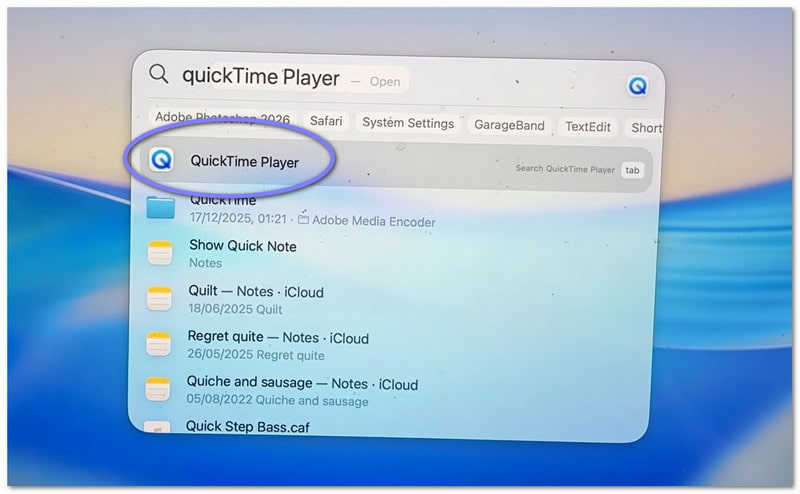
Stap 1Ga eerst naar uw Toepassingen map en open het programma. Als je een snellere manier wilt, gebruik dan Spotlight. Druk op Opdracht + Ruimtetyp vervolgens QuickTime-speler. druk op Binnenkomen om het te openen.
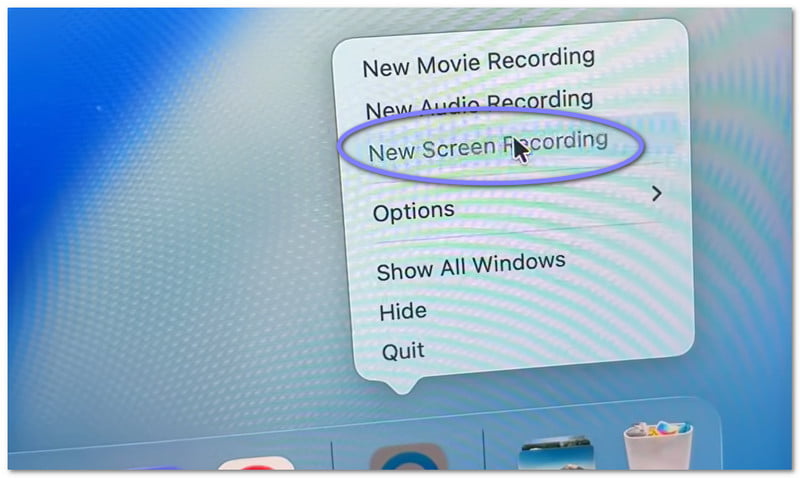
Stap 2Zodra het programma is geopend, ga je naar de bovenste menubalk. Klik Bestand, kies dan Nieuwe schermopnameEr verschijnt een klein opnameschermpje. Als u een snelkoppeling wilt, drukt u op Opdracht + Controle + NHet opent meteen het schermopnameprogramma.
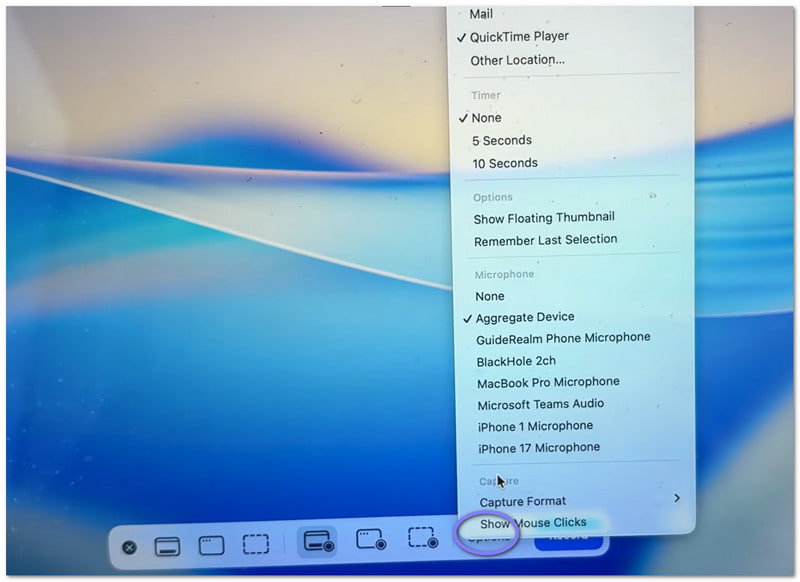
Stap 3Voordat je begint, neem even de tijd om de instellingen te controleren. Klik op de Opties Op de knop in het opnamepaneel kunt u uw microfoon selecteren als u uw stem wilt opnemen. U kunt ook een korte timer instellen als u tijd nodig hebt om u voor te bereiden. Daarnaast kunt u kiezen waar u het bestand na de opname wilt opslaan.
Stap 4Bepaal nu wat je wilt vastleggen. Als je alles wilt opnemen, klik dan ergens op het scherm. Het volledige scherm wordt dan opgenomen. Als je slechts een deel nodig hebt, selecteer dan een gebied en sleep met de muis om dit te selecteren.
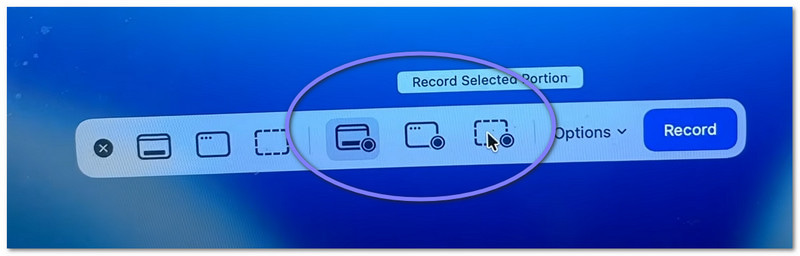
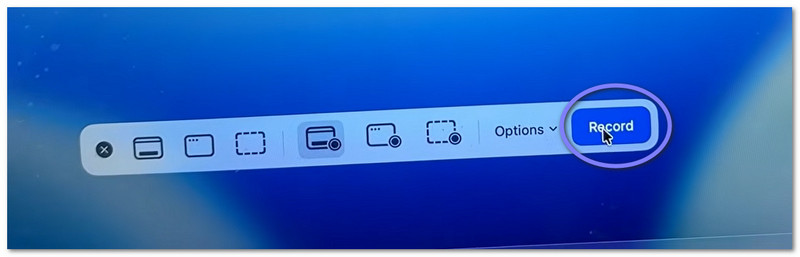
Stap 5Klik ten slotte op de Vermelding Druk op de knop om te beginnen. Na een korte wachttijd start de opname. Voer tijdens de opname uw taken uit zoals vereist.
Deel 3. Een QuickTime-opname stoppen en opslaan
Hieronder leggen we uit hoe je de schermopname met QuickTime stopt en hoe je je bestand correct opslaat:
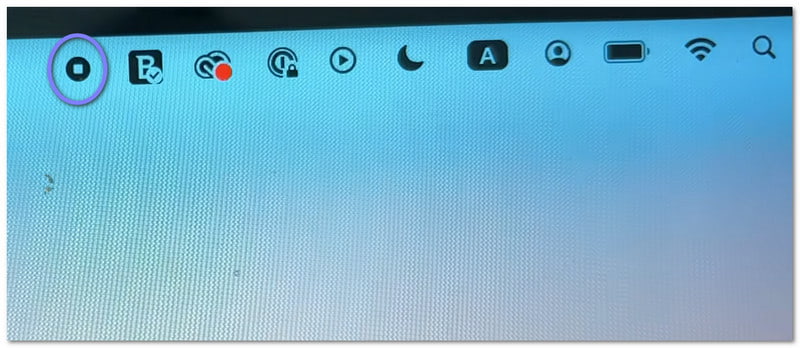
Stap 1Beweeg eerst uw cursor naar de rechterbovenhoek van uw scherm. Zoek naar de Hou op knop. Het ziet eruit als een cirkel met een klein vierkantje erin. Klik erop om de opname te beëindigen. Als alternatief kun je ook op drukken Opdracht + Controle + Esc op je toetsenbord.
Stap 2Nadat je bent gestopt, verschijnt er mogelijk een kleine preview in de hoek van je scherm. Dit is je opname. Je kunt er meteen op klikken als je de video wilt openen en bekijken. Als je het negeert, wordt het bestand alsnog automatisch opgeslagen.
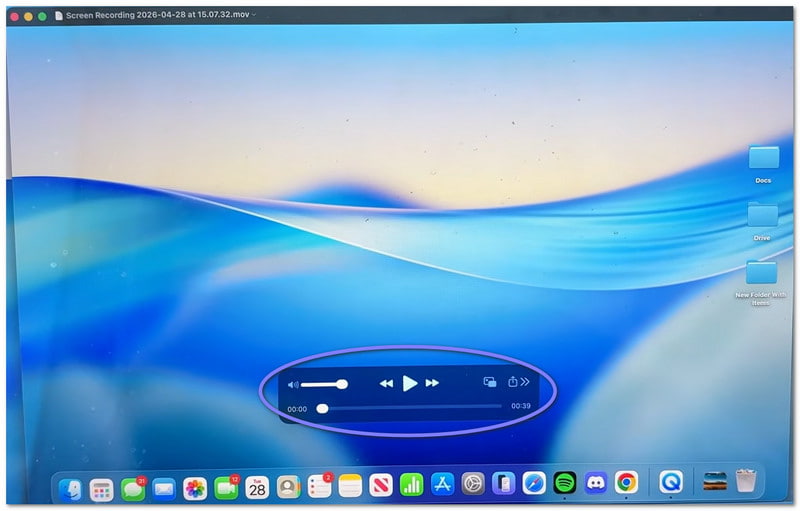
Stap 3Standaard wordt de video opgeslagen op je bureaublad of een door jou gekozen locatie. Als je de video zelf wilt opslaan, open je eerst de video. Ga vervolgens naar de menubalk en klik op Bestand, dan SparenTyp vervolgens een naam voor uw bestand. Kies waar u het wilt bewaren en klik dan op Sparen.
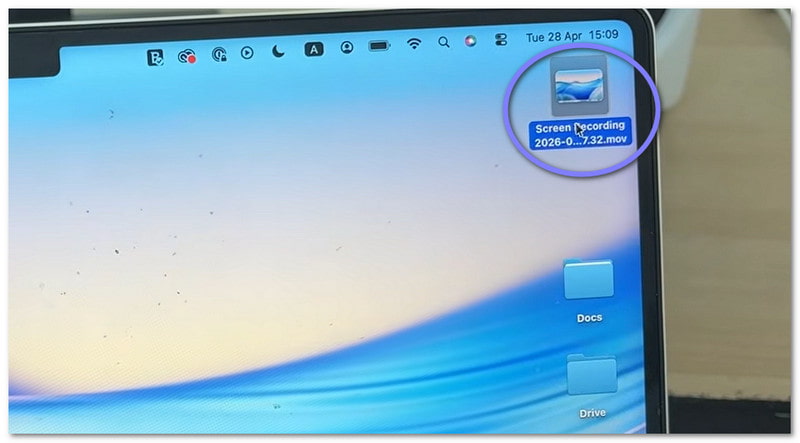
Stap 4Zodra de video is geopend, kunt u eenvoudige bewerkingen uitvoeren. U kunt bijvoorbeeld het begin of einde inkorten. U kunt de video indien nodig ook roteren. Bovendien kunt u de video direct vanuit de applicatie delen.
Deel 4. Probleemoplossing
Soms loopt een schermopname niet helemaal zoals gepland. Er kunnen kleine problemen optreden. Het goede nieuws is dat de meeste daarvan gemakkelijk op te lossen zijn in QuickTime Player.
1. "QuickTime Player heeft een fout ondervonden tijdens het opnemen van uw scherm."
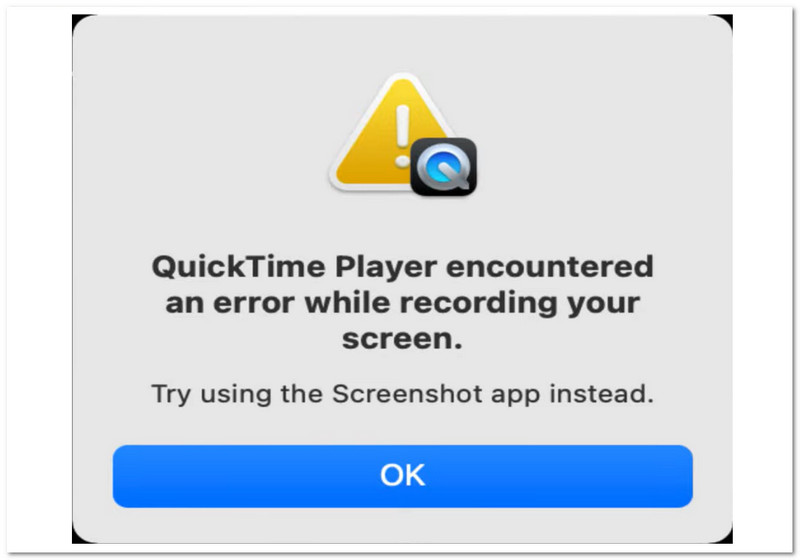
Er zijn een paar basisredenen waarom de foutmelding "QuickTime Player heeft een fout ondervonden tijdens het opnemen van uw scherm" kan verschijnen.
Controleer eerst waar je je bestanden opslaat. Als je op een externe schijf opslaat, probeer dan over te schakelen naar je bureaublad. Dit lost het probleem vaak op. Controleer vervolgens je opslagruimte. Als je schijf vol is, kan het opnemen mislukken.
Zorg er ook voor dat de machtigingen zijn ingeschakeld. Ga naar Systeem instellingen > Privacy en beveiliging > SchermopnameControleer vervolgens of QuickTime Player is toegestaan.
2. Mijn QuickTime-opname heeft geen geluid!
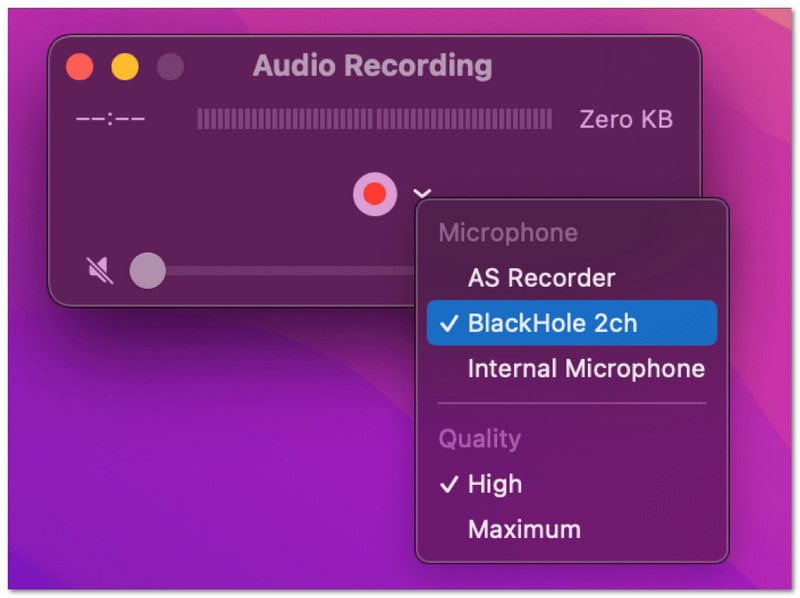
Als je video geen geluid heeft, controleer dan de instellingen voordat je begint met opnemen. Open de Opties Ga naar het menu. Kies vervolgens een microfoon, bijvoorbeeld 'Ingebouwde microfoon'. Als er geen microfoon is geselecteerd, wordt er geen geluid opgenomen. Test je microfoon ook eerst om er zeker van te zijn dat hij werkt.
3. QuickTime neemt geen systeemgeluid op
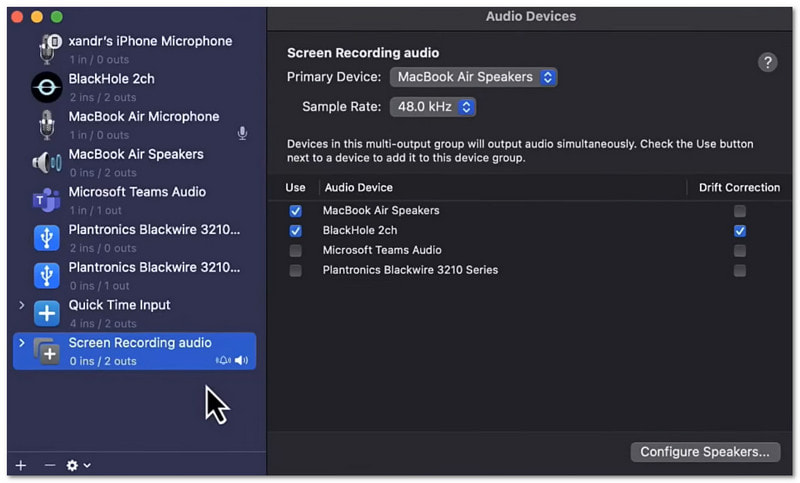
Dat is normaal. QuickTime Player kan standaard geen systeemgeluid opnemen. Dit komt door de regels van het Mac-besturingssysteem. Om systeemgeluid op te nemen, heb je extra tools nodig. Je kunt bijvoorbeeld Achtergrondmuziek of Loopback gebruiken.
Deel 5. Bestaat er een QuickTime-alternatief voor Windows?
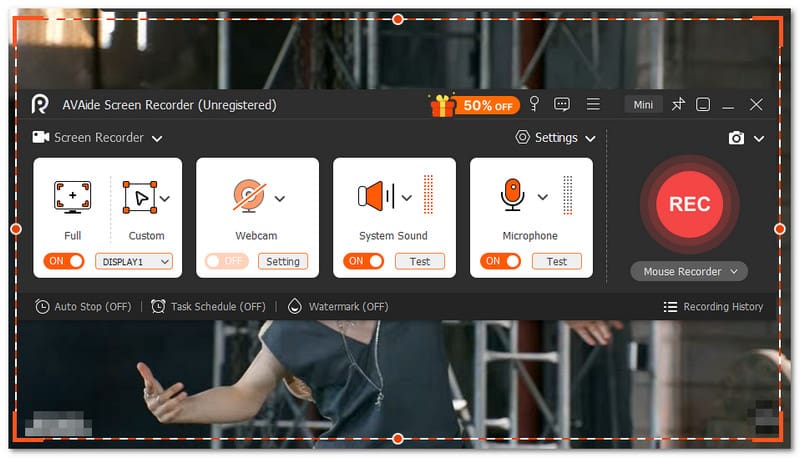
Ja, er bestaat een QuickTime-alternatief voor schermopname in Windows. En dat is niemand minder dan AVAide-schermrecorder.

GRATIS DOWNLOAD Voor Windows 7 of hoger
 Veilige download
GRATIS DOWNLOAD Voor Mac OS X 10.13 of hoger
Veilige downloadMet deze tool kunt u eenvoudig kiezen voor schermopname op volledig scherm of een aangepaste schermopname. U kunt ook de webcam, het systeemgeluid en de microfoon inschakelen. Een complexe configuratie is niet nodig. U activeert gewoon met één klik wat u nodig hebt. Sterker nog, u kunt schermvideo's in hoge kwaliteit opnemen zonder vertraging. Het ondersteunt resoluties tot 4K. Alles ziet er dus helder en vloeiend uit.
Wat je ook opneemt, zoals tutorials, gameplay, vergaderingen of online video's, het apparaat kan het vastleggen met goede helderheid en stabiele prestaties.
Belangrijkste kenmerken:
- Je kunt een tijd instellen waarop het apparaat automatisch begint en stopt met opnemen.
- Je kunt urenlang probleemloos opnemen zonder haperingen of prestatieproblemen.
- Je kunt je opname direct daarna bekijken en opnieuw opnemen als je niet tevreden bent.
- Tijdens de opname kun je tekst, afbeeldingen, een whiteboard en focusmarkeringen toevoegen om belangrijke punten te benadrukken.
- Je kunt video's bijsnijden, knippen, comprimeren, samenvoegen, converteren en het geluid aanpassen of versterken na de opname.
Hoe verliep het leren? Hoe gebruik je QuickTime Player om het scherm op te nemen?Het is toch heel makkelijk? Je kunt snel beginnen en zonder problemen klaar zijn.
Het enige probleem is dat het beperkte functies heeft. Het heeft niet de mogelijkheden van een volwaardige recorder zoals... AVAide-schermrecorder.
Dus, of je nu een Windows-gebruiker bent of een Mac-gebruiker, ook jij kunt vertrouwen op AVAide Screen Recorder. Download het nu en geniet van de functies en de soepele opname-ervaring!
OVER DE AUTEUR

Leg het beste moment vast met AVAide Screen Recorder. Screencast, aanpassen en delen in seconden.
Schermopname