Minecraft is een van de bekendste games van dit moment, met meer dan 151 miljoen dagelijkse actieve gebruikers. Het is beschikbaar op verschillende platforms zoals PlayStation, pc, Xbox en smartphones, wat de bijzondere mogelijkheden van de game verklaart. Je kunt er bijvoorbeeld boeren, met vrienden spelen, op zoek gaan naar schatten en zelfs je eigen wereld creëren. En natuurlijk wil je deze hoogtepunten vastleggen. Afhankelijk van het platform dat je gebruikt, kun je er foto's van maken. Minecraft-screenshots Het is heel eenvoudig, zoals dit artikel laat zien met de methoden die je kunt gebruiken. Dus, laten we beginnen!
Deel 1. Hoe maak je een screenshot in Minecraft?
Minecraft heeft twee pc-versies met verschillende manieren om screenshots te maken. Bekijk de Java- en Bedrock-edities en leer hoe je screenshots maakt in Minecraft op de pc.
1. Java-editie - De klassieke F2-methode
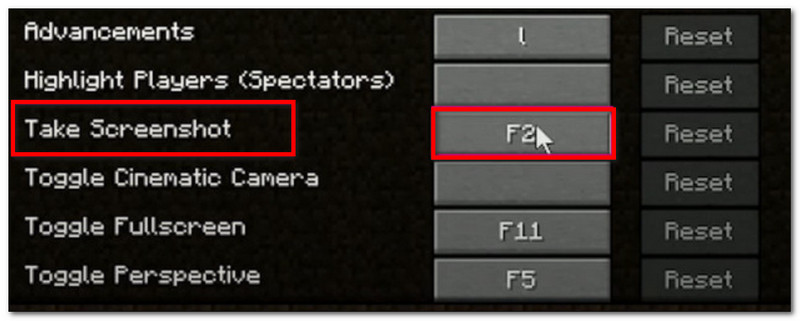
Deze versie van Minecraft is de originele computerversie van het spel en heeft een ingebouwde screenshotfunctie die je kunt gebruiken. Zo maak je een screenshot van Minecraft Java:
Stap 1Selecteer het gedeelte van het spel dat je wilt vastleggen en druk vervolgens op F2 op je toetsenbord.
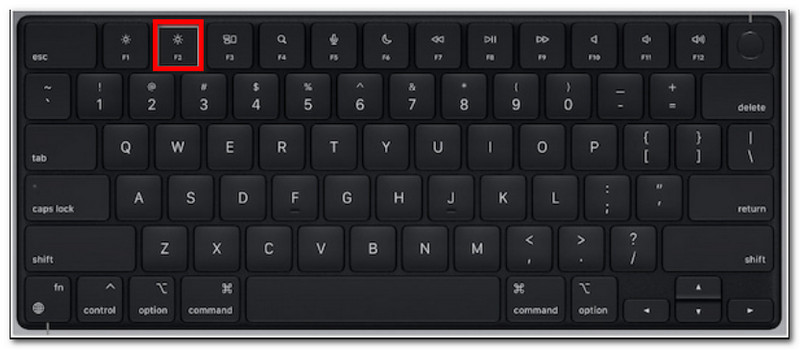
Stap 2Als er een bericht met een bestandsnaam verschijnt, klik er dan op om een schermafbeelding te bekijken.
2. Bedrock-editie - Twee verschillende methoden
De Bedrock-editie legt de nadruk op cross-device spelen op verschillende platformen. Dit betekent dat je, zelfs als je een pc gebruikt, met vrienden kunt spelen die andere apparaten gebruiken. Daarnaast zijn er in deze editie twee populaire methoden om screenshots te maken.
Methode A (Xbox Game Bar)
Stap 1druk op Windows + G tegelijkertijd op je toetsenbord. Je scherm wordt donkerder, klik dan op de Camera pictogram om een screenshot te maken.
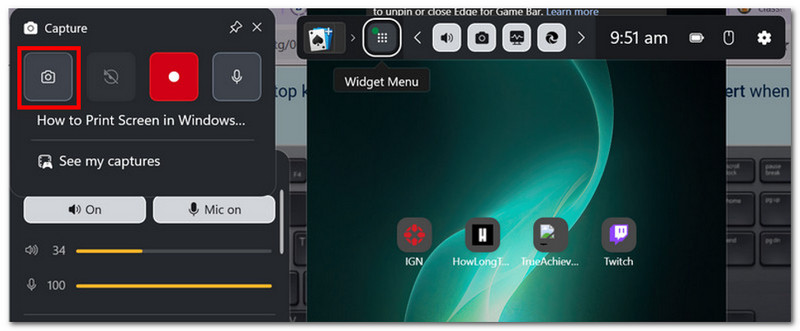
Stap 2Je kunt de Minecraft-screenshotmap openen via Videos > opnamen, waar foto's van Game Bar te zien zijn.
Methode B (In-game camera)
Stap 1Open Minecraft en ga naar een wereld. Klik op de Minecraft-screenshot Druk op de knop of F2 op het scherm om een screenshot te maken.
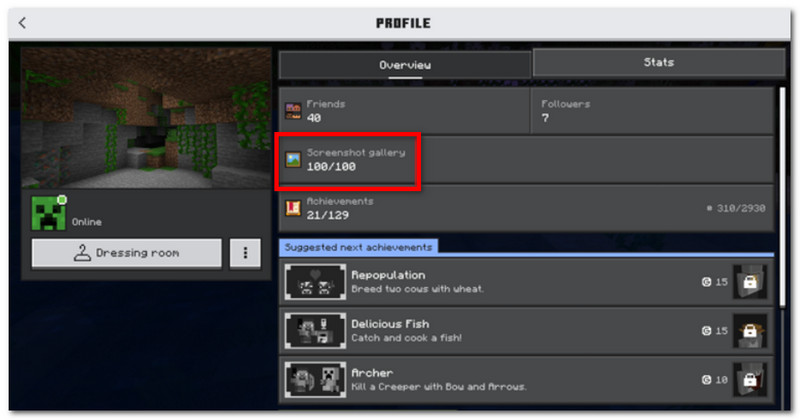
Stap 2Om de locatie van de Minecraft-screenshot te vinden, ga je gewoon naar Profiel en open Screenshotgalerij.
3. AVAide schermrecorder
AVAide-schermrecorder AVAide is een alternatieve tool voor Minecraft Java en Bedrock Edition. Het is een alles-in-één oplossing waarmee je screenshots kunt maken en video- en audio-opnames kunt maken. De schermopnamefunctie is intuïtief en maakt screenshots in verschillende modi mogelijk: volledig scherm, actief venster en vrije vorm, met behulp van aanpasbare sneltoetsen. Daarnaast kun je screenshots exporteren in populaire afbeeldingsformaten, zoals JPEG, PNG en GIF. Wat AVAide tot een uitstekend alternatief maakt, is de ingebouwde bewerkingsoptie waarmee je screenshots kunt bewerken met tools zoals tekenen, annoteren en andere elementen. Bovendien biedt de software hoogwaardige schermopnames, perfect voor het vastleggen van je gameplay op apparaten zoals pc's en mobiele telefoons.
Stap 1Download en installeer de schermrecorder. Open deze en kies de optie. Schermopname Selecteer het menu linksboven. Zorg ervoor dat Minecraft op je computer is geïnstalleerd.

GRATIS DOWNLOAD Voor Windows 7 of hoger
 Veilige download
GRATIS DOWNLOAD Voor Mac OS X 10.13 of hoger
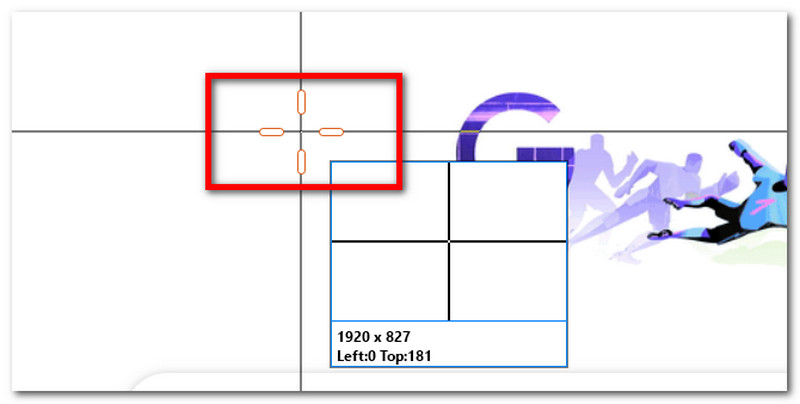
Veilige downloadStap 2Wanneer uw muiscursor in een kruisje verandert, selecteer dan het gebied dat u wilt vastleggen. Druk op de knop. Esc Als je de schermopname wilt afsluiten.
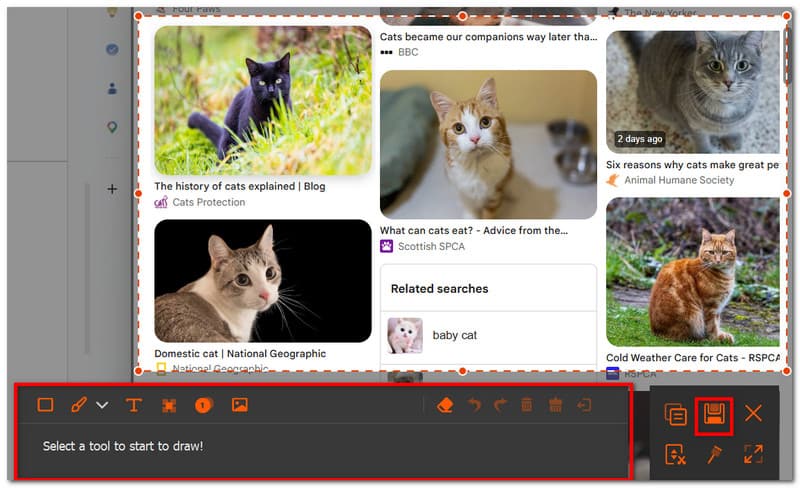
Stap 3Gebruik de bewerkingsopties om de afbeelding te bewerken. Klik vervolgens op Sparen Om de schermafbeelding op je apparaat op te slaan. De map voor Minecraft-schermafbeeldingen is... AVAide Studio > AVAide schermrecorder.
Deel 2. Waar vind ik schermafbeeldingen?
Aangezien Minecraft op vrijwel elk platform beschikbaar is, vraag je je misschien af: 'Waar worden Minecraft-screenshots opgeslagen?' In dit gedeelte vind je de exacte locatie van de map met screenshots zodra ze op het betreffende besturingssysteem zijn gemaakt.
Windows 10/11 (Java-editie)
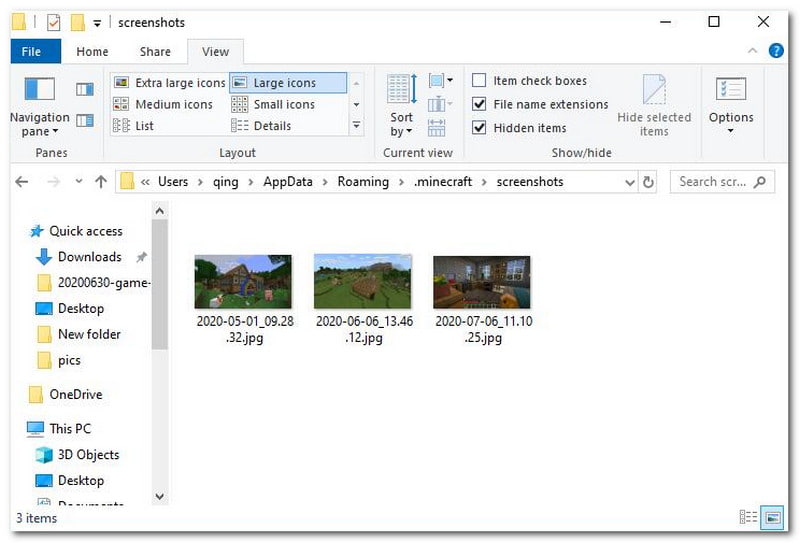
Nadat je de screenshot hebt gemaakt, kun je deze vanuit de chat bekijken. Mocht je hem gemist hebben, ga dan naar de zoekbalk en typ... %appdata%, ga dan naar .minecraft-map > screenshots.
Windows 10/11 (Bedrock-editie)
De Minecraft-screenshotgalerij voor Bedrock Edition op Windows is te vinden in het spel zelf, op de volgende locatie: Profiel > Screenshotgalerij.
Mac
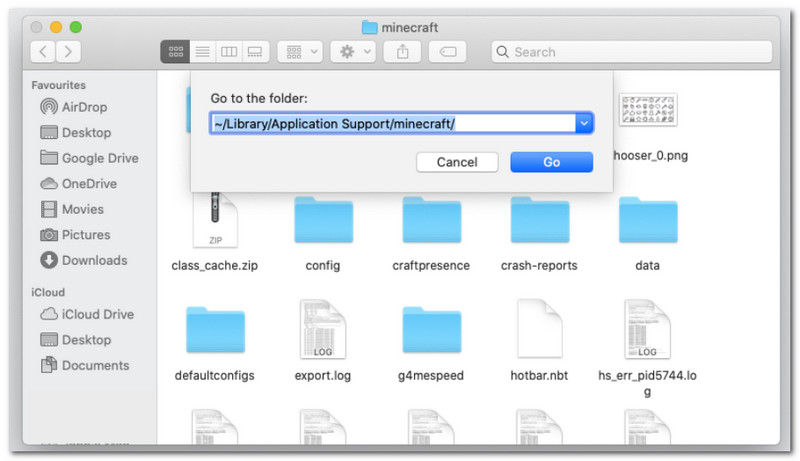
Als je Minecraft speelt en leert Hoe maak je een screenshot op een Mac?Het is te vinden in ~/Bibliotheek/Applicatieondersteuning/minecraft/screenshots.
Linux
Je kunt de screenshots van het spel bekijken vanuit de hoofdmap van Minecraft. ~/.minecraft/screenshots.
Chromebook
De map met Minecraft-screenshots op een Chromebook is hetzelfde als op andere besturingssystemen wanneer je de F2-methode gebruikt om screenshots te maken. Je kunt de foto's vinden in de map... Screenshotgalerij in het spel.
Deel 3. Screenshots van consoles en mobiele apparaten
Nadat je hebt geleerd hoe je Minecraft-screenshots kunt vinden op Windows 11 en andere besturingssystemen, kun je ook screenshots maken op kleinere apparaten en consoles. Volg de stappen die gelden voor het platform waarop je het spel speelt.
Nintendo Switch
Stap 1Gebruik de linker Joy-Con en druk op de Camera knop om een screenshot van het spel te maken.
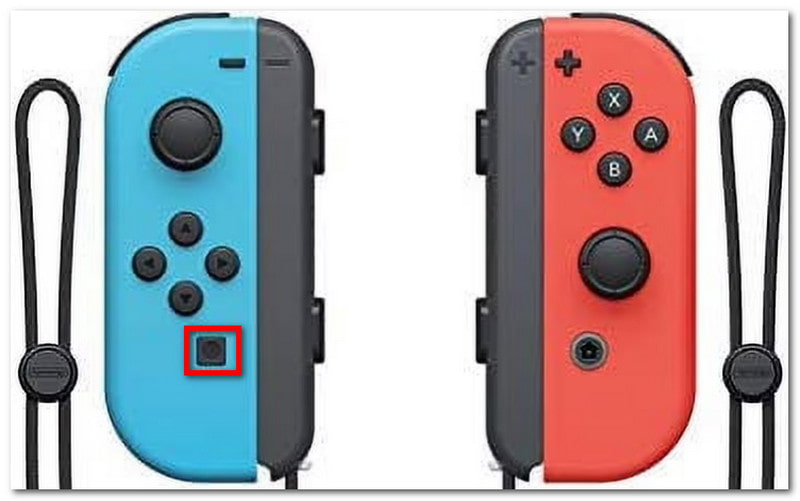
Stap 2Om de schermafbeelding te bekijken, sluit je het spel af en ga je naar de Album waar Minecraft-screenshots worden opgeslagen.
PlayStation
Stap 1Hoe maak je een screenshot van Minecraft met de DualShock 4-controller op de PS4? Houd de volgende knop ingedrukt: Deel Houd de knop ongeveer een seconde ingedrukt. Als je een PS5 DualSend hebt, druk dan op de Creëren knop.
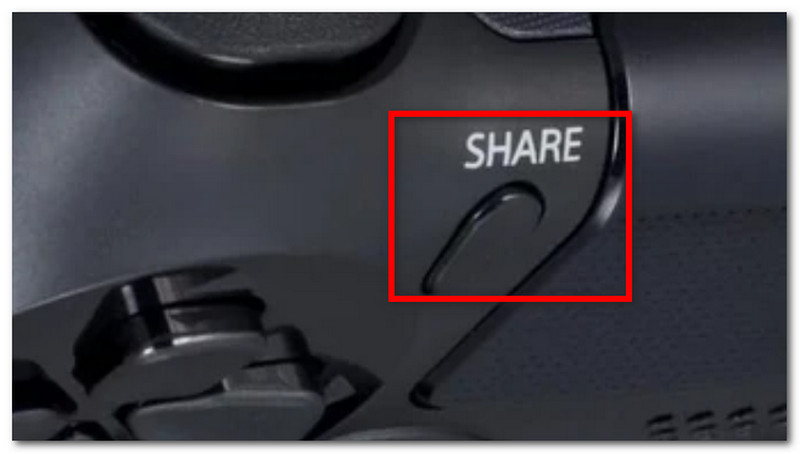
Stap 2Je kunt de schermafbeelding bekijken door naar de volgende locatie te navigeren: Galerij vastleggen app of via de PlayStation app om op je telefoon te bekijken.
Xbox
Stap 1Voor een standaard Xbox-controller tik je gewoon twee keer op de knop. Xbox druk op de knop in het midden. ja om vast te leggen. Voor de Xbox Series druk je op de Deel Druk één keer op de knop om een screenshot te maken.
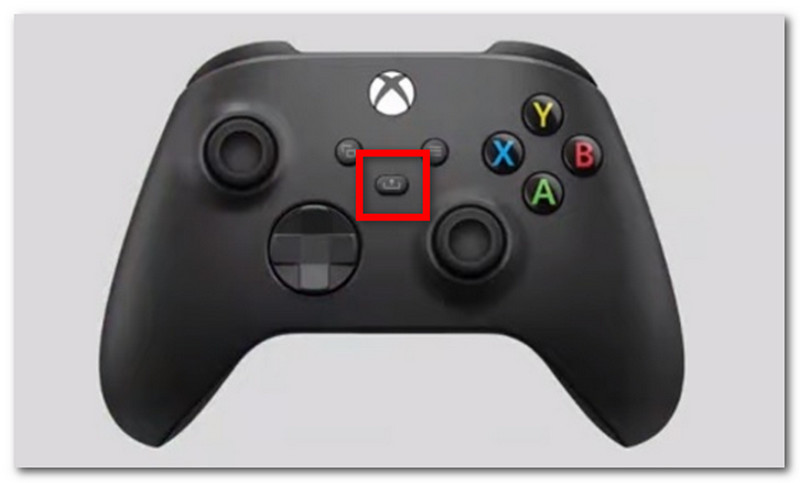
Stap 2Als je niet weet hoe je Minecraft-screenshots kunt bekijken, druk dan gewoon op de Xbox knop en ga naar de Vastleggen en delen tabblad.
iOS
Stap 1druk de Stroom en Volume omhoog knoppen op je iPhone om een screenshot te maken.
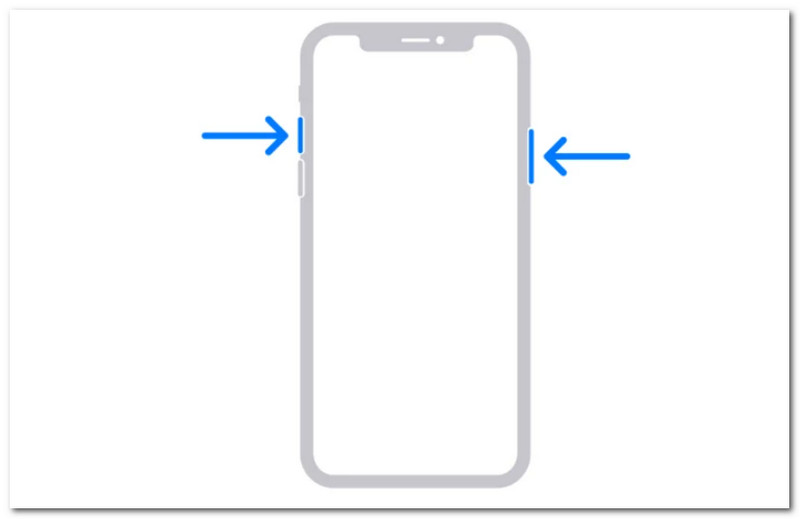
Stap 2Hoe vind je Minecraft-screenshots op je iPhone? Je kunt de screenshots vinden in de Foto's-app.
Android
Stap 1Bereid het spel en het gebied dat je wilt veroveren voor. Houd de knop ingedrukt. Stroom en Volume omlaag knoppen op je telefoon.
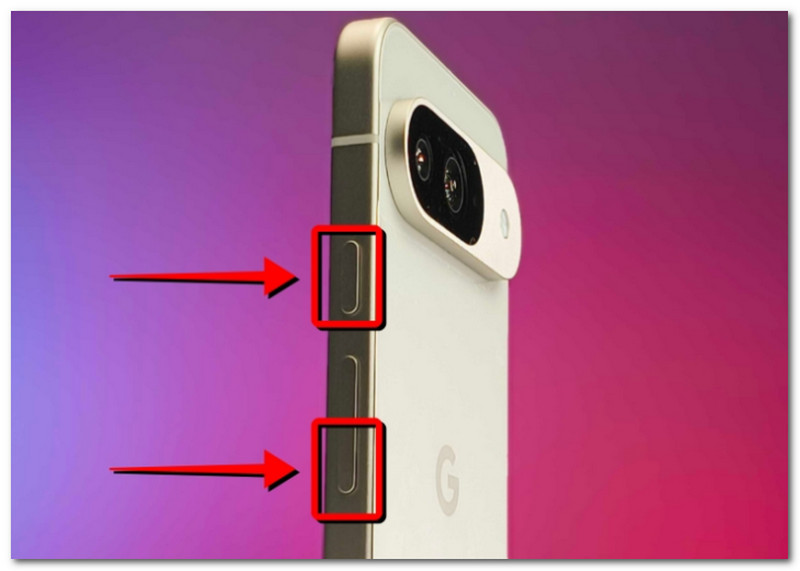
Stap 2Als het scherm knippert, is de schermafbeelding klaar en kunt u deze vinden in de Galerij-app.
Deel 4. Je schermafbeeldingenverzameling beheren
Naast het delen van screenshots met je vrienden, kun je dit ook gebruiken om je voortgang in de Minecraft-wereld bij te houden. Maar willekeurig screenshots maken leidt al snel tot een rommelige en onoverzichtelijke verzameling opgeslagen screenshots. Als je niet weet waar je moet beginnen, kun je deze basisregels volgen om je screenshotverzameling te beheren.
1. Bestandsnamen begrijpen
Bij gebruik van de F2-methode in Minecraft is het belangrijk om de bestandsnaam te kennen, omdat deze kan helpen bij het bepalen van de datum waarop de screenshot is gemaakt. De standaard bestandsnaam is YYYY-MM-DD_HH.MM.SS.png, wat zich vertaalt naar het jaar, de maand, de dag, het uur, de minuut en de seconde waarop de schermafbeelding is gemaakt.
2. Submappen aanmaken
Bewaar je screenshots niet allemaal in één map, want dat vertraagt het zoeken naar specifieke screenshots. Maak in plaats daarvan submappen aan met categorieën zoals wereldopbouw, project en functie.
3. Bestanden hernoemen
Je kunt de naam van je Minecraft-screenshots wijzigen, zodat je ze niet alleen kunt herkennen aan de datum, maar ook aan je voortgang in het spel. Kies altijd een bestandsnaam die je ontwikkeling in Minecraft laat zien.
4. Maak back-ups van je foto's
Om te voorkomen dat je screenshots kwijtraakt als je apparaat vastloopt, is het belangrijk om er een back-up van te maken met een cloudservice zoals OneDrive of een externe harde schijf.
5. Schermafbeeldingen delen
Nadat je alles hebt georganiseerd, kun je je voortgang in Minecraft op verschillende platforms laten zien. Je kijkers zullen de overzichtelijke screenshots die je spelvoortgang bijhouden zeker waarderen.
Minecraft is een geliefd spel waar iedereen van kan genieten, en leren hoe je screenshots maakt, stelt je in staat om de hoogtepunten van je gameplay vast te leggen. Dit artikel laat niet alleen de verschillende methoden zien om de prachtige spelwereld vast te leggen, maar ook hoe je dat zelf kunt doen. Hoe je Minecraft-screenshots kunt bekijken op verschillende platforms. Als alternatief raadt dit artikel AVAide Screen Recorder aan, omdat het flexibel is voor het maken van screenshots op een computer, telefoon en gameconsoles. Download een van de beste gamerecorders Download gratis voor Windows en Mac en begin met het onbeperkt opnemen van je games.
OVER DE AUTEUR

Opnamescherm, audio, webcam, gameplay, online vergaderingen, evenals iPhone/Android-scherm op uw computer.
Schermopname