


De ingebouwde schermrecorder van Android heeft misschien niet alle functies. Er zijn echter een aantal praktische tips die je kunt leren om eenvoudiger en veelzijdiger opnames van je telefoonscherm te maken. In dit artikel vind je een uitgebreide handleiding. Android-schermopname handleiding.
Als je de voorkeur geeft aan geavanceerde schermopnames voor games, tutorials of professionele demo's, kunnen we je ook helpen om de beste Android-schermopnamemethoden en -apps van dit moment te vinden, compleet met stapsgewijze handleidingen om je te helpen scherpe resultaten in hoge resolutie te bereiken.
- Deel 1: Hoe gebruik je de ingebouwde Android-schermrecorder?
- Deel 2: Enkele merkspecifieke Android-opnameprogramma's
- Deel 3: 4 veelzijdige manieren om je scherm op te nemen op Android
- Bonus: Schermopname op desktop en mobiele telefoon in de beste kwaliteit.
- Deel 4: Veelgestelde vragen over schermopname op Android
Deel 1: Hoe gebruik je de ingebouwde Android-schermrecorder?
De meeste apparaten met Android 11 of hoger hebben een ingebouwde app voor schermopname in het paneel met snelle instellingen. Je kunt deze app gebruiken om het scherm van je telefoon op te nemen.
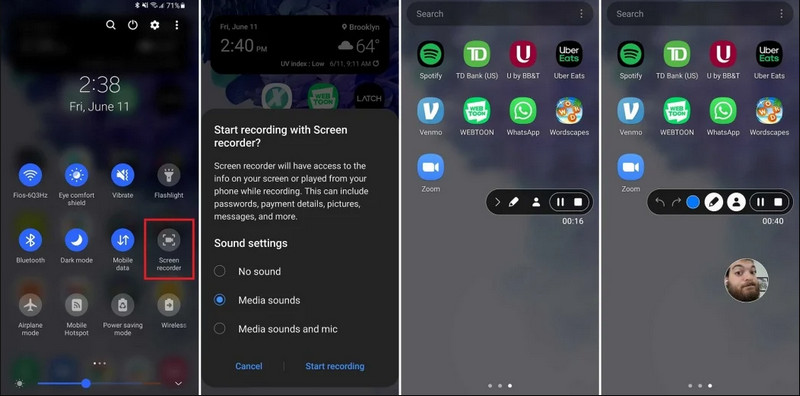
Stap 1Snelle instellingen openen
Veeg twee keer vanaf de bovenkant van je scherm naar beneden om het volledige menu met snelle instellingen te openen.
Stap 2Selecteer Schermrecorder
Zoeken naar SchermopnameAls je het niet ziet, tik dan op de Bewerk Klik op de knop (met een potloodpictogram) en sleep de tegel 'Schermopname' naar uw actieve raster.
Stap 3Opname-instellingen configureren
Wanneer je de Android vindt Scherm opnemer Met deze tool heb je meerdere opnameopties. Door de juiste te kiezen, kun je je Android-scherm effectiever opnemen.
- Geen geluid: Neem alleen het telefoonscherm op, zonder systeemgeluid of extern geluid.
- Mediageluiden: Neem het scherm op met alle systeemgeluiden, inclusief het geluid van alle apps op je telefoon.
- Mediageluiden en microfoon: Neem zowel systeemgeluiden als externe geluiden op (de ingebouwde microfoon van de telefoon of de microfoon van je oortjes).
Stap 4Schermopname starten en stoppen
Maak je keuze en tik op de Start opnieuw opnemen knop. Er verschijnt een aftelling in de statusbalk. Om de schermopname van Android te stoppen, tik je op de knop. Hou op knop (als er een opnamestatusbalk is) of veeg het meldingenpaneel naar beneden en tik op de rode knop Hou op knop.
Deel 2: Enkele merkspecifieke Android-opnameprogramma's
Veel fabrikanten van Android-telefoons bieden eigen schermopnameprogramma's met geavanceerde functies, zoals overlays voor de selfiecamera. Bekijk de speciale opnamefuncties van enkele populaire Android-merken:
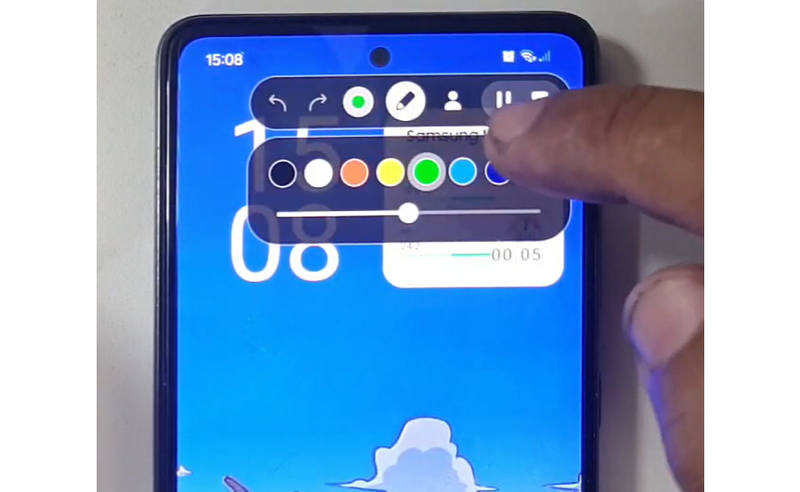
Samsung (One UI): Inclusief een schermrecorder met een werkbalk waarmee u in realtime op het scherm kunt tekenen.
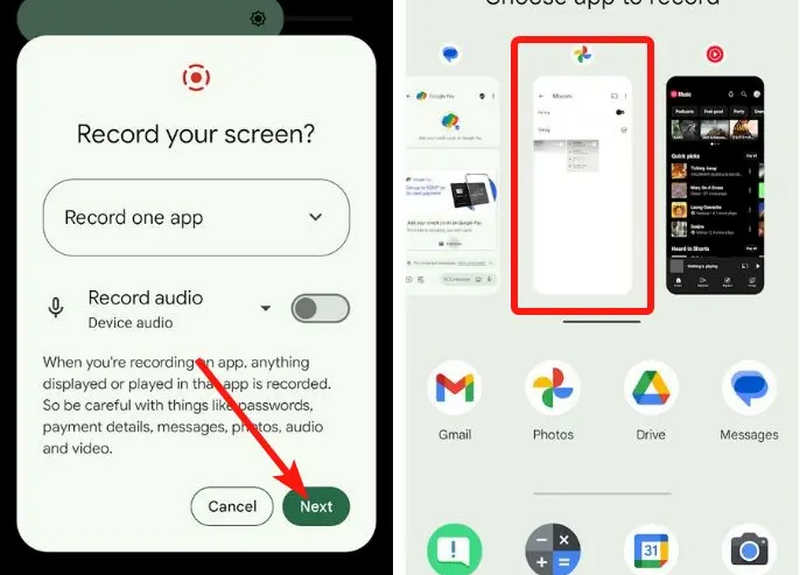
Google Pixel: Je kunt een specifieke app selecteren (bijvoorbeeld een bankapp of WhatsApp) om op te nemen. Als je de app afsluit of je notificatiebalk naar beneden trekt tijdens de sessie, worden die acties niet in de uiteindelijke video weergegeven.
Xiaomi (MIUI/HyperOS): Bevat een speciale "Schermopname"-app met uitgebreide aanpassingsmogelijkheden voor framesnelheid (FPS) en bitrate.
Huawei & Eer (HarmonyOS / MagicOS): Een unieke hardware-software-integratie waarmee je een opname kunt starten of stoppen door simpelweg twee keer met je knokkels op het scherm te tikken.
OPPO, vivo en realme (ColorOS / OriginOS): Bij het opstarten van een game optimaliseert de schermrecorder automatisch de CPU/GPU-bronnen om ervoor te zorgen dat het opnemen van een 4K/60FPS-clip geen vertraging of framedrops in de game veroorzaakt.
Deel 3: 4 veelzijdige manieren om je scherm op te nemen op Android
Als je Android-telefoon niet over voldoende schermopnamefuncties beschikt, kun je de vier onderstaande Android-schermopname-apps eens bekijken. Deze bieden handige en praktische functies.
1. AZ-schermrecorder
AZ-schermrecorder Dit is een zeer populaire Android-schermopname-app in de Play Store. Het kan video's in hoge resolutie opnemen van het scherm van je Android-telefoon. De applicatie biedt je ook de mogelijkheid om de resolutie, framesnelheid en bitrate aan te passen, afhankelijk van het opnamedoel.
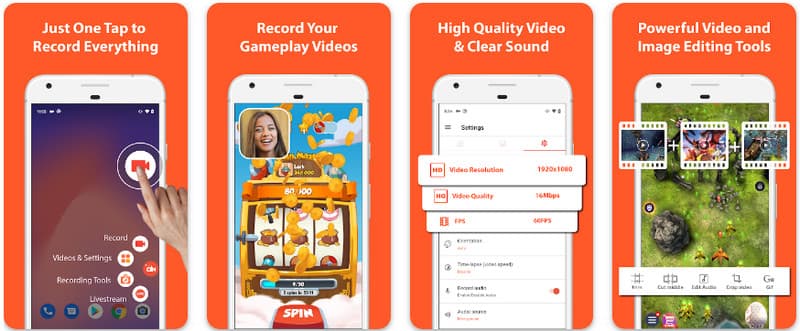
Bovendien kunnen gebruikers met de AZ Screen Recorder het geluid dat op het apparaat wordt afgespeeld, opnemen met een microfoon. Dit maakt het mogelijk om zelfs de meest ingewikkelde en hoogwaardige opnames op te nemen. De eenvoudige indeling van knoppen en consistente prestaties maken de app een favoriet voor velen. Leer hoe u hiermee een Android-scherm opneemt met behulp van de onderstaande tutorial.
Stap 1Nadat u de app op uw Android hebt gedownload, start u deze. Klik vervolgens op de camera knop om toegang te krijgen tot de schermopnamefunctie.
Stap 2Kraan Begin nu Om de schermopname op je Android-apparaat te starten, verschijnt er een aftelling op je scherm.
Stap 3Om de schermopname op je Android-telefoon te stoppen, tik je op de Vermelding druk nogmaals op de knop. Met deze app kun je ook schermopname op je iPhone met geluiden geactiveerd.
2. Mobizen-schermrecorder
Mobizen-schermrecorder Mobizen is een andere app voor schermopnames op Android die gratis beschikbaar is in de Play Store en eenvoudige opnames van hoge kwaliteit belooft. De app biedt opties voor opnames in hoge resolutie met instelbare parameters en een schone opnamefunctie om watermerken te verwijderen. Daarnaast beschikt Mobizen over interne geluidsopname, die gebruikt kan worden voor de opname, evenals een facecam en GIF-functionaliteit, waarmee je je opname kunt verrijken. De app maakt gebruik van een eenvoudige interface met verschillende functies en bedieningselementen, waardoor gebruikers snel schermopnames kunnen starten of de inhoud kunnen bewerken zonder al te veel gedoe. Ontdek hoe je schermopnames maakt op Android met deze app.
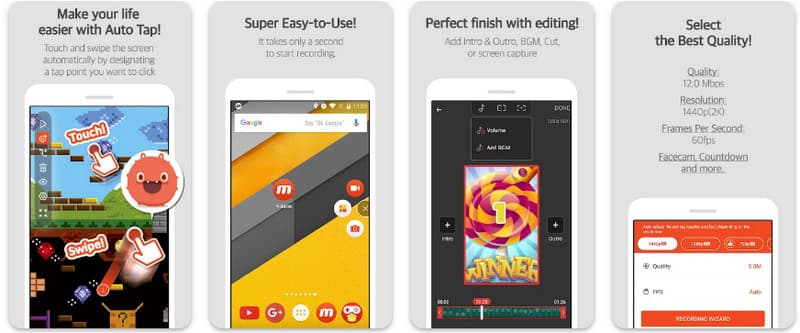
Stap 1Download het nu op je Android en open de app.
Stap 2Voer de vereiste instellingen uit voordat je de schermrecorder kunt gebruiken. Er verschijnt een zwevende opnamebalk op je scherm. Tik op de camera knop, dan Begin nu om de schermopname te starten.
Stap 3Wanneer u klaar bent, tikt u op M en de hou op knop om de schermopname op je Android-telefoon te stoppen.
3. Schermrecorder - XRecorder van Inshot
Schermrecorder - XRecorder is een krachtige, alles-in-één Android-app die schermopnames vereenvoudigt door opnames in hoge resolutie te bieden, tot 1080p bij 60 FPS, zonder root-toegang of watermerken. Als toonaangevende methode voor schermopnames op Android 17/16 biedt het een naadloze gebruikerservaring via een zwevend bedieningsvenster waarmee je in realtime op je scherm kunt tekenen, pauzeren en starten met behulp van een ingebouwd penseel. Naast eenvoudige video-opname ondersteunt het interne audio-opname, facecam-overlays voor streamers en geïntegreerde videobewerking, waardoor het een ideale keuze is voor iedereen die professionele tutorials, gameplay-clips of duidelijke demonstraties rechtstreeks vanaf zijn of haar mobiele apparaat wil maken.
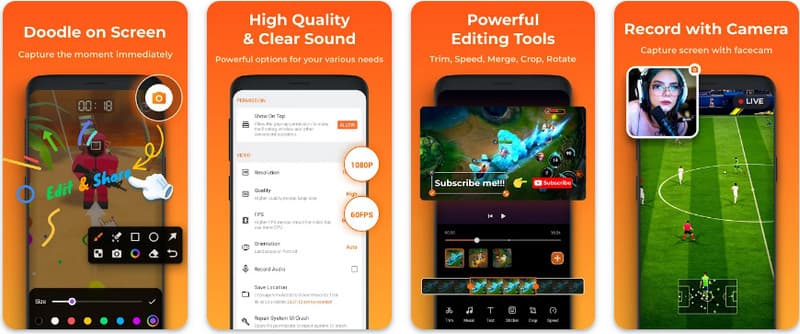
Stap 1Wanneer het downloaden van de XRecorder is voltooid, opent u deze en tikt u op de Zwevend pictogram inschakelen.
Stap 2Tik daarna op de Vermelding knop om de opname te starten en Begin nu bevestigen.
Stap 3Zoals u kunt zien, wordt de lengte van de opname weergegeven als een zwevend pictogram; tik op de hou op om de opname op te slaan.
4. Super schermrecorder
Super schermrecorder Super Screen Recorder is een topoplossing voor iedereen die op zoek is naar een professionele manier om schermopnames te maken op Android met maximale flexibiliteit. Deze krachtige app levert opnames in hoge resolutie en onderscheidt zich door een watermerkloze ervaring te bieden, zelfs in de gratis versie, waardoor uw content er altijd schoon en professioneel uitziet. De app beschikt over een geïntegreerde facecam voor het vastleggen van realtime reacties en een veelzijdig penseel waarmee u tijdens de opname op het scherm kunt tekenen, een essentiële functie voor het maken van boeiende tutorials of walkthroughs. Of u nu een beginner of een gevorderde gebruiker bent, Super Screen Recorder biedt de robuuste aanpassingsmogelijkheden die nodig zijn om schermopnames op Android met gemak onder de knie te krijgen.
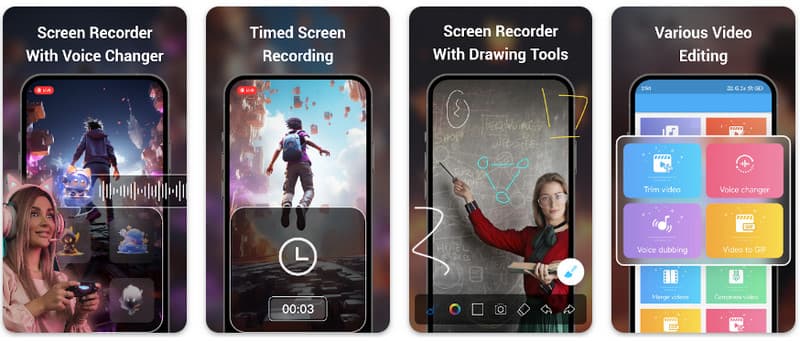
Stap 1Open de Super Screen Recorder op je Android en schakel de zwevende functie van de app in om de recorder te gebruiken.
Stap 2Tik op uw scherm op camera knop, bevestig de instellingen en tik op Begin nuVervolgens verschijnt er een aftelling van drie seconden voordat de opname begint.
Stap 3Druk op vierkant om de opname te beëindigen en op te slaan op uw Android-apparaat.
Bonus: Schermopname op desktop en mobiele telefoon in de beste kwaliteit.
Denk je dat je het scherm van je Android-telefoon kunt opnemen op een computer? AVAide-schermrecorder Het is voornamelijk ontworpen voor schermopnames op Windows en Mac. Maar het kan ook het volledige scherm van je Android-telefoon opnemen. Dit is vooral handig als je een tutorial wilt maken van bepaalde handelingen op Android en de video vervolgens direct op je Mac of Windows wilt bewerken.
Voor schermopnames op Windows en Mac ondersteunt AVAide Screen Recorder de AV1- en HEVC-codecs, waarmee de opname sterk gecomprimeerd kan worden met behoud van optimale videokwaliteit. Dankzij de volledige hardwareversnelling kunt u lange video's opnemen met een zeer laag CPU-gebruik. Nog interessanter is de verbeterde microfoon die de helderheid verbetert door achtergrondgeluiden en echo's te onderdrukken. De software maakt uitstekende opnames met eenvoudige navigatie en bewerkingsfuncties, zoals bijsnijden en annoteren. Hoewel het een prijzige software is, is het een absolute aanrader voor zowel persoonlijk als zakelijk gebruik.
- Neem video's op met je Android- of iOS-apparaat in de beste kwaliteit.
- Maak eenvoudig instructievideo's met teken- en annotatiefuncties.
- Ondersteuning voor AV1- en HEVC-uitvoercodecs voor hoge compressie van de uitvoervideo.
- Bied gebruiksvriendelijke functies voor videobewerking waarmee je je opnames op Android kunt bewerken.
Stap 1U kunt nu de schermrecorder downloaden op uw pc door hier op de downloadknop te klikken. Installeer vervolgens de app door de prompt op uw scherm te volgen en start deze om door te gaan naar de volgende stap.

GRATIS DOWNLOAD Voor Windows 7 of hoger
 Veilige download
GRATIS DOWNLOAD Voor Mac OS X 10.13 of hoger
Veilige downloadStap 2Nu het al in uw systeem draait, plaatst u het opnameframe in het gebied waar u wilt beginnen met opnemen. Hier kunt u uw hele scherm opnemen door de optie Volledig scherm te selecteren in plaats van de optie Regio.

Stap 3Vervolgens kunnen indien nodig de systeem- en microfoonopname worden ingesteld. Als u uw gezicht aan de opname wilt toevoegen, activeert u hier de optie Webcam. Klik vervolgens op REC om het aftellen te starten en met de opname te beginnen.

Stap 4Wanneer u klaar bent met opnemen, klikt u op hou op knop, wat een rood vierkant is. In het volgende venster dat verschijnt, kunt u de opname die u eerder hebt gemaakt bewerken met de opties die hier beschikbaar zijn, plaats vervolgens uw cursor op de opname en druk op de downloaden knop om het op te slaan. Deze app bewijst zijn waarde als de beste open-source recorder beschikbaar.

Deel 4: Veelgestelde vragen over schermopname op Android
Waar vind ik de schermopnamefunctie in mijn instellingen?
Om toegang te krijgen tot de ingebouwde functie schermopname op Android Zonder apps van derden, veeg twee keer vanaf de bovenkant van je scherm naar beneden om de app te openen. Snelle instellingen paneel en zoek naar de Schermopname (of het pictogram "Schermopname"). Als het niet zichtbaar is, tik dan op het pictogram. Bewerk Gebruik de (potlood)knop om de schermopnameschakelaar naar je actieve tegels te slepen. Zodra deze is toegevoegd, kun je op het pictogram tikken, je audiovoorkeuren kiezen, zoals het opnemen van interne systeemgeluiden of je microfoon, en op 'Start' drukken om je scherm rechtstreeks vanuit je systeeminstellingen op te nemen.
Waarom kan ik de schermopnamefunctie niet vinden op mijn Android-apparaat?
Het ontbreken van een ingebouwde optie voor schermopname op Android komt meestal doordat je apparaat een ouder besturingssysteem gebruikt, aangezien de ingebouwde functie pas vanaf een bepaalde datum standaard werd. Android 11Als uw software up-to-date is, is de schakelaar mogelijk gewoon verborgen voor uw gebruikersinterface. Snelle instellingen menu; je kunt het meestal openen door erop te tikken Bewerk Je kunt de functie inschakelen door op de knop in het meldingenpaneel te klikken en de tegel 'Schermopname' naar je actieve scherm te slepen. Daarnaast kunnen sommige instapmodellen van de 'Go Edition' of specifieke skins van fabrikanten deze functie uitschakelen om systeembronnen te besparen. In dat geval is het gebruik van een app van derden, zoals XRecorder of Super Screen Recorder, de meest effectieve oplossing.
Waarom is de knop voor schermopname verdwenen?
De knop voor schermopname verdwijnt meestal omdat deze per ongeluk buiten het actieve gedeelte van de snelle instellingen is verplaatst; u kunt deze vaak terugplaatsen door op de knop te tikken. Bewerken (potloodpictogram) Je kunt de tegel in het meldingenpaneel vinden door hem terug te slepen. De tegel kan ook verborgen zijn vanwege de energiebesparende modus, beperkt door een werkprofiel, of vereist simpelweg een herstart van het systeem om de gebruikersinterface te vernieuwen na een software-update.
Met behulp van de hier vermelde tutorial hebt u geleerd hoe schermopname op Android Samsung. Deze tutorial zal u veel voordeel opleveren met betrekking tot uw schermopnametaak, vooral als u een Android-gebruiker bent. Deel deze informatie met uw Android-gebruikervriend om hem of haar een idee te geven hoe het moet.
OVER DE AUTEUR

Opnamescherm, audio, webcam, gameplay, online vergaderingen, evenals iPhone/Android-scherm op uw computer.
Schermopname


