Canon-camera's slaan beelden op in CR2, een raw-beeldformaat dat is ontworpen om maximale beelddetails vast te leggen. Hoewel handig voor bewerking, is het vanwege de grote bestandsgrootte en beperkte compatibiliteit niet geschikt voor dagelijks gebruik. CR2 converteren naar JPGHet is gemakkelijker te delen, sneller te uploaden en compatibel met een breder scala aan apparaten. Bovendien minimaliseert het de opslagbehoefte zonder dat er geavanceerde technische expertise voor nodig is. Deze handleiding is onderverdeeld in redenen, methoden en tools, gebaseerd op gangbare werkwijzen voor beeldverwerking, om u te helpen uw bestanden op een overzichtelijke en gecontroleerde manier te beheren.
Deel 1. Canon CR2: Waarom je hem moet ombouwen
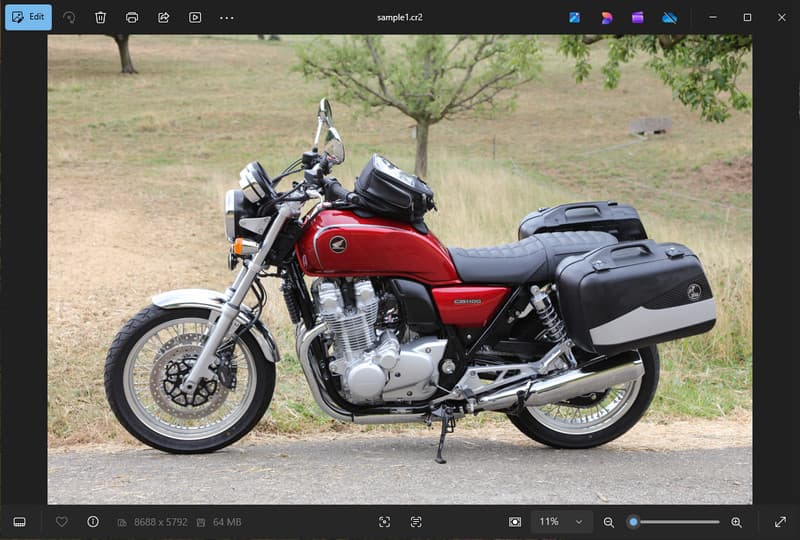
Canon CR2 is een RAW-bestandsformaat dat onbewerkte informatie van de camerasensor vastlegt. Hoewel het extreem gedetailleerd is, kan het nodig zijn om het CR2-bestand naar JPG te converteren, omdat veel apparaten en toepassingen geen RAW-bestanden ondersteunen.
1. Beperkte compatibiliteit
Veel standaardprogramma's ondersteunen geen CR2-bestanden, waardoor het lastig is om afbeeldingen te bekijken. Door een CR2-bestand naar JPG te converteren, zorgt u ervoor dat uw foto's probleemloos openen op alle apparaten, in alle browsers en met standaard afbeeldingsviewers.
2. Grote bestandsgrootte
RAW-bestanden zijn erg groot omdat ze meer beeldgegevens bevatten. Dit heeft gevolgen voor de opslagruimte en de prestaties. Door CR2-foto's naar JPG te converteren, wordt de bestandsgrootte verkleind, waardoor afbeeldingen efficiënter kunnen worden opgeslagen en overgedragen.
3. Eenvoudiger delen en uploaden
Veel platformen accepteren geen RAW-bestanden of verwerken deze traag. Overstappen van CR2 naar JPG is een snelle en eenvoudige manier om je foto's te uploaden en ervoor te zorgen dat ze in het juiste formaat worden weergegeven op sociale media, in e-mails en op andere websites.
4. Geen gespecialiseerde software nodig
CR2-bestanden vereisen bewerkingssoftware die de RAW-bestanden kan verwerken. Door CR2 naar JPG te converteren, hoeft u geen geavanceerde programma's meer te gebruiken en krijgt u eenvoudig afbeeldingen voor dagelijks gebruik.
5. Snellere workflow
Het werken met RAW-bestanden kan uw proces vertragen, vooral bij grote hoeveelheden. Het gebruik van een betrouwbare CR2-naar-JPG-converter helpt de beeldverwerking te versnellen en de algehele productiviteit te verbeteren.
6. Een eenvoudiger proces voor beginners
Raw-bestanden kunnen complex lijken voor nieuwe gebruikers. Leren hoe je CR2 naar JPG converteert, vereenvoudigt je workflow en maakt beeldbeheer gemakkelijker, zonder technische obstakels.
Als u deze punten begrijpt, wordt duidelijk waarom conversie vaak de meest praktische keuze is. In het volgende gedeelte ontdekt u de beste methoden om CR2 efficiënt naar JPG te converteren.
Deel 2. 5 beste manieren om CR2 naar JPG te converteren
1. AVAide Image Converter (beste gratis online optie)
AVAide-beeldconverter Het is een snelle, browsergebaseerde oplossing, ontworpen voor gebruikers die snel resultaat willen zonder software te hoeven installeren. Het is met name handig wanneer u CR2-bestanden in bulk naar JPG wilt converteren met behoud van beeldkwaliteit.
Belangrijkste kenmerken:
- Converteert batch-CR2-bestanden van en naar.
- Behoudt een hoge beeldkwaliteit en natuurlijke kleuren.
- Volledig online, geen installatie nodig.
- Ondersteunt JPG, PNG en andere bestandsformaten.
- Een gebruiksvriendelijke interface voor versnelde verwerking.
Platformen:
- Webgebaseerd, dat werkt op Windows, Mac, Linux en mobiele browsers.
Stap 1Bezoek de officiële website
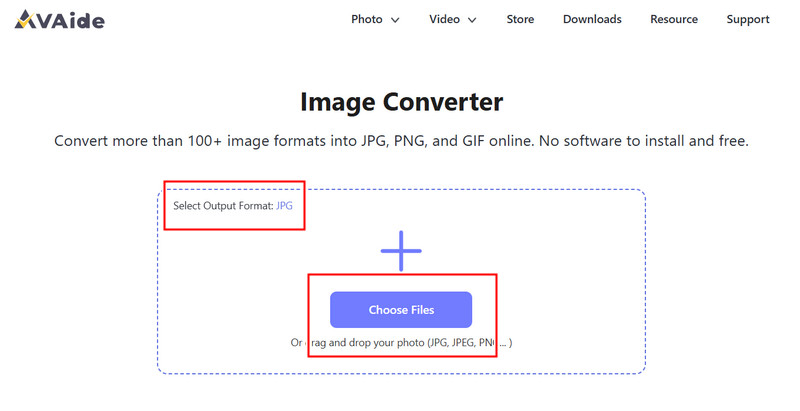
Ga naar je browser en open de officiële AVAide Image Converter-pagina. Zodra de pagina geladen is, kun je direct beginnen met converteren zonder je te hoeven registreren of iets te installeren.
Stap 2Uitvoer instellen en uploaden
Selecteer JPG als het gewenste uitvoerformaat. Klik vervolgens op de + knop of sleep uw CR2-bestanden naar het uploadgebied om te beginnen.
Stap 3Start met het converteren van CR2
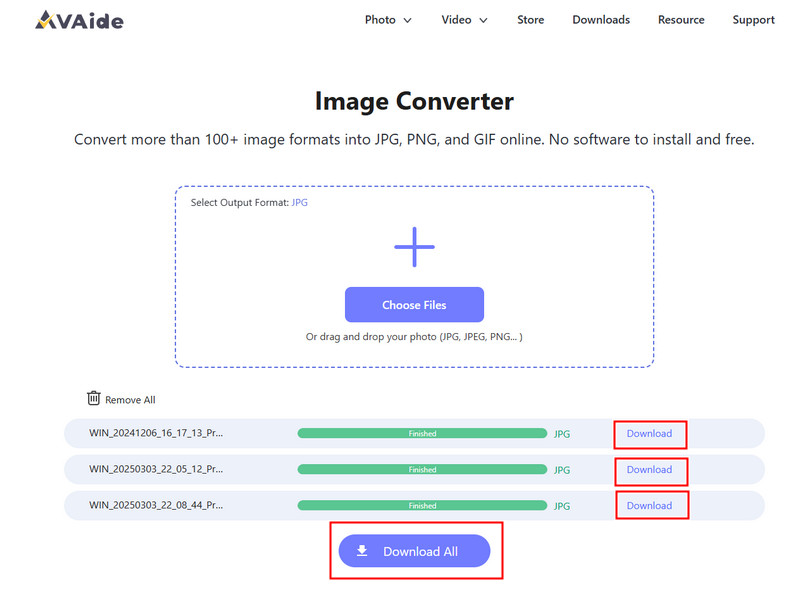
Wacht tot de tool klaar is met het verwerken van je bestanden. Klik daarna op de knop. Downloaden voor een enkel bestand of Download alles als u meerdere afbeeldingen hebt geconverteerd.
- Pluspunten
- Eenvoudig en snel in gebruik.
- Geen installatie of configuratie nodig.
- Efficiënte batchverwerkingsondersteuning
- Zorgt voor een constante kwaliteit van de output.
- nadelen
- Vereist een internetverbinding.
- Beperkte geavanceerde bewerkingsmogelijkheden
2. Adobe Photoshop
Adobe Photoshop Het is een effectieve applicatie waarmee je RAW-bestanden kunt bewerken voordat je ze exporteert. Het wordt doorgaans gebruikt wanneer je CR2 naar JPG moet converteren en volledige controle wilt hebben over de beeldbewerkingen.
Belangrijkste kenmerken:
- Geavanceerde CR2-bewerking via Camera Raw
- Exportmogelijkheden van hoge kwaliteit
- Professionele bewerkingshulpmiddelen
Platformen:
- Windows en Mac
Stap 1Start Photoshop en open je CR2-bestand; dit wordt automatisch in Camera Raw geladen.
Stap 2Pas de belichting, witbalans of kleur naar wens aan en klik vervolgens. Open doorgaan.
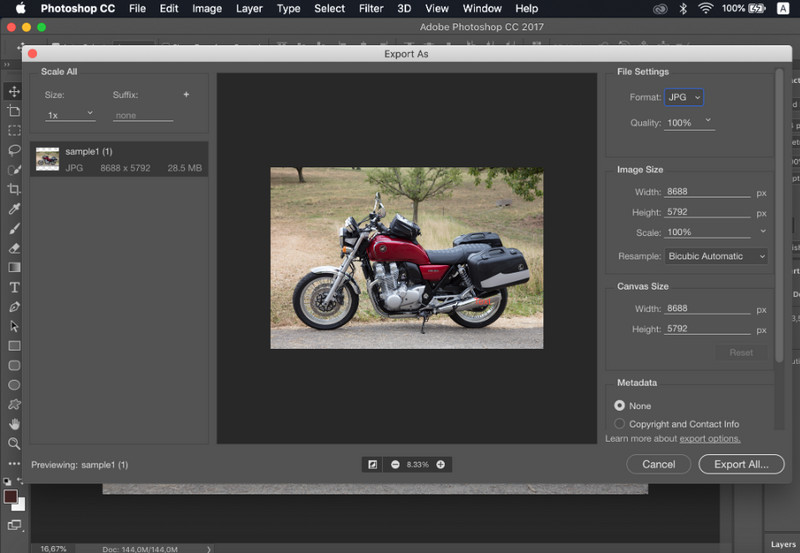
Stap 3Ga naar Bestand, selecteer Opslaan als, Kiezen JPG Formaat kiezen, kwaliteit instellen en afbeelding opslaan.
- Pluspunten
- Uitstekende beeldcontrole en precisie.
- Industriestandaard software
- nadelen
- Vereist abonnement
- Steile leercurve
3. Lightroom
Lightroom is ideaal voor fotografen die grote beeldbibliotheken beheren, en zelfs als je wilt Achtergrond verwijderen in LightroomHet vereenvoudigt het bewerken en exporteren van meerdere afbeeldingen tegelijk, waardoor het gemakkelijk is om een CR2-naar-JPG-converterworkflow te gebruiken voor meerdere afbeeldingen.
Belangrijkste kenmerken:
- Batchbewerking en -export
- Niet-destructief bewerkingssysteem
- Georganiseerd fotobeheer
Platformen:
- Windows, Mac en mobiel
Stap 1Open Lightroom en voeg je CR2-bestanden toe aan de bibliotheek.
Stap 2Kies de foto's en bewerk ze indien nodig.
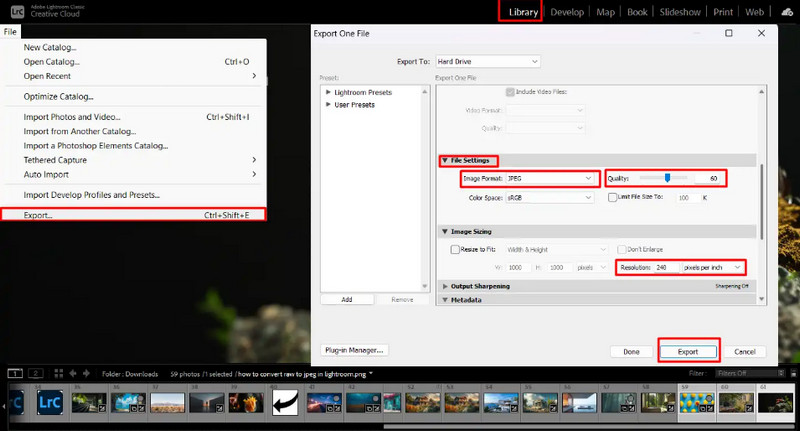
Stap 3Klik Exporteren, selecteer JPG Formatteer, stel de instellingen in en selecteer waar u het wilt opslaan.
- Pluspunten
- Efficiënt voor bulkbeeldverwerking
- Constante outputkwaliteit
- nadelen
- Abonnement vereist
- Vereist leerstof voor beginners
4. GIMP
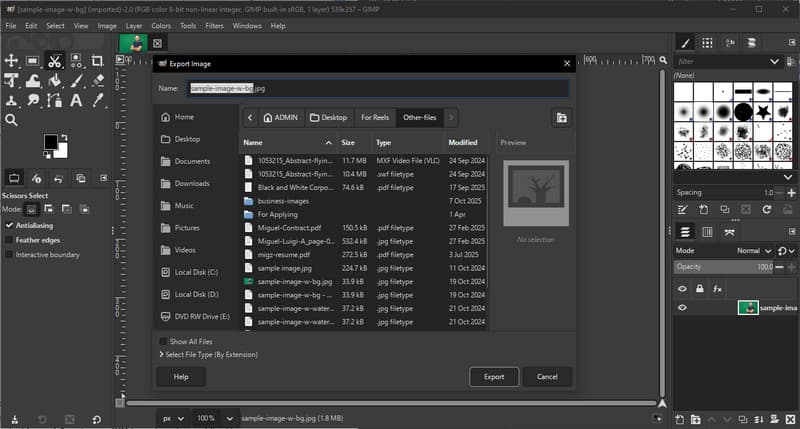
GIMP-foto-editor Het is een gratis, open-source editor die met behulp van plug-ins RAW-afbeeldingen kan verwerken. Het is een effectieve optie als je wilt leren hoe je CR2 naar JPG converteert zonder te hoeven investeren in betaalde software.
Belangrijkste kenmerken:
- Gratis en open-source software
- Ondersteunt meerdere afbeeldingsformaten.
- Basisfuncties voor bewerken en converteren
Platformen:
- Windows, Mac, Linux
Stap 1Open GIMP en laad je CR2-bestand met behulp van een RAW-plug-in.
Stap 2Pas de afbeeldingsinstellingen aan in het importvenster en bevestig.
Stap 3Ga naar Bestand, selecteer Exporteren als, Kiezen JPG formatteer het bestand en exporteer het.
- Pluspunten
- Volledig gratis te gebruiken
- Flexibel met plug-ins en extensies
- nadelen
- De installatie kan technisch zijn.
- Minder verfijnde interface
5. Convertio
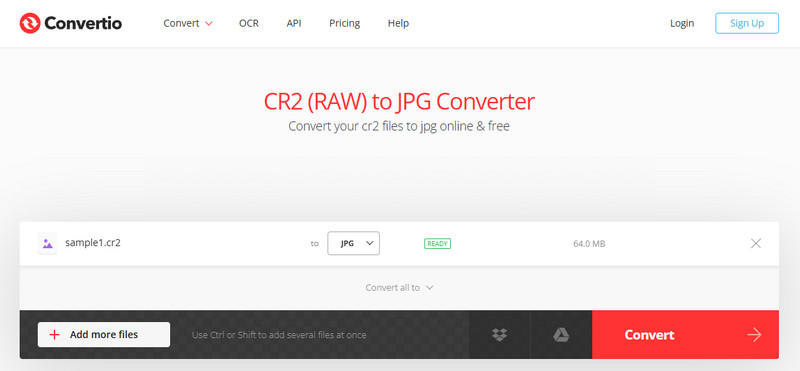
Convertio is een bekende webgebaseerde tool waarmee gebruikers snel bestanden kunnen converteren zonder installatie. Het is een praktische keuze wanneer gebruikers vragen hoe ze CR2 naar JPG kunnen converteren met behulp van een eenvoudig online platform.
Belangrijkste kenmerken:
- Ondersteunt meerdere bestandsformaten, waaronder CR2 en JPG.
- Werkt direct in de browser.
- Hiermee kunt u bestanden uploaden vanaf uw apparaat, de cloud of via een URL.
- Eenvoudig en snel conversieproces
Platformen:
- webgebaseerd
Stap 1Open Convertio in je browser en upload je CR2-bestand.
Stap 2Selecteer JPG als het uitvoerformaat.
Stap 3Start de conversie en download het bestand zodra deze is voltooid.
- Pluspunten
- Gemakkelijk toegankelijk en gebruiksvriendelijk
- Geen installatie nodig
- Ondersteunt diverse bestandsbronnen.
- nadelen
- Bestandsgroottebeperkingen in de gratis versie
- Vereist een internetverbinding.
Deel 3. Vergelijking van de 5 CR2 naar JPG-converters
| Functies | AVAide-beeldconverter | Adobe Photoshop | Lightroom | GIMP | Convertio |
| Makkelijk te gebruiken | Heel gemakkelijk | Gematigd | Gematigd | Gematigd | Eenvoudig |
| Batchconversie | Ja | Beperkt | Beperkt | Beperkt | Maximaal 5 |
| Beeldkwaliteit | Hoogste | Hoog | Hoog | Hoog | Hoog |
| Snelheid | Snel | Gematigd | Snel | Gematigd | Snel |
| Bestandsgroottebeperking | Nee | Nee | Nee | Nee | Ja |
Deel 4. Veelgestelde vragen over het converteren van CR2 naar JPG
Wat te doen met CR2-bestanden?
CR2-bestanden zijn onbewerkte afbeeldingen van een Canon-camera. Ze zijn handig als je volledige controle wilt over de bewerking, zoals het aanpassen van helderheid, kleur en scherpte. Voor dagelijkse taken zoals delen of uploaden zijn ze echter minder geschikt.
Welke apps kunnen CR2-bestanden openen?
CR2-bestanden kunnen met verschillende fotobewerkingsprogramma's worden geopend. Adobe Photoshop en Lightroom zijn de meest gebruikte programma's, omdat ze RAW-bestanden volledig ondersteunen en geavanceerde bewerkingstools bieden. GIMP kan CR2-bestanden ook openen met een plug-in.
Hoe converteer ik RAW-bestanden in één keer naar JPG?
Om meerdere RAW-bestanden tegelijk te converteren, hebt u een programma nodig dat batchconversie ondersteunt. Programma's zoals Lightroom of online tools zoals AVAide Image Converter stellen u in staat om meerdere CR2-bestanden tegelijk te importeren of uploaden. U selecteert eenvoudigweg JPG als uitvoerformaat en start het proces.
Het converteren van CR2-bestanden naar JPG maakt het delen, bekijken en opslaan van afbeeldingen eenvoudiger. Hoewel CR2 uitstekend geschikt is voor bewerking, is JPG praktischer voor dagelijks gebruik. Als je je afvraagt... Hoe verander ik het bestandstype van CR2 naar JPG?Je kunt tools gebruiken zoals Photoshop, Lightroom of online conversieprogramma's zoals AVAide-beeldconverterHet doel is simpel: grote RAW-bestanden omzetten in kleinere, bruikbare JPG-afbeeldingen zonder belangrijk kwaliteitsverlies.
OVER DE AUTEUR


U kunt uw foto eenvoudig van elk afbeeldingsformaat converteren naar een populaire JPG, PNG of GIF zonder kwaliteitsverlies.
NU VERWERKEN