Cuba untuk memikirkan cara menapis rekod pada Dell Walaupun merakam tutorial, permainan atau mesyuarat boleh terasa mengelirukan tanpa alat yang betul. Sama ada anda memerlukan sesuatu yang cepat atau lebih maju, panduan ini membimbing anda melalui kaedah yang mudah dan berkesan untuk merakam skrin anda dengan lancar.
Bahagian 1. Cara Paling Mudah: Menggunakan Bar Permainan Xbox
Bar Permainan Xbox direka terutamanya untuk merakam permainan, tetapi juga boleh digunakan untuk rakaman skrin harian. Ia membolehkan anda merakam skrin dan audio anda, dan menyimpan klip dengan segera. Walau bagaimanapun, ia tidak dapat merakam desktop atau Penjelajah Fail anda; ia hanya boleh merakam tetingkap aplikasi yang aktif.
Langkah 1Untuk membuka tindanan Bar Permainan Xbox, tekan butang Windows + G kekunci pada papan kekunci anda. Jika soalannya adalah tentang sama ada ia satu permainan, jawab secara positif.
Langkah 2The Tangkap panel berada dalam tindanan. Jika anda tidak dapat melihatnya, menu Widget akan dicipta dan pilihan Tangkap akan dipilih.
Langkah 3Untuk mula merakam skrin anda, klik Rekod (●) butang atau Windows + Alt + RAlat ini akan merakam petikan tetingkap aktif secara automatik.
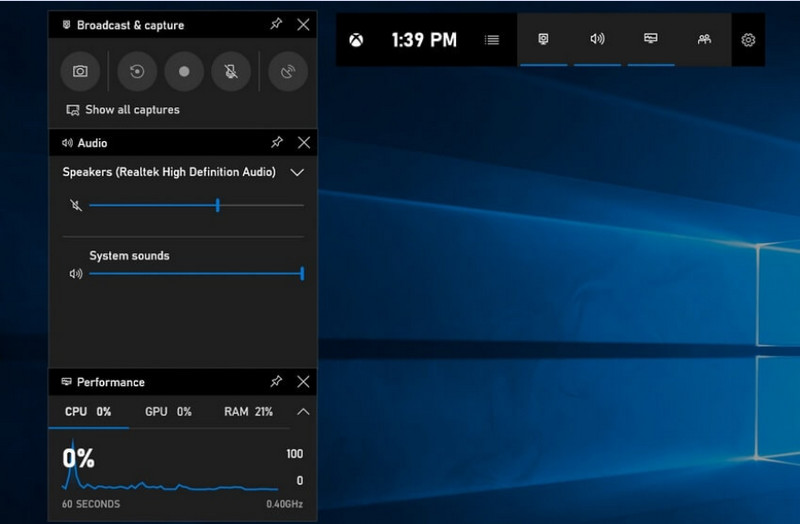
Langkah 4Rakaman mikrofon boleh diaktifkan dengan mengklik Mic butang sebelum atau semasa rakaman.
Langkah 5Untuk berhenti merakam, tekan Windows + Alt + R kali kedua atau tekan butang Berhenti (■) butang pada bar terapung.
Langkah 6Video yang anda rakam disimpan secara automatik di dalam Video > Tangkapan folder komputer anda.
Bahagian 2. Pilihan Profesional
1. Menggunakan Perakam Skrin OBS
Perakam Skrin OBS ialah perakam skrin sumber terbuka percuma yang biasa digunakan untuk merakam dan menstrim kandungan langsung. Ia menyediakan susunan yang boleh disesuaikan yang membolehkan anda merakam keseluruhan paparan anda, tetingkap berbeza atau berbilang sumber secara serentak. Kawalan video dan audionya yang berkuasa menjadikannya pilihan yang berkesan untuk pengguna yang bukan sahaja berminat dengan jenis rakaman skrin yang paling mudah.
Prestasi:
Perakam Skrin OBS ialah perisian dengan pecutan perkakasan yang memberikan prestasi yang andal, membolehkan rakaman 1080p 60fps yang lancar. Setelah dipasang, ia boleh beroperasi dengan berkesan, dengan output yang konsisten dan sedikit latensi, semasa sesi rakaman yang dilanjutkan pada sistem yang serasi.
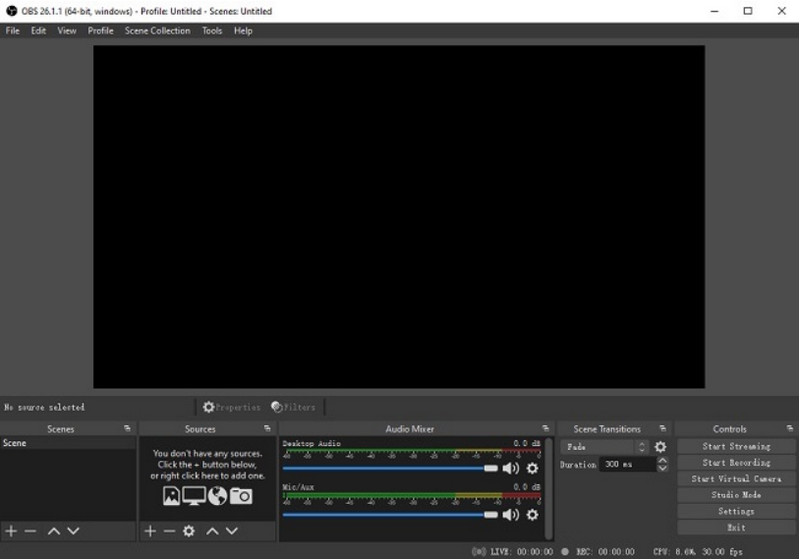
Langkah 1Pergi ke laman rasmi Perakam Skrin OBS, muat turun pemasang dan lengkapkan pemasangan.
Langkah 2Buka Perakam Skrin OBSAnda akan dipaparkan dengan antara muka utama dengan panel seperti Adegan dan Sumber.
Langkah 3Dalam panel Adegan, klik + butang dan berikan nama kepada pemandangan anda.
Langkah 4Anda boleh menambah tangkapan paparan atau tangkapan tetingkap (untuk menangkap aplikasi tertentu) dengan mengklik + di dalam Sumber panel dan pemilihan Tangkapan Paparan atau Tangkapan Tetingkap.
Langkah 5Uji Pengadun Audio dengan mendayakan dan melaraskan mikrofon dan bunyi sistem.
Langkah 6Tekan ke Mulakan Rakaman butang di sebelah kanan antara muka.
Langkah 7Setelah selesai, klik Hentikan RakamanVideo ini akan diletakkan secara automatik dalam folder lalai anda.
2. Menggunakan Perakam Skrin AVAide
Perakam Skrin AVAide merupakan alat yang ringkas tetapi cekap untuk merakam aktiviti skrin dalam kualiti tinggi. Ia disasarkan kepada pengguna yang memerlukan sistem rakaman yang mudah digunakan dengan audio yang jelas, sistem rakaman yang fleksibel dengan konfigurasi minimum dan kawalan intuitif.
Prestasi:
Perakam Skrin AVAide dioptimumkan untuk merakam dengan lancar dan stabil, walaupun semasa sesi yang panjang. Ia boleh menyokong output resolusi tinggi hingga 4K/1080p dengan latensi minimum dalam aplikasi biasa. Perisian ini boleh mengurus rakaman skrin dan audio serentak dengan berkesan bagi memastikan bunyi sistem dan input mikrofon kekal segerak.
- Merakam skrin dalam kualiti tinggi dengan prestasi yang lancar dan bebas lag.
- Merakam bunyi sistem dan mikrofon serentak dengan output audio yang jelas.
- Menyokong rakaman kamera web dengan tindanan gambar-dalam-gambar yang boleh laras.
- Membenarkan rakaman skrin penuh, tetingkap yang dipilih atau rantau tersuai.
- Termasuk alat penyuntingan terbina dalam untuk memangkas, meningkatkan dan mengeksport video.

 Muat Turun Selamat
Langkah 1Muat turun dan Pasang Alat
Layari laman web rasmi AVAide Screen Recorder. Dapatkan pemasang untuk sistem Windows anda dan ikuti proses pemasangan.
Langkah 2Lancarkan Perisian
Pemasangan boleh diikuti dengan membuka program. Pada antara muka utama, anda boleh memilih Perakam Skrin untuk bermula dengan.
Langkah 3Pilih Kawasan Rakaman
Pilih antara penuh dan Adat mod rakaman berdasarkan keperluan anda.
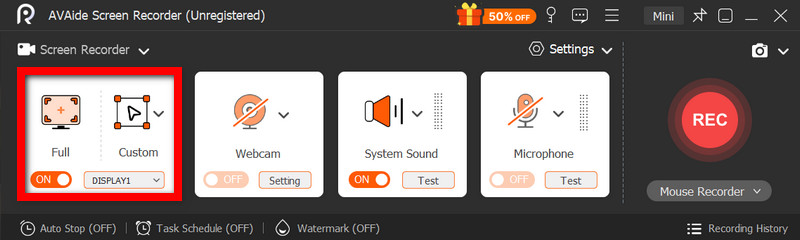
Langkah 4Sediakan Audio dan Kamera Web
Dayakan Audio Sistem dan juga Mikrofon jika anda memerlukan audio. Kamera web juga boleh dihidupkan untuk merakam wajah.
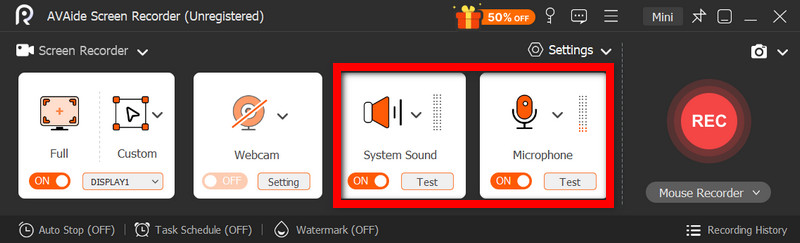
Langkah 5Mulakan Rakaman
Untuk mula merakam skrin anda, tekan butang REC butang. Anotasi boleh ditambah semasa rakaman jika perlu.
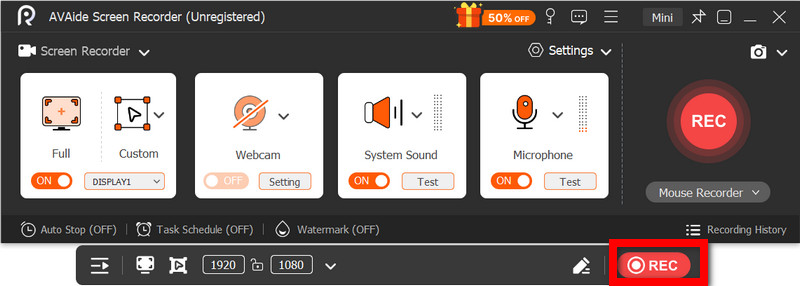
Langkah 6Hentikan dan Simpan Rakaman
Klik pada Berhenti butang apabila selesai. Rakaman akan disimpan secara automatik dan anda boleh pratonton atau mengeditnya dengan segera.
Bahagian 3. Kaedah Percuma & Mudah Lain
1. Menggunakan Alat Pemotong (Windows 11)
Alat Pemotong dalam Windows 11 termasuk rakaman skrin terbina dalam, menyediakan cara mudah dan pantas untuk merakam aktiviti skrin tanpa memasang perisian tambahan. Ia paling berkesan dengan klip pendek, tutorial dan kerja rakaman mudah.
Prestasi:
Alat Pemotong sesuai untuk rakaman ringan dan menawarkan tangkapan kecil yang lancar. Walau bagaimanapun, ia kekurangan ciri, tidak menyokong tetapan lanjutan dan mungkin tidak mengendalikan rakaman panjang atau berprestasi tinggi dengan berkesan secekap alat tertentu.
Langkah 1Buka alat Snipping dengan mengklik pada Mulakan menu.
Langkah 2Untuk menggunakan bar alat, klik Rekod.
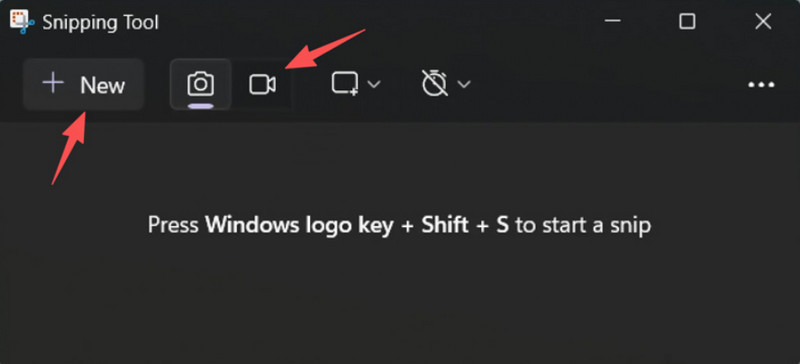
Langkah 3Untuk merakam rakaman baharu, pilih Baru.
Langkah 4Pilih kawasan skrin yang ingin anda rakam.
Langkah 5klik Mulakan untuk memulakan rakaman.
Langkah 6klik Berhenti apabila selesai dan simpan rakaman anda.
2. Menggunakan Microsoft PowerPoint (Semua Versi Windows)
Microsoft PowerPoint menyertakan ciri rakaman skrin yang membolehkan anda merakam tangkapan skrin dan menggabungkannya ke dalam pembentangan. Ia juga merupakan alternatif mudah untuk membangunkan tutorial, demonstrasi atau slaid pengajaran tanpa memerlukan perisian rakaman tambahan.
Prestasi:
PowerPoint memberikan hasil yang konsisten dalam rakaman skrin mudah, terutamanya untuk pembentangan dan demonstrasi pendek. Walaupun ia menawarkan kualiti video yang munasabah, ia kekurangan kawalan lanjutan dan mungkin tidak sesuai untuk kualiti video yang dirakam semasa rakaman berdurasi panjang.
Langkah 1Lancarkan Microsoft PowerPoint dan sediakan pembentangan baharu atau sedia ada.
Langkah 2Klik tab Sisip, kemudian Rakaman Skrin.
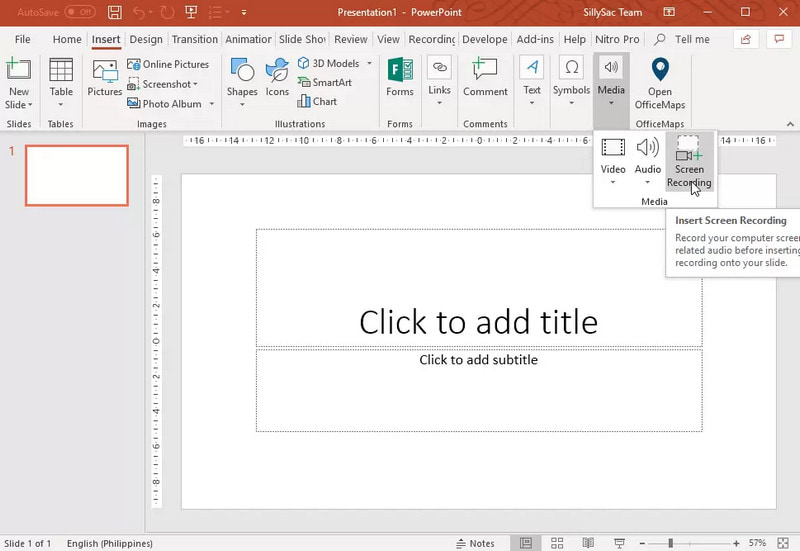
Langkah 3Pilih bahagian skrin yang ingin anda rakam.
Langkah 4Benarkan rakaman audio atau penunjuk apabila perlu.
Langkah 5klik Rekod untuk mula merakam skrin anda.
Langkah 6Untuk menamatkan rakaman, tekan Tetingkap + Shift + Q.
Langkah 7Untuk menyimpan rakaman, klik kanan video dan pilih Simpan Media Sebagai.
Bahagian 4. Menyelesaikan Masalah Lazim
| Masalah | Penyelesaian |
| Bar Permainan tidak dapat dibuka atau dirakam. | Dalam tetapan, anda boleh mematikan Bar Permainan Xbox. Pergi ke tetapan > Permainan > Bar Permainan dan putarkannya HIDUPCuba menekan Windows + G sekali lagi, dan mulakan semula PC anda (jika perlu). |
| Rakaman itu tiada bunyi. | Pastikan audio dan mikrofon sistem dihidupkan dalam tetapan Bar Permainan. Selain itu, pastikan peranti bunyi anda tidak disenyapkan atau dipilih secara salah dalam Tetapan Bunyi Windows. |
| Komputer riba Dell saya berjalan perlahan semasa rakaman. | Gunakan Tutup atau Minimumkan untuk mengurangkan aplikasi dan tab pelayar yang tidak diperlukan. Tukar ke mod Prestasi Tinggi dalam tetapan kuasa dan kurangkan resolusi rakaman apabila perlu untuk meningkatkan prestasi. |
| Kualiti video yang dirakam adalah teruk. | Tetapkan kualiti rakaman kepada tetapan terbaik yang tersedia dalam Bar Permainan, terutamanya apabila merakam Google Meet sesi. Tetapkan paparan anda kepada resolusi natifnya dan kemas kini pemacu grafik anda untuk menjadikannya lebih tajam dan stabil. |
Pembelajaran cara merakam skrin pada komputer riba Dell akan memberi anda fleksibiliti untuk tutorial, mesyuarat atau bermain permainan. Sama ada alat terbina dalam atau perisian canggih, memilih kaedah yang betul akan memastikan rakaman dibuat dengan mudah dan berkualiti tinggi, dan aliran kerja diperkemas.
TENTANG PENGARANG

Rakam skrin, audio, kamera web, permainan, mesyuarat dalam talian, serta skrin iPhone/Android pada komputer anda.
Rakaman Skrin