Ingin meneroka cara merakam mesyuarat WebexRakaman adalah cara yang ideal jika anda ingin menyimpan pembentangan, perbincangan atau sesi latihan penting untuk rujukan pada masa hadapan. Tambahan pula, dengan ciri rakaman terbina dalam Webex, anda boleh merakam video dan audio, berserta kandungan yang dikongsi, memastikan tiada kandungan penting yang akan terlepas. Jadi, jika anda ingin mempelajari cara merakam mesyuarat di Webex, lihat panduan ini, kerana kami menawarkan semua kaedah terbaik yang boleh anda gunakan.
Bahagian 1. Siapakah yang boleh Merakam Mesyuarat Webex
Tertanya-tanya siapa yang boleh merakam mesyuarat di Webex? Hanya hos mesyuarat dan mana-mana hos bersama yang ditetapkan sahaja yang boleh merakam sesi di Webex. Tambahan pula, peserta biasa tidak boleh memulakan rakaman melainkan hos tersebut membenarkannya secara khusus. Tambahan pula, sila ambil perhatian bahawa anda mesti mempunyai pelan langganan untuk mengakses ciri perakam.
Bahagian 2. Cara Membolehkan Rakaman
Mendayakan ciri perakam dalam Laman Web adalah semudah yang anda sebagai pentadbir. Untuk mendayakan rakaman, anda perlu:
Langkah 1Log masuk ke Hab Kawalan Webex atau Pentadbir Laman melalui kelayakan pentadbir. Kemudian, teruskan ke Perkhidmatan > Tetapan Mesyuarat bahagian.
Langkah 2Selepas itu, cari lokasi Rakaman bahagian dan togolnya untuk mendayakan rakaman. Anda juga boleh memilih jenis storan, seperti rakaman awan, rakaman setempat dan banyak lagi, berdasarkan pelan anda.
Langkah 3Untuk proses seterusnya, tetapkan kebenaran untuk hos dan hos bersama bagi mengurus dan mengawal rakaman.
Bahagian 3. Cara Merakam Mesyuarat Webex di Desktop
Jika anda ingin mempelajari cara merakam mesyuarat dalam Webex, anda boleh membaca semua maklumat dalam siaran ini. Kami akan mengajar anda cara merakam mesyuarat Webex di awan dan pada komputer tempatan.
Kaedah 1: Rakam Mesyuarat Webex di Awan
Merakam mesyuarat di awan adalah kaedah yang sempurna, terutamanya jika anda ingin menyimpan rakaman anda atau berkongsi fail dengan pengguna lain. Anda juga boleh mengakses video di mana-mana sahaja tanpa perlu memuat turunnya pada peranti anda. Jadi, untuk memulakan prosesnya, anda boleh menggunakan arahan mudah di bawah.
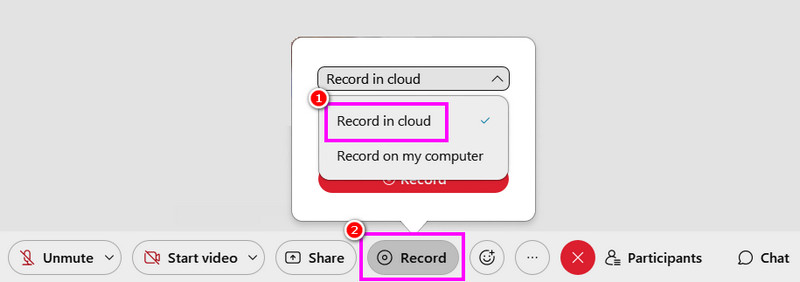
Langkah 1Akses Webex pada komputer anda. Selepas itu, anda juga boleh membuat akaun anda.
Langkah 2Setelah selesai, anda kini boleh klik pada Mulakan Mesyuarat Webex pilihan. Kemudian, klik pada Rekod butang.
Langkah 3Pilih yang Rakam dalam Awan > Rekod butang untuk memulakan proses rakaman. Untuk menghentikan rakaman, gunakan Berhenti butang.
Kaedah 2: Rakam Mesyuarat Webex dalam Rakaman Tempatan
Selain merakam di awan, anda juga boleh menyimpan dan merakam mesyuarat Webex pada komputer anda. Kaedah ini lebih baik jika anda ingin mempunyai rekod dan koleksi mesyuarat anda sendiri. Apa yang kami suka di sini ialah proses rakamannya mudah, berkat susun atur yang komprehensif. Anda juga boleh menyimpan video dalam kualiti terbaik untuk main balik video yang lebih baik. Lihat langkah-langkah di bawah untuk proses rakaman Webex yang berkesan.
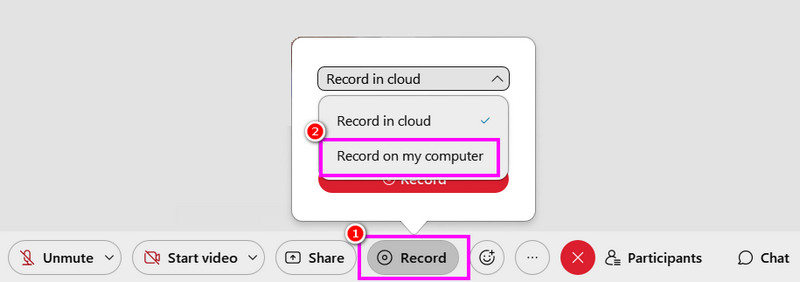
Langkah 1Selepas mengakses Webex, jalankannya untuk memulakan proses.
Langkah 2Kemudian, dari antara muka utama, tekan Mulakan Mesyuarat Webex butang. Selepas itu, dari Rekod bahagian, pilih Rakam pada komputer saya pilihan untuk memulakan rakaman.
Langkah 3Ketik Berhenti untuk menyelesaikan proses rakaman. Setelah selesai, fail tersebut akan disimpan pada komputer anda.
Kaedah 3: Rakam Mesyuarat Webex Menggunakan Perakam Skrin AVAide
Jika anda seorang peserta daripada mesyuarat Webex, anda mungkin tidak dapat merakam mesyuarat tersebut kerana hanya hos dan hos bersama sahaja yang boleh berbuat demikian. Jika anda tidak dibenarkan merakam, perkara terbaik untuk dilakukan ialah menggunakan perakam skrin yang lebih baik, seperti Perakam Skrin AVAideMerakam mesyuarat Webex adalah mudah apabila menggunakan perakam ini. Ini kerana program ini mempunyai antara muka pengguna yang komprehensif dan kemas. Anda juga boleh merakam/merakam video dan audio, menjadikannya lebih elegan dan berkuasa. Selain itu, anda juga boleh mengambil tangkapan skrin semasa proses rakaman. Anda juga boleh menyimpan rakaman dengan kualiti terbaik, membolehkan anda mendapatkan pengalaman tontonan yang memuaskan. Untuk mula merakam mesyuarat anda di Webex, gunakan langkah-langkah di bawah.
Langkah 1Muat turun dan lancarkan Perakam Skrin AVAide pada komputer anda. Klik butang di bawah untuk mengakses perakam serta-merta.

MUAT TURUN PERCUMA Untuk Windows 7 atau lebih baru
 Muat Turun Selamat
MUAT TURUN PERCUMA Untuk Mac OS X 10.13 atau lebih baru
Muat Turun SelamatLangkah 2Daripada antara muka utama, anda boleh memilih cara anda mahu merakam mesyuarat anda dengan mengklik penuh atau Adat pilihan. Anda juga boleh menghidupkan Bunyi Sistem untuk merakam audio komputer anda.
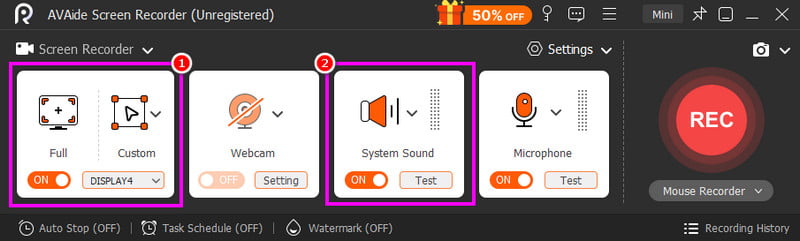
Langkah 3Klik pada REC butang, dan undur tiga saat akan muncul. Selepas undur, proses rakaman akan bermula. Tandakan Berhenti butang untuk menamatkan rakaman.
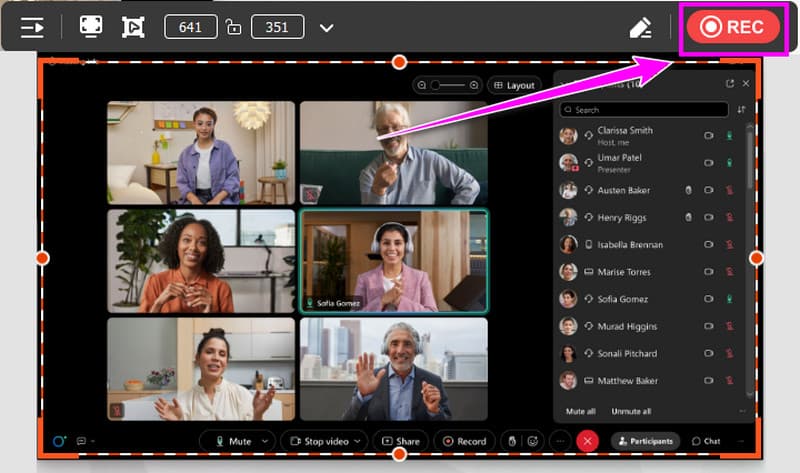
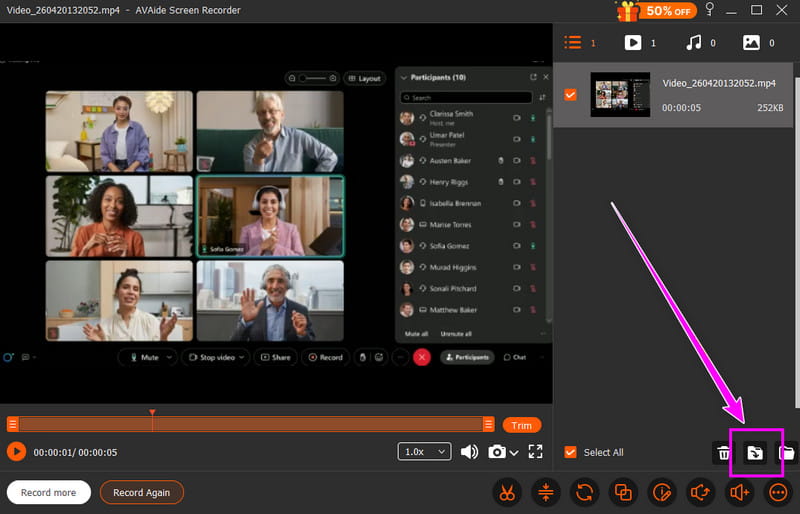
Langkah 4Apabila pratonton dipaparkan, anda boleh mula menyimpan video dengan mengklik Eksport butang di bawah.
Bahagian 4. Cara Merakam Mesyuarat Webex di Telefon
Anda juga boleh merakam sesi dalam Webex menggunakan telefon bimbit anda. Perkara yang baik di sini ialah anda boleh rakam skrin pada iPhone dan Android, berkat ciri perakam terbina dalam mereka. Dengan ciri ini, anda boleh merakam mesyuarat dengan berkesan tanpa memuat turun mana-mana perakam pihak ketiga.
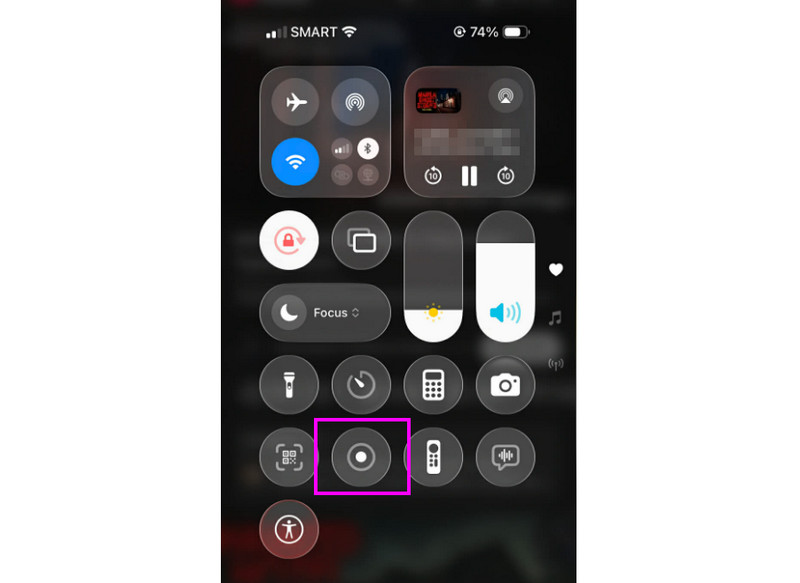
Langkah 1Dari telefon anda, anda boleh terus ke Pemberitahuan bahagian. Kemudian, cari Rekod butang.
Langkah 2Ketik pada Rekod butang, dan undur 3 saat akan dipaparkan. Selepas itu, proses rakaman rasmi akan bermula.
Langkah 3Tekan Berhenti untuk menyelesaikan proses rakaman. Kemudian, anda kini boleh menyemak rakaman pada aplikasi Foto atau Galeri anda.
Bahagian 5. Cara Merakam Mesyuarat Webex pada Pelayar
Jika anda mahukan perakam dalam talian terbaik, anda boleh cuba menggunakan alat Perakam Skrin Dalam Talian. Perakam ini berguna jika anda ingin merakam mesyuarat Webex pada pelayar anda. Apa yang kami suka di sini ialah proses rakamannya mudah. Ia juga boleh memberikan anda proses penyimpanan yang lancar. Satu-satunya kelemahan di sini ialah ia kekurangan fungsi penyuntingan asas untuk menambah baik video. Ia juga memaparkan pelbagai iklan yang menjengkelkan pada skrin.
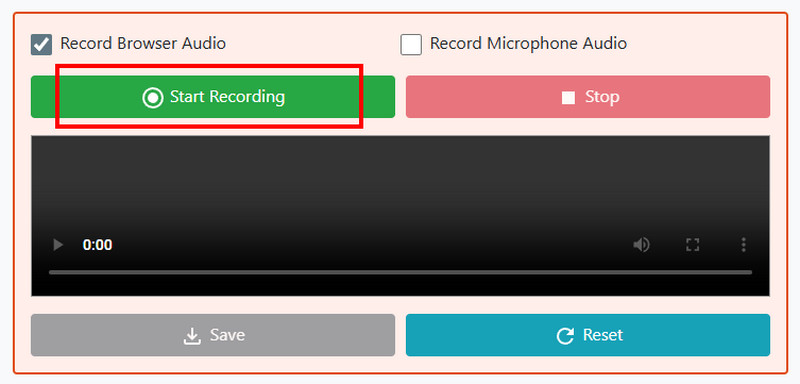
Langkah 1Pergi ke penyemak imbas anda dan akses ke Perakam Skrin Dalam Talian.
Langkah 2Selepas itu, klik pada Mulakan Rakaman butang. Kemudian, pilih mesyuarat Webex untuk memulakan proses rakaman.
Langkah 3Akhir sekali, tekan Berhenti butang untuk menyelesaikan rakaman mesyuarat Webex anda.
Bahagian 6. Cara Muat Turun Rakaman Webex
Teruskan ke bahagian ini dan pelajari cara memuat turun rakaman Webex.
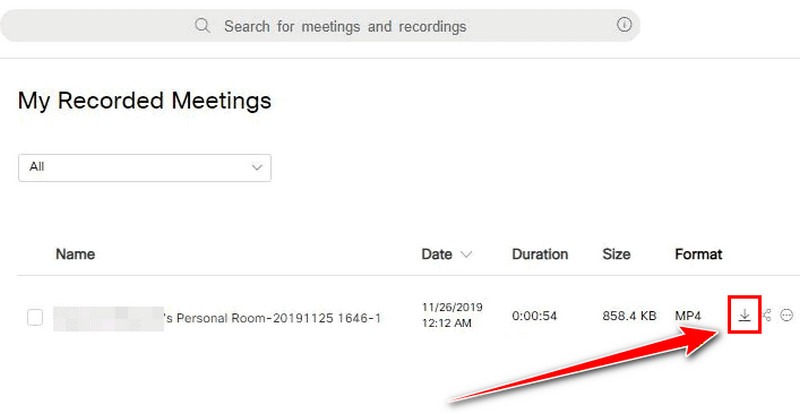
Langkah 1Log masuk ke dalam Webex akaun dan teruskan ke Rakaman bahagian.
Langkah 2Kemudian, pilih rakaman dan tekan Muat turun simbol daripada antara muka kanan.
Langkah 3Kemudian, rakaman akan disimpan sebagai fail MP4 pada komputer anda.
Sekarang, anda telah belajar cara merakam sesi dalam WebexAnda juga boleh meneroka cara menyimpan rakaman di awan dan komputer anda. Tambahan pula, jika anda mahukan proses rakaman yang lebih lancar, anda boleh cuba menggunakan Perakam Skrin AVAideIa juga boleh menawarkan pelbagai alat penyuntingan asas, yang membolehkan anda menambah baik video untuk main balik yang lebih baik.
TENTANG PENGARANG

Rakam skrin, audio, kamera web, permainan, mesyuarat dalam talian, serta skrin iPhone/Android pada komputer anda.
Rakaman Skrin