Kamera Canon merakam imej dalam CR2, format imej mentah yang direka untuk menangkap perincian imej maksimum. Walaupun berguna untuk penyuntingan, ia tidak boleh digunakan dalam aplikasi harian kerana saiz failnya yang besar dan keserasian yang terhad. Apabila menukar CR2 kepada JPG, ia boleh dikongsi dengan lebih mudah, dimuat naik dengan lebih pantas dan disokong pada pelbagai peranti. Ia juga merupakan proses yang meminimumkan keperluan storan tanpa memerlukan kepakaran teknikal peringkat tinggi. Panduan ini dibahagikan kepada sebab, kaedah dan alatan berdasarkan amalan pengendalian imej yang biasa untuk membantu anda mengurus fail anda dengan cara yang jelas dan terkawal.
Bahagian 1. Canon CR2: Mengapa Anda Perlu Menukarnya
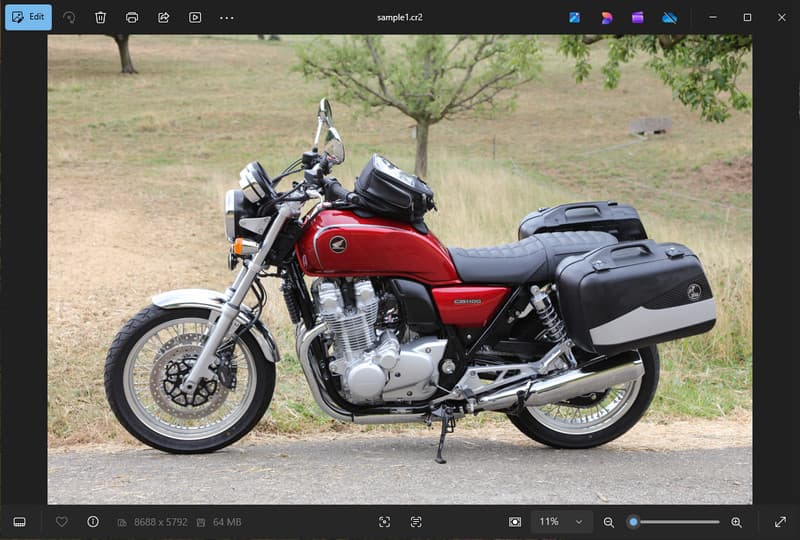
Canon CR2 ialah format fail mentah yang merekodkan maklumat mentah daripada sensor kamera. Walaupun ia sangat terperinci, mungkin perlu menukar format fail CR2 kepada JPG, kerana banyak peranti dan aplikasi tidak menyokong fail mentah.
1. Keserasian Terhad
Banyak alat standard tidak menyokong fail CR2, menjadikannya sukar untuk melihat imej. Menukar fail CR2 kepada JPG memastikan foto anda dibuka dengan lancar merentasi peranti, pelayar dan pemapar imej asas.
2. Saiz Fail Besar
Fail mentah sangat besar kerana ia menyimpan lebih banyak data imej. Ini menjejaskan storan dan prestasi. Menukar gambar CR2 kepada JPG mengurangkan saiz fail, menjadikannya lebih mudah untuk menyimpan dan memindahkan imej dengan cekap.
3. Perkongsian dan Muat Naik yang Lebih Mudah
Banyak platform tidak menerima format mentah atau lambat diproses. Beralih daripada CR2 kepada JPG ialah cara yang cepat dan mudah untuk memuat naik gambar anda dan memastikan foto anda dipaparkan dalam format yang betul di media sosial, e-mel dan laman web lain.
4. Tidak Perlu Perisian Khusus
Fail CR2 memerlukan perisian penyuntingan yang mampu memproses fail mentah. Apabila anda menukar CR2 kepada JPG, anda menghapuskan penggunaan program canggih dan mudah mendapatkan imej untuk digunakan dalam kehidupan seharian.
5. Aliran Kerja Lebih Pantas
Bekerja dengan fail mentah boleh memperlahankan proses anda, terutamanya dalam kuantiti yang banyak. Menggunakan penukar CR2-ke-JPG yang andal membantu mempercepatkan pemprosesan imej dan meningkatkan produktiviti keseluruhan.
6. Proses Lebih Mudah untuk Pemula
Format mentah boleh terasa rumit bagi pengguna baharu. Mempelajari cara menukar CR2 kepada JPG memudahkan aliran kerja anda dan menjadikan pengurusan imej lebih mudah tanpa halangan teknikal.
Memahami perkara-perkara ini menjelaskan mengapa penukaran selalunya merupakan pilihan praktikal. Dalam bahagian seterusnya, anda akan meneroka kaedah terbaik untuk menukar CR2 kepada JPG dengan cekap.
Bahagian 2. 5 Cara Terbaik untuk Menukar CR2 kepada JPG
1. Penukar Imej AVAide (Pilihan Dalam Talian Percuma Terbaik)
Penukar Imej AVAide ialah penyelesaian pantas berasaskan pelayar yang direka untuk pengguna yang memerlukan hasil yang cepat tanpa memasang perisian. Ia amat berguna apabila anda perlu menukar CR2 kepada JPG secara pukal sambil mengekalkan kualiti imej.
Ciri-ciri utama:
- Menukar kepada dan daripada fail CR2 kelompok.
- Mengekalkan kualiti imej yang tinggi dan warna semula jadi.
- Sepenuhnya dalam talian tanpa memerlukan pemasangan
- Menerima JPG, PNG dan lain-lain.
- Antara muka yang mudah digunakan untuk pemprosesan yang dipercepatkan.
Platform:
- Berasaskan web, yang berfungsi pada Windows, Mac, Linux dan pelayar mudah alih
Langkah 1Lawati Laman Web Rasmi
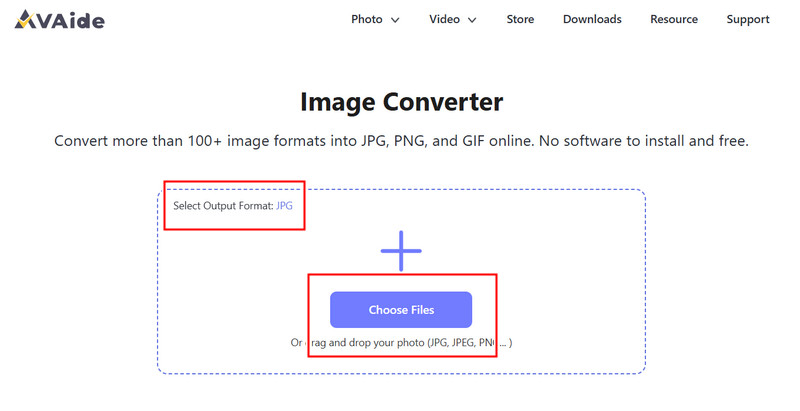
Pergi ke pelayar anda dan akses halaman rasmi AVAide Image Converter. Setelah dimuatkan, anda boleh mula menukar serta-merta tanpa mendaftar atau memasang apa-apa.
Langkah 2Tetapkan Output dan Muat Naik
Pilih JPG sebagai format output yang anda inginkan. Kemudian, klik butang + atau seret dan lepas fail CR2 anda ke dalam kawasan muat naik untuk bermula.
Langkah 3Mula Menukar CR2
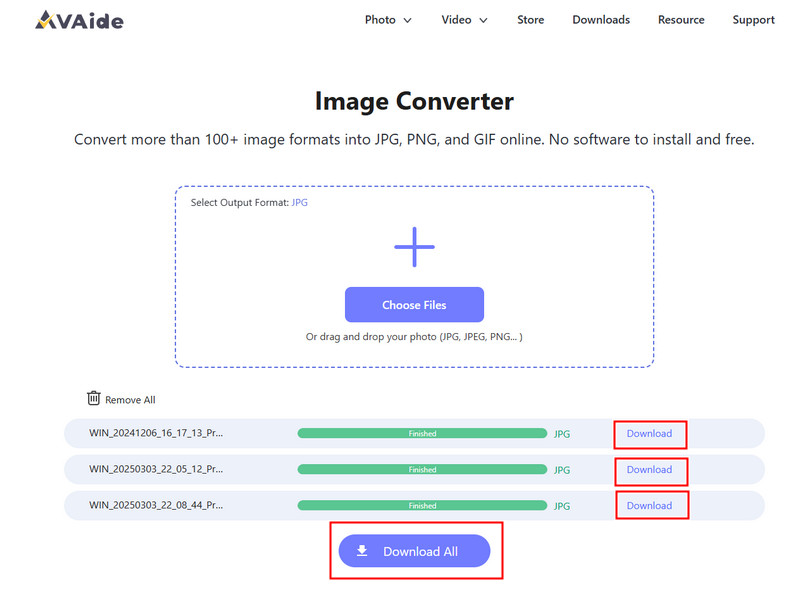
Tunggu sehingga alat selesai memproses fail anda. Setelah selesai, klik Muat turun untuk satu fail atau Muat turun Semua jika anda telah menukar berbilang imej.
- Kebaikan
- Mudah dan pantas untuk digunakan
- Tiada persediaan atau pemasangan diperlukan
- Sokongan pemprosesan kelompok yang cekap
- Mengekalkan kualiti output yang konsisten
- Keburukan
- Memerlukan sambungan internet
- Alat penyuntingan lanjutan terhad
2. Adobe Photoshop
Adobe Photoshop merupakan aplikasi berkesan yang membolehkan seseorang membuat suntingan pada fail mentah sebelum dieksport. Ia biasanya digunakan apabila anda perlu menukar CR2 kepada JPG dan mempunyai kawalan penuh ke atas pengubahsuaian imej.
Ciri-ciri utama:
- Penyuntingan CR2 lanjutan melalui Camera Raw
- Pilihan eksport berkualiti tinggi
- Alat penyuntingan gred profesional
Platform:
- Windows dan Mac
Langkah 1Lancarkan Photoshop dan buka fail CR2 anda, yang akan dimuatkan dalam Camera Raw secara automatik.
Langkah 2Laraskan pendedahan, imbangan putih atau warna mengikut keperluan, kemudian klik Buka bersambung.
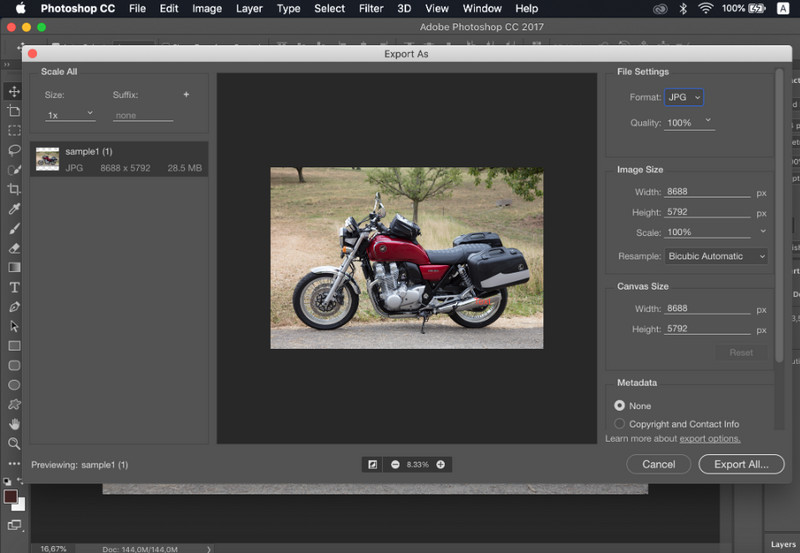
Langkah 3Pergi ke Fail, pilih Simpan sebagai, pilih JPG format, tetapkan kualiti dan simpan imej.
- Kebaikan
- Kawalan dan ketepatan imej yang sangat baik
- Perisian standard industri
- Keburukan
- Memerlukan langganan
- Keluk pembelajaran yang curam
3. Bilik Cahaya
Bilik cahaya sesuai untuk jurugambar yang menguruskan pustaka imej yang besar, dan walaupun anda mahu buang latar belakang dalam LightroomIa memudahkan penyuntingan dan pengeksportan secara kelompok, menjadikannya mudah untuk menggunakan aliran kerja penukar CR2-ke-JPG untuk berbilang imej sekaligus.
Ciri-ciri utama:
- Pengeditan dan eksport kelompok
- Sistem penyuntingan tanpa pemusnah
- Pengurusan foto yang teratur
Platform:
- Windows, Mac dan mudah alih
Langkah 1Buka Lightroom dan tambahkan fail CR2 anda ke pustaka.
Langkah 2Pilih gambar dan buat suntingan, jika perlu.
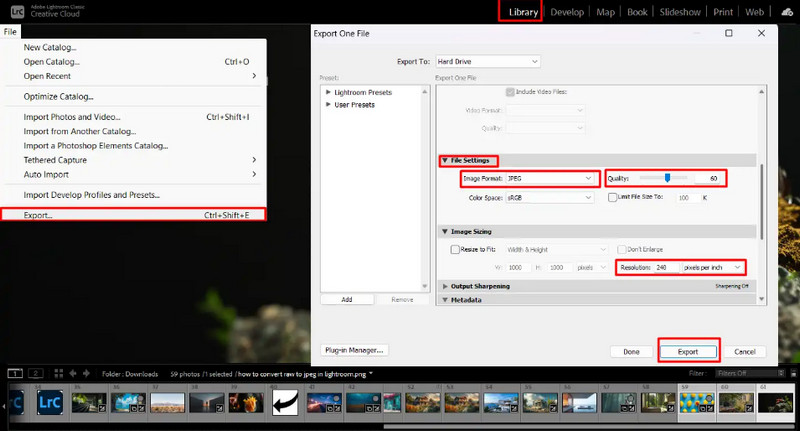
Langkah 3klik Eksport, pilih JPG format, tetapkan tetapan dan pilih tempat untuk menyimpan.
- Kebaikan
- Cekap untuk pemprosesan imej pukal
- Kualiti output yang konsisten
- Keburukan
- Langganan diperlukan
- Memerlukan pembelajaran untuk pemula
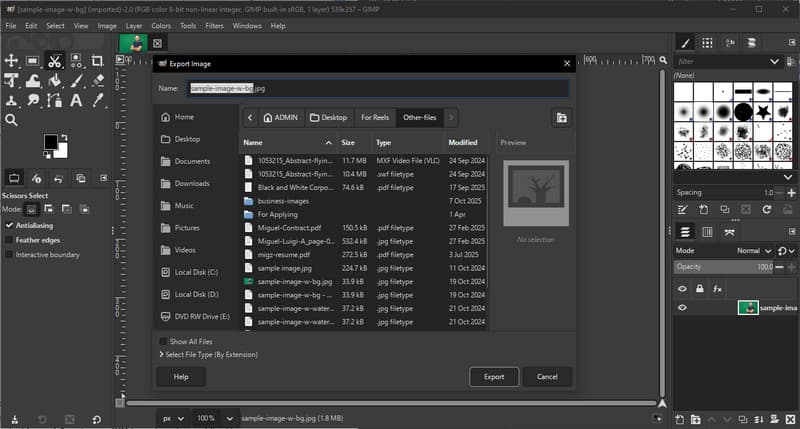
4. GIMP
Editor foto GIMP ialah editor sumber terbuka percuma yang boleh mengendalikan imej mentah menggunakan pemalam. Ia merupakan pilihan yang berkesan jika anda sedang belajar cara menukar CR2 kepada JPG tanpa berbelanja untuk perisian berbayar.
Ciri-ciri utama:
- Perisian percuma dan sumber terbuka
- Menyokong pelbagai format imej
- Ciri penyuntingan dan penukaran asas
Platform:
- Windows, Mac, Linux
Langkah 1Buka GIMP dan muatkan fail CR2 anda menggunakan pemalam RAW.
Langkah 2Laraskan tetapan imej dalam tetingkap import dan sahkan.
Langkah 3Pergi ke Fail, pilih Eksport Sebagai, pilih JPG format, dan eksport fail tersebut.
- Kebaikan
- Percuma sepenuhnya untuk digunakan
- Fleksibel dengan plugin dan sambungan
- Keburukan
- Persediaan boleh jadi teknikal
- Antara muka yang kurang digilap
5. Penukaran
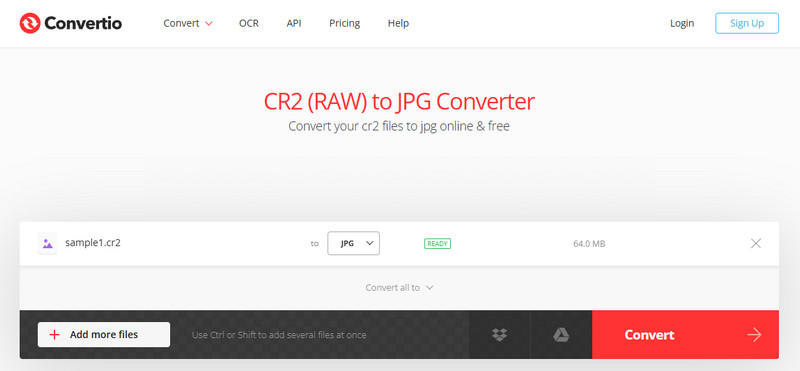
Penukaran ialah alat berasaskan web yang terkenal yang membolehkan pengguna menukar fail dengan cepat tanpa pemasangan. Ia merupakan pilihan praktikal apabila pengguna bertanya cara menukar CR2 kepada JPG menggunakan platform dalam talian yang mudah.
Ciri-ciri utama:
- Menyokong pelbagai format fail, termasuk CR2 dan JPG
- Berfungsi terus dalam pelayar
- Membenarkan muat naik fail daripada peranti, awan atau URL
- Proses penukaran yang mudah dan pantas
Platform:
- berasaskan web
Langkah 1Buka Convertio dalam pelayar anda dan muat naik fail CR2 anda.
Langkah 2Pilih JPG sebagai format output.
Langkah 3Mulakan penukaran dan muat turun fail setelah selesai
- Kebaikan
- Mudah diakses dan digunakan
- Tiada pemasangan diperlukan
- Menyokong pelbagai sumber fail
- Keburukan
- Had saiz fail pada versi percuma
- Memerlukan sambungan internet
Bahagian 3. Perbandingan 5 Penukar CR2 kepada JPG
| ciri-ciri | Penukar Imej AVAide | Adobe Photoshop | Bilik cahaya | GIMP | Penukaran |
| Mudah untuk digunakan | Sangat mudah | Sederhana | Sederhana | Sederhana | Mudah |
| Penukaran Kelompok | ya | Terhad | Terhad | Terhad | Terhad kepada 5 orang |
| Kualiti gambar | Tertinggi | tinggi | tinggi | tinggi | tinggi |
| Kelajuan | Cepat | Sederhana | Cepat | Sederhana | Cepat |
| Had Saiz Fail | Tidak | Tidak | Tidak | Tidak | ya |
Bahagian 4. Soalan Lazim Menukar CR2 kepada JPG
Apa yang perlu dilakukan dengan fail CR2?
Fail CR2 ialah imej mentah yang mengandungi data yang belum diproses daripada kamera Canon. Ia berguna jika anda mahukan kawalan penuh ke atas penyuntingan, seperti melaraskan kecerahan, warna dan ketajaman. Walau bagaimanapun, ia tidak mudah digunakan untuk tugas harian seperti berkongsi atau memuat naik.
Aplikasi apa yang boleh membuka fail CR2?
Fail CR2 boleh dibuka menggunakan beberapa aplikasi penyuntingan foto. Adobe Photoshop dan Lightroom adalah pilihan yang paling biasa kerana ia menyokong sepenuhnya format mentah dan menyediakan alat penyuntingan lanjutan. GIMP juga boleh membuka fail CR2 dengan pemalam.
Bagaimana untuk menukar mentah kepada JPG sekaligus?
Untuk menukar berbilang fail mentah secara serentak, anda memerlukan alat yang menyokong penukaran kelompok. Program seperti Lightroom atau alat dalam talian seperti AVAide Image Converter membolehkan anda mengimport atau memuat naik beberapa fail CR2 sekaligus. Anda hanya perlu memilih JPG sebagai format output dan memulakan prosesnya.
Menukar fail CR2 kepada JPG menjadikan imej lebih mudah untuk dikongsi, dilihat dan disimpan. Walaupun CR2 bagus untuk penyuntingan, JPG lebih praktikal untuk kegunaan harian. Jika anda tertanya-tanya cara menukar jenis fail dari CR2 ke JPG, anda boleh menggunakan alatan seperti Photoshop, Lightroom atau penukar dalam talian seperti Penukar Imej AVAideMatlamatnya mudah: menukar fail mentah yang besar kepada imej JPG yang lebih kecil dan boleh digunakan tanpa kehilangan kualiti yang penting.
TENTANG PENGARANG


Anda boleh menukar foto anda dengan mudah daripada sebarang format imej kepada JPG, PNG atau GIF yang popular tanpa kehilangan kualiti.
PROSES SEKARANG