Ha Mac felhasználó vagy, és rögzítened kell a képernyődet és a hangodat, akkor nincs máshol keresgélned. Minden, amire szükséged van, már ott van a QuickTime Playerben.
Ebben QuickTime képernyőfelvétel útmutatónkban megtanítjuk a használatát az elejétől a végéig. Az eszköz megnyitásától a felvétel leállításáig és mentéséig. Kezdjük is most!
1. rész. Gyors bevezetés a QuickTime képernyőfelvételbe
A QuickTime Player egy ingyenes program Mac operációs rendszerre. Előre telepítve van, így azonnal használhatod. Bár médialejátszóként ismert, más néven is működik. képernyőrögzítő Mac-hezEmiatt harmadik féltől származó alkalmazások nélkül is rögzítheti képernyőjét. Ráadásul a kezelőfelület egyszerű, így könnyen követhető.
1. Alapvető képességek
- Felvételt tud készíteni
Mindennapi használatra lefedi az alapokat. Felveheti vele a teljes képernyőt. Kiválaszthat egy kiválasztott területet is. Ugyanakkor webkamerás videót is rögzíthet az „Új filmfelvétel” funkcióval. Lehetővé teszi a hang rögzítését mikrofonról is. Ráadásul az egérkattintásokat is meg tudja jeleníteni a képernyőn. - Nem lehet rögzíteni (natívan)
Sajnos nem tudja rögzíteni a rendszerhangot. Ez a Mac operációs rendszer biztonsági okainak köszönhető. Ezenkívül nem tudja egyszerre rögzíteni a képernyőt és a webkamerát. - Korlátozások
Mert ez egy alapvető 4K videolejátszó és a felvevő esetében néhány funkció hiányzik. Egyrészt a videókat csak .mov formátumban menti. Ennek eredményeként a fájlméretek nagyok lehetnek. Ezenkívül nincsenek speciális szerkesztési funkciói. Tehát nincs idővonal-szerkesztés. Nem lehet megjegyzéseket vagy effekteket hozzáadni.
2. rész. Hogyan indítsunk képernyőfelvételt a QuickTime segítségével
Ha szeretné tudni, hogyan kell a QuickTime Player segítségével hanggal rögzíteni a képernyőt, csak egy egyszerű beállításra van szükség a kezdés előtt.
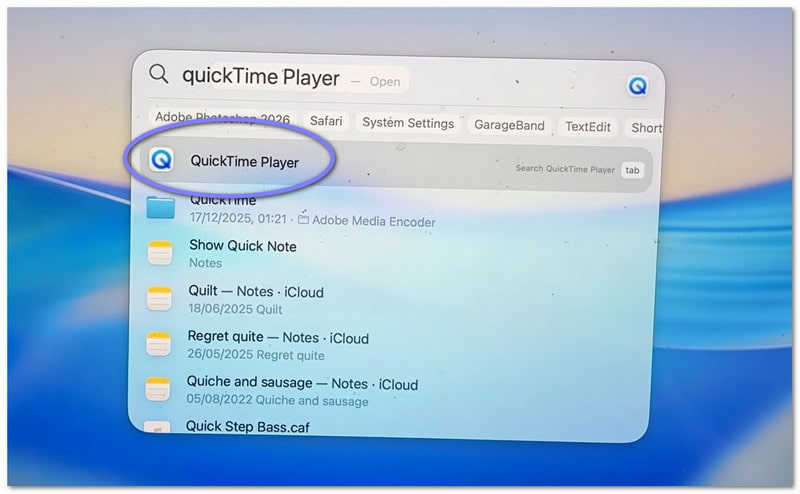
1. lépésElőször is, menj a Alkalmazások mappát, és nyissa meg a programot. Ha gyorsabb módszert szeretne, használja a Spotlight keresést. Nyomja meg a Parancs + Tér, majd írja be QuickTime Player. nyomja meg Belép kinyitni.
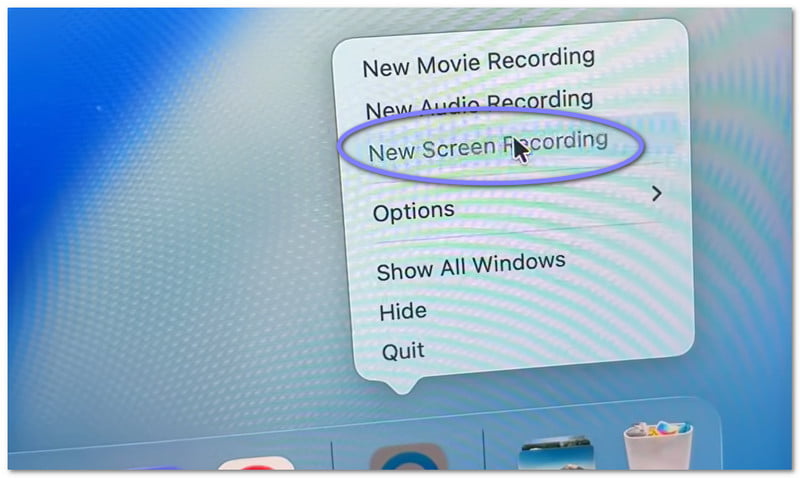
2. lépésMiután a program megnyílt, lépjen a felső menüsorba. Kattintson a Fájl, majd válasszon Új képernyőfelvételMegjelenik egy kis felvételi kijelző. Ha gyorsbillentyűt szeretne, nyomja meg a gombot. Parancs + Ellenőrzés + ÉAzonnal megnyitja a képernyőrögzítő programot.
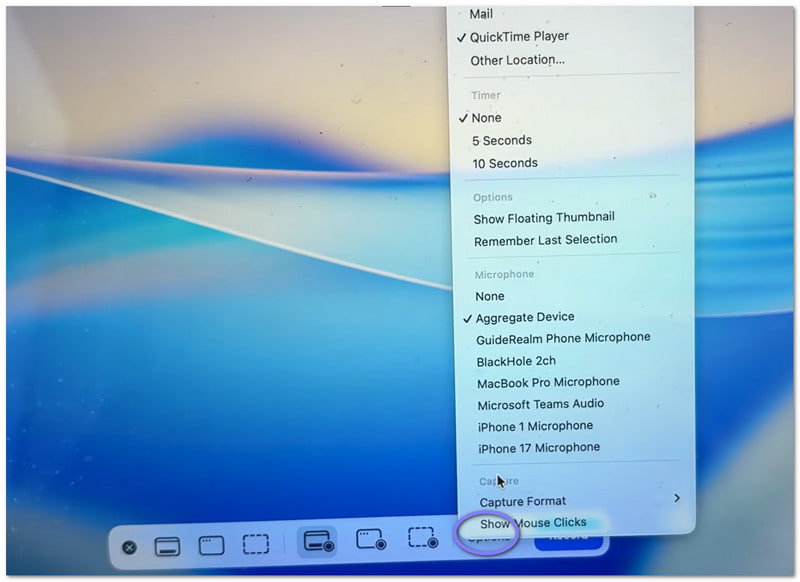
3. lépésMielőtt elkezdené, szánjon egy percet a beállítások ellenőrzésére. Kattintson a Opciók gombra a felvételi panelen. Itt kiválaszthatod a mikrofont, ha rögzíteni szeretnéd a hangodat. Beállíthatsz egy rövid időzítőt is, ha időre van szükséged a felkészüléshez. Ezenkívül kiválaszthatod, hogy hová szeretnéd menteni a fájlt a felvétel után.
4. lépésMost döntsd el, mit szeretnél rögzíteni. Ha mindent szeretnél, csak kattints a képernyő bármely pontjára. A teljes képernyőt rögzíti. Ha csak egy részére van szükséged, jelöld ki és húzd az egérmutatót egy terület kijelöléséhez.
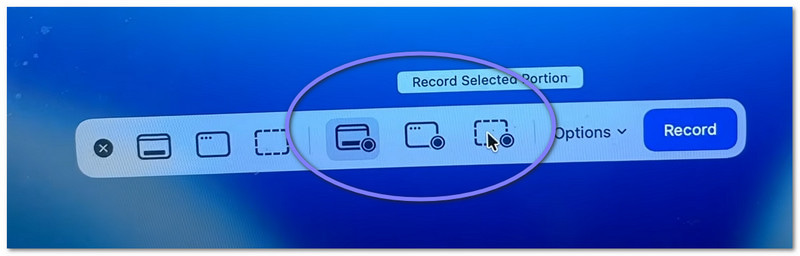
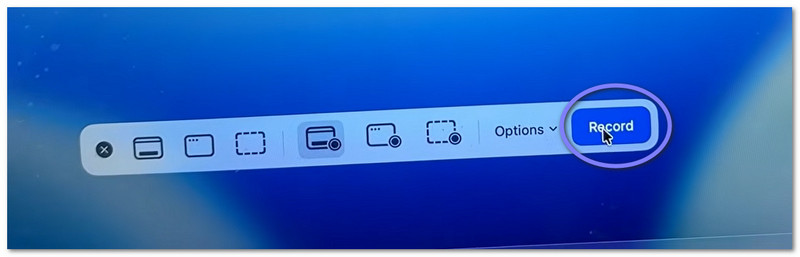
5. lépésVégül kattintson a Rekord gombra a kezdéshez. Rövid késleltetés után elindul a felvétel. Felvétel közben végezze el a szükséges feladatokat.
3. rész. QuickTime felvétel leállítása és mentése
Az alábbiakban megtanítjuk, hogyan állíthatja le a képernyőfelvételt a QuickTime segítségével, valamint hogyan mentheti el megfelelően a fájlt:
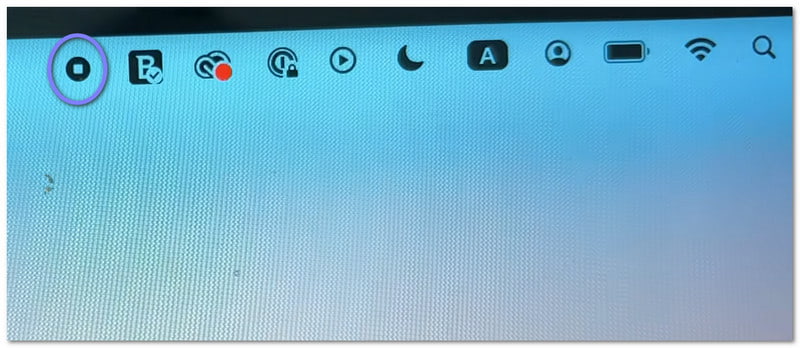
1. lépésElőször mozgasd a kurzort a képernyő jobb felső sarkába. Keresd a Álljon meg gomb. Úgy néz ki, mint egy kör, benne egy kis négyzettel. Kattintson rá a felvétel leállításához. Másik lehetőségként megnyomhatja a gombot. Parancs + Ellenőrzés + Kilépés a billentyűzetén.
2. lépésA leállítás után egy kis előnézeti kép jelenhet meg a képernyő sarkában. Ez a felvételed. Azonnal rákattinthatsz, ha meg szeretnéd nyitni és vissza szeretnéd nézni a videót. Ha figyelmen kívül hagyod, a fájl akkor is automatikusan mentésre kerül.
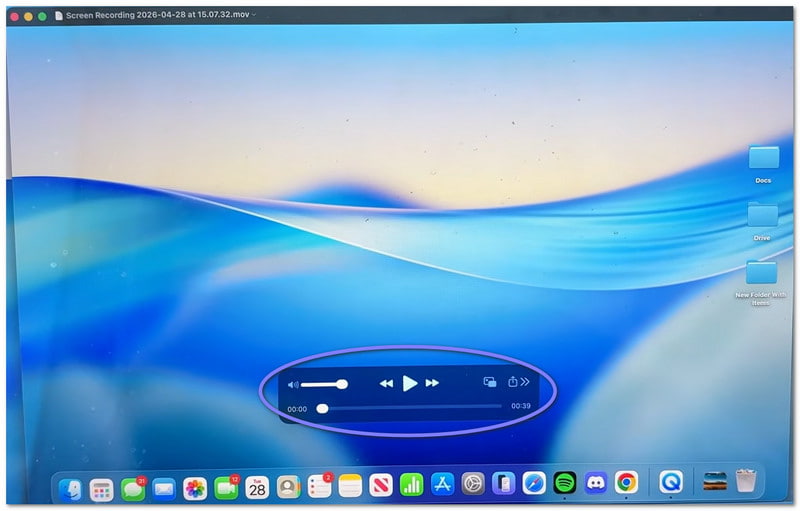
3. lépésAlapértelmezés szerint a videó az asztalra vagy a kiválasztott helyre kerül mentésre. Ha saját kezűleg szeretnéd menteni, először nyisd meg a videót. Ezután menj a menüsorra, és kattints a Fájl, azután Megment. Ezután írjon be egy nevet a fájlnak. Válassza ki, hogy hol szeretné tárolni, majd kattintson a Megment.
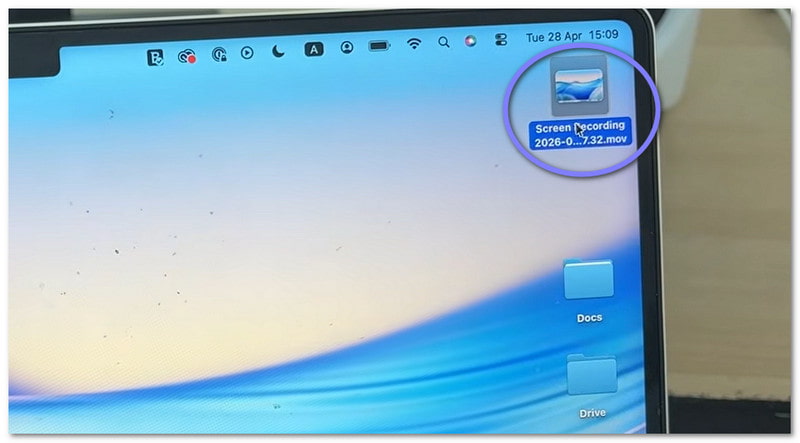
4. lépésMiután a videó megnyílt, egyszerű szerkesztési műveleteket végezhet. Például levághatja az elejét vagy a végét. Szükség esetén el is forgathatja a videót. Ezenkívül közvetlenül az alkalmazásból is megoszthatja.
4. rész. Hibaelhárítás
Előfordulhat, hogy a képernyőfelvétel nem a tervek szerint alakul. Előfordulhatnak apróbb problémák. A jó hír az, hogy ezek nagy részét könnyű javítani a QuickTime Playerben.
1. „A QuickTime Player hibát észlelt a képernyő rögzítése közben.”
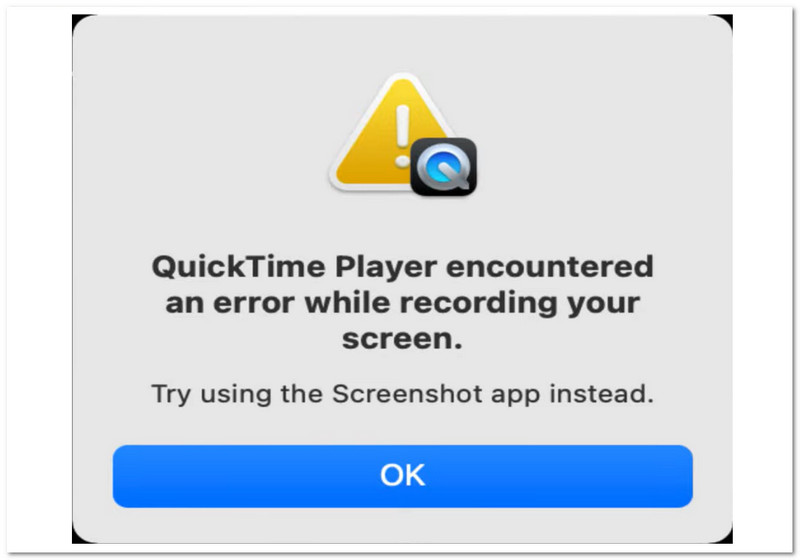
A „QuickTime Player hibát észlelt a képernyő rögzítése közben” hibaüzenet megjelenésének néhány alapvető oka lehet.
Először is ellenőrizd a mentési helyet. Ha külső meghajtóra mentesz, próbálj meg az Asztalra váltani. Ez gyakran megoldja a problémát. Ezután ellenőrizd a tárhelyet. Ha a lemez megtelt, a felvétel sikertelen lehet.
Ezenkívül győződjön meg arról is, hogy az engedélyek be vannak kapcsolva. Látogasson el a következőre: Rendszerbeállítások > Adatvédelem és biztonság > KépernyőfelvételEzután ellenőrizze, hogy engedélyezett-e a QuickTime Player.
2. Nincs hang a QuickTime felvételemben!
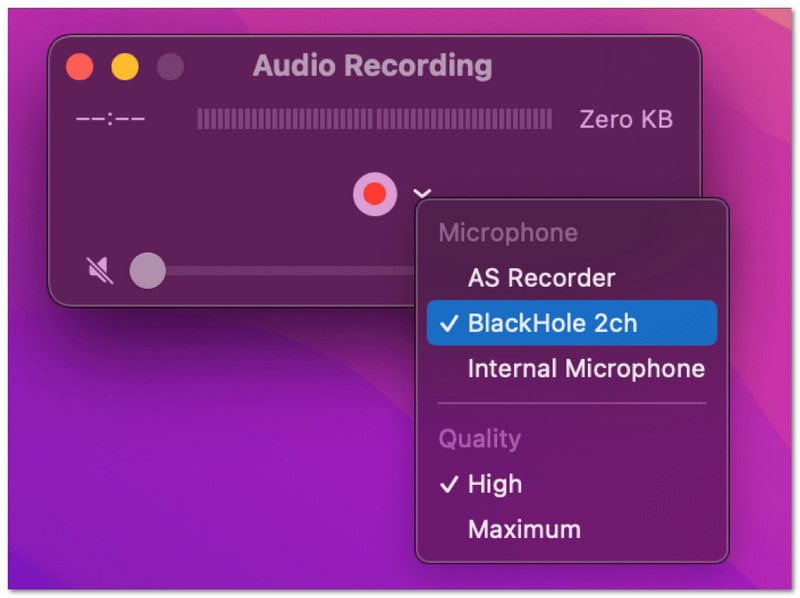
Ha a videónak nincs hangja, felvétel előtt ellenőrizze a beállításokat. Nyissa meg a Opciók menüt. Ezután válasszon egy mikrofont, például a „Beépített mikrofon” lehetőséget. Ha nincs kiválasztva mikrofon, nem kerül rögzítésre hang. Ezenkívül először tesztelje a mikrofont, hogy megbizonyosodjon arról, hogy működik.
3. A QuickTime nem rögzíti a rendszerhangot
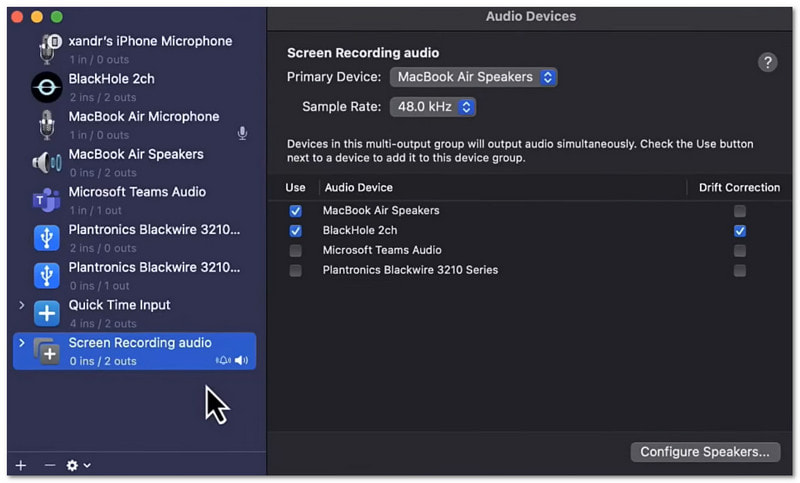
Ez normális. A QuickTime Player alapértelmezés szerint nem tudja rögzíteni a rendszerhangot. Ez a Mac operációs rendszer szabályainak köszönhető. A rendszerhang rögzítéséhez extra eszközökre van szükség. Használhatja például a Háttérzene vagy a Loopback funkciót.
5. rész. Van QuickTime alternatíva Windows rendszerre?
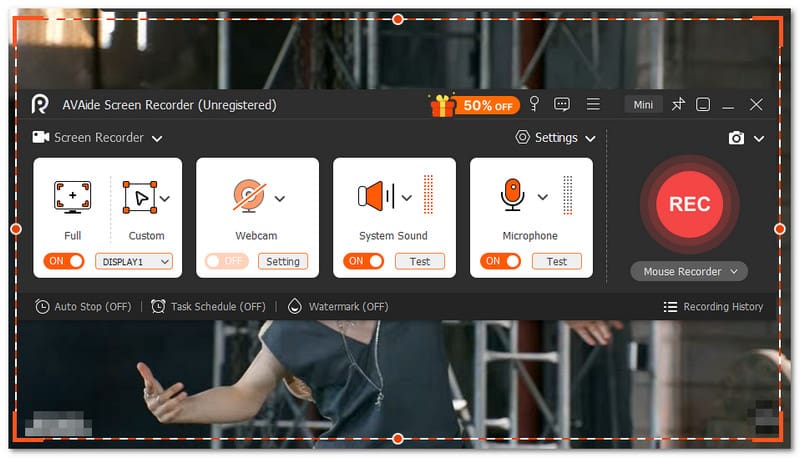
Igen, van egy QuickTime alternatíva a képernyőrögzítéshez Windows rendszeren. És ez nem más, mint AVAide Screen Recorder.

INGYENES LETÖLTÉS Windows 7 vagy újabb rendszerhez
 Biztonságos letöltés
INGYENES LETÖLTÉS Mac OS X 10.13 vagy újabb rendszerhez
Biztonságos letöltésEzzel az eszközzel könnyedén választhatsz teljes képernyős vagy egyéni képernyőfelvételt. Bekapcsolhatod a webkamerát, a rendszerhangot és a mikrofont is. Nincs szükség bonyolult beállításokra. Egyetlen kattintással engedélyezheted, amire szükséged van. Sőt, mi több, kiváló minőségben, késleltetés nélkül rögzíthetsz képernyővideókat. Akár 4K felbontást is támogat. Így minden tisztán és simán látszik.
Tehát bármit is rögzítesz, például oktatóanyagokat, játékmeneteket, megbeszéléseket vagy online videókat, jó tisztasággal és stabil teljesítménnyel képes rögzíteni azokat.
Főbb jellemzők:
- Beállíthat egy időpontot, amikor az eszköz automatikusan elindítja és leállítja a felvételt.
- Hosszú órákon át rögzíthetsz zökkenőmentesen, késleltetés vagy teljesítményproblémák nélkül.
- A felvételt azonnal visszanézheted, és ha nem vagy elégedett vele, újra felveheted.
- Felvétel közben szöveget, képeket, táblát és fókuszjeleket adhatsz hozzá a kulcsfontosságú pontok kiemeléséhez.
- A felvétel után vághatsz, tömöríthetsz, egyesíthetsz, konvertálhatsz videókat, és beállíthatod vagy feljavíthatod a hangot.
Milyen volt a tanulás Hogyan kell a QuickTime Playert használni a képernyő rögzítéséhez?? Ez csak egyszerű, ugye? Gyorsan elkezdheted és gond nélkül befejezheted.
Az egyetlen probléma, hogy korlátozottak a funkciói. Nincs meg benne egy teljes értékű felvevő ereje, mint például AVAide Screen Recorder.
Tehát, ha Windows vagy akár Mac felhasználó vagy, az AVAide Screen Recorderre is számíthatsz. Töltsd le most, és élvezd a funkcióit és a zökkenőmentes felvételi élményt!
A SZERZŐRŐL

Rögzítse a legjobb pillanatot az AVAide Screen Recorder segítségével. Képernyőkép, testreszabás és megosztás másodpercek alatt.
Képernyőfelvétel
- Képernyőfelvétel Windows rendszeren
- Instagram élő felvétele
- Rip videók a Tubi-ból
- YouTube-videók konvertálása MP3-ba
- Videók letöltése a Fansly-ről
- JW Player videók letöltése
- Bilibili videók letöltése
- Patreon videók letöltése
- Töltsd le a SpankBang videókat
- Discord videók letöltése
- DoodSream videó letöltése