


Lehet, hogy a beépített Android képernyőrögzítő nem rendelkezik elegendő funkcióval. Van azonban néhány gyakorlati tipp, amelyekkel könnyebben és sokoldalúbban készíthet felvételeket a telefon képernyőjén. Ez a bejegyzés átfogó képet ad... Android képernyőfelvétel bemutató.
Ha a fejlett képernyőrögzítést részesíted előnyben játékokhoz, oktatóanyagokhoz vagy professzionális demókhoz, akkor is segíthetünk a káosz elkerülésében, és bemutatjuk a ma elérhető legjobb Android képernyőrögzítési módszereket és alkalmazásokat, lépésről lépésre bemutatott oktatóanyagokkal kiegészítve, amelyek segítenek éles, nagy felbontású eredmények elérésében.
- 1. rész: A beépített Android képernyőrögzítő használata
- 2. rész: Néhány márkaspecifikus Android-felvevő eszköz
- 3. rész: 4 további sokoldalú módszer a képernyőrögzítésre Androidon
- Bónusz: Képernyőfelvétel asztali számítógépen és mobiltelefonon a legjobb minőségben
- 4. rész: Gyakran ismételt kérdések az Android képernyőrögzítéséről
1. rész: A beépített Android képernyőrögzítő használata
A legtöbb Android 11-es vagy újabb rendszert futtató eszköz beépített képernyőrögzítő alkalmazással rendelkezik, amely a Gyorsbeállítások panelen található. Ezzel rögzítheted a telefonod képernyőjét.
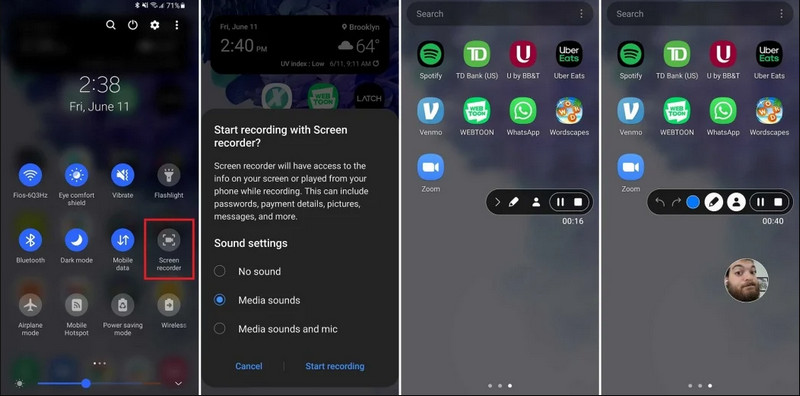
1. lépésGyorsbeállítások elérése
A teljes Gyorsbeállítások menü kibontásához húzd lefelé az ujjad kétszer a képernyő tetejétől.
2. lépésKépernyőrögzítő kiválasztása
Keres KépernyőfelvételHa nem látod, koppints a Szerkesztés gombra (ceruza ikonnal), és húzza a Képernyőfelvétel csempét az aktív rácsba.
3. lépésA rögzítési beállítások konfigurálása
Amikor megtalálod az Androidot Képernyőrögzítő eszközzel több felvételi lehetőség közül választhatsz. A megfelelő kiválasztása hatékonnyá teheti Android képernyőfelvételét.
- Nincs hang: Csak a telefon képernyőjét rögzítse rendszerhang vagy külső hang nélkül.
- Média hangok: Rögzítse a képernyőt az összes rendszerhanggal, beleértve a telefonon lévő összes alkalmazás hangját is.
- Média hangok és mikrofon: Rögzítse mind a rendszerhangokat, mind a külső hangokat (a telefon beépített mikrofonját vagy a fülhallgató mikrofonját).
4. lépésKépernyőfelvétel indítása és leállítása
Válaszd ki, és koppints a Felvétel indítása gombot. Egy visszaszámláló jelenik meg az állapotsorban. Az Android képernyőrögzítés leállításához koppintson a Álljon meg gombra (ha van felvételi állapotsáv), vagy húzza lefelé az értesítési felületet, és koppintson a pirosra Álljon meg gomb.
2. rész: Néhány márkaspecifikus Android-felvevő eszköz
Sok Android telefongyártó kínál saját képernyőrögzítőket olyan fejlett funkciókkal, mint a szelfikamera átfedések. Tekintse meg néhány népszerű Android márka speciális felvételi funkcióit:
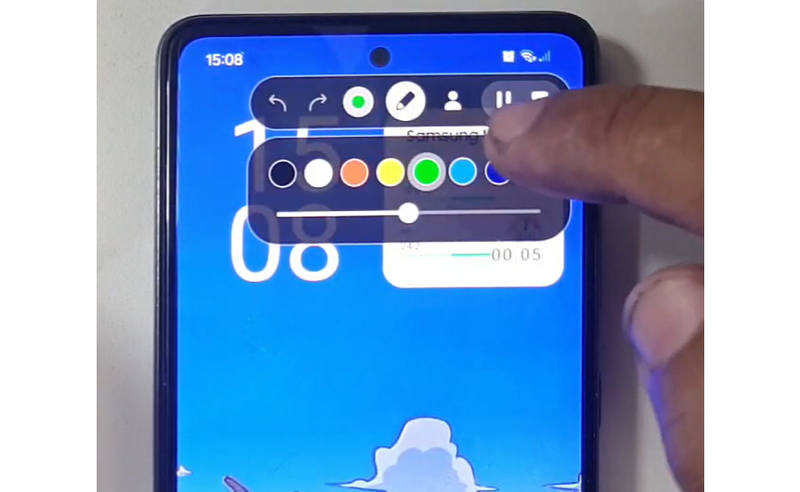
Samsung (egy felhasználói felület): Tartalmaz egy képernyőrögzítőt egy eszköztárral, amellyel valós időben rajzolhat a képernyőre.
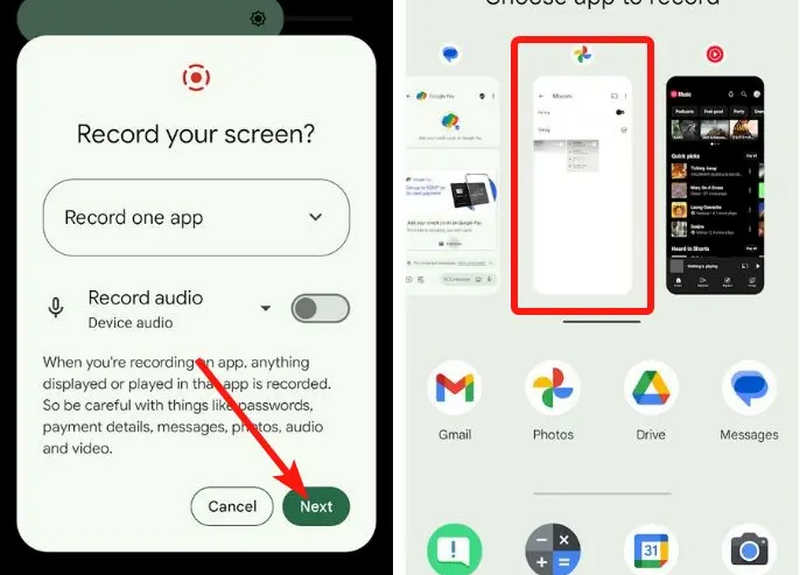
Google Pixel: Kiválaszthatsz egy adott alkalmazást (pl. egy banki alkalmazást vagy a WhatsAppot) a felvételhez. Ha a felvétel közben kilépsz az alkalmazásból vagy lehúzod az értesítési felületet, ezek a műveletek nem jelennek meg a végső videóban.
Xiaomi (MIUI/HyperOS): Tartalmaz egy dedikált „Képernyőrögzítő” alkalmazást, amely mélyreható testreszabási lehetőségeket kínál a képkockasebesség (FPS) és a bitráta tekintetében.
Huawei & Honor (HarmonyOS / MagicOS): Egyedi hardver-szoftver integráció, ahol egyszerűen két ujjperccel a képernyő dupla kopogásával elindíthatod vagy leállíthatod a felvételt.
OPPO, vivo és realme (ColorOS / OriginOS): Amikor egy játék elindul, a képernyőrögzítő automatikusan optimalizálja a CPU/GPU erőforrásokat, hogy a 4K/60FPS klip rögzítése ne okozzon játékbeli lagot vagy képkocka-kiesést.
3. rész: 4 további sokoldalú módszer a képernyőrögzítésre Androidon
Ha Android-telefonja nem rendelkezik kielégítő képernyőfelvételi funkciókkal, tekintse meg a négy Android képernyőrögzítő alkalmazást. Ezek néhány kényelmes és praktikus funkciót kínálhatnak.
1. AZ Screen Recorder
AZ Screen Recorder egy nagyon népszerű Android képernyőrögzítő alkalmazás a Play Áruházban. Nagy felbontású videókat tud rögzíteni az Android telefon képernyőjén. Az alkalmazás lehetővé teszi a felbontás, a képkockasebesség és a bitráta beállítását a különböző felvételi céloktól függően.
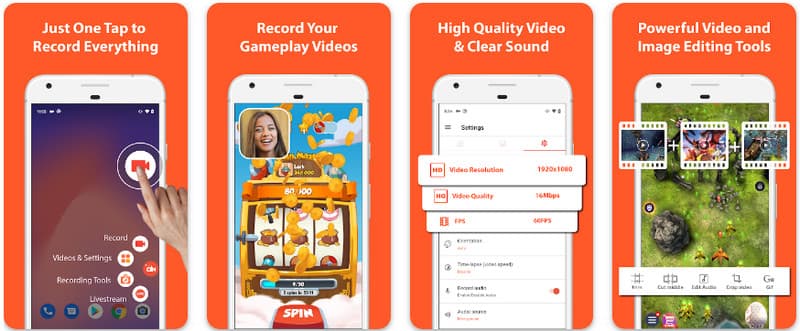
Ezenkívül az AZ Screen Recorder lehetővé teszi a felhasználók számára, hogy mikrofon segítségével rögzítsék az eszközön lejátszott hangot. Ezzel a lehető legbonyolultabb és legszínvonalasabb felvételeket is rögzítheti. A gombok egyszerű elrendezése és egyenletes teljesítménye sokak kedvencévé teszi az alkalmazást. Az alábbi oktatóanyag segítségével megtudhatja, hogyan rögzíthet ezzel Android-képernyőt.
1. lépésMiután letöltötte az alkalmazást Android-eszközére, indítsa el. Ezután kattintson a kamera gombot a képernyőrögzítés funkció eléréséhez.
2. lépésKoppintson a Indítás most a képernyőfelvétel elindításához Androidon, és egy visszaszámlálás jelenik meg a képernyőn.
3. lépésA képernyőfelvétel leállításához Androidos telefonon koppintson a Rekord gombot újra. Ezzel az alkalmazással azt is megteheti képernyőfelvétel hangokkal az iPhone-on aktív.
2. Mobizen Screen Recorder
Mobizen Screen Recorder egy másik képernyőfelvétel-készítő alkalmazás Androidon, amely ingyenesen elérhető a Play Áruházban, és egyszerű, kiváló minőségű felvételt ígér. Lehetőségeket kínál nagyfelbontású felvételre állítható paraméterekkel és tiszta felvételre a vízjelek eltávolításához. Ezenkívül a Mobizen belső hangfelvétellel is rendelkezik, amely felhasználható a felvételhez, valamint arckamerával és GIF-fel, amelyek még többet adhatnak a felvételhez. Emellett egyszerűen elérhetővé teszi a különböző funkciókat és vezérlőket, amelyek segítenek a felhasználónak elindítani az Android képernyőfelvételt vagy szerkeszteni a tartalmat anélkül, hogy sokat kellene babrálnia az alkalmazással. Tudja meg, hogyan készíthet képernyőfelvételt Androidon ezzel az alkalmazással.
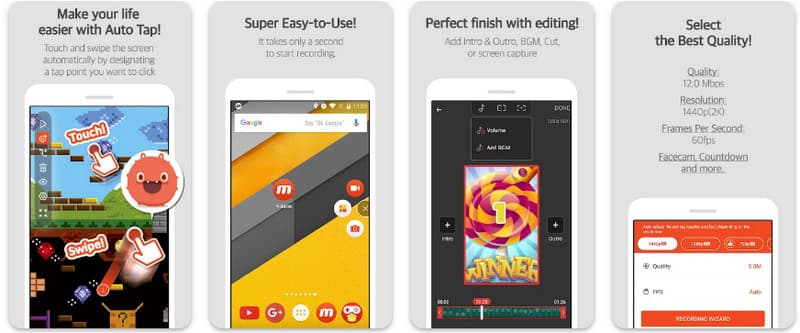
1. lépésTöltse le most Android-eszközére, és nyissa meg az alkalmazást.
2. lépésA képernyőrögzítő használata előtt végezze el a szükséges beállításokat. Egy lebegő rögzítősáv jelenik meg a képernyőn. Koppintson a kamera gombot, akkor Indítás most a képernyőfelvétel elindításához.
3. lépésHa végzett, érintse meg a M és a állj meg gombra a képernyőfelvétel leállításához Android-telefonján.
3. Screen Recorder – XRecorder az Inshottól
Képernyőrögzítő - XRecorder egy hatékony, többfunkciós Android segédprogram, amely leegyszerűsíti a képernyőrögzítést azáltal, hogy nagy felbontású felvételt kínál, akár 1080p felbontásban 60FPS-sel, root hozzáférés vagy vízjelek alkalmazása nélkül. Az Android 17/16 rendszeren a képernyőrögzítés egyik elsődleges módszereként zökkenőmentes felhasználói élményt nyújt egy lebegő vezérlőablakon keresztül, amely lehetővé teszi a valós idejű indítást, szüneteltetést és rajzolást a képernyőn egy beépített ecset eszközzel. Az egyszerű videofelvételen túl támogatja a belső hangfelvételt, a streamerek arckamera-átfedéseit és az integrált videószerkesztést, így ideális választás mindazok számára, akiknek professzionális oktatóanyagokat, játékmenet-klipeket vagy átlátható bemutatókat kell készíteniük közvetlenül a mobileszközükről.
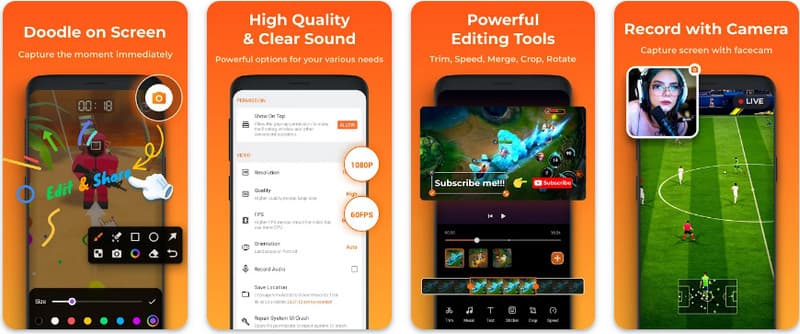
1. lépésAmikor az XRecorder letöltése befejeződött, nyissa meg, és érintse meg a Lebegő ikon engedélyezése.
2. lépésEzt követően érintse meg a Rekord gombot a felvétel elindításához és Indítás most megerősítéséhez.
3. lépésMint látható, a felvétel hossza lebegő ikonként jelenik meg; érintse meg a állj meg gombot a felvétel mentéséhez.
4. Super Screen Recorder
Super Screen Recorder egy első osztályú megoldás mindazok számára, akik professzionális, maximális rugalmasságot biztosító képernyőrögzítési módot keresnek Androidon. Ez a nagy teljesítményű alkalmazás nagyfelbontású rögzítést biztosít, és kiemelkedik azzal, hogy még ingyenes verziójában is vízjelmentes élményt nyújt, biztosítva, hogy a tartalom tiszta és professzionális maradjon. Tartalmaz egy integrált arckamerát a valós idejű reakciók rögzítéséhez, és egy sokoldalú ecset eszközt, amely lehetővé teszi a képernyőre rajzolást felvétel közben, ami elengedhetetlen funkció a lebilincselő oktatóanyagok vagy végigjátszások létrehozásához. Akár kezdő, akár haladó felhasználó vagy, a Super Screen Recorder robusztus testreszabási lehetőségeket biztosít az Android képernyőrögzítés egyszerű elsajátításához.
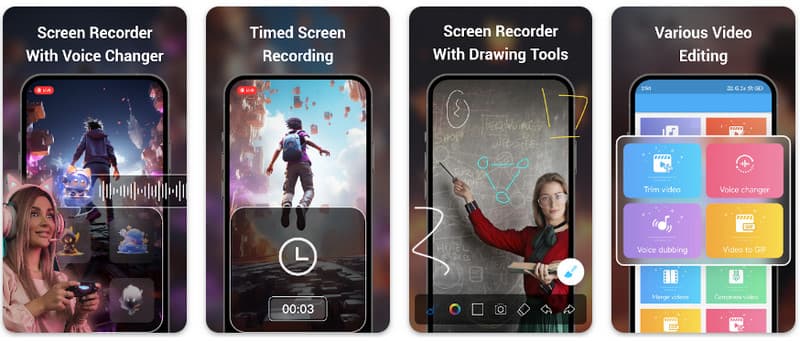
1. lépésNyissa meg a Super Screen Recorder alkalmazást Android-eszközén, majd engedélyezze az alkalmazás lebegő funkcióját a használatához.
2. lépésA képernyőn érintse meg a kamera gombot, erősítse meg a beállításokat, és érintse meg Indítás most. Ezután egy három másodperces visszaszámlálás jelenik meg a felvétel megkezdése előtt.
3. lépésÉrintse meg a négyzet gombot a felvétel befejezéséhez és az Android-eszközre való mentéséhez.
Bónusz: Képernyőfelvétel asztali számítógépen és mobiltelefonon a legjobb minőségben
Gondolod, hogy felveheted az Android telefonod képernyőjét számítógéppel? AVAide Screen Recorder elsősorban Windows és Mac rendszeren képernyőrögzítésre tervezték. De képes rögzíteni Androidos telefonod teljes képernyőjét is. Ez különösen hasznos, ha bizonyos műveletekről oktatóanyagot kell készítened Androidon, majd közvetlenül szerkesztened a videót Mac vagy Windows rendszeren.
Windows és Mac rendszeren történő képernyőrögzítéshez az AVAide Screen Recorder támogatja az AV1 és HEVC kodekeket, amelyek nagymértékben tömörítik a felvételi eredményt, miközben a legjobb videóminőséget tartják fenn. A teljes hardveres gyorsítás lehetővé teszi hosszú videók rögzítését nagyon alacsony CPU-használattal. Még érdekesebb, hogy továbbfejlesztett mikrofonnal rendelkezik, amely a háttérzajok és a visszhangok kiszűrésével javítja a tisztaságot. A szoftver kiváló felvételeket készít egyszerű navigációval és szerkesztési funkciókkal, mint például a vágás és a jegyzetek. Bár drága szoftver, erősen ajánlott, mert személyes és üzleti célokra is használható.
- Rögzítse Android vagy iOS eszközét a legjobb videóminőségben.
- Készítsen könnyedén oktatóanyag-felvételeket rajzolási és jegyzetelési funkciókkal.
- Támogatja az AV1 és HEVC kimeneti kodekeket a kimeneti videó nagymértékű tömörítéséhez.
- Könnyen használható videószerkesztő funkciókat kínál a felvételek szerkesztéséhez Androidon.
1. lépésMost már letöltheti a képernyőrögzítőt a számítógépére, ha bejelöli a letöltés gombot itt. Ezután telepítse az alkalmazást a képernyőn megjelenő utasításokat követve, és indítsa el, hogy továbblépjen a következő lépésre.

INGYENES LETÖLTÉS Windows 7 vagy újabb rendszerhez
 Biztonságos letöltés
INGYENES LETÖLTÉS Mac OS X 10.13 vagy újabb rendszerhez
Biztonságos letöltés2. lépésMost, hogy már fut a rendszerben, helyezze a felvételi keretet arra a területre, ahol el szeretné kezdeni a felvételt. Itt rögzítheti a teljes képernyőt, ha a Régió opció helyett a Teljes képernyő opciót választja.

3. lépésEzután szükség esetén beállítható a rendszer és a mikrofonfelvétel. Ha az arcodat szeretnéd hozzáadni a felvételhez, aktiváld itt a Webkamera opciót. Ezután kattintson REC a visszaszámlálás elindításához és a rögzítés megkezdéséhez.

4. lépésA rögzítés befejezésekor kattintson a gombra állj meg gombot, ami egy piros négyzet. A következő megjelenő ablakban szerkesztheti a korábban készített felvételt az itt elérhető opciókkal, majd vigye a kurzort a felvételre, és nyomja meg a Letöltés gombot a mentéshez. Ez az alkalmazás bizonyítja értékét, mint a legjobb nyílt forráskódú felvevő elérhető.

4. rész: Gyakran ismételt kérdések az Android képernyőrögzítéséről
Hol találom a képernyőfelvételt a beállításaim között?
A beépített funkció eléréséhez képernyőfelvétel Androidon harmadik féltől származó alkalmazások nélkül húzza lefelé kétszer a képernyő tetejétől a megnyitásához Gyorsbeállítások panelt, és keresse meg a Képernyőfelvétel (vagy a „Képernyőfelvétel”) ikonra. Ha nem látható, koppintson a Szerkesztés (ceruza) gombra a képernyőfelvétel-váltó kapcsoló áthúzásához az aktív csempékre. A hozzáadás után egyszerűen koppintson az ikonra, válassza ki a hangbeállításokat, például a belső rendszerhangok vagy a mikrofon rögzítését, majd kattintson az Indítás gombra a képernyő rögzítésének megkezdéséhez közvetlenül a rendszerbeállításokból.
Miért nem találom a képernyőfelvételt az Androidomon?
Az Androidon a képernyőrögzítés natív opciójának hiánya általában annak köszönhető, hogy az eszközöd régebbi operációs rendszert futtat, mivel a beépített funkciót csak a ... szabványosítása tette lehetővé. Android 11Ha a szoftvered naprakész, előfordulhat, hogy a kapcsoló egyszerűen nincs a képernyődön. Gyorsbeállítások menü; általában a gombra koppintva jelenítheti meg Szerkesztés gombra az értesítési felületen, és húzza a „Képernyőfelvétel” csempét az aktív nézetbe. Ezenkívül egyes belépő szintű „Go Edition” eszközök vagy bizonyos gyártók felületei letilthatják ezt a funkciót a rendszererőforrások megtakarítása érdekében, ebben az esetben egy harmadik féltől származó alkalmazás, például az XRecorder vagy a Super Screen Recorder használata a leghatékonyabb megoldás.
Miért tűnt el a képernyőfelvétel gomb?
A képernyőfelvétel gomb általában azért tűnik el, mert véletlenül kikerült a Gyorsbeállítások aktív területéről; gyakran visszaállítható a gomb megérintésével. Szerkesztés (ceruza ikon) az értesítési felületen, és húzza vissza a csempét. Az is előfordulhat, hogy az Energiatakarékos mód miatt rejtve van, munkahelyi profil korlátozza, vagy egyszerűen csak a rendszer újraindítását igényli a felhasználói felület frissítéséhez egy szoftverfrissítés után.
Az itt felsorolt oktatóanyag segítségével megtanulta hogyan lehet képernyőfelvételt készíteni az Android Samsungon. Ez az oktatóanyag nagy hasznot hoz a képernyőrögzítési feladat során, különösen, ha Ön Android-felhasználó. Oszd meg ezt az információt Android-felhasználó barátoddal, hogy ötleteket adhass nekik, hogyan kell csinálni.
A SZERZŐRŐL

Rögzítsen képernyőt, hangot, webkamerát, játékmenetet, online találkozókat, valamint iPhone/Android képernyőt a számítógépén.
Képernyőfelvétel
- Képernyőfelvétel Windows rendszeren
- Instagram élő felvétele
- Rip videók a Tubi-ból
- YouTube-videók konvertálása MP3-ba
- Videók letöltése a Fansly-ről
- JW Player videók letöltése
- Bilibili videók letöltése
- Patreon videók letöltése
- Töltsd le a SpankBang videókat
- Discord videók letöltése
- DoodSream videó letöltése


