A Discord jól ismert, mint egy kommunikációs platform a niche közösségek számára. Az egyik előnye, hogy lehetővé teszi videók vagy filmek streamelését a barátokkal való közös megtekintéshez. Sok esetben azonban a felhasználók egyértelmű ok nélkül fekete képernyővel találkoznak, ami elrontja a hangulatot a barátokkal való sorozatnézéshez. Szóval, hogyan... Javítsd ki a fekete képernyőt a Discord streamenItt további lehetséges okokat és a fekete képernyők megfelelő megoldásait találja.
1. rész. A fekete képernyő lehetséges okai a Discord Streamben
A „Hogyan javítsunk ki egy fekete képernyőt Discordon streamelés közben” című cikk nem csak a közvetlen megoldásokat jelenti, hanem a probléma lehetséges okainak megismerése is gyökeresen megváltoztatja a játékszabályokat. Ezzel ellenőrizheted az alábbi listát az összes lehetőségről, és előfordulhat, hogy a problémát a Discordon is láthatod, és gyorsan kijavíthatod a saját részedről:
Discord és böngésző hardveres gyorsítás
Ha engedélyezed a Discord hardveres gyorsítását, ez a funkció ütközhet az eszközöd GPU-illesztőprogramjaival. Másrészt, ha olyan böngészőből streameled a videókat, mint a Chrome vagy az Edge, az megakadályozhatja, hogy a Discord streamelje vagy rögzítse a videót.
GPU és grafikus illesztőprogramokkal kapcsolatos problémák
Az elavult vagy sérült illesztőprogramok Discord-kompatibilitást okozhatnak. Ugyanez vonatkozik több GPU-ra is: A Discord összekeverheti, hogy melyik GPU kimenetét kell rögzíteni.
Védett tartalom
Tudni fogod, hogyan javíthatod ki a fekete képernyős streameket a Discordon, ha a streaming platform nem védett. Legnépszerűbb video streaming szolgáltatások A Disney+, a Netflix és a Hulu például nem támogatja a Discordon keresztüli streamelést.
2. rész. Hogyan javítsuk ki a fekete képernyőt a Discord Streamen
A fekete képernyő problémájának megoldására többféle módszer létezik a Discordon, és a legtöbb megoldás a natív beállításokon belül található. Továbbiak nélkül, vágjunk bele.
1. Fejezd be a Discord futtatási feladatait
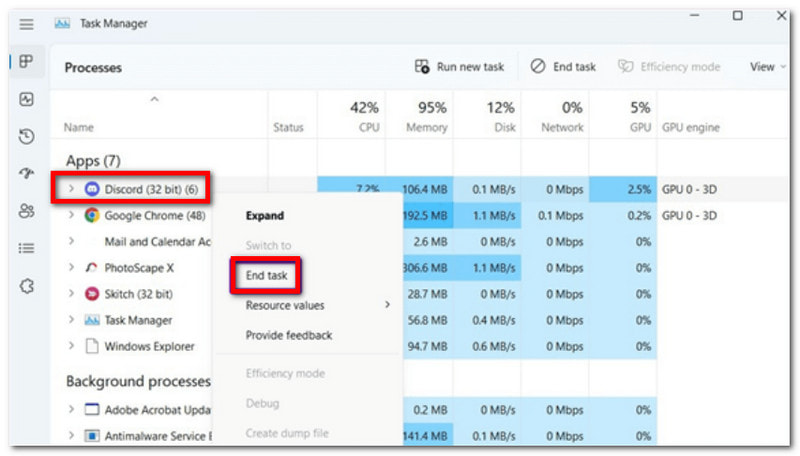
Hogyan lehet gyorsan javítani a fekete képernyőt Discordon streamelés közben? A legjobb megoldás, ha leállítasz több futó Discord feladatot, és újraindítod az alkalmazást, mivel ezek okozhatják a hibás streamelést. Íme a követendő lépések:
1. lépésA tálcán kattintson a jobb gombbal, és válassza a Feladatkezelő.
2. lépésAmint megjelenik egy ablak, kattints a Discord melletti nyílra, majd jobb gombbal kattints az egyes feladatokra, és válaszd a Utolsó feladat. Ezután indítsd újra az alkalmazást.
2. Adminisztrátori mód
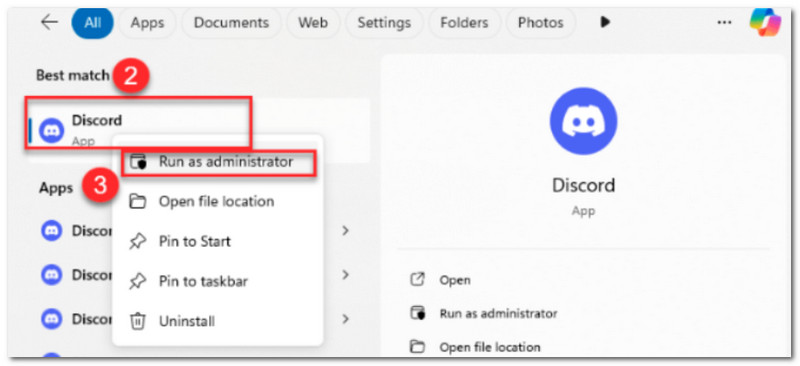
A Discord alkalmazásnak bizonyos engedélyekre és funkciókra van szüksége a zökkenőmentes működéshez. Ez azt jelenti, hogy ha nem rendszergazdaként fut az eszközödön, az meghibásodást okozhat, például fekete képernyőt. Nézd meg a lépéseket, hogyan javíthatod ki a fekete képernyőt, miközben Netflixet streamelsz Discordon rendszergazdai módban:
1. lépésElőször zárd be a Discord alkalmazást az eszközödön. Lehet, hogy be kell zárnod a streaming alkalmazásokat, például a Netflixet vagy a Hulut is.
2. lépésKeresd meg a Discord alkalmazást a Start menüben, majd kattints rá jobb gombbal. Válaszd ki és kattints Futtatás rendszergazdaként, majd erősítse meg a módosításokat. Ugyanezt tegye a streaming platformmal is, majd nyissa meg az alkalmazásokat, és próbálja meg a streamelést.
3. Kapcsolja ki a hardveres gyorsítást
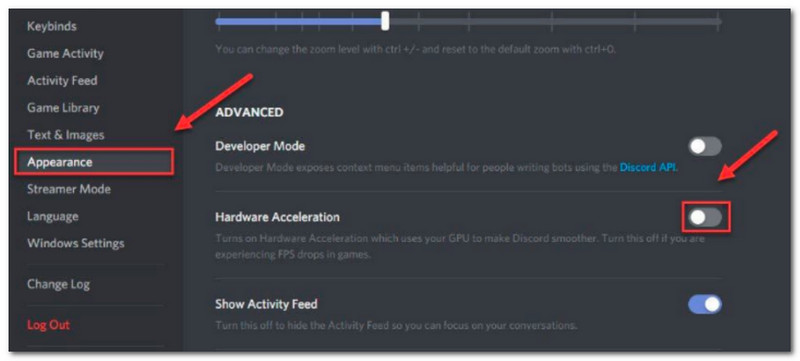
Lehet, hogy nem vetted észre, de a számítógépeden engedélyezve van a hardveres gyorsítás, ami segíti az olyan alkalmazások, mint a Discord, zökkenőmentes működését. A hardveres gyorsítás azonban azt eredményezi, hogy a Discord a számítógép GPU-ját használja, ami működési zavarokhoz vezethet a platformon való streamelés során. A funkció kikapcsolásához az alábbiakban megtudhatod, hogyan javíthatod ki a fekete képernyőt a Discordon a Netflix streameléséhez:
1. lépésNyisd meg a Discordot az eszközödön, és kattints a Beállítások a bal alsó sarokban.
2. lépésMenj a Megjelenés menüt, és ott megtalálod Hardveres gyorsítás alatt FejlettKapcsolja ki, és erősítse meg a gombra kattintva. oké.
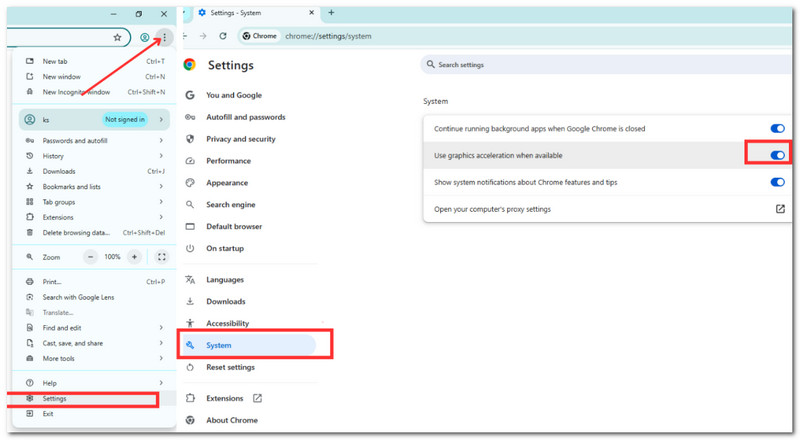
3. lépésHa böngészőben használod a Discordot, kikapcsolhatod itt: Beállítások. Ezután menj a Rendszer menüt, és kapcsolja be a Grafikus gyorsítás használata, ha elérhető választási lehetőség.
4. Frissítse a grafikus illesztőprogramokat
Az elavult grafikus illesztőprogramok hibákat okozhatnak a Discordon való streamelés során. Ennek elkerülése vagy javítása érdekében a következőképpen javíthatod ki a fekete képernyőt a Netflix Discordon való streamelése közben a rendszer grafikus illesztőprogramjainak frissítésével:
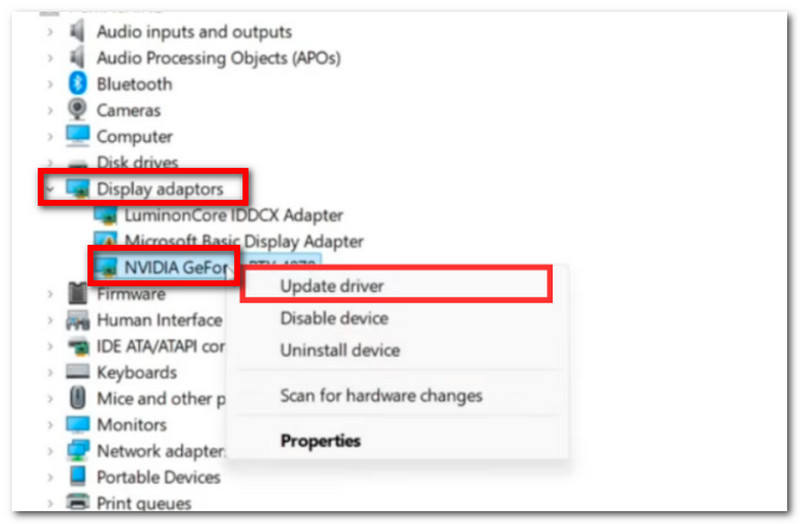
1. lépésGyőződjön meg róla, hogy stabil és erős internetkapcsolattal rendelkezik. Ezután egyszerre nyomja meg a ablakok és x a billentyűzeten a rendszerbeállítások elindításához. Válassza a Eszközkezelő.
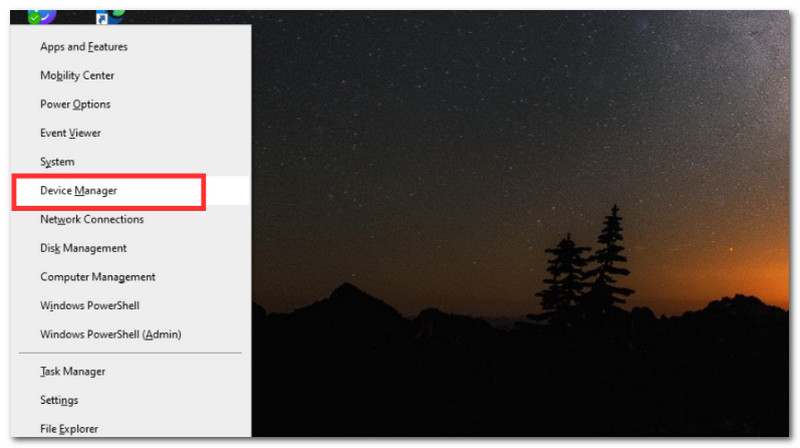
2. lépésAmikor felugrik egy ablak, keresd meg Kijelzőadapterek és bontsa ki a menüjét a mellette lévő nyílra kattintva. Válassza ki a grafikus illesztőprogramot a jobb gombbal rákattintva, majd kattintson a Frissítse az illesztőprogramot gomb.
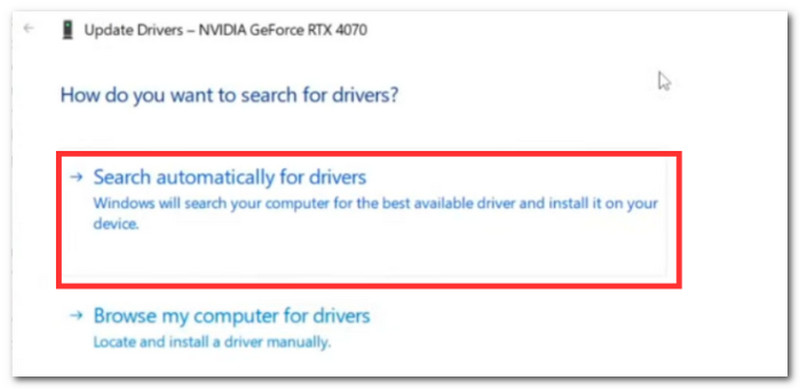
3. lépésAmikor megjelenik egy kérdés, válassza a Automatikus keresés illesztőprogramokhoz opció. A számítógéped elkezdi frissíteni a grafikus illesztőprogramokat, de újra kell indítanod a számítógépedet, majd újra kell indítanod a Discord alkalmazást.
5. Játékon belüli átfedés engedélyezése
Hogyan javítsd ki a fekete képernyőt a Discordon a Disney+ streameléséhez? Egy másik módszer, amit kipróbálhatsz, az a Discord alkalmazásban a Játékon belüli átfedés funkció engedélyezése. Ha ez nincs engedélyezve, az okozhatja a fekete képernyőt streamelés közben. A teljes lépések alább olvashatók:
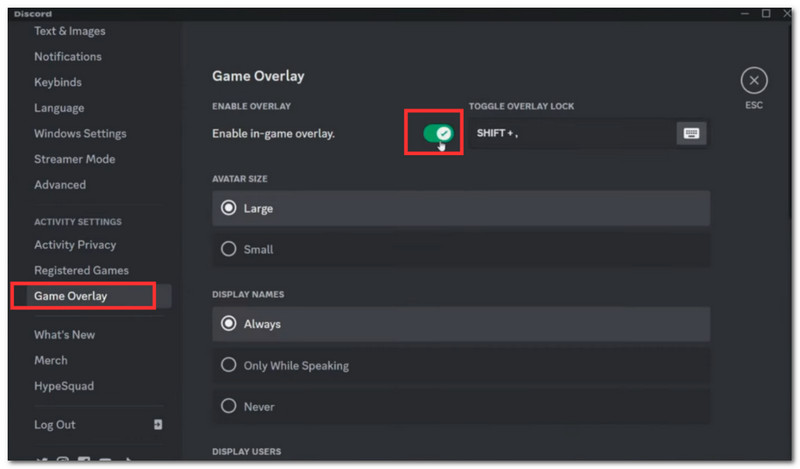
1. lépésIndítsd el a Discord alkalmazást a számítógépeden, és menj a felhasználói beállításokhoz a bal alsó sarokban.
2. lépésGörgessen végig a bal sarokban található lehetőségeken, és válassza a JátékátfedésKapcsold be a Játékon belüli átfedés engedélyezése opciót, majd próbáld újra a streamelést.
3. rész. A legjobb eszköz az inkompatibilis videók konvertálására streaming előtt
Hogyan javítsunk ki egy fekete képernyőt Discordon streamelés közben, ha a streamelni kívánt videó nem kompatibilis? Nos, van rá mód. AVAide Video Converter gyors és kiváló minőségű videókonvertáláshoz! Ez egy elegáns eszköz, amelyet több mint 300 videóformátum konvertálására terveztek, támogatva a Discord-barát formátumokat, mint például az MP4, MOV, WebM és egyebek. Bár támogatja a nagy felbontású videók konvertálását, lehetővé teszi a 4K és 8K videók lekicsinyítését is, hogy csökkentse a GPU-terhelést és megakadályozza az ideiglenes fekete képernyő megjelenését az eszközön. Eközben az AVAide garantálja a gyors konvertálási sebességet és megőrzi az eredeti videóminőséget, mindezt egy egyszerű, kezdőbarát felületen.
1. lépésElső lépésként töltse le az AVAide Video Converter programot a számítógépére (Windows és Mac rendszereket támogat). A szoftver teljes telepítéséhez kövesse az utasításokat.

INGYENES LETÖLTÉS Windows 7 vagy újabb rendszerhez
 Biztonságos letöltés
INGYENES LETÖLTÉS Mac OS X 10.13 vagy újabb rendszerhez
Biztonságos letöltés2. lépésKattints a Hozzáadás gombra a helyi mappa megnyitásához. Töltse fel a konvertálni kívánt videót. Opcionálisan több videofájlt is feltölthet tömeges konvertáláshoz.
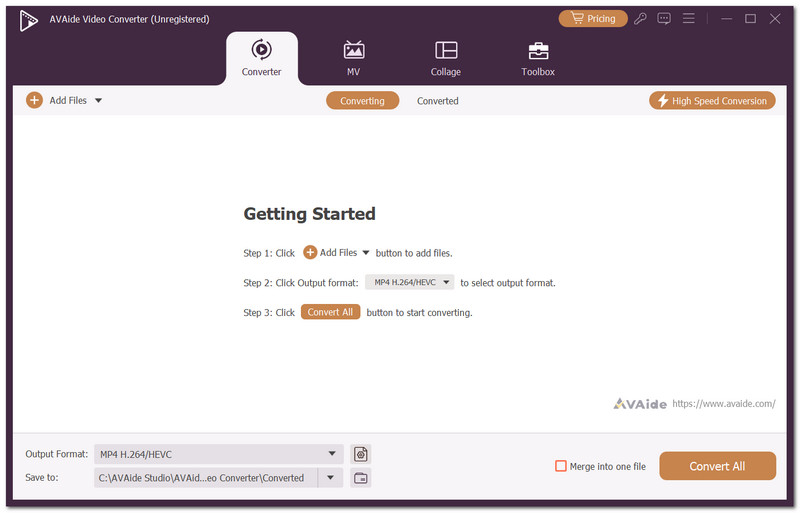
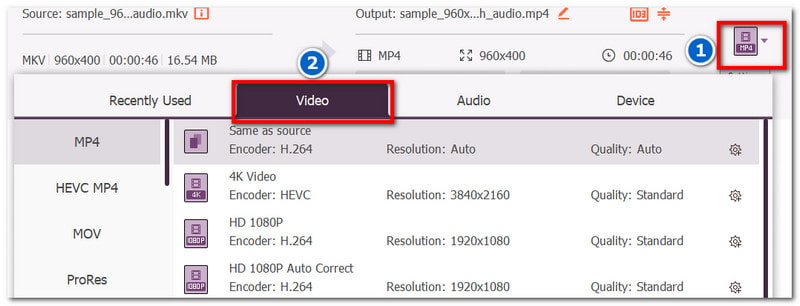
3. lépésMenj a Formátum a feltöltött videó melletti menüben. A Videó lapon válassza ki a kívánt kimeneti videoformátumot, például MP4, MOV vagy bármely más, a Discord által támogatott formátumot.
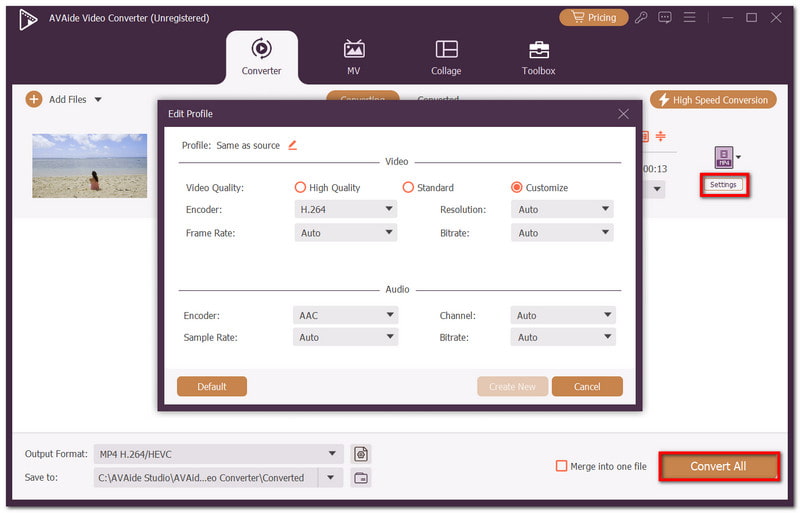
4. lépésOpcionálisan a Beállítások menüben módosíthatja a videó kimeneti beállításait. Módosíthatja a kódolót, a videó minőségét, a felbontást és egyéb beállításokat. Ha kész, kattintson az Összes konvertálása gombra a videó új kimeneti formátumban történő mentéséhez.
Ez a cikk megtanított arra, Hogyan javítsunk ki egy fekete képernyőt Discordon streamelés közben?, amely módszereket kínál a problémák azonosítására, valamint a lehetséges megoldásokra. Ennek ellenére előfordulhat, hogy a Discordra feltöltött videók nem támogatottak. Tehát az AVAide Video Converter ajánlott megoldás a gyors, professzionális konverziókhoz, sőt akár Discord videó kompresszorRáadásul a szükséges eszközöket is kínálja a nagy felbontású fájlok videóminőség torzítása nélküli lekicsinyítéséhez. Töltsd le ingyenesen, és próbáld ki Windowson és Macen.
A SZERZŐRŐL

A teljes videó eszköztár, amely több mint 350 formátumot támogat a veszteségmentes minőségben történő konvertáláshoz.
Videó szerkesztés
- AI előkelő videó
- Távolítsa el a vízjelet a videóból
- Szöveg eltávolítása a videóból
- Csökkentse a 4K-t 1080p/720p-re
- Távolítsa el a háttérzajt a videóból
- MP4 metaadatszerkesztő
- Élesebb videó minőség
- Fordított videó
- Rossz minőségű videó javítása
- Metaadatok eltávolítása videóból/hanganyagból
- Első kamera tükrözése/tükör nélküli használata videóval