A Canon fényképezőgépek CR2-ben rögzítik a képeket, amely egy nyers képformátum, amelyet a lehető legtöbb képrészlet rögzítésére terveztek. Bár hasznos a szerkesztéshez, a nagy fájlmérete és korlátozott kompatibilitása miatt nem használható a mindennapi alkalmazásokban. Amikor CR2 konvertálása JPG-vé, könnyebben megosztható, gyorsabban feltölthető, és szélesebb körű eszközökön támogatott. Ez egy olyan folyamat is, amely minimalizálja a tárhelyigényt anélkül, hogy magas szintű műszaki szakértelmet igényelne. Ez az útmutató a gyakori képkezelési gyakorlatokon alapuló okokra, módszerekre és eszközökre oszlik, hogy segítsen a fájlok átlátható és ellenőrzött kezelésében.
1. rész. Canon CR2: Miért kell konvertálni
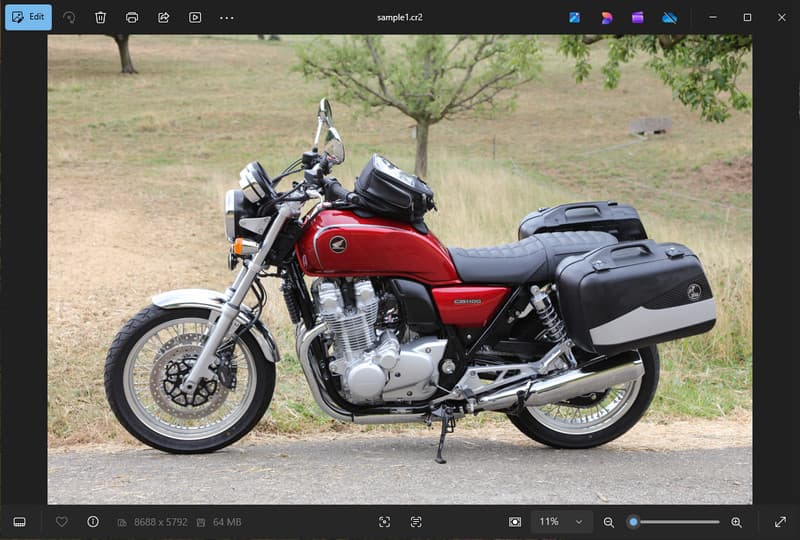
A Canon CR2 egy nyers fájlformátum, amely a kamera érzékelőjéből származó nyers információkat rögzít. Bár rendkívül részletes, szükségessé válhat a CR2 fájlformátum JPG-vé konvertálása, mivel sok eszköz és alkalmazás nem támogatja a nyers fájlokat.
1. Korlátozott kompatibilitás
Sok szabványos eszköz nem támogatja a CR2 fájlokat, ami megnehezíti a képek megtekintését. A CR2 fájlok JPG formátumba konvertálása biztosítja, hogy a fényképeid zökkenőmentesen megnyíljanak különböző eszközökön, böngészőkben és alapvető képmegjelenítőkben.
2. Nagy fájlméret
A RAW fájlok nagyon nagyok, mivel több képadatot tárolnak. Ez befolyásolja a tárolást és a teljesítményt. A CR2 képek JPG formátumra váltása csökkenti a fájlméretet, így könnyebben tárolhatók és hatékonyan továbbíthatók a képek.
3. Könnyebb megosztás és feltöltés
Sok platform nem fogadja el a nyers formátumokat, vagy lassú a feldolgozásuk. A CR2-ről JPG-re való váltás gyors és egyszerű módja a képek feltöltésének, és annak, hogy a fotóid a megfelelő formátumban jelenjenek meg a közösségi médiában, e-mailben és más weboldalakon.
4. Nincs szükség speciális szoftverre
A CR2 fájlokhoz olyan szerkesztőszoftverre van szükség, amely képes a nyers fájlok feldolgozására. Amikor a CR2-t JPG-vé konvertálod, kiküszöbölöd a kifinomult programok használatát, és könnyedén hozzáférhetsz a mindennapi életben használható képekhez.
5. Gyorsabb munkafolyamat
A nyers fájlokkal való munka lelassíthatja a folyamatot, különösen tömeges feldolgozás esetén. Egy megbízható CR2-JPG konverter használata felgyorsítja a képfeldolgozást és javítja az általános termelékenységet.
6. Egyszerűbb folyamat kezdőknek
A RAW formátumok bonyolultnak tűnhetnek az új felhasználók számára. A CR2 JPG-vé konvertálásának megtanulása leegyszerűsíti a munkafolyamatot és megkönnyíti a képkezelést technikai akadályok nélkül.
Ezen pontok megértése megmagyarázza, miért a konvertálás gyakran a praktikus választás. A következő részben a CR2 JPG-vé konvertálásának hatékony módszereit vizsgáljuk meg.
2. rész. 5 legjobb módszer a CR2 JPG-vé konvertálására
1. AVAide Image Converter (a legjobb ingyenes online opció)
AVAide Image Converter egy gyors, böngészőalapú megoldás, amelyet olyan felhasználók számára terveztek, akiknek gyors eredményekre van szükségük szoftver telepítése nélkül. Különösen hasznos, ha tömegesen kell CR2-t JPG-vé konvertálni a képminőség megőrzése mellett.
Főbb jellemzők:
- Kötegelt CR2 fájlokba konvertál és onnan konvertál.
- Megőrzi a kiváló képminőséget és a természetes színeket.
- Teljesen online, telepítés nélkül
- JPG, PNG és más formátumokat fogad el.
- Könnyen használható felület a gyorsított feldolgozáshoz.
Platformok:
- Webalapú, amely Windows, Mac, Linux és mobilböngészőkön működik
1. lépésLátogassa meg a hivatalos webhelyet
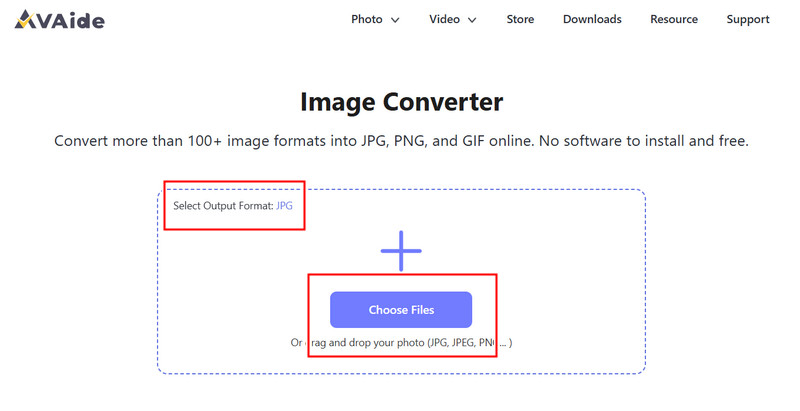
Nyissa meg a böngészőjét, és keresse fel a hivatalos AVAide Image Converter oldalt. A betöltés után azonnal elkezdheti a konvertálást regisztráció vagy telepítés nélkül.
2. lépésKimenet és feltöltés beállítása
Válassza ki a JPG-t a kívánt kimeneti formátumként. Ezután kattintson a + gombra, vagy húzza át a CR2 fájljait a feltöltési területre a kezdéshez.
3. lépésCR2 konvertálásának megkezdése
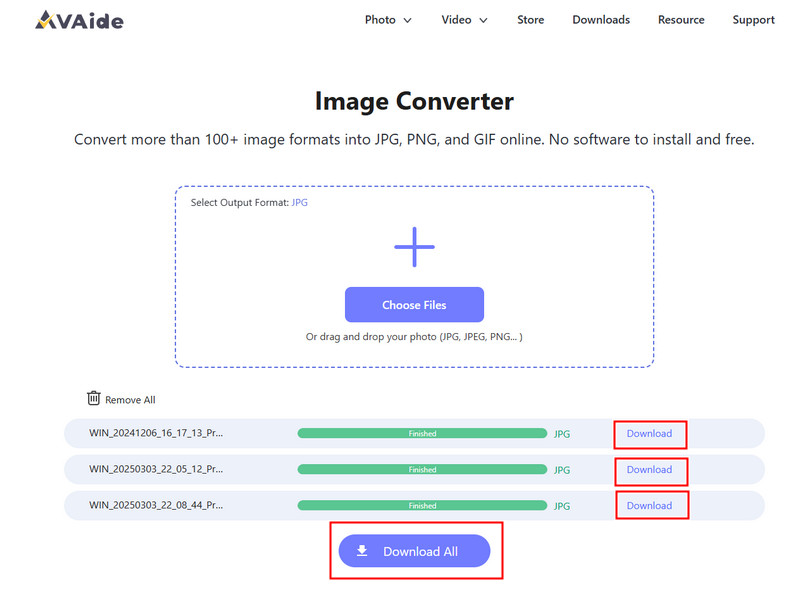
Várja meg, amíg az eszköz befejezi a fájlok feldolgozását. Ha kész, kattintson a Letöltés egyetlen fájlhoz, vagy Mind letöltése ha több képet konvertáltál.
- Profik
- Könnyű és gyors használat
- Nincs szükség telepítésre vagy beállításra
- Hatékony kötegelt feldolgozási támogatás
- Állandó kimeneti minőséget biztosít
- Hátrányok
- Internetkapcsolat szükséges
- Korlátozott fejlett szerkesztőeszközök
2. Adobe Photoshop
Adobe Photoshop egy hatékony alkalmazás, amely lehetővé teszi a nyers fájlok szerkesztését az exportálás előtt. Általában akkor használják, ha CR2-t kell JPG-vé konvertálni, és teljes mértékben kézben kell tartani a képmódosításokat.
Főbb jellemzők:
- Speciális CR2 szerkesztés a Camera Raw segítségével
- Kiváló minőségű exportlehetőségek
- Professzionális minőségű szerkesztőeszközök
Platformok:
- Windows és Mac
1. lépésIndítsd el a Photoshopot, és nyisd meg a CR2 fájlt, amely automatikusan betöltődik a Camera Raw-ba.
2. lépésSzükség szerint állítsa be az expozíciót, a fehéregyensúlyt vagy a színeket, majd kattintson Nyisd ki folytatni.
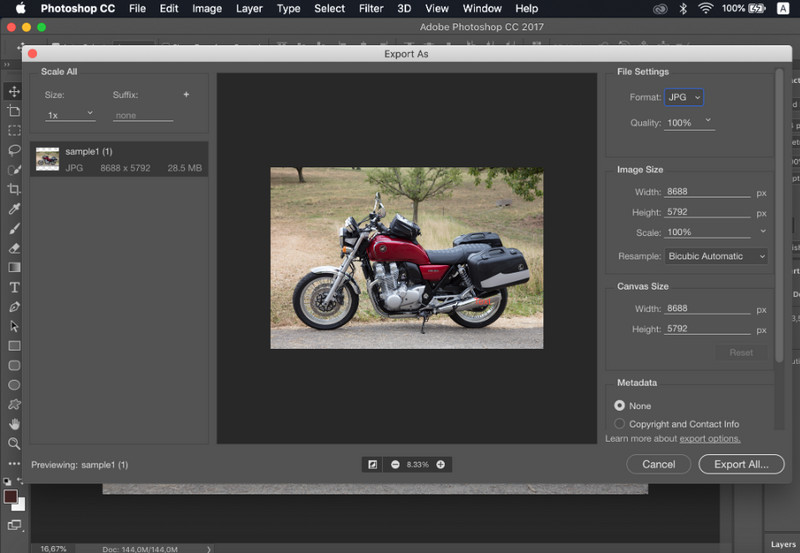
3. lépésMenj Fájl, válassza ki Mentés másként, választ JPG formátumot, állítsa be a minőséget, és mentse el a képet.
- Profik
- Kiváló képvezérlés és pontosság
- Iparági szabványnak megfelelő szoftver
- Hátrányok
- Előfizetés szükséges
- Meredek tanulási görbe
3. Lightroom
Lightroom ideális nagy képgyűjteményeket kezelő fotósok számára, sőt, még akkor is, ha szeretné Háttér eltávolítása LightroombanLeegyszerűsíti a kötegelt szerkesztést és exportálást, így könnyedén használhat CR2-JPG konverter munkafolyamatot több kép egyidejű szerkesztéséhez.
Főbb jellemzők:
- Kötegelt szerkesztés és exportálás
- Roncsolásmentes szerkesztőrendszer
- Rendezett fotókezelés
Platformok:
- Windows, Mac és mobil
1. lépésNyisd meg a Lightroomot, és add hozzá a CR2 fájljaidat a könyvtárhoz.
2. lépésVálaszd ki a képeket, és szükség esetén szerkeszd őket.
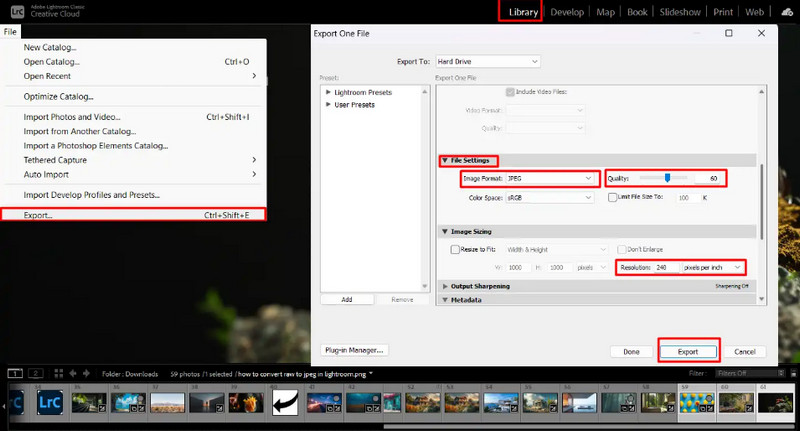
3. lépésKattintson Export, válassza ki JPG formázás, beállítások megadása és a mentési hely kiválasztása.
- Profik
- Hatékony tömeges képfeldolgozáshoz
- Egyenletes kimeneti minőség
- Hátrányok
- Előfizetés szükséges
- Kezdőknek tanulást igényel
4. GIMP
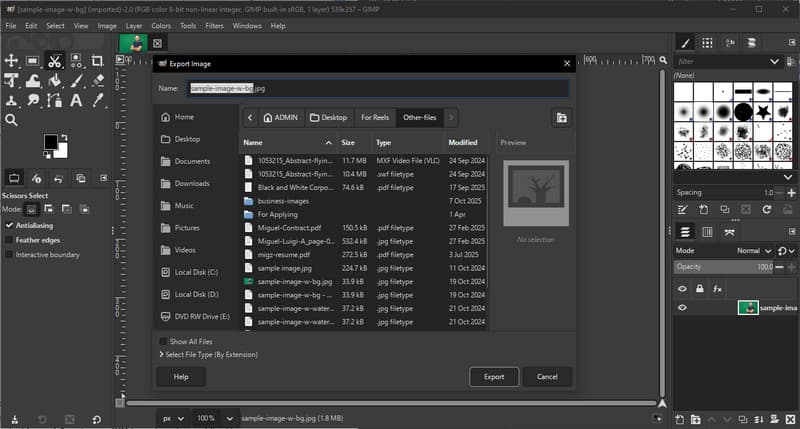
GIMP fotószerkesztő egy ingyenes, nyílt forráskódú szerkesztő, amely bővítmények segítségével képes nyers képeket kezelni. Hatékony választás, ha azt tanulod, hogyan konvertálhatsz CR2-t JPG-vé anélkül, hogy fizetős szoftverekre költenéd a pénzed.
Főbb jellemzők:
- Ingyenes és nyílt forráskódú szoftverek
- Több képformátumot támogat
- Alapvető szerkesztési és konvertálási funkciók
Platformok:
- A Windows Mac Linux
1. lépésNyisd meg a GIMP-et, és töltsd be a CR2 fájlodat egy RAW bővítmény segítségével.
2. lépésMódosítsa a képbeállításokat az importálási ablakban, és erősítse meg.
3. lépésMenj Fájl, válassza ki Exportálás másként, választ JPG formátumba, és exportálja a fájlt.
- Profik
- Teljesen ingyenesen használható
- Rugalmas bővítményekkel és bővítményekkel
- Hátrányok
- A beállítás lehet technikai jellegű
- Kevésbé kidolgozott felület
5. Convertio
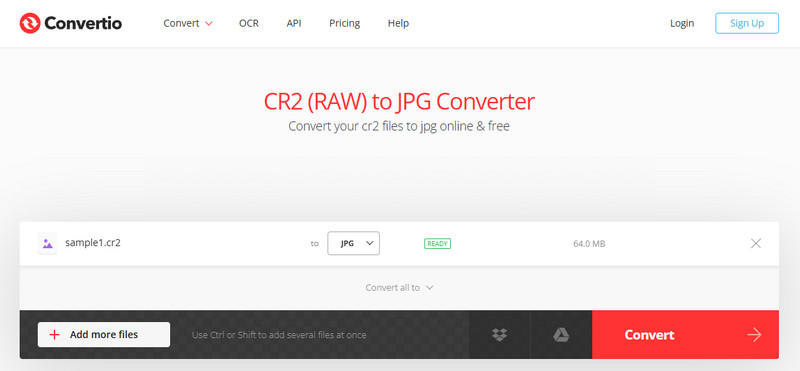
Convertio egy jól ismert webalapú eszköz, amely lehetővé teszi a felhasználók számára a fájlok gyors konvertálását telepítés nélkül. Praktikus választás, amikor a felhasználók azt kérdezik, hogyan lehet CR2-t JPG-vé konvertálni egy egyszerű online platform segítségével.
Főbb jellemzők:
- Több fájlformátumot támogat, beleértve a CR2-t és a JPG-t is
- Közvetlenül a böngészőben működik
- Lehetővé teszi a fájlok feltöltését eszközről, felhőből vagy URL-címről
- Egyszerű és gyors konverziós folyamat
Platformok:
- Web alapú
1. lépésNyisd meg a Convertio-t a böngésződben, és töltsd fel a CR2 fájlodat.
2. lépésVálassza ki JPG mint a kimeneti formátum.
3. lépésIndítsa el a konvertálást, és töltse le a fájlt, ha kész
- Profik
- Könnyen hozzáférhető és használható
- Nincs szükség telepítésre
- Különböző fájlforrásokat támogat
- Hátrányok
- Fájlméret-korlátozások az ingyenes verzióban
- Internetkapcsolat szükséges
3. rész. Az 5 CR2-JPG konverter összehasonlítása
| Jellemzők | AVAide Image Converter | Adobe Photoshop | Lightroom | ZSINÓR | Convertio |
| Könnyen kezelhető | Nagyon könnyű | Mérsékelt | Mérsékelt | Mérsékelt | Könnyen |
| Kötegelt átalakítás | Igen | Korlátozott | Korlátozott | Korlátozott | 5-re korlátozva |
| Képminőség | Legmagasabb | Magas | Magas | Magas | Magas |
| Sebesség | Gyors | Mérsékelt | Gyors | Mérsékelt | Gyors |
| Fájlméret-korlátozás | Nem | Nem | Nem | Nem | Igen |
4. rész. Gyakran ismételt kérdések a CR2 JPG-vé konvertálásával kapcsolatban
Mit tegyek a CR2 fájlokkal?
A CR2 fájlok nyers képek, amelyek feldolgozatlan adatokat tartalmaznak egy Canon fényképezőgépből. Hasznosak, ha teljes mértékben kézben szeretnéd tartani a szerkesztést, például a fényerő, a szín és az élesség beállítását. Azonban nem könnyű őket használni a mindennapi feladatokhoz, például a megosztáshoz vagy a feltöltéshez.
Milyen alkalmazások nyitják meg a CR2 fájlokat?
A CR2 fájlok számos képszerkesztő alkalmazással megnyithatók. Az Adobe Photoshop és a Lightroom a leggyakoribb választások, mivel teljes mértékben támogatják a nyers formátumokat és fejlett szerkesztőeszközöket biztosítanak. A GIMP egy bővítménnyel is képes megnyitni a CR2 fájlokat.
Hogyan lehet egyszerre RAW-ból JPG-vé konvertálni?
Több nyers fájl egyidejű konvertálásához olyan eszközre van szüksége, amely támogatja a kötegelt konverziót. Az olyan programok, mint a Lightroom, vagy az online eszközök, mint az AVAide Image Converter, lehetővé teszik több CR2 fájl egyidejű importálását vagy feltöltését. Egyszerűen válassza ki a JPG-t kimeneti formátumként, és máris elkezdheti a folyamatot.
A CR2 fájlok JPG formátumba konvertálása megkönnyíti a képek megosztását, megtekintését és tárolását. Míg a CR2 nagyszerű szerkesztésre, a JPG praktikusabb a mindennapi használatra. Ha azon tűnődsz, Hogyan lehet a fájltípust CR2-ről JPG-re váltani?, használhatsz olyan eszközöket, mint a Photoshop, a Lightroom, vagy online konvertereket, mint például AVAide Image ConverterA cél egyszerű: nagy nyers fájlokat kisebb, használható JPG képekké alakítani a minőség fontos romlása nélkül.
A SZERZŐRŐL


Könnyedén konvertálhatja fényképét bármilyen képformátumból népszerű JPG, PNG vagy GIF formátumba, minőségromlás nélkül.
FELDOLGOZÁS MOST