¿Necesitas mostrar y grabar pasos, reportar un error o hacer un tutorial rápido en tu PC? He creado cientos, si no miles, de grabaciones de Windows para usuarios cotidianos y me centro en herramientas sencillas integradas en su sistema operativo. Esta guía te muestra exactamente Cómo grabar la pantalla en Windows Utilizando las herramientas predeterminadas disponibles y herramientas de terceros que ofrecen funciones avanzadas para tus necesidades de grabación, podrás crear vídeos nítidos y fáciles de compartir.
- Los mejores métodos para grabar la pantalla: un vistazo rápido
- Método 1: Barra de juegos de Xbox (La opción rápida y sencilla)
- Método 2: Herramienta Recortes (Windows 11)
- Método 3: Grabador de pantalla AVAide
- Método 4: Bandicam
- Método 5: OBS Studio
- Método 6: ScreenRec
- Método 7: Telar
- Método 8: ShareX
- Método 9: Captura de pantalla impresionante
- Hoja de atajos de teclado
- Solución de problemas: Problemas comunes al grabar la pantalla
Los mejores métodos para grabar la pantalla: un vistazo rápido
La mejor opción para principiantes: Barra de juegos de Xbox (integrada en Windows, captura rápida con grabación con un solo clic) y Herramientas de recorte (graba el área seleccionada con sencillos controles de audio).
Las mejores herramientas gratuitas para profesionales: OBS Studio (grabación ilimitada, escenas de múltiples fuentes, transmisión en vivo, código abierto) y ShareX (gratuito, captura de región, flujo de trabajo personalizable).
La mejor grabadora gratuita con marca de agua: Bandicam (ligero, grabación de alta calidad, audio y región)
Mejor sistema todo en uno de pago para grabación general: Grabador de pantalla AVAide (interfaz de pantalla sencilla, programación de grabaciones, superposición de la cámara web, función de bloqueo, editor integrado y anotaciones durante la grabación).
Lo mejor para grabar vídeos en línea: Loom (grabación en la nube, intercambio de enlaces, comentarios y reacciones, compatible con Windows, web) y Awesome Screenshot (aplicación basada en navegador, captura con marcado y edición rápida).
Método 1: Barra de juegos de Xbox (La opción rápida y sencilla)
¿Buscas una aplicación o solución para capturar la pantalla de tus juegos sin necesidad de instalación y compatible con Windows? La Barra de juegos de Xbox viene integrada en Windows 10 y 11, y permite capturar el audio y el micrófono de la Xbox, además de guardar un archivo MP4 con un solo clic. Aprende a grabar tu pantalla: abre la aplicación, pulsa Win + G y selecciona grabar. A continuación, te mostramos cómo configurarla, activar o desactivar el audio y elegir la ubicación de grabación.
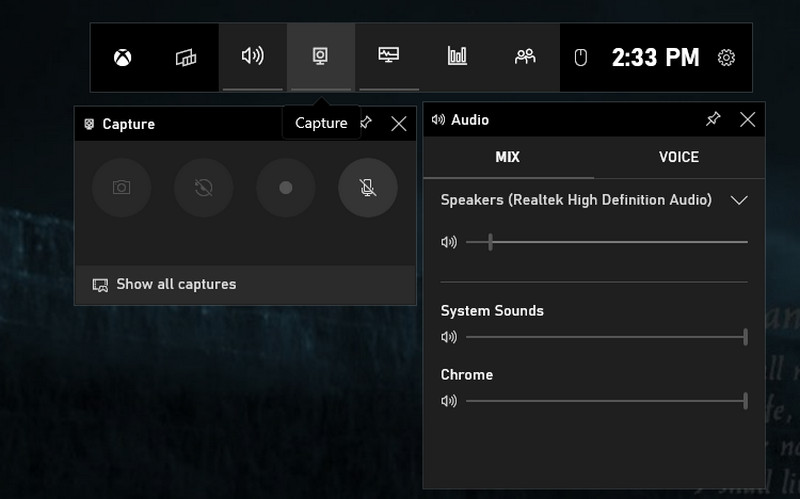
Paso 1Golpea el Ventanas el botón y el GRAMO Tecla para abrir la barra de juegos de Xbox.
Paso 2A continuación, marque la casilla para confirmar y continuar. Ajuste la grabación según sus necesidades con las opciones disponibles aquí. Ahora que está listo para comenzar a grabar, haga clic en el botón del punto rojo para comenzar, o puede presionar Windows + Alt + R.
Paso 3Aparecerá un estado de captura de grabación en su pantalla. Cuando haya terminado, haga clic en el botón. cuadrado botón.
Método 2: Herramienta Recortes (Windows 11)
En Windows 11, el Herramienta de recorte Es una forma sencilla e integrada de capturar cualquier área de tu pantalla. Graba el audio del sistema y del micrófono, te permite seleccionar una región o la pantalla completa y guarda directamente como MP4. Si te preguntas cómo grabar la pantalla sin instalar software nuevo, esta herramienta es la opción nativa más rápida. Los pasos a continuación muestran cómo abrirla, comenzar a grabar y guardar el clip.
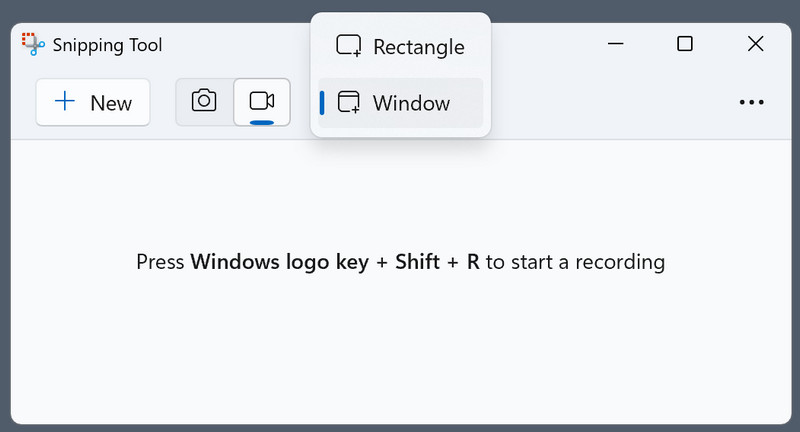
Paso 1Para abrirla, haga clic en el botón de Windows de su teclado y escriba "Herramienta Recortes" disponible en Windows.
Paso 2En su interfaz flotante, haga clic en el cámara Botón, ya que deseas usar su función de grabación de pantalla. A continuación, ajusta el área que deseas capturar dibujando un rectángulo.
Paso 3Luego, haga clic Comienzo. Después de grabar, haga clic en el Detener botón para guardarlo.
Método 3: Grabador de pantalla AVAide
Grabador de pantalla AVAide Es una aplicación de pago para Windows diseñada para quienes buscan una aplicación intuitiva con grabación programada, superposición de la cámara web, anotaciones y un editor integrado. Graba el audio y el micrófono del sistema, en una región específica o en pantalla completa, y exporta en formatos comunes sin marca de agua. Si buscas cómo grabar la pantalla con funciones profesionales y un flujo de trabajo sencillo, esta aplicación ofrece una calidad constante para tutoriales y contenido de capacitación. Los siguientes pasos ilustran la instalación, la configuración de audio, los ajustes de grabación y las opciones de exportación.
Paso 1En primer lugar, debes descargar e instalar la grabadora de pantalla en tu Windows 10/11 haciendo clic en el botón correspondiente aquí. A continuación, sigue los siguientes pasos.

DESCARGA GRATUITA Para Windows 7 o posterior
 Descarga segura
DESCARGA GRATUITA Para Mac OS X 10.13 o posterior
Descarga seguraPaso 2En la interfaz principal, seleccione Grabador de pantallaAquí, debes configurar correctamente el área de grabación, agregar tu rostro a través de la cámara web, el audio de tu micrófono externo y el sonido del sistema generado en tu PC. Después de eso, haz clic en el botón. REC botón para iniciar la grabación.
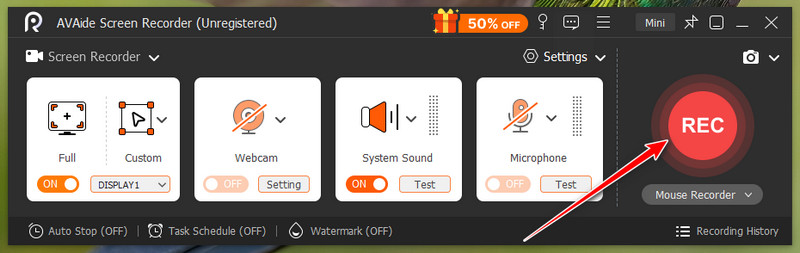
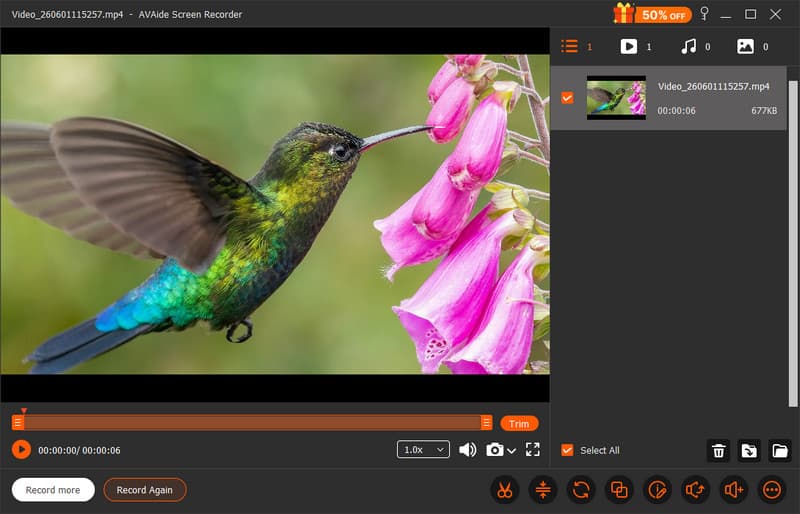
Paso 3Una vez que esté satisfecho y la aplicación haya realizado su trabajo de grabación, haga clic en el botón deténgase Botón. Ahora, puedes compartir el vídeo grabado con todos con la misma facilidad que ofrece AVAide.
Método 4: Bandicam
Bandicam Bandicam es una grabadora de captura de pantalla ligera pero eficiente para Windows, capaz de crear grabaciones de alta calidad durante periodos prolongados. Ofrece captura de regiones, grabación de pantalla completa y de ventanas específicas, y permite grabar el audio del micrófono y del sistema, configurar las grabaciones y dibujar durante la grabación. Bandicam es una grabadora de captura de pantalla para Windows estable que produce archivos de menor tamaño para tutoriales, demostraciones e incluso juegos. Los siguientes pasos muestran cómo instalarla, seleccionar el modo de captura, configurar la entrada de audio y las opciones de exportación.
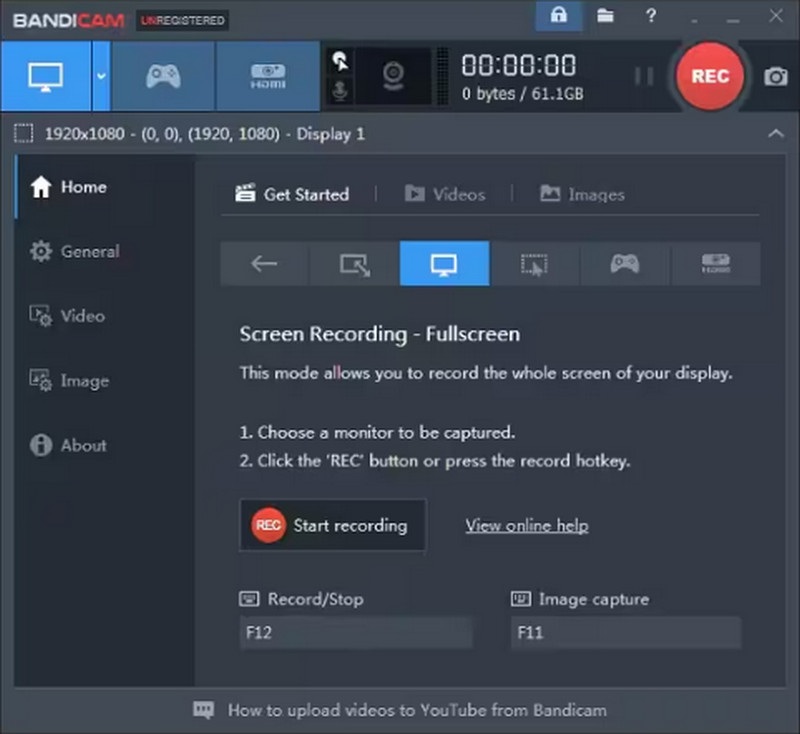
Paso 1Abre Bandicam en tu ordenador, elige el modo de grabación que quieras usar de entre los disponibles aquí y ajusta sus preajustes.
Paso 2A continuación, haga clic en el REC Pulsa el botón para iniciar la grabación y espera unos segundos hasta que termine la cuenta atrás.
Paso 3Una vez finalizada la grabación, haga clic en el botón deténgase pulsa el botón y podrás reproducir el vídeo grabado.
Método 5: OBS Studio
Estudio OBS Es un grabador y transmisor de código abierto y gratuito para Windows, con grabación ilimitada, sin marcas de agua y la capacidad de tener un alto nivel de control sobre sus escenas, fuentes, mezcladores de audio y codificadores. Ideal para configuraciones de múltiples fuentes, transiciones personalizadas y producción de salida de alta calidad, es la opción preferida para profesionales que valoran la flexibilidad. Para Windows, si buscas grabar desde la pantalla con pistas de audio, opciones de resolución y tasa de bits, puedes obtener calidad de transmisión con OBS Studio.
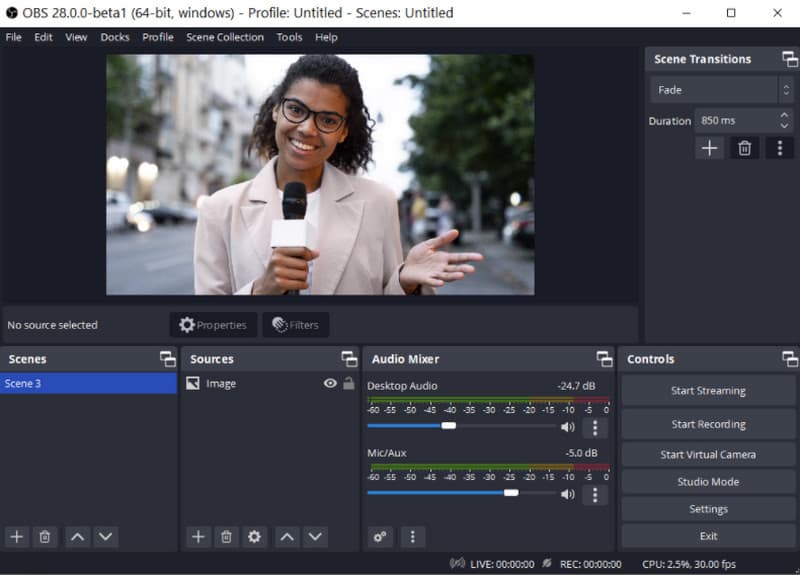
Paso 1Descarga y abre la última versión de OBS Studio. Renombra o crea un Escena desde el cuadro inferior izquierdo del mismo.
Paso 2Agregue la fuente de lo que se va a grabar, haga clic en el botón + para agregar las escenas correctas y seleccione Captura de pantalla. Marque la Ajustes > Producción > Ruta de grabación > Navegar Para seleccionar dónde desea guardar el video grabado.
Paso 3Ahora que estás listo, haz clic en el Empezar a grabar botón, y cuando quieras detenerlo, haz clic en el Para de grabar botón.
Método 6: ScreenRec
PantallaRec ScreenRec es un grabador de pantalla confiable, utilizado por más de 14 millones de personas en todo el mundo. Ofrece grabación gratuita de pantalla, micrófono, sistema y cámara web, con la posibilidad de compartir instantáneamente en la nube y sin marcas de agua para evitar capturas de pantalla. Proporciona una configuración rápida, controles fáciles de usar y 2 GB de almacenamiento gratuito en la nube para compartir rápidamente después de cada grabación. ScreenRec es un grabador de pantalla simple y rápido para usuarios, técnicos de soporte y capacitadores que no necesitan descargar software pesado. Los siguientes pasos muestran cómo grabar una pantalla en Windows con esta herramienta, así como cómo compartir el clip mediante un enlace.
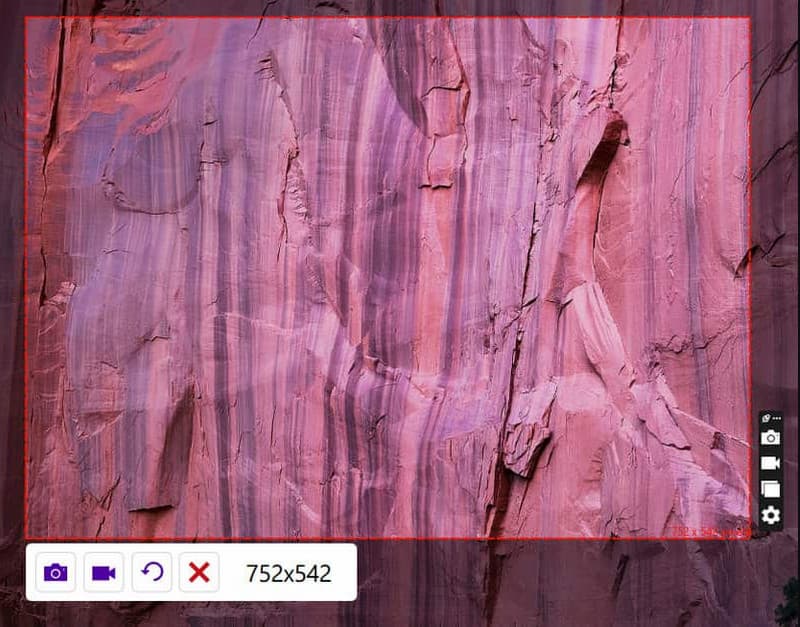
Paso 1Obtén la aplicación oficial en el sitio web de ScreenRec y sigue el proceso de instalación. Luego, presiona Alt. + S para seleccionar el área que desea capturar.
Paso 2Para grabar su pantalla, haga clic en el Cámara de video Pulsa el botón y activa el audio y el micrófono del ordenador si quieres grabar audio.
Paso 3Marque la cuadrado Pulsa el botón para detener la grabación y se te proporcionará una URL única con la que podrás compartir el vídeo grabado con cualquier persona a la que le hayas enviado el enlace.
Método 7: Telar
Telar Loom es una grabadora de pantalla en la nube que facilita la captura de tu pantalla, cámara web y micrófono, para luego compartirlos inmediatamente mediante un enlace con comentarios y reacciones. Funciona en Windows y ofrece una interfaz limpia, edición rápida y funciones integradas para la colaboración en equipo. Si te preguntas cómo grabar la pantalla en tu PC para una comunicación asíncrona rápida, Loom es ideal para profesores, personal de soporte y equipos que necesitan compartir contenido al instante sin tener que gestionar archivos. Los pasos que se muestran a continuación explican la instalación, la selección del modo de grabación y cómo compartir el enlace del vídeo.
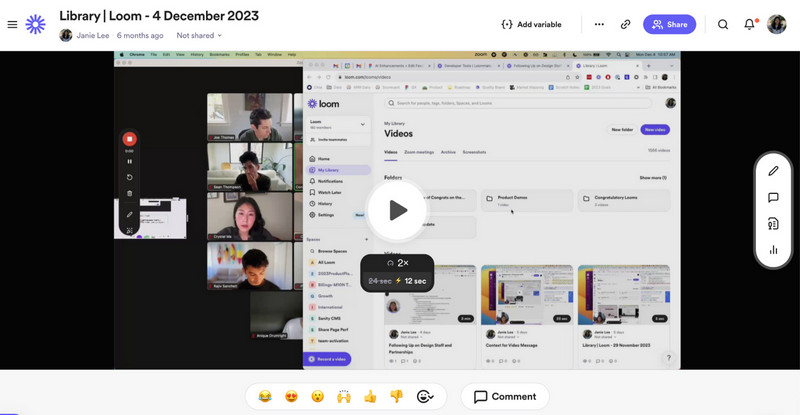
Paso 1Descarga Loom en tu ordenador y sigue las instrucciones de instalación; a continuación, ábrelo.
Paso 2Elegir el Modo de grabación Seleccione la opción que desee utilizar de las disponibles en su menú. Active el micrófono y la cámara si los necesita para su grabación. A continuación, haga clic en Empezar a grabar.
Paso 3Cuando hayas terminado, haz clic en el Detener botón, y se abrirá automáticamente en un nuevo navegador. Haga clic en el Copiar link Si quieres compartirlo con otros en línea.
Método 8: ShareX
CompartirX Es una aplicación gratuita de código abierto para Windows que graba regiones y la pantalla completa, automatiza flujos de trabajo y sube los archivos al instante sin marcas de agua. Ofrece compatibilidad con audio de micrófono y del sistema, teclas de acceso rápido personalizadas y acciones posteriores a la captura, como anotaciones y la opción de compartir. ShareX es la mejor grabadora de pantalla. Para usuarios avanzados de Windows 11 que desean grabar la pantalla con opciones gratuitas de alta calidad y flujos de trabajo automatizados.
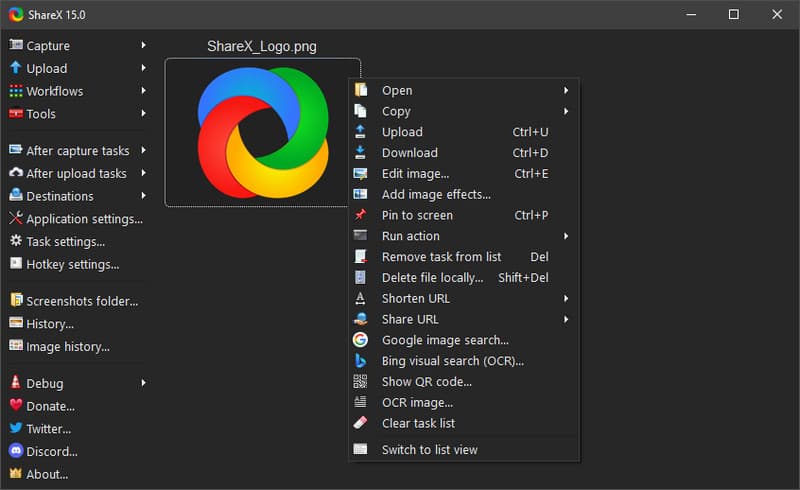
Paso 1Abra ShareX y pulse el botón Mayús + Imprimir pantalla ya que estas son sus teclas de acceso rápido para grabar.
Paso 2Aparecerá un cursor; haga clic y arrastre hasta el área que desea grabar, o simplemente active la grabación de ventana o de pantalla completa. A continuación, comenzará la grabación durante el tiempo límite establecido.
Paso 3Para finalizar la grabación, haga clic en las mismas teclas de acceso rápido que mencionamos o en la Detener botón aquí.
Método 9: Captura de pantalla impresionante
Captura de pantalla impresionante es una aplicación basada en navegador que puede tomar y anotar capturas de pantalla y también te permite grabar ciertas regiones y pestañas web. Funciona en Windows usando Chrome o Edge, admite audio de micrófono, edición rápida y compartir. Para capturas de pantalla basadas en la web, Awesome Screenshot es una extensión práctica si buscas capturar rápidamente tus pantallas para editarlas y anotarlas rápidamente. Así que, si quieres probar esto extensión de grabadora de pantalla o su aplicación descargable, siga los pasos a continuación.
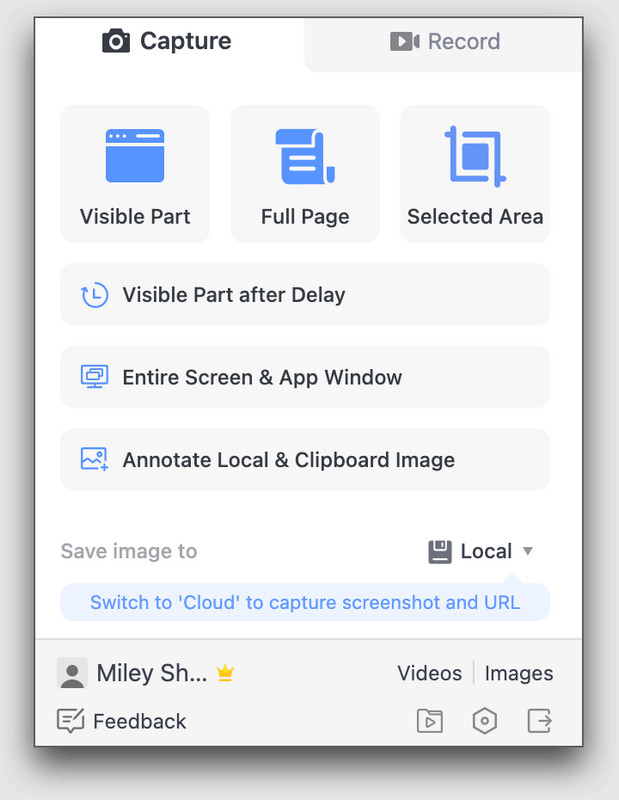
Paso 1Descarga la aplicación en tu ordenador o usa su extensión para navegador. Elige el modo de grabación que prefieras: pantalla completa, pestaña, área específica o solo cámara.
Paso 2Si es necesario, active el micrófono, el audio del sistema y la cámara antes de hacer clic en el botón. Empezar a grabar.
Paso 3Una vez que haya terminado, haga clic en Deja de compartir para finalizar la grabación.
Hoja de atajos de teclado
A veces, grabar la pantalla de Windows con un atajo de teclado es más rápido y sencillo. Descubre qué teclas de acceso rápido están disponibles en la grabadora de pantalla que quieras usar.
| Nombre de la herramienta | Empezar a grabar | Pausar/Reanudar la grabación | Captura de pantalla con desplazamiento | Captura de menú emergente | Cambiar el estilo del panel de grabación | Abrir/cerrar la cámara web | La captura de pantalla |
| Barra de juegos de Xbox | Ganar + Alt + R | No disponible | No disponible | No disponible | Ganar + G | Win + Alt + W | Win + Alt + Imprimir pantalla |
| Herramienta Recortes (Windows 11) | Ganar + Mayús + R | No disponible | No disponible | No disponible | No disponible | No disponible | Ganar + Mayús + S |
| Grabador de pantalla AVAide | Alt + S | Alt + R | Alt + L | Alt + M | Alt + I | Alt + W | Alt + C |
| Bandicam | Ctrl + F12 | No disponible | No disponible | F11 | No disponible | Tecla Tab | F11 |
| Estudio OBS | Configurar teclas de acceso rápido personalizadas | Configurar teclas de acceso rápido personalizadas | No disponible | No disponible | No disponible | No disponible | F7 |
| PantallaRec | Alt + S | No disponible | No disponible | No disponible | No disponible | No disponible | Alt + S |
| Telar | Ctrl + Shift + L | Alt + Mayús + L | No disponible | No disponible | No disponible | No disponible | Ctrl + Shift + 1/2 |
| CompartirX | Mayús + Imprimir pantalla | No disponible | No disponible | No disponible | No disponible | No disponible | Captura de pantalla |
| Captura de pantalla impresionante | Alt + Mayús + R | No disponible | Alt + Mayús + F para página completa | No disponible | No disponible | No disponible | Alt + Mayús + V/S/F |
Solución de problemas: Problemas comunes al grabar la pantalla
| Problema | ¿Qué hacer? |
| La grabación no se inicia. | Ve a Configuración y luego a Privacidad para comprobar si la grabación de pantalla y el acceso al micrófono están activados. |
| Pantalla negra en la grabación | Prueba con un modo de captura diferente o cierra las aplicaciones de vídeo protegidas. |
| No hay sonido en la grabación | Active el micrófono y el audio del sistema en la configuración o haciendo clic en las teclas de acceso rápido disponibles, según la herramienta. |
| La grabación se detuvo antes | Libera espacio en el disco y reinicia el ordenador. |
| La cámara web no se muestra | Activa la cámara web antes de grabar o revisa su configuración. Comprueba también los permisos de la cámara. |
Ahora ya lo sabes Cómo grabar la pantalla en una PC utilizando herramientas integradas como Xbox Game Bar y Snipping Tool, así como potentes aplicaciones de terceros como Grabador de pantalla AVAideOBS Studio, Bandicam y Loom. Encuentra a alguien que necesite clips de juego rápidos, videos de capacitación o informes de errores con rapidez; hay opciones para todos. Usa las funciones básicas integradas para mayor simplicidad, u opta por las más avanzadas cuando necesites un mayor control. Para un flujo de trabajo más rápido, consulta la hoja de atajos de teclado y, si encuentras algún problema, busca en la sección de solución de problemas. Estos consejos y herramientas te ayudarán a lograr grabaciones de pantalla de excelente calidad con Windows, siempre.
SOBRE EL AUTOR

Capture actividades de pantalla con audio, reuniones en línea, videos de juegos, música, cámara web, etc.
Grabación de pantalla
- Registro de pantalla en Windows
- Grabar Instagram Live
- Copiar vídeos de Tubi
- Convertir vídeos de YouTube a MP3
- Descargar vídeos de Fansly
- Descargar vídeos de JW Player
- Descargar vídeos de Bilibili
- Descargar vídeos de Patreon
- Descargar vídeos de SpankBang
- Descargar vídeos de Discord
- Descargar el vídeo de DoodSream