Discord es bien conocido como una plataforma de comunicación para comunidades de nicho. Una de sus ventajas es que te permite transmitir videos o películas para ver con amigos. Sin embargo, en muchos casos, los usuarios se encuentran con una pantalla negra sin una razón clara, lo que arruina el ambiente para ver series o películas con tus amigos. Entonces, ¿cómo...? Solucionar el problema de la pantalla negra en la transmisión de DiscordAquí encontrarás información sobre otras posibles causas y las soluciones adecuadas para las pantallas negras.
Parte 1. Posibles causas de la pantalla negra en la transmisión de Discord
«Cómo solucionar el problema de la pantalla negra al transmitir en Discord» no se trata solo de soluciones directas, sino también de comprender las posibles razones por las que se presenta este problema, lo cual puede marcar la diferencia. Con esta información, puedes consultar la siguiente lista de posibles causas y, si ves el problema en Discord, podrás solucionarlo rápidamente:
Discord y la aceleración de hardware del navegador
Si activas la aceleración de hardware de Discord, esta función podría entrar en conflicto con los controladores de la GPU de tu dispositivo. Por otro lado, la reproducción de vídeos en streaming desde un navegador como Chrome o Edge puede impedir que Discord reproduzca o grabe el vídeo.
Problemas con la GPU y los controladores gráficos
Los controladores obsoletos o dañados pueden causar incompatibilidad con Discord. Lo mismo ocurre con varias GPU: Discord puede confundirse sobre qué salida de GPU capturar.
Contenido protegido
Sabrás cómo solucionar los problemas de pantalla negra en las transmisiones de Discord si la plataforma de transmisión no está protegida. La mayoría de las plataformas populares servicios de transmisión de video Al igual que Disney+, Netflix y Hulu, no admiten la transmisión en Discord.
Parte 2. Cómo solucionar el problema de la pantalla negra en las transmisiones de Discord.
Hay varias maneras de solucionar el problema de la pantalla negra en Discord, y la mayoría de las soluciones se encuentran en la configuración nativa. Sin más preámbulos, ¡vamos a ello!
1. Finaliza las tareas en ejecución de Discord.
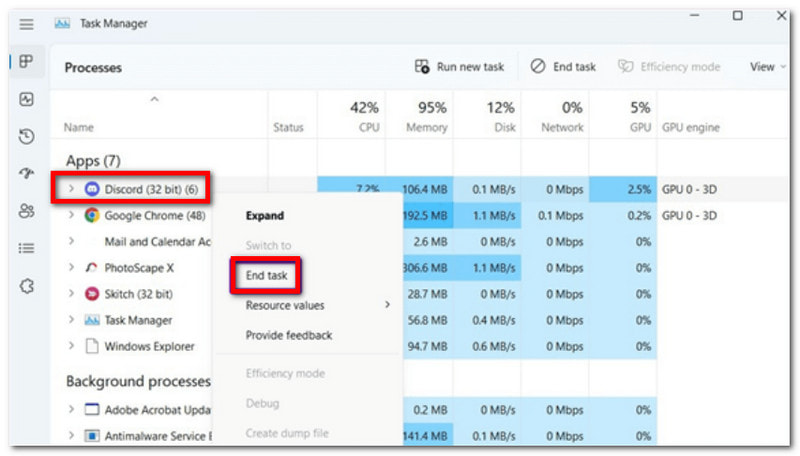
¿Cómo solucionar rápidamente el problema de la pantalla negra al transmitir en Discord? La mejor manera de resolverlo es finalizar varias tareas de Discord en ejecución y reiniciar la aplicación, ya que podrían ser la causa del problema. Estos son los pasos a seguir:
Paso 1En la barra de tareas, haga clic con el botón derecho y elija la Administrador de tareas.
Paso 2Una vez que aparezca una ventana, haga clic en la flecha junto a Discord y haga clic con el botón derecho en cada tarea y elija Tarea finalDespués de eso, reinicia la aplicación.
2. Modo administrador
La aplicación Discord requiere ciertos permisos y funciones para funcionar correctamente. Esto significa que si no se ejecuta como administrador en tu dispositivo, puede causar fallos, como una pantalla en negro. Consulta los pasos para solucionar el problema de la pantalla en negro al reproducir Netflix en Discord en modo administrador:
Paso 1Primero, cierra la aplicación Discord en tu dispositivo. Es posible que también tengas que cerrar las aplicaciones de streaming como Netflix o Hulu.
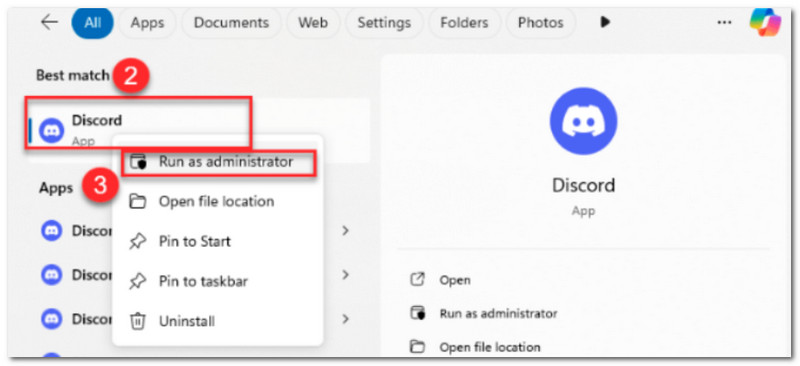
Paso 2Busca la aplicación Discord en el menú Inicio y haz clic derecho sobre ella. Elige y haz clic. Ejecutar como administradorLuego, confirma los cambios. Haz lo mismo con la plataforma de streaming, abre las aplicaciones e intenta reproducir el contenido.
3. Desactivar la aceleración de hardware
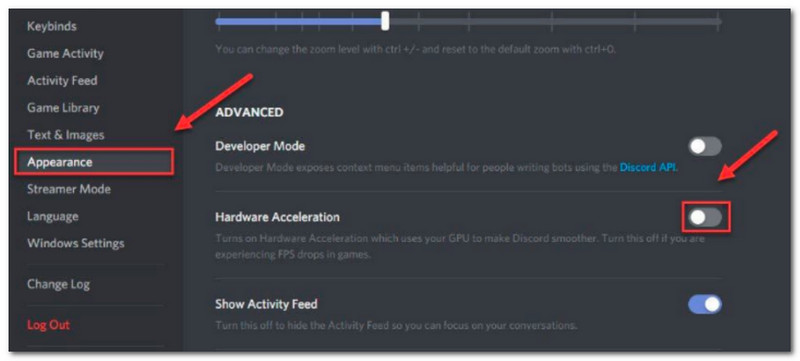
Quizás no te hayas dado cuenta, pero la aceleración de hardware de tu ordenador está activada, lo que permite que aplicaciones como Discord funcionen sin problemas. Sin embargo, esta aceleración hace que Discord utilice la GPU del ordenador, lo que puede provocar fallos al transmitir contenido en la plataforma. Para desactivar esta función, consulta a continuación cómo solucionar el problema de la pantalla negra en Discord para ver Netflix:
Paso 1Abre Discord en tu dispositivo y haz clic en el Ajustes en la esquina inferior izquierda.
Paso 2Ve a la Apariencia menú, y allí encontrarás Aceleracion de hardware bajo AvanzadoApágalo y confirma haciendo clic. Okey.
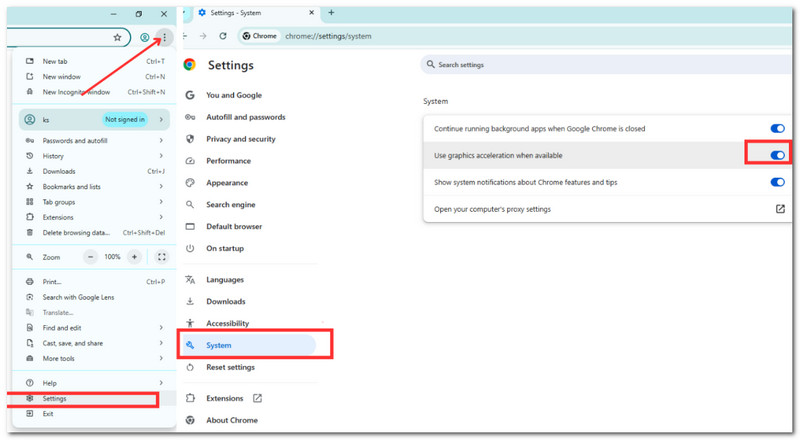
Paso 3Si estás usando Discord en un navegador, puedes desactivarlo en AjustesLuego, ve a Sistema menú y encender el Utilice la aceleración gráfica cuando esté disponible. opción.
4. Actualizar los controladores gráficos
Los controladores de gráficos obsoletos pueden causar fallos al transmitir en Discord. Para evitar o solucionar este problema, aquí te explicamos cómo arreglar la pantalla negra al transmitir Netflix en Discord actualizando los controladores de gráficos del sistema:
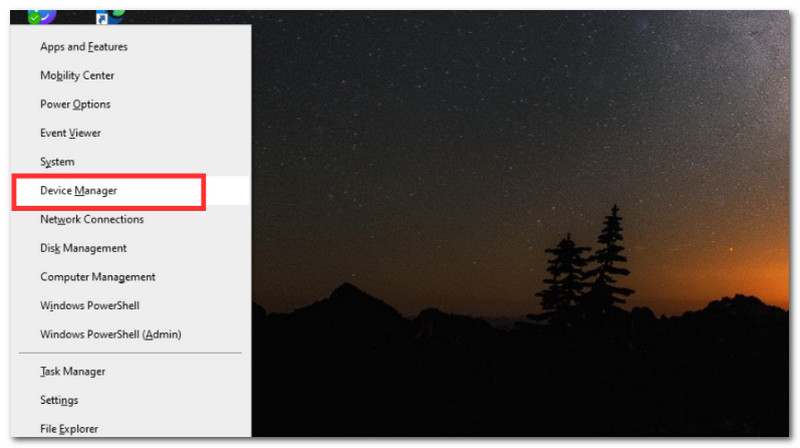
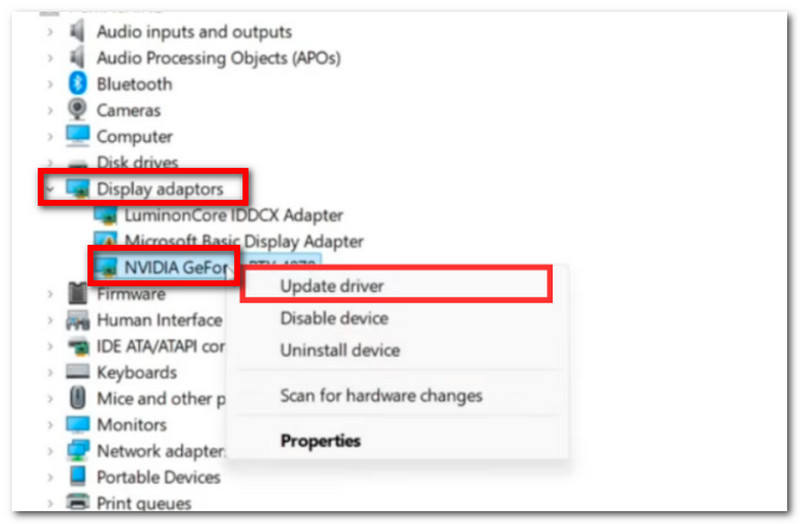
Paso 1Asegúrese de estar conectado a una conexión a Internet estable y fuerte. Luego, presione simultáneamente Ventanas y X en su teclado para abrir un conjunto de opciones del sistema. Elija Administrador de dispositivos.
Paso 2Cuando aparezca una ventana emergente, encuentre Adaptadores de pantalla y expanda su menú haciendo clic en la flecha que está al lado. Seleccione el controlador gráfico haciendo clic con el botón derecho sobre él y luego haga clic en el Actualizar controlador botón.
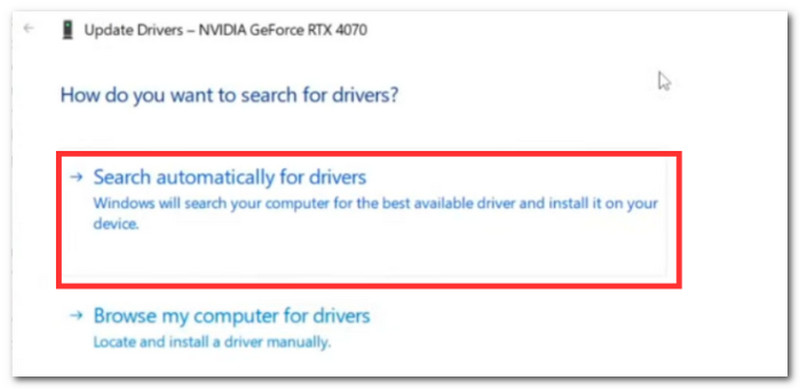
Paso 3Cuando aparezca una solicitud, elija la Buscar automáticamente Para la opción de controladores. Tu computadora comenzará a actualizar los controladores de gráficos, pero tendrás que reiniciar tu PC y luego volver a abrir la aplicación Discord.
5. Activación de la superposición en el juego
¿Cómo solucionar el problema de la pantalla negra en Discord para ver Disney+? Otra opción es activar la superposición de pantalla en el juego en la aplicación de Discord. Si no está activada, podría ser la causa de las pantallas negras durante la transmisión. A continuación, encontrarás los pasos a seguir:
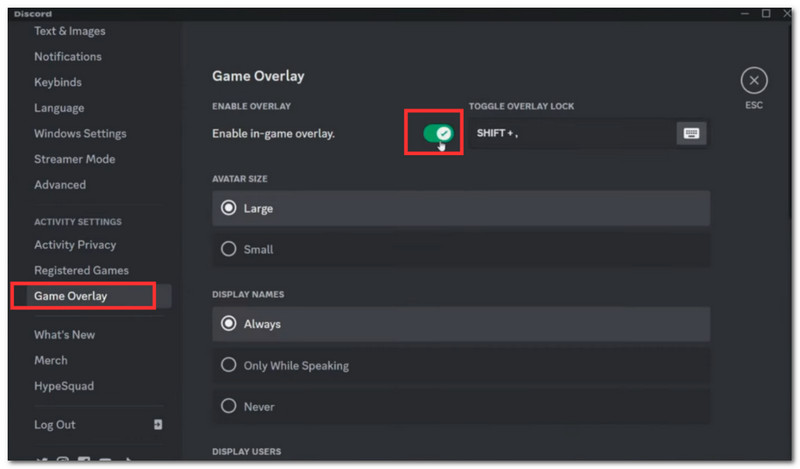
Paso 1Ejecuta la aplicación Discord en tu ordenador y ve a la configuración de usuario en la esquina inferior izquierda.
Paso 2Desplácese por las opciones en la esquina izquierda y elija Superposición del juegoActiva la opción "Habilitar la superposición en el juego" y vuelve a intentar transmitir.
Parte 3. La mejor herramienta para convertir vídeos incompatibles antes de la transmisión.
¿Cómo solucionar el problema de la pantalla negra al transmitir en Discord si el video que vas a transmitir es incompatible? Bueno, tienes Convertidor de video AVAide ¡Conversión de vídeo rápida y de alta calidad! Esta elegante herramienta está diseñada para convertir más de 300 formatos de vídeo, incluyendo formatos compatibles con Discord como MP4, MOV, WebM y muchos más. Además de convertir vídeos de alta resolución, también permite reducir la resolución de vídeos 4K y 8K para disminuir la carga de la GPU y evitar pantallas negras temporales en tu dispositivo. AVAide garantiza una conversión rápida y mantiene la calidad original del vídeo, todo ello en una interfaz sencilla e intuitiva.
Paso 1Para empezar, descarga AVAide Video Converter en tu ordenador (compatible con Windows y Mac). Sigue las instrucciones para instalar el software por completo.

DESCARGA GRATUITA Para Windows 7 o posterior
 Descarga segura
DESCARGA GRATUITA Para Mac OS X 10.13 o posterior
Descarga seguraPaso 2Haga clic en el Agregar Haz clic en el botón para abrir tu carpeta local. Sube el vídeo que deseas convertir. Opcionalmente, puedes subir varios archivos de vídeo para realizar una conversión en lote.
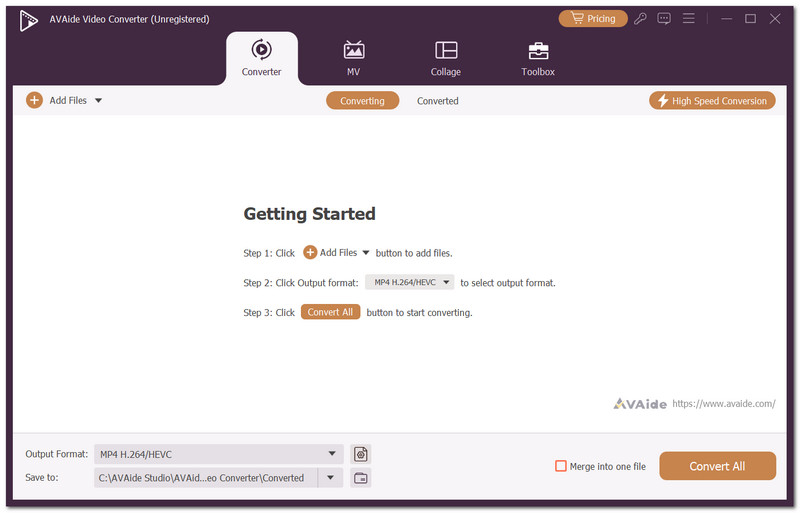
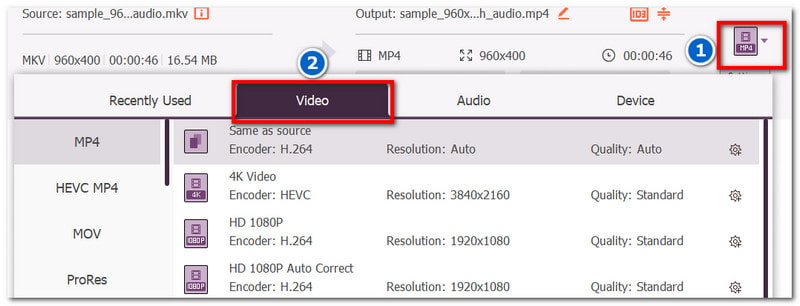
Paso 3Ve a la Formato menú junto al video subido. Desde el Video En la pestaña, elige el formato de vídeo de salida deseado, como MP4, MOV o cualquier otro formato compatible con Discord.
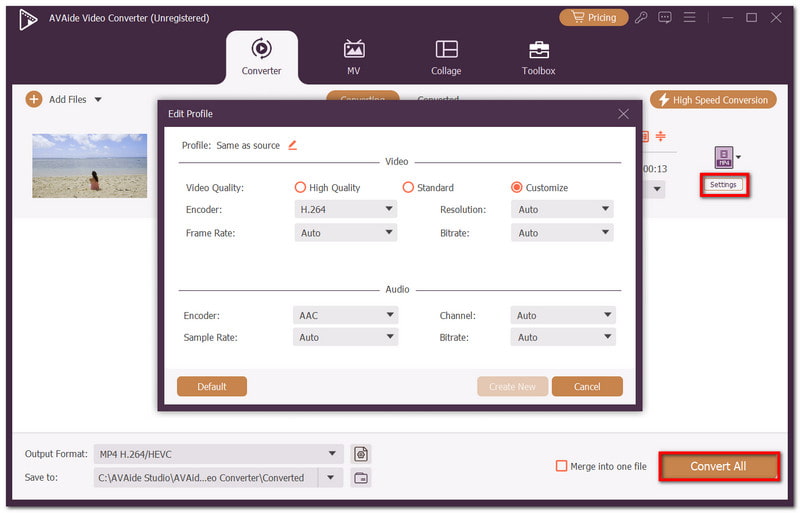
Etapa 4Opcionalmente, puedes ajustar la configuración de salida del video en el menú Configuración. Puedes modificar el codificador, la calidad del video, la resolución y otros ajustes. Una vez que hayas terminado, haz clic en el botón Convertir todo para guardar el video con un nuevo formato de salida.
Este artículo te enseñó Cómo solucionar el problema de la pantalla negra al transmitir en Discord., proporcionando formas de identificar los problemas y las posibles soluciones. Dicho esto, es posible que los vídeos subidos a Discord no sean compatibles. Por lo tanto, AVAide Video Converter es una solución recomendada para conversiones rápidas y profesionales e incluso como Compresor de vídeo de DiscordAdemás, ofrece las herramientas necesarias para reducir la resolución de archivos de alta resolución sin perder calidad de vídeo. Descárgala gratis y pruébala en Windows y Mac.
SOBRE EL AUTOR

Su caja de herramientas de video completa que admite más de 350 formatos para conversión en calidad sin pérdidas.
Editar video
- Vídeo exclusivo con IA
- Eliminar marca de agua del vídeo
- Eliminar texto de un vídeo
- Reducir 4K a 1080p/720p
- Eliminar el ruido de fondo del vídeo
- Editor de metadatos MP4
- Mejorar la calidad del video
- Vídeo inverso
- Reparar video de mala calidad
- Eliminar metadatos de vídeo/audio
- Vídeo de la cámara frontal reflejado/des reflejado